navigation LINCOLN CORSAIR 2022 User Guide
[x] Cancel search | Manufacturer: LINCOLN, Model Year: 2022, Model line: CORSAIR, Model: LINCOLN CORSAIR 2022Pages: 676, PDF Size: 7.67 MB
Page 316 of 676
SWITCHING INTELLIGENT MODE
ON AND OFF
WARNING: You are responsible for
controlling your vehicle at all times. The
system is designed to be an aid and does
not relieve you of your responsibility to
drive with due care and attention. Failure
to follow this instruction could result in the
loss of control of your vehicle, personal
injury or death.
1. Press
Settings on the touchscreen.
2. Press
Driver Assistance.
3. Press
Cruise Control.
4. Press
Intelligent.
Changing the Set Speed with
Intelligent Adaptive Cruise Control
When intelligent mode is on, the system
adjusts the set speed to the speed limit
detected by the camera and the speed limit
information provided by the navigation
system. Note:
The set speed adjusts when the
system detects a different maximum speed
limit.
Note: The speed limit information provided
by the navigation map data may be
inaccurate or out of date.
See Navigation
(page 538).
Note: The system alerts you if the set speed
increases beyond the speed limit.
See
Adaptive Cruise Control Indicators (page
310).
If the system does not detect a speed limit,
the vehicle speed remains at the current set
speed.
You can override the set speed at any time.
You may need to override or cancel the
system in certain situations such as inclement
weather or if an incorrect speed is set.
Note: The system may not detect and read
speed limit signs with conditional
information, for example, when a sign is
flashing, during specific time ranges, or when
children are present. Note:
Under certain conditions, the system
may not adjust the vehicle speed until after
your vehicle passes the speed limit sign.
ADJUSTING THE SET SPEED
TOLERANCE - VEHICLES WITH:
INTELLIGENT ADAPTIVE CRUISE
CONTROL
You can set a permanent speed tolerance
that is above or below the detected speed
limit.
1. Press
Settings on the touchscreen.
2. Press
Driver Assistance.
3. Press
Cruise Control.
4. Press
Intelligent.
5. Press
Tolerance.
6. Use
+ and - to set the tolerance.
Note: You cannot set the tolerance more
than
20 mph (30 km/h) above or below the
recognized speed.
313
2022 Corsair (CTF) Canada/United States of America, enUSA, Edition date: 202106, First-Printing Adaptive Cruise Control
(If Equipped)
Page 343 of 676
WHAT IS SPEED SIGN
RECOGNITION
Speed sign recognition detects speed limit
signs to inform you of the current speed limit.
Detected speed signs appear in the
information display.
HOW DOES SPEED SIGN
RECOGNITION WORK
Speed sign recognition uses a sensor behind
the interior mirror to detect speed signs.
If your vehicle has speed sign recognition
with navigation, stored speed sign data may
influence the indicated speed limit value.
SPEED SIGN RECOGNITION
PRECAUTIONS WARNING: You are responsible for
controlling your vehicle at all times. The
system is designed to be an aid and does
not relieve you of your responsibility to
drive with due care and attention. Failure
to follow this instruction could result in the
loss of control of your vehicle, personal
injury or death. WARNING:
In cold and severe
weather conditions the system may not
function. Rain, snow and spray can all limit
sensor performance. WARNING:
The system may not
operate properly if the sensor is blocked.
Keep the windshield free from obstruction.
Note: Do not carry out windshield repairs in
the immediate area surrounding the sensor.
Note: If your vehicle has a suspension kit
not approved by us, the system may not
correctly function. Note:
The system may not detect all speed
signs and may incorrectly read signs.
Note: Always fit our original parts when
replacing headlamp bulbs. Other bulbs may
reduce system performance.
SPEED SIGN RECOGNITION
LIMITATIONS
Speed sign recognition may not operate
correctly due to:
• Outdated map data.
• Incorrect recognition of speed limits by
the sensor of signs on parallel roads or
exit ramps.
• Missed recognition of faded, dirty, or
distorted signs.
340
2022 Corsair (CTF) Canada/United States of America, enUSA, Edition date: 202106, First-Printing Speed Sign Recognition
(If Equipped)
Page 344 of 676
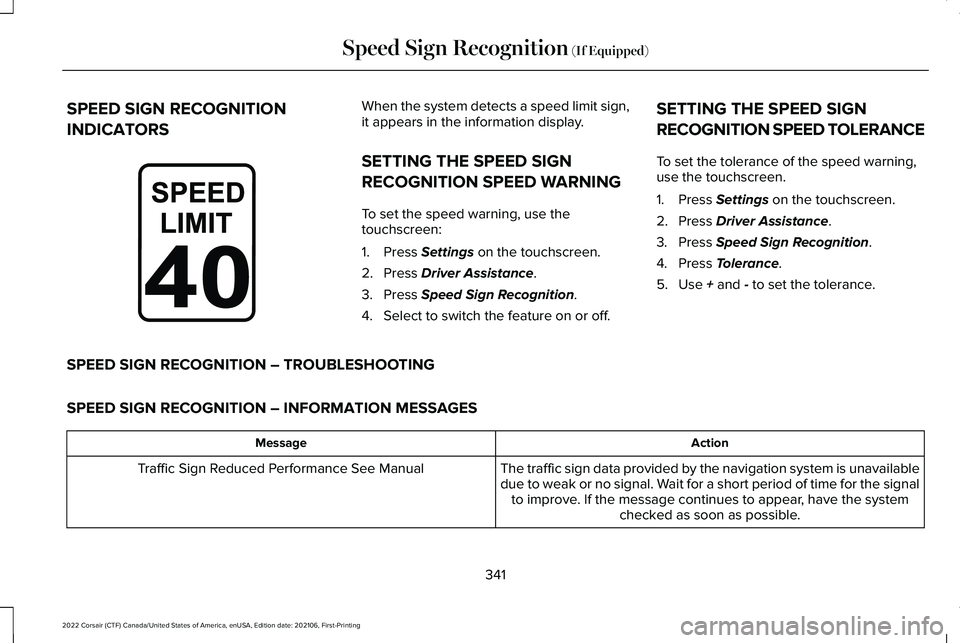
SPEED SIGN RECOGNITION
INDICATORS When the system detects a speed limit sign,
it appears in the information display.
SETTING THE SPEED SIGN
RECOGNITION SPEED WARNING
To set the speed warning, use the
touchscreen:
1. Press Settings on the touchscreen.
2. Press
Driver Assistance.
3. Press
Speed Sign Recognition.
4. Select to switch the feature on or off. SETTING THE SPEED SIGN
RECOGNITION SPEED TOLERANCE
To set the tolerance of the speed warning,
use the touchscreen.
1. Press
Settings on the touchscreen.
2. Press
Driver Assistance.
3. Press
Speed Sign Recognition.
4. Press
Tolerance.
5. Use
+ and - to set the tolerance.
SPEED SIGN RECOGNITION – TROUBLESHOOTING
SPEED SIGN RECOGNITION – INFORMATION MESSAGES Action
Message
The traffic sign data provided by the navigation system is unavailable
due to weak or no signal. Wait for a short period of time for the signalto improve. If the message continues to appear, have the system checked as soon as possible.
Traffic Sign Reduced Performance See Manual
341
2022 Corsair (CTF) Canada/United States of America, enUSA, Edition date: 202106, First-Printing Speed Sign Recognition
(If Equipped)E317824
Page 411 of 676
Battery Management System (If Equipped)
The system monitors battery conditions and
takes actions to extend battery life. If
excessive battery drain is detected, the
system temporarily disables some electrical
systems to protect the battery.
Systems included are:
• Heated rear window.
• Heated seats.
• Climate control.
• Heated steering wheel.
• Audio unit.
• Navigation system.
A message may appear in the information
display to alert you that battery protection
actions are active. This message is only for
notification that an action is taking place, and
not intended to indicate an electrical problem
or that the battery requires replacement. After battery replacement, or in some cases
after charging the battery with an external
charger, the battery management system
requires eight hours of vehicle sleep time to
relearn the battery state of charge. During
this time, your vehicle must remain fully
locked with the ignition switched off.
Note:
Prior to relearning the battery state of
charge, the battery management system
may temporarily disable some electrical
systems.
Electrical Accessory Installation
To make sure the battery management
system works correctly, do not connect an
electrical device ground connection directly
to the battery negative post. This can cause
inaccurate measurements of the battery
condition and potential incorrect system
operation.
Note: If you add electrical accessories or
components to the vehicle, it may adversely
affect battery performance and durability.
This may also affect the performance of
other electrical systems in the vehicle. Remove and Reinstall the Battery
Install a battery approved for use by our
specifications.
See Capacities and
Specifications (page 461).
To disconnect or remove the battery, do the
following:
1. Apply the parking brake and switch the ignition off.
2. Switch all electrical equipment off, for example lights and radio.
3. Wait a minimum of two minutes before disconnecting the battery.
Note: The engine management system has
a power hold function and remains powered
for a period of time after you switch the
ignition off. This is to allow the system to
store diagnostic and adaptive tables.
Disconnecting the battery without waiting
can cause damage not covered by the
vehicle warranty.
4. Disconnect the negative battery cable terminal.
5. Disconnect the positive battery cable terminal.
408
2022 Corsair (CTF) Canada/United States of America, enUSA, Edition date: 202106, First-Printing Maintenance
Page 510 of 676
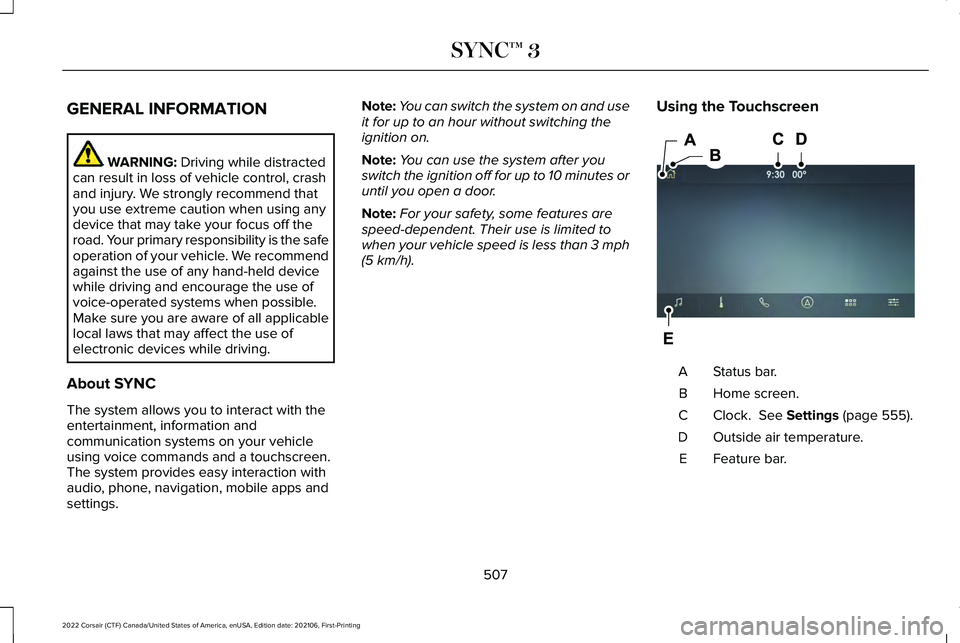
GENERAL INFORMATION
WARNING: Driving while distracted
can result in loss of vehicle control, crash
and injury. We strongly recommend that
you use extreme caution when using any
device that may take your focus off the
road. Your primary responsibility is the safe
operation of your vehicle. We recommend
against the use of any hand-held device
while driving and encourage the use of
voice-operated systems when possible.
Make sure you are aware of all applicable
local laws that may affect the use of
electronic devices while driving.
About SYNC
The system allows you to interact with the
entertainment, information and
communication systems on your vehicle
using voice commands and a touchscreen.
The system provides easy interaction with
audio, phone, navigation, mobile apps and
settings. Note:
You can switch the system on and use
it for up to an hour without switching the
ignition on.
Note: You can use the system after you
switch the ignition off for up to 10 minutes or
until you open a door.
Note: For your safety, some features are
speed-dependent. Their use is limited to
when your vehicle speed is less than 3 mph
(5 km/h)
. Using the Touchscreen Status bar.
A
Home screen.
B
Clock.
See Settings (page 555).
C
Outside air temperature.
D
Feature bar.
E
507
2022 Corsair (CTF) Canada/United States of America, enUSA, Edition date: 202106, First-Printing SYNC™ 3E297844
Page 511 of 676
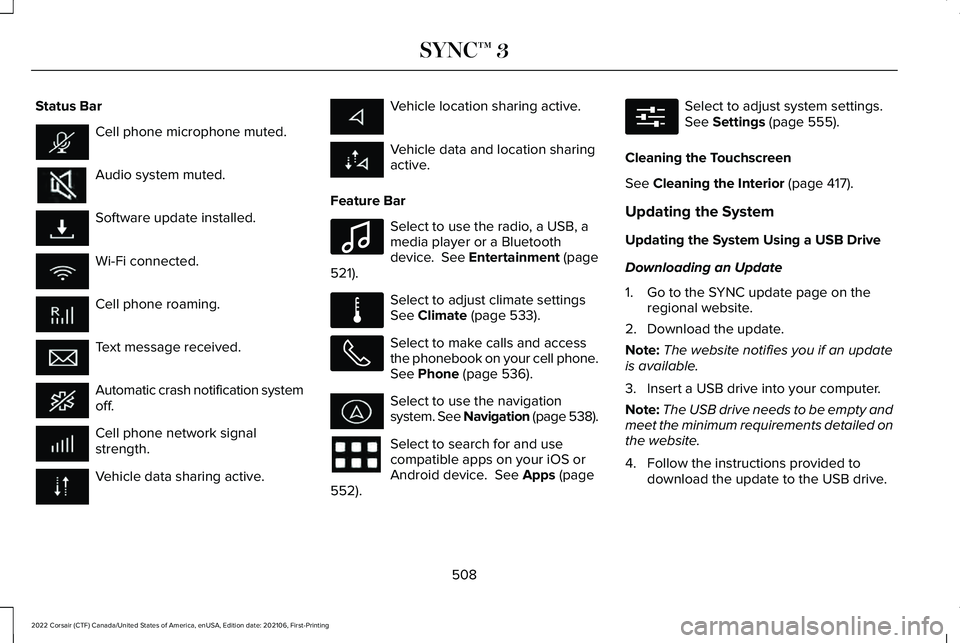
Status Bar
Cell phone microphone muted.
Audio system muted.
Software update installed.
Wi-Fi connected.
Cell phone roaming.
Text message received.
Automatic crash notification system
off.
Cell phone network signal
strength.
Vehicle data sharing active. Vehicle location sharing active.
Vehicle data and location sharing
active.
Feature Bar Select to use the radio, a USB, a
media player or a Bluetooth
device. See Entertainment (page
521). Select to adjust climate settings
See
Climate (page 533).
Select to make calls and access
the phonebook on your cell phone.
See
Phone (page 536).
Select to use the navigation
system. See Navigation (page
538).
Select to search for and use
compatible apps on your iOS or
Android device.
See Apps (page
552). Select to adjust system settings.
See
Settings (page 555).
Cleaning the Touchscreen
See
Cleaning the Interior (page 417).
Updating the System
Updating the System Using a USB Drive
Downloading an Update
1. Go to the SYNC update page on the regional website.
2. Download the update.
Note: The website notifies you if an update
is available.
3. Insert a USB drive into your computer.
Note: The USB drive needs to be empty and
meet the minimum requirements detailed on
the website.
4. Follow the instructions provided to download the update to the USB drive.
508
2022 Corsair (CTF) Canada/United States of America, enUSA, Edition date: 202106, First-Printing SYNC™ 3 E100027 E283811 E280315
Page 519 of 676
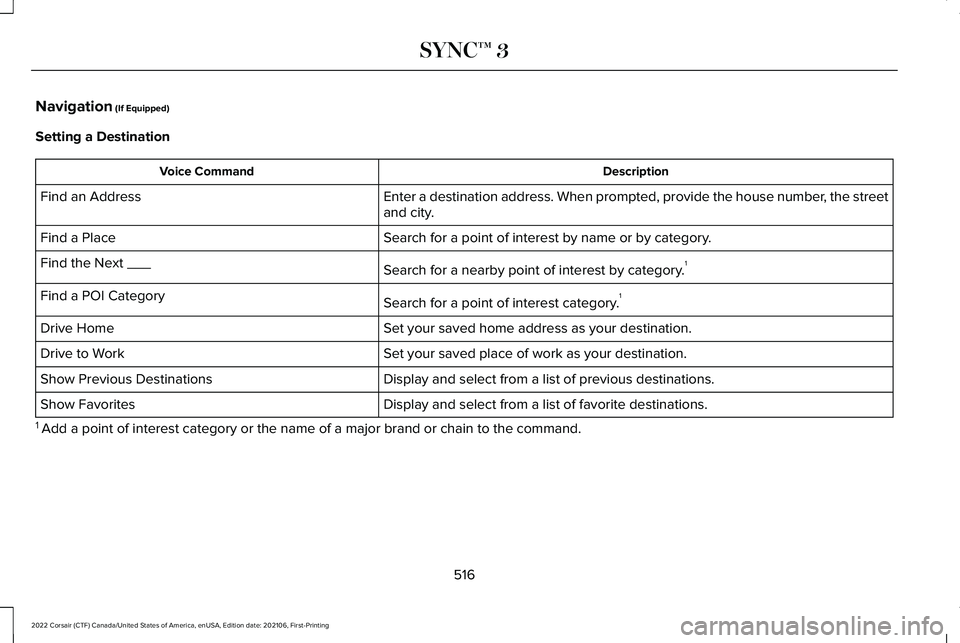
Navigation (If Equipped)
Setting a Destination Description
Voice Command
Enter a destination address. When prompted, provide the house number, the street
and city.
Find an Address
Search for a point of interest by name or by category.
Find a Place
Search for a nearby point of interest by category.1
Find the Next ___
Search for a point of interest category.1
Find a POI Category
Set your saved home address as your destination.
Drive Home
Set your saved place of work as your destination.
Drive to Work
Display and select from a list of previous destinations.
Show Previous Destinations
Display and select from a list of favorite destinations.
Show Favorites
1 Add a point of interest category or the name of a major brand or chain t\
o the command.
516
2022 Corsair (CTF) Canada/United States of America, enUSA, Edition date: 202106, First-Printing SYNC™ 3
Page 541 of 676
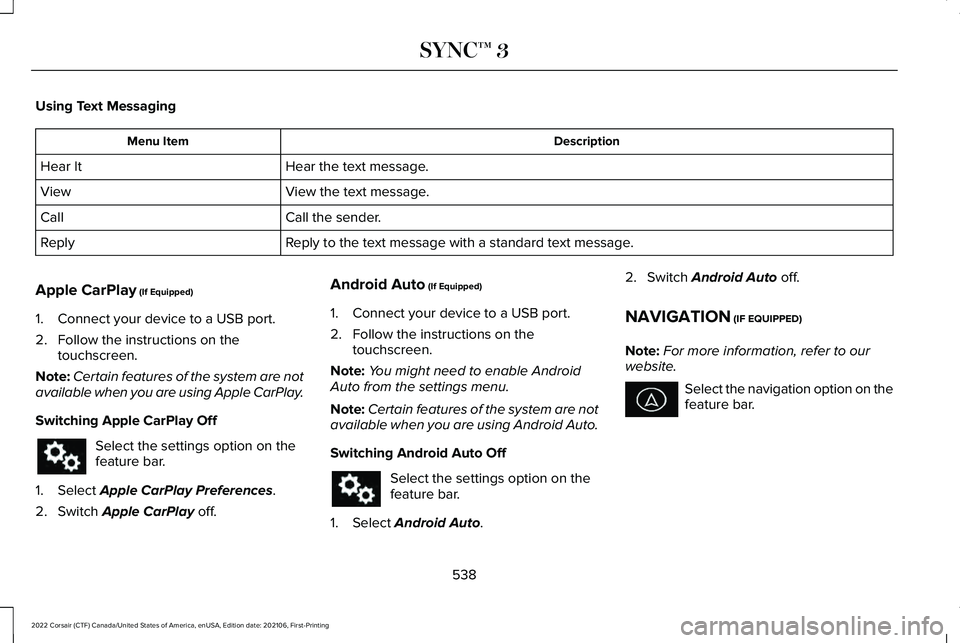
Using Text Messaging
Description
Menu Item
Hear the text message.
Hear It
View the text message.
View
Call the sender.
Call
Reply to the text message with a standard text message.
Reply
Apple CarPlay (If Equipped)
1. Connect your device to a USB port.
2. Follow the instructions on the touchscreen.
Note: Certain features of the system are not
available when you are using Apple CarPlay.
Switching Apple CarPlay Off Select the settings option on the
feature bar.
1. Select
Apple CarPlay Preferences.
2. Switch
Apple CarPlay off. Android Auto
(If Equipped)
1. Connect your device to a USB port.
2. Follow the instructions on the touchscreen.
Note: You might need to enable Android
Auto from the settings menu.
Note: Certain features of the system are not
available when you are using Android Auto.
Switching Android Auto Off Select the settings option on the
feature bar.
1. Select
Android Auto. 2. Switch
Android Auto off.
NAVIGATION
(IF EQUIPPED)
Note: For more information, refer to our
website. Select the navigation option on the
feature bar.
538
2022 Corsair (CTF) Canada/United States of America, enUSA, Edition date: 202106, First-Printing SYNC™ 3
Page 546 of 676
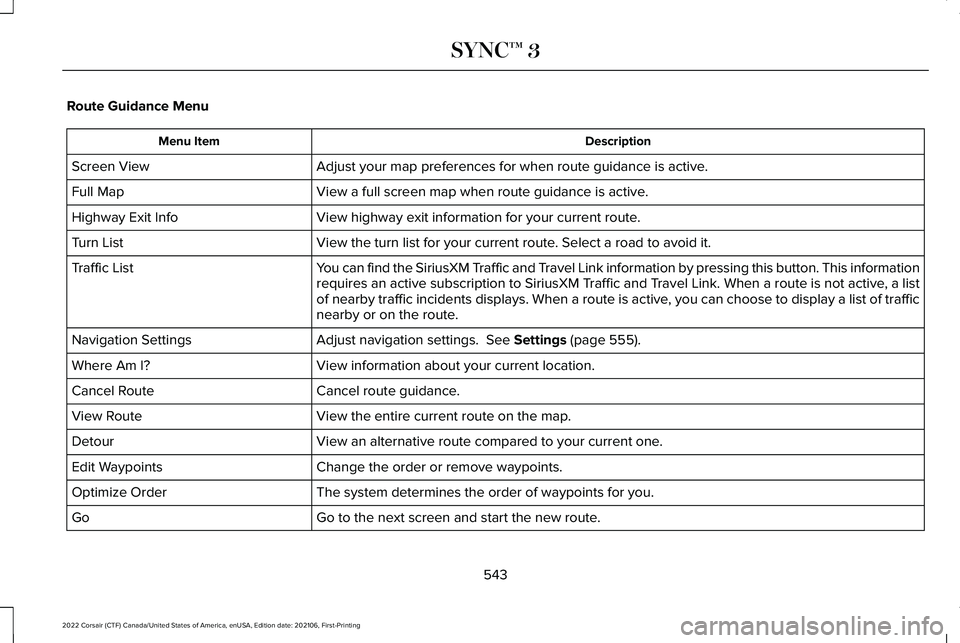
Route Guidance Menu
Description
Menu Item
Adjust your map preferences for when route guidance is active.
Screen View
View a full screen map when route guidance is active.
Full Map
View highway exit information for your current route.
Highway Exit Info
View the turn list for your current route. Select a road to avoid it.
Turn List
You can find the SiriusXM Traffic and Travel Link information by pressing this button. This information
requires an active subscription to SiriusXM Traffic and Travel Link. When a route is not active, a list
of nearby traffic incidents displays. When a route is active, you can choose to display a list of traffic
nearby or on the route.
Traffic List
Adjust navigation settings. See Settings (page 555).
Navigation Settings
View information about your current location.
Where Am I?
Cancel route guidance.
Cancel Route
View the entire current route on the map.
View Route
View an alternative route compared to your current one.
Detour
Change the order or remove waypoints.
Edit Waypoints
The system determines the order of waypoints for you.
Optimize Order
Go to the next screen and start the new route.
Go
543
2022 Corsair (CTF) Canada/United States of America, enUSA, Edition date: 202106, First-Printing SYNC™ 3
Page 547 of 676
Adjusting the Guidance Prompt Volume
Turn the volume control when a guidance
prompt plays to adjust the volume.
Note:
If you have inadvertently adjusted the
volume to zero, press the turn indicator
button to play the last voice prompt and then
adjust the volume to the desired level.
Muting Guidance Prompts Select the mute option on the
screen to mute guidance prompts.
Note: The system mutes the next and all
future guidance prompts.
Adding Waypoints
You can add a waypoint to a navigation route
as a destination along your route. You can
add up to five waypoints.
1. Select the search option on the map.
2. Set a destination.
3. Select Add Waypoint.
4. Select
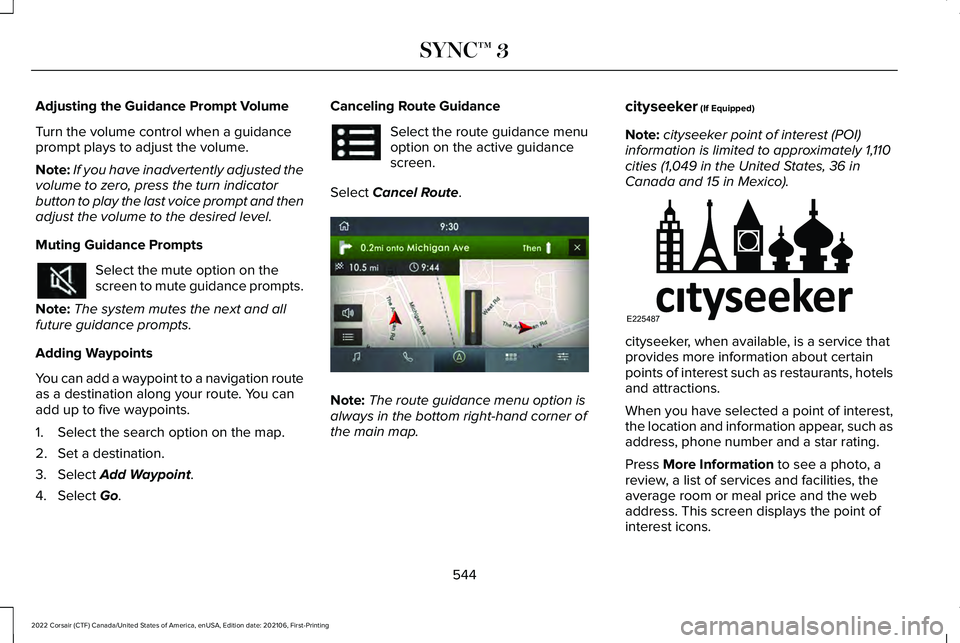
Go. Canceling Route Guidance Select the route guidance menu
option on the active guidance
screen.
Select
Cancel Route. Note:
The route guidance menu option is
always in the bottom right-hand corner of
the main map. cityseeker
(If Equipped)
Note: cityseeker point of interest (POI)
information is limited to approximately 1,110
cities (1,049 in the United States, 36 in
Canada and 15 in Mexico). cityseeker, when available, is a service that
provides more information about certain
points of interest such as restaurants, hotels
and attractions.
When you have selected a point of interest,
the location and information appear, such as
address, phone number and a star rating.
Press
More Information to see a photo, a
review, a list of services and facilities, the
average room or meal price and the web
address. This screen displays the point of
interest icons.
544
2022 Corsair (CTF) Canada/United States of America, enUSA, Edition date: 202106, First-Printing SYNC™ 3 E297860 E225487