radio LINCOLN MARK LT 2008 Owners Manual
[x] Cancel search | Manufacturer: LINCOLN, Model Year: 2008, Model line: MARK LT, Model: LINCOLN MARK LT 2008Pages: 328, PDF Size: 3.17 MB
Page 1 of 328
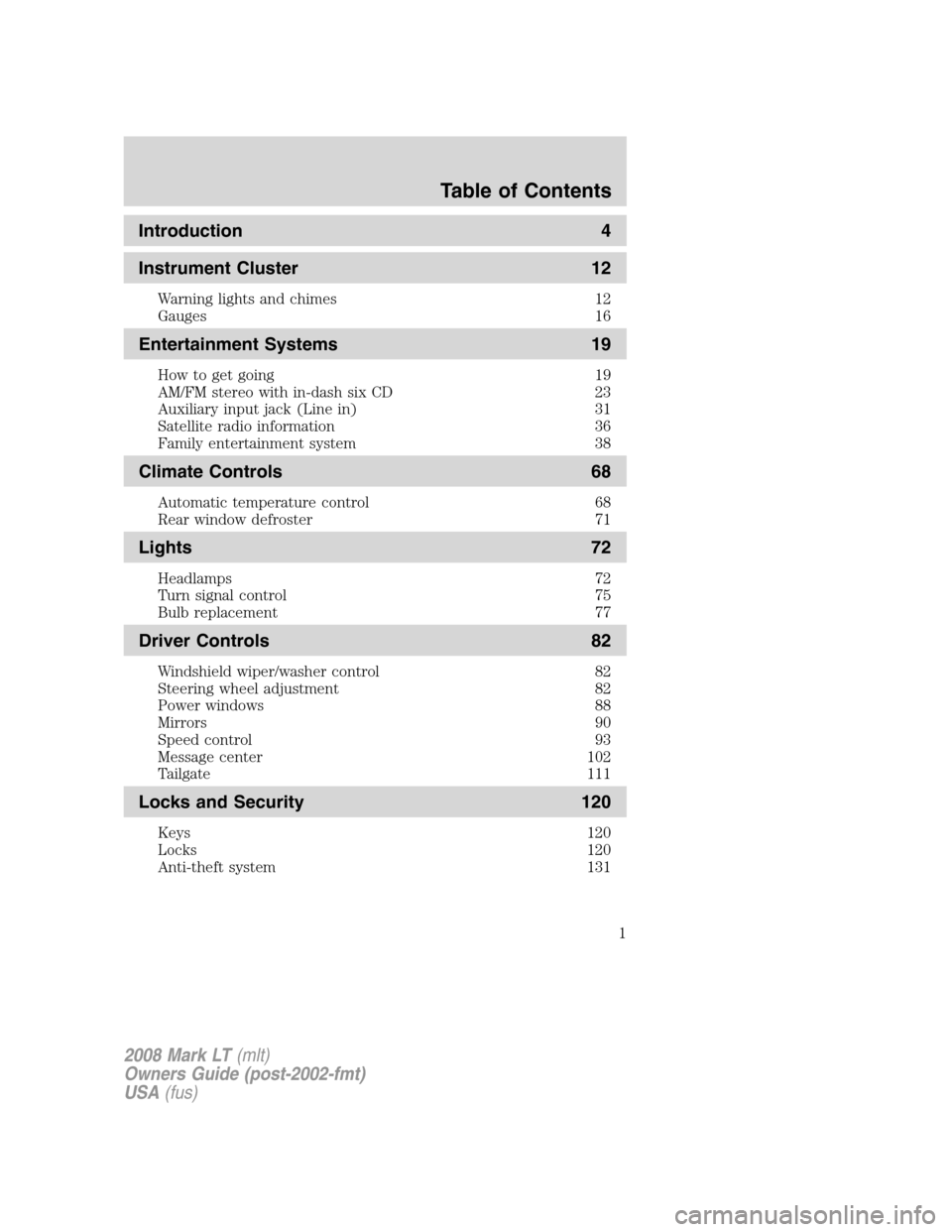
Introduction 4
Instrument Cluster 12
Warning lights and chimes 12
Gauges 16
Entertainment Systems 19
How to get going 19
AM/FM stereo with in-dash six CD 23
Auxiliary input jack (Line in) 31
Satellite radio information 36
Family entertainment system 38
Climate Controls 68
Automatic temperature control 68
Rear window defroster 71
Lights 72
Headlamps 72
Turn signal control 75
Bulb replacement 77
Driver Controls 82
Windshield wiper/washer control 82
Steering wheel adjustment 82
Power windows 88
Mirrors 90
Speed control 93
Message center 102
Tailgate 111
Locks and Security 120
Keys 120
Locks 120
Anti-theft system 131
Table of Contents
1
2008 Mark LT(mlt)
Owners Guide (post-2002-fmt)
USA(fus)
Page 9 of 328
Cell phone use
The use of Mobile Communications Equipment has become increasingly
important in the conduct of business and personal affairs. However,
drivers must not compromise their own or others’ safety when using
such equipment. Mobile Communications can enhance personal safety
and security when appropriately used, particularly in emergency
situations. Safety must be paramount when using mobile communications
equipment to avoid negating these benefits.
Mobile Communication Equipment includes, but is not limited to cellular
phones, pagers, portable email devices, in-vehicle communications
systems, telematics devices and portable two-way radios.
Driving while distracted can result in loss of vehicle control,
accident and injury. Ford strongly recommends that drivers use
extreme caution when using any device that may take their focus off
the road. The drivers primary responsibility is the safe operation of
their vehicle. Only use cell phones and other devices not essential to
the driving task when it is safe to do so.
2008 Mark LT(mlt)
Owners Guide (post-2002-fmt)
USA(fus)
Introduction
9
Page 19 of 328
AUDIO SYSTEMS
Quick start — How to get going
Driving while distracted can result in loss of vehicle control,
accident and injury. Ford strongly recommends that drivers use
extreme caution when using any device that may take their focus off
the road. The drivers primary responsibility is the safe operation of
their vehicle. Only use cell phones and other devices not essential to
the driving task when it is safe to do so.
Listening to the radio
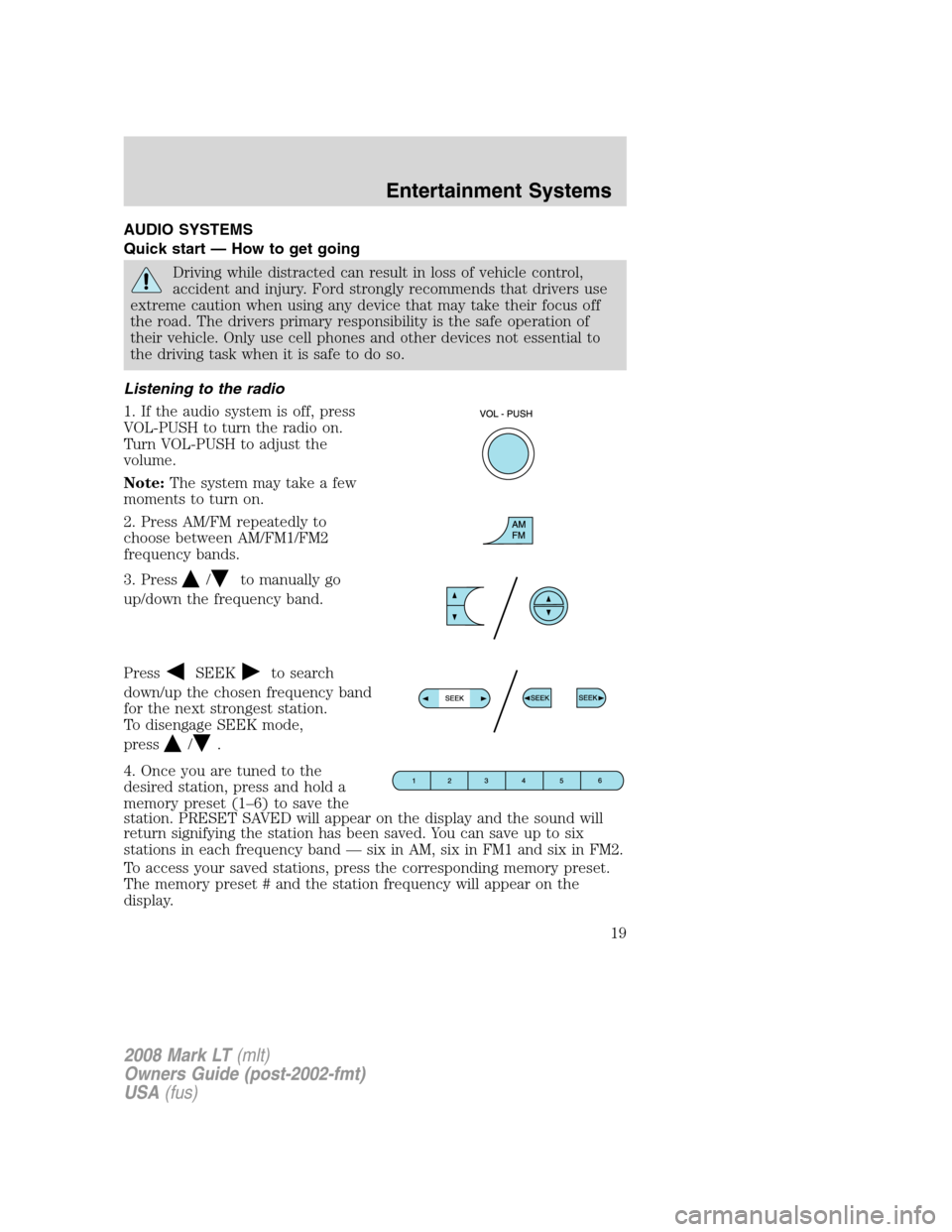
1. If the audio system is off, press
VOL-PUSH to turn the radio on.
Turn VOL-PUSH to adjust the
volume.
Note:The system may take a few
moments to turn on.
2. Press AM/FM repeatedly to
choose between AM/FM1/FM2
frequency bands.
3. Press
/to manually go
up/down the frequency band.
Press
SEEKto search
down/up the chosen frequency band
for the next strongest station.
To disengage SEEK mode,
press
/.
4. Once you are tuned to the
desired station, press and hold a
memory preset (1–6) to save the
station. PRESET SAVED will appear on the display and the sound will
return signifying the station has been saved. You can save up to six
stations in each frequency band — six in AM, six in FM1 and six in FM2.
To access your saved stations, press the corresponding memory preset.
The memory preset # and the station frequency will appear on the
display.
2008 Mark LT(mlt)
Owners Guide (post-2002-fmt)
USA(fus)
Entertainment Systems
19
Page 20 of 328
Listening to satellite radio (if equipped)
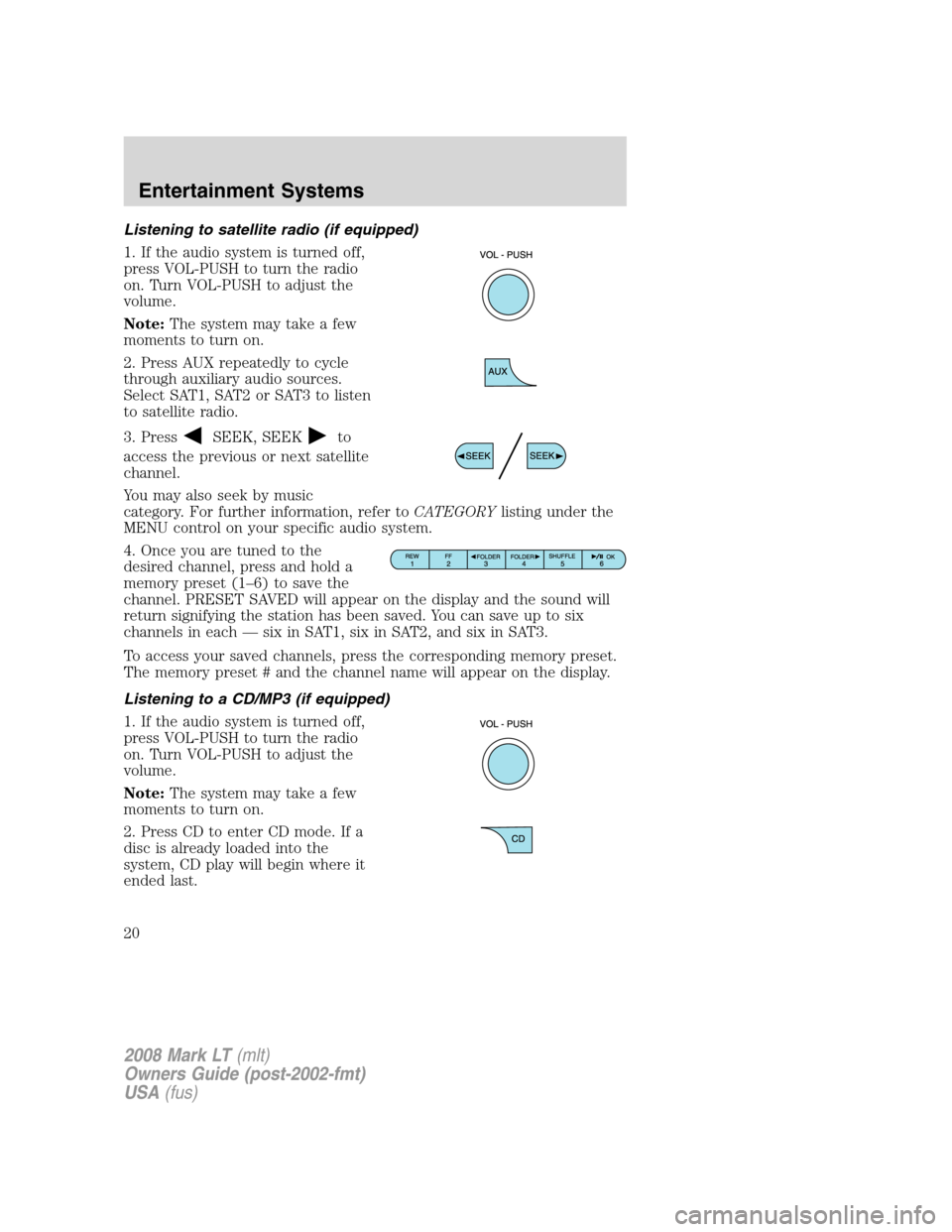
1. If the audio system is turned off,
press VOL-PUSH to turn the radio
on. Turn VOL-PUSH to adjust the
volume.
Note:The system may take a few
moments to turn on.
2. Press AUX repeatedly to cycle
through auxiliary audio sources.
Select SAT1, SAT2 or SAT3 to listen
to satellite radio.
3. Press
SEEK, SEEKto
access the previous or next satellite
channel.
You may also seek by music
category. For further information, refer toCATEGORYlisting under the
MENU control on your specific audio system.
4. Once you are tuned to the
desired channel, press and hold a
memory preset (1–6) to save the
channel. PRESET SAVED will appear on the display and the sound will
return signifying the station has been saved. You can save up to six
channels in each — six in SAT1, six in SAT2, and six in SAT3.
To access your saved channels, press the corresponding memory preset.
The memory preset # and the channel name will appear on the display.
Listening to a CD/MP3 (if equipped)
1. If the audio system is turned off,
press VOL-PUSH to turn the radio
on. Turn VOL-PUSH to adjust the
volume.
Note:The system may take a few
moments to turn on.
2. Press CD to enter CD mode. If a
disc is already loaded into the
system, CD play will begin where it
ended last.
2008 Mark LT(mlt)
Owners Guide (post-2002-fmt)
USA(fus)
Entertainment Systems
20
Page 23 of 328
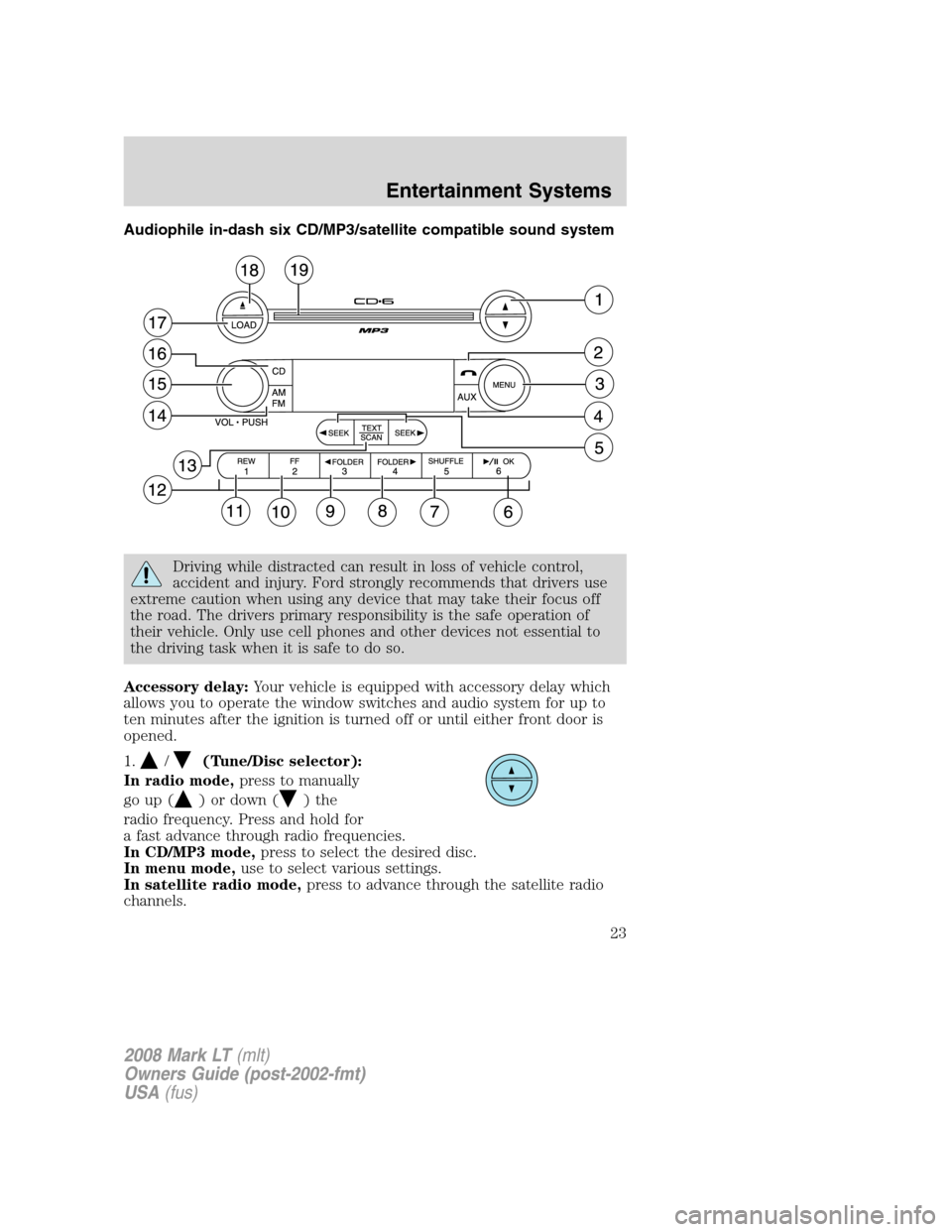
Audiophile in-dash six CD/MP3/satellite compatible sound system
Driving while distracted can result in loss of vehicle control,
accident and injury. Ford strongly recommends that drivers use
extreme caution when using any device that may take their focus off
the road. The drivers primary responsibility is the safe operation of
their vehicle. Only use cell phones and other devices not essential to
the driving task when it is safe to do so.
Accessory delay:Your vehicle is equipped with accessory delay which
allows you to operate the window switches and audio system for up to
ten minutes after the ignition is turned off or until either front door is
opened.
1.
/(Tune/Disc selector):
In radio mode,press to manually
go up (
) or down () the
radio frequency. Press and hold for
a fast advance through radio frequencies.
In CD/MP3 mode,press to select the desired disc.
In menu mode,use to select various settings.
In satellite radio mode,press to advance through the satellite radio
channels.
2008 Mark LT(mlt)
Owners Guide (post-2002-fmt)
USA(fus)
Entertainment Systems
23
Page 24 of 328
Satellite radio is available only with a valid SIRIUS radio
subscription. Check with your authorized dealer for availability.
2.
(Phone):When pressed, the
display will read NO PHONE.
3.MENU:Press repeatedly to
access the following settings:
SATELLITE RADIO MENU (if equipped):Press MENU when satellite
radio mode is active to access. Press OK to enter into the satellite radio
menu. Press
/to cycle through the following options:
•CATEGORY:Press OK to enter category mode. Press
/to
scroll through the list of available SIRIUS channel Categories (Pop,
Rock, News, etc.) Press OK when the desired category appears in the
display. After a category is selected, press SEEK to search for that
specific category of channels only (i.e. ROCK). You may also select
CATEGORY ALL to seek all available SIRIUS categories and channels.
Press OK to close and return to the main menu.
•SAVE SONG:Press OK to save the currently playing song in the
system’s memory. (If you try to save something other than a song,
CANT SAVE will appear in the display.) When the chosen song is
playing on any satellite radio channel, the system will alert you with
an audible prompt. Press OK while SONG ALERT is in the display and
the system will take you to the channel playing the desired song. You
can save up to 20 songs. If you attempt to save a song when the
system is full, the display will read REPLACE SONG? Press OK to
access the saved songs and press
/to cycle through the saved
songs. When the song appears in the display that you would like to
replace, press OK. SONG REPLACED will appear in the display.
•DELETE SONG:Press OK to delete a song from the system’s
memory. Press
/to cycle through the saved songs. When the
song appears in the display that you would like to delete, press OK.
The song will appear in the display for confirmation. Press OK again
and the display will read SONG DELETED. If you do not want to
delete the currently listed song, press
/to select either
RETURN or CANCEL.
Note:If there are no songs presently saved, the display will read NO
SONGS.
2008 Mark LT(mlt)
Owners Guide (post-2002-fmt)
USA(fus)
Entertainment Systems
24
Page 25 of 328
•DELETE ALL SONGS:Press OK to delete all song’s from the
system’s memory. The display will read ARE YOU SURE ? Press OK to
confirm deletion of all saved songs and the display will read ALL
DELETED.
Note:If there are no songs presently saved, the display will read NO
SONGS.
•ENABLE ALERTS / DISABLE ALERTS:Press OK to enable/disable
the satellite alert status which alerts you when your selected songs are
playing on a satellite radio channel. (The system default is disabled.)
SONG ALERTS ENABLED/DISABLED will appear in the display. The
menu listing will display the opposite state. For example, if you have
chosen to enable the song alerts, the menu listing will read DISABLE
as the alerts are currently on, so your other option is to turn them off.
Satellite radio is available only with a valid SIRIUS radio
subscription. Check with your authorized dealer for availability.
Setting the clock:Press until SELECT HOUR or SELECT MINUTES is
displayed. Press
//SEEKto adjust the hours/minutes.
AUTOSET:Press MENU until the display reads AUTOSET. Autoset
allows you to set the strongest local radio stations without losing your
original manually set preset stations for AM/FM1/FM2. Use
//
SEEK, SEEKto turn on/off. When the six strongest stations are
filled, the station stored in preset 1 will begin playing. If there are less
than six strong stations, the system will store the last one in the
remaining presets.
RBDS: Available only in FM mode. This feature allows you to search
RBDS-equipped stations for a certain category of music format:
CLASSIC, COUNTRY, INFORM, JAZZ/RB, ROCK, etc.
To activate,press MENU repeatedly until RBDS (ON/OFF) appears in
the display. Use
//SEEK, SEEKto toggle RBDS ON/OFF.
When RBDS is OFF, you will not be able to search for RBDS equipped
stations or view the station name or type.
To search for specific RBDS music categories:Press MENU
repeatedly until a music category appears in the display. Press
/
to find the desired type. Then pressSEEK, SEEKor SCAN to
begin the search.
To view the station name or type:When the desired category appears
in the display, press TEXT/SCAN to toggle between displaying the station
type (COUNTRY, ROCK, etc.) or the station name (WYCD, WXYZ, etc.).
2008 Mark LT(mlt)
Owners Guide (post-2002-fmt)
USA(fus)
Entertainment Systems
25
Page 26 of 328
BASS:Press MENU to reach the bass setting. Use//
SEEK, SEEKto adjust.
TREB (Treble):Press MENU to reach the treble setting.
Use
//SEEK, SEEKto adjust.
BAL (Balance):Press MENU to reach the balance setting.
Use
//SEEK, SEEKto adjust the audio between the back
(B) and front (F) speakers.
FADE:Press MENU to reach the fade setting. Use
//
SEEK, SEEKto adjust the audio between the left (L) and right
(R) speakers.
ALL SEATS (Occupancy mode):Press MENU repeatedly to access.
Press
//SEEKto optimize sound for ALL SEATS,
DRIVERS SEAT or REAR SEATS.
SPEEDVOL (Speed sensitive volume, if equipped):Press MENU to
reach the SPEEDVOL setting. Radio volume automatically gets louder
with increasing vehicle speed to compensate for road and wind noise.
Use
//SEEK, SEEKto adjust.
The default setting isoff;increasing your vehicle speed will not change
the volume level.
Adjust1–7:Increasing this setting from 1 (lowest setting) to 7 (highest
setting) allows the radio volume to automatically change slightly with
vehicle speed to compensate for road and wind noise.
Recommended level is1–3;SPEED OFF turns the feature off and level 7
is the maximum setting.
Track/Folder Mode:Available only on MP3 discs in CD mode. In Track
Mode, pressing
SEEK, SEEKwill scroll through all tracks on the
disc. In Folder mode, pressing
SEEK, SEEKwill scroll only
through tracks within the selected folder.
COMPRESS (Compression):Available only in CD/MP3 mode. Press
MENU until COMPRESS ON/OFF appears in the display.
Use
//SEEK, SEEKto toggle ON/OFF. When COMPRESS
is ON, the system will bring soft and loud CD passages together for a
more consistent listening level.
2008 Mark LT(mlt)
Owners Guide (post-2002-fmt)
USA(fus)
Entertainment Systems
26
Page 27 of 328
4.AUX:Press repeatedly to cycle
through FES/DVD (if equipped),
LINE IN (Auxiliary audio mode),
SAT1, SAT2 and SAT3 modes (Satellite Radio if equipped).
For location and further information on the auxiliary audio mode, refer
toAuxiliary input jacklater in this chapter.
Satellite radio is available only with a valid SIRIUS radio
subscription. Check with your authorized dealer for availability.
If your vehicle is equipped with a Family Entertainment System please
refer to theFamily entertainment DVD systemlater in this chapter.
5.SEEK: In radio mode,
press
/to access the
previous/next strong station.
In CD mode,press
/to
access the previous/next CD track.
In satellite radio mode (if equipped), press
SEEK, SEEKto
seek to the previous/next channel. If a specific category is selected,
(Jazz, Rock, News, etc.), press
SEEK, SEEKto seek to the
previous/next channel in the selected category. Press and hold
SEEK, SEEKto fast seek through the previous /next channels.
In TEXT MODE,press
SEEK, SEEKto view the
previous/additional display text.
In CATEGORY MODE,press
SEEK, SEEKto select a
category.
Satellite radio is available only with a valid SIRIUS radio
subscription. Check with your authorized dealer for availability.
6.
/OK:
Play/Pause:This control is
operational in CD and DVD mode (if
equipped). When a CD or DVD is playing in the family entertainment
system , press this control to play or pause the current CD/DVD. The
CD/DVD status will display in the radio display.
OK:Your vehicle may be equipped with special phone and media
features. For further information, refer to theSYNC supplement.
If your vehicle is equipped with a Family Entertainment System please
refer to theFamily Entertainment DVD systemlater in this chapter.
2008 Mark LT(mlt)
Owners Guide (post-2002-fmt)
USA(fus)
Entertainment Systems
27
Page 28 of 328
7.SHUFFLE:In CD/MP3 mode,
press SHUFFLE to engage shuffle
mode. SHUFFLE ON will appear in
the display. If you wish to engage shuffle mode right away, press SEEK
to begin random play. Otherwise, random play will begin when the
current track is finished playing. CD SHUF will appear in the display. To
disengage, press SHUFFLE again. SHUFFLE OFF will appear in the
display.
Note:In track mode, all tracks on thecurrentdisc will shuffle in
random order. In MP3 folder mode, the system will randomly play all
tracks within the current folder.
8.FOLDER
: Press
FOLDER
to access next folder
on MP3 discs, if available.
9.
FOLDER:PressFOLDER
to access the previous folder on
MP3 discs, if available.
10.FF (Fast forward):Press FF
to manually advance in a CD/MP3
track.
11.REW (Rewind):Press REW to
manually reverse in a CD/MP3 track.
12.Memory presets:To set a
station: Select frequency band
AM/FM1/FM2; tune to a station,
press and hold a preset control until sound returns. You may store up to
six stations in each frequency band for a total of 18.
In satellite radio mode (if equipped), there are 18 available presets,
six each for SAT1, SAT2 and SAT3. To save satellite channels in your
memory presets, tune to the desired channel then press and hold a
preset control until sound returns.
Satellite radio is available only with a valid SIRIUS radio
subscription. Check with your authorized dealer for availability.
13.TEXT/SCAN: In radio and
CD/MP3 mode, press and hold to
hear a brief sampling of radio
stations or CD tracks.
2008 Mark LT(mlt)
Owners Guide (post-2002-fmt)
USA(fus)
Entertainment Systems
28