Speaker LINCOLN MKC 2015 Owners Manual
[x] Cancel search | Manufacturer: LINCOLN, Model Year: 2015, Model line: MKC, Model: LINCOLN MKC 2015Pages: 490, PDF Size: 4.74 MB
Page 192 of 490
PRINCIPLE OF OPERATION
WARNINGS
Vehicle modifications involving braking
system, aftermarket roof racks,
suspension, steering system, tire
construction and wheel and tire size may
change the handling characteristics of your
vehicle and may adversely affect the
performance of the AdvanceTrac system. In
addition, installing any stereo loudspeakers
may interfere with and adversely affect the
AdvanceTrac system. Install any aftermarket
stereo loudspeaker as far as possible from
the front center console, the tunnel, and the
front seats in order to minimize the risk of
interfering with the AdvanceTrac sensors.
Reducing the effectiveness of the
AdvanceTrac system could lead to an
increased risk of loss of vehicle control,
vehicle rollover, personal injury and death. Remember that even advanced
technology cannot defy the laws of
physics. It’ s always possible to lose control
of a vehicle due to inappropriate driver input
for the conditions. Aggressive driving on any
road condition can cause you to lose control WARNINGS
of your vehicle increasing the risk of personal
injury or property damage. Activation of the
AdvanceTrac system is an indication that at
least some of the tires have exceeded their
ability to grip the road; this could reduce the
operator’ s ability to control the vehicle
potentially resulting in a loss of vehicle
control, vehicle rollover, personal injury and
death. If your AdvanceTrac system activates,
SLOW DOWN. The AdvanceTrac with Roll Stability Control
system helps you keep control of your
vehicle when on a slippery surface. The
electronic stability control portion of the
system helps avoid skids and lateral slides
and roll stability control helps avoid a vehicle
rollover. The traction control system helps
avoid drive wheel spin and loss of traction.
See Using Traction Control (page 187).
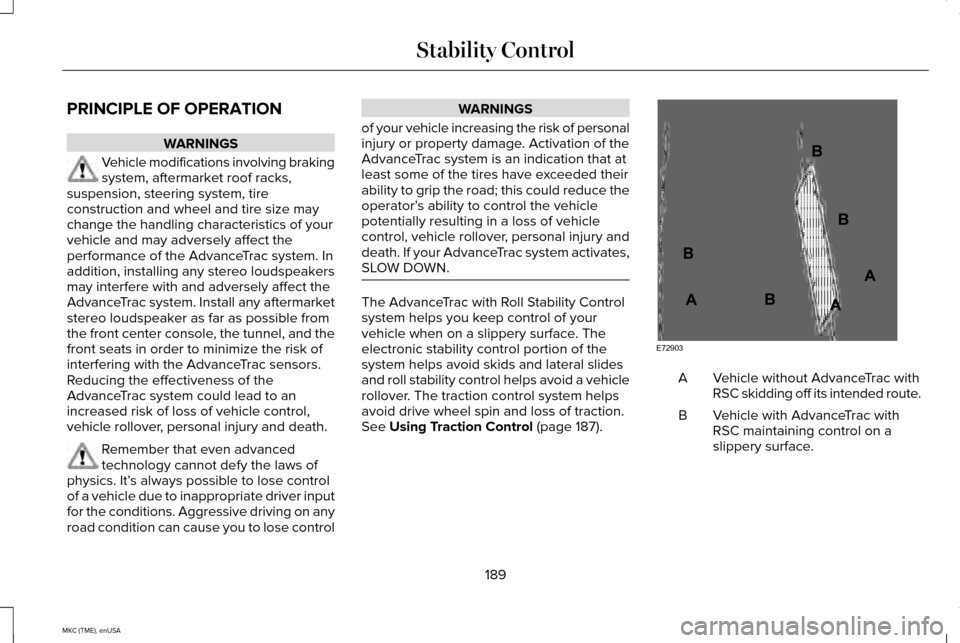
Vehicle without AdvanceTrac with
RSC skidding off its intended route.
A
Vehicle with AdvanceTrac with
RSC maintaining control on a
slippery surface.
B
189
MKC (TME), enUSA Stability ControlE72903A
AA
B
BB
B
Page 196 of 490
The system sounds an audible warning when
obstacles are near either bumper in the
following manner:
•
Objects detected by the front sensors
are indicated by a high-pitched tone from
the front radio speakers.
• Objects detected by the rear sensors are
indicated by a lower pitched tone from
the rear radio speakers.
• The sensing system reports the obstacle
which is closest to the front or rear of the
vehicle. For example, if an obstacle is 24
inches (60 centimeters) from the front of
the vehicle and, at the same time, an
obstacle is only 16 inches (40
centimeters) from the rear of the vehicle,
the lower pitched tone sounds.
• An alternating warning sounds from the
front and rear if there are objects at both
bumpers that are closer than 10 inches
(25 centimeters).
For specific information on the reverse
sensing portion of the system, refer to that
section. ACTIVE PARK ASSIST (If Equipped) WARNING
Designed to be a supplementary park
aid, this system may not work in all
conditions. This system cannot replace the
driver’ s attention and judgment. The driver
is responsible for avoiding hazards and
maintaining a safe distance and speed, even
when the system is in use. Note:
The driver is always responsible for
controlling the vehicle, supervising the
system and intervening if required.
Note: The sensors may not detect objects
in heavy rain or other conditions that cause
disruptive reflections.
Note: The sensors may not detect objects
with surfaces that absorb ultrasonic waves.
Note: Whenever the battery is disconnected
or a new battery installed, you need to drive
your vehicle a short distance and your speed
must exceed 12.4 mph (20 km/h) so the
system can recalibrate the steering angle
data. The system detects an available parallel
parking space and automatically steers your
vehicle into the space (hands-free) while you
control the accelerator, gearshift and brakes.
The system visually and audibly instructs you
to park the vehicle.
The system may not function correctly if
something passes between the front bumper
and the parking space (a pedestrian or
cyclist) or if the edge of the neighboring
parked vehicle is high off the ground (for
example, a bus, tow truck or flatbed truck).
Do not use the system if:
•
You have attached a foreign object (bike
rack or trailer) to the front or rear of your
vehicle or attached close to the sensors
• You have attached an overhanging
object (surfboard) to the roof
• The front bumper or side sensors are
damaged or obstructed by a foreign
object (front bumper cover)
• A mini-spare tire is in use
193
MKC (TME), enUSA Parking Aids
Page 397 of 490
"BROWSE"
"Folder
"Playlist
"Podcast
Supported Media Players, Formats and
Metadata Information
SYNC is capable of hosting nearly any digital
media player, including iPod, Zune, plays
from device players, and most USB drives.
Supported audio formats include MP3, WMA,
WAV and AAC.
It is also able to organize your indexed media
from your playing device by metadata tags.
Metadata tags, which are descriptive
software identifiers embedded in the media
files, provide information about the file. If your indexed media files contain no
information embedded in these metadata
tags, SYNC may classify the empty metadata
tags as Unknown.
Bluetooth Audio
Your system allows you to stream audio over
your vehicle's speakers from your connected,
Bluetooth-enabled cellular phone. To access, press the lower left
corner on the touchscreen, then
select the
BT Stereo tab.
Bluetooth Audio Voice Commands If you are listening to a Bluetooth
audio device, press the voice
button on the steering wheel
control. When prompted, say "Next song",
"Pause", "Play" or "Previous song".
If you are not listening to a Bluetooth audio
device, press the voice button and, after the
tone, say "Next song", "Pause", "Play" or
"Previous song". Line In (Auxiliary Input Jack) WARNINGS
Driving while distracted can result in
loss of vehicle control, crash and injury.
We strongly recommend that you use
extreme caution when using any device that
may take your focus off the road. Your
primary responsibility is the safe operation
of your vehicle. We recommend against the
use of any handheld device while driving and
encourage the use of voice-operated
systems when possible. Make sure you are
aware of all applicable local laws that may
affect the use of electronic devices while
driving. For safety reasons, do not connect or
adjust the settings on your portable
music player while your vehicle is moving.
394
MKC (TME), enUSA MyLincoln Touch™E142611 E142599
Page 398 of 490
WARNINGS
Store the portable music player in a
secure location, such as the center
console or the glove box, when your vehicle
is moving. Hard objects may become
projectiles in a crash or sudden stop, which
may increase the risk of serious injury. The
audio extension cable must be long enough
to allow the portable music player to be
safely stored while your vehicle is moving. The auxiliary input jack allows you to connect
and play music from your portable music
player through your vehicle speakers. You
can use any portable music player designed
for use with headphones. Your audio
extension cable must have male 1/8th-inch
(3.5 millimeter) connectors at each end.
1.
Switch off the engine, radio and portable
music player. Set the parking brake and
put the transmission in position P.
2. Plug the extension cable from the portable music player into the auxiliary
input jack. 3.
Switch the radio on. Select either a tuned
FM station or a CD.
4. Adjust the volume as desired.
5. Switch your portable music player on and
adjust its volume to half its maximum
level.
6. Press
AUX until LINE or LINE IN appears
in the display. You should hear music
from your device even if it is low.
7. Adjust the volume on your portable music
player until it reaches the volume level
of the FM station or CD. Do this by
switching back and forth between the
AUX and FM or CD controls.
395
MKC (TME), enUSA MyLincoln Touch™
Page 402 of 490
Quick Dial
Set up favorite contacts from your
phonebook or history folder.
Phonebook
Touch this button to access and call any
contacts in your previously downloaded
phone book. The system places the entries
in alphabetical categories summarized at the
top of the screen.
To switch on contact picture settings, if your
device supports this feature, press Phone >
Settings > Manage Phonebook > Download
photos from Phonebook > On.
History
After you connect your Bluetooth-enabled
phone to SYNC, you can access any
previously dialed, received or missed calls.
You can also choose to save these to your
Favorites or to Quick Dial.
Note: This is a phone-dependent feature. If
your phone does not support downloading
call history using Bluetooth, SYNC keeps
track of calls made with the SYNC system. Messaging
Send text messages using your touchscreen.
See
Text messaging later in this section.
Settings
Touch this button to access various phone
settings, such as turning Bluetooth on and
off, managing your phonebook and more.
See
Phone settings later in this section.
Text Messaging
Note: Downloading and sending text
messages using Bluetooth are
phone-dependent features.
Note: Certain features in text messaging are
speed-dependent and not available when
your vehicle is traveling at speeds over 3
mph (5 km/h).
Note: SYNC does not download read text
messages from your phone.
You can send and receive text messages
using Bluetooth, read them aloud and
translate text messaging acronyms, such as
LOL. 1. Touch the top left corner of the display
to access the
Phone menu.
2. Select
Messaging.
3. Choose from the following:
• Listen (speaker icon).
• Dial.
• Send Text.
• View.
• Delete.
Composing a Text Message
Note: This is a speed-dependent feature. It
is unavailable when your vehicle is traveling
at speeds over 3 mph (5 km/h).
Note: Downloading and sending text
messages using Bluetooth are
phone-dependent features.
1. Touch the top left corner of the display to access the
Phone menu.
2. Touch
Messaging > Send Text.
3. Enter a phone number or choose from your phonebook.
399
MKC (TME), enUSA MyLincoln Touch™
Page 427 of 490
Press the speaker button on the
map to mute route guidance. When
the light on the button illuminates,
the feature is on. The speaker button
appears on the map only when route
guidance is active. Re-center the map by pressing this
icon whenever you scroll the map
away from your vehicle
’s current
location.
Auto Zoom
Press the green bar to access map mode,
then select the + or - zoom button to bring
up the zoom level and Auto buttons on the
touchscreen. When you press
Auto, Auto
Zoom turns on and Auto displays in the
bottom left corner of the screen in the map
scale. The map zoom level then synchronizes
with vehicle speed. The slower your vehicle
is traveling, the farther in the map zooms in;
the faster your vehicle is traveling, the farther
the map zooms out. To switch off the feature,
just press the
+ or - button again. In 3D mode, rotate the map view by swiping
your finger across the shaded bar with the
arrows.
The ETA box under the zoom buttons
appears when a route is active and displays
the distance and time to your destination. If
the button is pressed, a pop up appears with
the destination listed (and waypoint if
applicable) along with mileage and time to
destination. You may also select to have
either the estimated time to reach your
destination or your estimated arrival time.
Map Icons
Vehicle mark
shows the current
location of your vehicle. It stays in
the center of the map display,
except when in scroll mode. Scroll cursor
allows you to scroll the
map; the fixed icon is in the center
of the screen. The map position
closest to the cursor is in a window on the
top center part of the screen. Address book entry default icon(s)
indicates the location on the map of
an address book entry. This is the
default symbol shown after the entry has
been stored to the Address Book by any
method other than the map. You can select
from any of the 22 icons available. You can
use each icon more than once. Home
indicates the location on the
map currently stored as the home
position. You can only save one
address from the Address Book as
your Home entry. You cannot change this
icon. POI (Point Of Interest) icons indicate
locations of any point of interest
categories you choose to display on
the map. You can choose to display three
point of interest categories on the map at
one time. Starting point
indicates the starting
point of a planned route.
424
MKC (TME), enUSA MyLincoln Touch™E174017 E146188 E142646 E142647 E142648 E142649 E142650 E142651