audio LINCOLN MKS 2015 User Guide
[x] Cancel search | Manufacturer: LINCOLN, Model Year: 2015, Model line: MKS, Model: LINCOLN MKS 2015Pages: 424, PDF Size: 3.96 MB
Page 231 of 424
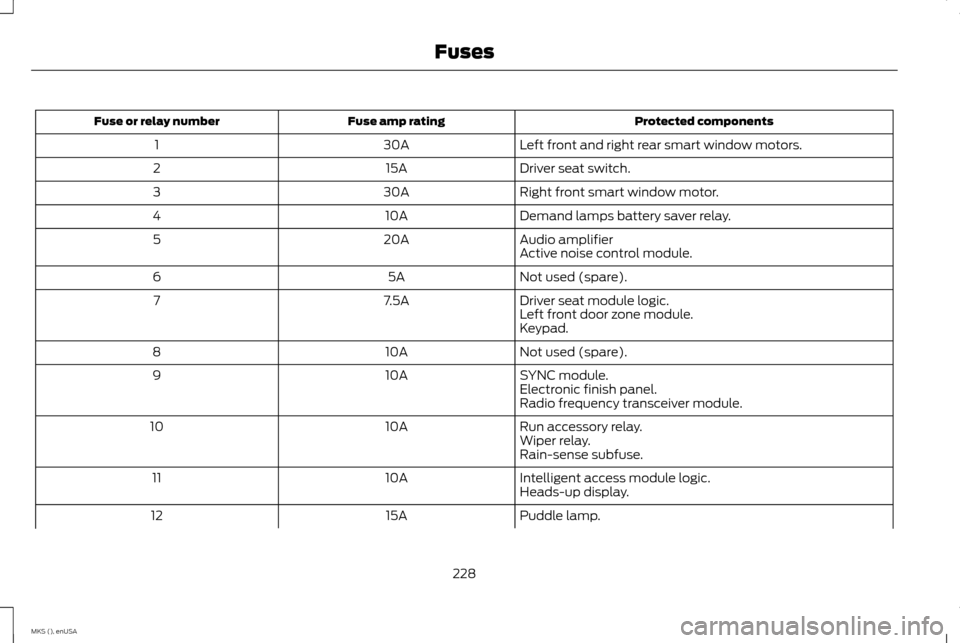
Protected components
Fuse amp rating
Fuse or relay number
Left front and right rear smart window motors.
30A
1
Driver seat switch.
15A
2
Right front smart window motor.
30A
3
Demand lamps battery saver relay.
10A
4
Audio amplifier
20A
5
Active noise control module.
Not used (spare).
5A
6
Driver seat module logic.
7.5A
7
Left front door zone module.
Keypad.
Not used (spare).
10A
8
SYNC module.
10A
9
Electronic finish panel.
Radio frequency transceiver module.
Run accessory relay.
10A
10
Wiper relay.
Rain-sense subfuse.
Intelligent access module logic.
10A
11
Heads-up display.
Puddle lamp.
15A
12
228
MKS (), enUSA Fuses
Page 232 of 424
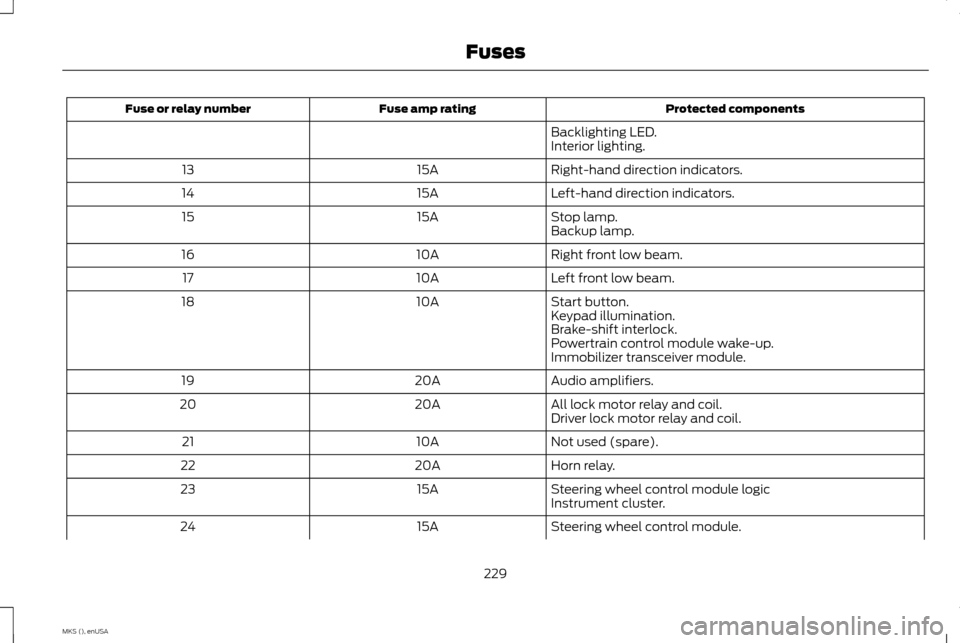
Protected components
Fuse amp rating
Fuse or relay number
Backlighting LED.
Interior lighting.
Right-hand direction indicators.
15A
13
Left-hand direction indicators.
15A
14
Stop lamp.
15A
15
Backup lamp.
Right front low beam.
10A
16
Left front low beam.
10A
17
Start button.
10A
18
Keypad illumination.
Brake-shift interlock.
Powertrain control module wake-up.
Immobilizer transceiver module.
Audio amplifiers.
20A
19
All lock motor relay and coil.
20A
20
Driver lock motor relay and coil.
Not used (spare).
10A
21
Horn relay.
20A
22
Steering wheel control module logic
15A
23
Instrument cluster.
Steering wheel control module.
15A
24
229
MKS (), enUSA Fuses
Page 253 of 424
Always dispose of automotive batteries
in a responsible manner. Follow your
local authorized standards for disposal.
Call your local authorized recycling
center to find out more about recycling
automotive batteries.
Battery Management System (If
Equipped)
The battery management system (BMS)
monitors battery conditions and takes
actions to extend battery life. If excessive
battery drain is detected, the system may
temporarily disable certain electrical features
to protect the battery. Those electrical
accessories affected include the rear defrost,
heated/cooled seats, climate control fan,
heated steering wheel, audio and navigation
system. A message may be shown in the
information displays to alert the driver that
battery protection actions are active. These
messages are only for notification that an
action is taking place, and not intended to
indicate an electrical problem or that the
battery requires replacement.
Electrical accessory installation
To ensure proper operation of the Battery
Management System, any electrical devices
that are added to your vehicle should not
have their ground connection made directly
at the negative battery post. A connection at
the negative battery post can cause
inaccurate measurements of the battery
condition and potential incorrect system
operation.
Note:
Electrical or electronic accessories
added to your vehicle by the dealer or the
owner, may adversely affect battery
performance and durability, and may affect
the performance of other electrical systems
in your vehicle.
When a battery replacement is required, the
battery should only be replaced with a
Ford-recommended replacement battery
that matches the electrical requirements of
your vehicle. After battery replacement, or in
some cases after charging the battery with
the external charger, the Battery
Management System requires eight hours of
vehicle sleep time (key off with doors closed)
to relearn the new battery state of charge.
Prior to relearning the state of charge, the
Battery Management System may disable
electrical features (to protect the battery)
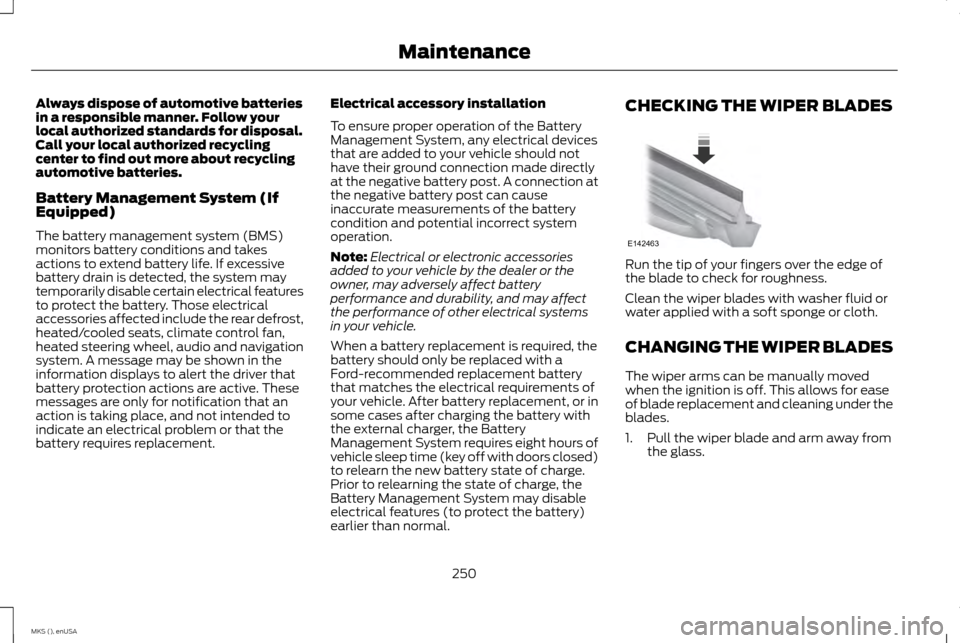
earlier than normal. CHECKING THE WIPER BLADES
Run the tip of your fingers over the edge of
the blade to check for roughness.
Clean the wiper blades with washer fluid or
water applied with a soft sponge or cloth.
CHANGING THE WIPER BLADES
The wiper arms can be manually moved
when the ignition is off. This allows for ease
of blade replacement and cleaning under the
blades.
1. Pull the wiper blade and arm away from
the glass.
250
MKS (), enUSA MaintenanceE142463
Page 302 of 424
GENERAL INFORMATION
Radio Frequencies and Reception
Factors
AM and FM frequencies are established by
the Federal Communications Commission
(FCC) and the Canadian Radio and
Telecommunications Commission (CRTC).
Those frequencies are:
•
AM: 530, 540-1700, 1710 kHz
• FM: 87.9-107.7, 107.9 MHz Radio Reception Factors
The further you travel from an AM or FM station, the weaker the signal and the weaker the reception.
Distance and strength
Hills, mountains, tall buildings, bridges, tunnels, freeway overpasses, parking garages, dense tree foliage and
thunderstorms can interfere with the reception.
Terrain
When you pass a ground-based broadcast repeating tower, a stronger signal may overtake a weaker one and
result in the audio system muting.
Station overload
CD and CD Player Information
Note: CD units play commercially pressed
4.75-inch (12 centimeter) audio compact discs
only. Due to technical incompatibility, certain
recordable and re-recordable compact discs
may not function correctly when used in Ford
CD players. Note:
Do not insert CDs with homemade
paper (adhesive) labels into the CD player as
the label may peel and cause the CD to
become jammed. You should use a permanent
felt tip marker rather than adhesive labels on
your homemade CDs. Ballpoint pens may
damage CDs. Please contact an authorized
dealer for further information.
Note: Do not use any irregularly shaped discs
or discs with a scratch protection film
attached. Always handle discs by their edges only.
Clean the disc with an approved CD cleaner
only. Wipe it from the center of the disc
toward the edge. Do not clean in a circular
motion.
Do not expose discs to direct sunlight or heat
sources for extended periods.
299
MKS (), enUSA Audio System
Page 303 of 424
MP3 Track and Folder Structure
Audio systems capable of recognizing and
playing MP3 individual tracks and folder
structures work as follows:
•
There are two different modes for MP3
disc playback: MP3 track mode (system
default) and MP3 folder mode.
• MP3 track mode ignores any folder
structure on the MP3 disc. The player
numbers each MP3 track on the disc
(noted by the .mp3 file extension) from
T001 to a maximum of T255. The
maximum number of playable MP3 files
may be less depending on the structure
of the CD and exact model of radio
present. •
MP3 folder mode represents a folder
structure consisting of one level of
folders. The CD player numbers all MP3
tracks on the disc (noted by the .mp3 file
extension) and all folders containing MP3
files, from F001 (folder) T001 (track) to
F253 T255.
• Creating discs with only one level of
folders helps with navigation through the
disc files.
If you are burning your own MP3 discs, it is
important to understand how the system
reads the structures you create. While various
files may be present, (files with extensions
other than mp3), only files with the .mp3
extension are played; other files are ignored
by the system. This enables you to use the
same MP3 disc for a variety of tasks on your
work computer, home computer and your
in-vehicle system.
In track mode, the system displays and plays
the structure as if it were only one level deep
(all .mp3 files play, regardless of being in a
specific folder). In folder mode, the system
only plays the .mp3 files in the current folder. AUDIO UNIT WARNING
Driving while distracted can result in
loss of vehicle control, crash and injury.
We strongly recommend that you use
extreme caution when using any device that
may take your focus off the road. Your
primary responsibility is the safe operation
of your vehicle. We recommend against the
use of any hand-held device while driving and
encourage the use of voice-operated systems
when possible. Make sure you are aware of
all applicable local laws that may affect the
use of electronic devices while driving. Note:
The MyLincoln Touch system controls
most of the audio features. See
Entertainment (page 325).
300
MKS (), enUSA Audio System
Page 304 of 424
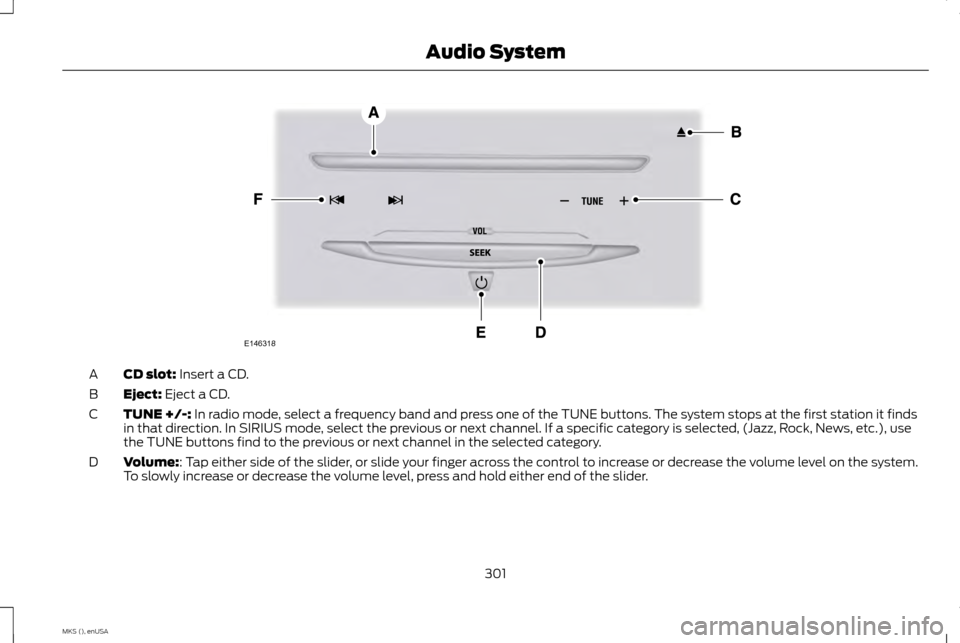
CD slot: Insert a CD.
A
Eject:
Eject a CD.
B
TUNE +/-:
In radio mode, select a frequency band and press one of the TUNE buttons. The system stops at the first station it finds
in that direction. In SIRIUS mode, select the previous or next channel. If a specific category is selected, (Jazz, Rock, News, etc.), use
the TUNE buttons find to the previous or next channel in the selected category.
C
Volume:
: Tap either side of the slider, or slide your finger across the control to increase or decrease the volume level on the system.
To slowly increase or decrease the volume level, press and hold either end of the slider.
D
301
MKS (), enUSA Audio SystemE146318
Page 305 of 424
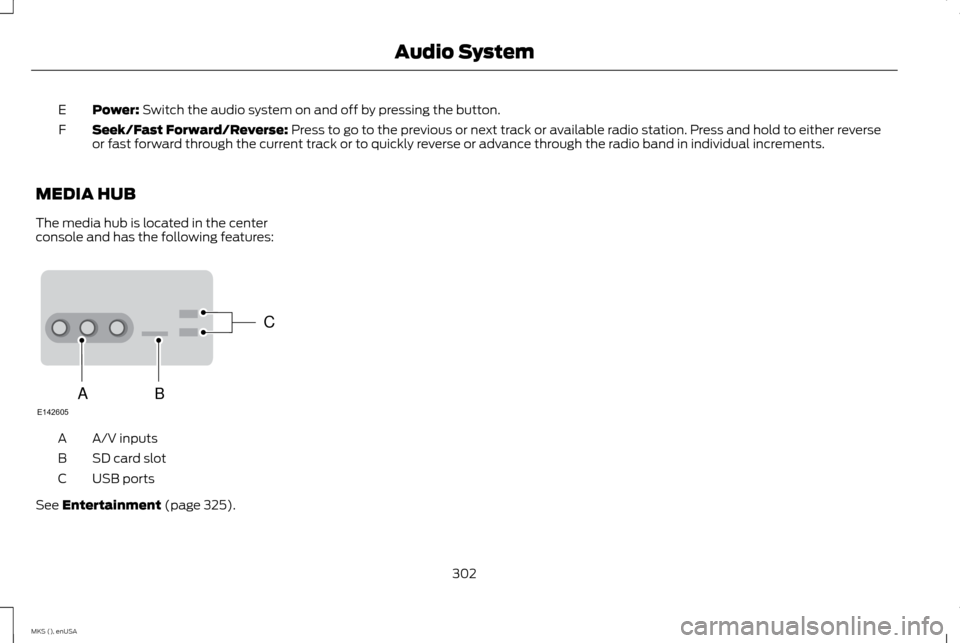
Power: Switch the audio system on and off by pressing the button.
E
Seek/Fast Forward/Reverse:
Press to go to the previous or next track or available radio station. Press and hold to either reverse
or fast forward through the current track or to quickly reverse or advance through the radio band in individual increments.
F
MEDIA HUB
The media hub is located in the center
console and has the following features: A/V inputs
A
SD card slot
B
USB ports
C
See
Entertainment (page 325).
302
MKS (), enUSA Audio SystemC
BA
E142605
Page 307 of 424
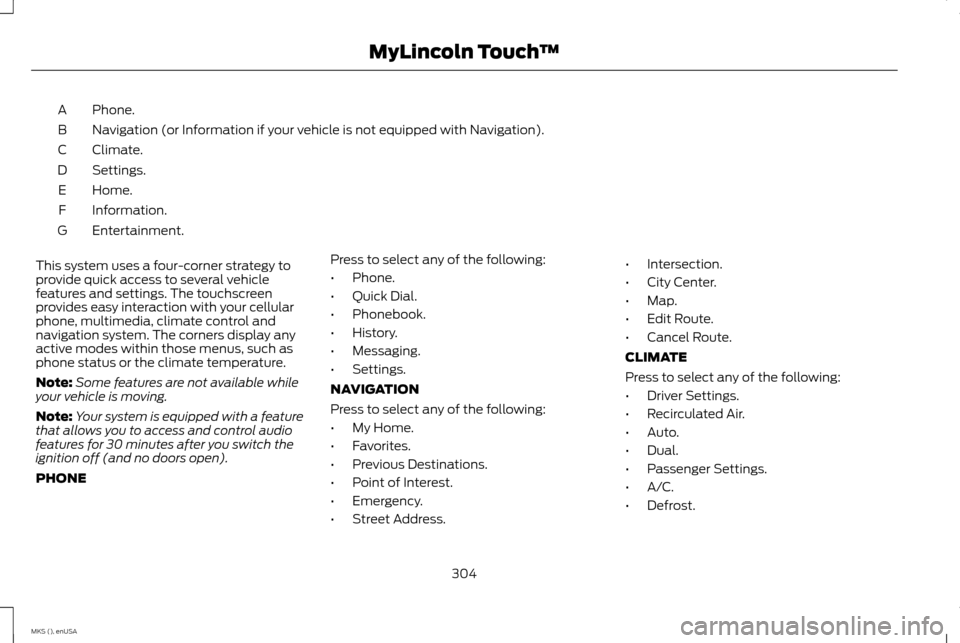
Phone.
A
Navigation (or Information if your vehicle is not equipped with Navigation).
B
Climate.
C
Settings.
D
Home.
E
Information.
F
Entertainment.
G
This system uses a four-corner strategy to
provide quick access to several vehicle
features and settings. The touchscreen
provides easy interaction with your cellular
phone, multimedia, climate control and
navigation system. The corners display any
active modes within those menus, such as
phone status or the climate temperature.
Note: Some features are not available while
your vehicle is moving.
Note: Your system is equipped with a feature
that allows you to access and control audio
features for 30 minutes after you switch the
ignition off (and no doors open).
PHONE Press to select any of the following:
•
Phone.
• Quick Dial.
• Phonebook.
• History.
• Messaging.
• Settings.
NAVIGATION
Press to select any of the following:
• My Home.
• Favorites.
• Previous Destinations.
• Point of Interest.
• Emergency.
• Street Address. •
Intersection.
• City Center.
• Map.
• Edit Route.
• Cancel Route.
CLIMATE
Press to select any of the following:
• Driver Settings.
• Recirculated Air.
• Auto.
• Dual.
• Passenger Settings.
• A/C.
• Defrost.
304
MKS (), enUSA MyLincoln Touch
™
Page 309 of 424
•
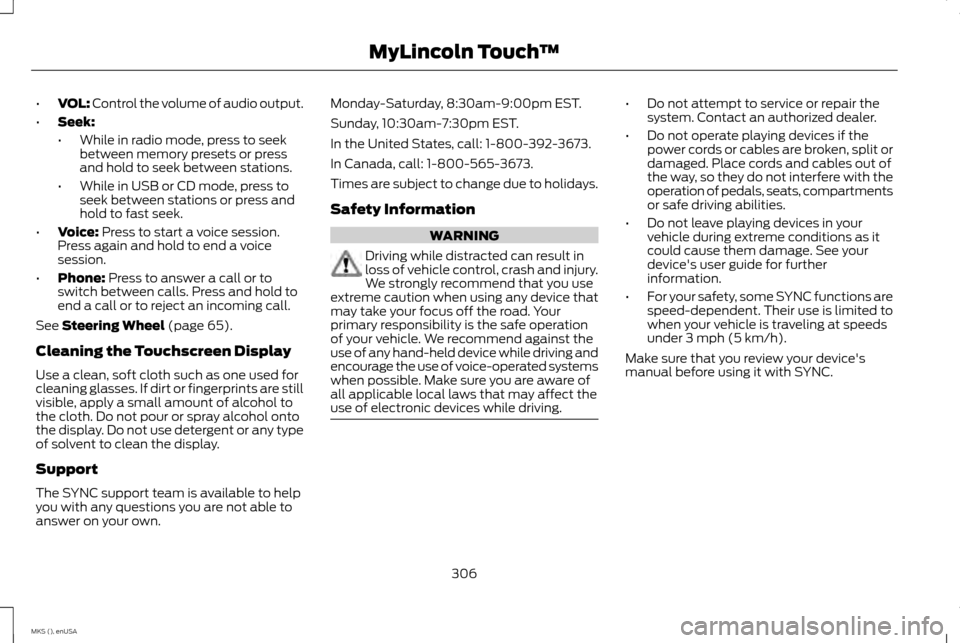
VOL: Control the volume of audio output.
• Seek:
•While in radio mode, press to seek
between memory presets or press
and hold to seek between stations.
• While in USB or CD mode, press to
seek between stations or press and
hold to fast seek.
• Voice: Press to start a voice session.
Press again and hold to end a voice
session.
• Phone:
Press to answer a call or to
switch between calls. Press and hold to
end a call or to reject an incoming call.
See
Steering Wheel (page 65).
Cleaning the Touchscreen Display
Use a clean, soft cloth such as one used for
cleaning glasses. If dirt or fingerprints are still
visible, apply a small amount of alcohol to
the cloth. Do not pour or spray alcohol onto
the display. Do not use detergent or any type
of solvent to clean the display.
Support
The SYNC support team is available to help
you with any questions you are not able to
answer on your own. Monday-Saturday, 8:30am-9:00pm EST.
Sunday, 10:30am-7:30pm EST.
In the United States, call: 1-800-392-3673.
In Canada, call: 1-800-565-3673.
Times are subject to change due to holidays.
Safety Information
WARNING
Driving while distracted can result in
loss of vehicle control, crash and injury.
We strongly recommend that you use
extreme caution when using any device that
may take your focus off the road. Your
primary responsibility is the safe operation
of your vehicle. We recommend against the
use of any hand-held device while driving and
encourage the use of voice-operated systems
when possible. Make sure you are aware of
all applicable local laws that may affect the
use of electronic devices while driving. •
Do not attempt to service or repair the
system. Contact an authorized dealer.
• Do not operate playing devices if the
power cords or cables are broken, split or
damaged. Place cords and cables out of
the way, so they do not interfere with the
operation of pedals, seats, compartments
or safe driving abilities.
• Do not leave playing devices in your
vehicle during extreme conditions as it
could cause them damage. See your
device's user guide for further
information.
• For your safety, some SYNC functions are
speed-dependent. Their use is limited to
when your vehicle is traveling at speeds
under 3 mph (5 km/h).
Make sure that you review your device's
manual before using it with SYNC.
306
MKS (), enUSA MyLincoln Touch
™
Page 312 of 424
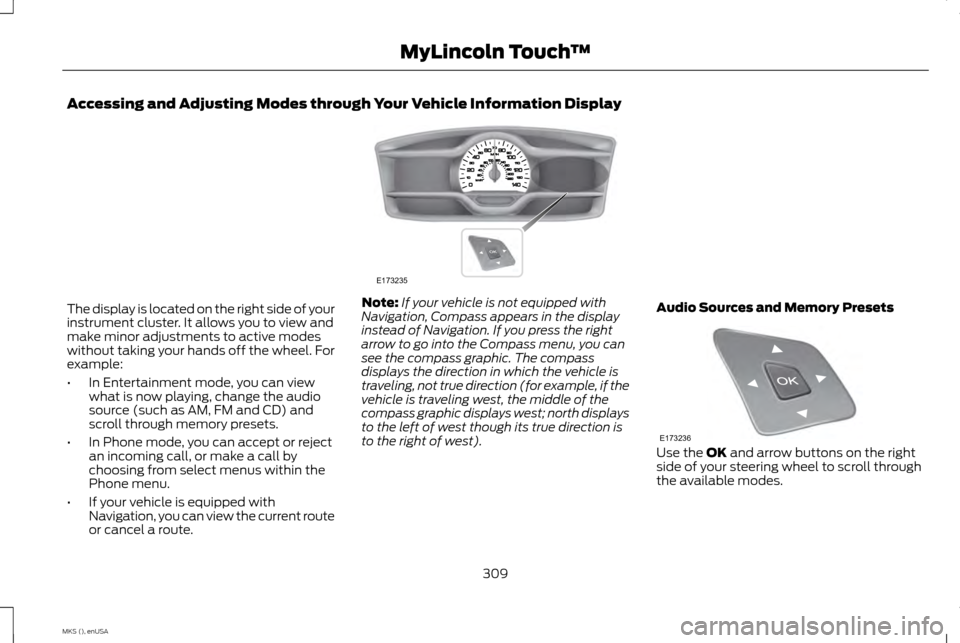
Accessing and Adjusting Modes through Your Vehicle Information Display
The display is located on the right side of your
instrument cluster. It allows you to view and
make minor adjustments to active modes
without taking your hands off the wheel. For
example:
•
In Entertainment mode, you can view
what is now playing, change the audio
source (such as AM, FM and CD) and
scroll through memory presets.
• In Phone mode, you can accept or reject
an incoming call, or make a call by
choosing from select menus within the
Phone menu.
• If your vehicle is equipped with
Navigation, you can view the current route
or cancel a route. Note:
If your vehicle is not equipped with
Navigation, Compass appears in the display
instead of Navigation. If you press the right
arrow to go into the Compass menu, you can
see the compass graphic. The compass
displays the direction in which the vehicle is
traveling, not true direction (for example, if the
vehicle is traveling west, the middle of the
compass graphic displays west; north displays
to the left of west though its true direction is
to the right of west). Audio Sources and Memory Presets Use the OK and arrow buttons on the right
side of your steering wheel to scroll through
the available modes.
309
MKS (), enUSA MyLincoln Touch
™E173235 E173236