cruise control LINCOLN MKS 2015 User Guide
[x] Cancel search | Manufacturer: LINCOLN, Model Year: 2015, Model line: MKS, Model: LINCOLN MKS 2015Pages: 424, PDF Size: 3.96 MB
Page 166 of 424
PRINCIPLE OF OPERATION
Cruise control lets you maintain a set speed
without keeping your foot on the accelerator
pedal. You can use cruise control when your
vehicle speed is greater than 20 mph
(30 km/h).
USING CRUISE CONTROL WARNINGS
Do not use cruise control in heavy
traffic, on winding roads or when the
road surface is slippery. This could
result in loss of vehicle control, serious injury
or death. When you are going downhill, your
vehicle speed may increase above the
set speed. The system will not apply
the brakes. Change down a gear to assist the
system in maintaining the set speed. Failure
to do so could result in loss of vehicle control,
serious injury or death. Note:
Cruise control will disengage if the
vehicle speed decreases more than 10 mph
(16 km/h) below your set speed while driving
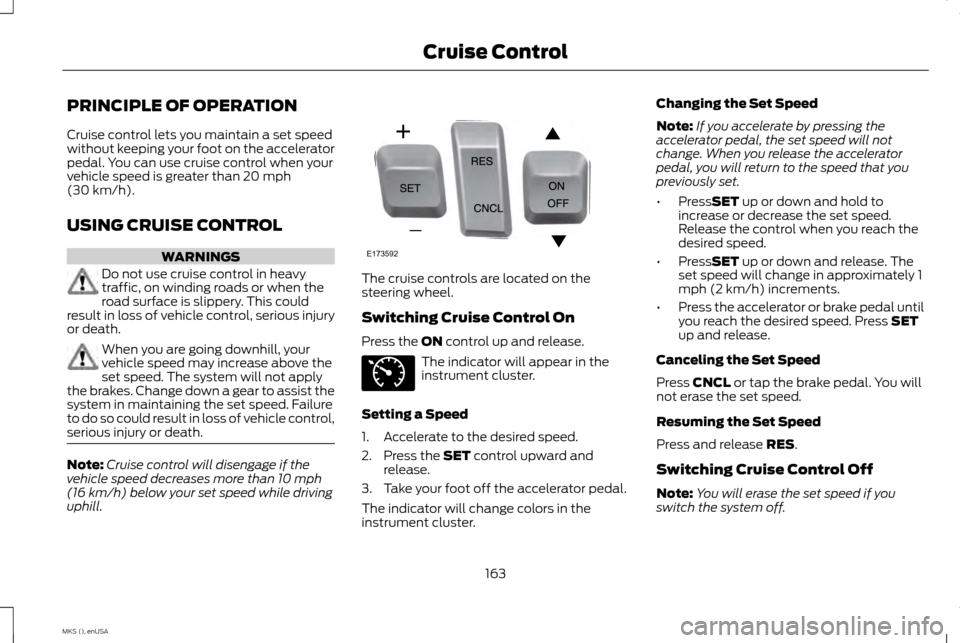
uphill. The cruise controls are located on the
steering wheel.
Switching Cruise Control On
Press the
ON control up and release.
The indicator will appear in the
instrument cluster.
Setting a Speed
1. Accelerate to the desired speed.
2. Press the
SET control upward and
release.
3. Take your foot off the accelerator pedal.
The indicator will change colors in the
instrument cluster. Changing the Set Speed
Note:
If you accelerate by pressing the
accelerator pedal, the set speed will not
change. When you release the accelerator
pedal, you will return to the speed that you
previously set.
• Press
SET up or down and hold to
increase or decrease the set speed.
Release the control when you reach the
desired speed.
• Press
SET up or down and release. The
set speed will change in approximately 1
mph (2 km/h) increments.
• Press the accelerator or brake pedal until
you reach the desired speed. Press
SET
up and release.
Canceling the Set Speed
Press
CNCL or tap the brake pedal. You will
not erase the set speed.
Resuming the Set Speed
Press and release
RES.
Switching Cruise Control Off
Note: You will erase the set speed if you
switch the system off.
163
MKS (), enUSA Cruise ControlE173592 E71340
Page 167 of 424
Press the OFFcontrol down and release or
turn off the ignition.
USING ADAPTIVE CRUISE
CONTROL
(If Equipped) WARNINGS
Always pay close attention to changing
road conditions, especially when using
adaptive cruise control. Adaptive cruise
control cannot replace attentive driving.
Failing to follow any of the warnings below
or failing to pay attention to the road may
result in a crash, serious injury or death. Adaptive cruise control is not a crash
warning or avoidance system.
Adaptive cruise control will not detect
stationary or slow moving vehicles
below 6 mph (10 km/h).
Adaptive cruise control will not detect
pedestrians or objects in the roadway.
Adaptive cruise control will not detect
oncoming vehicles in the same lane.
Do not use the adaptive cruise control
when entering or leaving a highway, in
heavy traffic or on roads that are
winding, slippery or unpaved. WARNINGS
Do not use in poor visibility, specifically
fog, rain, spray or snow.
Note:
It is your responsibility to stay alert, drive
safely and be in control of the vehicle at all
times.
The system adjusts your speed to maintain
a proper distance between you and the
vehicle in front of you in the same lane. You
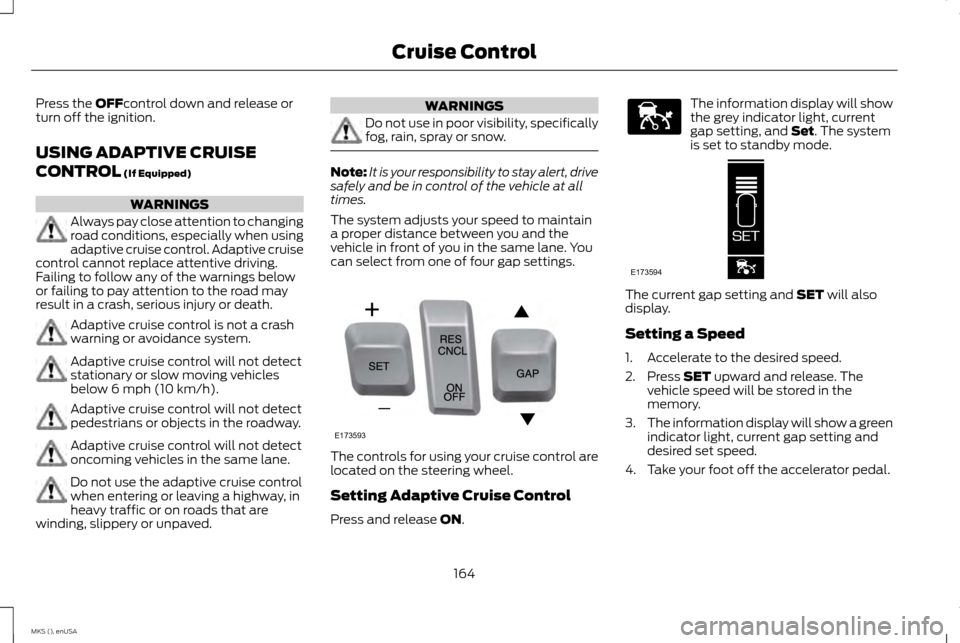
can select from one of four gap settings. The controls for using your cruise control are
located on the steering wheel.
Setting Adaptive Cruise Control
Press and release
ON. The information display will show
the grey indicator light, current
gap setting, and
Set. The system
is set to standby mode. The current gap setting and
SET will also
display.
Setting a Speed
1. Accelerate to the desired speed.
2. Press
SET upward and release. The
vehicle speed will be stored in the
memory.
3. The information display will show a green
indicator light, current gap setting and
desired set speed.
4. Take your foot off the accelerator pedal.
164
MKS (), enUSA Cruise ControlE173593 E144529 E173594
Page 168 of 424
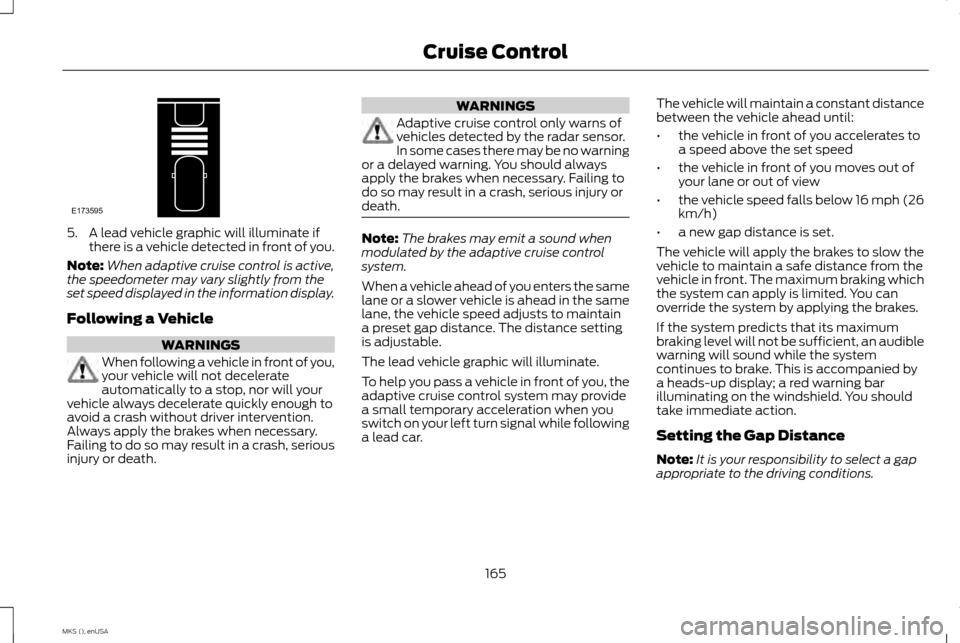
5. A lead vehicle graphic will illuminate if
there is a vehicle detected in front of you.
Note: When adaptive cruise control is active,
the speedometer may vary slightly from the
set speed displayed in the information display.
Following a Vehicle WARNINGS
When following a vehicle in front of you,
your vehicle will not decelerate
automatically to a stop, nor will your
vehicle always decelerate quickly enough to
avoid a crash without driver intervention.
Always apply the brakes when necessary.
Failing to do so may result in a crash, serious
injury or death. WARNINGS
Adaptive cruise control only warns of
vehicles detected by the radar sensor.
In some cases there may be no warning
or a delayed warning. You should always
apply the brakes when necessary. Failing to
do so may result in a crash, serious injury or
death. Note:
The brakes may emit a sound when
modulated by the adaptive cruise control
system.
When a vehicle ahead of you enters the same
lane or a slower vehicle is ahead in the same
lane, the vehicle speed adjusts to maintain
a preset gap distance. The distance setting
is adjustable.
The lead vehicle graphic will illuminate.
To help you pass a vehicle in front of you, the
adaptive cruise control system may provide
a small temporary acceleration when you
switch on your left turn signal while following
a lead car. The vehicle will maintain a constant distance
between the vehicle ahead until:
•
the vehicle in front of you accelerates to
a speed above the set speed
• the vehicle in front of you moves out of
your lane or out of view
• the vehicle speed falls below 16 mph (26
km/h)
• a new gap distance is set.
The vehicle will apply the brakes to slow the
vehicle to maintain a safe distance from the
vehicle in front. The maximum braking which
the system can apply is limited. You can
override the system by applying the brakes.
If the system predicts that its maximum
braking level will not be sufficient, an audible
warning will sound while the system
continues to brake. This is accompanied by
a heads-up display; a red warning bar
illuminating on the windshield. You should
take immediate action.
Setting the Gap Distance
Note: It is your responsibility to select a gap
appropriate to the driving conditions.
165
MKS (), enUSA Cruise ControlE173595
Page 169 of 424
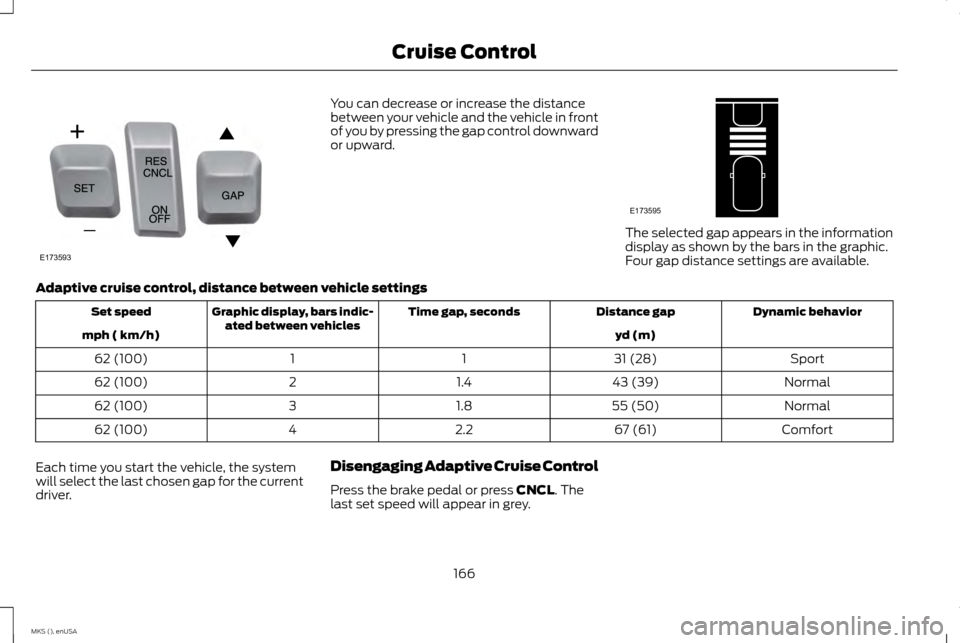
You can decrease or increase the distance
between your vehicle and the vehicle in front
of you by pressing the gap control downward
or upward.
The selected gap appears in the information
display as shown by the bars in the graphic.
Four gap distance settings are available.
Adaptive cruise control, distance between vehicle settings Dynamic behavior
Distance gap
Time gap, seconds
Graphic display, bars indic-
ated between vehicles
Set speed
yd (m)
mph ( km/h)
Sport
31 (28)
1
1
62 (100)
Normal
43 (39)
1.4
2
62 (100)
Normal
55 (50)
1.8
3
62 (100)
Comfort
67 (61)
2.2
4
62 (100)
Each time you start the vehicle, the system
will select the last chosen gap for the current
driver. Disengaging Adaptive Cruise Control
Press the brake pedal or press CNCL. The
last set speed will appear in grey.
166
MKS (), enUSA Cruise ControlE173593 E173595
Page 170 of 424
Overriding Adaptive Cruise Control
WARNING
Whenever the driver is overriding the
system by pressing the accelerator
pedal, the system will not
automatically apply the brakes to maintain
separation from any vehicle ahead. You can override the set speed and gap
distance by pressing the accelerator pedal.
When you override the system, the
green indicator light illuminates
and the lead vehicle graphic does
not show in the information
display.
The system will resume operation when you
release the accelerator pedal. The vehicle
speed will decrease to the set speed, or a
lower speed if following a slower vehicle. Changing the Set Speed
•
Accelerate or brake to the desired speed,
then press SET upward and release.
• Increase or decrease the speed by holding
SET
upward or downward SET until the
desired set speed shows on the
information display. The vehicle speed
will gradually change to the selected
speed.
• Increase or decrease the speed in
increments of 1 mph (2km/h) by briefly
pressing
SET upward or downward.
The system may apply the brakes to slow
your vehicle to the new set speed. The set
speed will display continuously in the
information display while the system is
active.
Resuming the Set Speed
Note: Only use resume if you are aware of the
set speed and intend to return to it.
Press and release RES. The vehicle will return
to the previously set speed. The set speed
will display continuously in the information
display while the system is active. Low Speed Automatic Cancellation
The system is not functional at vehicle
speeds below 16 mph (26 km/h). An audible
alarm will sound and the automatic braking
releases if the vehicle drops below this speed.
Hilly Condition Usage
Note:
An audible alarm will sound and the
system will shut down if it is applying brakes
for an extended period of time. This allows the
brakes to cool down. The system will function
normally again when the brakes have cooled
down.
You should select a lower gear position when
the system is active in situations such as
prolonged downhill driving on steep grades,
for example in mountainous areas. The
system needs additional engine braking in
these situations to reduce the load on the
vehicle ’s regular brake system to prevent
them from overheating.
Switching the System Off
Note: The set speed memory erases when
you switch off the system.
Press and release OFF or turn off the ignition.
167
MKS (), enUSA Cruise ControlE144529
Page 171 of 424
Detection Issues
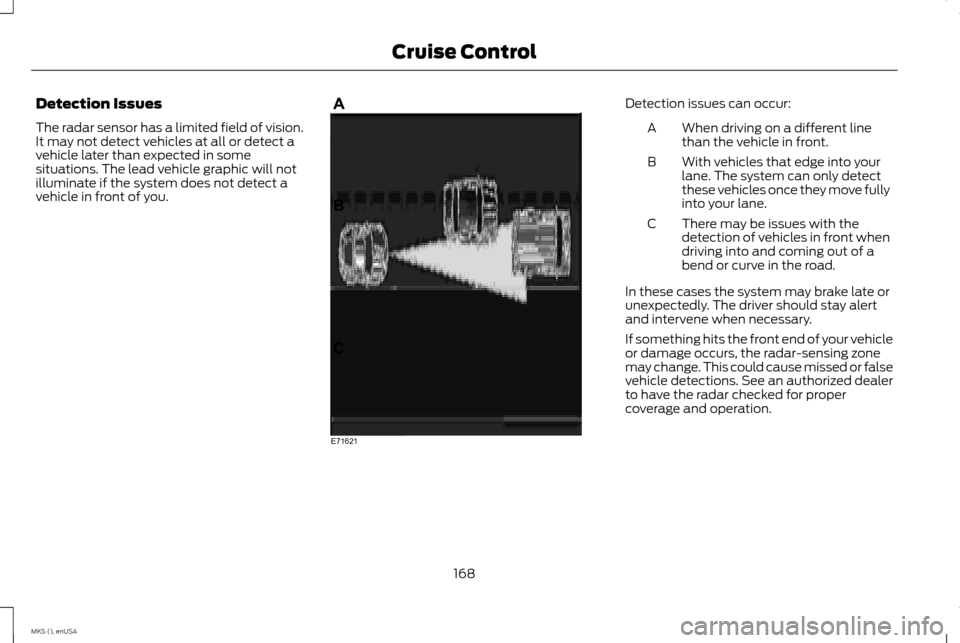
The radar sensor has a limited field of vision.
It may not detect vehicles at all or detect a
vehicle later than expected in some
situations. The lead vehicle graphic will not
illuminate if the system does not detect a
vehicle in front of you. Detection issues can occur:
When driving on a different line
than the vehicle in front.
A
With vehicles that edge into your
lane. The system can only detect
these vehicles once they move fully
into your lane.
B
There may be issues with the
detection of vehicles in front when
driving into and coming out of a
bend or curve in the road.
C
In these cases the system may brake late or
unexpectedly. The driver should stay alert
and intervene when necessary.
If something hits the front end of your vehicle
or damage occurs, the radar-sensing zone
may change. This could cause missed or false
vehicle detections. See an authorized dealer
to have the radar checked for proper
coverage and operation.
168
MKS (), enUSA Cruise ControlE71621
Page 172 of 424
Blocked Sensor
WARNINGS
Do not use the system when towing a
trailer with brake controls. Aftermarket
trailer brakes will not function properly
when you switch the system on because the
brakes are electronically controlled. Failing
to do so may result in loss of vehicle control,
which could result in serious injury. Do not use tire sizes other than those
recommended because this can affect
the normal operation of the system.
Failing to do so may result in a loss of vehicle
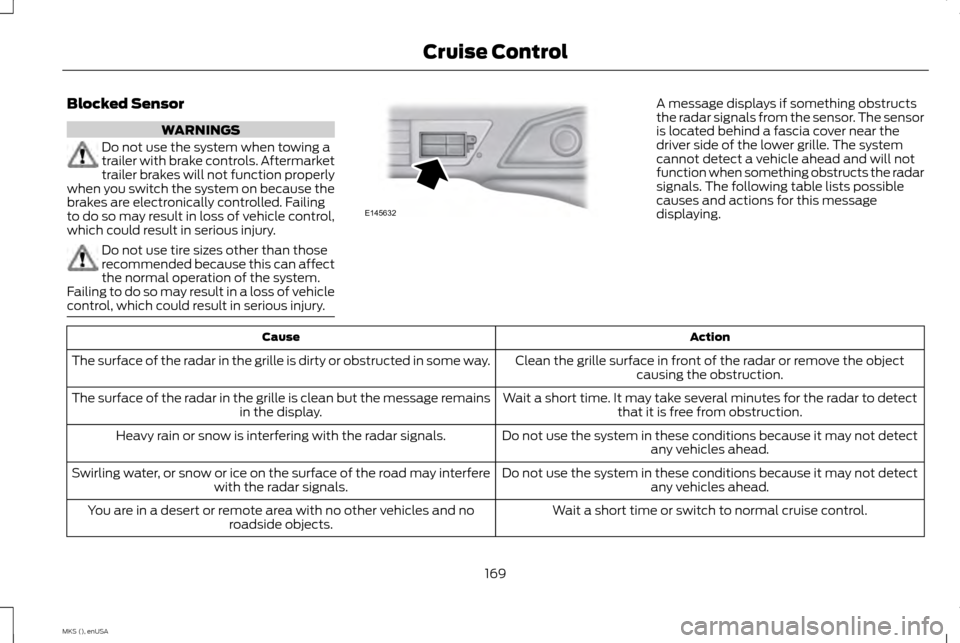
control, which could result in serious injury. A message displays if something obstructs
the radar signals from the sensor. The sensor
is located behind a fascia cover near the
driver side of the lower grille. The system
cannot detect a vehicle ahead and will not
function when something obstructs the radar
signals. The following table lists possible
causes and actions for this message
displaying.
Action
Cause
Clean the grille surface in front of the radar or remove the objectcausing the obstruction.
The surface of the radar in the grille is dirty or obstructed in some way.
Wait a short time. It may take several minutes for the radar to detectthat it is free from obstruction.
The surface of the radar in the grille is clean but the message remains
in the display.
Do not use the system in these conditions because it may not detectany vehicles ahead.
Heavy rain or snow is interfering with the radar signals.
Do not use the system in these conditions because it may not detectany vehicles ahead.
Swirling water, or snow or ice on the surface of the road may interfere
with the radar signals.
Wait a short time or switch to normal cruise control.
You are in a desert or remote area with no other vehicles and no
roadside objects.
169
MKS (), enUSA Cruise ControlE145632
Page 173 of 424
Due to the nature of radar technology, it is
possible to get a blockage warning and not
be blocked. This can happen, for example,
when driving in sparse rural or desert
environments. A false blocked condition will
either self clear or clear after a key cycle.
Switching to Normal Cruise Control
WARNING
Normal cruise control will not brake due
to slower vehicles. Always be aware of
which mode you have selected and
apply the brakes when necessary. You can manually change from adaptive
cruise control to normal cruise control
through the information display.
The cruise control indicator light
replaces the adaptive cruise
control indicator light if you select
normal cruise control. The gap setting will
not display, the system will not automatically
respond to lead vehicles and automatic
braking will not activate. The system defaults
to adaptive cruise control when you start the
vehicle.
170
MKS (), enUSA Cruise ControlE71340
Page 177 of 424
•
Low
• Medium
• High
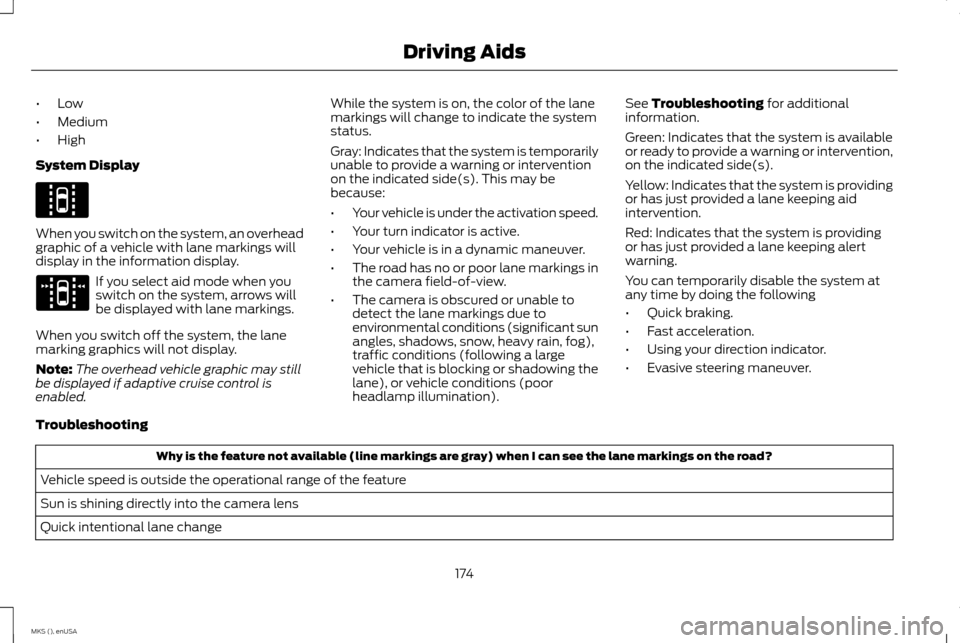
System Display When you switch on the system, an overhead
graphic of a vehicle with lane markings will
display in the information display.
If you select aid mode when you
switch on the system, arrows will
be displayed with lane markings.
When you switch off the system, the lane
marking graphics will not display.
Note: The overhead vehicle graphic may still
be displayed if adaptive cruise control is
enabled. While the system is on, the color of the lane
markings will change to indicate the system
status.
Gray: Indicates that the system is temporarily
unable to provide a warning or intervention
on the indicated side(s). This may be
because:
•
Your vehicle is under the activation speed.
• Your turn indicator is active.
• Your vehicle is in a dynamic maneuver.
• The road has no or poor lane markings in
the camera field-of-view.
• The camera is obscured or unable to
detect the lane markings due to
environmental conditions (significant sun
angles, shadows, snow, heavy rain, fog),
traffic conditions (following a large
vehicle that is blocking or shadowing the
lane), or vehicle conditions (poor
headlamp illumination). See Troubleshooting for additional
information.
Green: Indicates that the system is available
or ready to provide a warning or intervention,
on the indicated side(s).
Yellow: Indicates that the system is providing
or has just provided a lane keeping aid
intervention.
Red: Indicates that the system is providing
or has just provided a lane keeping alert
warning.
You can temporarily disable the system at
any time by doing the following
• Quick braking.
• Fast acceleration.
• Using your direction indicator.
• Evasive steering maneuver.
Troubleshooting Why is the feature not available (line markings are gray) when I can see the lane markings on the road?
Vehicle speed is outside the operational range of the feature
Sun is shining directly into the camera lens
Quick intentional lane change
174
MKS (), enUSA Driving AidsE144813 E173234
Page 227 of 424
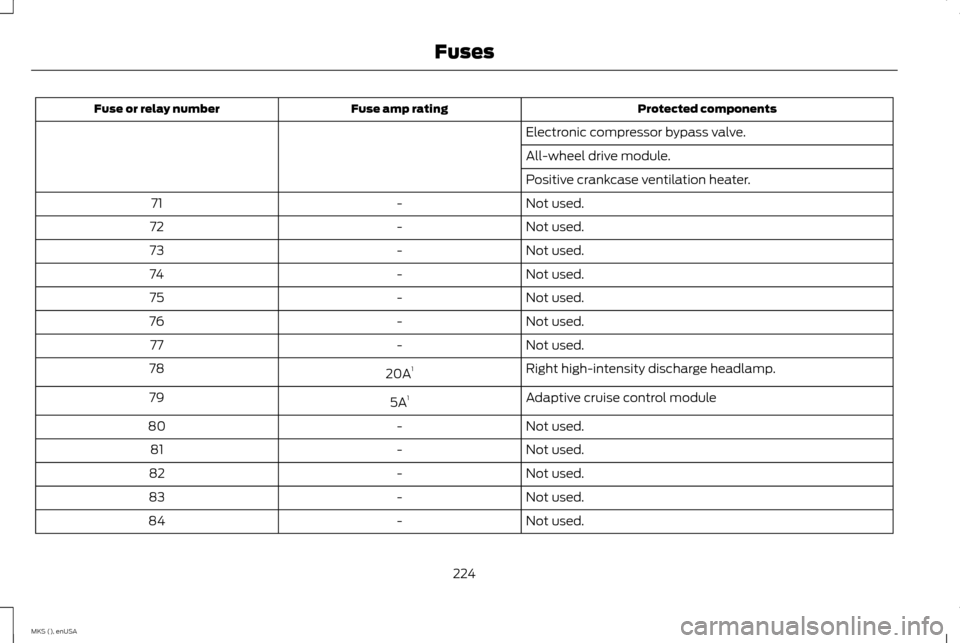
Protected components
Fuse amp rating
Fuse or relay number
Electronic compressor bypass valve.
All-wheel drive module.
Positive crankcase ventilation heater.
Not used.
-
71
Not used.
-
72
Not used.
-
73
Not used.
-
74
Not used.
-
75
Not used.
-
76
Not used.
-
77
Right high-intensity discharge headlamp.
20A 1
78
Adaptive cruise control module
5A 1
79
Not used.
-
80
Not used.
-
81
Not used.
-
82
Not used.
-
83
Not used.
-
84
224
MKS (), enUSA Fuses