ad blue LINCOLN MKT 2015 Owners Manual
[x] Cancel search | Manufacturer: LINCOLN, Model Year: 2015, Model line: MKT, Model: LINCOLN MKT 2015Pages: 500, PDF Size: 4.94 MB
Page 165 of 500
Programming HomeLink to the Genie Intellicode garage door
opener motor
Note:You may need a ladder to access the garage door opener motor.
To program HomeLink to the garage
door opener motor:
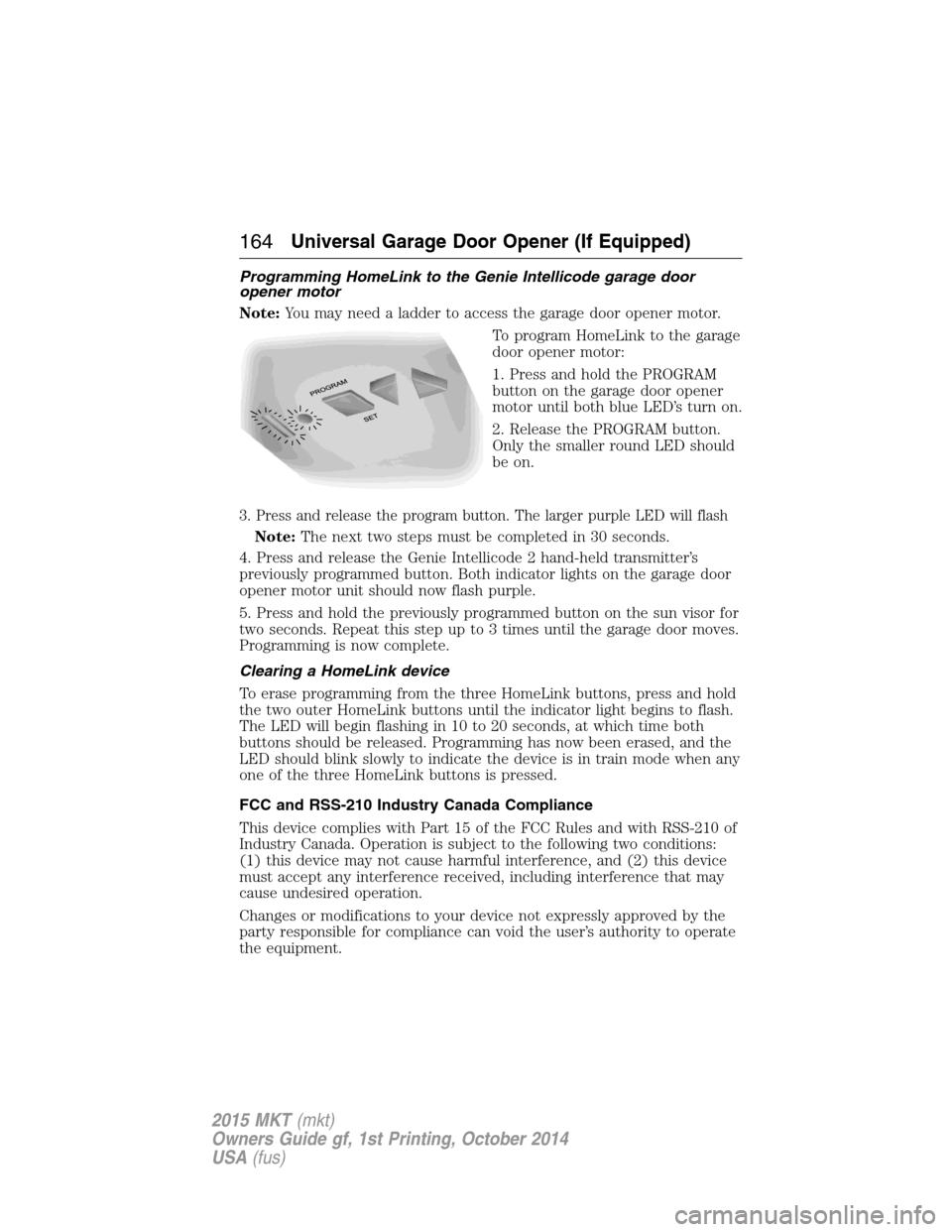
1. Press and hold the PROGRAM
button on the garage door opener
motor until both blue LED’s turn on.
2. Release the PROGRAM button.
Only the smaller round LED should
be on.
3. Press and release the program button. The larger purple LED will flash
Note:The next two steps must be completed in 30 seconds.
4. Press and release the Genie Intellicode 2 hand-held transmitter’s
previously programmed button. Both indicator lights on the garage door
opener motor unit should now flash purple.
5. Press and hold the previously programmed button on the sun visor for
two seconds. Repeat this step up to 3 times until the garage door moves.
Programming is now complete.
Clearing a HomeLink device
To erase programming from the three HomeLink buttons, press and hold
the two outer HomeLink buttons until the indicator light begins to flash.
The LED will begin flashing in 10 to 20 seconds, at which time both
buttons should be released. Programming has now been erased, and the
LED should blink slowly to indicate the device is in train mode when any
one of the three HomeLink buttons is pressed.
FCC and RSS-210 Industry Canada Compliance
This device complies with Part 15 of the FCC Rules and with RSS-210 of
Industry Canada. Operation is subject to the following two conditions:
(1) this device may not cause harmful interference, and (2) this device
must accept any interference received, including interference that may
cause undesired operation.
Changes or modifications to your device not expressly approved by the
party responsible for compliance can void the user’s authority to operate
the equipment.
164Universal Garage Door Opener (If Equipped)
2015 MKT(mkt)
Owners Guide gf, 1st Printing, October 2014
USA(fus)
Page 256 of 500
Trailer Towing Connector (Vehicles with a Trailer Towing Package
and 7–Pin Connector)
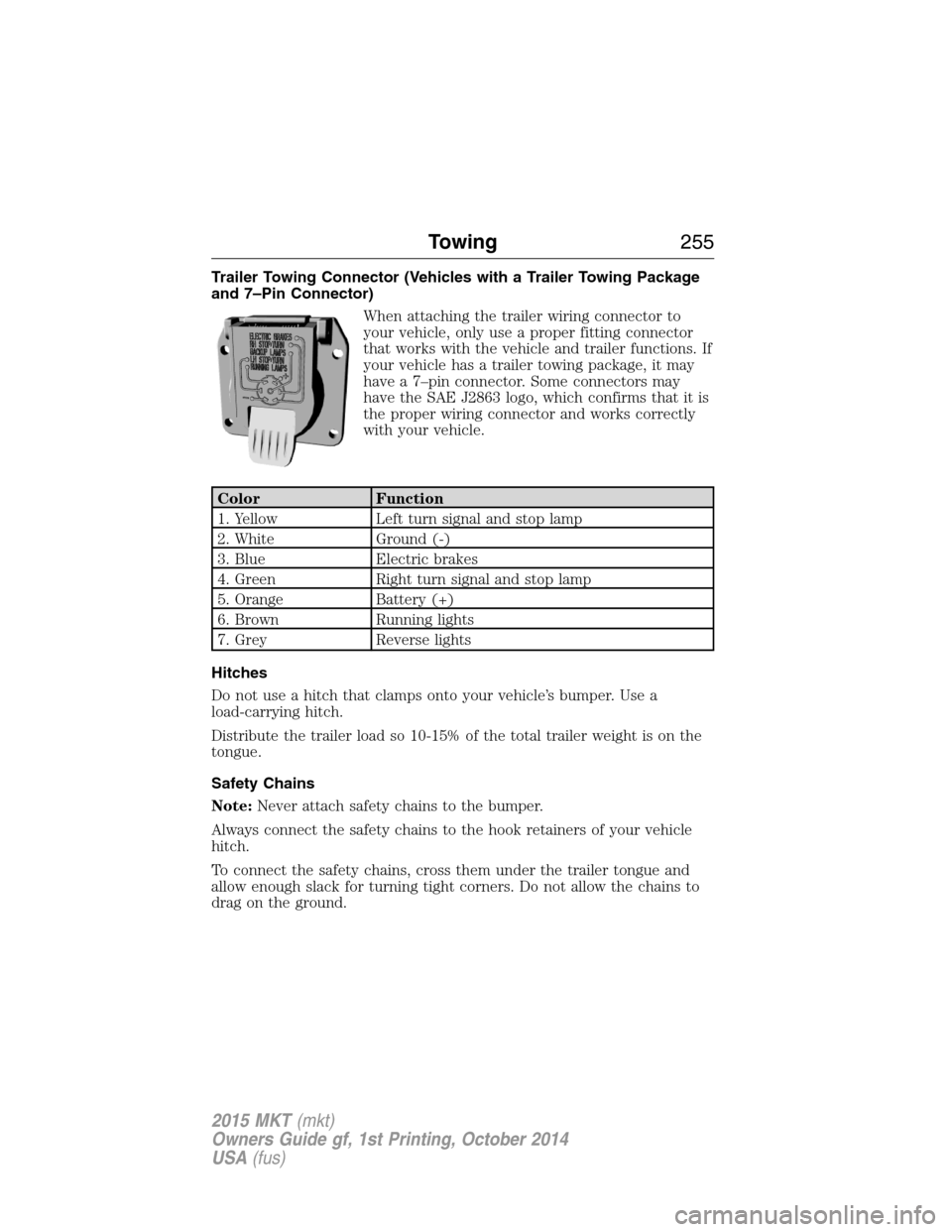
When attaching the trailer wiring connector to
your vehicle, only use a proper fitting connector
that works with the vehicle and trailer functions. If
your vehicle has a trailer towing package, it may
have a 7–pin connector. Some connectors may
have the SAE J2863 logo, which confirms that it is
the proper wiring connector and works correctly
with your vehicle.
Color Function
1. Yellow Left turn signal and stop lamp
2. White Ground (-)
3. Blue Electric brakes
4. Green Right turn signal and stop lamp
5. Orange Battery (+)
6. Brown Running lights
7. Grey Reverse lights
Hitches
Do not use a hitch that clamps onto your vehicle’s bumper. Use a
load-carrying hitch.
Distribute the trailer load so 10-15% of the total trailer weight is on the
tongue.
Safety Chains
Note:Never attach safety chains to the bumper.
Always connect the safety chains to the hook retainers of your vehicle
hitch.
To connect the safety chains, cross them under the trailer tongue and
allow enough slack for turning tight corners. Do not allow the chains to
drag on the ground.
Towing255
2015 MKT(mkt)
Owners Guide gf, 1st Printing, October 2014
USA(fus)
Page 280 of 500
CHANGING A FUSE
Fuses
WARNING:Always replace a fuse with one that has the
specified amperage rating. Using a fuse with a higher amperage
rating can cause severe wire damage and could start a fire.
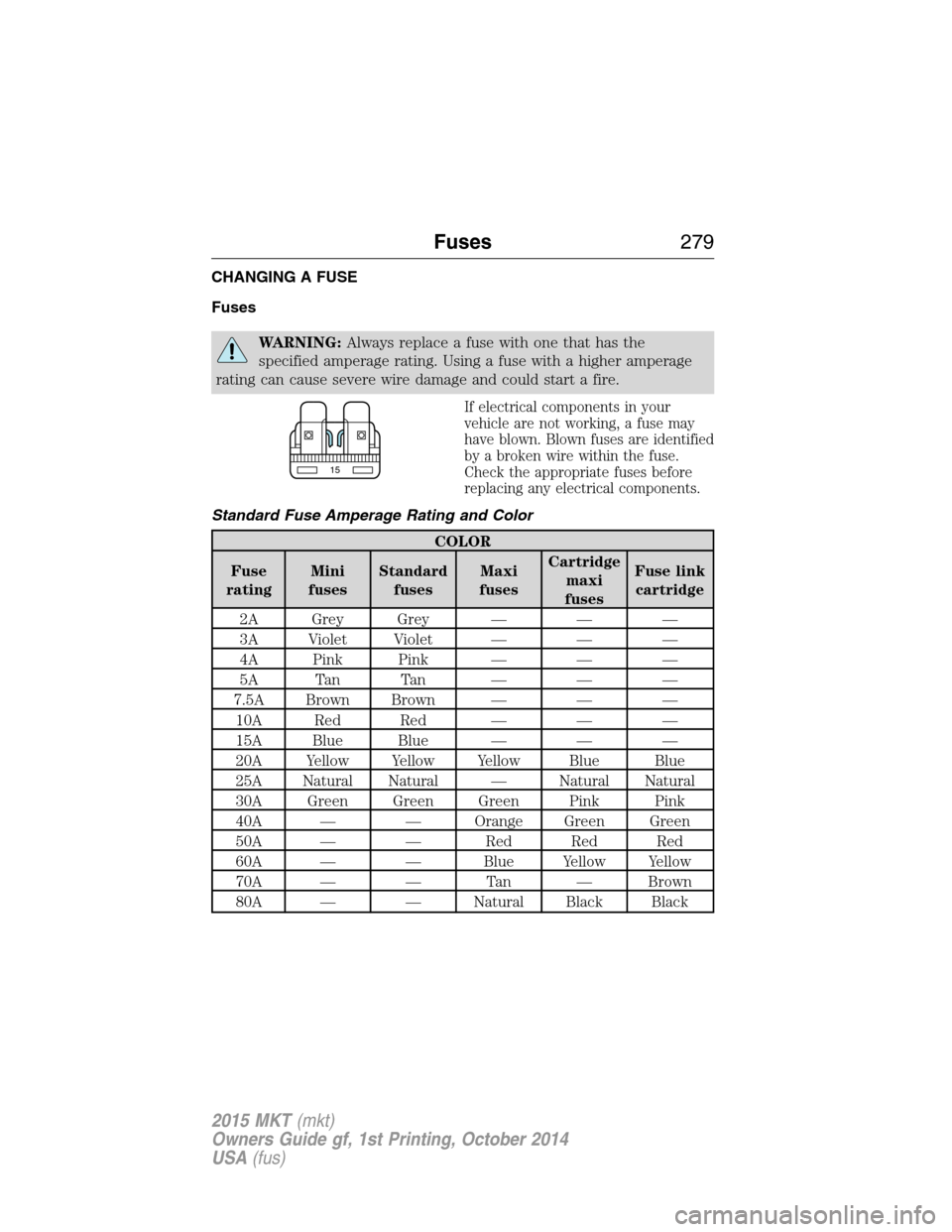
If electrical components in your
vehicle are not working, a fuse may
have blown. Blown fuses are identified
by a broken wire within the fuse.
Check the appropriate fuses before
replacing any electrical components.
Standard Fuse Amperage Rating and Color
COLOR
Fuse
ratingMini
fusesStandard
fusesMaxi
fusesCartridge
maxi
fusesFuse link
cartridge
2A Grey Grey — — —
3A Violet Violet — — —
4A Pink Pink — — —
5A Tan Tan — — —
7.5A Brown Brown — — —
10A Red Red — — —
15A Blue Blue — — —
20A Yellow Yellow Yellow Blue Blue
25A Natural Natural — Natural Natural
30A Green Green Green Pink Pink
40A — — Orange Green Green
50A — — Red Red Red
60A — — Blue Yellow Yellow
70A — — Tan — Brown
80A — — Natural Black Black
15
Fuses279
2015 MKT(mkt)
Owners Guide gf, 1st Printing, October 2014
USA(fus)
Page 384 of 500
•For your safety, some SYNC® functions are speed dependent and
cannot be performed when the vehicle is traveling at speeds greater
than 3 mph (5 km/h).
•
Ensure that you review your device’s user guide before using with SYNC®.
Speed-restricted Features
Some features of this system may be too difficult to use while your vehicle
is moving so they are restricted from use unless your vehicle is stationary.
•Screens that are too crowded with information, such as Point of
Interest reviews and ratings, Sirius Travel Link sports scores, movie
times and ski conditions.
•Any action that requires you to use a keyboard is restricted, such as
entering a navigation destination or editing information.
•All lists are limited so the user can view fewer entries (such as phone
contacts or recent phone call entries).
See the following chart for more specific examples:
Restricted Features
Cellular Phone Pairing a Bluetooth phone
Adding phonebook contacts or uploading phonebook
contacts (from a USB)
List entries are limited for phone contacts and recent
phone call entries
System
FunctionalityEditing the keypad code
Enabling Valet Mode
Editing settings while the rear view camera or Active
Park Assist are active
Wi-Fi and
WirelessEditing wireless settings
Editing the list of wireless networks
Videos, Photos
and GraphicsPlaying video
Editing the screen’s wallpaper or adding new wallpaper
Text Messages Composing text messages
Viewing received text messages
Editing preset text messages
Navigation Using the keyboard to enter a destination
Demo navigation route
Adding or Editing Address Book entries or Avoid Areas
MyLincoln Touch™383
2015 MKT(mkt)
Owners Guide gf, 1st Printing, October 2014
USA(fus)
Page 389 of 500
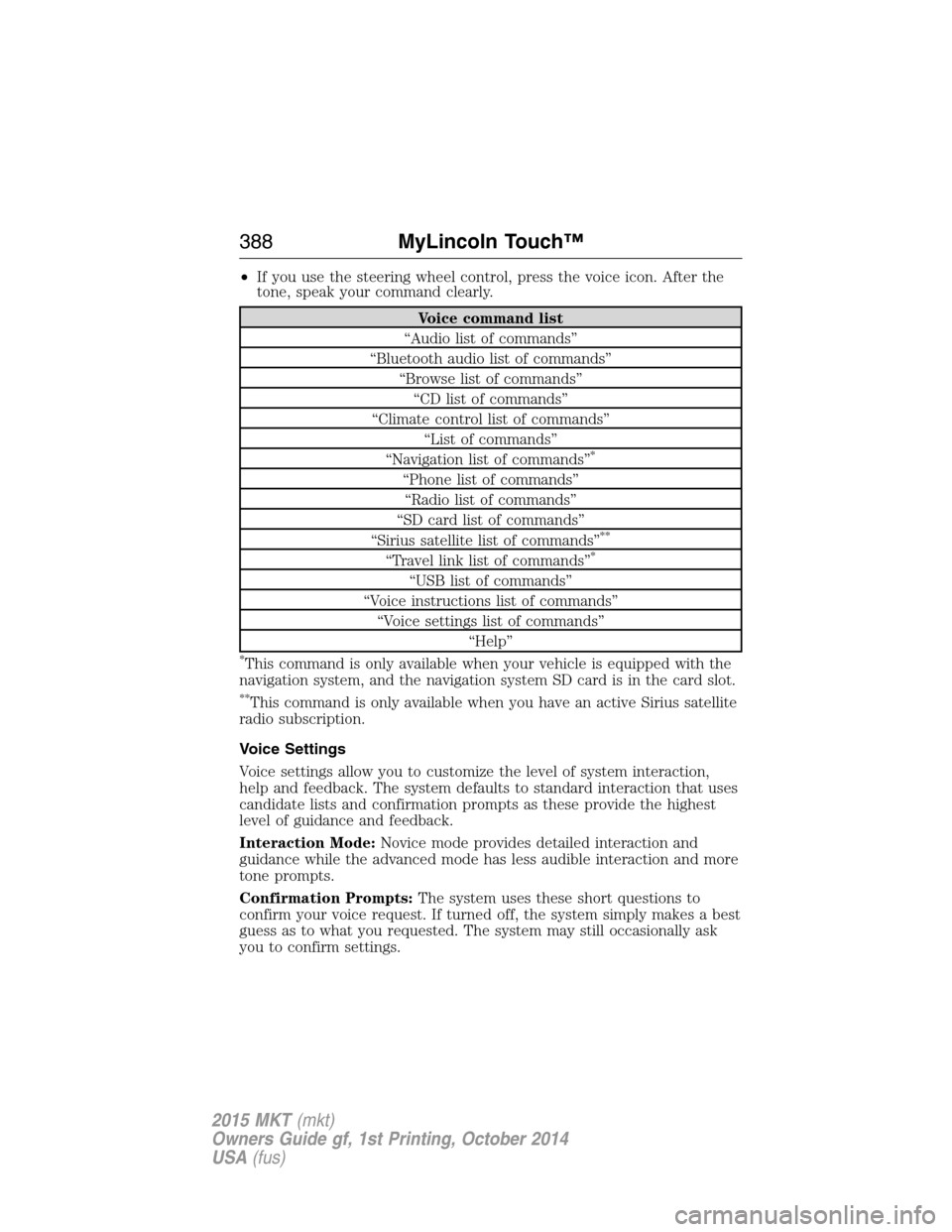
•If you use the steering wheel control, press the voice icon. After the
tone, speak your command clearly.
Voice command list
“Audio list of commands”
“Bluetooth audio list of commands”
“Browse list of commands”
“CD list of commands”
“Climate control list of commands”
“List of commands”
“Navigation list of commands”
*
“Phone list of commands”
“Radio list of commands”
“SD card list of commands”
“Sirius satellite list of commands”
**
“Travel link list of commands”*
“USB list of commands”
“Voice instructions list of commands”
“Voice settings list of commands”
“Help”
*This command is only available when your vehicle is equipped with the
navigation system, and the navigation system SD card is in the card slot.
**This command is only available when you have an active Sirius satellite
radio subscription.
Voice Settings
Voice settings allow you to customize the level of system interaction,
help and feedback. The system defaults to standard interaction that uses
candidate lists and confirmation prompts as these provide the highest
level of guidance and feedback.
Interaction Mode:Novice mode provides detailed interaction and
guidance while the advanced mode has less audible interaction and more
tone prompts.
Confirmation Prompts:The system uses these short questions to
confirm your voice request. If turned off, the system simply makes a best
guess as to what you requested. The system may still occasionally ask
you to confirm settings.
388MyLincoln Touch™
2015 MKT(mkt)
Owners Guide gf, 1st Printing, October 2014
USA(fus)
Page 392 of 500
Browsing Device Content
When listening to audio on a device, you can browse through other
devices without having to change sources. For example, if you are
currently listening to audio on an SD card, you can browse all the artists
that are stored on your USB device.
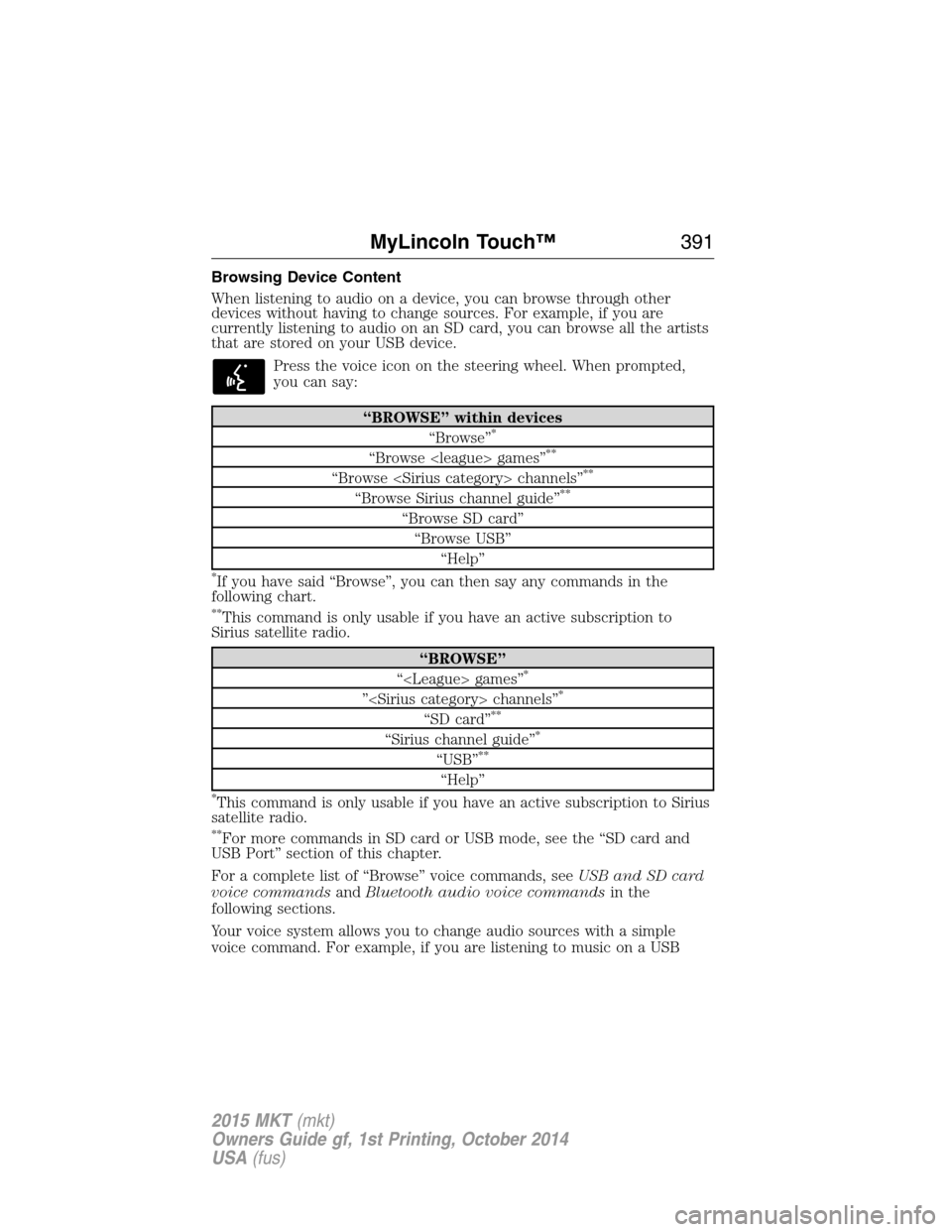
Press the voice icon on the steering wheel. When prompted,
you can say:
“BROWSE” within devices
“Browse”*
“Browse
“Browse
“Browse Sirius channel guide”**
“Browse SD card”
“Browse USB”
“Help”
*If you have said “Browse”, you can then say any commands in the
following chart.
**This command is only usable if you have an active subscription to
Sirius satellite radio.
“BROWSE”
“
”
“SD card”**
“Sirius channel guide”*
“USB”**
“Help”
*This command is only usable if you have an active subscription to Sirius
satellite radio.
**For more commands in SD card or USB mode, see the “SD card and
USB Port” section of this chapter.
For a complete list of “Browse” voice commands, seeUSB and SD card
voice commandsandBluetooth audio voice commandsin the
following sections.
Your voice system allows you to change audio sources with a simple
voice command. For example, if you are listening to music on a USB
MyLincoln Touch™391
2015 MKT(mkt)
Owners Guide gf, 1st Printing, October 2014
USA(fus)
Page 410 of 500
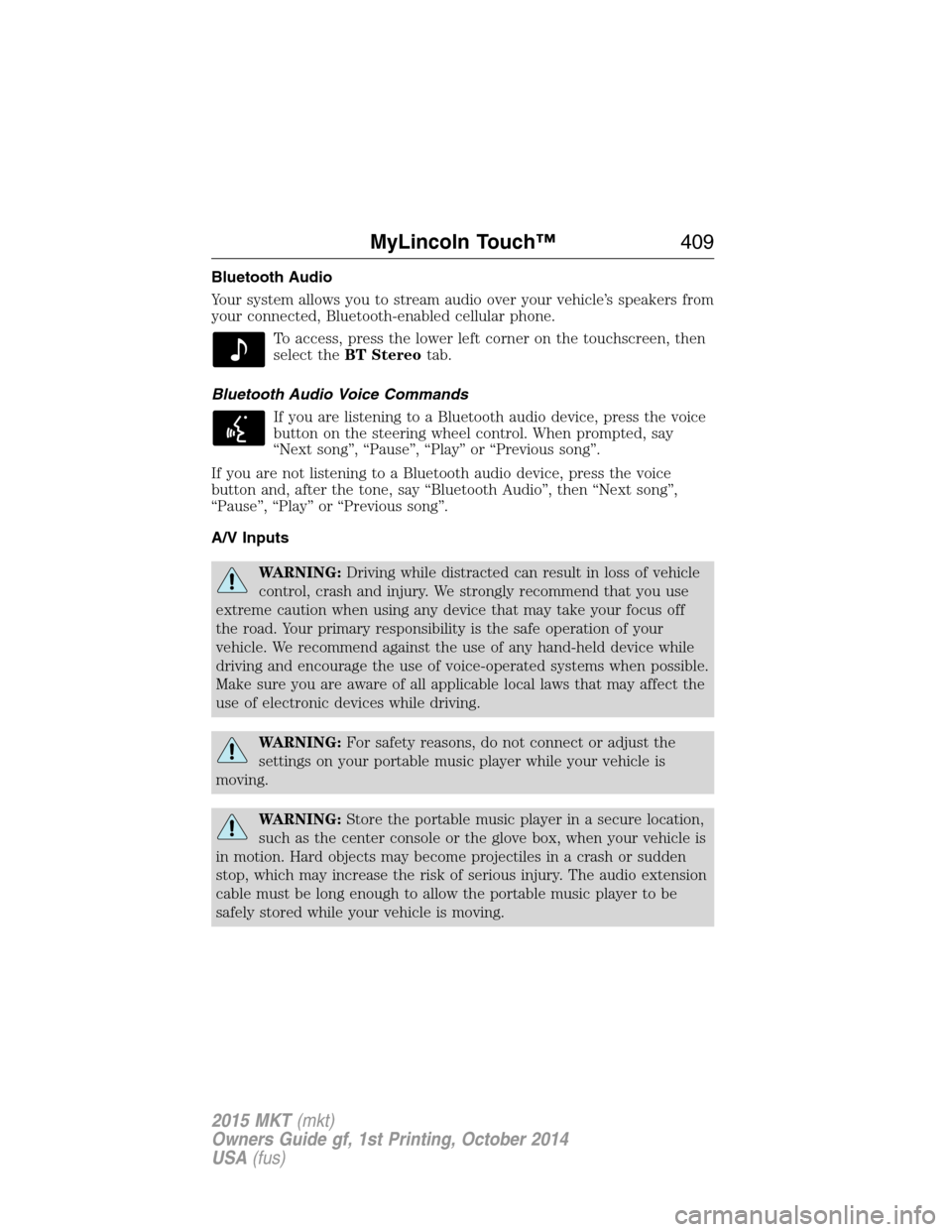
Bluetooth Audio
Your system allows you to stream audio over your vehicle’s speakers from
your connected, Bluetooth-enabled cellular phone.
To access, press the lower left corner on the touchscreen, then
select theBT Stereotab.
Bluetooth Audio Voice Commands
If you are listening to a Bluetooth audio device, press the voice
button on the steering wheel control. When prompted, say
“Next song”, “Pause”, “Play” or “Previous song”.
If you are not listening to a Bluetooth audio device, press the voice
button and, after the tone, say “Bluetooth Audio”, then “Next song”,
“Pause”, “Play” or “Previous song”.
A/V Inputs
WARNING:Driving while distracted can result in loss of vehicle
control, crash and injury. We strongly recommend that you use
extreme caution when using any device that may take your focus off
the road. Your primary responsibility is the safe operation of your
vehicle. We recommend against the use of any hand-held device while
driving and encourage the use of voice-operated systems when possible.
Make sure you are aware of all applicable local laws that may affect the
use of electronic devices while driving.
WARNING:For safety reasons, do not connect or adjust the
settings on your portable music player while your vehicle is
moving.
WARNING:Store the portable music player in a secure location,
such as the center console or the glove box, when your vehicle is
in motion. Hard objects may become projectiles in a crash or sudden
stop, which may increase the risk of serious injury. The audio extension
cable must be long enough to allow the portable music player to be
safely stored while your vehicle is moving.
MyLincoln Touch™409
2015 MKT(mkt)
Owners Guide gf, 1st Printing, October 2014
USA(fus)
Page 413 of 500
commands. While the system supports a variety of features, many are
dependent on your cellular phone’s functionality. At a minimum, most
cellular phones with Bluetooth wireless technology support the following
functions:
•Answering an incoming call
•Ending a call
•Using privacy mode
•Dialing a number
•Redialing
•Call waiting notification
•Caller ID.
Other features, such as text messaging using Bluetooth and automatic
phonebook download, are phone-dependent features. To check your
phone’s compatibility, see your phone’s user manual and visit
www.SYNCMyRide.com, www.SYNCMyRide.ca or www.syncmaroute.ca.
Pairing Your Phone for the First Time
WARNING:Driving while distracted can result in loss of vehicle
control, crash and injury. We strongly recommend that you use
extreme caution when using any device that may take your focus off
the road. Your primary responsibility is the safe operation of your
vehicle. We recommend against the use of any hand-held device while
driving and encourage the use of voice-operated systems when possible.
Make sure you are aware of all applicable local laws that may affect the
use of electronic devices while driving.
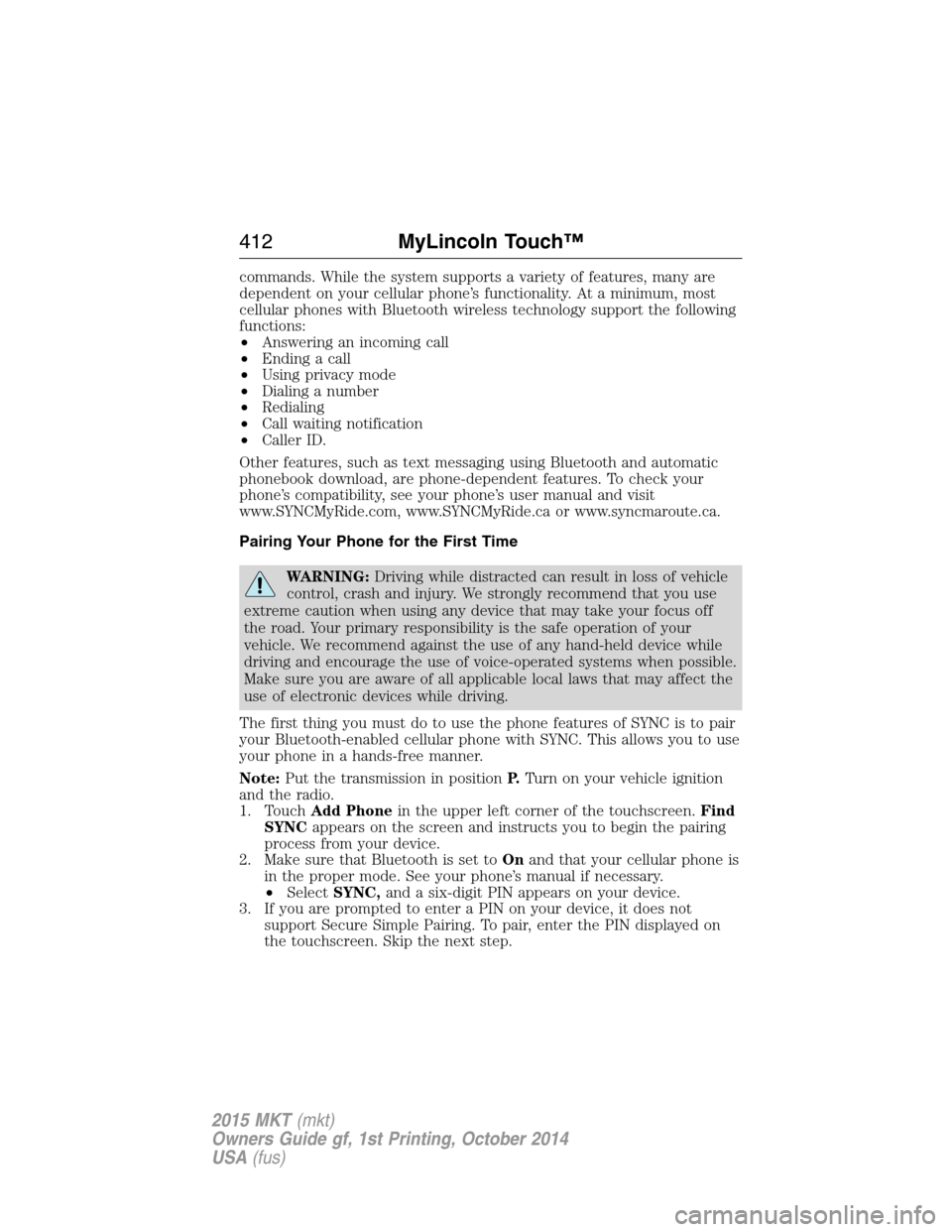
The first thing you must do to use the phone features of SYNC is to pair
your Bluetooth-enabled cellular phone with SYNC. This allows you to use
your phone in a hands-free manner.
Note:Put the transmission in positionP.Turn on your vehicle ignition
and the radio.
1. TouchAdd Phonein the upper left corner of the touchscreen.Find
SYNCappears on the screen and instructs you to begin the pairing
process from your device.
2. Make sure that Bluetooth is set toOnand that your cellular phone is
in the proper mode. See your phone’s manual if necessary.
•SelectSYNC,and a six-digit PIN appears on your device.
3. If you are prompted to enter a PIN on your device, it does not
support Secure Simple Pairing. To pair, enter the PIN displayed on
the touchscreen. Skip the next step.
412MyLincoln Touch™
2015 MKT(mkt)
Owners Guide gf, 1st Printing, October 2014
USA(fus)
Page 414 of 500
4. When prompted on your phone’s display, confirm that the PIN
provided by SYNC matches the PIN displayed on your cellular phone.
5. The display indicates when the pairing is successful.
SYNC may prompt you with more phone options. For more information on
your phone’s capability, see your phone’s manual and visit the website.
Pairing Subsequent Phones
Note:Put the transmission in positionP.Turn on your vehicle ignition
and the radio.
1. Press thePhonecorner of the touchscreen >Settings>BT
Devices>Add Device.
2. Make sure that Bluetooth is set toOnand that your cellular phone is
in the proper mode. See your phone’s manual if necessary.
•SelectSYNC,and a six-digit PIN appears on your device.
3. If you are prompted to enter a PIN on your device, it does not
support Secure Simple Pairing. To pair, enter the PIN displayed on
the touchscreen. Skip the next step.
4. When prompted on your phone’s display, confirm that the PIN
provided by SYNC matches the PIN displayed on your cellular phone.
5. The display indicates when the pairing is successful.
SYNC may prompt you with more phone options. For more information on
your phone’s capability, see your phone’s user guide and visit the website.
Making Calls
Press the voice button on your steering wheel controls. When
prompted, say, “Call
number.
To end the call or exit phone mode, press this phone button.
Receiving Calls
During an incoming call, an audible tone sounds. Call information
appears in the display if it is available.
Accept the call by pressingAccepton the touchscreen or by
pressing this phone button on your steering wheel controls.
Reject the call by pressingRejecton the touchscreen or by
pressing this phone button on your steering wheel controls.
Ignore the call by doing nothing. SYNC logs it as a missed call.
MyLincoln Touch™413
2015 MKT(mkt)
Owners Guide gf, 1st Printing, October 2014
USA(fus)
Page 415 of 500
Phone Menu Options
Press the top left corner on your touchscreen to select from the
following options:
Phone
Touch this button to access the on-screen numerical pad to enter a
number and place a call. During an active call, you can also choose to:
•Mute the call
•Put it on hold
•Turn on privacy (returns the call to your cellular phone)
•Join two calls
•End the call.
Quick Dial
Set up favorite contacts from your phonebook or history folder.
Phonebook
Touch this button to access and call any contacts in your previously
downloaded phone book. The system places the entries in alphabetical
categories summarized at the top of the screen.
To turn on contact picture settings, if your device supports this feature,
pressPhone>Settings>Manage Phonebook>Download photos
from Phonebook>On.
History
After you connect your Bluetooth-enabled phone to SYNC, you can
access any previously dialed, received or missed calls. You can also
choose to save these to yourFavoritesor toQuick Dial.
Note:This is a phone-dependent feature. If your phone does not support
downloading call history using Bluetooth, SYNC keeps track of calls made
with the SYNC system.
Messaging
Send text messages using your touchscreen. SeeText messaginglater in
this section.
Settings
Touch this button to access various phone settings, such as turning
Bluetooth on and off, managing your phonebook and more. SeePhone
settingslater in this section.
414MyLincoln Touch™
2015 MKT(mkt)
Owners Guide gf, 1st Printing, October 2014
USA(fus)