change time LINCOLN MKX 2015 Owner's Manual
[x] Cancel search | Manufacturer: LINCOLN, Model Year: 2015, Model line: MKX, Model: LINCOLN MKX 2015Pages: 453, PDF Size: 4.04 MB
Page 328 of 453
SERVICE PLANS (CANADA ONLY)
You can get more protection for your vehicle by purchasing a Lincoln
Extended Service Plan. Lincoln Extended Service Plan is the only service
contract backed by Lincoln Motor Company of Canada, Limited.
Depending on the plan you purchase, Lincoln Extended Service Plan
provides benefits such as:
•Rental reimbursement.
•Coverage for certain maintenance and wear items.
•Protection against repair costs after your New Vehicle Limited
Warranty Coverage expires.
•Roadside Assistance benefits.
There are several Lincoln Extended Service Plans available in various
time, distance and deductible combinations. Each plan is tailored to fit
your own driving needs, including reimbursement for towing and rental.
When you purchase Lincoln Extended Service Plan, you receive added
peace-of-mind protection throughout Canada and the United States,
provided by a network of participating authorized Lincoln Motor
Company dealers.
Note:Repairs performed outside of Canada and the United States
are not eligible for Lincoln Extended Service Plan coverage.
This information is subject to change. For more information, visit your
local Lincoln of Canada dealer or www. Lincoln.ca to find the Lincoln
Extended Service Plan that is right for you.
Extended Service Plan327
2014 MKX(mkx)
Owners Guide gf, 1st Printing, June 2014
USA(fus)
Page 337 of 453
Support
The SYNC support team is available to help you with any questions you
cannot answer on your own.
Monday-Saturday, 8:30am-9:00pm EST.
Sunday, 10:30am-7:30pm EST.
In the United States, call: 1–800–392–3673.
In Canada, call: 1–800–565–3673.
Times are subject to change due to holidays.
Safety Information
WARNING:Driving while distracted can result in loss of vehicle
control, crash and injury. We strongly recommend that you use
extreme caution when using any device that may take your focus off
the road. Your primary responsibility is the safe operation of your
vehicle. We recommend against the use of any handheld device while
driving and encourage the use of voice-operated systems when possible.
Make sure you are aware of all applicable local laws that may affect the
use of electronic devices while driving.
When using SYNC:
•Do not operate playing devices if the power cords or cables are
broken, split or damaged. Place cords and cables out of the way, so
they do not interfere with the operation of pedals, seats,
compartments or safe driving abilities.
•Do not leave playing devices in your vehicle during extreme conditions
as it could cause them damage. See your device’s manual for further
information.
•Do not attempt to service or repair the system. See your authorized
dealer.
For your safety, some SYNC functions are speed-dependent. Their use is
limited to when your vehicle is traveling at speeds under 3 mph
(5 km/h).
Make sure that you review your device’s manual before using it with
SYNC.
336MyLincoln Touch™
2014 MKX(mkx)
Owners Guide gf, 1st Printing, June 2014
USA(fus)
Page 350 of 453
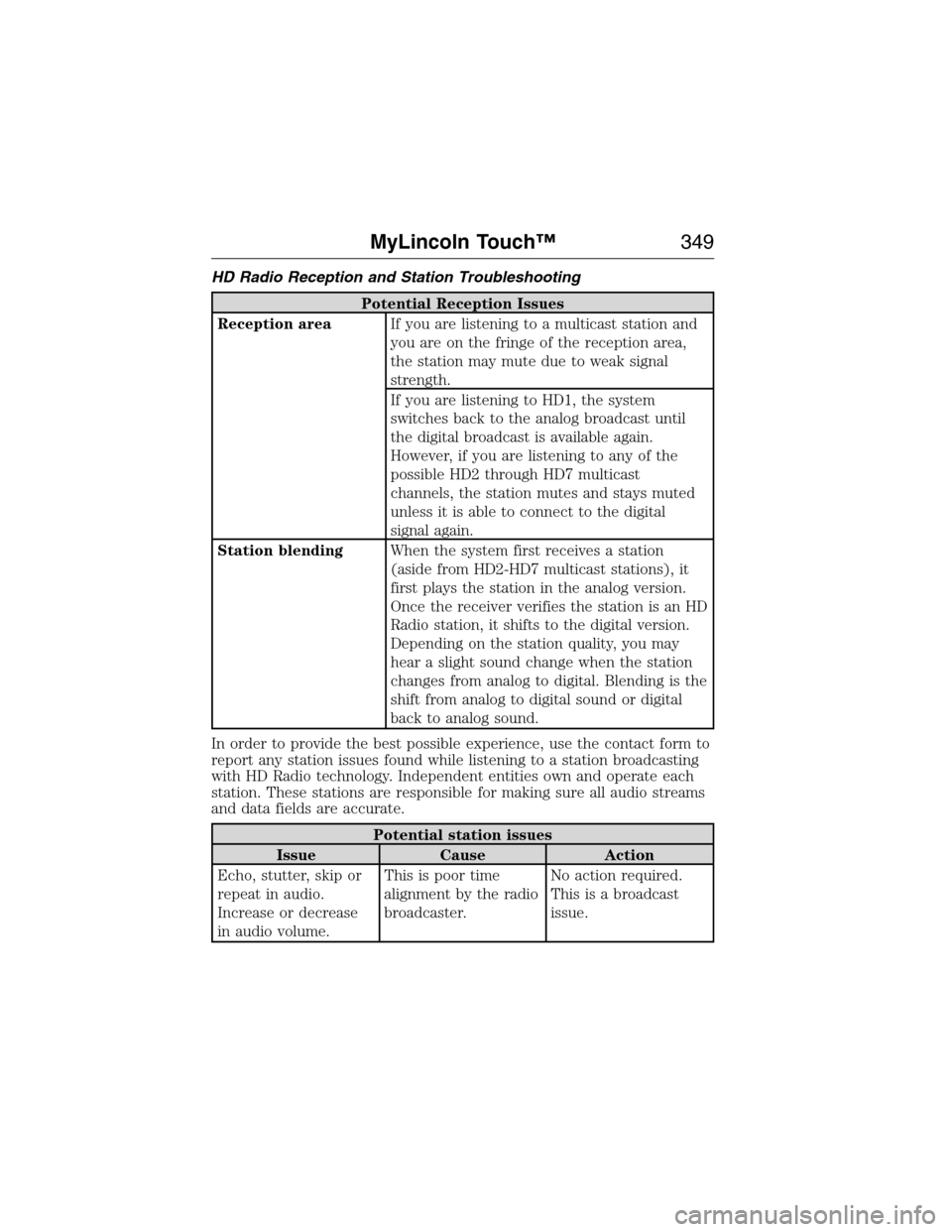
HD Radio Reception and Station Troubleshooting
Potential Reception Issues
Reception areaIf you are listening to a multicast station and
you are on the fringe of the reception area,
the station may mute due to weak signal
strength.
If you are listening to HD1, the system
switches back to the analog broadcast until
the digital broadcast is available again.
However, if you are listening to any of the
possible HD2 through HD7 multicast
channels, the station mutes and stays muted
unless it is able to connect to the digital
signal again.
Station blendingWhen the system first receives a station
(aside from HD2-HD7 multicast stations), it
first plays the station in the analog version.
Once the receiver verifies the station is an HD
Radio station, it shifts to the digital version.
Depending on the station quality, you may
hear a slight sound change when the station
changes from analog to digital. Blending is the
shift from analog to digital sound or digital
back to analog sound.
In order to provide the best possible experience, use the contact form to
report any station issues found while listening to a station broadcasting
with HD Radio technology. Independent entities own and operate each
station. These stations are responsible for making sure all audio streams
and data fields are accurate.
Potential station issues
Issue Cause Action
Echo, stutter, skip or
repeat in audio.
Increase or decrease
in audio volume.This is poor time
alignment by the radio
broadcaster.No action required.
This is a broadcast
issue.
MyLincoln Touch™349
2014 MKX(mkx)
Owners Guide gf, 1st Printing, June 2014
USA(fus)
Page 351 of 453
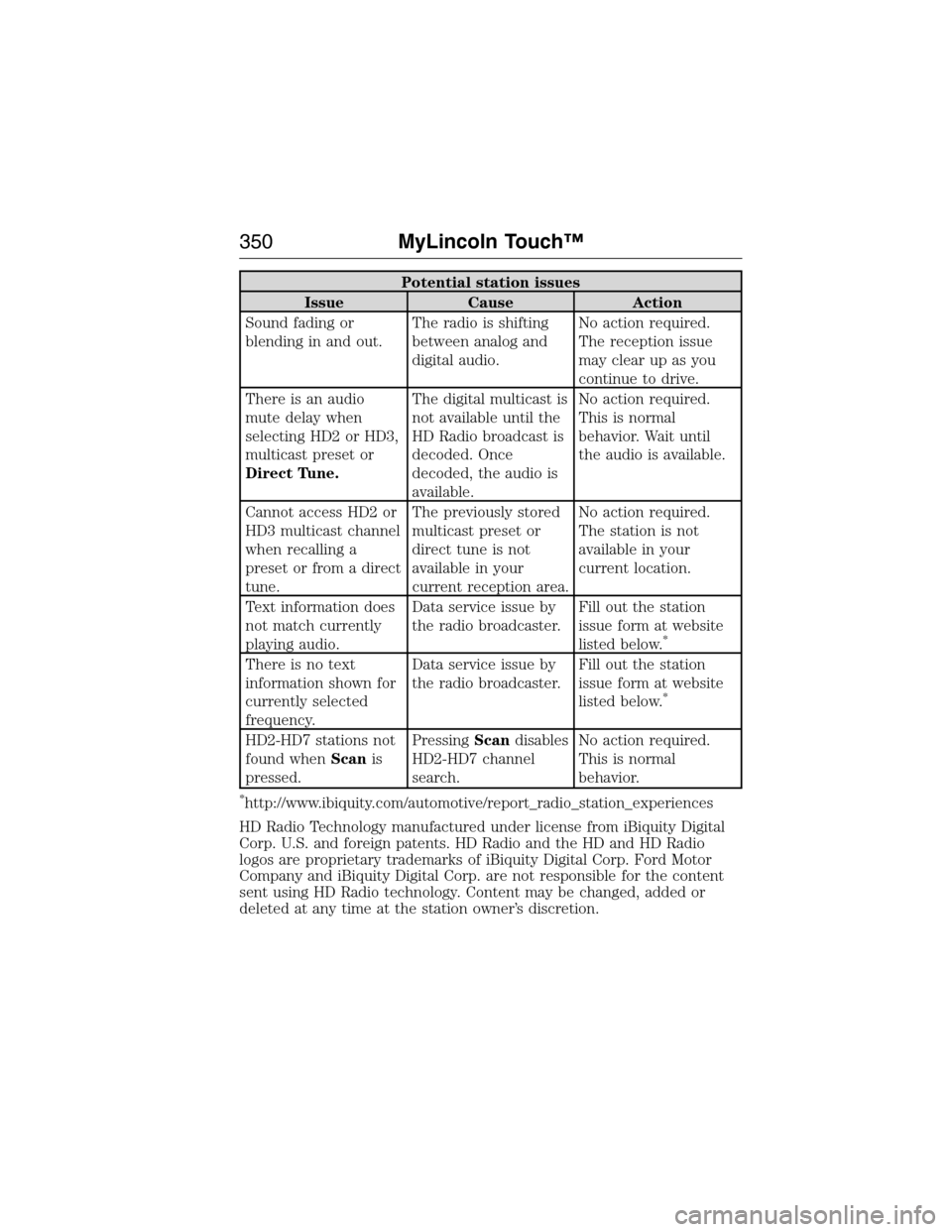
Potential station issues
Issue Cause Action
Sound fading or
blending in and out.The radio is shifting
between analog and
digital audio.No action required.
The reception issue
may clear up as you
continue to drive.
There is an audio
mute delay when
selecting HD2 or HD3,
multicast preset or
Direct Tune.The digital multicast is
not available until the
HD Radio broadcast is
decoded. Once
decoded, the audio is
available.No action required.
This is normal
behavior. Wait until
the audio is available.
Cannot access HD2 or
HD3 multicast channel
when recalling a
preset or from a direct
tune.The previously stored
multicast preset or
direct tune is not
available in your
current reception area.No action required.
The station is not
available in your
current location.
Text information does
not match currently
playing audio.Data service issue by
the radio broadcaster.Fill out the station
issue form at website
listed below.
*
There is no text
information shown for
currently selected
frequency.Data service issue by
the radio broadcaster.Fill out the station
issue form at website
listed below.
*
HD2-HD7 stations not
found whenScanis
pressed.PressingScandisables
HD2-HD7 channel
search.No action required.
This is normal
behavior.
*http://www.ibiquity.com/automotive/report_radio_station_experiences
HD Radio Technology manufactured under license from iBiquity Digital
Corp. U.S. and foreign patents. HD Radio and the HD and HD Radio
logos are proprietary trademarks of iBiquity Digital Corp. Ford Motor
Company and iBiquity Digital Corp. are not responsible for the content
sent using HD Radio technology. Content may be changed, added or
deleted at any time at the station owner’s discretion.
350MyLincoln Touch™
2014 MKX(mkx)
Owners Guide gf, 1st Printing, June 2014
USA(fus)
Page 356 of 453
Sirius Satellite Radio Information
Note:Sirius reserves the unrestricted right to change, rearrange, add or
delete programming including canceling, moving or adding particular
channels, and its prices, at any time, with or without notice to you. Ford
Motor Company shall not be responsible for any such programming
changes.
Note:This receiver includes the eCos real-time operating system. eCos
is published under the eCos License.
Sirius satellite radio is a
subscription-based satellite radio
service that broadcasts a variety of
music, sports, news, weather, traffic
and entertainment programming.
Your factory-installed Sirius satellite
radio system includes hardware and
a limited subscription term that begins on the date of sale or lease of
your vehicle. See your authorized dealer for availability.
For more information on extended subscription terms (a service fee is
required), the online media player and a list of Sirius satellite radio
channels, and other features, please visit www.siriusxm.com in the
United States, www.sirius.ca in Canada, or call Sirius at 1-888-539-7474.
Potential satellite radio reception issues
Antenna
obstructionsFor optimal reception performance, keep the
antenna clear of snow and ice build-up and
keep luggage and other materials as far away
from the antenna as possible.
TerrainHills, mountains, tall buildings, bridges,
tunnels, freeway overpasses, parking garages,
dense tree foliage and thunderstorms can
interfere with your reception.
Station overloadWhen you pass a ground-based
broadcast-repeating tower, a stronger signal
may overtake a weaker one and the audio
system may mute.
Satellite radio signal
interferenceYour display may show ACQUIRING...to
indicate the interference and the audio
system may mute.
MyLincoln Touch™355
2014 MKX(mkx)
Owners Guide gf, 1st Printing, June 2014
USA(fus)
Page 373 of 453
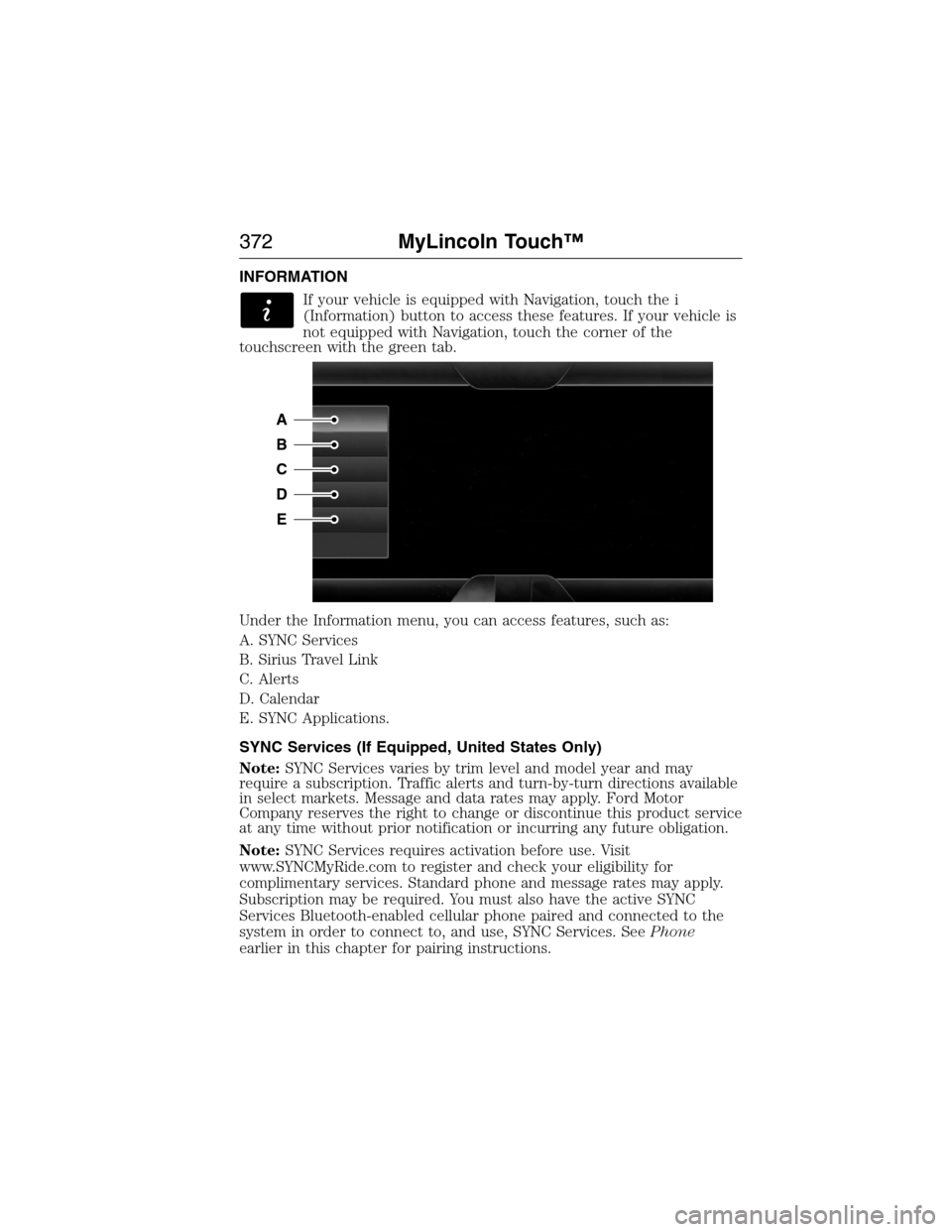
INFORMATION
If your vehicle is equipped with Navigation, touch the i
(Information) button to access these features. If your vehicle is
not equipped with Navigation, touch the corner of the
touchscreen with the green tab.
Under the Information menu, you can access features, such as:
A. SYNC Services
B. Sirius Travel Link
C. Alerts
D. Calendar
E. SYNC Applications.
SYNC Services (If Equipped, United States Only)
Note:SYNC Services varies by trim level and model year and may
require a subscription. Traffic alerts and turn-by-turn directions available
in select markets. Message and data rates may apply. Ford Motor
Company reserves the right to change or discontinue this product service
at any time without prior notification or incurring any future obligation.
Note:SYNC Services requires activation before use. Visit
www.SYNCMyRide.com to register and check your eligibility for
complimentary services. Standard phone and message rates may apply.
Subscription may be required. You must also have the active SYNC
Services Bluetooth-enabled cellular phone paired and connected to the
system in order to connect to, and use, SYNC Services. SeePhone
earlier in this chapter for pairing instructions.
A
B
C
D
E
372MyLincoln Touch™
2014 MKX(mkx)
Owners Guide gf, 1st Printing, June 2014
USA(fus)
Page 386 of 453
From this screen, you can also make other adjustments, such as 12– or
24–hour mode, activate GPS time synchronization and have the system
automatically update for new time zones.
You can also turn the outside air temperature display on and off. It
appears at the top center of the touchscreen, next to the time and date.
The system automatically saves any updates you make to the settings.
Display
You can adjust the touchscreen display through the touchscreen or by
pressing the voice button on your steering wheel controls and when
prompted, say, “Display settings”.
Press the Settings icon >Display,to access and make
adjustments using the touchscreen.
•
Brightnessallows you to make the screen display brighter or dimmer.
•Auto DIM, when set toOn,lets you use the Auto Dim Manual Offset
feature. When set toOff,screen brightness does not change.
•Modeallows you to set the screen to a certain brightness or have the
system automatically change based on the outside light level, or turn
the display off.
•If you selectAUTOorNIGHT,you have the options of turning the
display’s Auto Dim feature on or off and changing the Auto Dim
Manual Offset feature.
•Auto Dim Manual Offsetallows you to adjust screen dimming as the
outside lighting conditions change from day to night. This feature also
allows you to adjust screen brightness using the instrument panel
dimming control.
Edit Wallpaper
•You can have your touchscreen display the default photo or upload
your own.
Uploading Photos for Your Home Screen Wallpaper
Note:You cannot load photos directly from your camera. You must
access the photos either from your USB mass storage device or from an
SD card.
Note:Photographs with extremely large dimensions (such as 2048 x 1536)
may not be compatible and appear as a blank (black) image on the display.
Your system allows you to upload and view up to 32 photos.
To access, press the Settings icon >Display>Edit Wallpaper,and
then follow the system prompts to upload your photographs.
MyLincoln Touch™385
2014 MKX(mkx)
Owners Guide gf, 1st Printing, June 2014
USA(fus)
Page 408 of 453
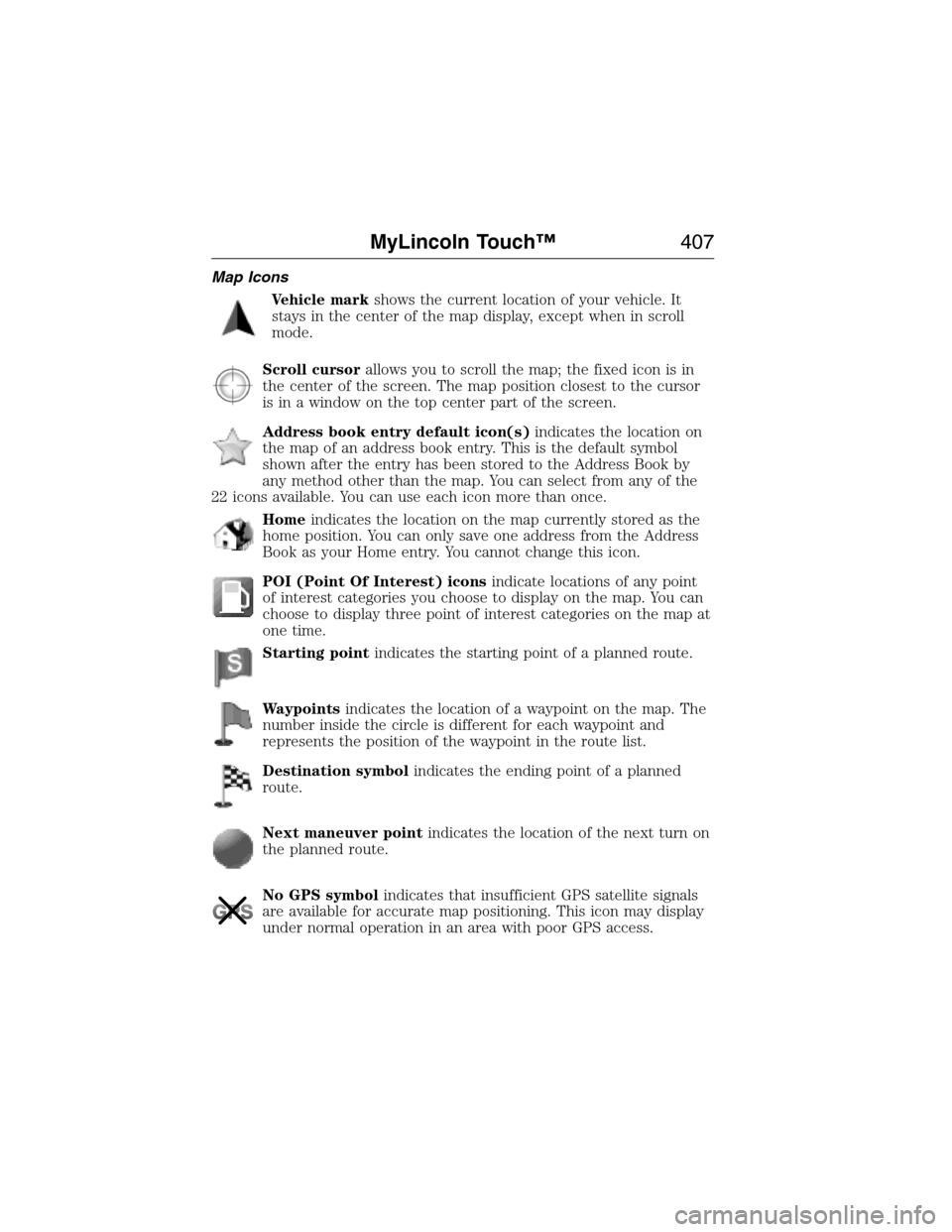
Map Icons
Vehicle markshows the current location of your vehicle. It
stays in the center of the map display, except when in scroll
mode.
Scroll cursorallows you to scroll the map; the fixed icon is in
the center of the screen. The map position closest to the cursor
is in a window on the top center part of the screen.
Address book entry default icon(s)indicates the location on
the map of an address book entry. This is the default symbol
shown after the entry has been stored to the Address Book by
any method other than the map. You can select from any of the
22 icons available. You can use each icon more than once.
Homeindicates the location on the map currently stored as the
home position. You can only save one address from the Address
Book as your Home entry. You cannot change this icon.
POI (Point Of Interest) iconsindicate locations of any point
of interest categories you choose to display on the map. You can
choose to display three point of interest categories on the map at
one time.
Starting pointindicates the starting point of a planned route.
Waypointsindicates the location of a waypoint on the map. The
number inside the circle is different for each waypoint and
represents the position of the waypoint in the route list.
Destination symbolindicates the ending point of a planned
route.
Next maneuver pointindicates the location of the next turn on
the planned route.
No GPS symbolindicates that insufficient GPS satellite signals
are available for accurate map positioning. This icon may display
under normal operation in an area with poor GPS access.
MyLincoln Touch™407
2014 MKX(mkx)
Owners Guide gf, 1st Printing, June 2014
USA(fus)
Page 417 of 453
End user notice
Microsoft® Windows® Mobile for Automotive Important Safety
Information
This system Ford SYNC™ contains software that is licensed to
Manufacturer FORD MOTOR COMPANY by an affiliate of Microsoft
Corporation pursuant to a license agreement. Any removal, reproduction,
reverse engineering or other unauthorized use of the software from this
system in violation of the license agreement is strictly prohibited and
may subject you to legal action.
Read and follow instructions
Before using your Windows Automotive-based system, read and follow all
instructions and safety information provided in this end user manual
(“User’s Guide”). Not following precautions found in this User’s Guide
can lead to an accident or other serious consequences.
Keep User’s Guide in Vehicle
When kept in the vehicle, the User’s Guide will be a ready reference for
you and other users unfamiliar with the Windows Automotive-based
system. Please make certain that before using the system for the first
time, all persons have access to the User’s Guide and read its
instructions and safety information carefully.
WARNING:Operating certain parts of this system while driving
can distract your attention away from the road, and possibly
cause an accident or other serious consequences. Do not change
system settings or enter data non-verbally (using your hands) while
driving. Stop the vehicle in a safe and legal manner before attempting
these operations. This is important since while setting up or changing
some functions you might be required to distract your attention away
from the road and remove your hands from the wheel.
General operation
Voice Command Control
Functions within the Windows Automotive-based system may be
accomplished using only voice commands. Using voice commands while
driving allows you to operate the system without removing your hands
from the wheel.
416Appendices
2014 MKX(mkx)
Owners Guide gf, 1st Printing, June 2014
USA(fus)
Page 419 of 453
Potential Map Inaccuracy
Maps used by this system may be inaccurate because of changes in
roads, traffic controls or driving conditions. Always use good judgment
and common sense when following the suggested routes.
Emergency Services
Do not rely on any navigation features included in the system to route
you to emergency services. Ask local authorities or an emergency
services operator for these locations. Not all emergency services such as
police, fire stations, hospitals and clinics are likely to be contained in the
map database for such navigation features.
TeleNav Software End User License Agreement
Please read these terms and conditions carefully before you use the
Telenav Software. Your use of the Telenav Software indicates that
you accept these terms and conditions. If you do not accept these
terms and conditions, do not break the seal of the package, launch,
or otherwise use the Telenav Software.
These terms and conditions represent the agreement (“Agreement”)
between you and Telenav, Inc. (“Telenav”) with respect to the Telenav
Software (including upgrades, modifications, or additions thereto)
(collectively “Telenav Software”). All references herein to “you” and
“your” means you, your employees, agents, and contractors, and any
other entity on whose behalf you accept these terms and conditions, all
of whom shall also be bound by this Agreement. Additionally, all of your
account information, as well as other payment and personal information
provided by you to Telenav (directly or through the use of the Telenav
Software, is subject to Telenav’s privacy policy located at
http://www.telenav.com.
Telenav may revise this Agreement and the privacy policy at any time,
with or without notice to you. You agree to visit http://www.telenav.com
from time to time to review the then current version of this Agreement
and of the privacy policy.
1.Safe and Lawful Use
You acknowledge that devoting attention to the Telenav Software may
pose a risk of injury or death to you and others in situations that
otherwise require your undivided attention, and you therefore agree to
comply with the following when using the Telenav Software: (a) observe
all traffic laws and otherwise drive safely; (b) use your own personal
judgment while driving. If you feel that a route suggested by the Telenav
Software instructs you to perform an unsafe or illegal maneuver, places
418Appendices
2014 MKX(mkx)
Owners Guide gf, 1st Printing, June 2014
USA(fus)