buttons LINCOLN MKX 2017 User Guide
[x] Cancel search | Manufacturer: LINCOLN, Model Year: 2017, Model line: MKX, Model: LINCOLN MKX 2017Pages: 587, PDF Size: 5.4 MB
Page 162 of 587
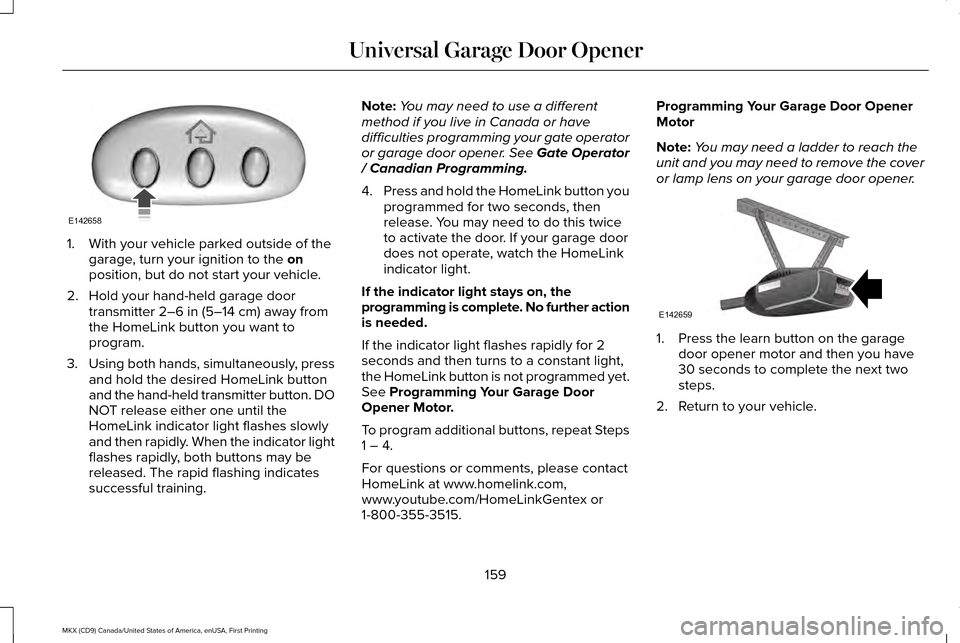
1. With your vehicle parked outside of the
garage, turn your ignition to the on
position, but do not start your vehicle.
2. Hold your hand-held garage door transmitter
2–6 in (5–14 cm) away from
the HomeLink button you want to
program.
3. Using both hands, simultaneously, press
and hold the desired HomeLink button
and the hand-held transmitter button. DO
NOT release either one until the
HomeLink indicator light flashes slowly
and then rapidly. When the indicator light
flashes rapidly, both buttons may be
released. The rapid flashing indicates
successful training. Note:
You may need to use a different
method if you live in Canada or have
difficulties programming your gate operator
or garage door opener. See Gate Operator
/ Canadian Programming.
4. Press and hold the HomeLink button you
programmed for two seconds, then
release. You may need to do this twice
to activate the door. If your garage door
does not operate, watch the HomeLink
indicator light.
If the indicator light stays on, the
programming is complete. No further action
is needed.
If the indicator light flashes rapidly for 2
seconds and then turns to a constant light,
the HomeLink button is not programmed yet.
See
Programming Your Garage Door
Opener Motor.
To program additional buttons, repeat Steps
1 – 4.
For questions or comments, please contact
HomeLink at www.homelink.com,
www.youtube.com/HomeLinkGentex or
1-800-355-3515. Programming Your Garage Door Opener
Motor
Note:
You may need a ladder to reach the
unit and you may need to remove the cover
or lamp lens on your garage door opener. 1. Press the learn button on the garage
door opener motor and then you have
30 seconds to complete the next two
steps.
2. Return to your vehicle.
159
MKX (CD9) Canada/United States of America, enUSA, First Printing Universal Garage Door OpenerE142658 E142659
Page 163 of 587
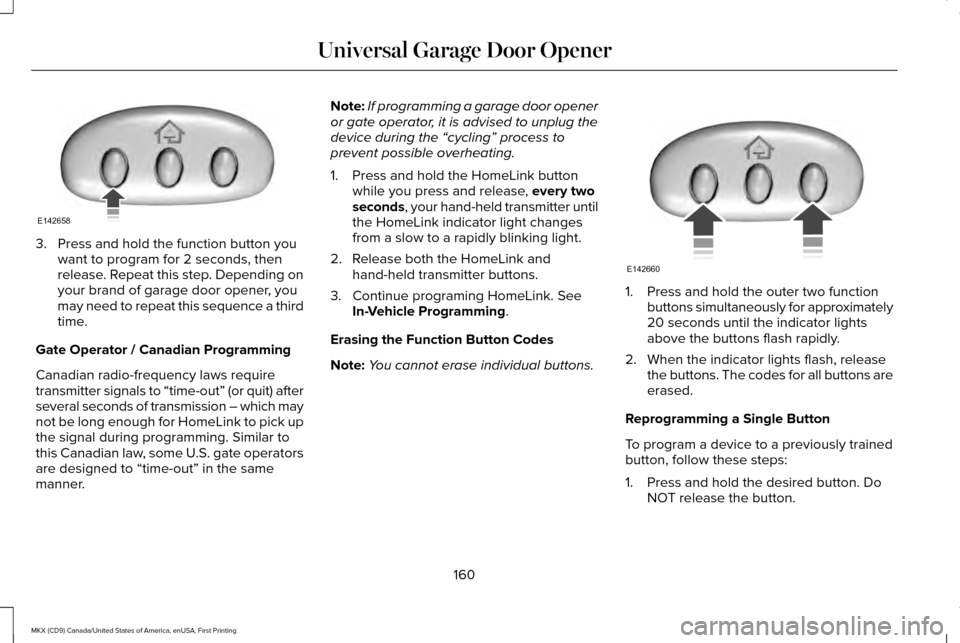
3. Press and hold the function button you
want to program for 2 seconds, then
release. Repeat this step. Depending on
your brand of garage door opener, you
may need to repeat this sequence a third
time.
Gate Operator / Canadian Programming
Canadian radio-frequency laws require
transmitter signals to “time-out” (or quit) after
several seconds of transmission – which may
not be long enough for HomeLink to pick up
the signal during programming. Similar to
this Canadian law, some U.S. gate operators
are designed to “time-out” in the same
manner. Note:
If programming a garage door opener
or gate operator, it is advised to unplug the
device during the “cycling” process to
prevent possible overheating.
1. Press and hold the HomeLink button while you press and release, every two
seconds, your hand-held transmitter until
the HomeLink indicator light changes
from a slow to a rapidly blinking light.
2. Release both the HomeLink and hand-held transmitter buttons.
3. Continue programing HomeLink. See In-Vehicle Programming
.
Erasing the Function Button Codes
Note: You cannot erase individual buttons. 1. Press and hold the outer two function
buttons simultaneously for approximately
20 seconds until the indicator lights
above the buttons flash rapidly.
2. When the indicator lights flash, release the buttons. The codes for all buttons are
erased.
Reprogramming a Single Button
To program a device to a previously trained
button, follow these steps:
1. Press and hold the desired button. Do NOT release the button.
160
MKX (CD9) Canada/United States of America, enUSA, First Printing Universal Garage Door OpenerE142658 E142660
Page 164 of 587
2.
The indicator light will begin to flash after
20 seconds. Without releasing the
button, follow Step 1 in the Programming
section.
For questions or comments, contact
HomeLink at www.homelink.com,
www.youtube.com/HomeLinkGentex or
1-800-355-3515.
Programming to a Genie Intellicode 2
Garage Door Opener
Note: The Genie Intellicode 2 transmitter
must already be programmed to operate
with the garage door opener.
Note: To program HomeLink to the
transmitter you must first put the transmitter
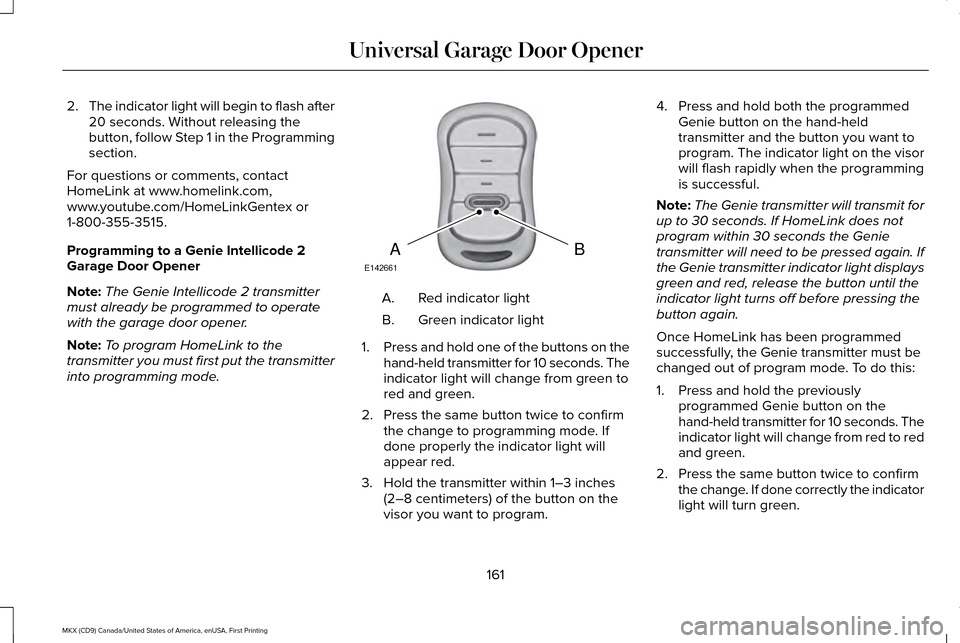
into programming mode. Red indicator light
A.
Green indicator light
B.
1. Press and hold one of the buttons on the
hand-held transmitter for 10 seconds. The
indicator light will change from green to
red and green.
2. Press the same button twice to confirm the change to programming mode. If
done properly the indicator light will
appear red.
3. Hold the transmitter within 1–3 inches (2–8 centimeters) of the button on the
visor you want to program. 4. Press and hold both the programmed
Genie button on the hand-held
transmitter and the button you want to
program. The indicator light on the visor
will flash rapidly when the programming
is successful.
Note: The Genie transmitter will transmit for
up to 30 seconds. If HomeLink does not
program within 30 seconds the Genie
transmitter will need to be pressed again. If
the Genie transmitter indicator light displays
green and red, release the button until the
indicator light turns off before pressing the
button again.
Once HomeLink has been programmed
successfully, the Genie transmitter must be
changed out of program mode. To do this:
1. Press and hold the previously programmed Genie button on the
hand-held transmitter for 10 seconds. The
indicator light will change from red to red
and green.
2. Press the same button twice to confirm the change. If done correctly the indicator
light will turn green.
161
MKX (CD9) Canada/United States of America, enUSA, First Printing Universal Garage Door OpenerBAE142661
Page 165 of 587
Programming HomeLink to the Genie
Intellicode Garage Door Opener Motor
Note:
You may need a ladder to access the
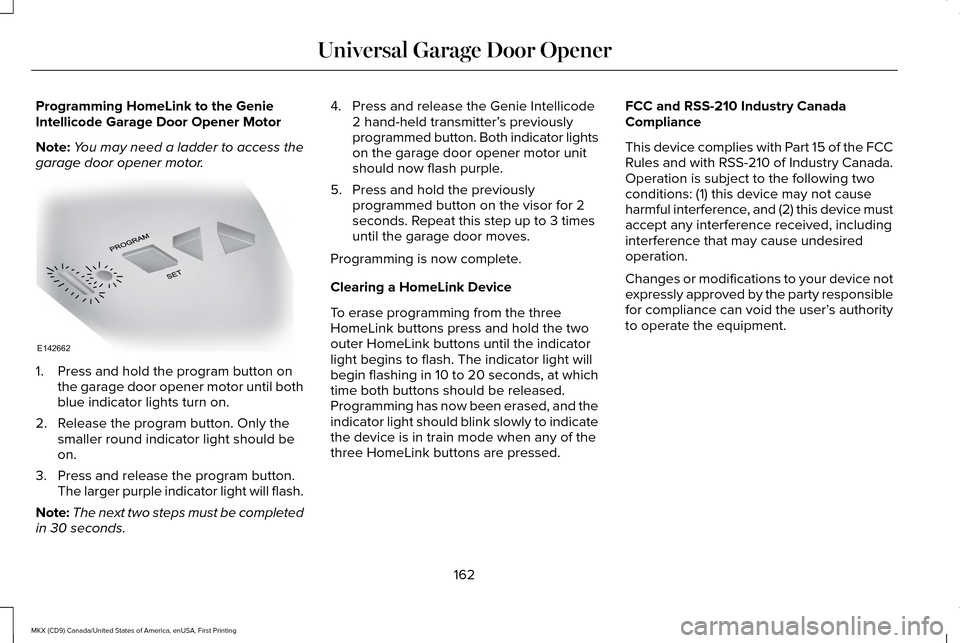
garage door opener motor. 1. Press and hold the program button on
the garage door opener motor until both
blue indicator lights turn on.
2. Release the program button. Only the smaller round indicator light should be
on.
3. Press and release the program button. The larger purple indicator light will flash.
Note: The next two steps must be completed
in 30 seconds. 4. Press and release the Genie Intellicode
2 hand-held transmitter’ s previously
programmed button. Both indicator lights
on the garage door opener motor unit
should now flash purple.
5. Press and hold the previously programmed button on the visor for 2
seconds. Repeat this step up to 3 times
until the garage door moves.
Programming is now complete.
Clearing a HomeLink Device
To erase programming from the three
HomeLink buttons press and hold the two
outer HomeLink buttons until the indicator
light begins to flash. The indicator light will
begin flashing in 10 to 20 seconds, at which
time both buttons should be released.
Programming has now been erased, and the
indicator light should blink slowly to indicate
the device is in train mode when any of the
three HomeLink buttons are pressed. FCC and RSS-210 Industry Canada
Compliance
This device complies with Part 15 of the FCC
Rules and with RSS-210 of Industry Canada.
Operation is subject to the following two
conditions: (1) this device may not cause
harmful interference, and (2) this device must
accept any interference received, including
interference that may cause undesired
operation.
Changes or modifications to your device not
expressly approved by the party responsible
for compliance can void the user’
s authority
to operate the equipment.
162
MKX (CD9) Canada/United States of America, enUSA, First Printing Universal Garage Door OpenerE142662
Page 172 of 587
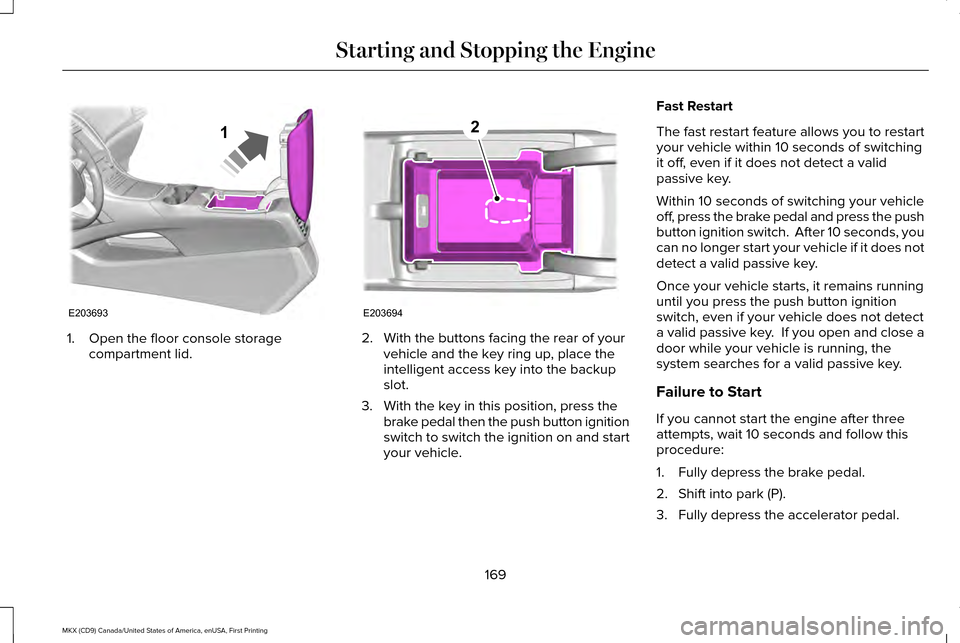
1. Open the floor console storage
compartment lid. 2. With the buttons facing the rear of your
vehicle and the key ring up, place the
intelligent access key into the backup
slot.
3. With the key in this position, press the brake pedal then the push button ignition
switch to switch the ignition on and start
your vehicle. Fast Restart
The fast restart feature allows you to restart
your vehicle within 10 seconds of switching
it off, even if it does not detect a valid
passive key.
Within 10 seconds of switching your vehicle
off, press the brake pedal and press the push
button ignition switch. After 10 seconds, you
can no longer start your vehicle if it does not
detect a valid passive key.
Once your vehicle starts, it remains running
until you press the push button ignition
switch, even if your vehicle does not detect
a valid passive key. If you open and close a
door while your vehicle is running, the
system searches for a valid passive key.
Failure to Start
If you cannot start the engine after three
attempts, wait 10 seconds and follow this
procedure:
1. Fully depress the brake pedal.
2. Shift into park (P).
3. Fully depress the accelerator pedal.
169
MKX (CD9) Canada/United States of America, enUSA, First Printing Starting and Stopping the EngineE203693
1 E203694
2
Page 186 of 587
AUTOMATIC TRANSMISSION
WARNINGS
Always set the parking brake fully and
make sure your vehicle is in park (P).
Turn the ignition off and remove the key
whenever you leave your vehicle. Do not apply the brake pedal and
accelerator pedal simultaneously.
Applying both pedals simultaneously for
more than three seconds will limit engine
rpm, which may result in difficulty maintaining
speed in traffic and could lead to serious
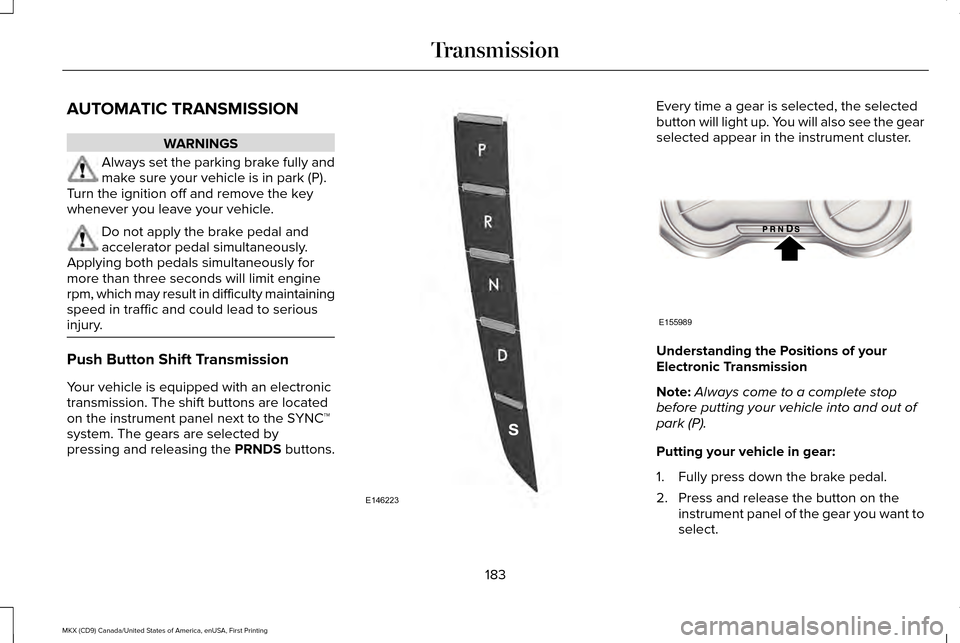
injury. Push Button Shift Transmission
Your vehicle is equipped with an electronic
transmission. The shift buttons are located
on the instrument panel next to the SYNC™
system. The gears are
selected by
pressing and releasing the PRNDS
buttons. Every time a gear is selected, the selected
button will light up. You will also see the gear
selected appear in the instrument cluster.
Understanding the Positions of your
Electronic Transmission
Note:
Always come to a complete stop
before putting your vehicle into and out of
park (P).
Putting your vehicle in gear:
1. Fully press down the brake pedal.
2. Press and release the button on the instrument panel of the gear you want to
select.
183
MKX (CD9) Canada/United States of America, enUSA, First Printing TransmissionE146223 E155989
Page 191 of 587
Note:
Make sure that you correctly identify
the access hole as not to damage the media
hub.
3. Using a tool, press and hold the brake shift interlock switch. The shift buttons
on the instrument panel will flash when
your vehicle is in override mode.
4. With the override switch still held, press the neutral (N) button to shift from park.
5. Release the override button.
6. Your vehicle will remain in neutral for wrecker towing purposes or can be
shifted to the desired gear and driven (if
possible).
7. Release the parking brake. Automatic Transmission Adaptive
Learning
This feature increases durability and provides
consistent shift feel over the life of your
vehicle. A new vehicle or transmission may
have firm or soft shifts. This operation will
not affect function or durability of your
transmission and is normal. Over time, the
adaptive learning process will fully update
transmission operation. Additionally, the
strategy must be relearned whenever the
battery is disconnected or a new battery is
installed.
If Your Vehicle Gets Stuck In Mud or
Snow
Note:
Do not rock your vehicle if your engine
is not at normal operating temperature or
damage to your transmission may occur.
Note: Do not rock your vehicle for more than
a minute or damage to your transmission
and tires may occur, or your engine may
overheat. Note:
If your vehicle is equipped with
AdvanceTrac with Roll Stability Control, it
may be beneficial to disengage the
AdvanceTrac with Roll Stability Control
system while attempting to rock the vehicle.
If your vehicle gets stuck in mud or snow,
you can help rock your vehicle out by shifting
between forward and reverse gears,
stopping between shifts in a steady pattern.
Press lightly on the accelerator in each gear.
188
MKX (CD9) Canada/United States of America, enUSA, First Printing Transmission
Page 327 of 587
CHECKING THE WIPER BLADES
Run the tip of your fingers over the edge of
the blade to check for roughness.
Clean the wiper blades with washer fluid or
water applied with a soft sponge or cloth.
CHANGING THE WIPER BLADES
Note:
If streaks or smears appear on the
windshield, clean the windshield and the
wiper blades. See Vehicle Care (page 331).
If that does not resolve the issue, install
new wiper blades. See Changing the Wiper
Blades (page 324). Changing the Windshield Wiper Blades
Note:
Do not hold the wiper blade when
lifting the wiper arm.
Note: Make sure that the wiper arm does
not spring back against the glass when the
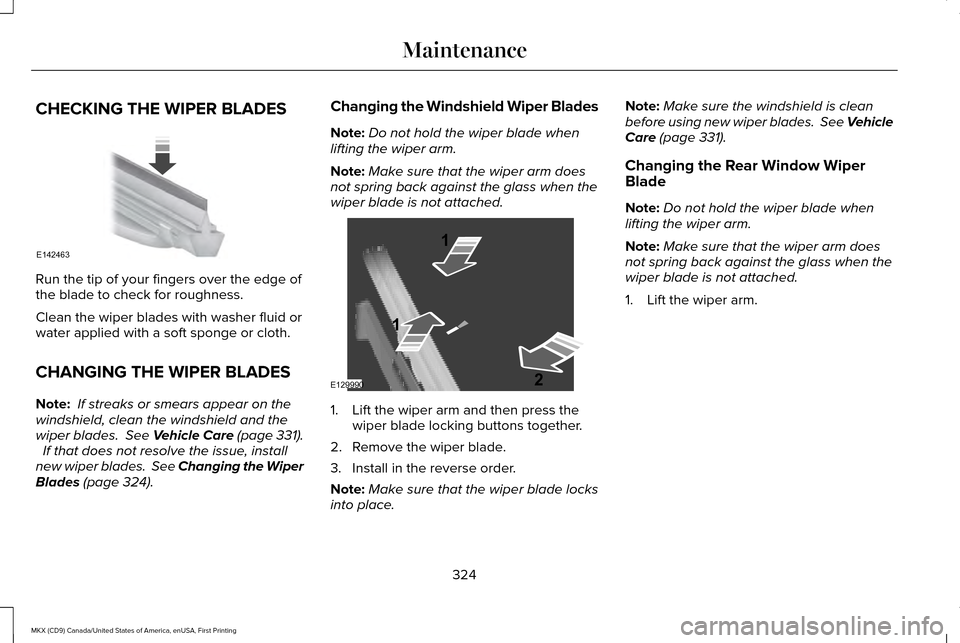
wiper blade is not attached. 1. Lift the wiper arm and then press the
wiper blade locking buttons together.
2. Remove the wiper blade.
3. Install in the reverse order.
Note: Make sure that the wiper blade locks
into place. Note:
Make sure the windshield is clean
before using new wiper blades. See Vehicle
Care
(page 331).
Changing the Rear Window Wiper
Blade
Note: Do not hold the wiper blade when
lifting the wiper arm.
Note: Make sure that the wiper arm does
not spring back against the glass when the
wiper blade is not attached.
1. Lift the wiper arm.
324
MKX (CD9) Canada/United States of America, enUSA, First Printing MaintenanceE142463 E129990
1
1 2
Page 408 of 587

Action and Description
Menu Item
Item
This bar displays icons and messages pertaining to current system activi\
ties including climate
settings, voice commands and phone functions such as text messages.
Status Bar
A
This button is available on the main screens. Pressing it takes you to the home screen view.
Home
B
This shows the current time. You can set the clock manually or have it controlled by the vehicle's
GPS location. See Settings (page 472).
Clock
C
This displays the current outside temperature.
Outside Temperature
D
You can touch any of the buttons on this bar to select a feature.
Feature Bar
E
The touchscreen allows you quick access to
all of your comfort, navigation,
communication and entertainment options.
Using the status and feature bar you can
quickly select the feature you want to use. Note:
Your system is equipped with a feature
that allows you to access and control audio
features for 10 minutes after you switch the
ignition off (and no doors open). The Status Bar
Additional icons also display in the status bar
depending on market, vehicle options and
current operation. If a feature is not active,
the icon does not display. Certain icons may
move to the left or right depending on what
options are active.
405
MKX (CD9) Canada/United States of America, enUSA, First Printing SYNC™ 3
Page 415 of 587
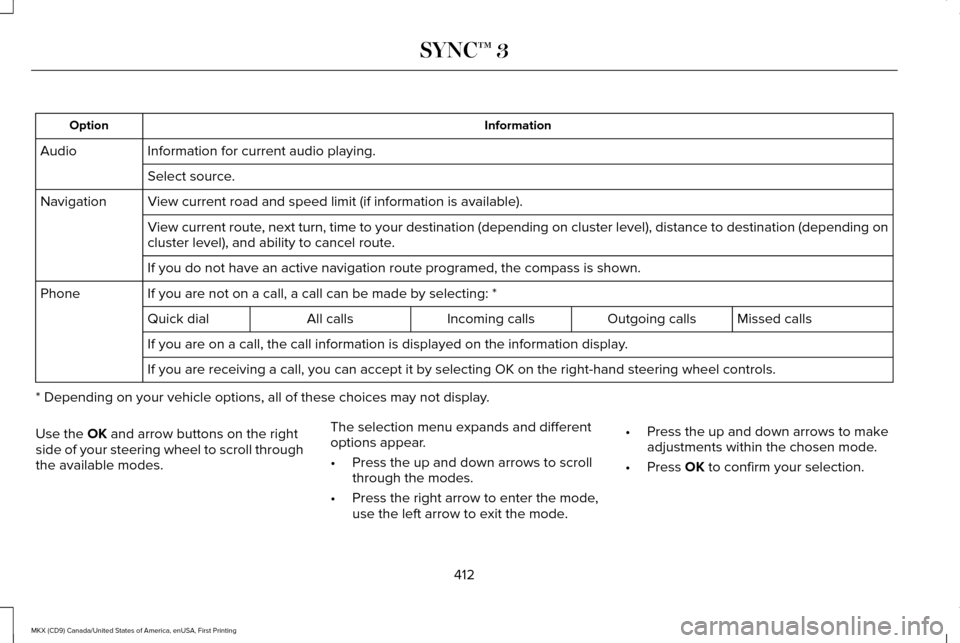
Information
Option
Information for current audio playing.
Audio
Select source.
View current road and speed limit (if information is available).
Navigation
View current route, next turn, time to your destination (depending on cluster level), di\
stance to destination (depending on
cluster level), and ability to cancel route.
If you do not have an active navigation route programed, the compass is \
shown.
If you are not on a call, a call can be made by selecting: *
Phone
Missed calls
Outgoing calls
Incoming calls
All calls
Quick dial
If you are on a call, the call information is displayed on the informati\
on display.
If you are receiving a call, you can accept it by selecting OK on the ri\
ght-hand steering wheel controls.
* Depending on your vehicle options, all of these choices may not displa\
y.
Use the OK and arrow buttons on the right
side of your steering wheel to scroll through
the available modes. The selection menu expands and different
options appear.
•
Press the up and down arrows to scroll
through the modes.
• Press the right arrow to enter the mode,
use the left arrow to exit the mode. •
Press the up and down arrows to make
adjustments within the chosen mode.
• Press
OK to confirm your selection.
412
MKX (CD9) Canada/United States of America, enUSA, First Printing SYNC™ 3