radio LINCOLN MKX 2017 User Guide
[x] Cancel search | Manufacturer: LINCOLN, Model Year: 2017, Model line: MKX, Model: LINCOLN MKX 2017Pages: 587, PDF Size: 5.4 MB
Page 326 of 587
Note:
See an authorized dealer for battery
access, testing, or replacement.
To make sure the battery management
system works correctly, do not connect an
electrical device ground connection directly
to the battery negative post. This can cause
inaccurate measurements of the battery
condition and potential incorrect system
operation.
Note: If you add electrical accessories or
components to the vehicle, it may adversely
affect battery performance and durability.
This may also affect the performance of
other electrical systems in the vehicle.
If you see any corrosion on the battery or
terminals, remove the cables from the
terminals and clean with a wire brush. You
can neutralize the acid with a solution of
baking soda and water.
Because your vehicle ’s engine is
electronically-controlled by a computer,
some engine control settings are maintained
by power from the battery. Some engine
computer settings, like the idle trim and fuel
trim strategy, optimize the driveability and performance of the engine. The clock and
radio station presets are also maintained in
memory by power from the low-voltage
battery. These settings are erased when a
technician disconnects and connects the
low-voltage battery.
To restore the settings, do the following:
Note:
Until you switch the ignition to the on
position, you will receive a message in your
information display stating that your vehicle
is not in park.
1. Apply the parking brake.
2. Shift into park (P) or neutral (N).
3. Switch off all accessories.
4. Press the brake pedal and start your vehicle.
5. Run the engine until it reaches normal operating temperature. While the engine
is warming up, complete the following:
Reset the clock. See Audio System
(page 399). Reset the power windows
bounce-back feature. See Windows and
Mirrors (page 100).
Reset the radio station
presets. See Audio System (page 399). 6. Allow the engine to idle for at least one
minute.
7. Drive the vehicle at least 10 mi (16 km) to
completely relearn the idle trim and fuel
trim strategy.
Note: If you do not allow the engine to
relearn the idle and fuel trim strategy, the
idle quality of your vehicle may be adversely
affected until the engine computer
eventually relearns the idle trim and fuel trim
strategy.
Note: Certain features may not operate if
the battery monitor system is not reset with
a scan tool following a jump start or battery
replacement. Normal electrical accessory
operation should resume after your vehicle
is left undisturbed for 8 hours.
Make sure that you dispose of old batteries
in an environmentally friendly way. Seek
advice from your local authority about
recycling old batteries.
If storing your vehicle for more than 30 days
without recharging the battery, we
recommend that you disconnect the battery
cables to maintain battery charge for quick
starting.
323
MKX (CD9) Canada/United States of America, enUSA, First Printing Maintenance
Page 348 of 587
•
Always set the parking brake to ensure
the vehicle does not move unexpectedly.
• Do not remove any foreign objects, such
as nails or screws, from the tire.
• When using the kit, leave the engine
running (only if the vehicle is outdoors or
in a well-ventilated area) so the
compressor does not drain the vehicle's
battery.
• Do not allow the compressor to operate
continuously for more than 15 minutes.
This will help prevent the compressor
from overheating.
• Never leave the kit unattended during
operation.
• Sealant compound contains latex. Those
with latex sensitivities should use
appropriate precautions to avoid an
allergic reaction.
• Keep the kit away from children.
• Only use the kit when the ambient
temperature is between -22°F (-30°C) and
158°F (70°C). •
Only use the sealing compound before
the use-by date. The use-by date is on a
label on the sealant canister, which you
can see through the rectangular viewing
window on the bottom of the compressor.
Check the use-by date regularly and
replace the canister after four years of
non-use.
• Do not store the kit unsecured inside the
passenger compartment of the vehicle
as it may cause injury during a sudden
stop or crash. Always store the kit in its
original location.
• After sealant use, an authorized Ford
dealer must replace the tire pressure
monitoring system sensor and valve stem
on the wheel.
• Operating the kit could cause an
electrical disturbance in radio, CD and
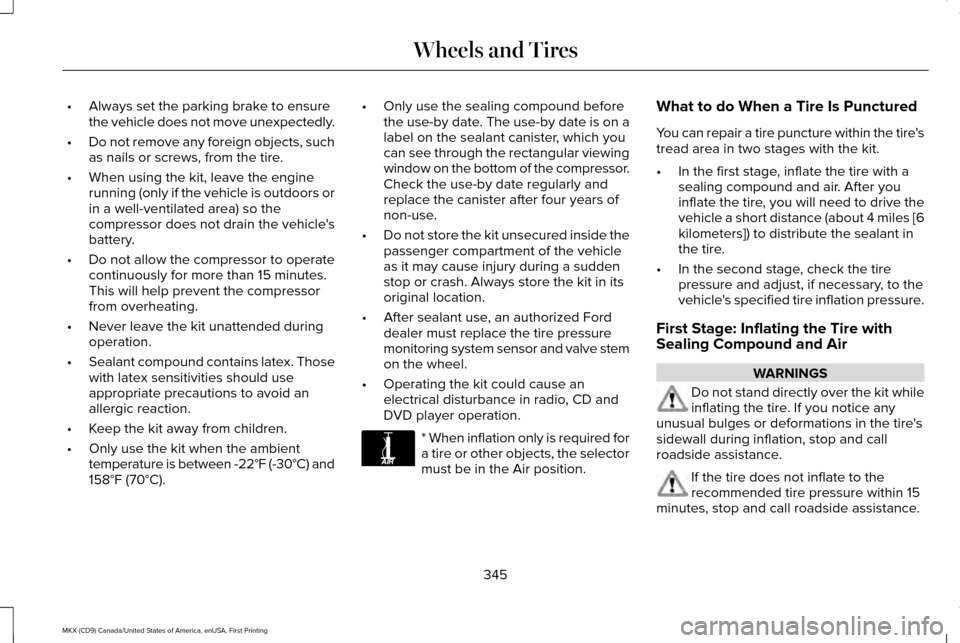
DVD player operation. * When inflation only is required for
a tire or other objects, the selector
must be in the Air position.What to do When a Tire Is Punctured
You can repair a tire puncture within the tire's
tread area in two stages with the kit.
•
In the first stage, inflate the tire with a
sealing compound and air. After you
inflate the tire, you will need to drive the
vehicle a short distance (about 4 miles [6
kilometers]) to distribute the sealant in
the tire.
• In the second stage, check the tire
pressure and adjust, if necessary, to the
vehicle's specified tire inflation pressure.
First Stage: Inflating the Tire with
Sealing Compound and Air WARNINGS
Do not stand directly over the kit while
inflating the tire. If you notice any
unusual bulges or deformations in the tire's
sidewall during inflation, stop and call
roadside assistance. If the tire does not inflate to the
recommended tire pressure within 15
minutes, stop and call roadside assistance.
345
MKX (CD9) Canada/United States of America, enUSA, First Printing Wheels and TiresE175978
Page 402 of 587
GENERAL INFORMATION
Radio Frequencies and Reception
Factors
AM and FM frequencies are established by
the Federal Communications Commission
(FCC) and the Canadian Radio and
Telecommunications Commission (CRTC).
Those frequencies are:
•
AM: 530, 540-1700, 1710 kHz
• FM: 87.9-107.7, 107.9 MHz Radio Reception Factors
The further you travel from an AM or FM station, the weaker the signal and the weaker the reception.
Distance and strength
Hills, mountains, tall buildings, bridges, tunnels, freeway overpasses, \
parking garages, dense tree foliage and
thunderstorms can interfere with the reception.
Terrain
When you pass a ground-based broadcast repeating tower, a stronger signal may overtake a weaker one and
result in the audio system muting.
Station overload
CD and CD Player Information
Note: CD units play commercially pressed
4.7 in (12 cm) audio compact discs only. Due
to technical incompatibility, certain
recordable and re-recordable compact discs
may not function correctly when used in Ford
CD players. Note:
Do not insert CDs with homemade
paper (adhesive) labels into the CD player
as the label may peel and cause the CD to
become jammed. You should use a
permanent felt tip marker rather than
adhesive labels on your homemade CDs.
Ballpoint pens may damage CDs. Please
contact an authorized dealer for further
information. Note:
Do not use any irregularly shaped
discs or discs with a scratch protection film
attached.
Always handle discs by their edges only.
Clean the disc with an approved CD cleaner
only. Wipe it from the center of the disc
toward the edge. Do not clean in a circular
motion.
399
MKX (CD9) Canada/United States of America, enUSA, First Printing Audio System
Page 403 of 587
Do not expose discs to direct sunlight or heat
sources for extended periods.
MP3 and WMA Track and Folder
Structure
Audio systems capable of recognizing and
playing MP3 and WMA individual tracks and
folder structures work as follows:
•
There are two different modes for MP3
and WMA disc playback: MP3 and WMA
track mode (system default) and MP3 and
WMA folder mode.
• MP3 and WMA track mode ignores any
folder structure on the MP3 and WMA
disc. The player numbers each MP3 and
WMA track on the disc (noted by the MP3
or WMA file extension) from T001 to a
maximum of T255. The maximum number
of playable MP3 and WMA files may be
less depending on the structure of the
CD and exact model of radio present. •
MP3 and WMA folder mode represents
a folder structure consisting of one level
of folders. The CD player numbers all
MP3 and WMA tracks on the disc (noted
by the MP3 or WMA file extension) and
all folders containing MP3 and WMA files,
from F001 (folder) T001 (track) to F253
T255.
• Creating discs with only one level of
folders helps with navigation through the
disc files.
If you are burning your own MP3 and WMA
discs, it is important to understand how the
system reads the structures you create. While
various files may be present (files with
extensions other than MP3 and WMA), only
files with the MP3 and WMA extension are
played; other files are ignored by the system.
This enables you to use the same MP3 and
WMA disc for a variety of tasks on your work
computer, home computer and your
in-vehicle system. In track mode, the system displays and plays
the structure as if it were only one level deep
(all MP3 and WMA files play, regardless of
being in a specific folder). In folder mode,
the system only plays the MP3 and WMA files
in the current folder.
AUDIO UNIT WARNING
Driving while distracted can result in
loss of vehicle control, crash and injury.
We strongly recommend that you use
extreme caution when using any device that
may take your focus off the road. Your
primary responsibility is the safe operation
of your vehicle. We recommend against the
use of any hand-held device while driving
and encourage the use of voice-operated
systems when possible. Make sure you are
aware of all applicable local laws that may
affect the use of electronic devices while
driving. 400
MKX (CD9) Canada/United States of America, enUSA, First Printing Audio System
Page 405 of 587

CD slot: Insert a CD.
A
Eject:
Press to eject a CD.
B
TUNE:
Turn to search manually through the radio frequency band. The system stop\
s at the first station it finds in that direction. In
SIRIUS mode, the system selects the previous or next channel. If you select a speci\
fic category (Jazz, Rock, News, etc.), turn to find
the previous or next channel in the selected category.
C
Seek, Fast Forward and Reverse:
In radio mode, select a frequency band and press either button. The system stops at t\
he first
station it finds in that direction. In CD mode, press to select the next or previous track. Press and hold to move qui\
ckly forward or
backward through the current track.
D
VOL and Power:
Press to switch the system on and off. Turn to adjust the volume.
E
MEDIA HUB
You can locate the media hub inside the
center console or on the instrument panel. See your SYNC information.
402
MKX (CD9) Canada/United States of America, enUSA, First Printing Audio SystemE211463
Page 411 of 587

Description
Item
Callout
This icon displays when 911 Assist is set to off and your phone is conne\
cted to SYNC.
911 Assist Off
K
The Bluetooth alert icon displays when there is an active Bluetooth aler\
t.
Bluetooth Alert
L
This icon displays to show an active Bluetooth connection.
Bluetooth
M
Messages may also appear in the status bar
to provide you with notifications. You can
select the message to view the associated
feature.
Feature Bar Functions
Feature Bar Item
Allows you to control the media playing in your vehicle. You can
control all audio features including AM, FM and satellite radio, CDs,
and media streaming over a Bluetooth device or through a USB
connection.
Audio
Allows you to adjust the temperature, fan speed and airflow within
the vehicle.
Climate
Allows you to make calls, receive calls, and access the phonebook
of your connected device.
Phone
408
MKX (CD9) Canada/United States of America, enUSA, First Printing SYNC™ 3
Page 416 of 587
Note:
If your vehicle is not equipped with
navigation, compass appears in the display
instead of navigation. If you press the right
arrow to go into the compass menu, you can
see the compass graphic. The compass
displays the direction in which the vehicle is
traveling, not true direction (for example, if
the vehicle is traveling west, the middle of
the compass graphic displays west; north
displays to the left of west though its true
direction is to the right of west).
Using the Steering Wheel Controls
Depending on your vehicle and option
package, you can use different controls on
your steering wheel to interact with the
touchscreen system in different ways.
VOL: Control the volume of audio output.
Mute:
Mute the audio output.
Voice:
Press to start a voice session. Press
again to stop the voice prompt and
immediately begin speaking. Press and hold
to end a voice session. SEEK NEXT:
•
While in radio mode, press to seek
between memory presets.
• While in USB, Bluetooth Audio or CD
mode, press to seek between songs or
press and hold to fast seek.
SEEK PREVIOUS:
• While in radio mode, press to seek
between memory presets.
• While in USB, Bluetooth Audio or CD
mode, press to seek between songs or
press and hold to fast seek.
PHONE ACCEPT:
Press to answer a call or
switch between calls.
PHONE REJECT: Press to end a call or reject
an incoming call.
Note: On some models, SEEK NEXT may be
combined with
PHONE REJECT and SEEK
PREVIOUS may be combined with PHONE
ACCEPT.
M:
Touch the control repeatedly to switch
between media sources (modes).
See
Steering Wheel (page 84). Using Your Bezel Controls
Depending on your vehicle and option
package, you may also have these controls
on your instrument panel:
•
Power:
Switch the audio system on and
off.
• VOL:
Control the volume of playing
audio.
• Seek
and Tune: Use as you normally
would in audio modes.
• Eject:
Eject a CD from the audio system.
• SOURCE
or MEDIA: Press repeatedly to
advance through available media modes.
• SOUND:
Press to access the Sound
menu where you can adjust sound and
other audio settings.
• 1-6:
Press and hold to store or press to
select an AM, FM or SIRIUS memory
preset.
See Audio System (page 399).
413
MKX (CD9) Canada/United States of America, enUSA, First Printing SYNC™ 3
Page 427 of 587
Audio Voice Commands
___ is a dynamic listing, meaning that for
audio voice commands it can be the name
of a Sirius channel or a channel number, a
radio frequency number, or the name of an
artist, album, song or a genre.
To control the media features, press the voice button and when prompted, \
say: Description
Voice command
You can say the Sirius channel name or number such as "Sirius channel 16"\
.
1
Sirius Channel ___
You can also turn to a Sirius channel by saying the channel's name, such as "The Pulse".
Allows you to tune to a specific FM or AM frequency such as "88.7 FM" or
"1580 AM".
AM ___
FM ___
Allows you to tune to a specific HD frequency such as “88.7 FM HD 1” .
1
FM ___ HD ___
Allows you to listen to music on your Bluetooth-connected device.
Bluetooth Audio
Allows you to listen to music on your USB connected device.
USB
For USB audio only, you can say the name of an artist, album, song or a genre
to listen to that selection. Your system must finish indexing before this option
is available. For example, you could say "Play artist, The Beatles" or "Play song,
Penny Lane".
Play Genre ___
Play Playlist ___
Play Artist ___
Play Album ___
Play Podcast ___
424
MKX (CD9) Canada/United States of America, enUSA, First Printing SYNC™ 3
Page 438 of 587
Menu item
Bluetooth Stereo If you have SYNC 3 compatible apps on your connected smart phone, they display here as individual source selections.
Apps
1 This feature may not be available in all markets and requires an active subscription.
AM/FM Radio
Tuning a Station
You can use the tune or seek controls on the
radio bezel to select a station.
To tune a station using the touchscreen,
select: Menu item
Direct Tune
A pop up appears, allowing you to type in
the frequency of a station. You can only enter
a valid station for the source you are
currently listening to.
You can press the backspace button to
delete the previously entered number. Once you have entered the station's call
numbers, you can select: Action and description
Menu item
Press to begin
playing the station
you have entered.
Enter
Press to exit without
changing the station.
Cancel
Presets
To set a new preset, tune to the station and
then press and hold one of the memory
preset buttons. The audio mutes briefly while
the system saves the station and then
returns. There are two preset banks available for AM
and three banks for FM. To access additional
presets, tap the preset button. The indicator
on the preset button shows which bank of
presets you are currently viewing.
SIRIUS® Satellite Radio (If Activated)
Note:
This feature may not be available in
all markets and requires an active
subscription. 435
MKX (CD9) Canada/United States of America, enUSA, First Printing SYNC™ 3E234451
Page 439 of 587
SIRIUS satellite radio is a subscription-based
satellite radio service that broadcasts a
variety of music, sports, news, weather, traffic
and entertainment programming. Your
factory-installed SIRIUS satellite radio system
includes hardware and a limited subscription
term that begins on the date of sale or lease
of your vehicle. See an authorized dealer for
availability.
For more information on extended
subscription terms (a service fee is required),
the online media player and a list of SIRIUS
satellite radio channels, and other features,
please visit www.siriusxm.com in the United
States, www.siriusxm.ca in Canada, or call
SIRIUS at 1-888-539-7474.
Note:
SIRIUS reserves the unrestricted right
to change, rearrange, add or delete
programming. This includes canceling,
moving or adding particular channels, and
its prices, at any time, with or without notice
to you. Ford Motor Company shall not be
responsible for any such programming
changes.
Note: This receiver includes the eCos
real-time operating system. eCos is
published under the eCos License.
The following buttons are available for Sirius: Action and description
Menu item
Touch this button to see a list of available stations.
Browse
A pop-up appears, allowing you to type in the call numbers of a station.\
Direct Tune
Once you enter the stations call numbers, you can select:
The system tunes to the station you select.
Enter
You exit the pop-up and the current station continues to play.
Cancel
You can press the backspace button to delete the previous number.
436
MKX (CD9) Canada/United States of America, enUSA, First Printing SYNC™ 3