steering LINCOLN MKX 2017 Repair Manual
[x] Cancel search | Manufacturer: LINCOLN, Model Year: 2017, Model line: MKX, Model: LINCOLN MKX 2017Pages: 587, PDF Size: 5.4 MB
Page 374 of 587
When Inflating Your Tires
When putting air into your tires (such as at a
gas station or in your garage), the tire
pressure monitoring system may not respond
immediately to the air added to your tires.
It may take up to two minutes of driving over
20 mph (32 km/h) for the light to turn off after
you have filled your tires to the
recommended inflation pressure
How Temperature Affects Your Tire
Pressure
The tire pressure monitoring system monitors
tire pressure in each pneumatic tire. While
driving in a normal manner, a typical
passenger tire inflation pressure may
increase about 2–4 psi (14–28 kPa) from a
cold start situation. If the vehicle is stationary
overnight with the outside temperature
significantly lower than the daytime
temperature, the tire pressure may decrease
about
3 psi (21 kPa) for a drop of 30°F (17°C)
in ambient temperature. This lower pressure
value may be detected by the tire pressure
monitoring system as being significantly
lower than the recommended inflation pressure and activate the system warning
light for low tire pressure. If the low tire
pressure warning light is on, visually check
each tire to verify that no tire is flat. If one or
more tires are flat, repair as necessary.
Check the air pressure in the road tires. If
any tire is under-inflated, carefully drive the
vehicle to the nearest location where air can
be added to the tires. Inflate all the tires to
the recommended inflation pressure.
CHANGING A ROAD WHEEL
WARNINGS
Do not use tire sealants as they may
damage the tire pressure monitoring
system. If the tire pressure monitor sensor
becomes damaged it may not function. Note:
The use of tire sealant may damage
your tire pressure monitoring system and
should only be used in roadside
emergencies. If you must use a sealant, the
Ford Tire Mobility Kit sealant should be used.
The tire pressure monitoring system sensor
and valve stem on the wheel must be
replaced by an authorized dealer after use
of the sealant.
Note: The tire pressure monitoring system
indicator light will illuminate when the spare
tire is in use. To restore the full function of
the monitoring system, all road wheels
equipped with tire pressure monitoring
sensors must be mounted on the vehicle.
If you get a flat tire while driving, do not apply
the brake heavily. Instead, gradually
decrease your speed. Hold the steering
wheel firmly and slowly move to a safe place
on the side of the road.
371
MKX (CD9) Canada/United States of America, enUSA, First Printing Wheels and Tires
Page 410 of 587

Description
Item
Callout
This shows the temperature the driver selects through the climate contro\
l system.
Driver Temperature
A
When you activate the heated steering wheel option on the touch screen, \
this icon
displays. It only displays when there is not a physical button for the h\
eated steering
wheel.
Heated steering wheel
B
(If equipped)
When the passenger's temperature has been adjusted and is no longer linked to the
driver's temperature, it displays here. If Dual is turned off and the temperatures are
linked, the passenger's temperature does not display.
Passenger Temperature
C
This icon displays when your phone's microphone is muted. A caller cannot hear you.
Microphone Mute
D
This icon displays when the audio system is muted.
Mute
E
This icon appears when SYNC 3 receives a software update. Pressing the icon shows
more details about the new software.
Download
F
This icon appears if a Wi-Fi network is connected.
Wi-Fi
G
An available Wi-Fi network is within range.
Wi-Fi in Range
H
This icon displays when your cell phone is roaming.
Roaming
I
This icon displays when you receive a text message on your phone.
Text Message
J
407
MKX (CD9) Canada/United States of America, enUSA, First Printing SYNC™ 3
Page 415 of 587
Information
Option
Information for current audio playing.
Audio
Select source.
View current road and speed limit (if information is available).
Navigation
View current route, next turn, time to your destination (depending on cluster level), di\
stance to destination (depending on
cluster level), and ability to cancel route.
If you do not have an active navigation route programed, the compass is \
shown.
If you are not on a call, a call can be made by selecting: *
Phone
Missed calls
Outgoing calls
Incoming calls
All calls
Quick dial
If you are on a call, the call information is displayed on the informati\
on display.
If you are receiving a call, you can accept it by selecting OK on the ri\
ght-hand steering wheel controls.
* Depending on your vehicle options, all of these choices may not displa\
y.
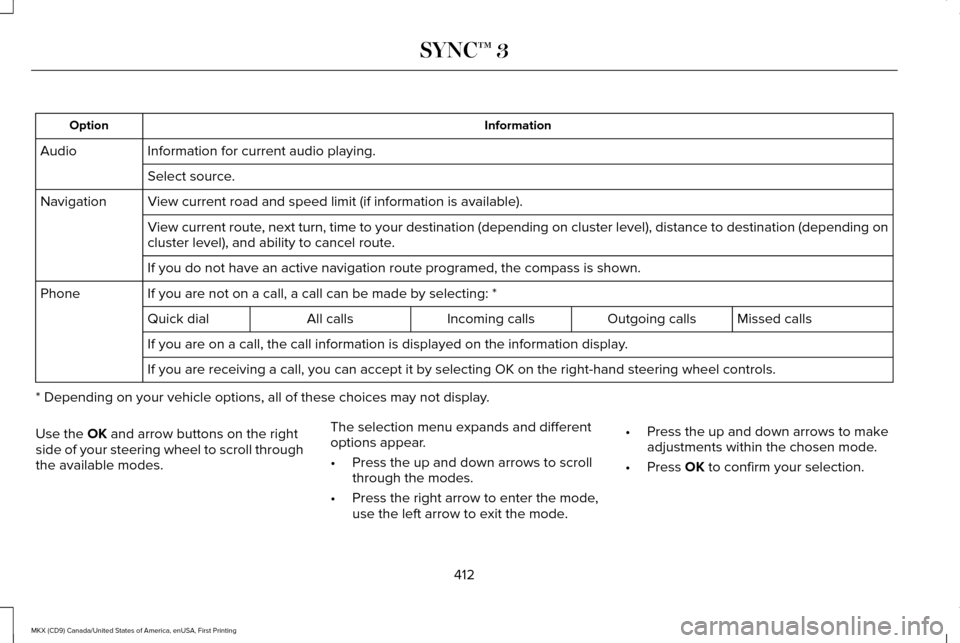
Use the OK and arrow buttons on the right
side of your steering wheel to scroll through
the available modes. The selection menu expands and different
options appear.
•
Press the up and down arrows to scroll
through the modes.
• Press the right arrow to enter the mode,
use the left arrow to exit the mode. •
Press the up and down arrows to make
adjustments within the chosen mode.
• Press
OK to confirm your selection.
412
MKX (CD9) Canada/United States of America, enUSA, First Printing SYNC™ 3
Page 416 of 587
Note:
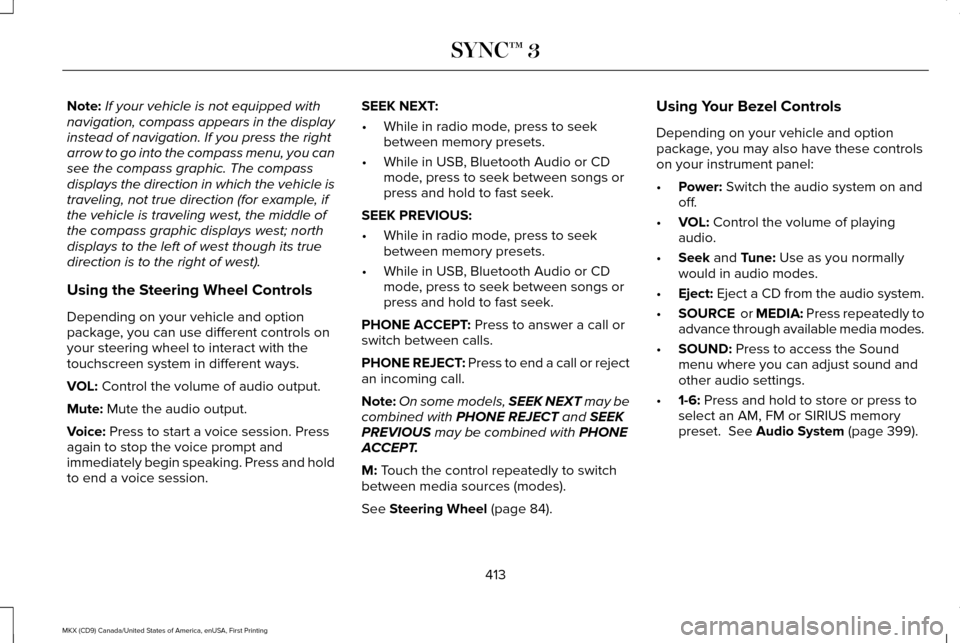
If your vehicle is not equipped with
navigation, compass appears in the display
instead of navigation. If you press the right
arrow to go into the compass menu, you can
see the compass graphic. The compass
displays the direction in which the vehicle is
traveling, not true direction (for example, if
the vehicle is traveling west, the middle of
the compass graphic displays west; north
displays to the left of west though its true
direction is to the right of west).
Using the Steering Wheel Controls
Depending on your vehicle and option
package, you can use different controls on
your steering wheel to interact with the
touchscreen system in different ways.
VOL: Control the volume of audio output.
Mute:
Mute the audio output.
Voice:
Press to start a voice session. Press
again to stop the voice prompt and
immediately begin speaking. Press and hold
to end a voice session. SEEK NEXT:
•
While in radio mode, press to seek
between memory presets.
• While in USB, Bluetooth Audio or CD
mode, press to seek between songs or
press and hold to fast seek.
SEEK PREVIOUS:
• While in radio mode, press to seek
between memory presets.
• While in USB, Bluetooth Audio or CD
mode, press to seek between songs or
press and hold to fast seek.
PHONE ACCEPT:
Press to answer a call or
switch between calls.
PHONE REJECT: Press to end a call or reject
an incoming call.
Note: On some models, SEEK NEXT may be
combined with
PHONE REJECT and SEEK
PREVIOUS may be combined with PHONE
ACCEPT.
M:
Touch the control repeatedly to switch
between media sources (modes).
See
Steering Wheel (page 84). Using Your Bezel Controls
Depending on your vehicle and option
package, you may also have these controls
on your instrument panel:
•
Power:
Switch the audio system on and
off.
• VOL:
Control the volume of playing
audio.
• Seek
and Tune: Use as you normally
would in audio modes.
• Eject:
Eject a CD from the audio system.
• SOURCE
or MEDIA: Press repeatedly to
advance through available media modes.
• SOUND:
Press to access the Sound
menu where you can adjust sound and
other audio settings.
• 1-6:
Press and hold to store or press to
select an AM, FM or SIRIUS memory
preset.
See Audio System (page 399).
413
MKX (CD9) Canada/United States of America, enUSA, First Printing SYNC™ 3
Page 418 of 587
Website
www.syncmaroute.ca
For important information about airbag
deployment and the fuel pump shut-off
please see the Supplementary Restrains and
Roadside Emergencies sections of your
owner manual.
To switch 911 Assist on and off please view
the settings information. See Settings (page
472).
To make sure that 911 Assist works correctly:
• SYNC must be powered and working
properly at the time of the incident and
throughout feature activation and use.
• The 911 Assist feature must be set on
before the incident.
• You must pair and connect a
Bluetooth-enabled and compatible cell
phone to SYNC.
• A connected Bluetooth-enabled phone
must have the ability to make and
maintain an outgoing call at the time of
the incident. •
A connected Bluetooth-enabled phone
must have adequate network coverage,
battery power and signal strength.
• The vehicle must have battery power and
be located in the U.S., Canada or in a
territory in which 911 is the emergency
number.
In the Event of a Crash
Not all crashes will deploy an airbag or
activate the fuel pump shut-off (the triggers
for 911 Assist). If a connected cell phone
sustains damage or loses its connection to
SYNC during a crash, SYNC will search for
and try to connect to a previously paired cell
phone; SYNC will then attempt to call the
emergency services. Before making the call:
•
SYNC provides a short window of time
(about 10 seconds) to cancel the call. If
you fail to cancel the call, SYNC attempts
to dial 911.
• SYNC says the following, or a similar
message: "SYNC will attempt to call 911,
to cancel the call, press Cancel on your
screen or press and hold the phone
button on your steering wheel."
If you do not cancel the call, and SYNC
makes a successful call, a pre-recorded
message plays for the 911 operator, and then
the occupant(s) in your vehicle is able to talk
with the operator. Be prepared to provide
your name, phone number and location
immediately, because not all 911 systems are
capable of receiving this information
electronically.
415
MKX (CD9) Canada/United States of America, enUSA, First Printing SYNC™ 3
Page 425 of 587

Home screen display
Tile
Item
Shows the active media source.
Audio
A
If your vehicle does not have navigation, this space contains the compas\
s.
The name of the connected phone appears on the screen. The status of the\
phone
features also appear. This includes signal strength, battery charge, 911 assist setting
state (On or Off ), text messaging and roaming.
Phone
B
This map displays your current location or current route in real time.
Navigation 1
C
When you have navigation active, you also see the next turn and the length of time
and distance to your destination.
If your vehicle does not have navigation, this space contains the audio \
information.
1 If equipped.
You can touch any of the feature displays to
access that feature.
Anytime you select the home button, the
system returns you to this screen. USING VOICE RECOGNITION
The SYNC 3 system allows you to use voice
commands, to control features like audio and
climate controls. By using voice commands,
you can keep your hands on the wheel and
your eyes on the road.
You can access each feature controlled by
SYNC 3 through a variety of commands. To activate the SYNC 3 voice
commands push the voice button
on the steering wheel and wait for
the prompt.
___ is a dynamic listing, meaning that it can
be the name of anything, such as artist, the
name of contact or number. The context and
the description of the command tell you what
to say for this dynamic option.
There are some commands that work for
every feature, these commands are:
422
MKX (CD9) Canada/United States of America, enUSA, First Printing SYNC™ 3E142599
Page 450 of 587
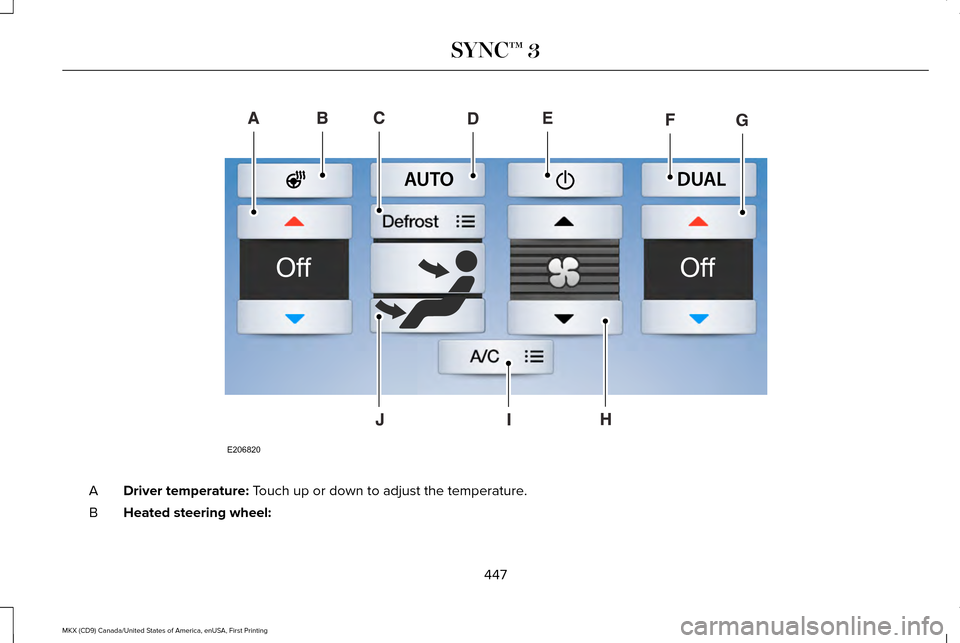
Driver temperature: Touch up or down to adjust the temperature.
A
Heated steering wheel:
B
447
MKX (CD9) Canada/United States of America, enUSA, First Printing SYNC™ 3E206820
Page 451 of 587
Note: This feature only functions when you switch the engine on.
Touch this icon to switch the heated steering wheel on and off. It takes about 5 minutes to warm the steering wheel to 74°F (23.3°C)
in temperatures as low as -4°F (-20°C). The wheel maintains an a\
pproximate temperature of 90°F (32.2°C) and operates independently
from the heated seats and other climate-control functions. The heating e\
lement is in between the leather covering and foam core
to help provide maximum heat without adversely affecting the feel of the\
steering wheel.
Note:
For steering wheels with wood trim, the heating feature will not heat t\
he wheel between the 10 and 2 o'clock positions.
Defrost:
A pop up appears on the screen to display the defrost options.
C
MAX Defrost: Touch the button to maximize defrosting. Air flows through the windshield\
vents, the fan automatically adjusts to the
highest speed and the driver and passenger temperatures are set to HI. Y\
ou can use this setting to defog or clear a thin covering
of ice from the windshield. The heated rear window also automatically tu\
rns on when you select MAX Defrost.
Defrost:
Distributes air through the windshield defroster vents and demister vent\
s.
Heated rear window:
Turns the heated rear window on and off. See Heated Windows and Mirrors (page 144).
AUTO:
Touch the button to switch on automatic operation. Select the desired tem\
perature using the temperature control. The
system adjusts fan speed, air distribution, air conditioning operation, \
and selects outside air or recirculated air to heat or cool the
vehicle in order to maintain the desired temperature.
D
Power:
Touch the button to switch the system on and off. Switching off the climate control system prevents outside air from enteri\
ng
the vehicle.
E
DUAL:
This button lights up when the passenger temperature controls are activ\
e. To switch the passenger temperature controls
off and link the passenger temperature to the driver temperature, touch the DUAL button.
F
Note:
the passenger side temperature and the DUAL indication automatically turn on when you or your passenger adjust th\
e
passenger temperature.
Passenger temperature:
Touch up or down to adjust the temperature.
G
448
MKX (CD9) Canada/United States of America, enUSA, First Printing SYNC™ 3
Page 456 of 587

Action and Description
Menu Item
Item
You can place a call by selecting an entry from this list.
You can also sort the calls by selecting the drop down menu at the top of\
the screen. You can choose: Missed
Outgoing
Incoming
All
All of your contacts from your phone display in alphabetical order.
Contacts
B
Selecting this button allows you to choose a
specific letter to view.
A-Z Jump
Displays the name of your phone and takes you to the phone settings options.
Phone Settings
C
From this menu, you can pair subsequent devices, set ring tones and aler\
ts. See Settings (page 472).
Displays all recent text messages.
Text Messages
D
Use this keypad to dial in a phone number.
Phone Keypad
E
Use the backspace button to delete numbers.
Press this button to begin a call.
Call
Touch this button to send all calls directly to your voicemail. New text \
message notifications are not
displayed on the screen and all ringtones and alerts are set to silent.
Do Not Disturb
F
Users with phones having voice services may
see a button to access the feature. For
example, iPhone users see a Siri button. A
press and hold of the voice button on the
steering wheel also accesses this feature. 453
MKX (CD9) Canada/United States of America, enUSA, First Printing SYNC™ 3
Page 458 of 587
To call a number in your contacts, select:
Action and Description
Menu Item
You can then select the
name of the contact you
want to call. Any numbers
stored for that contact
display along with any
stored contact photos. You
can then select the number
that you want to call. The
system begins the call.
Contacts
To call a number from your recent calls,
select: Action and Description
Menu Item
You can then select an entry
that you want to call. The
system begins the call.
Recent Call
List
To call a number that is not stored in your
phone, select: Action and Description
Menu Item Action and Description
Menu Item
Select the digits of the
number you wish to call.
Phone
Keypad
The system begins the call.
Call
Pressing the backspace button deletes the
last digit you typed.
Receiving Calls
During an incoming call, an audible tone
sounds. Caller information appears in the
display if it is available.
To accept the call, select: Menu Item
Accept
Note: You can also accept the call by
pressing the phone button on the steering
wheel. To reject the call, select: Menu Item
Reject
Note: You can also reject the call by
pressing the phone button on the steering
wheel.
Ignore the call by doing nothing. SYNC 3
logs it as a missed call.
During a Phone Call
During a phone call, the contacts name and
number display on the screen along with the
call duration.
The phone status items are also visible:
• Signal Strength.
• Battery.
• 911 Assist (United States and Canada
Only). See Settings (page 472).
You can select any of the following during
an active phone call:
455
MKX (CD9) Canada/United States of America, enUSA, First Printing SYNC™ 3