phone LINCOLN MKZ 2008 Owners Manual
[x] Cancel search | Manufacturer: LINCOLN, Model Year: 2008, Model line: MKZ, Model: LINCOLN MKZ 2008Pages: 280, PDF Size: 2.32 MB
Page 7 of 280
Cell phone use
The use of Mobile Communications Equipment has become increasingly
important in the conduct of business and personal affairs. However,
drivers must not compromise their own or others’ safety when using
such equipment. Mobile Communications can enhance personal safety
and security when appropriately used, particularly in emergency
situations. Safety must be paramount when using mobile communications
equipment to avoid negating these benefits.
Mobile Communication Equipment includes, but is not limited to cellular
phones, pagers, portable email devices, in-vehicle communications
systems, telematics devices and portable two-way radios.
Driving while distracted can result in loss of vehicle control,
accident and injury. Ford strongly recommends that drivers use
extreme caution when using any device that may take their focus off
the road. The drivers primary responsibility is the safe operation of
their vehicle. Only use cell phones and other devices not essential to
the driving task when it is safe to do so.
Export unique (Non–United States/Canada) vehicle specific
information
For your particular global region, your vehicle may be equipped with
features and options that are different from the ones that are described
in thisOwner’s Guide.A market unique supplement may be supplied
that complements this book. By referring to the market unique
supplement, if provided, you can properly identify those features,
recommendations and specifications that are unique to your vehicle. This
Owner’s Guideis written primarily for the U.S. and Canadian Markets.
Features or equipment listed as standard may be different on units built
for Export.Refer to this Owner’s Guide for all other required
information and warnings.
2008 MKZ(378)
Owners Guide (post-2002-fmt)
USA(fus)
Introduction
7
Page 16 of 280
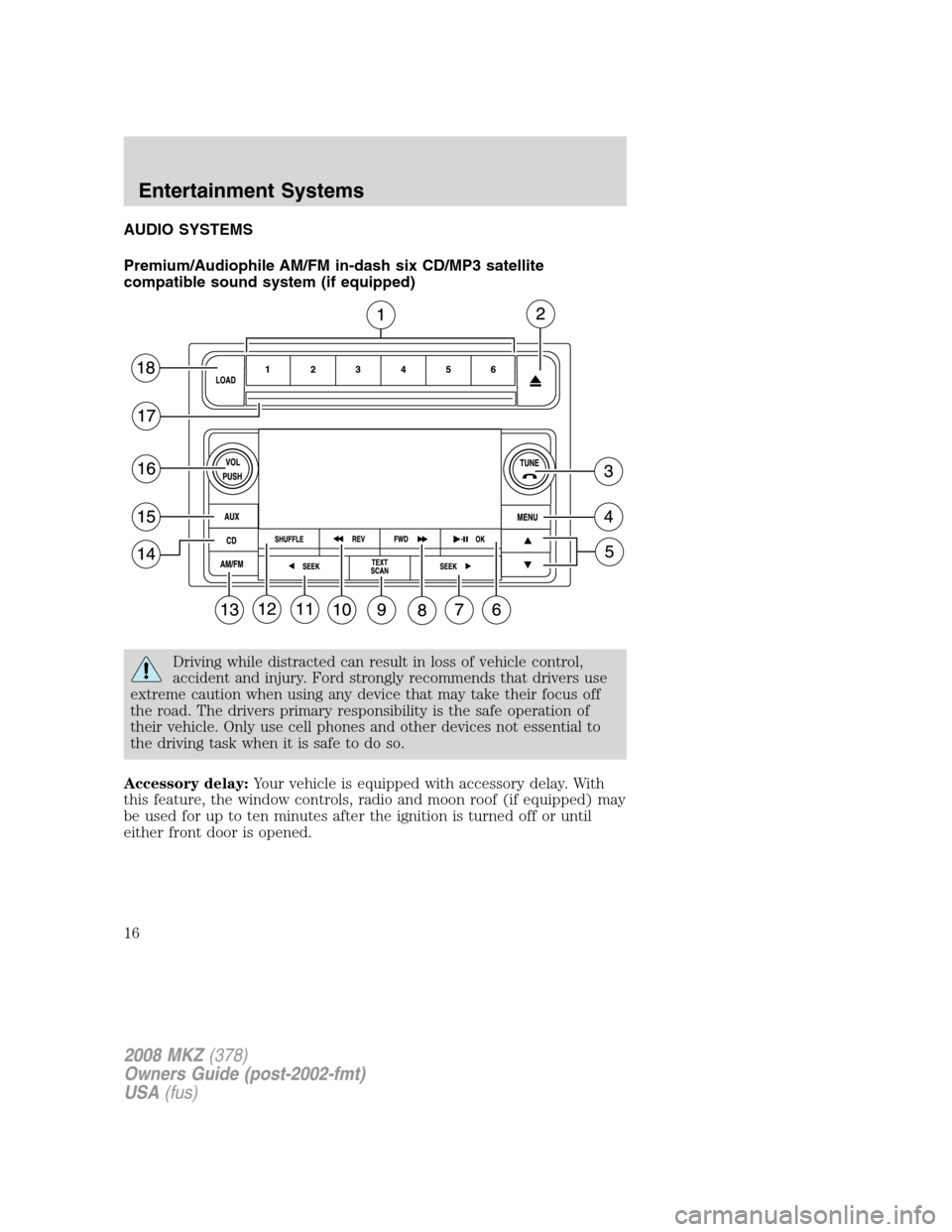
AUDIO SYSTEMS
Premium/Audiophile AM/FM in-dash six CD/MP3 satellite
compatible sound system (if equipped)
Driving while distracted can result in loss of vehicle control,
accident and injury. Ford strongly recommends that drivers use
extreme caution when using any device that may take their focus off
the road. The drivers primary responsibility is the safe operation of
their vehicle. Only use cell phones and other devices not essential to
the driving task when it is safe to do so.
Accessory delay:Your vehicle is equipped with accessory delay. With
this feature, the window controls, radio and moon roof (if equipped) may
be used for up to ten minutes after the ignition is turned off or until
either front door is opened.
2008 MKZ(378)
Owners Guide (post-2002-fmt)
USA(fus)
Entertainment Systems
16
Page 18 of 280
: If your vehicle is equipped with SYNC (late availability), press to
access SYNC PHONE features. Refer to yourSYNC supplement.for
further information. If your vehicle is not equipped with SYNC, the
display will read NO PHONE.
4.MENU:Press repeatedly to scroll
through the following modes:
Setting the clock:Your vehicle is equipped with an in-dash clock. Refer
toClockin theDriver ControlsChapter for instructions on how to set
the time.
SATELLITE RADIO MENU (if equipped):Press MENU when satellite
radio mode is active to access. Press OK to enter into the satellite radio
menu. Press
/to cycle through the following options:
•CATEGORY:Press OK to enter category mode. Press
/to
scroll through the list of available SIRIUS channel Categories (Pop,
Rock, News, etc.) Press OK when the desired category appears in the
display. After a category is selected, press SEEK to search for that
specific category of channels only (i.e. ROCK). You may also select
CATEGORY ALL to seek all available SIRIUS categories and channels.
Press OK to close and return to the main menu.
•SAVE SONG:Press OK to save the currently playing song’s title in
the system’s memory. (If you try to save something other than a song,
CANT SAVE will appear in the display.) When the chosen song is
playing on any satellite radio channel, the system will alert you with
an audible prompt. Press OK while SONG ALERT is in the display and
the system will take you to the channel playing the desired song. You
can save up to 20 song titles. If you attempt to save more than 20
titles, the display will read REPLACE SONG? Press OK to access the
saved titles and press
/to cycle through the saved titles. When
the song title appears in the display that you would like to replace,
press OK. SONG REPLACED will appear in the display.
•DELETE SONG:Press OK to delete a song from the system’s
memory. Press
/to cycle through the saved songs. When the
song appears in the display that you would like to delete, press OK.
The song will appear in the display for confirmation. Press OK again
and the display will read SONG DELETED. If you do not want to
delete the currently listed song, press
/to select either
RETURN or CANCEL.
Note:If there are no songs presently saved, the display will read NO
SONGS.
2008 MKZ(378)
Owners Guide (post-2002-fmt)
USA(fus)
Entertainment Systems
18
Page 20 of 280
When the six strongest stations are filled, the station stored in preset 1
will begin playing. If there are less than six strong stations, the system
will store the last one in the remaining presets.
BASS:Press
/to adjust the bass setting. Press OK to close and
return to the main menu.
TREBLE:Press
/to adjust the treble setting. Press OK to close
and return to the main menu.
BALANCE:Press
/to adjust the audio between the left and right
speakers. Press OK to close and return to the main menu.
FADE:Press
/to adjust the audio between the front and rear
speakers. Press OK to close and return to the main menu.
SPEED SENSITIVE VOLUME:Radio volume automatically changes
slightly with vehicle speed to compensate for road and wind noise.
Use
/to adjust. Recommended level is 1–3. Level 0 turns the
feature off and level 7 is the maximum setting. Press OK to close and
return to the main menu.
Occupancy mode (if equipped):Use
/to select and optimize
sound for ALL SEATS, DRIVERS SEAT or REAR SEATS. Press OK to
close and return to the main menu.
COMPRESSION:Available in CD mode, this feature brings soft and
loud CD passages together for a more consistent listening level. Press
MENU until compression status is displayed. Press
/to turn the
feature on/off. Press OK to close and return to the main menu.
5.
/(Select):These controls
are used in Menu mode to select
various settings/options.
6.
/OK:
Play/pause:In CD/MP3 mode, press
to pause the playing media. PAUSE
will appear in the display. Press again to return to the playing media.
OK:Use in various menu selections.
Your vehicle may be equipped with SYNC, a system which has special
phone and media features. For further information, refer to theSYNC
supplement.
2008 MKZ(378)
Owners Guide (post-2002-fmt)
USA(fus)
Entertainment Systems
20
Page 22 of 280
etc.), pressSEEK to seek to the previous channel in the selected
category. Press and hold
SEEK to fast seek through the previous
channels.
In TEXT MODE,press
SEEK to view the previous/additional
display text when “<” is active in the display.
In CATEGORY MODE,press
SEEK to select a category.
Satellite radio is available only with a valid SIRIUS subscription.
Check with your authorized dealer for availability.
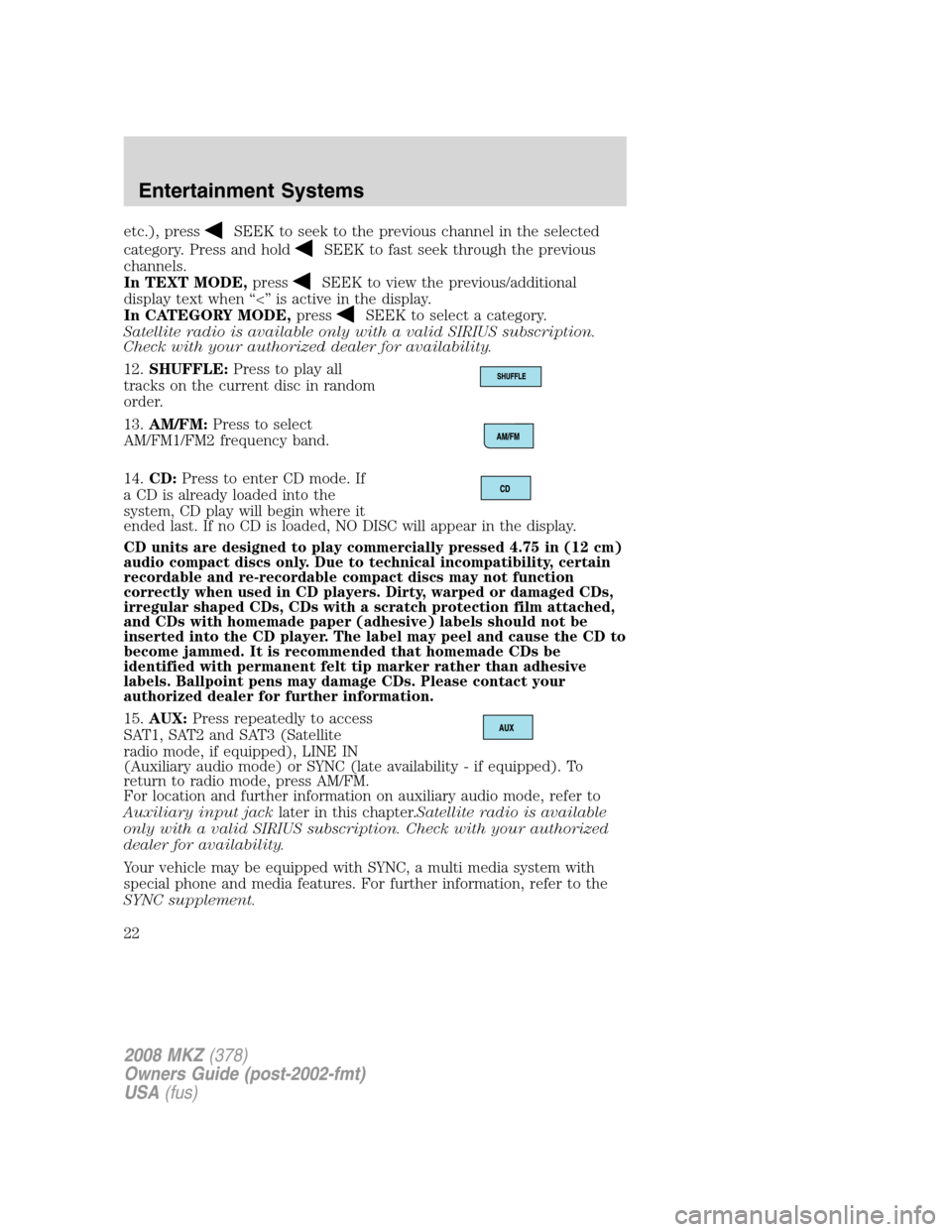
12.SHUFFLE:Press to play all
tracks on the current disc in random
order.
13.AM/FM:Press to select
AM/FM1/FM2 frequency band.
14.CD:Press to enter CD mode. If
a CD is already loaded into the
system, CD play will begin where it
ended last. If no CD is loaded, NO DISC will appear in the display.
CD units are designed to play commercially pressed 4.75 in (12 cm)
audio compact discs only. Due to technical incompatibility, certain
recordable and re-recordable compact discs may not function
correctly when used in CD players. Dirty, warped or damaged CDs,
irregular shaped CDs, CDs with a scratch protection film attached,
and CDs with homemade paper (adhesive) labels should not be
inserted into the CD player. The label may peel and cause the CD to
become jammed. It is recommended that homemade CDs be
identified with permanent felt tip marker rather than adhesive
labels. Ballpoint pens may damage CDs. Please contact your
authorized dealer for further information.
15.AUX:Press repeatedly to access
SAT1, SAT2 and SAT3 (Satellite
radio mode, if equipped), LINE IN
(Auxiliary audio mode) or SYNC (late availability - if equipped). To
return to radio mode, press AM/FM.
For location and further information on auxiliary audio mode, refer to
Auxiliary input jacklater in this chapter.Satellite radio is available
only with a valid SIRIUS subscription. Check with your authorized
dealer for availability.
Your vehicle may be equipped with SYNC, a multi media system with
special phone and media features. For further information, refer to the
SYNC supplement.
2008 MKZ(378)
Owners Guide (post-2002-fmt)
USA(fus)
Entertainment Systems
22
Page 23 of 280
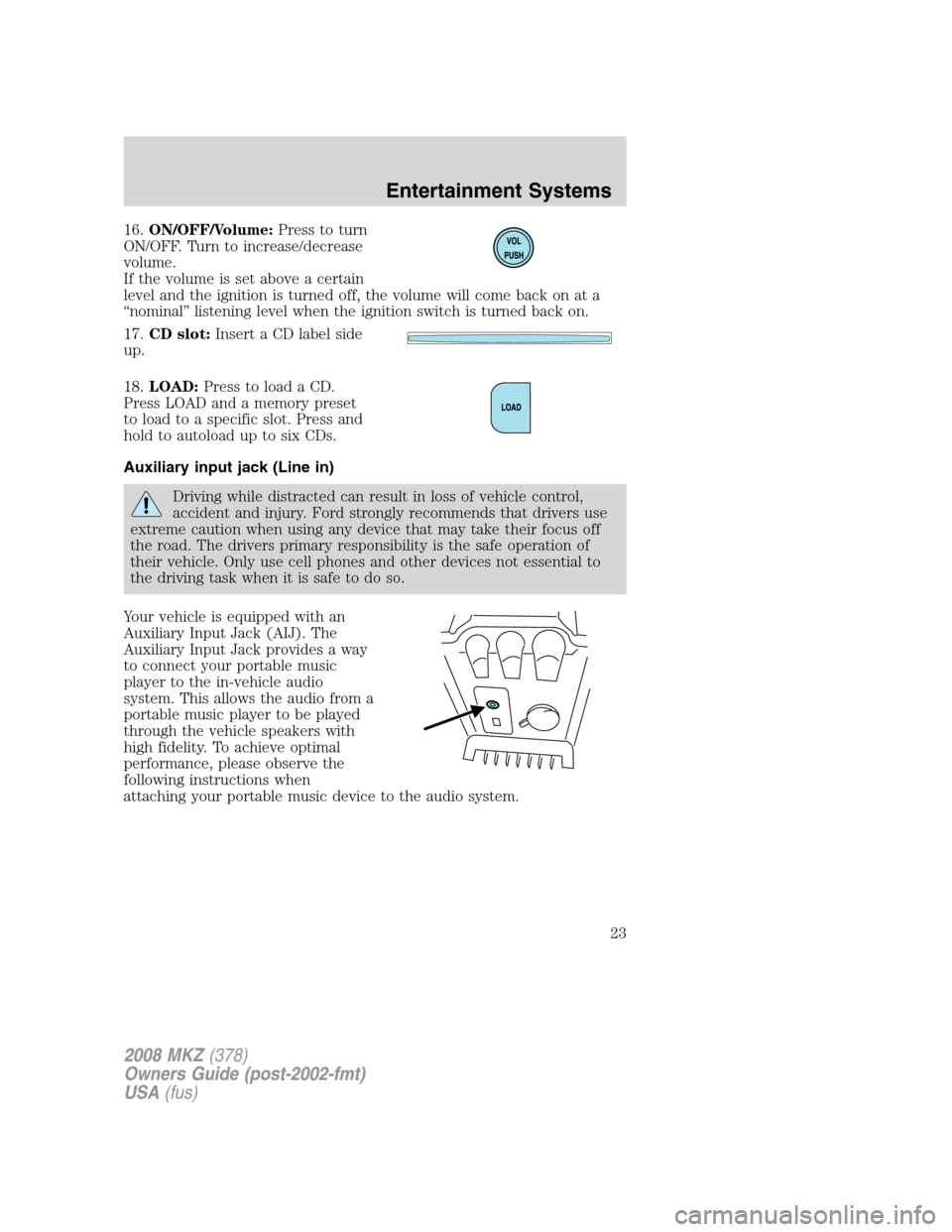
16.ON/OFF/Volume:Press to turn
ON/OFF. Turn to increase/decrease
volume.
If the volume is set above a certain
level and the ignition is turned off, the volume will come back on at a
“nominal” listening level when the ignition switch is turned back on.
17.CD slot:Insert a CD label side
up.
18.LOAD:Press to load a CD.
Press LOAD and a memory preset
to load to a specific slot. Press and
hold to autoload up to six CDs.
Auxiliary input jack (Line in)
Driving while distracted can result in loss of vehicle control,
accident and injury. Ford strongly recommends that drivers use
extreme caution when using any device that may take their focus off
the road. The drivers primary responsibility is the safe operation of
their vehicle. Only use cell phones and other devices not essential to
the driving task when it is safe to do so.
Your vehicle is equipped with an
Auxiliary Input Jack (AIJ). The
Auxiliary Input Jack provides a way
to connect your portable music
player to the in-vehicle audio
system. This allows the audio from a
portable music player to be played
through the vehicle speakers with
high fidelity. To achieve optimal
performance, please observe the
following instructions when
attaching your portable music device to the audio system.
2008 MKZ(378)
Owners Guide (post-2002-fmt)
USA(fus)
Entertainment Systems
23
Page 24 of 280
Required equipment:
1. Any portable music player designed to be used with headphones
2. An audio extension cable with stereo male 1/8 in. (3.5 mm)
connectors at each end
To play your portable music player using the auxiliary input jack:
1. Begin with the vehicle parked and the radio turned off.
2. Ensure that the battery in your portable music player is new or fully
charged and that the device is turned off.
3. Attach one end of the audio extension cable to the headphone output
of your player and the other end of the audio extension cable to the AIJ
in your vehicle.
4. Turn the radio on, using either a tuned FM station or a CD loaded into
the system. Adjust the volume to a comfortable listening level.
5. Turn the portable music player on and adjust the volume to 1/2 the
volume.
6. Press AUX on the vehicle radio repeatedly until LINE IN appears in
the display.
You should hear audio from your portable music player, although it may
be low.
7. Adjust the sound on your portable music player until it reaches the
level of the FM station or CD by switching back and forth between the
AUX and FM or CD controls.
Troubleshooting:
1. Do not connect the audio input jack to a line level output. Line level
outputs are intended for connection to a home stereo and are not
compatible with the AIJ. The AIJ will only work correctly with devices
that have a headphone output with a volume control.
2. Do not set the portable music player’s volume level higher than is
necessary to match the volume of the CD or FM radio in your audio
system as this will cause distortion and will reduce sound quality. Many
portable music players have different output levels, so not all players
should be set at the same levels. Some players will sound best at full
volume and others will need to be set at a lower volume.
3. If the music sounds distorted at lower listening levels, turn the
portable music player volume down. If the problems persists, replace or
recharge the batteries in the portable music player.
4. The portable music player must be controlled in the same manner
when it is used with headphones as the AIJ does not provide control
(play, pause, etc.) over the attached portable music player.
2008 MKZ(378)
Owners Guide (post-2002-fmt)
USA(fus)
Entertainment Systems
24
Page 25 of 280
5. For safety reasons, connecting or adjusting the settings on your
portable music player should not be attempted while the vehicle is
moving. Also, the portable music player should be stored in a secure
location, such as the center console or the glove box, when the vehicle is
in motion. The audio extension cable must be long enough to allow the
portable music player to be safely stored while the vehicle is in motion.
USB port (if equipped)
Driving while distracted can result in loss of vehicle control,
accident and injury. Ford strongly recommends that drivers use
extreme caution when using any device that may take their focus off
the road. The drivers primary responsibility is the safe operation of
their vehicle. Only use cell phones and other devices not essential to
the driving task when it is safe to do so.
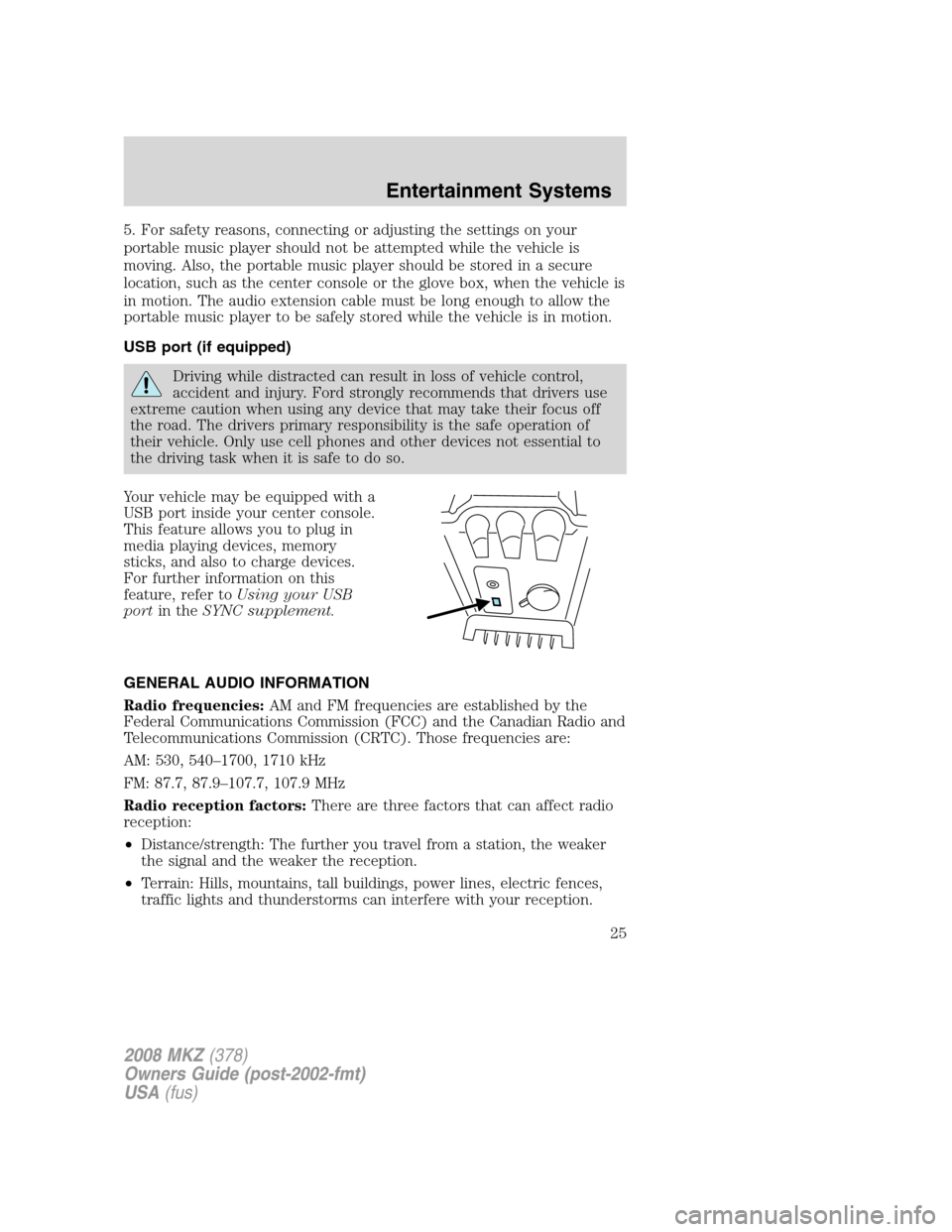
Your vehicle may be equipped with a
USB port inside your center console.
This feature allows you to plug in
media playing devices, memory
sticks, and also to charge devices.
For further information on this
feature, refer toUsing your USB
portin theSYNC supplement.
GENERAL AUDIO INFORMATION
Radio frequencies:AM and FM frequencies are established by the
Federal Communications Commission (FCC) and the Canadian Radio and
Telecommunications Commission (CRTC). Those frequencies are:
AM: 530, 540–1700, 1710 kHz
FM: 87.7, 87.9–107.7, 107.9 MHz
Radio reception factors:There are three factors that can affect radio
reception:
•Distance/strength: The further you travel from a station, the weaker
the signal and the weaker the reception.
•Terrain: Hills, mountains, tall buildings, power lines, electric fences,
traffic lights and thunderstorms can interfere with your reception.
2008 MKZ(378)
Owners Guide (post-2002-fmt)
USA(fus)
Entertainment Systems
25
Page 30 of 280
Radio Display Condition Action Required
ANTENNA FAIL Internal failure or
configuration failure
to satellite radio
antennaIf this message does
not clear within a short
period of time, or with
an ignition key cycle,
your receiver may have
a fault. See your
authorized dealer for
service.
SUB UPDATE Satellite service
subscription has been
updated by SIRIUS
Satellite RadioNo action required. The
process should take no
longer than one
minute.
NAVIGATION SYSTEM (IF EQUIPPED)
Your vehicle may be equipped with a Navigation System. Refer to the
Navigation supplementfor further information.
SYNC SYSTEM (LATE AVAILABILITY — IF EQUIPPED)
Your vehicle may be equipped with SYNC, a multi-media system with
special phone and media features. Refer to yourSYNC supplementfor
further information.
2008 MKZ(378)
Owners Guide (post-2002-fmt)
USA(fus)
Entertainment Systems
30
Page 133 of 280
To reduce the risk of possible serious injury:
Do not stow objects in seat back map pocket (if equipped) or
hang objects off seat back if a child is in the front passenger seat.
Do not place objects underneath the front passenger seat or between
the seat and the center console (if equipped).
Check the “passenger airbag off” or “pass airbag off” indicator lamp for
proper airbag Status.
Failure to follow these instructions may interfere with the front
passenger seat sensing system.
In case there is a problem with the
front passenger sensing system, the
airbag readiness light in the
instrument cluster will stay lit.
If the airbag readiness light is lit, do the following:
The driver and/or adult passengers should check for any objects that
may be lodged underneath the front passenger seat or cargo interfering
with the seat.
If objects are lodged and/or cargo is interfering with the seat; please take
the following steps to remove the obstruction:
•Pull the vehicle over.
•Turn the vehicle off.
•Driver and/or adult passengers should check for any objects lodged
underneath the front passenger seat or cargo interfering with the seat.
•Remove the obstruction(s) (if found).
•Restart the vehicle.
•Wait at least 2 minutes and verify that the airbag readiness light is no
longer illuminated
•If the airbag readiness light remains illuminated, this may or may/not
be a problem due to the front passenger sensing system.
DO NOT attempt to repair or service the system; take your vehicle
immediately to an authorized dealer.
If it is necessary to modify an advanced front airbag system to
accommodate a person with disabilities, contact the Ford Customer
Relationship Center at the phone number shown in theCustomer
Assistancesection of thisOwner’s Guide.
2008 MKZ(378)
Owners Guide (post-2002-fmt)
USA(fus)
Seating and Safety Restraints
133