reset LINCOLN MKZ 2010 User Guide
[x] Cancel search | Manufacturer: LINCOLN, Model Year: 2010, Model line: MKZ, Model: LINCOLN MKZ 2010Pages: 318, PDF Size: 2.22 MB
Page 30 of 318
Setting the clock
CLOCK:Press to set the clock. The display will read SET TIME. Use the
memory preset numbers (0–9) to enter in the desired time– hours and
minutes. The clock will then begin from that time.
AM/FM Radio
/ VOL (Power/Volume):Press to turn the radio on/off. Turn the
knob to increase/decrease volume.
If the volume is set above a certain level and the ignition is turned off,
the volume will come back on at a nominal listening level when the
ignition is turned back on.
AM/FM:Press repeatedly to select AM/FM1/FM2 frequency band.
TUNE:Turn the knob to go up/down the frequency band in individual
increments.
DIRECT:Press DIRECT and then select the desired radio frequency
(i.e. 93.9) using the memory preset numbers (0–9).
SEEK:Press
SEEKto access the previous/next strong radio
station.
SCAN:Press for a brief sampling of all strong radio stations.
MEMORY PRESETS (0–9):When tuned to any station, press and hold a
preset button until sound returns and PRESET # SAVED appears in the
display. You can save up to 30 stations, 10 in AM, 10 in FM1 and FM2.
Saving presets automatically:Autoset allows you to set the strongest
local radio stations without losing your original manually set preset
stations for AM/FM1/FM2.
To activate the autoset feature:Press MENU repeatedly until AUTO
PRESET ON/OFF appears in the display. Use
SEEKto toggle
AUTO PRESET to ON, and either wait five seconds for the search to
initiate or press OK to immediately initiate the search. If you press
another control within those five seconds, the search will not initiate.
The 10 strongest stations will be filled and the station stored in preset 1
will begin playing.
If there are fewer then 10 strong stations, the system will store the last
one in the remaining presets.
RDS Radio
Available only in FM mode. This feature allows you to search
RDS-equipped stations for a certain category of music format: CLASSIC,
COUNTRY, JAZZ/RB, ROCK, etc.
2010 MKZ(378)
Owners Guide, 1st Printing
USA(fus)
Entertainment Systems
30
Page 31 of 318
To activate:Press MENU repeatedly until RDS (ON/OFF) appears in the
display. Use
SEEKto toggle RDS ON/OFF. When RDS is OFF,
you will not be able to search for RDS equipped stations or view the
station name or type.
CAT/FLD (Category/Folder):This feature allows you to select from
various music categories.
To change RDS categories:Press MENU repeatedly until RDS ON/OFF
appears in the display. Use
SEEKto toggle RDS to ON. Press
CAT. PRESS UP OR DOWN TO CHANGE RDS CATEGORY will appear in
the display. Press
SEEKto scroll through all possible categories.
When the desired category appears in the display, press
SEEKto
find the next station playing that selection or press SCAN for a brief
sampling of all stations playing that category of music.
Six Disc CD/MP3 Player
CD:Press to enter CD/MP3 mode. If a disc is already loaded into the
system, CD/MP3 play will begin where it ended last. If no CD is loaded,
NO DISC will appear in the display.
LOAD:Use to load CDs into the CD player.
To load a single CD–
Press LOAD. When the display reads SELECT CD SLOT, choose the
desired slot number using memory presets 1–6. The display will read
MOVING TO CD # and then LOAD CD #. Load the desired disc, label
side up into the CD slot opening. If you do not choose a slot within five
seconds, the system will choose for you. Once loaded, the first track will
begin to play.
To auto load up to six discs–
Press and hold LOAD until the display reads MOVING TO #. Load the
desired disc, label side up. The system will prompt you to load discs for
the remaining available slots. Insert the discs, one at a time, label side
up, when prompted. Once loaded, the disc in slot 1 will begin to play.
To choose one of the loaded CDs to play, press the number preset
buttons (1–6) to choose the desired disc.
/OK (Play/Pause):Press to play/pause a track when playing a CD.
2010 MKZ(378)
Owners Guide, 1st Printing
USA(fus)
Entertainment Systems
31
Page 32 of 318
(EJECT):Pressand select the desired CD slot by pressing the
corresponding memory preset #. The display will read EJECTING #.
When the system has ejected the CD, the display will read REMOVE CD
#. If you do not remove the CD the system will reload the disc.
To auto eject all loaded discs–Press and hold
. The system will eject
all discs and prompt you when to remove them.
SEEK:Press
SEEKto access the previous/next track.
CAT (Category) / FLD (Folder):
In MP3 mode only–Press CAT/FOLD and then press
SEEKto
access the previous/next folder.
SCAN:Press for a brief sampling of all tracks on the current disc or
MP3folder.
DIRECT:
In CD mode–Press DIRECT. The display will read DIRECT TRACK
MODE SELECT TRACK. Enter the desired track number using the
memory preset buttons (0–9). The system will then begin playing that
track.
In MP3 folder mode–Press DIRECT and the memory preset buttons
(0–9) of the desired folder. The system will advance to that specific
folder.
TEXT:
In MP3 mode only–Press TEXT repeatedly to view Album (AL), Folder
(FL), Song (SO) and Artist (AR) in the display, if available.
In TEXT mode:Sometimes the display requires additional text to be
displayed. When theindicatorisactive,press TEXT and then
press
SEEKto view the additional display text.
COMPRESSION:Press MENU repeatedly until COMPRESSION ON/OFF
appears in the display. Use
SEEKto toggle ON/OFF. When
COMPRESSION is ON, the system will bring the soft and loud CD
passages together for a more consistent listening level.
SHUFFLE:Press MENU repeatedly until SHUFFLE ON/OFF appears in
the display. Use
SEEKto toggle between ON/OFF. If you wish to
engage shuffle mode right away, press
SEEKto begin random
play. Otherwise, random play will begin when the current track is
finished playing. The system will only shuffle the currently playing disc.
2010 MKZ(378)
Owners Guide, 1st Printing
USA(fus)
Entertainment Systems
32
Page 33 of 318
Satellite Radio
Satellite radio is available only with a valid SIRIUS radio
subscription. Check with your authorized dealer for availability.
SIRIUS:Press repeatedly to access satellite radio mode, if equipped.
Press repeatedly to cycle through SAT1, SAT2 and SAT3 modes.
TUNE:Turn to go to the next / previous available SIRIUS satellite
station.
DIRECT:Press DIRECT then enter the desired channel (i.e. 002) using
the memory preset buttons (0–9). If you only enter one digit, press OK
and the system will go to that satellite channel. If you enter three digits,
the system will automatically go to that channel, if available. You may
cancel your entry by pressing DIRECT.
If an invalid station number is entered, INVALID CHANNEL will appear
in the display and the system will continue playing the current station.
SEEK:Press
SEEKto seek to the previous/next channel. If a
specific category is selected, (Jazz, Rock, News, etc.),
press
SEEKto seek to the previous/next channel in the selected
category. Press and hold
SEEKto fast seek through the
previous/next channels.
SCAN:Press SCAN for a brief sampling of all available SIRIUS satellite
channels. If a specific category is selected, (Jazz, Rock, News, etc.) press
SCAN for a brief sampling of all available SIRIUS satellite channels within
the selected category.
MEMORY PRESETS (0–9):There are 30 available presets, 10 each for
SAT1, SAT2 and SAT3. To save satellite channels in your memory
presets, tune to the desired channel then press and hold a memory
preset number (0–9) until sound returns.
TEXT:Press and release to display the artist and song title. While in
TEXT MODE, press again to scroll through the Artist (AR), Song (SO),
Channel (CH) and Category (CA).
In TEXT MODE:Sometimes the display requires additional text to be
displayed. When theindicatorisactive,press TEXT and then
press
SEEKto view the additional display text.
CAT (Category) / FLD (Folder):Press to toggle between turning the
most recently selected satellite radio category on or off. The category
icon (CAT) will illuminate in the display when a specific category is
selected (the icon will not illuminate during CATEGORY ALL). If no
category has ever been selected, NO CATEGORY SELECTED will display.
2010 MKZ(378)
Owners Guide, 1st Printing
USA(fus)
Entertainment Systems
33
Page 35 of 318
c. DELETE ALL SONGS:Press OK to delete all song’s from the
system’s memory. The display will read ARE YOU SURE ? Press OK to
confirm deletion of all saved songs and the display will read ALL
DELETED.
Note:If there are no songs presently saved, the display will read NO
SONGS.
d. DISABLE ALERTS/ENABLE ALERTS:Press OK to
enable/disable the satellite alert status which alerts you when your
selected songs are playing on a satellite radio channel. (The system
default is disabled.) SONG ALERTS ENABLED/DISABLED will appear
in the display. The menu listing will display the opposite state. For
example, if you have chosen to enable the song alerts, the menu
listing will read DISABLE as the alerts are currently on, so your other
optionistoturnthemoff.
•CHANNEL LOCKOUT MENU-Press OK to enter the Channel
Lockout menu. Press the
SEEKto scroll through the following
options:
a. LOCK/UNLOCK THIS CHANNEL:Press OK when
LOCK/UNLOCK THIS CHANNEL is displayed and the display will read
ENTER PIN. Enter your four-digit PIN number (initial PIN is 1234)
and the system will lock/unlock the channel and CHANNEL LOCKED
or UNLOCKED will be displayed.
Note: you must be tuned to the specific channel you want to
lock/unlock when using this feature.
b. CHANGE PIN:Press OK when CHANGE PIN is displayed. The
display will read ENTER OLD PIN. Enter your current (old) PIN
number and when the system accepts your entry it will display
ENTER NEW PIN. Enter your new four-digit PIN and the system will
save the new PIN and PIN SAVED will display.
c. UNLOCK ALL CHANNELS:Press OK when UNLOCK ALL
CHANNELS is displayed and the display will read ENTER PIN. Enter
your four-digit PIN and the system will unlock all channels and the
display will read CHANNEL UNLOCKED.
d. RESET PIN:Press OK when RESET PIN is displayed. The display
will read ARE YOUR SURE. Press OK again to automatically reset the
PIN number to its initial password setting (1234). PIN RESET TO
DEFAULT PIN will be displayed.
e. RETURN:Press OK when RETURN is displayed and the system
will exit back to the satellite radio menu.
Sound Adjustments
Press SOUND repeatedly to cycle through the following features:
BASS:Press
SEEKto adjust the level of bass.
2010 MKZ(378)
Owners Guide, 1st Printing
USA(fus)
Entertainment Systems
35
Page 42 of 318
Radio Display Condition Action Required
ACQUIRING Radio requires more
than two seconds to
produce audio for the
selected channel.No action required.
This message should
disappear shortly.
SAT FAULT Internal module or
system failure
present.If this message does
not clear within a short
period of time, or with
an ignition key cycle,
your receiver may have
a fault. See your
authorized dealer for
service.
INVALID CHNL Channel no longer
available.This previously
available channel is no
longer available. Tune
to another channel. If
the channel was one of
your presets, you may
choose another channel
for that preset button.
UNSUBSCRIBED Subscription not
available for this
channel.Contact SIRIUS at
1–888–539–7474 to
subscribe to the
channel, or tune to
another channel.
NO TEXT Artist information not
available.Artist information not
available at this time on
this channel. The
system is working
properly.
NO TEXT Song title information
not available.Song title information
not available at this
time on this channel.
The system is working
properly.
2010 MKZ(378)
Owners Guide, 1st Printing
USA(fus)
Entertainment Systems
42
Page 56 of 318
•Press and hold the top or bottom of the control until the desired
lighting level is reached.
•Press and hold the top of the control to the full on position to activate
the “dome on” feature. This will turn on the interior courtesy lights.
The lights will remain on until the bottom of the control is pressed.
Note:If the battery is disconnected, discharged, or a new battery is
installed, the dimmer control requires re-calibration. Press the dimmer
control from the full dim position to the full on position to reset. This
will ensure that your displays are visible under all lighting conditions.
AIMING THE HEADLAMPS
The headlamps on your vehicle are properly aimed at the assembly plant.
If your vehicle has been in an accident, the alignment of your headlamps
should be checked by your authorized dealer.
Vertical aim adjustment
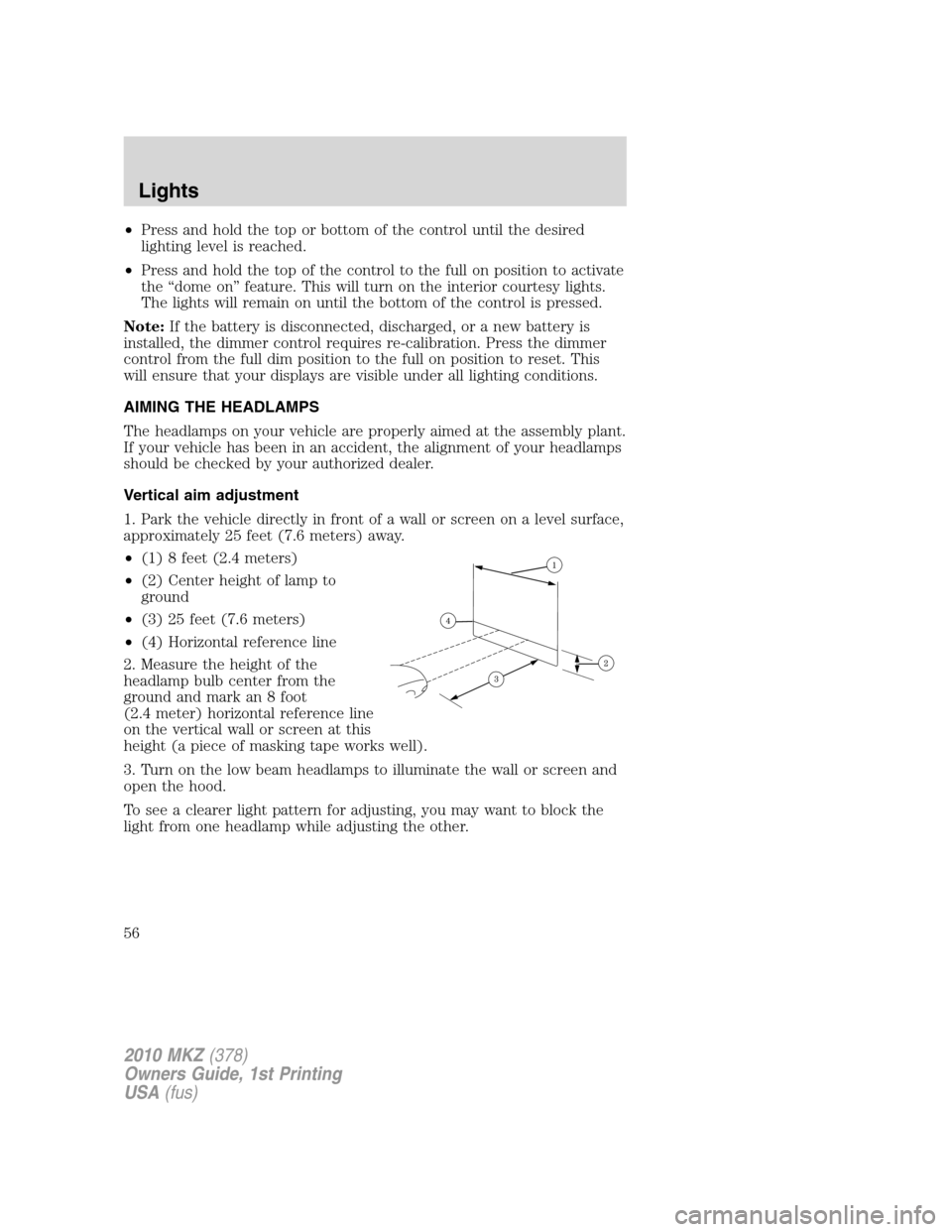
1. Park the vehicle directly in front of a wall or screen on a level surface,
approximately 25 feet (7.6 meters) away.
•(1) 8 feet (2.4 meters)
•(2) Center height of lamp to
ground
•(3) 25 feet (7.6 meters)
•(4) Horizontal reference line
2. Measure the height of the
headlamp bulb center from the
ground and mark an 8 foot
(2.4 meter) horizontal reference line
on the vertical wall or screen at this
height (a piece of masking tape works well).
3. Turn on the low beam headlamps to illuminate the wall or screen and
open the hood.
To see a clearer light pattern for adjusting, you may want to block the
light from one headlamp while adjusting the other.
2010 MKZ(378)
Owners Guide, 1st Printing
USA(fus)
Lights
56
Page 71 of 318
degrees between adjacent zones and will become noticeable as the
vehicle crosses multiple zones. A correct zone setting will eliminate this
error. Refer toCompass calibration adjustment.
Compass zone adjustment
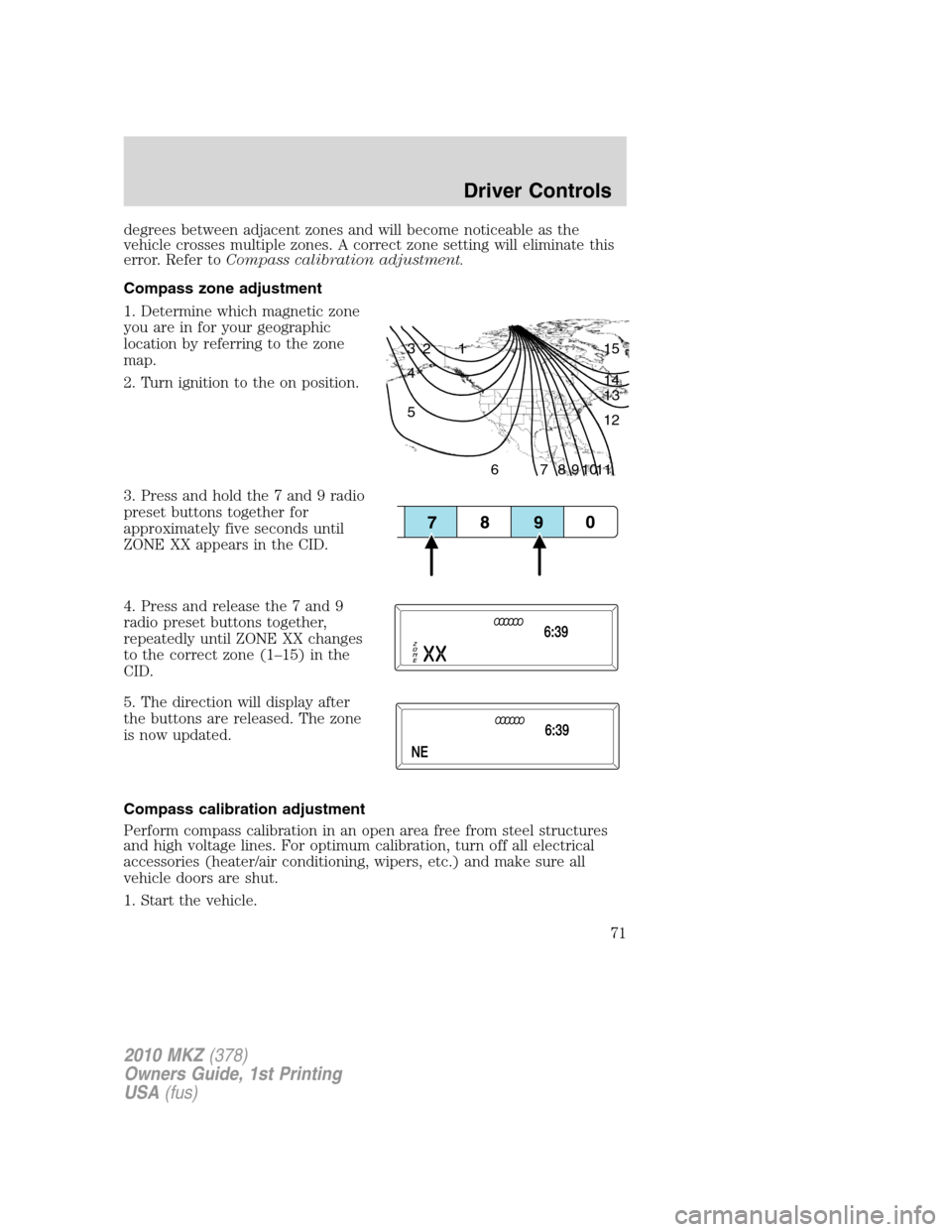
1. Determine which magnetic zone
you are in for your geographic
location by referring to the zone
map.
2. Turn ignition to the on position.
3. Press and hold the 7 and 9 radio
preset buttons together for
approximately five seconds until
ZONE XX appears in the CID.
4. Press and release the 7 and 9
radio preset buttons together,
repeatedly until ZONE XX changes
to the correct zone (1–15) in the
CID.
5. The direction will display after
the buttons are released. The zone
is now updated.
Compass calibration adjustment
Perform compass calibration in an open area free from steel structures
and high voltage lines. For optimum calibration, turn off all electrical
accessories (heater/air conditioning, wipers, etc.) and make sure all
vehicle doors are shut.
1. Start the vehicle.
1 2 3
4
5
6 7 8 9 101112 13 14 15
2010 MKZ(378)
Owners Guide, 1st Printing
USA(fus)
Driver Controls
71
Page 72 of 318
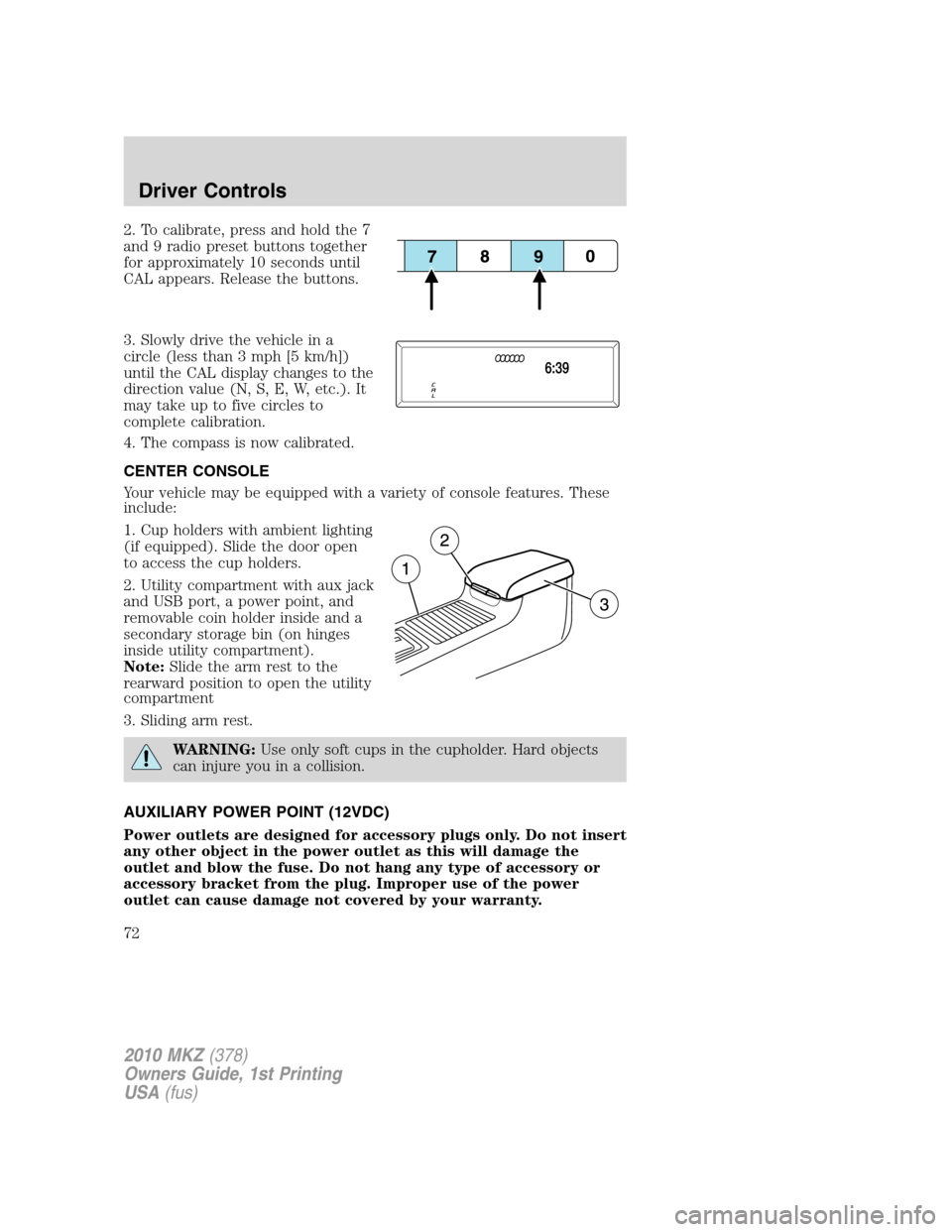
2. To calibrate, press and hold the 7
and 9 radio preset buttons together
for approximately 10 seconds until
CAL appears. Release the buttons.
3. Slowly drive the vehicle in a
circle (less than 3 mph [5 km/h])
until the CAL display changes to the
direction value (N, S, E, W, etc.). It
may take up to five circles to
complete calibration.
4. The compass is now calibrated.
CENTER CONSOLE
Your vehicle may be equipped with a variety of console features. These
include:
1. Cup holders with ambient lighting
(if equipped). Slide the door open
to access the cup holders.
2. Utility compartment with aux jack
and USB port, a power point, and
removable coin holder inside and a
secondary storage bin (on hinges
inside utility compartment).
Note:Slide the arm rest to the
rearward position to open the utility
compartment
3. Sliding arm rest.
WARNING:Use only soft cups in the cupholder. Hard objects
can injure you in a collision.
AUXILIARY POWER POINT (12VDC)
Power outlets are designed for accessory plugs only. Do not insert
any other object in the power outlet as this will damage the
outlet and blow the fuse. Do not hang any type of accessory or
accessory bracket from the plug. Improper use of the power
outlet can cause damage not covered by your warranty.
2010 MKZ(378)
Owners Guide, 1st Printing
USA(fus)
Driver Controls
72
Page 80 of 318
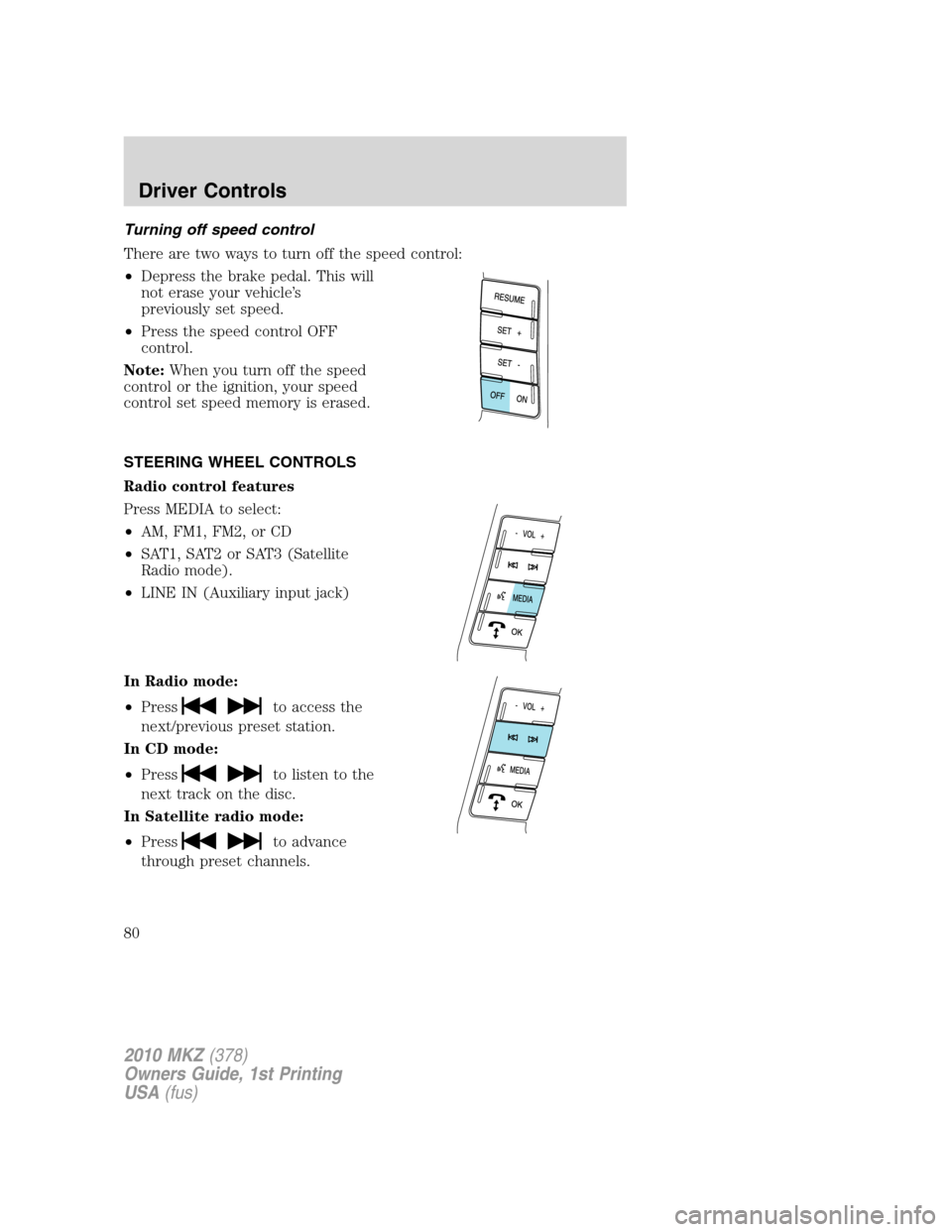
Turning off speed control
There are two ways to turn off the speed control:
•Depress the brake pedal. This will
not erase your vehicle’s
previously set speed.
•Press the speed control OFF
control.
Note:When you turn off the speed
control or the ignition, your speed
control set speed memory is erased.
STEERING WHEEL CONTROLS
Radio control features
Press MEDIA to select:
•AM, FM1, FM2, or CD
•SAT1, SAT2 or SAT3 (Satellite
Radio mode).
•LINE IN (Auxiliary input jack)
In Radio mode:
•Press
to access the
next/previous preset station.
In CD mode:
•Press
to listen to the
next track on the disc.
In Satellite radio mode:
•Press
to advance
through preset channels.
2010 MKZ(378)
Owners Guide, 1st Printing
USA(fus)
Driver Controls
80