display LINCOLN MKZ 2015 Owners Manual
[x] Cancel search | Manufacturer: LINCOLN, Model Year: 2015, Model line: MKZ, Model: LINCOLN MKZ 2015Pages: 516, PDF Size: 4.48 MB
Page 450 of 516
When you have selected a point of interest,
the location and information appear, such as
address and phone number. If cityseekr lists
the point of interest, more information is
available, such as a brief description,
check-in and checkout times or restaurant
hours.
Press More Information for a longer review,
a list of services and facilities, the average
room or meal price as well as the website.
This screen displays the point of interest icon
such as:
Hotel
Coffeehouse
Food & Drink Nightlife
Attraction
This icon appears when your
selection exists in multiple
categories within the system.
When you are viewing more information for
hotels, cityseekr also tells you if the hotel
has certain services and facilities using icons,
such as:
• Restaurant.
• Business center.
• Handicap facilities.
• Laundry.
• Refrigerator.
• 24 hour room service.
• Fitness center.
• Internet access. •
Pool.
• Wi-fi.
For restaurants, cityseekr can provide
information such as star rating, average cost,
review, handicap access, hours of operation,
and website address.
For hotels, cityseekr can provide information
such as star rating, price category, review,
check-in and checkout times, hotel service
icons and website address.
Setting Your Navigation Preferences
Select settings for the system to take into
account when planning your route. Press the Settings icon > Settings
> Navigation.
Map Preferences
Breadcrumbs
Display your vehicle ’s previously traveled
route with white dots. Switch this feature ON
or
OFF.
447
MKZ (), enUSA MyLincoln Touch™E143884 E142636 E142637 E142638 E142639 E142640 E142607
Page 451 of 516
Turn List Format
Have the system display your turn list Top
to Bottom or Bottom to Top.
Parking POI Notification
Set the automatic parking point of interest
notification. Switch this feature
ON or OFF.
When parking point of interest notification is
on, the icons display on the map when you
get close to your destination. This may not
be very useful in dense areas, and may
clutter the map when other points of interest
display.
Route Preferences
Preferred Route
Choose to have the system display the
Shortest, Fastest or most Ecological route
first. If you set Always Use Preferred Route
to
Yes, the system uses the selected route
type to calculate only one route to the
desired destination. Always Use Preferred Route
Bypass route selection in destination
programming. The system only calculates
one route based on preferred route setting.
Eco Time Penalty
Select a low, medium or high cost for the
calculated Eco Route. The higher the setting,
the longer the time allotment is for the route.
Avoid
These features allow you to choose to have
the system avoid freeways, toll roads, ferries
and car trains when planning your route.
Switch these features
ON or OFF.
Use HOV Lanes
Have the system use high-occupancy vehicle
lanes, if available, when planning your route.
Navigation Preferences
Guidance Prompts
Have the system use Voice & Tones or Tone
Only
on your programmed route. Auto - Fill State/Province
Have the system automatically fill in the state
and province based on the information
already entered into the system. Switch this
feature
ON or OFF.
Traffic Preferences
Avoid Traffic Problems
Choose how you want the system to handle
traffic problems along your route.
• Automatic: Have the system reroute you
to avoid traffic incidents that develop and
impact the current route. The system
does not provide a traffic alert
notification.
• Manual: Have the system always provide
a traffic alert notification for traffic
incidents along the planned route. You
have a choice to accept or ignore the
notification before making the route
deviation.
Traffic Alert Notification
Have the system display traffic alert
notifications.
448
MKZ (), enUSA MyLincoln Touch™
Page 452 of 516
Other traffic alert features allows you to turn
on certain, or all, traffic icons on the map
such as road work, incident, accidents and
closed roads. Scroll down to view all the
different types of alerts. Switch these
features ON or OFF.
Avoid Areas
Choose areas which you want the system to
avoid when calculating a route for you.
Press
Add to program an entry. Once you
make a selection, the system tries to avoid
the area(s) if possible for all routes. To delete
a selection, choose the listing on the screen.
When the screen changes to
Avoid Areas
Edit, you can press Delete at the bottom
right of the screen.
Map Mode
Press the green bar in the upper right area
of the touchscreen to view map mode. Map
mode shows advanced viewing comprised
of both 2D city maps as well as 3D landmarks
(when available). 2D city maps show detailed outlines of
buildings, visible land use and land elements
and detailed railway infrastructure for the
most essential cities around the globe. These
maps also contain features, such as town
blocks, building footprints and railways.
3D landmarks appear as clear, visible objects
that are typically recognizable and have a
certain tourist value. The 3D landmarks
appear in 3D map mode only. Coverage
varies and improves with updated map
releases.
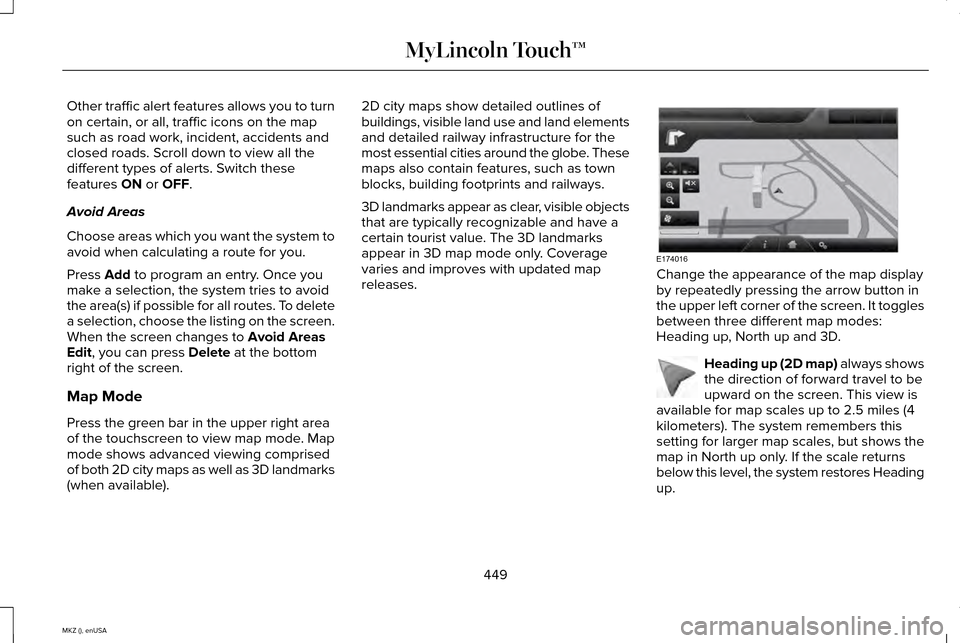
Change the appearance of the map display
by repeatedly pressing the arrow button in
the upper left corner of the screen. It toggles
between three different map modes:
Heading up, North up and 3D.
Heading up (2D map) always shows
the direction of forward travel to be
upward on the screen. This view is
available for map scales up to 2.5 miles (4
kilometers). The system remembers this
setting for larger map scales, but shows the
map in North up only. If the scale returns
below this level, the system restores Heading
up.
449
MKZ (), enUSA MyLincoln Touch™E174016 E142642
Page 453 of 516
North up (2D map) always shows
the northern direction to be upward
on the screen. 3D map mode
provides an elevated
perspective of the map. This viewing
angle can be adjusted and the map
can be rotated 180 degrees by
touching the map twice, and then dragging
your finger along the shaded bar with arrows
at the bottom of the map.
View
switches between full map, street list
and exit view in route guidance.
Menu
displays a pop-up box that allows
direct access to navigation settings,
View/Edit Route, SIRIUS Travel Link,
Guidance Mute and Cancel Route. Press the speaker button on the
map to mute route guidance. When
the light on the button illuminates,
the feature is on. The speaker button
appears on the map only when route
guidance is active. Re-center the map by pressing this
icon whenever you scroll the map
away from your vehicle
’s current
location.
Auto Zoom
Press the green bar to access map mode,
then select the
+ or - zoom button to bring
up the zoom level and Auto buttons on the
touchscreen. When you press
Auto, Auto
Zoom turns on and Auto displays in the
bottom left corner of the screen in the map
scale. The map zoom level then synchronizes
with vehicle speed. The slower your vehicle
is traveling, the farther in the map zooms in;
the faster your vehicle is traveling, the farther
the map zooms out. To switch off the feature,
just press the
+ or - button again.
In 3D mode, rotate the map view by swiping
your finger across the shaded bar with the
arrows. The ETA box under the zoom buttons
appears when a route is active and displays
the distance and time to your destination. If
the button is pressed, a pop up appears with
the destination listed (and waypoint if
applicable) along with mileage and time to
destination. You may also select to have
either the estimated time to reach your
destination or your estimated arrival time.
Map Icons
Vehicle mark
shows the current
location of your vehicle. It stays in
the center of the map display,
except when in scroll mode. Scroll cursor
allows you to scroll the
map; the fixed icon is in the center
of the screen. The map position
closest to the cursor is in a window on the
top center part of the screen.
450
MKZ (), enUSA MyLincoln Touch™E142643 E142644 E174017 E146188 E142646 E142647
Page 454 of 516
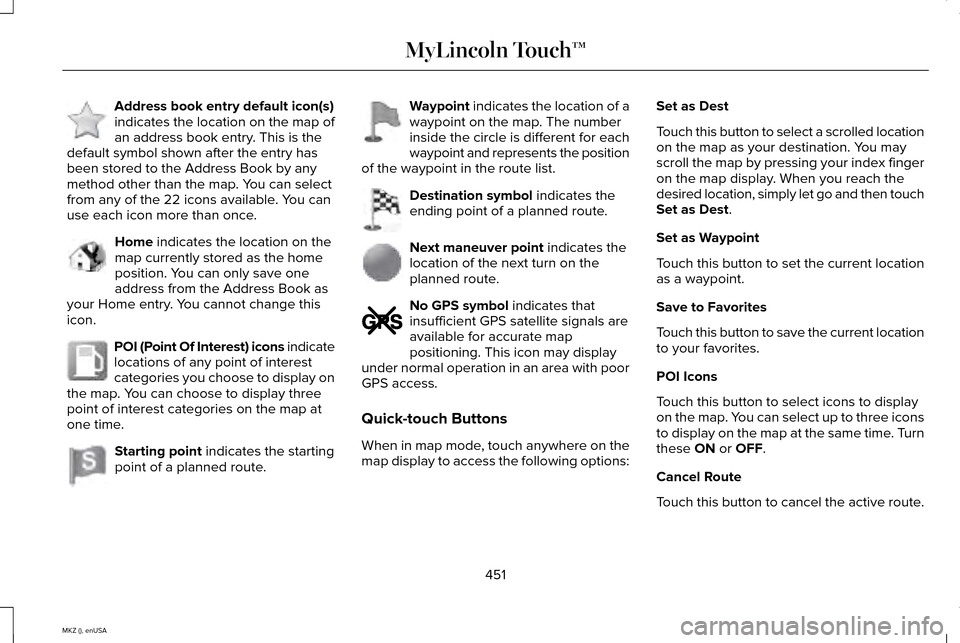
Address book entry default icon(s)
indicates the location on the map of
an address book entry. This is the
default symbol shown after the entry has
been stored to the Address Book by any
method other than the map. You can select
from any of the 22 icons available. You can
use each icon more than once. Home indicates the location on the
map currently stored as the home
position. You can only save one
address from the Address Book as
your Home entry. You cannot change this
icon. POI (Point Of Interest) icons indicate
locations of any point of interest
categories you choose to display on
the map. You can choose to display three
point of interest categories on the map at
one time. Starting point
indicates the starting
point of a planned route. Waypoint
indicates the location of a
waypoint on the map. The number
inside the circle is different for each
waypoint and represents the position
of the waypoint in the route list. Destination symbol
indicates the
ending point of a planned route. Next maneuver point
indicates the
location of the next turn on the
planned route. No GPS symbol
indicates that
insufficient GPS satellite signals are
available for accurate map
positioning. This icon may display
under normal operation in an area with poor
GPS access.
Quick-touch Buttons
When in map mode, touch anywhere on the
map display to access the following options: Set as Dest
Touch this button to select a scrolled location
on the map as your destination. You may
scroll the map by pressing your index finger
on the map display. When you reach the
desired location, simply let go and then touch
Set as Dest
.
Set as Waypoint
Touch this button to set the current location
as a waypoint.
Save to Favorites
Touch this button to save the current location
to your favorites.
POI Icons
Touch this button to select icons to display
on the map. You can select up to three icons
to display on the map at the same time. Turn
these
ON or OFF.
Cancel Route
Touch this button to cancel the active route.
451
MKZ (), enUSA MyLincoln Touch™E142648 E142649 E142650 E142651 E142652 E142653 E142654 E142655
Page 457 of 516
"NAVIGATION"
"Zoom to
* If you say "Destination", you can then say
any command in the "Destination" chart.
One-shot Destination Street Address
When you say either "Navigation destination
street address" or "Destination street
address", the system asks you to say the full
address. The system displays an example
on-screen. You can then speak the address
naturally, such as "One two three four Main
Street, Anytown".
454
MKZ (), enUSA MyLincoln Touch™
Page 482 of 516
Your vehicle is equipped with the Intelligent
Oil-Life Monitor system, which displays a
message in the information display at the
proper oil change interval. This interval may
be up to one year or 10000 miles (16000
kilometers).
When the oil change message appears in
the information display, it is time for an oil
change. Make sure you perform the oil
change within two weeks or 500 miles (800
kilometers) of the message appearing. Make
sure you reset the Intelligent Oil-Life Monitor
after each oil change. See Information
Messages (page 113).
If your information display resets prematurely
or becomes inoperative, you should perform
the oil change interval at six months or 5000
miles (8000 kilometers) from your last oil
change. Never exceed one year or 10000
miles (16000 kilometers) between oil change
intervals. Your vehicle is very sophisticated and built
with multiple, complex, performance systems.
Every manufacturer develops these systems
using different specifications and
performance features. That is why it is
important to rely upon your dealership to
properly diagnose and repair your vehicle.
Ford Motor Company has recommended
maintenance intervals for various parts and
component systems based upon engineering
testing. Ford Motor Company relies upon this
testing to determine the most appropriate
mileage for replacement of oils and fluids to
protect your vehicle at the lowest overall cost
to you and recommends against
maintenance schedules that deviate from
the scheduled maintenance information.
We strongly recommend the use of only
genuine Ford, Motorcraft or Ford-authorized
re-manufactured replacement parts
engineered for your vehicle.Additives and Chemicals
This owner's manual and the Ford Workshop
Manual list the recommended additives and
chemicals for your vehicle. We do not
recommend using chemicals or additives not
approved by us as part of your vehicle
’s
normal maintenance. Please consult your
warranty information.
Oils, Fluids and Flushing
In many cases, fluid discoloration is a normal
operating characteristic and, by itself, does
not necessarily indicate a concern or that the
fluid needs to be changed. However, a
qualified expert, such as the factory-trained
technicians at your dealership, should
inspect discolored fluids that also show signs
of overheating or foreign material
contamination immediately.
479
MKZ (), enUSA Scheduled Maintenance
Page 485 of 516
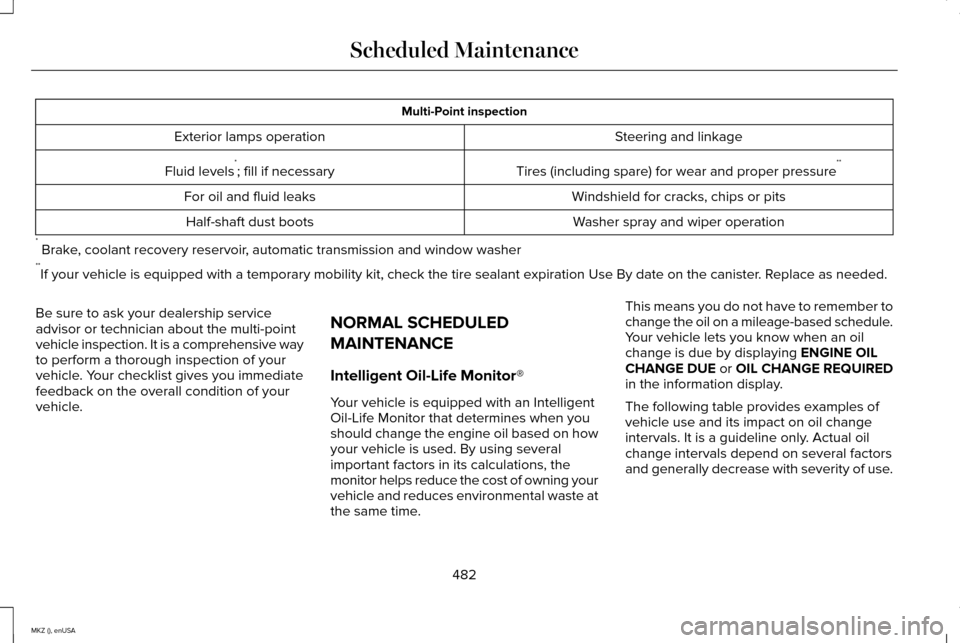
Multi-Point inspection
Steering and linkage
Exterior lamps operation
Tires (including spare) for wear and proper pressure**
Fluid levels *
; fill if necessary
Windshield for cracks, chips or pits
For oil and fluid leaks
Washer spray and wiper operation
Half-shaft dust boots
* Brake, coolant recovery reservoir, automatic transmission and window washer
** If your vehicle is equipped with a temporary mobility kit, check the tir\
e sealant expiration Use By date on the canister. Replace as needed.
Be sure to ask your dealership service
advisor or technician about the multi-point
vehicle inspection. It is a comprehensive way
to perform a thorough inspection of your
vehicle. Your checklist gives you immediate
feedback on the overall condition of your
vehicle. NORMAL SCHEDULED
MAINTENANCE
Intelligent Oil-Life Monitor®
Your vehicle is equipped with an Intelligent
Oil-Life Monitor that determines when you
should change the engine oil based on how
your vehicle is used. By using several
important factors in its calculations, the
monitor helps reduce the cost of owning your
vehicle and reduces environmental waste at
the same time.This means you do not have to remember to
change the oil on a mileage-based schedule.
Your vehicle lets you know when an oil
change is due by displaying ENGINE OIL
CHANGE DUE or OIL CHANGE REQUIRED
in the information display.
The following table provides examples of
vehicle use and its impact on oil change
intervals. It is a guideline only. Actual oil
change intervals depend on several factors
and generally decrease with severity of use.
482
MKZ (), enUSA Scheduled Maintenance
Page 487 of 516
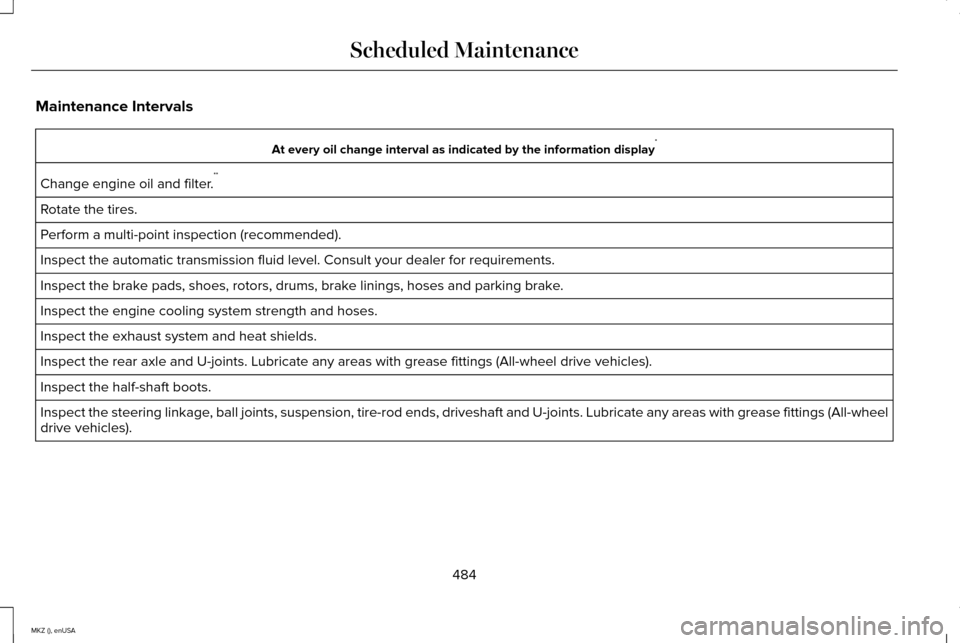
Maintenance Intervals
At every oil change interval as indicated by the information display
*
Change engine oil and filter. **
Rotate the tires.
Perform a multi-point inspection (recommended).
Inspect the automatic transmission fluid level. Consult your dealer for \
requirements.
Inspect the brake pads, shoes, rotors, drums, brake linings, hoses and parking brake.
Inspect the engine cooling system strength and hoses.
Inspect the exhaust system and heat shields.
Inspect the rear axle and U-joints. Lubricate any areas with grease fittings (All-wheel drive vehicles).
Inspect the half-shaft boots.
Inspect the steering linkage, ball joints, suspension, tire-rod ends, driveshaft and U-joints. Lubricate any areas with grease fittings (All-wheel
drive vehicles).
484
MKZ (), enUSA Scheduled Maintenance
Page 488 of 516
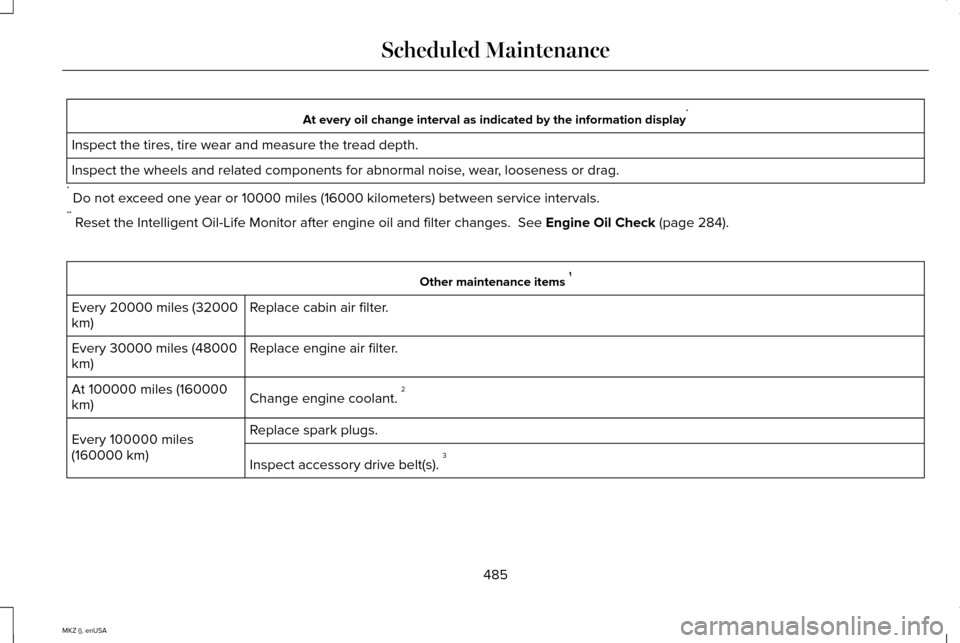
At every oil change interval as indicated by the information display
*
Inspect the tires, tire wear and measure the tread depth.
Inspect the wheels and related components for abnormal noise, wear, looseness or drag.
* Do not exceed one year or 10000 miles (16000 kilometers) between service interv\
als.
** Reset the Intelligent Oil-Life Monitor after engine oil and filter change\
s. See Engine Oil Check (page 284). Other maintenance items
1
Replace cabin air filter.
Every 20000 miles (32000
km)
Replace engine air filter.
Every 30000 miles (48000
km)
Change engine coolant. 2
At 100000 miles (160000
km)
Replace spark plugs.
Every 100000 miles
(160000 km)
Inspect accessory drive belt(s). 3
485
MKZ (), enUSA Scheduled Maintenance