warning LINCOLN MKZ 2015 Owners Manual
[x] Cancel search | Manufacturer: LINCOLN, Model Year: 2015, Model line: MKZ, Model: LINCOLN MKZ 2015Pages: 516, PDF Size: 4.48 MB
Page 374 of 516
Do not expose discs to direct sunlight or heat
sources for extended periods.
MP3 and WMA Track and Folder
Structure
Audio systems capable of recognizing and
playing MP3 and WMA individual tracks and
folder structures work as follows:
•
There are two different modes for MP3
and WMA disc playback: MP3 and WMA
track mode (system default) and MP3 and
WMA folder mode.
• MP3 and WMA track mode ignores any
folder structure on the MP3 and WMA
disc. The player numbers each MP3 and
WMA track on the disc (noted by the MP3
or WMA file extension) from T001 to a
maximum of T255. The maximum number
of playable MP3 and WMA files may be
less depending on the structure of the
CD and exact model of radio present. •
MP3 and WMA folder mode represents
a folder structure consisting of one level
of folders. The CD player numbers all
MP3 and WMA tracks on the disc (noted
by the MP3 or WMA file extension) and
all folders containing MP3 and WMA files,
from F001 (folder) T001 (track) to F253
T255.
• Creating discs with only one level of
folders helps with navigation through the
disc files.
If you are burning your own MP3 and WMA
discs, it is important to understand how the
system reads the structures you create. While
various files may be present, (files with
extensions other than MP3 and WMA), only
files with the MP3 and WMA extension are
played; other files are ignored by the system.
This enables you to use the same MP3 and
WMA disc for a variety of tasks on your work
computer, home computer and your
in-vehicle system. In track mode, the system displays and plays
the structure as if it were only one level deep
(all MP3 and WMA files play, regardless of
being in a specific folder). In folder mode,
the system only plays the MP3 and WMA files
in the current folder.
AUDIO UNIT - VEHICLES WITH:
PREMIUM AM/FM/CD
WARNING
Driving while distracted can result in
loss of vehicle control, crash and injury.
We strongly recommend that you use
extreme caution when using any device that
may take your focus off the road. Your
primary responsibility is the safe operation
of your vehicle. We recommend against the
use of any hand-held device while driving
and encourage the use of voice-operated
systems when possible. Make sure you are
aware of all applicable local laws that may
affect the use of electronic devices while
driving. 371
MKZ (), enUSA Audio System
Page 377 of 516
GENERAL INFORMATION WARNING
Driving while distracted can result in
loss of vehicle control, crash and injury.
We strongly recommend that you use
extreme caution when using any device that
may take your focus off the road. Your
primary responsibility is the safe operation
of your vehicle. We recommend against the
use of any hand-held device while driving
and encourage the use of voice-operated
systems when possible. Make sure you are
aware of all applicable local laws that may
affect the use of electronic devices while
driving. 374
MKZ (), enUSA MyLincoln Touch™
Page 381 of 516
•
SEEK and PHONE ACCEPT:
• While in radio mode, press to seek
between memory presets or press
and hold to seek between stations.
• While in USB or CD mode, press to
seek between stations or press and
hold to fast seek.
• While in phone mode, press to
answer a call, or to switch between
calls.
• SEEK
and PHONE REJECT:
• While in radio mode, press to seek
between memory presets or press
and hold to seek between stations.
• While in USB or CD mode, press to
seek between stations or press and
hold to fast seek.
• While in phone mode, press to end a
call, or to reject and incoming call.
See
Steering Wheel (page 78). Cleaning the Touchscreen Display
Use a clean, soft cloth such as one used for
cleaning glasses. If dirt or fingerprints are
still visible, apply a small amount of alcohol
to the cloth. Do not pour or spray alcohol
onto the display. Do not use detergent or
any type of solvent to clean the display.
Support
The SYNC support team is available to help
you with any questions you are not able to
answer on your own.
Monday-Saturday, 8:30am-9:00pm EST.
Sunday, 10:30am-7:30pm EST.
In the United States, call: 1-800-392-3673.
In Canada, call: 1-800-565-3673.
Times are subject to change due to holidays.
Safety Information WARNING
Driving while distracted can result in
loss of vehicle control, crash and injury.
We strongly recommend that you use
extreme caution when using any device that
may take your focus off the road. Your
primary responsibility is the safe operation
of your vehicle. We recommend against the
use of any hand-held device while driving
and encourage the use of voice-operated
systems when possible. Make sure you are
aware of all applicable local laws that may
affect the use of electronic devices while
driving. •
Do not attempt to service or repair the
system. See an authorized dealer.
• Do not operate playing devices if the
power cords or cables are broken, split
or damaged. Place cords and cables out
of the way, so they do not interfere with
the operation of pedals, seats,
compartments or safe driving abilities.
378
MKZ (), enUSA MyLincoln Touch™
Page 397 of 516

Navigation
Choose to have the system display the Shortest, Fastest or most Ecologic\
al route first. If you set Always Use
Preferred Route to Yes, the system uses the selected route type to calculate only one route to\
the desired
destination. Always Use Preferred Route bypasses route selection in destination programming. The system
only calculates one route based on the preferred route setting. Eco Time Penalty allows you to select a low,
medium or high cost for the calculated Eco Route. The higher the setting, the longer the time allotment is for
the route.
Route Preferences
Have the system avoid freeways.
Have the system avoid tollroads.
Have the system avoid ferries or car trains.
Have the system use HOV (high-occupancy vehicle) lanes.
Have the system use guidance prompts.
Navigation Preferences
Have the system automatically fill-in State/Province information.
Have the system display areas where roadwork occurs.
Traffic Preferences
Have the system display incident icons.
Have the system display areas where difficult driving conditions may occ\
ur.
Have the system display areas where snow and ice on the road may occur.
Have the system display any smog alerts.
Have the system display weather warnings.
394
MKZ (), enUSA MyLincoln Touch™
Page 399 of 516
Phone
Connect, disconnect, add or delete a device, as well as save it as a favorite.
Bluetooth Devices
Turn Bluetooth on and off.
Bluetooth
Have all calls go directly to your voice mail and not ring inside your v\
ehicle. With this feature turned on, text
message notifications are also suppressed and do not ring inside your ve\
hicle.
Do Not Disturb
Turn on or turn off the 911 Assist feature. See Information (page 429).
911 Assist
Select the type of notification for phone calls - ring tone, beep, text to speech, or have it be silent.
Phone Ringer
Select the type of notification for text messages - alert tone, beep, text to speech, or have it be silent.
Text Message Notification
If compatible with your phone, you can adjust your internet data connection. Select to make your connection
profile with the personal area network or to turn off your connection. Y\
ou can also choose to adjust your settings
or have the system always connect, never connect when roaming or query o\
n connect. Press
? for more
information.
Internet Data Connection
Access features, such as automatic phonebook download, re-download your \
phonebook, add contacts from
your phone as well as delete or upload your phonebook.
Manage Phonebook
Have the system alert you when in Roaming mode.
Roaming Warning
396
MKZ (), enUSA MyLincoln Touch™
Page 423 of 516
Bluetooth Audio
Your system allows you to stream audio over
your vehicle's speakers from your connected,
Bluetooth-enabled cellular phone.
To access, press the lower left
corner on the touchscreen, then
select the BT Stereo tab.
Bluetooth Audio Voice Commands If you are listening to a Bluetooth
audio device, press the voice
button on the steering wheel
control. When prompted, say "Next song",
"Pause", "Play" or "Previous song".
If you are not listening to a Bluetooth audio
device, press the voice button and, after the
tone, say "Next song", "Pause", "Play" or
"Previous song". A/V Inputs WARNINGS
Driving while distracted can result in
loss of vehicle control, crash and injury.
We strongly recommend that you use
extreme caution when using any device that
may take your focus off the road. Your
primary responsibility is the safe operation
of your vehicle. We recommend against the
use of any handheld device while driving and
encourage the use of voice-operated
systems when possible. Make sure you are
aware of all applicable local laws that may
affect the use of electronic devices while
driving. For safety reasons, do not connect or
adjust the settings on your portable
music player while your vehicle is moving. WARNINGS
Store the portable music player in a
secure location, such as the center
console or the glove box, when your vehicle
is moving. Hard objects may become
projectiles in a crash or sudden stop, which
may increase the risk of serious injury. The
audio extension cable must be long enough
to allow the portable music player to be
safely stored while your vehicle is moving. 420
MKZ (), enUSA MyLincoln Touch™E142611 E142599
Page 426 of 516
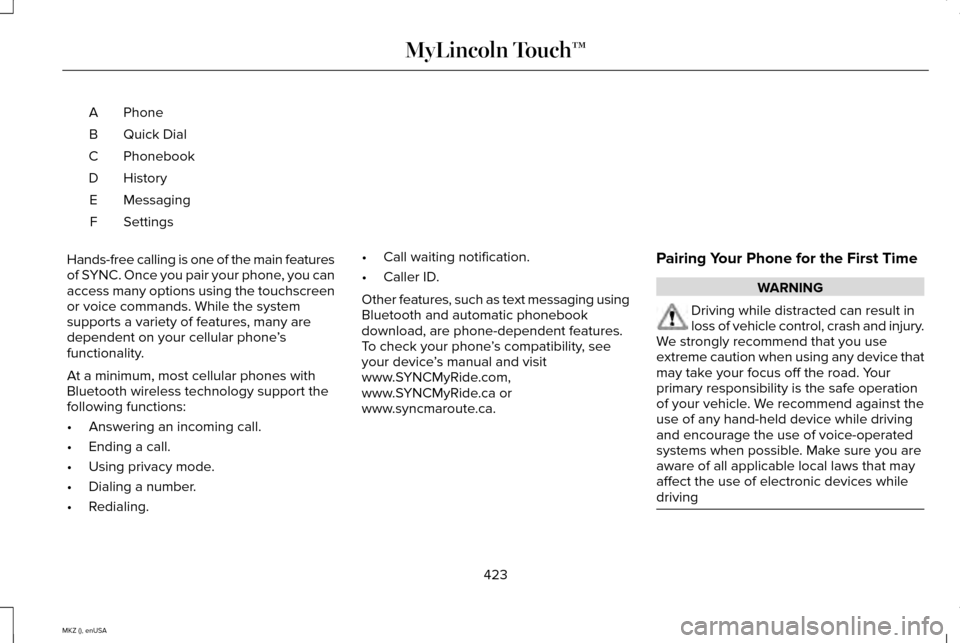
Phone
A
Quick Dial
B
Phonebook
C
History
D
Messaging
E
Settings
F
Hands-free calling is one of the main features
of SYNC. Once you pair your phone, you can
access many options using the touchscreen
or voice commands. While the system
supports a variety of features, many are
dependent on your cellular phone ’s
functionality.
At a minimum, most cellular phones with
Bluetooth wireless technology support the
following functions:
• Answering an incoming call.
• Ending a call.
• Using privacy mode.
• Dialing a number.
• Redialing. •
Call waiting notification.
• Caller ID.
Other features, such as text messaging using
Bluetooth and automatic phonebook
download, are phone-dependent features.
To check your phone ’s compatibility, see
your device ’s manual and visit
www.SYNCMyRide.com,
www.SYNCMyRide.ca or
www.syncmaroute.ca. Pairing Your Phone for the First Time WARNING
Driving while distracted can result in
loss of vehicle control, crash and injury.
We strongly recommend that you use
extreme caution when using any device that
may take your focus off the road. Your
primary responsibility is the safe operation
of your vehicle. We recommend against the
use of any hand-held device while driving
and encourage the use of voice-operated
systems when possible. Make sure you are
aware of all applicable local laws that may
affect the use of electronic devices while
driving 423
MKZ (), enUSA MyLincoln Touch™
Page 431 of 516
Roaming Warning
Touch this button to have the system alert
you when your phone is in roaming mode.
Phone Voice Commands
Press the voice button on the
steering wheel controls. When
prompted, say any of the following
commands: "PHONE"
"Call"
"Call
"Call
"Call
"Do not disturb off " "PHONE"
"Do not disturb on"
"Forward text messages"
"Go to hands free" *
"Hold call off " *
"Hold on" *
"Join calls" *
"Listen to text message <#>" "Listen to text messages"
"Messages" **
"Mute call" *
"Pair phone" "Privacy on" *
"Read text message" "PHONE"
"Reply to text messages" "Turn ringer off ""Turn ringer on"
"Unmute call" *
"Help"
* This command is only available during an
active call.
** If you say "Messages", see the following
"Messages" chart for additional commands. "MESSAGES"
"Call"
"Forward text messages"
"Listen to text message <#>" "Listen to text messages""Reply to text messages" "Help"
428
MKZ (), enUSA MyLincoln Touch™E142599
Page 437 of 516
Sirius Travel Link (If Equipped)
WARNING
Driving while distracted can result in
loss of vehicle control, crash and injury.
We strongly recommend that you use
extreme caution when using any device that
may take your focus off the road. Your
primary responsibility is the safe operation
of your vehicle. We recommend against the
use of any handheld device while driving and
encourage the use of voice-operated
systems when possible. Make sure you are
aware of all applicable local laws that may
affect the use of electronic devices while
driving. Note:
In order to use Sirius Travel Link, your
vehicle must be equipped with navigation
and your navigation SD card must be in the
SD card slot.
Note: A paid subscription is required to
access and use these features. Go to
www.siriusxm.com/travellink for more
information. Note:
Visit www.siriusxm.com/traffic# and
click on Coverage map and details for a
complete listing of all traffic areas covered
by Sirius Travel Link.
Note: Neither Sirius nor Ford is responsible
for any errors or inaccuracies in the Sirius
Travel Link services or its use in vehicles.
When you subscribe to Sirius Travel Link, it
can help you locate the best gas prices, find
movie listings, get current traffic alerts, view
the current weather map, get accurate ski
conditions and see scores to current sports
games. If your vehicle is equipped with
Navigation, touch the i
(Information) button to access
these features. If your vehicle is not
equipped with Navigation, touch the corner
of the touchscreen with the green tab.
Traffic On Route and Traffic Nearby
Touch these buttons to identify traffic
incidents on your route, nearby your vehicle ’s
current location or near any of your favorite
places, if programmed. Fuel Prices
Touch this button to view fuel prices at
stations close to your vehicle
’s location or
on an active navigation route.
Movie Listings
Touch this button to view nearby movie
theaters and their show times, if available.
Weather
Touch this button to view the nearby
weather, current weather, or the five day
forecast for the chosen area. Select
Map to
see the weather map, which can show
storms, radar information, charts and winds.
Select Area to select from a listing of weather
locations.
Sports Info
Touch this button to view scores and
schedules from a variety of sports. You can
also save up to 10 favorite teams for easier
access. The score automatically refreshes
when a game is in progress.
434
MKZ (), enUSA MyLincoln Touch™E142608
Page 440 of 516
911 Assist (If Equipped)
WARNINGS
Unless the 911 Assist setting is set on
before a crash, the system will not dial
for help, which could delay response time,
potentially increasing the risk of serious
injury or death after a crash. Do not wait for 911 Assist to make an
emergency call if you can do it yourself.
Dial emergency services immediately to
avoid delayed response time, which could
increase the risk of serious injury or death
after a crash. If you do not hear 911 Assist
within five seconds of the crash, the system
or phone may be damaged or non-functional. Always place your phone in a secure
location in your vehicle so it does not
become a projectile or damaged in a crash.
Failure to do so may cause serious injury to
someone or damage the phone, which could
prevent 911 Assist from working properly. Note:
The SYNC 911 Assist feature must be
set on prior to the incident. Note:
Before setting this feature on, make
sure that you read the 911 Assist Privacy
Notice later in this section for important
information.
Note: If any user turns 911 Assist on or off,
that setting applies for all paired phones. If
911 Assist is turned off, either a voice
message plays or a display message (or
icon) comes on (or both) when your vehicle
is started after a previously paired phone
connects.
Note: Every phone operates differently.
While SYNC 911 Assist works with most
cellular phones, some may have trouble
using this feature.
If a crash deploys an airbag (excludes knee
airbags and rear inflatable safety belts [if
equipped]) or activates the fuel pump
shut-off, your SYNC-equipped vehicle may
be able to contact emergency services by
dialing 911 through a paired and connected
Bluetooth-enabled phone. You can learn
more about the 911 Assist feature, visit
www.SYNCMyRide.com,
www.SYNCMyRide.ca or
www.syncmaroute.ca. See Supplementary Restraints System
(page 43). Important information regarding
airbag deployment is in this chapter.
See
Roadside Emergencies (page 247).
Important information regarding the fuel
pump shut-off is in this chapter.
Setting 911 Assist On If your vehicle is equipped with
Navigation, touch the i
(Information) button to access
these features. If your vehicle is not
equipped with Navigation, touch the corner
of the touchscreen with the green tab.
Touch
Apps > 911 Assist, then select On. You can also access 911 Assist by:
• Pressing the Settings icon >
Settings >
Phone > 911 Assist, or
• Pressing the Settings icon >
Help > 911
Assist.
437
MKZ (), enUSA MyLincoln Touch™E142608 E142607