Camera LINCOLN MKZ 2015 User Guide
[x] Cancel search | Manufacturer: LINCOLN, Model Year: 2015, Model line: MKZ, Model: LINCOLN MKZ 2015Pages: 516, PDF Size: 4.48 MB
Page 218 of 516
 when I can s\
ee the lane markings on the road?
Vehicle spe")
•
Using the turn signal indicator. •Evasive steering maneuver.
Troubleshooting Why is the feature not available (line markings are gray) when I can s\
ee the lane markings on the road?
Vehicle speed is outside the operational range of the feature
Sun is shining directly into the camera lens
Quick intentional lane change
Staying too close to the lane marking
Driving at high speeds in curves
Previous feature activation happened within the last one second
Ambiguous lane markings (mainly in construction zones)
Rapid transition from light to dark or vice versa
Sudden offset in lane markings
ABS or AdvanceTrac activation
Camera blockage due to dirt, grime, fog, frost or water on the windshield
Driving too close to the vehicle in front of you
Transitioning between no lane markings to lane markings or vice versa
Standing water on the road
215
MKZ (), enUSA Driving Aids
Page 219 of 516
 when I can s\
ee the lane markings on the road?
Faint lane markings (partial yellow lane markings on concrete roads)
Lane width too narrow or")
Why is the feature not available (line markings are gray) when I can s\
ee the lane markings on the road?
Faint lane markings (partial yellow lane markings on concrete roads)
Lane width too narrow or too wide
Camera not calibrated after a windshield replacement
Driving on tight roads or on uneven roads Why does the vehicle not come back into the middle of the lane always, a\
s expected, in the Aid or Aid + Alert mode?
High cross winds
Large road crown
Rough roads, grooves, shoulder drop-offs
Heavy uneven loading of the vehicle or improper tire inflation pressure
If the tires have been exchanged (including snow tires), or the suspension has been modified
216
MKZ (), enUSA Driving Aids
Page 266 of 516
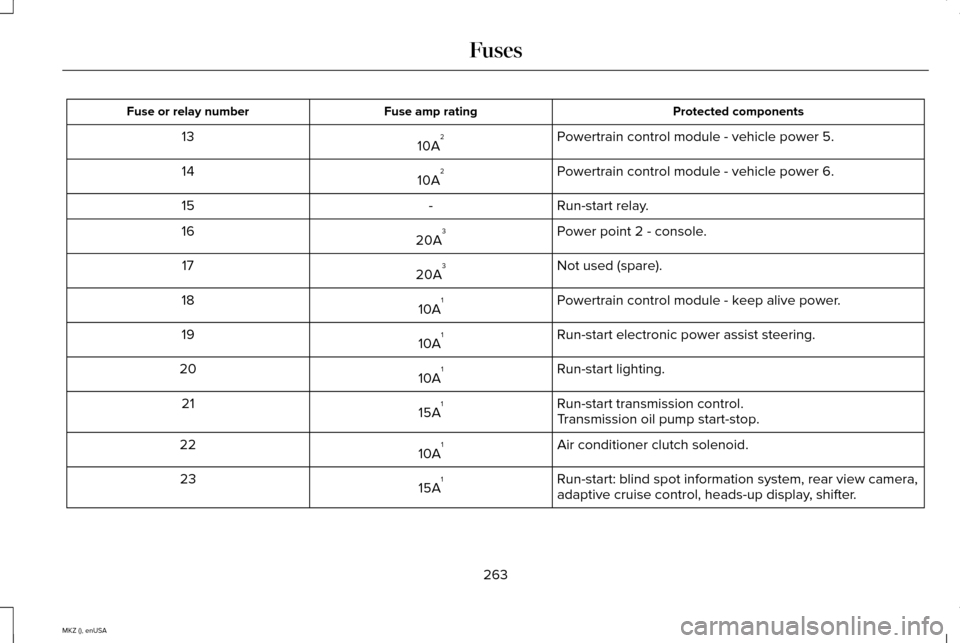
Protected components
Fuse amp rating
Fuse or relay number
Powertrain control module - vehicle power 5.
10A 2
13
Powertrain control module - vehicle power 6.
10A 2
14
Run-start relay.
-
15
Power point 2 - console.
20A 3
16
Not used (spare).
20A 3
17
Powertrain control module - keep alive power.
10A 1
18
Run-start electronic power assist steering.
10A 1
19
Run-start lighting.
10A 1
20
Run-start transmission control.
15A 1
21
Transmission oil pump start-stop.
Air conditioner clutch solenoid.
10A 1
22
Run-start: blind spot information system, rear view camera,
adaptive cruise control, heads-up display, shifter.
15A 1
23
263
MKZ (), enUSA Fuses
Page 277 of 516
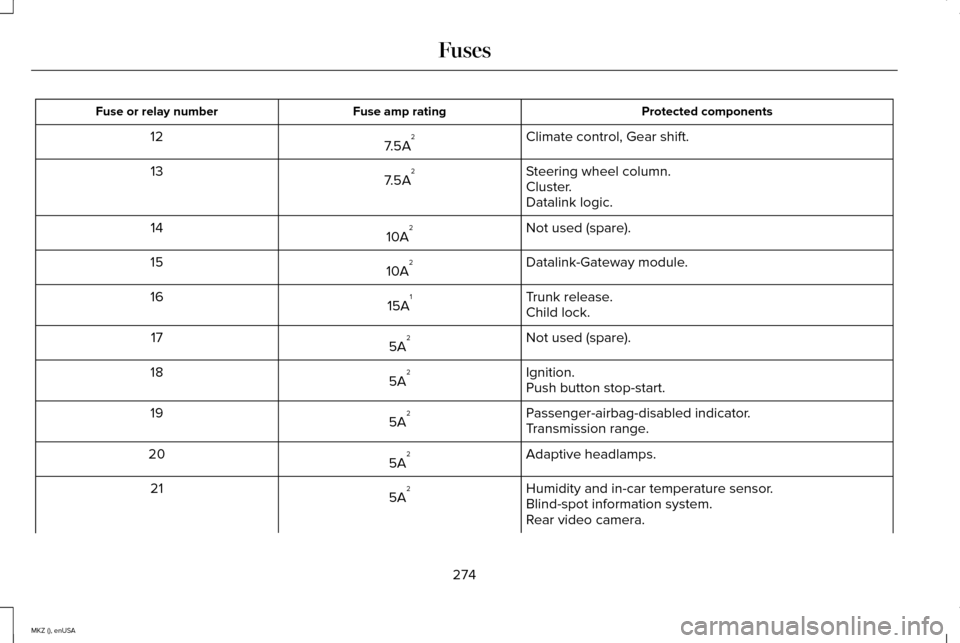
Protected components
Fuse amp rating
Fuse or relay number
Climate control, Gear shift.
7.5A 2
12
Steering wheel column.
7.5A 2
13
Cluster.
Datalink logic.
Not used (spare).
10A 2
14
Datalink-Gateway module.
10A 2
15
Trunk release.
15A 1
16
Child lock.
Not used (spare).
5A 2
17
Ignition.
5A 2
18
Push button stop-start.
Passenger-airbag-disabled indicator.
5A 2
19
Transmission range.
Adaptive headlamps.
5A 2
20
Humidity and in-car temperature sensor.
5A 2
21
Blind-spot information system.
Rear video camera.
274
MKZ (), enUSA Fuses
Page 383 of 516

Restricted features
Enabling Valet Mode
Editing settings while the rear view camera or active park assist are ac\
tive
Editing wireless settings
Wi-Fi and Wireless
Editing the list of wireless networks
Playing video
Videos, Photos and
Graphics
Editing the screen's wallpaper or adding new wallpaper
Composing text messages
Text Messages
Viewing received text messages
Editing preset text messages
Using the keyboard to enter a destination
Navigation
Demo navigation route
Adding or editing Address Book entries or Avoid Areas
380
MKZ (), enUSA MyLincoln Touch™
Page 391 of 516
Under this menu, you can set your
clock, access and adjust the
display, sound and vehicle settings
as well as access settings for specific modes
or the help feature.
Clock
Note: You cannot manually set the date.
Your vehicle ’s GPS does this for you.
Note: If the battery has been disconnected,
your vehicle needs to acquire a GPS signal
to update the clock. Once your vehicle
acquires the signal, it may take a few
minutes for the update to display the correct
time. 1. Press the Settings icon > Clock.
2. Press
+ and - to adjust the time.
From this screen, you can also make other
adjustments such as 12-hour or 24-hour
mode, activate GPS time synchronization and
have the system automatically update new
time zones. You can also turn the outside air temperature
display off and on. It appears at the top
center of the touchscreen, next to the time
and date.
The system automatically saves any updates
you make to the settings.
Display
You can adjust the touchscreen display
through the touchscreen or by pressing the
voice button on your steering wheel controls
and when prompted, say, "Display settings".
Press the Settings icon >
Display,
to access and make adjustments
using the touchscreen.
• Brightness
allows you to make the
screen display brighter or dimmer.
• Auto DIM
, when set to On, lets you use
the Auto Dim Manual Offset feature.
When set to
Off, screen brightness does
not change. •
Mode
allows you to set the screen to a
certain brightness or have the system
automatically change based on the
outside light level, or turn the display off.
• If you select
AUTO or NIGHT, you
have the options of turning the
display's Auto Dim feature on or off
and changing the Auto Dim Manual
Offset feature.
• Auto Dim Manual Offset
allows you to
adjust screen dimming as the outside
lighting conditions change from day to
night. This feature also allows you to
adjust screen brightness using the
instrument panel dimming control.
• Edit Wallpaper
•You can have your touchscreen
display the default photo or upload
your own.
Uploading Photos for Your Home Screen
Wallpaper
Note: You cannot load photos directly from
your camera. You must access the photos
either from your USB mass storage device
or from an SD card.
388
MKZ (), enUSA MyLincoln Touch™E142607 E142607 E142607
Page 392 of 516
Note:
Photographs with extremely large
dimensions (such as 2048 x 1536) may not
be compatible and appear as a blank (black)
image on the display.
Your system allows you to upload and view
up to 32 photos. To access, press the Settings icon
> Display > Edit Wallpaper, and
then follow the system prompts to
upload your photographs.
Only the photograph(s), which meets the
following conditions, display:
• Compatible file formats are as follows:
.jpg, .gif, .png, .bmp
• Each file must be 1.5 MB or less.
• Recommended dimensions: 800 x 384
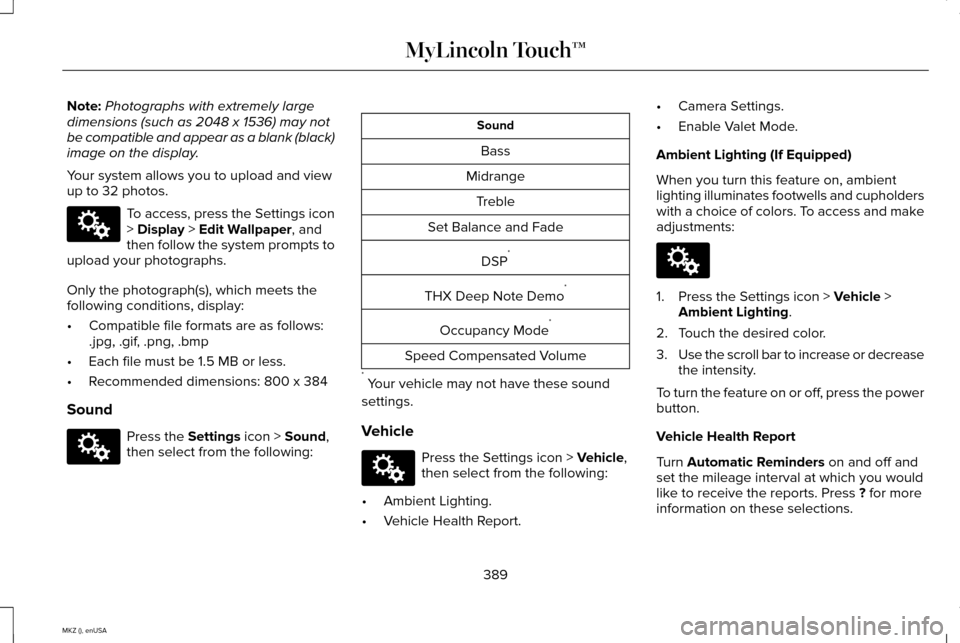
Sound Press the
Settings icon > Sound,
then select from the following: Sound
Bass
Midrange Treble
Set Balance and Fade
DSP*
THX Deep Note Demo *
Occupancy Mode *
Speed Compensated Volume
* Your vehicle may not have these sound
settings.
Vehicle Press the Settings icon >
Vehicle,
then select from the following:
• Ambient Lighting.
• Vehicle Health Report. •
Camera Settings.
• Enable Valet Mode.
Ambient Lighting (If Equipped)
When you turn this feature on, ambient
lighting illuminates footwells and cupholders
with a choice of colors. To access and make
adjustments: 1. Press the Settings icon >
Vehicle >
Ambient Lighting.
2. Touch the desired color.
3. Use the scroll bar to increase or decrease
the intensity.
To turn the feature on or off, press the power
button.
Vehicle Health Report
Turn
Automatic Reminders on and off and
set the mileage interval at which you would
like to receive the reports. Press
? for more
information on these selections.
389
MKZ (), enUSA MyLincoln Touch™E142607 E142607 E142607 E142607
Page 393 of 516
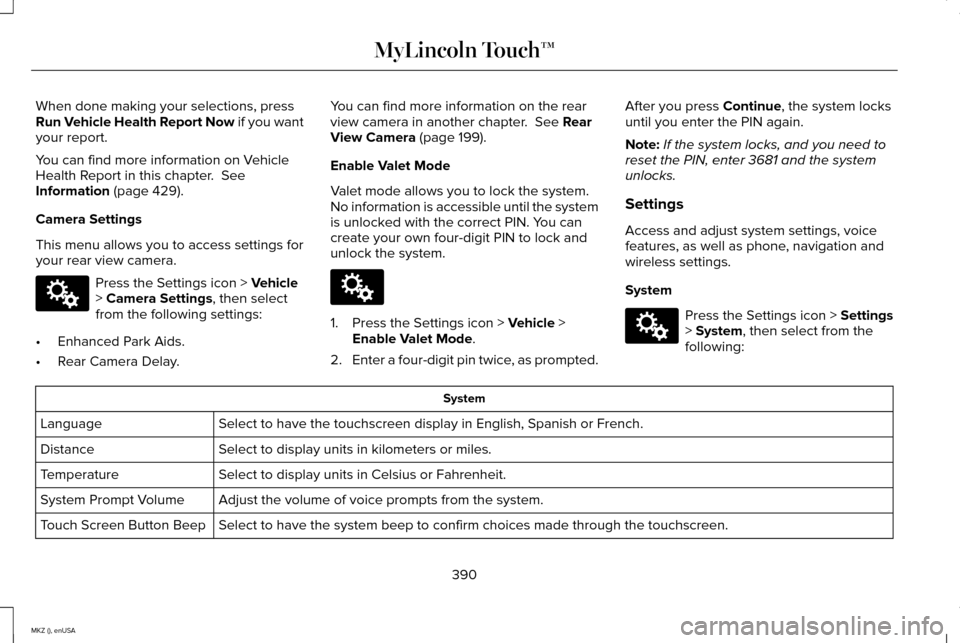
When done making your selections, press
Run Vehicle Health Report Now if you want
your report.
You can find more information on Vehicle
Health Report in this chapter. See
Information (page 429).
Camera Settings
This menu allows you to access settings for
your rear view camera. Press the Settings icon >
Vehicle
> Camera Settings, then select
from the following settings:
• Enhanced Park Aids.
• Rear Camera Delay. You can find more information on the rear
view camera in another chapter.
See Rear
View Camera (page 199).
Enable Valet Mode
Valet mode allows you to lock the system.
No information is accessible until the system
is unlocked with the correct PIN. You can
create your own four-digit PIN to lock and
unlock the system. 1. Press the Settings icon >
Vehicle >
Enable Valet Mode.
2. Enter a four-digit pin twice, as prompted. After you press
Continue, the system locks
until you enter the PIN again.
Note: If the system locks, and you need to
reset the PIN, enter 3681 and the system
unlocks.
Settings
Access and adjust system settings, voice
features, as well as phone, navigation and
wireless settings.
System Press the Settings icon >
Settings
> System, then select from the
following: System
Select to have the touchscreen display in English, Spanish or French.
Language
Select to display units in kilometers or miles.
Distance
Select to display units in Celsius or Fahrenheit.
Temperature
Adjust the volume of voice prompts from the system.
System Prompt Volume
Select to have the system beep to confirm choices made through the touch\
screen.
Touch Screen Button Beep
390
MKZ (), enUSA MyLincoln Touch™E142607 E142607 E142607
Page 511 of 516
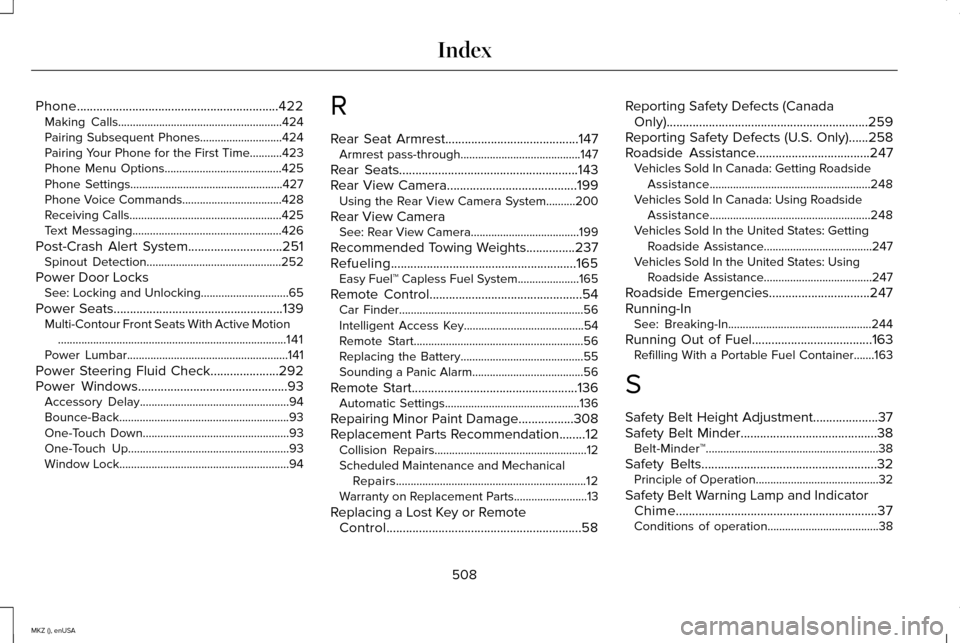
Phone..............................................................422
Making Calls........................................................424
Pairing Subsequent Phones............................424
Pairing Your Phone for the First Time...........423
Phone Menu Options........................................425
Phone Settings....................................................427
Phone Voice Commands..................................428
Receiving Calls....................................................425
Text Messaging...................................................426
Post-Crash Alert System.............................251 Spinout Detection..............................................252
Power Door Locks See: Locking and Unlocking..............................65
Power Seats
....................................................139
Multi-Contour Front Seats With Active Motion
........................................................................\
......141
Power Lumbar.......................................................141
Power Steering Fluid Check.....................292
Power Windows
..............................................93
Accessory Delay...................................................94
Bounce-Back..........................................................93
One-Touch Down..................................................93
One-Touch Up.......................................................93
Window Lock..........................................................94 R
Rear Seat Armrest.........................................147
Armrest pass-through.........................................147
Rear Seats.......................................................143
Rear View Camera........................................199 Using the Rear View Camera System..........
200
Rear View Camera See: Rear View Camera.....................................199
Recommended Towing Weights...............237
Refueling.........................................................165 Easy Fuel™ Capless Fuel System.....................165
Remote Control
...............................................54
Car Finder...............................................................56
Intelligent Access Key.........................................54
Remote Start..........................................................56
Replacing the Battery..........................................55
Sounding a Panic Alarm......................................56
Remote Start
...................................................136
Automatic Settings..............................................136
Repairing Minor Paint Damage.................308
Replacement Parts Recommendation........12 Collision Repairs....................................................12
Scheduled Maintenance and Mechanical
Repairs.................................................................12
Warranty on Replacement Parts.........................
13
Replacing a Lost Key or Remote Control............................................................58 Reporting Safety Defects (Canada
Only)..............................................................259
Reporting Safety Defects (U.S. Only)......258
Roadside Assistance
...................................247
Vehicles Sold In Canada: Getting Roadside
Assistance.......................................................248
Vehicles Sold In Canada: Using Roadside Assistance.......................................................248
Vehicles Sold In the United States: Getting Roadside Assistance.....................................247
Vehicles Sold In the United States: Using Roadside Assistance.....................................247
Roadside Emergencies...............................247
Running-In See: Breaking-In.................................................244
Running Out of Fuel.....................................163 Refilling With a Portable Fuel Container.......163
S
Safety Belt Height Adjustment....................37
Safety Belt Minder..........................................38 Belt-Minder™...........................................................38
Safety Belts
......................................................32
Principle of Operation..........................................32
Safety Belt Warning Lamp and Indicator Chime..............................................................37
Conditions of operation......................................38
508
MKZ (), enUSA Index