Volume control LINCOLN MKZ 2015 User Guide
[x] Cancel search | Manufacturer: LINCOLN, Model Year: 2015, Model line: MKZ, Model: LINCOLN MKZ 2015Pages: 516, PDF Size: 4.48 MB
Page 395 of 516

Voice control
Candidate lists are possible results from your voice commands. The syste\
m simply makes a best guess at your
request with these turned off.
Phone Candidate Lists
This allows you to adjust the system ’s voice volume level.
Voice Control Volume
* Even with confirmation prompts turned off, the system may occasionally ask you to confirm settings
Media Player Press the Settings icon > Settings
> Media Player, then select from
the following: Media player
When this feature is on, the system automatically switches to the media \
source upon initial connection. This
allows you to listen to music during the indexing process. When this fea\
ture is off, the system does not auto-
matically switch to the inserted media source.
Autoplay
Select to connect, disconnect, add or delete a device. You can also set a device as your favorite so that the
system automatically attempts to connect to that device at every ignitio\
n cycle.
Bluetooth Devices
When this feature is on, the system automatically indexes media on your connected Bluetooth device.
Index Bluetooth Audio
Devices
392
MKZ (), enUSA MyLincoln Touch™E142607
Page 418 of 516
•
Bass
• Midrange
• Treble
• Balance and Fade
• THX Deep Note Demo
• DSP (Digital Signal processing)
• Occupancy Mode
• Speed Compensated Volume.
Note: Your vehicle may not have all these
sound settings.
Compression
Touch this button to turn the compression
feature off and on.
Browse
Touch this button to look through all
available CD tracks.
CD Voice Commands If you are listening to a CD, press
the voice button on the steering
wheel controls. When prompted,
say any of the following commands. If you are not listening to a CD, press the
voice button and, after the tone, say "CD",
then any of the following commands. "CD"
"Pause" "Play"
"Play next track"
"Play previous track" "Play track <1-512>" "Repeat"
"Repeat folder" *
"Repeat off "
"Repeat track" "Shuffle"
"Shuffle CD" *
"Shuffle folder" * "CD"
"Shuffle off " "Help"
* This applies to WMA or MP3 files only.
SD Card Slot and USB Port
SD Card
Note: Your SD card slot is spring-loaded. To
remove the SD card, press the card in and
the system ejects it. Do not attempt to pull
the card to remove it as this could cause
damage.
Note: The navigation system also uses this
card slot. See Navigation (page 444).
415
MKZ (), enUSA MyLincoln Touch™E142599
Page 420 of 516
Similar Music
This feature allows you to choose music
similar to what is currently playing.
More Info
Touch this button to see disc information
such as current track, artist name, album and
genre.
Options
Touch this button to view and adjust various
media settings.
Sound Settings allows you to adjust settings
for:
• Bass
• Midrange
• Treble
• Balance and Fade
• THX Deep Note Demo
• DSP (Digital Signal processing)
• Occupancy Mode
• Speed Compensated Volume. Note:
Your vehicle may not have all these
sound settings.
Media Player Settings
allows you to select
more settings, which is under Media Player.
See
Settings (page 387).
Device Information
displays software and
firmware information about the currently
connected media device.
Update Media Index
indexes your device
when you connect it for the first time and
each time the content changes (such as
adding or removing tracks) to make sure you
have the latest voice commands available
for all media on the device.
Browse
This feature allows you to view the contents
of the device. It also allows you to search by
categories, such as genre, artist or album.
If you want to view song information such as
Title, Artist, File, Folder, Album, and Genre,
touch the on-screen album art. You can also touch
What’
s Playing to hear
how the system pronounces the current band
and song. This can be helpful when using
voice commands to make sure the system
correctly plays your request.
Playing Video from Your Device
To access and play video from your device,
your vehicle's transmission must be in
position
P with the ignition in accessory
mode. See Starting and Stopping the
Engine (page 156).
SD Card and USB Voice Commands If you are listening to a USB device
or an SD card, press the voice
button on the steering wheel
controls. When prompted, say any of the
following commands.
If you are not listening to a USB device or an
SD card, press the voice button and, after
the tone, say "USB" or "SD card", then any
of the following commands.
417
MKZ (), enUSA MyLincoln Touch™E142599
Page 424 of 516
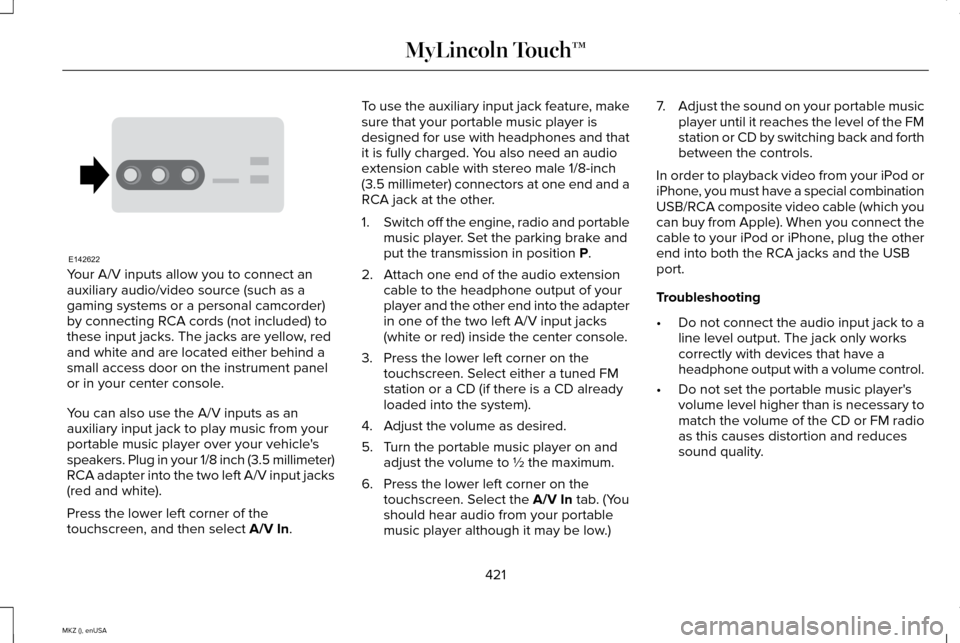
Your A/V inputs allow you to connect an
auxiliary audio/video source (such as a
gaming systems or a personal camcorder)
by connecting RCA cords (not included) to
these input jacks. The jacks are yellow, red
and white and are located either behind a
small access door on the instrument panel
or in your center console.
You can also use the A/V inputs as an
auxiliary input jack to play music from your
portable music player over your vehicle's
speakers. Plug in your 1/8 inch (3.5 millimeter)
RCA adapter into the two left A/V input jacks
(red and white).
Press the lower left corner of the
touchscreen, and then select A/V In. To use the auxiliary input jack feature, make
sure that your portable music player is
designed for use with headphones and that
it is fully charged. You also need an audio
extension cable with stereo male 1/8-inch
(3.5 millimeter) connectors at one end and a
RCA jack at the other.
1.
Switch off the engine, radio and portable
music player. Set the parking brake and
put the transmission in position
P.
2. Attach one end of the audio extension cable to the headphone output of your
player and the other end into the adapter
in one of the two left A/V input jacks
(white or red) inside the center console.
3. Press the lower left corner on the touchscreen. Select either a tuned FM
station or a CD (if there is a CD already
loaded into the system).
4. Adjust the volume as desired.
5. Turn the portable music player on and adjust the volume to ½ the maximum.
6. Press the lower left corner on the touchscreen. Select the
A/V In tab. (You
should hear audio from your portable
music player although it may be low.) 7.
Adjust the sound on your portable music
player until it reaches the level of the FM
station or CD by switching back and forth
between the controls.
In order to playback video from your iPod or
iPhone, you must have a special combination
USB/RCA composite video cable (which you
can buy from Apple). When you connect the
cable to your iPod or iPhone, plug the other
end into both the RCA jacks and the USB
port.
Troubleshooting
• Do not connect the audio input jack to a
line level output. The jack only works
correctly with devices that have a
headphone output with a volume control.
• Do not set the portable music player's
volume level higher than is necessary to
match the volume of the CD or FM radio
as this causes distortion and reduces
sound quality.
421
MKZ (), enUSA MyLincoln Touch™E142622
Page 425 of 516
•
If the music sounds distorted at lower
listening levels, turn the portable music
player volume down. If the problem
persists, replace or recharge the batteries
in the portable media player. •
Control the portable media player in the
same manner when used with
headphones, as the auxiliary input jack
does not provide control (such as Play or
Pause) over the attached portable media
player.
PHONE 422
MKZ (), enUSA MyLincoln Touch™A
B
C
D
E
F
E161968
Page 445 of 516
Note: The passenger side temperature and the DUAL indicator automatically turn on when the passenger is adjusting their
temperature control.
Fan speed:
Touch + or - to increase or decrease the volume of air circulated in your vehicle.
C
Note:
When the system is controlling the fan speed automatically, all the fan speed indicators turn off.
Recirculated air:
Touch the button to switch between outside air and recirculated air. When you select recirculated air, the air
currently in the passenger compartment recirculates. This may reduce the\
time needed to cool the interior (when used with A/C)
and may reduce unwanted odors from entering your vehicle.
D
Note:
Recirculated air may turn off automatically (or be prevented from turnin\
g on) in all airflow modes except MAX A/C to reduce
risk of fogging. Recirculated air may also turn on and off automatically in Panel or Panel and Floor airflow modes during hot weather
in order to improve cooling efficiency.
MAX A/C:
Touch the button to maximize cooling. Recirculated air flows through the instrument panel vents, air conditioni\
ng
automatically turns on, and the fan automatically adjusts to the highest\
speed.
E
A/C:
Touch the button to switch the air conditioning compressor on or off. Use air conditioning with recirculated air to improve
cooling performance and efficiency.
F
Note:
In certain conditions (such as when using Max Defrost), the air condi\
tioning compressor may continue to operate even after
you switch off the air conditioning with the A/C button.
AUTO:
Touch the button to switch on automatic operation. Select the desired tem\
perature using the temperature control. The
system adjusts fan speed, air distribution, air conditioning operation, \
and selects outside air or recirculated air to heat or cool the
vehicle in order to maintain the desired temperature. You can also use the
AUTO button to switch off dual zone operation by
touching and holding the button for more than two seconds.
G
Heated rear window:
Turns the heated rear window on and off. See Heated Windows and Mirrors (page 135).
H
Air distribution control:
Touch these buttons to switch airflow from the windshield, instrument pan\
el, or footwell vents on or off.
The system can distribute air through any combination of these vents.
I
442
MKZ (), enUSA MyLincoln Touch™
Page 455 of 516
View/Edit Route
Access these features when a route is active:
•
View Route
• Edit Destination/Waypoints
• Edit Turn List
• Detour
• Edit Route Preferences
• Edit Traffic Preferences
• Cancel Route.
Nokia is the digital map provider for the
navigation application. If you find map data
errors, you may report them directly to Nokia
by going to http://mapreporter.navteq.com.
Nokia evaluates all reported map errors and
responds with the result of their investigation
by e-mail. Navigation Map Updates
Annual navigation map updates are available
for purchase through your dealership, by
calling 1-866-4NAVTEQ (1-866-462-8837) (in
Mexico, call 01-800-557-5539) or going to
www.navigation.com/sync. You need to
specify the make and model of your vehicle
to determine if there is an update available.
Navigation Voice Commands When in navigation mode, press
the voice button on the steering
wheel controls. After the tone, say
any of the following commands: Navigation system voice commands
"Cancel next waypoint" 1
"Cancel route" 1
"Destination" 2
"Destination
"Destination
"Destination favorites""Destination home"
"Destination intersection"
"Destination nearest
"Destination play nametags" "Destination POI"
"Destination POI category"
"Destination previous destination" "Destination street address"
"Detour"1
"Navigation" 3
"Navigation voice volume decrease" "Navigation voice volume increase"
"Repeat instruction" 1
452
MKZ (), enUSA MyLincoln Touch™E142599
Page 466 of 516
Read and follow instructions: Before using
your Windows Automotive- based system,
read and follow all instructions and safety
information provided in this end user manual
("User's Guide"). Not following precautions
found in this User's Guide can lead to an
accident or other serious consequences.
Keep User's Guide in vehicle: When kept in
the vehicle, the User's Guide will be a ready
reference for you and other users unfamiliar
with the Windows Automotive-based system.
Please make certain that before using the
system for the first time, all persons have
access to the User's Guide and read its
instructions and safety information carefully. WARNING
Operating certain parts of this system
while driving can distract your attention
away from the road, and possibly cause an
accident or other serious consequences. Do
not change system settings or enter data
non-verbally (using your hands) while driving.
Stop the vehicle in a safe and legal manner
before attempting these operations. This is
important since while setting up or changing
some functions you might be required to
distract your attention away from the road
and remove your hands from the wheel. General Operation
Voice Command Control:
Functions within
the Windows Automotive-based system may
be accomplished using only voice
commands. Using voice commands while
driving allows you to operate the system
without removing your hands from the wheel. Prolonged Views of Screen: Do not access
any function requiring a prolonged view of
the screen while you are driving. Pull over in
a safe and legal manner before attempting
to access a function of the system requiring
prolonged attention. Even occasional short
scans to the screen may be hazardous if your
attention has been diverted away from your
driving task at a critical time.
Volume Setting:
Do not raise the volume
excessively. Keep the volume at a level
where you can still hear outside traffic and
emergency signals while driving. Driving
while unable to hear these sounds could
cause an accident.
Use of Speech Recognition Functions:
Speech recognition software is inherently a
statistical process which is subject to errors.
It is your responsibility to monitor any speech
recognition functions included in the system
and address any errors.
463
MKZ (), enUSA Appendices