buttons LINCOLN MKZ 2015 User Guide
[x] Cancel search | Manufacturer: LINCOLN, Model Year: 2015, Model line: MKZ, Model: LINCOLN MKZ 2015Pages: 516, PDF Size: 4.48 MB
Page 152 of 516
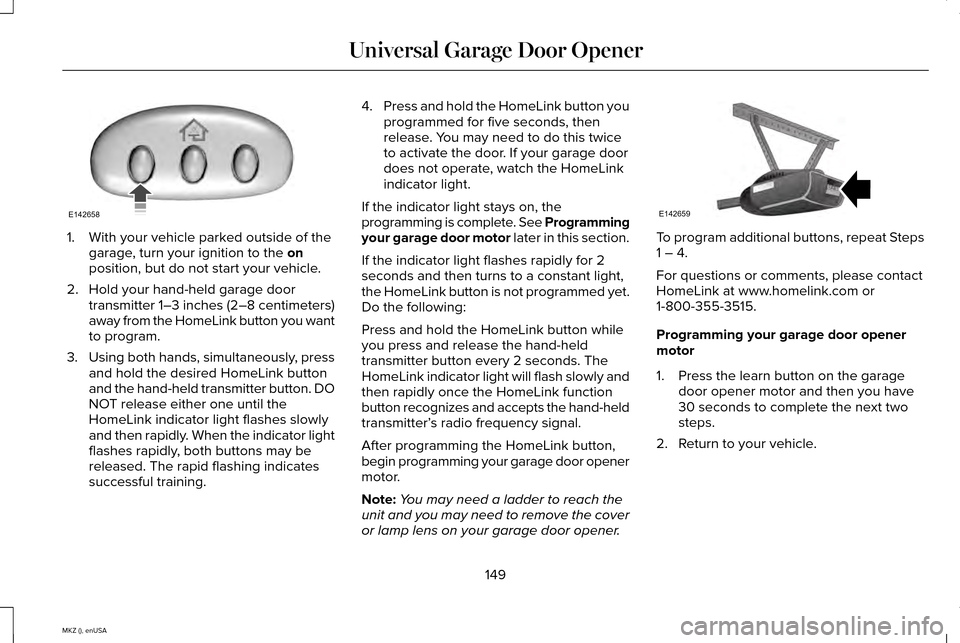
1. With your vehicle parked outside of the
garage, turn your ignition to the on
position, but do not start your vehicle.
2. Hold your hand-held garage door transmitter 1–3 inches (2–8 centimeters)
away from the HomeLink button you want
to program.
3. Using both hands, simultaneously, press
and hold the desired HomeLink button
and the hand-held transmitter button. DO
NOT release either one until the
HomeLink indicator light flashes slowly
and then rapidly. When the indicator light
flashes rapidly, both buttons may be
released. The rapid flashing indicates
successful training. 4.
Press and hold the HomeLink button you
programmed for five seconds, then
release. You may need to do this twice
to activate the door. If your garage door
does not operate, watch the HomeLink
indicator light.
If the indicator light stays on, the
programming is complete. See Programming
your garage door motor later in this section.
If the indicator light flashes rapidly for 2
seconds and then turns to a constant light,
the HomeLink button is not programmed yet.
Do the following:
Press and hold the HomeLink button while
you press and release the hand-held
transmitter button every 2 seconds. The
HomeLink indicator light will flash slowly and
then rapidly once the HomeLink function
button recognizes and accepts the hand-held
transmitter’ s radio frequency signal.
After programming the HomeLink button,
begin programming your garage door opener
motor.
Note: You may need a ladder to reach the
unit and you may need to remove the cover
or lamp lens on your garage door opener. To program additional buttons, repeat Steps
1 – 4.
For questions or comments, please contact
HomeLink at www.homelink.com or
1-800-355-3515.
Programming your garage door opener
motor
1. Press the learn button on the garage
door opener motor and then you have
30 seconds to complete the next two
steps.
2. Return to your vehicle.
149
MKZ (), enUSA Universal Garage Door OpenerE142658 E142659
Page 153 of 516
3. Press and hold the function button you
want to program for 2 seconds, then
release. Repeat this step. Depending on
your brand of garage door opener, you
may need to repeat this sequence a third
time.
Erasing the Function Button Codes
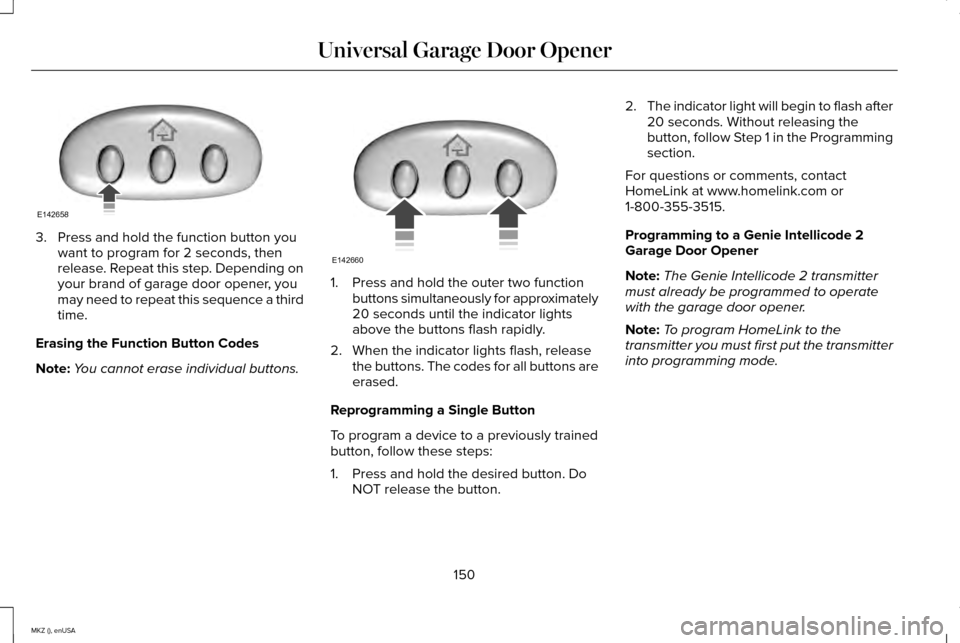
Note: You cannot erase individual buttons. 1. Press and hold the outer two function
buttons simultaneously for approximately
20 seconds until the indicator lights
above the buttons flash rapidly.
2. When the indicator lights flash, release the buttons. The codes for all buttons are
erased.
Reprogramming a Single Button
To program a device to a previously trained
button, follow these steps:
1. Press and hold the desired button. Do NOT release the button. 2.
The indicator light will begin to flash after
20 seconds. Without releasing the
button, follow Step 1 in the Programming
section.
For questions or comments, contact
HomeLink at www.homelink.com or
1-800-355-3515.
Programming to a Genie Intellicode 2
Garage Door Opener
Note: The Genie Intellicode 2 transmitter
must already be programmed to operate
with the garage door opener.
Note: To program HomeLink to the
transmitter you must first put the transmitter
into programming mode.
150
MKZ (), enUSA Universal Garage Door OpenerE142658 E142660
Page 154 of 516
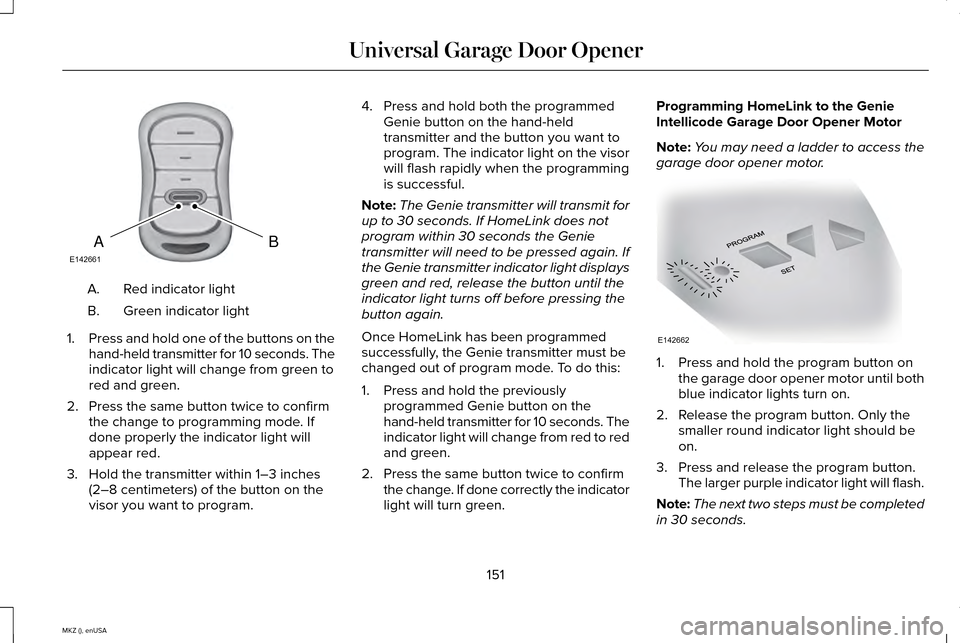
Red indicator light
A.
Green indicator light
B.
1. Press and hold one of the buttons on the
hand-held transmitter for 10 seconds. The
indicator light will change from green to
red and green.
2. Press the same button twice to confirm the change to programming mode. If
done properly the indicator light will
appear red.
3. Hold the transmitter within 1–3 inches (2–8 centimeters) of the button on the
visor you want to program. 4. Press and hold both the programmed
Genie button on the hand-held
transmitter and the button you want to
program. The indicator light on the visor
will flash rapidly when the programming
is successful.
Note: The Genie transmitter will transmit for
up to 30 seconds. If HomeLink does not
program within 30 seconds the Genie
transmitter will need to be pressed again. If
the Genie transmitter indicator light displays
green and red, release the button until the
indicator light turns off before pressing the
button again.
Once HomeLink has been programmed
successfully, the Genie transmitter must be
changed out of program mode. To do this:
1. Press and hold the previously programmed Genie button on the
hand-held transmitter for 10 seconds. The
indicator light will change from red to red
and green.
2. Press the same button twice to confirm the change. If done correctly the indicator
light will turn green. Programming HomeLink to the Genie
Intellicode Garage Door Opener Motor
Note:
You may need a ladder to access the
garage door opener motor. 1. Press and hold the program button on
the garage door opener motor until both
blue indicator lights turn on.
2. Release the program button. Only the smaller round indicator light should be
on.
3. Press and release the program button. The larger purple indicator light will flash.
Note: The next two steps must be completed
in 30 seconds.
151
MKZ (), enUSA Universal Garage Door OpenerBAE142661 E142662
Page 155 of 516
4. Press and release the Genie Intellicode
2 hand-held transmitter’ s previously
programmed button. Both indicator lights
on the garage door opener motor unit
should now flash purple.
5. Press and hold the previously programmed button on the visor for 2
seconds. Repeat this step up to 3 times
until the garage door moves.
Programming is now complete.
Clearing a HomeLink Device
To erase programming from the three
HomeLink buttons press and hold the two
outer HomeLink buttons until the indicator
light begins to flash. The indicator light will
begin flashing in 10 to 20 seconds, at which
time both buttons should be released.
Programming has now been erased, and the
indicator light should blink slowly to indicate
the device is in train mode when any of the
three HomeLink buttons are pressed. FCC and RSS-210 Industry Canada
Compliance
This device complies with Part 15 of the FCC
Rules and with RSS-210 of Industry Canada.
Operation is subject to the following two
conditions: (1) this device may not cause
harmful interference, and (2) this device must
accept any interference received, including
interference that may cause undesired
operation.
Changes or modifications to your device not
expressly approved by the party responsible
for compliance can void the user’
s authority
to operate the equipment.
152
MKZ (), enUSA Universal Garage Door Opener
Page 174 of 516
AUTOMATIC TRANSMISSION
WARNINGS
Always set the parking brake fully and
make sure your vehicle is in P (Park).
Turn the ignition off whenever you leave your
vehicle. Do not apply the brake pedal and
accelerator pedal simultaneously.
Applying both pedals simultaneously for
more than three seconds will limit engine
rpm, which may result in difficulty maintaining
speed in traffic and could lead to serious
injury. Push Button Shift Transmission
Your vehicle is equipped with an electronic
transmission. The shift buttons are located
on the instrument panel next to the
MyLincoln Touch
™ system. The gears are
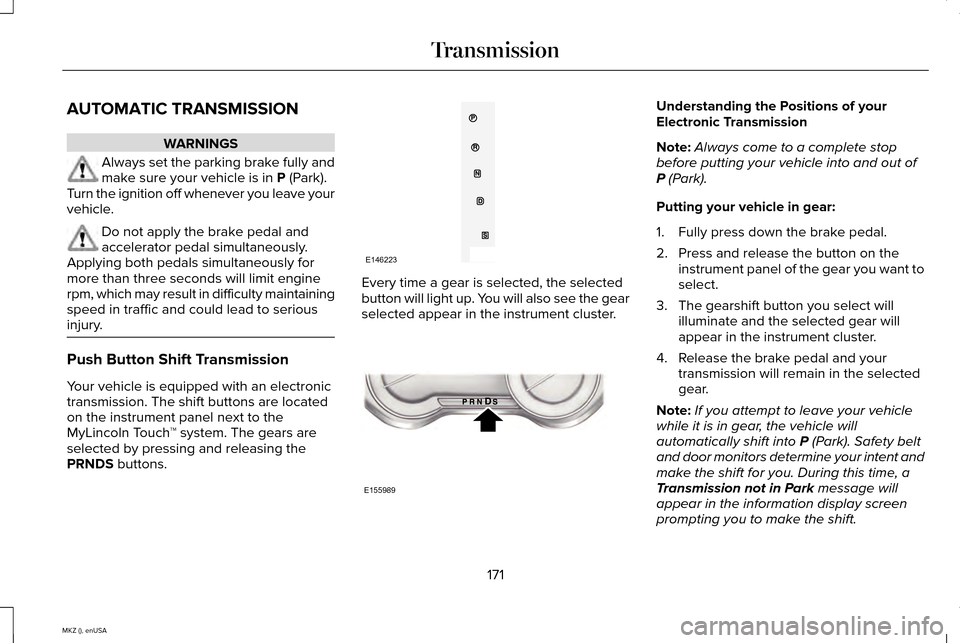
selected by pressing and releasing the
PRNDS
buttons. Every time a gear is selected, the selected
button will light up. You will also see the gear
selected appear in the instrument cluster. Understanding the Positions of your
Electronic Transmission
Note:
Always come to a complete stop
before putting your vehicle into and out of
P
(Park).
Putting your vehicle in gear:
1. Fully press down the brake pedal.
2. Press and release the button on the instrument panel of the gear you want to
select.
3. The gearshift button you select will illuminate and the selected gear will
appear in the instrument cluster.
4. Release the brake pedal and your transmission will remain in the selected
gear.
Note: If you attempt to leave your vehicle
while it is in gear, the vehicle will
automatically shift into
P (Park). Safety belt
and door monitors determine your intent and
make the shift for you. During this time, a
Transmission not in Park
message will
appear in the information display screen
prompting you to make the shift.
171
MKZ (), enUSA TransmissionE146223 E155989
Page 178 of 516
WARNINGS
When doing this procedure, you will
be taking the vehicle out of park which
means the vehicle can roll freely. To avoid
unwanted vehicle movement, always fully
set the parking brake prior to doing this
procedure. Use wheel chocks if appropriate. If the parking brake is fully released,
but the brake warning lamp remains
illuminated, the brakes may not be working
properly. See your authorized dealer. Note:
See your authorized dealer as soon
as possible if this procedure is used.
Note: For some markets this feature is
disabled.
Note: This feature will only function if your
12-volt battery has power.
Use the brake-shift interlock override to
move your transmission from the park
position in the event of an electrical
malfunction or if your vehicle has a dead
battery. 1. Apply the parking brake and turn your
ignition off before performing this
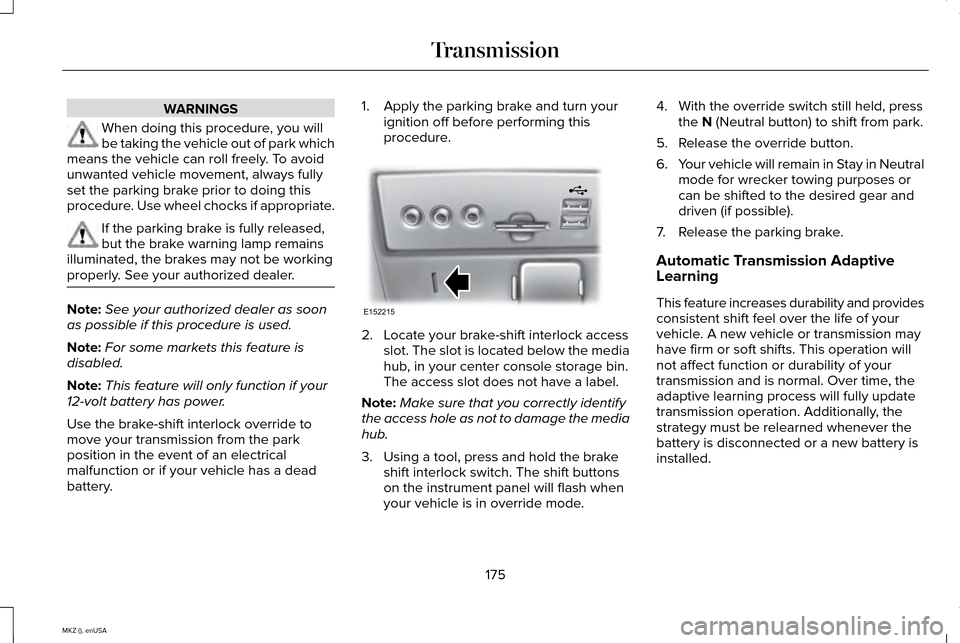
procedure. 2. Locate your brake-shift interlock access
slot. The slot is located below the media
hub, in your center console storage bin.
The access slot does not have a label.
Note: Make sure that you correctly identify
the access hole as not to damage the media
hub.
3. Using a tool, press and hold the brake shift interlock switch. The shift buttons
on the instrument panel will flash when
your vehicle is in override mode. 4. With the override switch still held, press
the N (Neutral button) to shift from park.
5. Release the override button.
6. Your vehicle will remain in Stay in Neutral
mode for wrecker towing purposes or
can be shifted to the desired gear and
driven (if possible).
7. Release the parking brake.
Automatic Transmission Adaptive
Learning
This feature increases durability and provides
consistent shift feel over the life of your
vehicle. A new vehicle or transmission may
have firm or soft shifts. This operation will
not affect function or durability of your
transmission and is normal. Over time, the
adaptive learning process will fully update
transmission operation. Additionally, the
strategy must be relearned whenever the
battery is disconnected or a new battery is
installed.
175
MKZ (), enUSA TransmissionE152215
Page 298 of 516
7. While the engine is running, step on the
brake pedal and shift the transmission to
N.
8. Allow the engine to run for at least one minute by pressing on the accelerator
pedal.
9. Drive your vehicle at least 10 miles (16 kilometers) to completely relearn the idle
and fuel trim strategy.
Note: Certain features may not operate if
the Battery Monitor System is not reset with
a scan tool following a jump start or battery
replacement. Normal electrical accessory
operation should resume after your vehicle
is left undisturbed for 8 hours.
Note: If you do not allow the engine to
relearn the idle and fuel trim strategy, the
idle quality of your vehicle may be adversely
affected until the engine computer
eventually relearns the idle trim and fuel trim
strategy. Note:
Always dispose of automotive
batteries in a responsible manner. Follow
your local authorized standards for disposal.
Call your local authorized recycling center
to find out more about recycling automotive
batteries.
Note: It is recommended that the negative
battery cable terminal be disconnected from
the battery if you plan to store your vehicle
for an extended period of time.
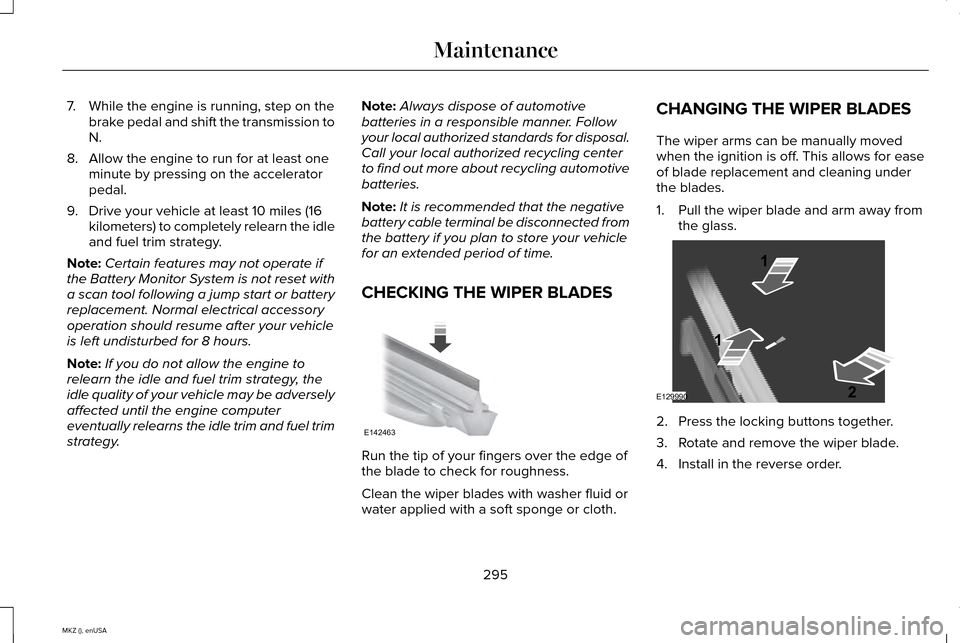
CHECKING THE WIPER BLADES Run the tip of your fingers over the edge of
the blade to check for roughness.
Clean the wiper blades with washer fluid or
water applied with a soft sponge or cloth.CHANGING THE WIPER BLADES
The wiper arms can be manually moved
when the ignition is off. This allows for ease
of blade replacement and cleaning under
the blades.
1. Pull the wiper blade and arm away from
the glass. 2. Press the locking buttons together.
3. Rotate and remove the wiper blade.
4. Install in the reverse order.
295
MKZ (), enUSA MaintenanceE142463 E129990
1
1 2
Page 375 of 516
Note:
The MyLincoln Touch system controls
most of the audio features. See
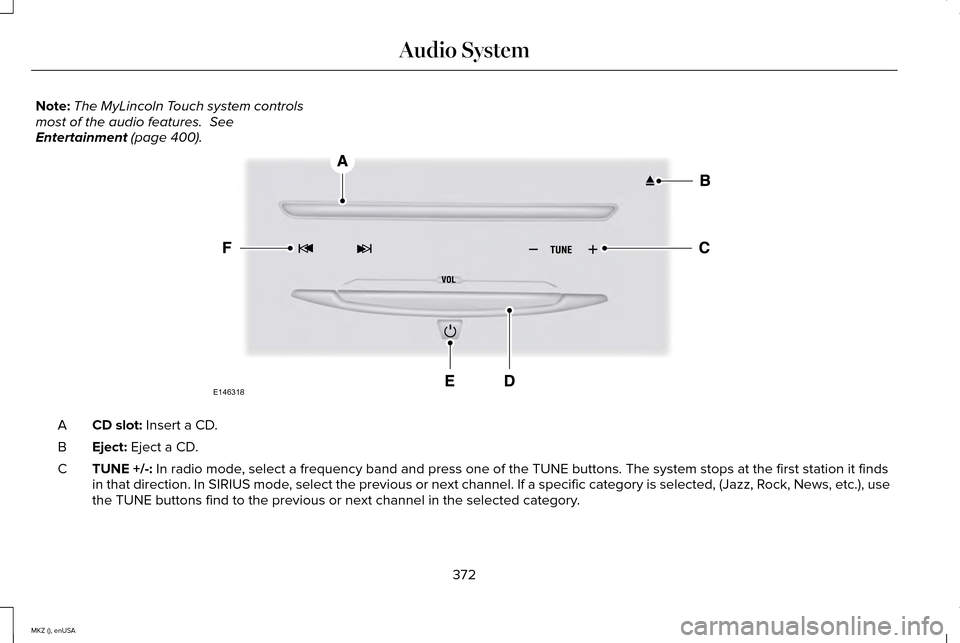
Entertainment (page 400). CD slot:
Insert a CD.
A
Eject:
Eject a CD.
B
TUNE +/-:
In radio mode, select a frequency band and press one of the TUNE buttons. The system \
stops at the first station it finds
in that direction. In SIRIUS mode, select the previous or next channel. If a specific category is selecte\
d, (Jazz, Rock, News, etc.), use
the TUNE buttons find to the previous or next channel in the selected ca\
tegory.
C
372
MKZ (), enUSA Audio SystemE146318
Page 386 of 516
The display is located on the center of your
instrument cluster. It allows you to view and
make minor adjustments to active modes
without taking your hands off the wheel. For
example:
•
In entertainment mode, you can view
what is now playing, change the audio
source, select presets and make some
adjustments.
• In navigation mode (if equipped), you can
view the current route or activate a route.
• In phone mode, you can accept or reject
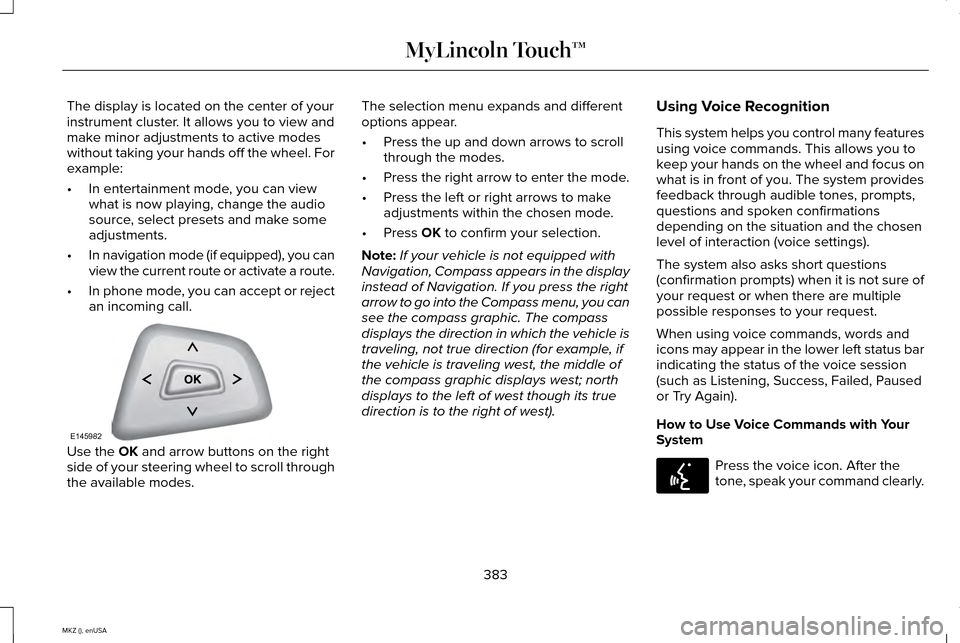
an incoming call. Use the OK and arrow buttons on the right
side of your steering wheel to scroll through
the available modes. The selection menu expands and different
options appear.
•
Press the up and down arrows to scroll
through the modes.
• Press the right arrow to enter the mode.
• Press the left or right arrows to make
adjustments within the chosen mode.
• Press
OK to confirm your selection.
Note: If your vehicle is not equipped with
Navigation, Compass appears in the display
instead of Navigation. If you press the right
arrow to go into the Compass menu, you can
see the compass graphic. The compass
displays the direction in which the vehicle is
traveling, not true direction (for example, if
the vehicle is traveling west, the middle of
the compass graphic displays west; north
displays to the left of west though its true
direction is to the right of west). Using Voice Recognition
This system helps you control many features
using voice commands. This allows you to
keep your hands on the wheel and focus on
what is in front of you. The system provides
feedback through audible tones, prompts,
questions and spoken confirmations
depending on the situation and the chosen
level of interaction (voice settings).
The system also asks short questions
(confirmation prompts) when it is not sure of
your request or when there are multiple
possible responses to your request.
When using voice commands, words and
icons may appear in the lower left status bar
indicating the status of the voice session
(such as Listening, Success, Failed, Paused
or Try Again).
How to Use Voice Commands with Your
System
Press the voice icon. After the
tone, speak your command clearly.
383
MKZ (), enUSA MyLincoln Touch™E145982 E142599
Page 404 of 516
CDD
USBE
Touch this button to scroll down for more options, such as SD Card, BT Stereo and A/V In
F
These buttons change with the media mode you are in.
G
Radio memory presets and CD controls.
H
Note: Some features may not be available
in your area. Contact an authorized dealer
for more information.
You can access these options using the
touchscreen or voice commands.
Browsing Device Content
When listening to audio on a device, you can
browse through other devices without having
to change sources. For example, if you are
currently listening to audio on an SD card,
you can browse all the artists that are stored
on your USB device. Press the voice icon on the
steering wheel. When prompted,
you can say: "BROWSE" within devices
"Browse" *
"Browse
"Browse
"Browse SD card"
"Browse Sirius channel guide" ** "BROWSE" within devices
"Browse USB""Help"
* If you only say, "Browse", you can then say
any commands in the following chart.
** This command is only usable if you have an
active subscription to Sirius satellite radio. "BROWSE"
"
"
"SD card" **
401
MKZ (), enUSA MyLincoln Touch™E142599