navigation system LINCOLN MKZ 2015 Owner's Manual
[x] Cancel search | Manufacturer: LINCOLN, Model Year: 2015, Model line: MKZ, Model: LINCOLN MKZ 2015Pages: 516, PDF Size: 4.48 MB
Page 448 of 516
To set a destination, press the green corner
of your touchscreen, then the Dest button
when it appears. See Setting a destination
later in this chapter.
To view the navigation map and your
vehicle's current location, touch the green
bar in the upper right-hand corner of the
touchscreen, or, press
Dest, then Map. See
Map mode later in this chapter.
Setting a Destination
Press the green corner of your touchscreen,
then the
Dest button when it appears.
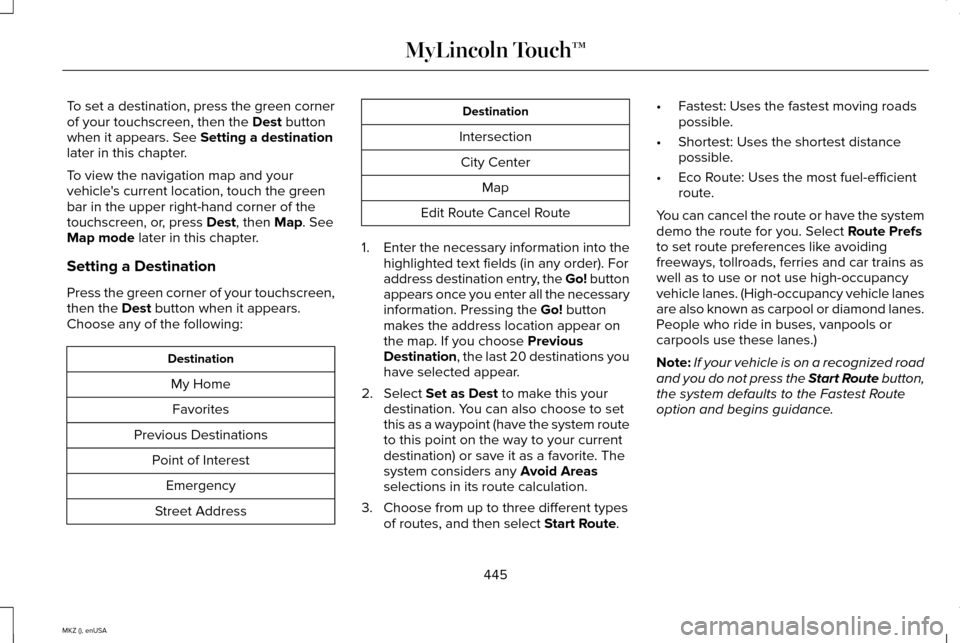
Choose any of the following: Destination
My HomeFavorites
Previous Destinations Point of InterestEmergency
Street Address Destination
Intersection City Center Map
Edit Route Cancel Route
1. Enter the necessary information into the
highlighted text fields (in any order). For
address destination entry, the Go! button
appears once you enter all the necessary
information. Pressing the Go! button
makes the address location appear on
the map. If you choose
Previous
Destination, the last 20 destinations you
have selected appear.
2. Select
Set as Dest to make this your
destination. You can also choose to set
this as a waypoint (have the system route
to this point on the way to your current
destination) or save it as a favorite. The
system considers any
Avoid Areas
selections in its route calculation.
3. Choose from up to three different types of routes, and then select
Start Route. •
Fastest: Uses the fastest moving roads
possible.
• Shortest: Uses the shortest distance
possible.
• Eco Route: Uses the most fuel-efficient
route.
You can cancel the route or have the system
demo the route for you. Select
Route Prefs
to set route preferences like avoiding
freeways, tollroads, ferries and car trains as
well as to use or not use high-occupancy
vehicle lanes. (High-occupancy vehicle lanes
are also known as carpool or diamond lanes.
People who ride in buses, vanpools or
carpools use these lanes.)
Note: If your vehicle is on a recognized road
and you do not press the Start Route button,
the system defaults to the Fastest Route
option and begins guidance.
445
MKZ (), enUSA MyLincoln Touch™
Page 449 of 516
During route guidance, you can press the
talking bubble icon that appears in the upper
right navigation corner (green bar) if you want
the system to repeat route guidance
information. When the system repeats the
last guidance instruction, it updates the
distance to the next guidance instruction,
since it detects when the vehicle is moving.
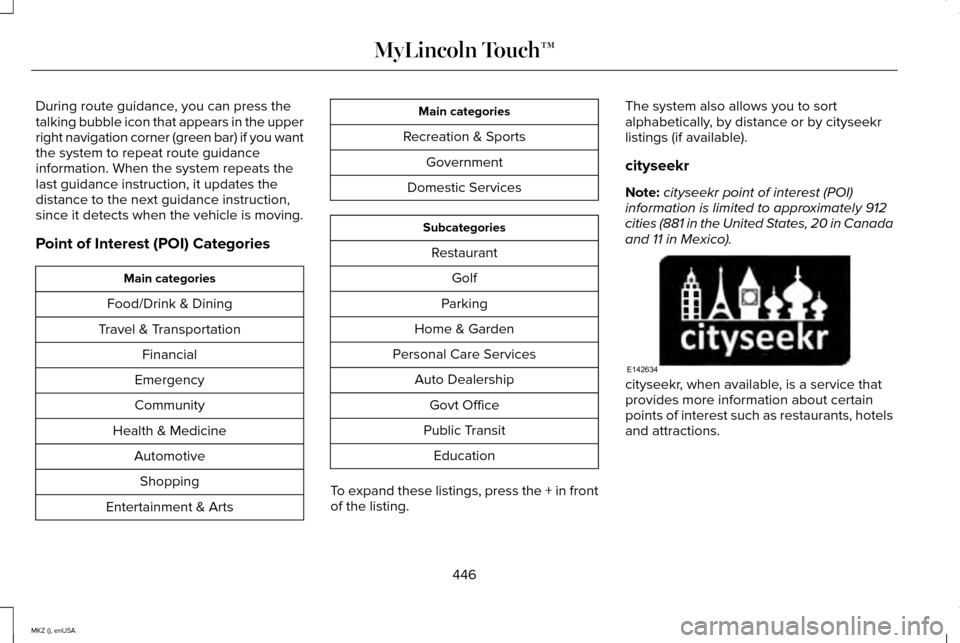
Point of Interest (POI) Categories
Main categories
Food/Drink & Dining
Travel & Transportation Financial
Emergency
Community
Health & Medicine AutomotiveShopping
Entertainment & Arts Main categories
Recreation & Sports Government
Domestic Services Subcategories
Restaurant Golf
Parking
Home & Garden
Personal Care Services Auto DealershipGovt Office
Public Transit Education
To expand these listings, press the + in front
of the listing. The system also allows you to sort
alphabetically, by distance or by cityseekr
listings (if available).
cityseekr
Note:
cityseekr point of interest (POI)
information is limited to approximately 912
cities (881 in the United States, 20 in Canada
and 11 in Mexico). cityseekr, when available, is a service that
provides more information about certain
points of interest such as restaurants, hotels
and attractions.
446
MKZ (), enUSA MyLincoln Touch™E142634
Page 450 of 516
When you have selected a point of interest,
the location and information appear, such as
address and phone number. If cityseekr lists
the point of interest, more information is
available, such as a brief description,
check-in and checkout times or restaurant
hours.
Press More Information for a longer review,
a list of services and facilities, the average
room or meal price as well as the website.
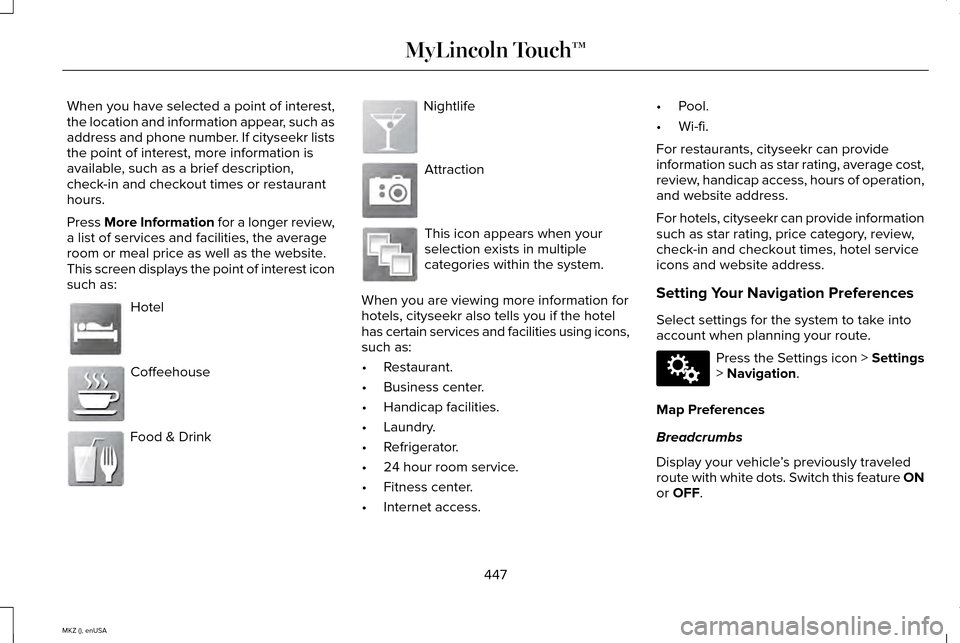
This screen displays the point of interest icon
such as:
Hotel
Coffeehouse
Food & Drink Nightlife
Attraction
This icon appears when your
selection exists in multiple
categories within the system.
When you are viewing more information for
hotels, cityseekr also tells you if the hotel
has certain services and facilities using icons,
such as:
• Restaurant.
• Business center.
• Handicap facilities.
• Laundry.
• Refrigerator.
• 24 hour room service.
• Fitness center.
• Internet access. •
Pool.
• Wi-fi.
For restaurants, cityseekr can provide
information such as star rating, average cost,
review, handicap access, hours of operation,
and website address.
For hotels, cityseekr can provide information
such as star rating, price category, review,
check-in and checkout times, hotel service
icons and website address.
Setting Your Navigation Preferences
Select settings for the system to take into
account when planning your route. Press the Settings icon > Settings
> Navigation.
Map Preferences
Breadcrumbs
Display your vehicle ’s previously traveled
route with white dots. Switch this feature ON
or
OFF.
447
MKZ (), enUSA MyLincoln Touch™E143884 E142636 E142637 E142638 E142639 E142640 E142607
Page 451 of 516
Turn List Format
Have the system display your turn list Top
to Bottom or Bottom to Top.
Parking POI Notification
Set the automatic parking point of interest
notification. Switch this feature
ON or OFF.
When parking point of interest notification is
on, the icons display on the map when you
get close to your destination. This may not
be very useful in dense areas, and may
clutter the map when other points of interest
display.
Route Preferences
Preferred Route
Choose to have the system display the
Shortest, Fastest or most Ecological route
first. If you set Always Use Preferred Route
to
Yes, the system uses the selected route
type to calculate only one route to the
desired destination. Always Use Preferred Route
Bypass route selection in destination
programming. The system only calculates
one route based on preferred route setting.
Eco Time Penalty
Select a low, medium or high cost for the
calculated Eco Route. The higher the setting,
the longer the time allotment is for the route.
Avoid
These features allow you to choose to have
the system avoid freeways, toll roads, ferries
and car trains when planning your route.
Switch these features
ON or OFF.
Use HOV Lanes
Have the system use high-occupancy vehicle
lanes, if available, when planning your route.
Navigation Preferences
Guidance Prompts
Have the system use Voice & Tones or Tone
Only
on your programmed route. Auto - Fill State/Province
Have the system automatically fill in the state
and province based on the information
already entered into the system. Switch this
feature
ON or OFF.
Traffic Preferences
Avoid Traffic Problems
Choose how you want the system to handle
traffic problems along your route.
• Automatic: Have the system reroute you
to avoid traffic incidents that develop and
impact the current route. The system
does not provide a traffic alert
notification.
• Manual: Have the system always provide
a traffic alert notification for traffic
incidents along the planned route. You
have a choice to accept or ignore the
notification before making the route
deviation.
Traffic Alert Notification
Have the system display traffic alert
notifications.
448
MKZ (), enUSA MyLincoln Touch™
Page 455 of 516
View/Edit Route
Access these features when a route is active:
•
View Route
• Edit Destination/Waypoints
• Edit Turn List
• Detour
• Edit Route Preferences
• Edit Traffic Preferences
• Cancel Route.
Nokia is the digital map provider for the
navigation application. If you find map data
errors, you may report them directly to Nokia
by going to http://mapreporter.navteq.com.
Nokia evaluates all reported map errors and
responds with the result of their investigation
by e-mail. Navigation Map Updates
Annual navigation map updates are available
for purchase through your dealership, by
calling 1-866-4NAVTEQ (1-866-462-8837) (in
Mexico, call 01-800-557-5539) or going to
www.navigation.com/sync. You need to
specify the make and model of your vehicle
to determine if there is an update available.
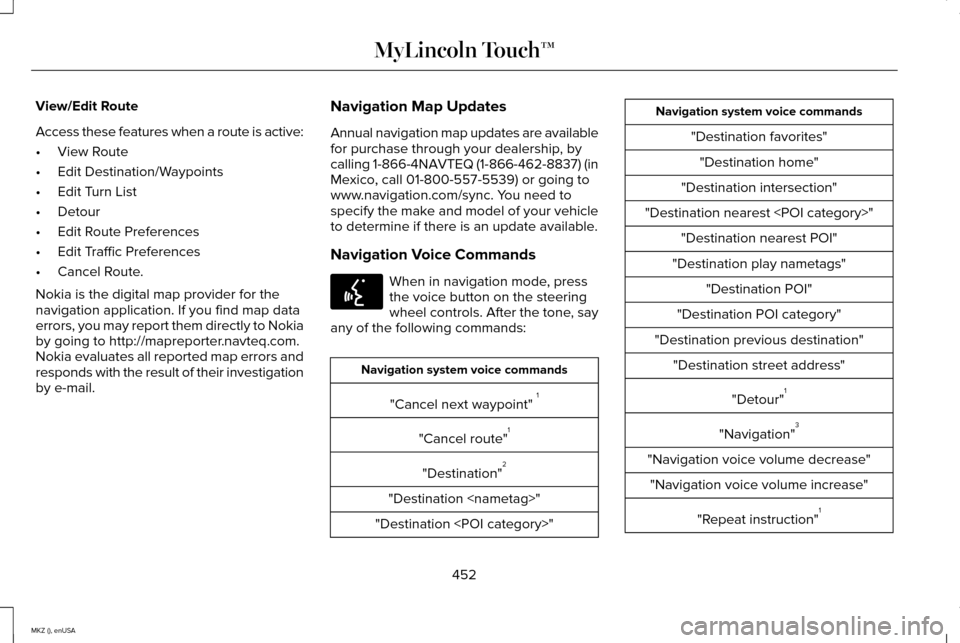
Navigation Voice Commands When in navigation mode, press
the voice button on the steering
wheel controls. After the tone, say
any of the following commands: Navigation system voice commands
"Cancel next waypoint" 1
"Cancel route" 1
"Destination" 2
"Destination
"Destination
"Destination favorites""Destination home"
"Destination intersection"
"Destination nearest
"Destination play nametags" "Destination POI"
"Destination POI category"
"Destination previous destination" "Destination street address"
"Detour"1
"Navigation" 3
"Navigation voice volume decrease" "Navigation voice volume increase"
"Repeat instruction" 1
452
MKZ (), enUSA MyLincoln Touch™E142599
Page 456 of 516
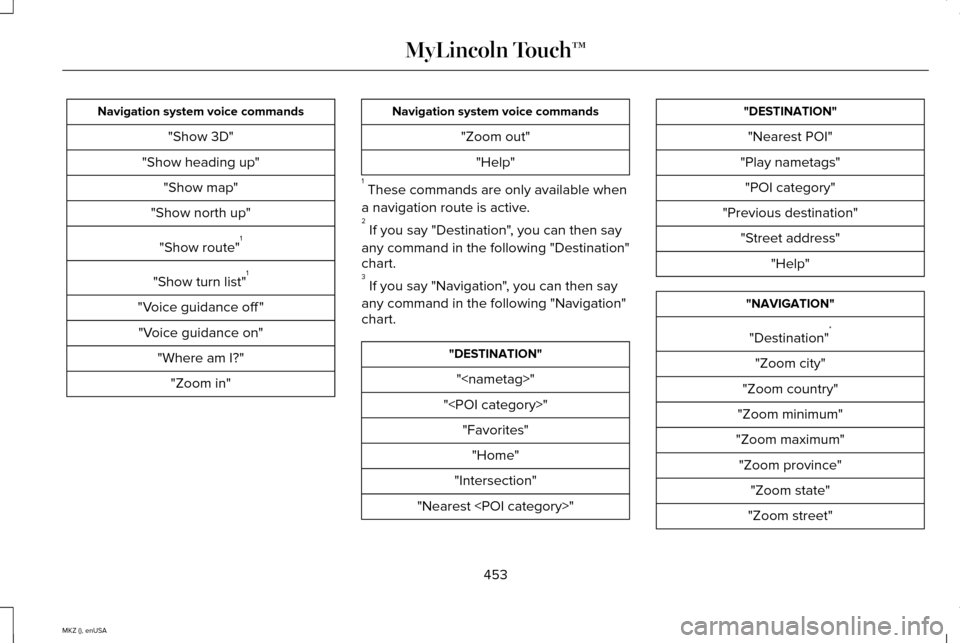
Navigation system voice commands
"Show 3D"
"Show heading up" "Show map"
"Show north up"
"Show route" 1
"Show turn list" 1
"Voice guidance off " "Voice guidance on" "Where am I?""Zoom in" Navigation system voice commands
"Zoom out""Help"
1 These commands are only available when
a navigation route is active.
2 If you say "Destination", you can then say
any command in the following "Destination"
chart.
3 If you say "Navigation", you can then say
any command in the following "Navigation"
chart. "DESTINATION"
"
"
"Intersection"
"Nearest
"Nearest POI"
"Play nametags" "POI category"
"Previous destination" "Street address" "Help" "NAVIGATION"
"Destination" *
"Zoom city"
"Zoom country"
"Zoom minimum"
"Zoom maximum" "Zoom province" "Zoom state"
"Zoom street"
453
MKZ (), enUSA MyLincoln Touch™
Page 457 of 516
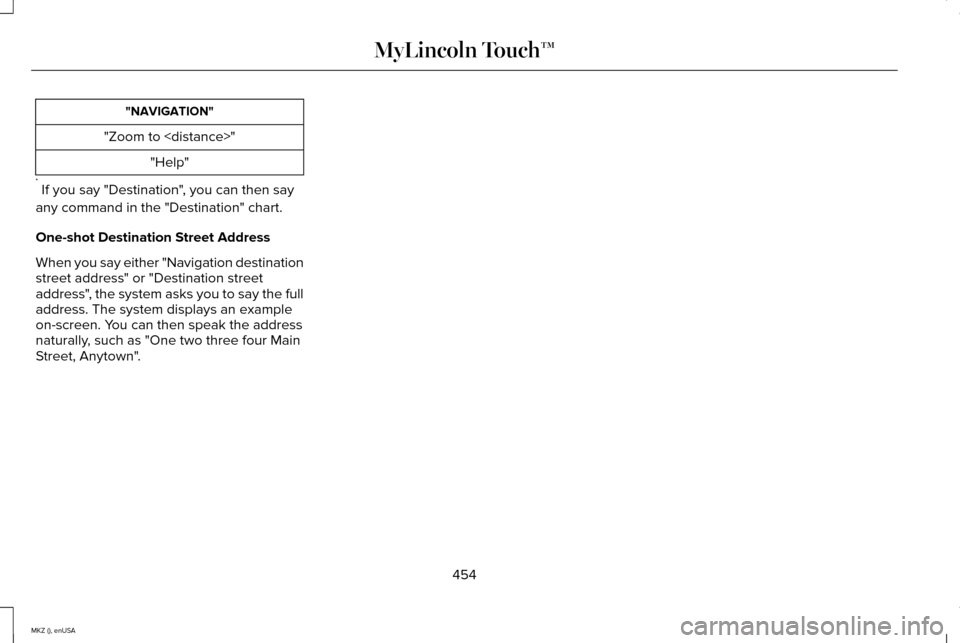
"NAVIGATION"
"Zoom to
* If you say "Destination", you can then say
any command in the "Destination" chart.
One-shot Destination Street Address
When you say either "Navigation destination
street address" or "Destination street
address", the system asks you to say the full
address. The system displays an example
on-screen. You can then speak the address
naturally, such as "One two three four Main
Street, Anytown".
454
MKZ (), enUSA MyLincoln Touch™
Page 467 of 516
Navigation Features: Any navigation
features included in the system are intended
to provide turn by turn instructions to get you
to a desired destination. Please make certain
all persons using this system carefully read
and follow instructions and safety information
fully.
Distraction Hazard: Any navigation features
may require manual (non-verbal) setup.
Attempting to perform such set-up or insert
data while driving can seriously distract your
attention and could cause an accident or
other serious consequences. Stop the
vehicle in a safe and legal manner before
attempting these operations.
Let Your Judgment Prevail:
Any navigation
features are provided only as an aid. Make
your driving decisions based on your
observations of local conditions and existing
traffic regulations. Any such feature is not a
substitute for your personal judgment. Any
route suggestions made by this system
should never replace any local traffic
regulations or your personal judgment or
knowledge of safe driving practices. Route Safety:
Do not follow the route
suggestions if doing so would result in an
unsafe or illegal maneuver, if you would be
placed in an unsafe situation, or if you would
be directed into an area that you consider
unsafe. The driver is ultimately responsible
for the safe operation of the vehicle and
therefore, must evaluate whether it is safe
to follow the suggested directions.
Potential Map Inaccuracy:
Maps used by
this system may be inaccurate because of
changes in roads, traffic controls or driving
conditions. Always use good judgment and
common sense when following the
suggested routes.
Emergency Services:
Do not rely on any
navigation features included in the system
to route you to emergency services. Ask
local authorities or an emergency services
operator for these locations. Not all
emergency services such as police, fire
stations, hospitals and clinics are likely to be
contained in the map database for such
navigation features. TeleNav Software End User License
Agreement
Please read these terms and conditions
carefully before you use the Telenav
Software. Your use of the Telenav Software
indicates that you accept these terms and
conditions. If you do not accept these terms
and conditions, do not break the seal of the
package, launch, or otherwise use the
Telenav Software.
These terms and conditions represent the
agreement (“
Agreement”) between you and
Telenav, Inc. (“Telenav”) with respect to the
Telenav Software (including upgrades,
modifications, or additions thereto)
(collectively “Telenav Software ”). All
references herein to “you” and “your” means
you, your employees, agents, and
contractors, and any other entity on whose
behalf you accept these terms and
conditions, all of whom shall also be bound
by this Agreement. Additionally, all of your
464
MKZ (), enUSA Appendices
Page 473 of 516
License Limitations on Transfer:
Your limited license does not allow transfer
or resale of the Data, except on the condition
that you may transfer the Data and all
accompanying materials on a permanent
basis if: (a) you retain no copies of the Data;
(b) the recipient agrees to the terms of this
End-User License Agreement; and (c) you
transfer the Data in the exact same form as
you purchased it by physically transferring
the original media (e.g., the CD-ROM or DVD
you purchased), all original packaging, all
Manuals and other documentation.
Specifically, Multi-disc sets may only be
transferred or sold as a complete set as
provided to you and not as a subset thereof.
Additional License Limitations:
Except where you have been specifically
licensed to do so by HERE in a separate
written agreement, and without limiting the
preceding paragraph, your license is
conditioned on use of the Data as prescribed
in this agreement, and you may not (a) use
this Data with any products, systems, or
applications installed or otherwise connected
to or in communication with vehicles capable
of vehicle navigation, positioning, dispatch,
real time route guidance, fleet management
or similar applications; or (b) with, or in
communication with, including without
limitation, cellular phones, palmtop and
handheld computers, pagers, and personal
digital -assistants or PDAs.
Note:
This Data may contain inaccurate or
incomplete information due to the passage
of time, changing circum-stances, sources
used and the nature of collecting
comprehensive geographic Data, any of
which may lead to incorrect results.
No Warranty:
This Data is provided to you “as is ”, and you
agree to use it at your own risk. HERE and
its licensors (and their licensors and
suppliers) make no guarantees,
representations or warranties of any kind,
express or implied, arising by law or
otherwise, including but not limited to, content, quality, accuracy, completeness,
effectiveness, reliability, fitness for a
particular purpose, usefulness, use or results
to be obtained from this Data, or that the
Data or server will be uninterrupted or error
¬free.
Disclaimer of Warranty:
HERE AND ITS LICENSORS (INCLUDING
THEIR LICENSORS AND SUPPLIERS)
DISCLAIM ANY WARRANTIES, EXPRESS OR
IMPLIED, OF QUALITY, PERFORMANCE,
MERCHANTABILITY, FITNESS FOR A
PARTICULAR PURPOSE OR
NON-INFRINGEMENT. Some States,
Territories and Countries do not allow certain
warranty exclusions, so to that extent the
above exclusion may not apply to you.
Disclaimer of Liability:
HERE AND ITS LICENSORS (INCLUDING
THEIR LICENSORS AND SUPPLIERS) SHALL
NOT BE LIABLE TO YOU IN RESPECT OF
ANY CLAIM, DEMAND OR ACTION,
IRRESPECTIVE OF THE NATURE OF THE
CAUSE OF THE CLAIM, DEMAND OR
ACTION ALLEGING ANY LOSS, INJURY OR
470
MKZ (), enUSA Appendices
Page 510 of 516
Locking and Unlocking.................................65
Activating Intelligent Access ............................66
Autolock Feature...................................................67
Auto Relock............................................................67
Battery Saver.........................................................68
Illuminated Entry...................................................68
Illuminated Exit......................................................68
Luggage Compartment.......................................68
Power Decklid (If Equipped)..............................69
Power Door Locks................................................65
Remote Control.....................................................65
Smart Unlocks .......................................................67
Locks..................................................................65
Lug Nuts See: Changing a Road Wheel.........................343
M
Maintenance..................................................278 General Information...........................................278
Media Hub
......................................................373
Memory Function..........................................142
Easy Entry and Exit Feature..............................143
Linking a PreSet Position to your Remote
Control or Intelligent Access Key Fob.......143
Saving a PreSet Position...................................142
Message Center See: Information Displays.................................107 Mirrors
See: Heated Windows and Mirrors.................135
See: Windows and Mirrors.................................93
Mobile Communications Equipment...........13
Moonroof..........................................................98 Bounce-Back..........................................................99
Opening and Closing the Moonroof................98
Retractable Panoramic Roof..............................99
Venting the Moonroof.........................................99
Motorcraft Parts............................................354
MyKey Troubleshooting
................................63
MyKey™..............................................................59 Principle of Operation.........................................59
MyLincoln Touch ™
.........................................374
General Information...........................................374
N
Navigation......................................................444 cityseekr...............................................................446
Map Mode............................................................449
Navigation Map Updates.................................452
Navigation Voice Commands..........................452
Point of Interest (POI) Categories...................446
Quick-touch Buttons...........................................451
Setting a Destination.........................................445
Setting Your Navigation Preferences............447 Normal Scheduled Maintenance.............482
Intelligent Oil-Life Monitor®.............................
482
Maintenance Intervals.......................................484
O
Oil Check See: Engine Oil Check......................................284
Opening and Closing the Hood
...............279
Ordering Additional Owner's Literature.....................................................258
Obtaining a French Owner’ s Manual............258
Overhead Console
.......................................155
P
Parking Aid
......................................................192
Front Sensing System........................................193
Rear Sensing System.........................................193
Parking Aids
....................................................192
Passive Anti-Theft System............................75 SecuriLock..............................................................75
PATS See: Passive Anti-Theft System........................75
Perchlorate........................................................12
Personal Safety System ™
..............................42
How Does the Personal Safety System
Work?...................................................................42
507
MKZ (), enUSA Index