ad blue LINCOLN MKZ 2015 Owners Manual
[x] Cancel search | Manufacturer: LINCOLN, Model Year: 2015, Model line: MKZ, Model: LINCOLN MKZ 2015Pages: 516, PDF Size: 4.48 MB
Page 154 of 516
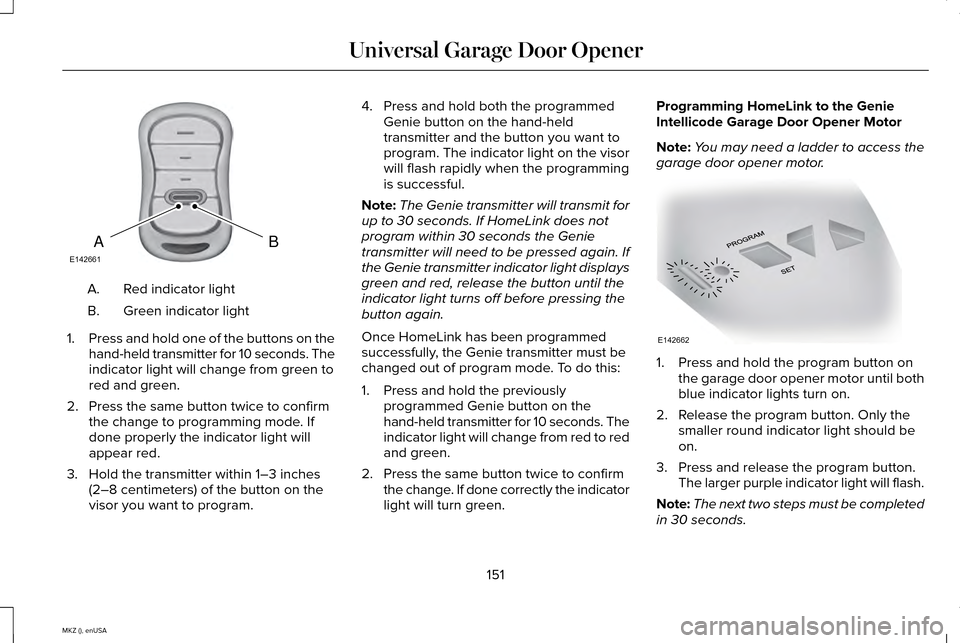
Red indicator light
A.
Green indicator light
B.
1. Press and hold one of the buttons on the
hand-held transmitter for 10 seconds. The
indicator light will change from green to
red and green.
2. Press the same button twice to confirm the change to programming mode. If
done properly the indicator light will
appear red.
3. Hold the transmitter within 1–3 inches (2–8 centimeters) of the button on the
visor you want to program. 4. Press and hold both the programmed
Genie button on the hand-held
transmitter and the button you want to
program. The indicator light on the visor
will flash rapidly when the programming
is successful.
Note: The Genie transmitter will transmit for
up to 30 seconds. If HomeLink does not
program within 30 seconds the Genie
transmitter will need to be pressed again. If
the Genie transmitter indicator light displays
green and red, release the button until the
indicator light turns off before pressing the
button again.
Once HomeLink has been programmed
successfully, the Genie transmitter must be
changed out of program mode. To do this:
1. Press and hold the previously programmed Genie button on the
hand-held transmitter for 10 seconds. The
indicator light will change from red to red
and green.
2. Press the same button twice to confirm the change. If done correctly the indicator
light will turn green. Programming HomeLink to the Genie
Intellicode Garage Door Opener Motor
Note:
You may need a ladder to access the
garage door opener motor. 1. Press and hold the program button on
the garage door opener motor until both
blue indicator lights turn on.
2. Release the program button. Only the smaller round indicator light should be
on.
3. Press and release the program button. The larger purple indicator light will flash.
Note: The next two steps must be completed
in 30 seconds.
151
MKZ (), enUSA Universal Garage Door OpenerBAE142661 E142662
Page 382 of 516
•
Do not leave playing devices in your
vehicle during extreme conditions as it
could cause them damage. See your
device's user guide for further
information.
• For your safety, some SYNC functions
are speed-dependent. Their use is limited
to when your vehicle is traveling at
speeds under 3 mph (5 km/h).
Make sure that you review your device's
manual before using it with SYNC. Speed-restricted Features
Some features of this system may be too
difficult to use while your vehicle is moving
so they are restricted from use unless your
vehicle is stationary.
•
Screens crowded with information, such
as Point of Interest reviews and ratings,
SIRIUS Travel Link sports scores, movie
times or ski conditions.
• Any action that requires you to use a
keyboard is restricted, such as entering
a navigation destination or editing
information.
• All lists are limited so the user can view
fewer entries (such as phone contacts or
recent phone call entries). See the following chart for more specific
examples.
Restricted features
Pairing a Bluetooth phone
Cellular Phone
Adding phonebook contacts or uploading phonebook contacts (from a USB)\
List entries are limited for phone contacts and recent phone call entrie\
s
Editing the keypad code
System Functionality
379
MKZ (), enUSA MyLincoln Touch™
Page 387 of 516
These commands can be said at any time
during a voice session
"Cancel""Exit"
"Go back"
"List of commands" "Main menu""Next page"
"Previous page"
"What can I say?" "Help" What Can I Say?
To access the available voice commands for
the current session, do one of the following:
•
During a voice session, press the help
icon (?) in the lower left status bar of the
screen.
• Say, "What can I say?" for an on-screen
listing of the possible voice commands
associated with your current voice
session.
• Press the voice icon. After the tone, say,
"Help" for an audible list of possible voice
commands.
Helpful Hints
• Make sure the interior of your vehicle is
as quiet as possible. Wind noise from
open windows and road vibrations may
prevent the system from correctly
recognizing spoken commands.
• After pressing the voice icon, wait until
after the tone sounds and Listening
appears before saying a command. Any
command spoken before this does not
register with the system. •
Speak naturally, without long pauses
between words.
• At any time, you can interrupt the system
while it is speaking by pressing the voice
icon.
Accessing a List of Available Commands
• If you use the touchscreen, press the
Settings icon >
Help > Voice Command
List.
• If you use the steering wheel control,
press the voice icon. After the tone,
speak your command clearly. Available voice commands
"Audio list of commands"
"Bluetooth audio list of commands" "Browse list of commands""CD list of commands"
"Climate control list of commands" "List of commands"
384
MKZ (), enUSA MyLincoln Touch™
Page 395 of 516

Voice control
Candidate lists are possible results from your voice commands. The syste\
m simply makes a best guess at your
request with these turned off.
Phone Candidate Lists
This allows you to adjust the system ’s voice volume level.
Voice Control Volume
* Even with confirmation prompts turned off, the system may occasionally ask you to confirm settings
Media Player Press the Settings icon > Settings
> Media Player, then select from
the following: Media player
When this feature is on, the system automatically switches to the media \
source upon initial connection. This
allows you to listen to music during the indexing process. When this fea\
ture is off, the system does not auto-
matically switch to the inserted media source.
Autoplay
Select to connect, disconnect, add or delete a device. You can also set a device as your favorite so that the
system automatically attempts to connect to that device at every ignitio\
n cycle.
Bluetooth Devices
When this feature is on, the system automatically indexes media on your connected Bluetooth device.
Index Bluetooth Audio
Devices
392
MKZ (), enUSA MyLincoln Touch™E142607
Page 399 of 516
Phone
Connect, disconnect, add or delete a device, as well as save it as a favorite.
Bluetooth Devices
Turn Bluetooth on and off.
Bluetooth
Have all calls go directly to your voice mail and not ring inside your v\
ehicle. With this feature turned on, text
message notifications are also suppressed and do not ring inside your ve\
hicle.
Do Not Disturb
Turn on or turn off the 911 Assist feature. See Information (page 429).
911 Assist
Select the type of notification for phone calls - ring tone, beep, text to speech, or have it be silent.
Phone Ringer
Select the type of notification for text messages - alert tone, beep, text to speech, or have it be silent.
Text Message Notification
If compatible with your phone, you can adjust your internet data connection. Select to make your connection
profile with the personal area network or to turn off your connection. Y\
ou can also choose to adjust your settings
or have the system always connect, never connect when roaming or query o\
n connect. Press
? for more
information.
Internet Data Connection
Access features, such as automatic phonebook download, re-download your \
phonebook, add contacts from
your phone as well as delete or upload your phonebook.
Manage Phonebook
Have the system alert you when in Roaming mode.
Roaming Warning
396
MKZ (), enUSA MyLincoln Touch™
Page 401 of 516

Wi-fi
Instead of using Wi-Fi, your system can also use a USB mobile broadband \
connection to access the internet.
(You must turn on your mobile broadband device on your personal computer b\
efore connecting it to the system.)
This screen allows you to set up what is your typical area for your USB \
mobile broadband connection. (USB
mobile broadband settings may not display if the device is already on.)\
You can select the following: Country,
Carrier, Phone Number, User Name and Password.
USB Mobile Broadband
Shows you the currently paired devices as well as giving you your typica\
l Bluetooth options to connect,
disconnect, set as favorite, delete and add device. Bluetooth is a registered trademark of the Bluetooth SIG.
Bluetooth Settings
Choose your connection methods and change them as needed. You can select to Change Order and have
the system either always attempt to connect using a USB mobile broadband\
or using Wi-Fi.
Prioritize Connection
Methods The Wi-Fi
CERTIFIED
Logo is a
certification mark of the Wi-Fi Alliance. Help Press the Settings icon > Help,
then select from the following:
398
MKZ (), enUSA MyLincoln Touch™E142626 E142607
Page 423 of 516
Bluetooth Audio
Your system allows you to stream audio over
your vehicle's speakers from your connected,
Bluetooth-enabled cellular phone.
To access, press the lower left
corner on the touchscreen, then
select the BT Stereo tab.
Bluetooth Audio Voice Commands If you are listening to a Bluetooth
audio device, press the voice
button on the steering wheel
control. When prompted, say "Next song",
"Pause", "Play" or "Previous song".
If you are not listening to a Bluetooth audio
device, press the voice button and, after the
tone, say "Next song", "Pause", "Play" or
"Previous song". A/V Inputs WARNINGS
Driving while distracted can result in
loss of vehicle control, crash and injury.
We strongly recommend that you use
extreme caution when using any device that
may take your focus off the road. Your
primary responsibility is the safe operation
of your vehicle. We recommend against the
use of any handheld device while driving and
encourage the use of voice-operated
systems when possible. Make sure you are
aware of all applicable local laws that may
affect the use of electronic devices while
driving. For safety reasons, do not connect or
adjust the settings on your portable
music player while your vehicle is moving. WARNINGS
Store the portable music player in a
secure location, such as the center
console or the glove box, when your vehicle
is moving. Hard objects may become
projectiles in a crash or sudden stop, which
may increase the risk of serious injury. The
audio extension cable must be long enough
to allow the portable music player to be
safely stored while your vehicle is moving. 420
MKZ (), enUSA MyLincoln Touch™E142611 E142599
Page 426 of 516
Phone
A
Quick Dial
B
Phonebook
C
History
D
Messaging
E
Settings
F
Hands-free calling is one of the main features
of SYNC. Once you pair your phone, you can
access many options using the touchscreen
or voice commands. While the system
supports a variety of features, many are
dependent on your cellular phone ’s
functionality.
At a minimum, most cellular phones with
Bluetooth wireless technology support the
following functions:
• Answering an incoming call.
• Ending a call.
• Using privacy mode.
• Dialing a number.
• Redialing. •
Call waiting notification.
• Caller ID.
Other features, such as text messaging using
Bluetooth and automatic phonebook
download, are phone-dependent features.
To check your phone ’s compatibility, see
your device ’s manual and visit
www.SYNCMyRide.com,
www.SYNCMyRide.ca or
www.syncmaroute.ca. Pairing Your Phone for the First Time WARNING
Driving while distracted can result in
loss of vehicle control, crash and injury.
We strongly recommend that you use
extreme caution when using any device that
may take your focus off the road. Your
primary responsibility is the safe operation
of your vehicle. We recommend against the
use of any hand-held device while driving
and encourage the use of voice-operated
systems when possible. Make sure you are
aware of all applicable local laws that may
affect the use of electronic devices while
driving 423
MKZ (), enUSA MyLincoln Touch™
Page 427 of 516
The first thing you must do to use the phone
features of SYNC is to pair your
Bluetooth-enabled cellular phone with SYNC.
This allows you to use your phone in a
hands-free manner.
Note:
Put the transmission in park (P). Switch
on your vehicle ignition and the radio.
1. Touch Add Phone in the upper left
corner of the touchscreen. Find SYNC
appears on the screen, and instructs you
to begin the pairing process from your
device.
2. Make sure that Bluetooth is set to On and
that your cellular phone is in the proper
mode. See your device ’s manual if
necessary.
Note: Select
SYNC, and a six-digit PIN
appears on your device.
3. If prompted to enter a PIN on your device, it does not support Secure Simple
Pairing. To pair, enter the PIN displayed
on the touchscreen. Skip the next step. 4.
When prompted on your phone ’s display,
confirm that the PIN provided by SYNC
matches the PIN displayed on your
cellular phone.
5. The display indicates when the pairing is
successful.
SYNC may prompt you with more phone
options. For more information on your
phone's capability, see your device's manual
and visit the website.
Pairing Subsequent Phones
Note: Put the transmission in park (P). Switch
on your vehicle ignition and the radio.
1. Press the
Phone corner of the
touchscreen > Settings > BT Devices >
Add Device.
2. Make sure that Bluetooth is set to On and
that your cellular phone is in the proper
mode. See your device ’s manual if
necessary.
Note: Select
SYNC, and a six-digit PIN
appears on your device. 3. If prompted to enter a PIN on your
device, it does not support Secure Simple
Pairing. To pair, enter the PIN displayed
on the touchscreen. Skip the next step.
4. When prompted on your phone ’s display,
confirm that the PIN provided by SYNC
matches the PIN displayed on your
cellular phone.
5. The display indicates when the pairing is
successful.
SYNC may prompt you with more phone
options. For more information on your
phone's capability, see your device's manual
and visit the website.
Making Calls Press the voice button on your
steering wheel controls. When
prompted, say, "Call
say "Dial", then the desired number. To end the call or exit phone
mode, press and hold this phone
button on your steering wheel
controls.
424
MKZ (), enUSA MyLincoln Touch™E142599 E142632
Page 428 of 516
Receiving Calls
During an incoming call, an audible tone
sounds. Call information appears in the
display if it is available.
Accept the call by pressing Accept
on the touchscreen or by pressing
this phone button on your steering
wheel controls. Reject the call by pressing Reject
on the touchscreen or by pressing
and holding this phone button on
your steering wheel controls.
Ignore the call by doing nothing. SYNC logs
it as a missed call.
Phone Menu Options
Press the top left corner on your touchscreen
to select from the following options: Phone
Touch this button to access the on-screen
numerical pad to enter a number and place
a call. During an active call, you can also
choose to:
•
Mute the call.
• Put the call on hold.
• Turn on the privacy feature.
• Join two calls.
• End the call.
Quick Dial
Set up favorite contacts from your
phonebook or history folder.
Phonebook
Touch this button to access and call any
contacts in your previously downloaded
phone book. The system places the entries
in alphabetical categories summarized at the
top of the screen. To switch on contact picture settings, if your
device supports this feature, press
Phone >
Settings > Manage Phonebook > Download
photos from Phonebook > On.
History
After you connect your Bluetooth-enabled
phone to SYNC, you can access any
previously dialed, received or missed calls.
You can also choose to save these to your
Favorites or to Quick Dial.
Note: This is a phone-dependent feature. If
your phone does not support downloading
call history using Bluetooth, SYNC keeps
track of calls made with the SYNC system.
Messaging
Send text messages using your touchscreen.
See
Text messaging later in this section.
Settings
Touch this button to access various phone
settings, such as turning Bluetooth on and
off, managing your phonebook and more.
See
Phone settings later in this section.
425
MKZ (), enUSA MyLincoln Touch™ E142632