radio controls LINCOLN MKZ 2015 Owners Manual
[x] Cancel search | Manufacturer: LINCOLN, Model Year: 2015, Model line: MKZ, Model: LINCOLN MKZ 2015Pages: 516, PDF Size: 4.48 MB
Page 4 of 516
Introduction
About This Manual............................................7
Symbols Glossary
..............................................7
Data Recording
..................................................9
California Proposition 65................................11
Perchlorate........................................................12
Lincoln Automotive Financial Services
.........................................................12
Replacement Parts Recommendation........12
Special Notices
.................................................13
Mobile Communications Equipment...........13
Export Unique Options...................................14
Child Safety
General Information
........................................15
Installing Child Seats.......................................17
Booster Seats
..................................................26
Child Seat Positioning...................................28
Child Safety Locks..........................................30
Safety Belts
Principle of Operation...................................32
Fastening the Safety Belts...........................33 Safety Belt Height Adjustment....................37
Safety Belt Warning Lamp and Indicator
Chime.............................................................37
Safety Belt Minder..........................................38
Child Restraint and Safety Belt Maintenance................................................40
Personal Safety System ™
Personal Safety System ™
..............................42
Supplementary Restraints System
Principle of Operation....................................43
Driver and Passenger Airbags....................44
Front Passenger Sensing System..............45
Side Airbags
.....................................................48
Driver and Passenger Knee Airbags.........49
Side Curtain Airbags
......................................49
Crash Sensors and Airbag Indicator...........51
Airbag Disposal...............................................52
Keys and Remote Controls
General Information on Radio Frequencies.................................................53 Remote Control
...............................................54
Replacing a Lost Key or Remote Control..........................................................58
MyKey™
Principle of Operation...................................59
Creating a MyKey...........................................60
Clearing All MyKeys.......................................60
Checking MyKey System Status.................62
Using MyKey With Remote Start Systems.........................................................63
MyKey Troubleshooting
................................63
Locks
Locking and Unlocking
.................................65
Keyless Entry
....................................................70
Interior Luggage Compartment Release..........................................................73
Security
Passive Anti-Theft System............................75
Anti-Theft Alarm
..............................................76
1
MKZ (), enUSA Table of Contents
Page 16 of 516
Warranty on Replacement Parts
Genuine Ford and Motorcraft replacement
parts are the only replacement parts that
benefit from a Ford Warranty. Damage
caused to your vehicle as a result of the
failure of non-Ford parts may not be covered
by the Ford Warranty. For additional
information, refer to the terms and conditions
of the Ford Warranty.
SPECIAL NOTICES
New Vehicle Limited Warranty
For a detailed description of what is covered
and what is not covered by your vehicle
’s
New Vehicle Limited Warranty, refer to the
Warranty Manual that is provided to you
along with your Owner’ s Manual.
Special Instructions
For your added safety, your vehicle is fitted
with sophisticated electronic controls. WARNINGS
Failure to follow the specific warnings
and instructions could result in
personal injury. See Supplementary
Restraints System (page 43). Front seat mounted rear-facing child
or infant seats should
NEVER be
placed in front of an active passenger airbag. MOBILE COMMUNICATIONS
EQUIPMENT
Using mobile communications equipment is
becoming increasingly important in the
conduct of business and personal affairs.
However, you must not compromise your
own or others
’ safety when using such
equipment. Mobile communications can
enhance personal safety and security when
appropriately used, particularly in emergency
situations. Safety must be paramount when using mobile communications equipment to
avoid negating these benefits. Mobile
communication equipment includes, but is
not limited to, cellular phones, pagers,
portable email devices, text messaging
devices and portable two-way radios. WARNING
Driving while distracted can result in
loss of vehicle control, crash and injury.
We strongly recommend that you use
extreme caution when using any device that
may take your focus off the road. Your
primary responsibility is the safe operation
of your vehicle. We recommend against the
use of any hand-held device while driving
and encourage the use of voice-operated
systems when possible. Make sure you are
aware of all applicable local laws that may
affect the use of electronic devices while
driving. 13
MKZ (), enUSA Introduction
Page 56 of 516
GENERAL INFORMATION ON
RADIO FREQUENCIES
This device complies with Part 15 of the FCC
Rules and with Industry Canada
license-exempt RSS standard(s). Operation
is subject to the following two conditions: (1)
This device may not cause harmful
interference, and (2) This device must accept
any interference received, including
interference that may cause undesired
operation.
Note:
Changes or modifications not
expressively approved by the party
responsible for compliance could void the
user's authority to operate the equipment.
The term IC before the radio certification
number only signifies that Industry Canada
technical specifications were met. The typical operating range for your
transmitter is approximately 33 feet (10
meters). Vehicles with the remote start
feature will have a greater range. One of the
following could cause a decrease in
operating range:
•
weather conditions
• nearby radio towers
• structures around the vehicle
• other vehicles parked next to your
vehicle
Other short-distance radio transmitters, such
as amateur radios, medical equipment,
wireless headphones, remote controls and
alarm systems may operate on the same
frequency as your remote control. If other
transmitters are operating on those
frequencies, you may not be able to use your
remote control. Using your remote control
near some types of electronic equipment,
such as USB devices, computers or cell
phones can interfere with remote operation.
Operating your remote control near metal or
metallic-finished purses, bags or clothing can
interfere with remote operation. You can lock
and unlock the doors with the key. Note:
Make sure to lock your vehicle before
leaving it unattended.
Note: If you are in range, the remote control
will operate if you press any button
unintentionally.
Intelligent Access
The system uses a radio frequency signal to
communicate with your vehicle and authorize
your vehicle to unlock when one of the
following conditions are met:
• You touch the inside of the front exterior
door handle.
• You press the luggage compartment
button.
• You press a button on the transmitter.
If excessive radio frequency interference is
present in the area or if the transmitter
battery is low, you may need to mechanically
unlock your door. You can use the
mechanical key blade in your intelligent
access key to open the driver door in this
situation.
See Remote Control (page 54).
53
MKZ (), enUSA Keys and Remote Controls
Page 60 of 516
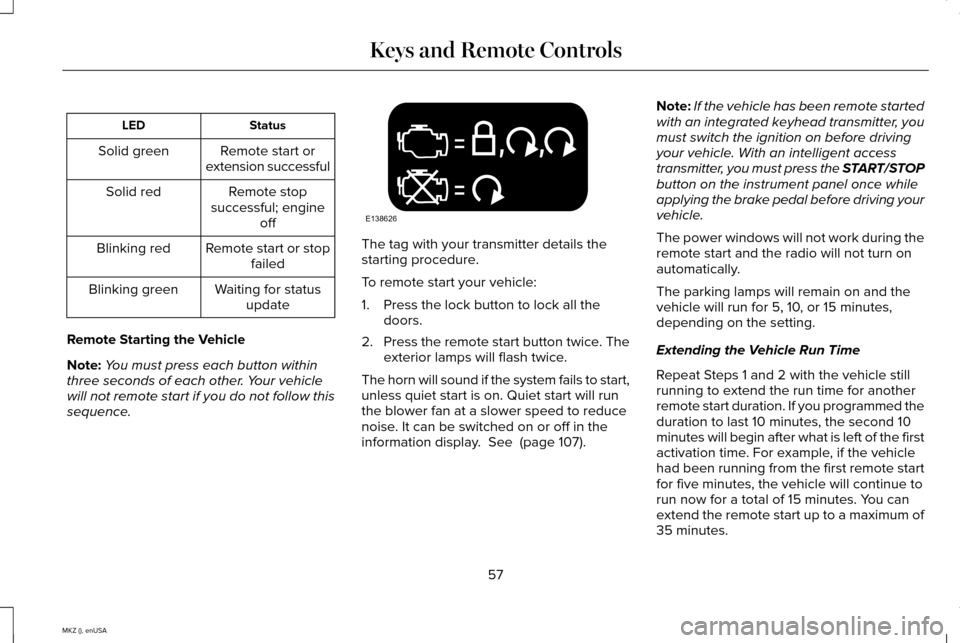
Status
LED
Remote start or
extension successful
Solid green
Remote stop
successful; engine off
Solid red
Remote start or stopfailed
Blinking red
Waiting for statusupdate
Blinking green
Remote Starting the Vehicle
Note: You must press each button within
three seconds of each other. Your vehicle
will not remote start if you do not follow this
sequence. The tag with your transmitter details the
starting procedure.
To remote start your vehicle:
1. Press the lock button to lock all the
doors.
2. Press the remote start button twice. The
exterior lamps will flash twice.
The horn will sound if the system fails to start,
unless quiet start is on. Quiet start will run
the blower fan at a slower speed to reduce
noise. It can be switched on or off in the
information display. See (page 107). Note:
If the vehicle has been remote started
with an integrated keyhead transmitter, you
must switch the ignition on before driving
your vehicle. With an intelligent access
transmitter, you must press the START/STOP
button on the instrument panel once while
applying the brake pedal before driving your
vehicle.
The power windows will not work during the
remote start and the radio will not turn on
automatically.
The parking lamps will remain on and the
vehicle will run for 5, 10, or 15 minutes,
depending on the setting.
Extending the Vehicle Run Time
Repeat Steps 1 and 2 with the vehicle still
running to extend the run time for another
remote start duration. If you programmed the
duration to last 10 minutes, the second 10
minutes will begin after what is left of the first
activation time. For example, if the vehicle
had been running from the first remote start
for five minutes, the vehicle will continue to
run now for a total of 15 minutes. You can
extend the remote start up to a maximum of
35 minutes.
57
MKZ (), enUSA Keys and Remote ControlsE138626
Page 375 of 516
Note:
The MyLincoln Touch system controls
most of the audio features. See
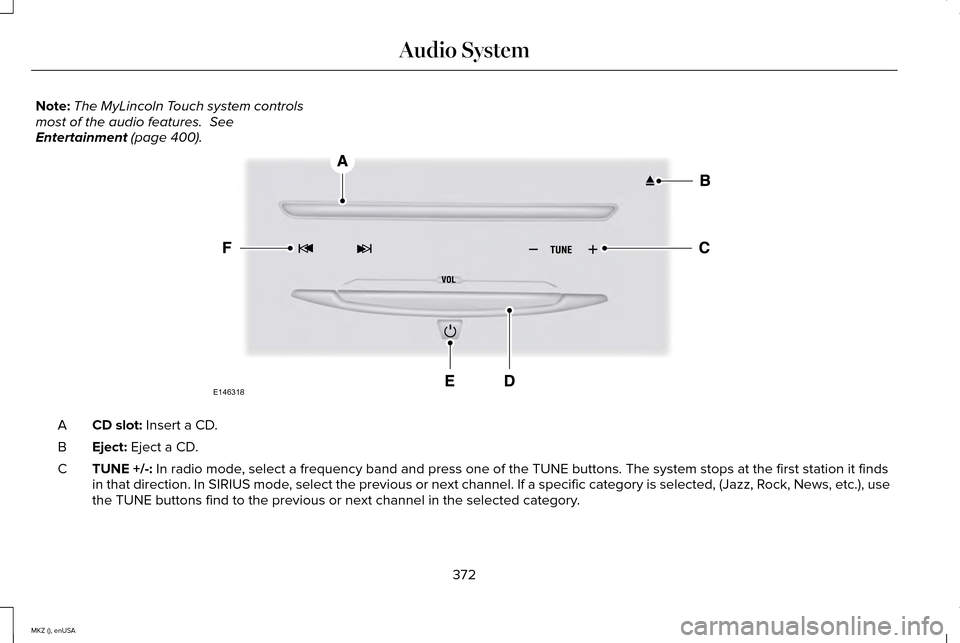
Entertainment (page 400). CD slot:
Insert a CD.
A
Eject:
Eject a CD.
B
TUNE +/-:
In radio mode, select a frequency band and press one of the TUNE buttons. The system \
stops at the first station it finds
in that direction. In SIRIUS mode, select the previous or next channel. If a specific category is selecte\
d, (Jazz, Rock, News, etc.), use
the TUNE buttons find to the previous or next channel in the selected ca\
tegory.
C
372
MKZ (), enUSA Audio SystemE146318
Page 404 of 516
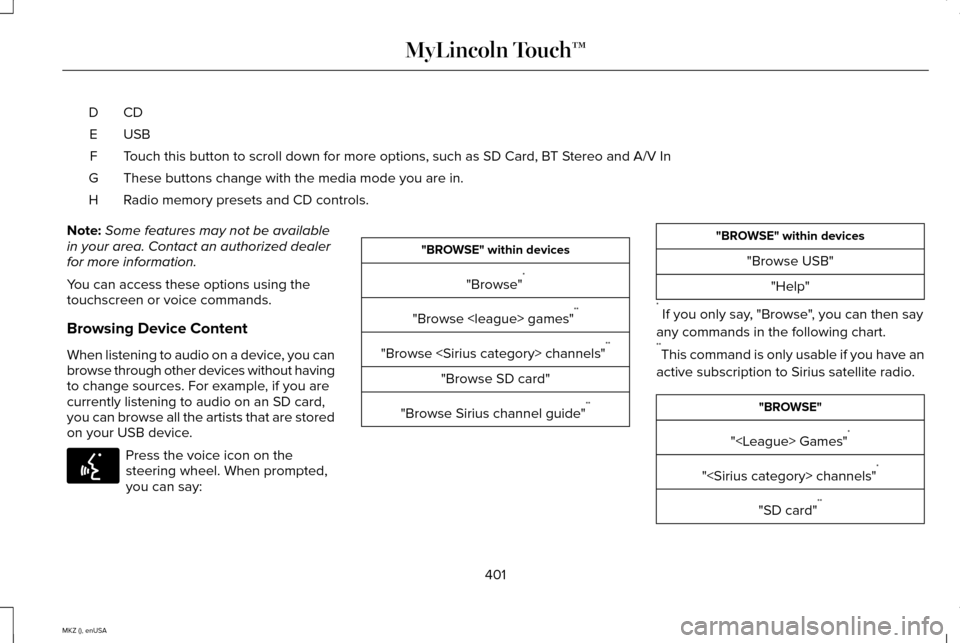
CDD
USBE
Touch this button to scroll down for more options, such as SD Card, BT Stereo and A/V In
F
These buttons change with the media mode you are in.
G
Radio memory presets and CD controls.
H
Note: Some features may not be available
in your area. Contact an authorized dealer
for more information.
You can access these options using the
touchscreen or voice commands.
Browsing Device Content
When listening to audio on a device, you can
browse through other devices without having
to change sources. For example, if you are
currently listening to audio on an SD card,
you can browse all the artists that are stored
on your USB device. Press the voice icon on the
steering wheel. When prompted,
you can say: "BROWSE" within devices
"Browse" *
"Browse
"Browse
"Browse SD card"
"Browse Sirius channel guide" ** "BROWSE" within devices
"Browse USB""Help"
* If you only say, "Browse", you can then say
any commands in the following chart.
** This command is only usable if you have an
active subscription to Sirius satellite radio. "BROWSE"
"
"
"SD card" **
401
MKZ (), enUSA MyLincoln Touch™E142599
Page 405 of 516
"BROWSE"
"Sirius Channel Guide" *
"USB" **
"Help"
* This command is only usable if you have an
active subscription to Sirius satellite radio.
** For more commands in SD card or USB
mode, see the "SD Card and USB Port"
section of this chapter.
Your voice system allows you to change
audio sources with a simple voice command.
For example, if you are listening to music on
a USB device, then want to switch to a
satellite radio channel, simply press the voice
button on the steering wheel controls and
say the name of the Sirius station (such as,
"the Highway"). The following voice
commands are available at the top level of
the voice session no matter which current
audio source you are listening to (such as a
USB device or Sirius satellite radio). Note:
This is only available when your
MyLincoln Touch system language is set to
North American English. Sample commands
"<87.9-107.9>""<530-1710>"
"
"AM <530-1710>"
"FM <87.9-107.9>"
"Play [album]
"Play [artist]
"Play [genre]
"Play [playlist]
"Play [song]
"Play
"Play
"Sirius <0-223>" *
"Sports games" *
* This command is only usable if you have an
active subscription to Sirius satellite radio.
** The commands that have [ ] around the
word means that the word is optional. For
example, if you say, "Play Metallica", this is
the same as the voice command, "Play [artist]
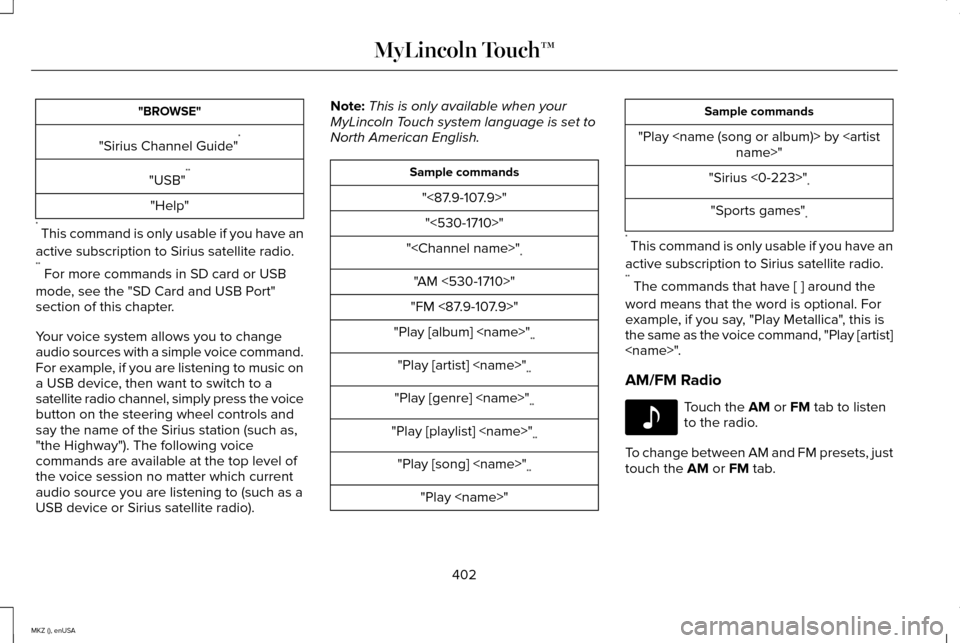
AM/FM Radio Touch the AM or FM tab to listen
to the radio.
To change between AM and FM presets, just
touch the
AM or FM tab.
402
MKZ (), enUSA MyLincoln Touch™E142611
Page 410 of 516
Potential station issues
Action
Cause
Issues
Fill out the station issue form at website listed
below.*
Data service issue by the radio broadcaster.
There is no text information shown for
currently selected frequency.
No action required. This is normal behavior.
Pressing Scan disables HD2-HD7 channel
search.
HD2-HD7 stations not found when Scan is
pressed.
* http://www.ibiquity.com/automotive/report_radio_station_experiences
HD Radio Technology manufactured under
license from iBiquity Digital Corp. U.S. and
foreign patents. HD Radio and the HD and
HD Radio logos are proprietary trademarks
of iBiquity Digital Corp. Ford Motor Company
and iBiquity Digital Corp. are not responsible
for the content sent using HD Radio
technology. Content may be changed, added
or deleted at any time at the station owner's
discretion. Radio Voice Commands If you are listening to the radio,
press the voice button on the
steering wheel controls. When
prompted, say any of the following
commands.
If you are not listening to the radio, press the
voice button and, after the tone, say "Radio",
then any of the following commands. "RADIO"
"<87.9-107.9>"
"<87.9-107.9> HD" 1
"<530-1710>" "AM"
"AM <530-1710>" "AM autoset"
"AM autoset preset <#>" "AM preset <#>"
407
MKZ (), enUSA MyLincoln Touch™E142599
Page 416 of 516
Troubleshooting tips
Action
Cause
Radio display
Contact Sirius at 1-888-539-7474 to resolve
subscription issues.
Your satellite service is no longer available.
Call Sirius
1-888-539-7474.
Use the channel guide to turn off the Lock or
Skip function on that station.
All the channels in the selected category are
either skipped or locked.
None found. Check Channel Guide.
No action required.
Sirius has updated the channels available for
your vehicle.
Subscription Updated.
Sirius Satellite Radio Voice Commands If you are listening to Sirius satellite
radio, press the voice button on
the steering wheel controls. When
prompted, say any of the following
commands.
If you are not listening to Sirius satellite radio,
press the voice button and, after the tone,
say "Sirius", then any of the following
commands. "SIRIUS"
"
"SAT preset <#>" "SAT 1"
"SAT 1 Preset <#>" "SAT 2"
"SAT 2 preset <#>" "SIRIUS"
"SAT 3"
"SAT 3 preset <#>" "Sirius <0-223>" "Sirius off ""Sirius on"
"Sports game" *
413
MKZ (), enUSA MyLincoln Touch™E142599
Page 424 of 516
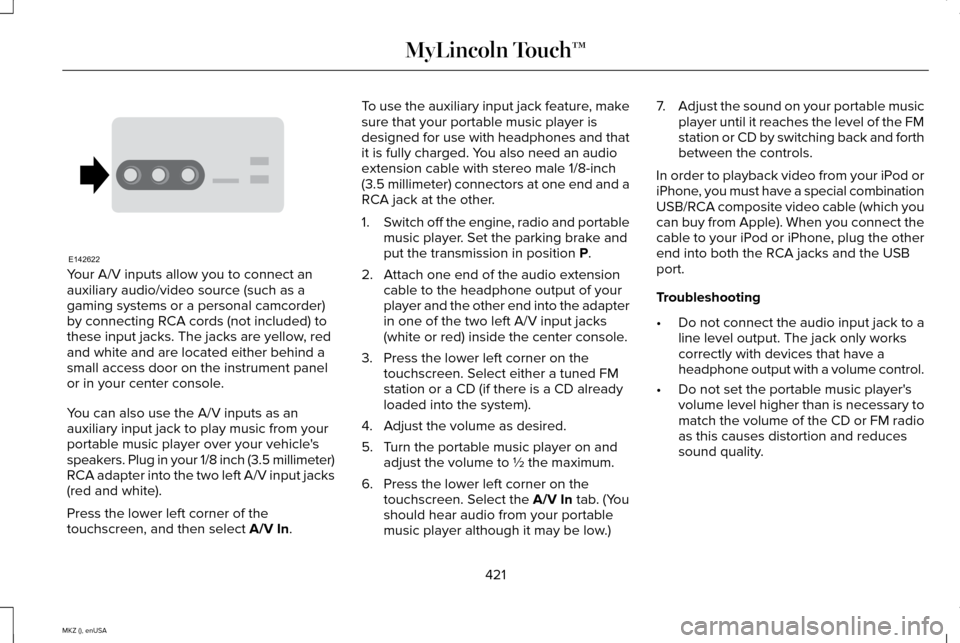
Your A/V inputs allow you to connect an
auxiliary audio/video source (such as a
gaming systems or a personal camcorder)
by connecting RCA cords (not included) to
these input jacks. The jacks are yellow, red
and white and are located either behind a
small access door on the instrument panel
or in your center console.
You can also use the A/V inputs as an
auxiliary input jack to play music from your
portable music player over your vehicle's
speakers. Plug in your 1/8 inch (3.5 millimeter)
RCA adapter into the two left A/V input jacks
(red and white).
Press the lower left corner of the
touchscreen, and then select A/V In. To use the auxiliary input jack feature, make
sure that your portable music player is
designed for use with headphones and that
it is fully charged. You also need an audio
extension cable with stereo male 1/8-inch
(3.5 millimeter) connectors at one end and a
RCA jack at the other.
1.
Switch off the engine, radio and portable
music player. Set the parking brake and
put the transmission in position
P.
2. Attach one end of the audio extension cable to the headphone output of your
player and the other end into the adapter
in one of the two left A/V input jacks
(white or red) inside the center console.
3. Press the lower left corner on the touchscreen. Select either a tuned FM
station or a CD (if there is a CD already
loaded into the system).
4. Adjust the volume as desired.
5. Turn the portable music player on and adjust the volume to ½ the maximum.
6. Press the lower left corner on the touchscreen. Select the
A/V In tab. (You
should hear audio from your portable
music player although it may be low.) 7.
Adjust the sound on your portable music
player until it reaches the level of the FM
station or CD by switching back and forth
between the controls.
In order to playback video from your iPod or
iPhone, you must have a special combination
USB/RCA composite video cable (which you
can buy from Apple). When you connect the
cable to your iPod or iPhone, plug the other
end into both the RCA jacks and the USB
port.
Troubleshooting
• Do not connect the audio input jack to a
line level output. The jack only works
correctly with devices that have a
headphone output with a volume control.
• Do not set the portable music player's
volume level higher than is necessary to
match the volume of the CD or FM radio
as this causes distortion and reduces
sound quality.
421
MKZ (), enUSA MyLincoln Touch™E142622