wheel LINCOLN MKZ 2016 Owners Manual
[x] Cancel search | Manufacturer: LINCOLN, Model Year: 2016, Model line: MKZ, Model: LINCOLN MKZ 2016Pages: 544, PDF Size: 5.77 MB
Page 368 of 544
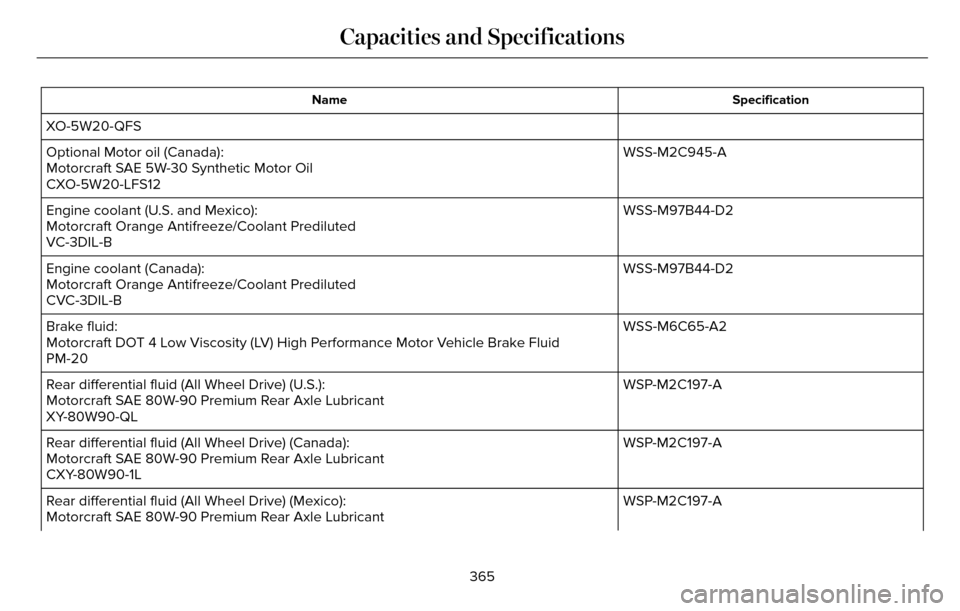
Specification
Name
XO-5W20-QFS
WSS-M2C945-A
Optional Motor oil (Canada):
Motorcraft SAE 5W-30 Synthetic Motor Oil
CXO-5W20-LFS12
WSS-M97B44-D2
Engine coolant (U.S. and Mexico):
Motorcraft Orange Antifreeze/Coolant Prediluted
VC-3DIL-B
WSS-M97B44-D2
Engine coolant (Canada):
Motorcraft Orange Antifreeze/Coolant Prediluted
CVC-3DIL-B
WSS-M6C65-A2
Brake fluid:
Motorcraft DOT 4 Low Viscosity (LV) High Performance Motor Vehicle Brake Fluid
PM-20
WSP-M2C197-A
Rear differential fluid (All Wheel Drive) (U.S.):
Motorcraft SAE 80W-90 Premium Rear Axle Lubricant
XY-80W90-QL
WSP-M2C197-A
Rear differential fluid (All Wheel Drive) (Canada):
Motorcraft SAE 80W-90 Premium Rear Axle Lubricant
CXY-80W90-1L
WSP-M2C197-A
Rear differential fluid (All Wheel Drive) (Mexico):
Motorcraft SAE 80W-90 Premium Rear Axle Lubricant
365
Capacities and Specifications
Page 369 of 544
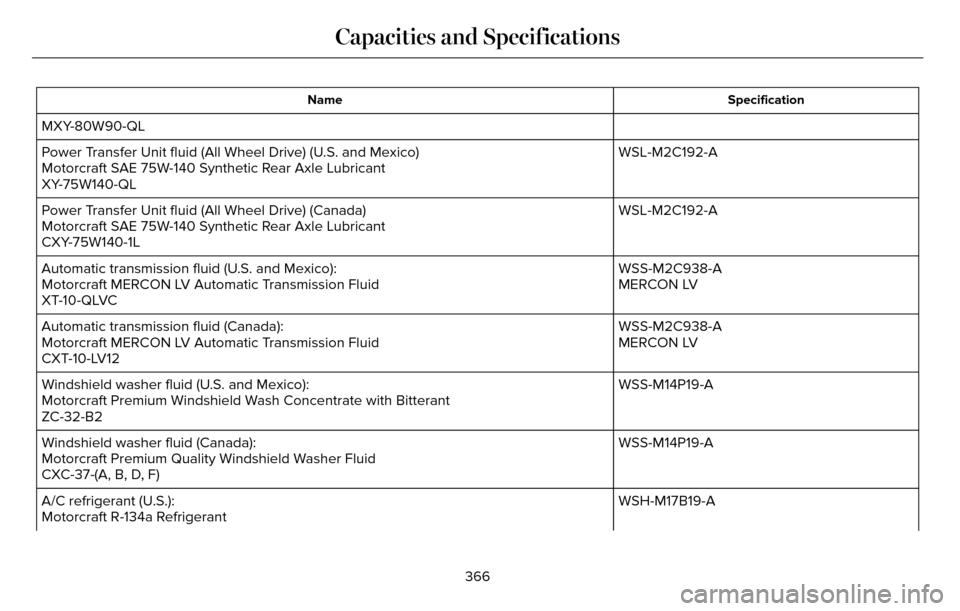
Specification
Name
MXY-80W90-QL
WSL-M2C192-A
Power Transfer Unit fluid (All Wheel Drive) (U.S. and Mexico)
Motorcraft SAE 75W-140 Synthetic Rear Axle Lubricant
XY-75W140-QL
WSL-M2C192-A
Power Transfer Unit fluid (All Wheel Drive) (Canada)
Motorcraft SAE 75W-140 Synthetic Rear Axle Lubricant
CXY-75W140-1L
WSS-M2C938-A
Automatic transmission fluid (U.S. and Mexico):
MERCON LV
Motorcraft MERCON LV Automatic Transmission Fluid
XT-10-QLVC
WSS-M2C938-A
Automatic transmission fluid (Canada):
MERCON LV
Motorcraft MERCON LV Automatic Transmission Fluid
CXT-10-LV12
WSS-M14P19-A
Windshield washer fluid (U.S. and Mexico):
Motorcraft Premium Windshield Wash Concentrate with Bitterant
ZC-32-B2
WSS-M14P19-A
Windshield washer fluid (Canada):
Motorcraft Premium Quality Windshield Washer Fluid
CXC-37-(A, B, D, F)
WSH-M17B19-A
A/C refrigerant (U.S.):
Motorcraft R-134a Refrigerant
366
Capacities and Specifications
Page 381 of 544
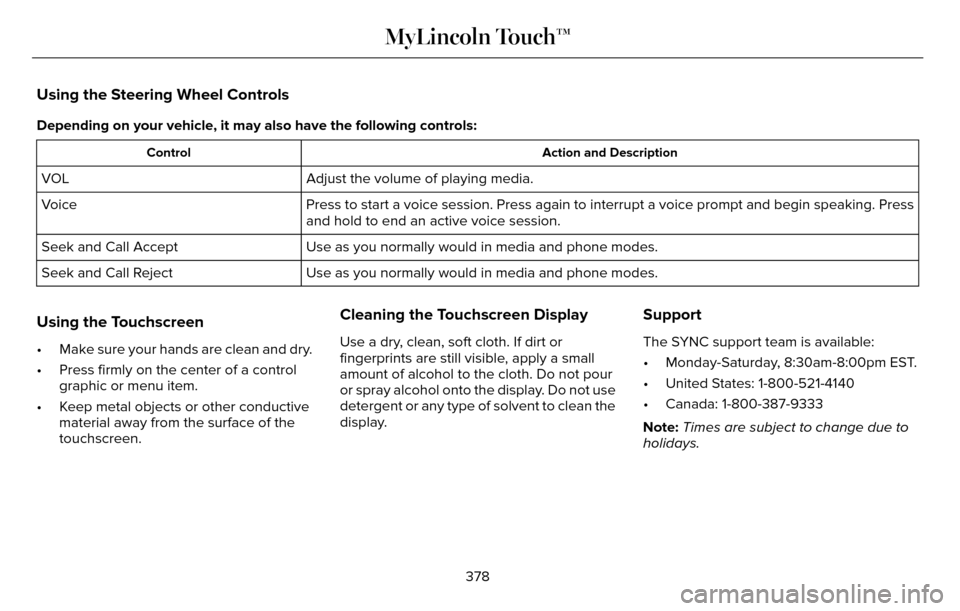
Using the Steering Wheel Controls
Depending on your vehicle, it may also have the following controls:
Action and Description
Control
Adjust the volume of playing media.
VOL
Press to start a voice session. Press again to interrupt a voice prompt \
and begin speaking. Press
and hold to end an active voice session.
Voice
Use as you normally would in media and phone modes.
Seek and Call Accept
Use as you normally would in media and phone modes.
Seek and Call Reject
Using the Touchscreen
• Make sure your hands are clean and dry.
• Press firmly on the center of a control
graphic or menu item.
• Keep metal objects or other conductive material away from the surface of the
touchscreen.
Cleaning the Touchscreen Display
Use a dry, clean, soft cloth. If dirt or
fingerprints are still visible, apply a small
amount of alcohol to the cloth. Do not pour
or spray alcohol onto the display. Do not use
detergent or any type of solvent to clean the
display.
Support
The SYNC support team is available:
• Monday-Saturday, 8:30am-8:00pm EST.
• United States: 1-800-521-4140
• Canada: 1-800-387-9333
Note: Times are subject to change due to
holidays.
378
MyLincoln Touch™
Page 384 of 544
Privacy Information
When you connect a cell phone to SYNC,
the system creates a profile within your
vehicle that links to that cell phone. This
profile helps in offering you more cellular
features and operating more efficiently.
Among other things, this profile may contain
data about your cell phone book, text
messages (read and unread), and call history,
including history of calls when your cell
phone was not connected to the system. In
addition, if you connect a media device, the
system creates and retains an index of
supported media content. The system also
records a short development log of
approximately 10 minutes of all recent system
activity. The log profile and other system data
may be used to improve the system and help
diagnose any problems that may occur.
The cellular profile, media device index, and
development log remain in your vehicle
unless you delete them, and are generally
accessible only in your vehicle when your
cell phone or media player is connected. If
you no longer plan to use the system or your
vehicle, we recommend you carry out a
Master Reset to erase all stored information.System data cannot be accessed without
special equipment and access to your
vehicle's SYNC module. Ford Motor
Company and Ford of Canada do not access
the system data for any purpose other than
as described without consent, a court order,
or where required by law enforcement, other
government authorities, or other third parties
acting with lawful authority. Other parties
may seek to access the information
independently of Ford Motor Company and
Ford of Canada. For further privacy
information, see the sections on 911 Assist®,
Vehicle Health Report, and Traffic, Directions
and Information.
Using Voice Commands
This system helps you control many features
using voice commands. This allows you to
keep your hands on the wheel and focus on
what is in front of you. The system provides
feedback through audible tones, prompts,
questions and spoken confirmations
depending on the situation and the chosen
level of interaction (voice settings).
The system also asks short questions
(confirmation prompts) when it is not sure of
your request or when there are multiple
possible responses to your request.
When using voice commands, words and
icons may appear in the lower left status bar
indicating the status of the voice command
session (such as Listening, Success, Failed,
Paused or Try Again).
How to Use Voice Commands
E142599
The following are some of the
voice commands that you can say
at any time during a voice
command session.
381
MyLincoln Touch™
Page 385 of 544
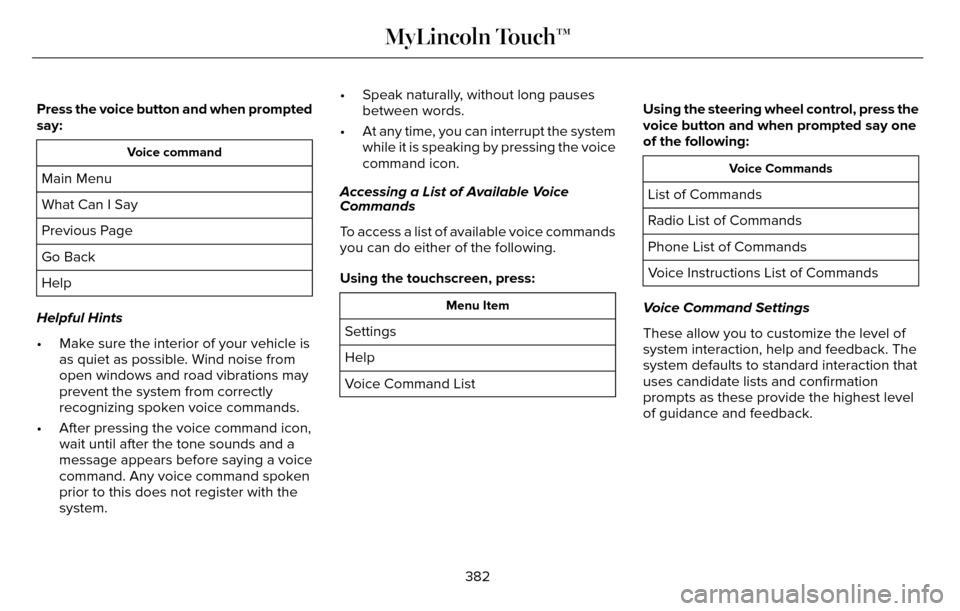
Press the voice button and when prompted
say:
Voice command
Main Menu
What Can I Say
Previous Page
Go Back
Help
Helpful Hints
• Make sure the interior of your vehicle is as quiet as possible. Wind noise from
open windows and road vibrations may
prevent the system from correctly
recognizing spoken voice commands.
• After pressing the voice command icon, wait until after the tone sounds and a
message appears before saying a voice
command. Any voice command spoken
prior to this does not register with the
system. • Speak naturally, without long pauses
between words.
• At any time, you can interrupt the system while it is speaking by pressing the voice
command icon.
Accessing a List of Available Voice
Commands
To access a list of available voice commands
you can do either of the following.
Using the touchscreen, press:
Menu Item
Settings
Help
Voice Command List Using the steering wheel control, press the
voice button and when prompted say one
of the following:
Voice Commands
List of Commands
Radio List of Commands
Phone List of Commands
Voice Instructions List of Commands
Voice Command Settings
These allow you to customize the level of
system interaction, help and feedback. The
system defaults to standard interaction that
uses candidate lists and confirmation
prompts as these provide the highest level
of guidance and feedback.
382
MyLincoln Touch™
Page 388 of 544
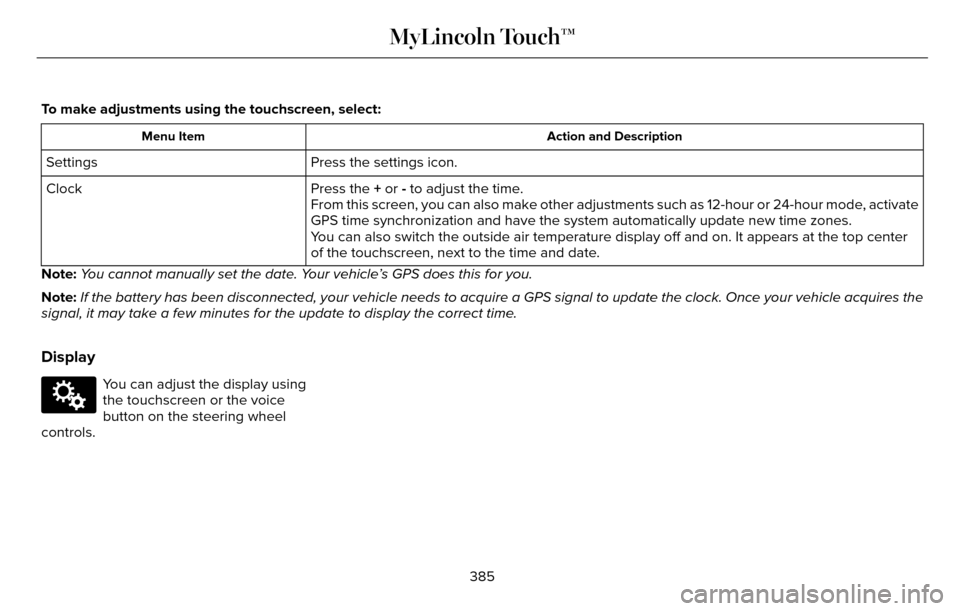
To make adjustments using the touchscreen, select:
Action and Description
Menu Item
Press the settings icon.
Settings
Press the + or - to adjust the time.
Clock
From this screen, you can also make other adjustments such as 12-hour or\
24-hour mode, activate
GPS time synchronization and have the system automatically update new ti\
me zones.
You can also switch the outside air temperature display off and on. It ap\
pears at the top center
of the touchscreen, next to the time and date.
Note: You cannot manually set the date. Your vehicle’s GPS does this for you.
Note: If the battery has been disconnected, your vehicle needs to acquire a GP\
S signal to update the clock. Once your vehicle acquires the
signal, it may take a few minutes for the update to display the correct \
time.
Display
E142607
You can adjust the display using
the touchscreen or the voice
button on the steering wheel
controls.
385
MyLincoln Touch™
Page 422 of 544
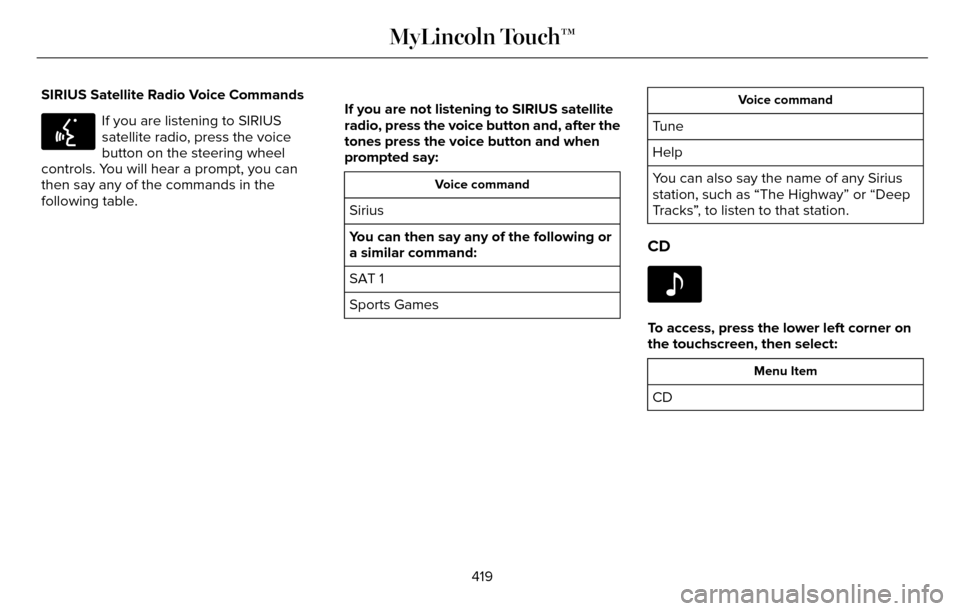
SIRIUS Satellite Radio Voice Commands
E142599
If you are listening to SIRIUS
satellite radio, press the voice
button on the steering wheel
controls. You will hear a prompt, you can
then say any of the commands in the
following table. If you are not listening to SIRIUS satellite
radio, press the voice button and, after the
tones press the voice button and when
prompted say:
Voice command
Sirius
You can then say any of the following or
a similar command:
SAT 1
Sports Games
Voice command
Tune
Help
You can also say the name of any Sirius
station, such as “The Highway” or “Deep
Tracks”, to listen to that station.
CD
E142611
To access, press the lower left corner on
the touchscreen, then select:
Menu Item
CD
419
MyLincoln Touch™
Page 423 of 544

Insert your CD then select:
Action and Description
Menu Item
Touch this button to repeat the currently playing track, all tracks on th\
e disc or switch the feature off if
already on.
Repeat
Touch this button to play the tracks or entire albums in random order, or switch the feature off if already
on.
Shuffle
Touch this button to hear a brief sampling of all available tracks.
Scan
Touch this button to see disc information.
More Info
Touch this button to look through all available CD tracks.
Browse
To adjust the Sound Settings, select:
Menu Item
Options
Sound Settings
Then any of the following:
Bass
Midrange
Menu Item
Treble
Set Balance and Fade
Occupancy Mode
EQ Mode
Speed Compensated Volume
Note: Your vehicle may not have all these
sound settings. CD Voice Commands
E142599
If you are listening to a CD, press
the voice button on the steering
wheel controls. When prompted,
say any of the following commands.
420
MyLincoln Touch™
Page 433 of 544
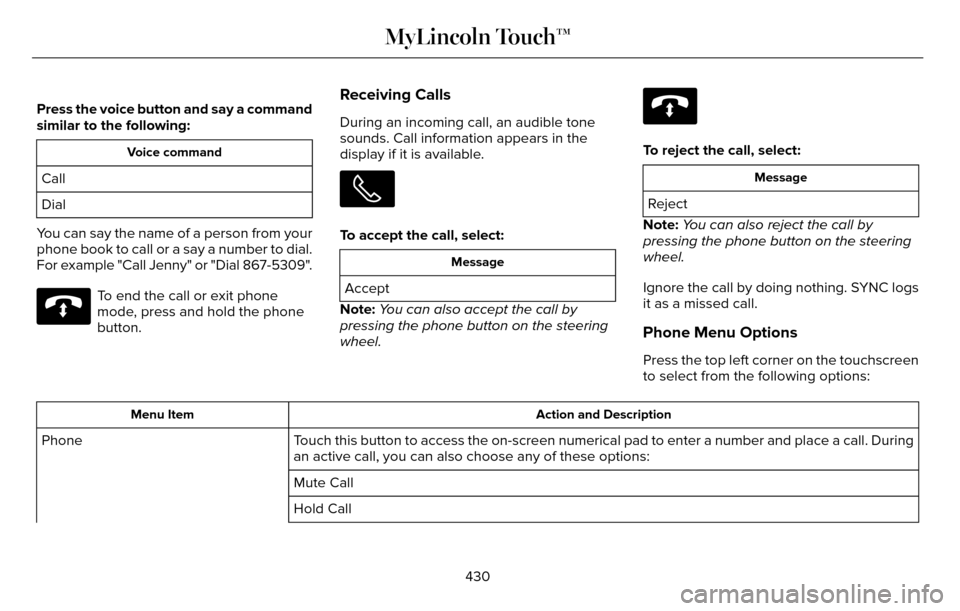
Press the voice button and say a command
similar to the following:
Voice command
Call
Dial
You can say the name of a person from your
phone book to call or a say a number to dial.
For example "Call Jenny" or "Dial 867-5309".
E142632
To end the call or exit phone
mode, press and hold the phone
button.
Receiving Calls
During an incoming call, an audible tone
sounds. Call information appears in the
display if it is available.
To accept the call, select:
Message
Accept
Note: You can also accept the call by
pressing the phone button on the steering
wheel.
E142632
To reject the call, select:
Message
Reject
Note: You can also reject the call by
pressing the phone button on the steering
wheel.
Ignore the call by doing nothing. SYNC logs
it as a missed call.
Phone Menu Options
Press the top left corner on the touchscreen
to select from the following options:
Action and Description
Menu Item
Touch this button to access the on-screen numerical pad to enter a number\
and place a call. During
an active call, you can also choose any of these options:
Phone
Mute Call
Hold Call
430
MyLincoln Touch™
Page 444 of 544
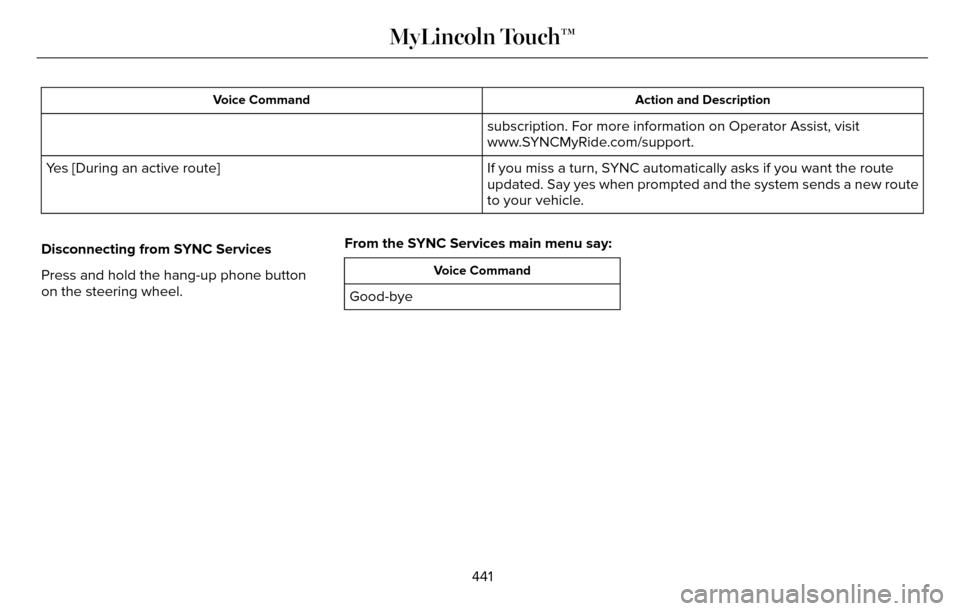
Action and Description
Voice Command
subscription. For more information on Operator Assist, visit
www.SYNCMyRide.com/support.
If you miss a turn, SYNC automatically asks if you want the route
updated. Say yes when prompted and the system sends a new route
to your vehicle.
Yes [During an active route]
Disconnecting from SYNC Services
Press and hold the hang-up phone button
on the steering wheel. From the SYNC Services main menu say:
Voice Command
Good-bye
441
MyLincoln Touch™