brake LINCOLN MKZ 2016 Service Manual
[x] Cancel search | Manufacturer: LINCOLN, Model Year: 2016, Model line: MKZ, Model: LINCOLN MKZ 2016Pages: 544, PDF Size: 5.77 MB
Page 203 of 544
E130108
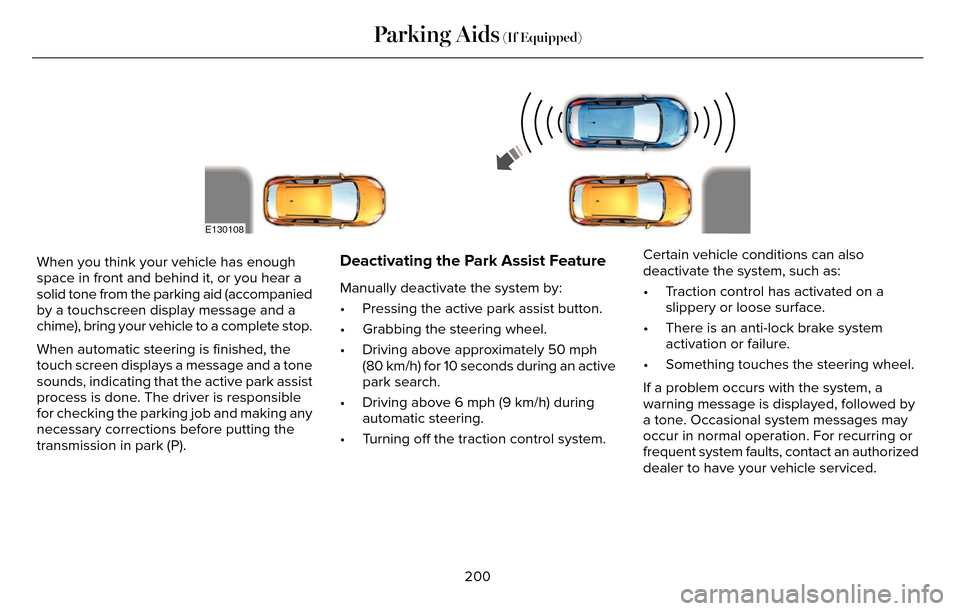
When you think your vehicle has enough
space in front and behind it, or you hear a
solid tone from the parking aid (accompanied
by a touchscreen display message and a
chime), bring your vehicle to a complete stop.
When automatic steering is finished, the
touch screen displays a message and a tone
sounds, indicating that the active park assist
process is done. The driver is responsible
for checking the parking job and making any
necessary corrections before putting the
transmission in park (P).Deactivating the Park Assist Feature
Manually deactivate the system by:
• Pressing the active park assist button.
• Grabbing the steering wheel.
• Driving above approximately 50 mph(80 km/h) for 10 seconds during an active
park search.
• Driving above 6 mph (9 km/h) during automatic steering.
• Turning off the traction control system. Certain vehicle conditions can also
deactivate the system, such as:
• Traction control has activated on a
slippery or loose surface.
• There is an anti-lock brake system activation or failure.
• Something touches the steering wheel.
If a problem occurs with the system, a
warning message is displayed, followed by
a tone. Occasional system messages may
occur in normal operation. For recurring or
frequent system faults, contact an authorized
dealer to have your vehicle serviced.
200
Parking Aids (If Equipped)
Page 206 of 544
WARNINGS
Use caution when turning camera
features on or off while in reverse (R).
Make sure your vehicle is not moving.
The rear view camera system provides a
video image of the area behind your vehicle.
The image will display in either the rear view
mirror or the display in the center of the
instrument panel.
During operation, lines will appear in the
display that represent your vehicle’s path
and proximity to objects behind your vehicle.
E152548
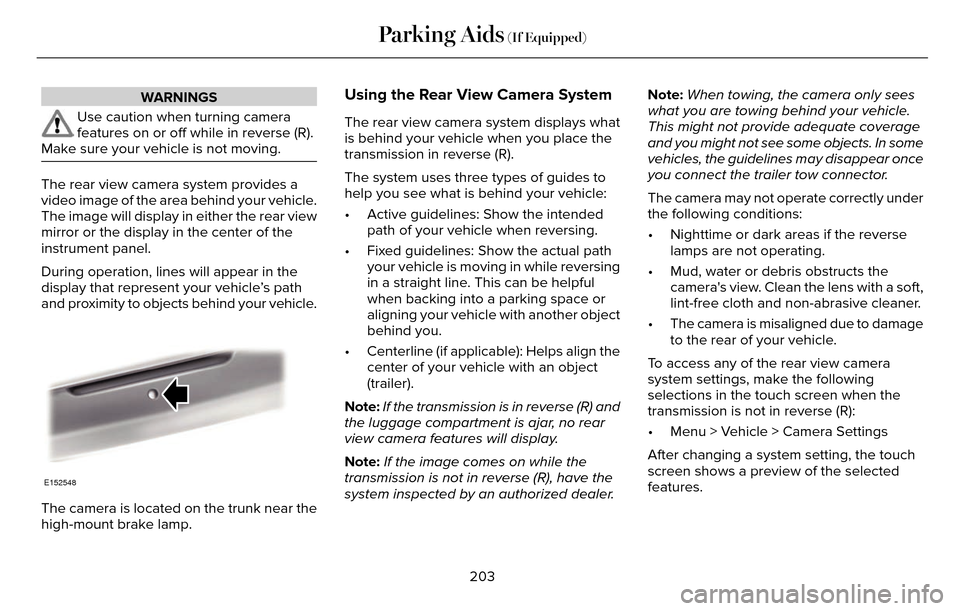
The camera is located on the trunk near the
high-mount brake lamp.
Using the Rear View Camera System
The rear view camera system displays what
is behind your vehicle when you place the
transmission in reverse (R).
The system uses three types of guides to
help you see what is behind your vehicle:
• Active guidelines: Show the intended path of your vehicle when reversing.
• Fixed guidelines: Show the actual path your vehicle is moving in while reversing
in a straight line. This can be helpful
when backing into a parking space or
aligning your vehicle with another object
behind you.
• Centerline (if applicable): Helps align the center of your vehicle with an object
(trailer).
Note: If the transmission is in reverse (R) and
the luggage compartment is ajar, no rear
view camera features will display.
Note: If the image comes on while the
transmission is not in reverse (R), have the
system inspected by an authorized dealer. Note:
When towing, the camera only sees
what you are towing behind your vehicle.
This might not provide adequate coverage
and you might not see some objects. In some
vehicles, the guidelines may disappear once
you connect the trailer tow connector.
The camera may not operate correctly under
the following conditions:
• Nighttime or dark areas if the reverse lamps are not operating.
• Mud, water or debris obstructs the camera's view. Clean the lens with a soft,
lint-free cloth and non-abrasive cleaner.
• The camera is misaligned due to damage to the rear of your vehicle.
To access any of the rear view camera
system settings, make the following
selections in the touch screen when the
transmission is not in reverse (R):
• Menu > Vehicle > Camera Settings
After changing a system setting, the touch
screen shows a preview of the selected
features.
203
Parking Aids (If Equipped)
Page 209 of 544
PRINCIPLE OF OPERATION
Cruise control lets you maintain a set speed
without keeping your foot on the accelerator
pedal. You can use cruise control when your
vehicle speed is greater than 20 mph
(30 km/h).
USING CRUISE CONTROL
WARNINGS
Do not use cruise control on winding
roads, in heavy traffic or when the road
surface is slippery. This could result in loss
of vehicle control, serious injury or death.
When you are going downhill, your
vehicle speed may increase above the
set speed. The system will not apply the
brakes but a warning displays.
Note: Cruise control will disengage if the
vehicle speed decreases more than 10 mph
(16 km/h) below the set speed while driving
uphill.
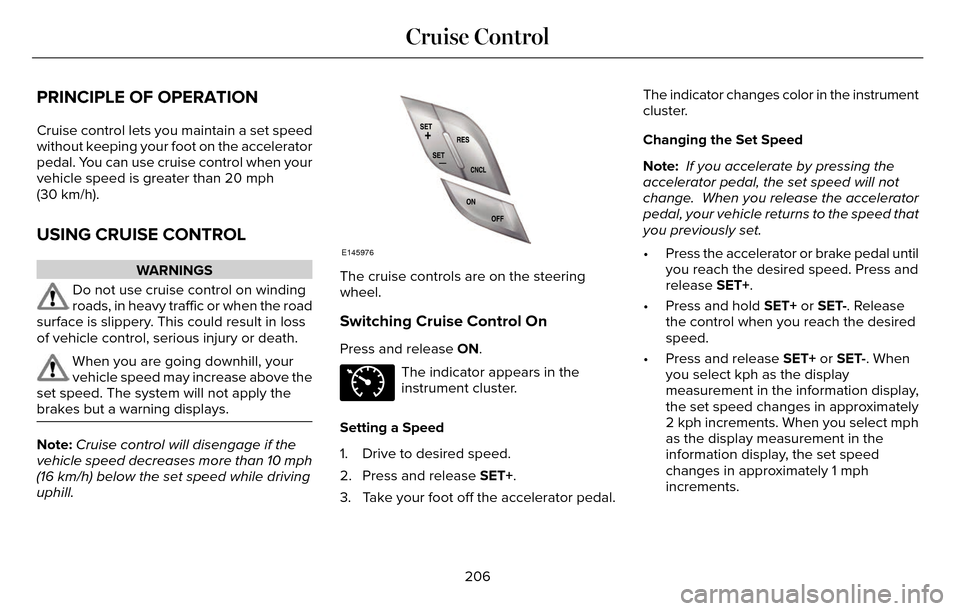
E145976
The cruise controls are on the steering
wheel.
Switching Cruise Control On
Press and release ON.
E71340
The indicator appears in the
instrument cluster.
Setting a Speed
1. Drive to desired speed.
2. Press and release SET+.
3. Take your foot off the accelerator pedal. The indicator changes color in the instrument
cluster.
Changing the Set Speed
Note:
If you accelerate by pressing the
accelerator pedal, the set speed will not
change. When you release the accelerator
pedal, your vehicle returns to the speed that
you previously set.
• Press the accelerator or brake pedal until you reach the desired speed. Press and
release SET+.
• Press and hold SET+ or SET-. Release the control when you reach the desired
speed.
• Press and release SET+ or SET-. When you select kph as the display
measurement in the information display,
the set speed changes in approximately
2 kph increments. When you select mph
as the display measurement in the
information display, the set speed
changes in approximately 1 mph
increments.
206
Cruise Control
Page 210 of 544
Canceling the Set Speed
Press CNCL or tap the brake pedal. You will
not erase the set speed.
Resuming the Set Speed
Press and release RES.
Switching Cruise Control Off
Note: You will erase the set speed if you
switch the system off.
Press and release OFF or switch the ignition
off.
USING ADAPTIVE CRUISE
CONTROL
(If Equipped)
WARNINGS
Always pay close attention to changing
road conditions, especially when using
adaptive cruise control. Adaptive cruise
control cannot replace attentive driving.
Failing to follow any of the warnings below
or failing to pay attention to the road may
result in a crash, serious injury or death.
WARNINGS
Adaptive cruise control is not a crash
warning or avoidance system.
Adaptive cruise control does not detect
stationary or slow moving vehicles
below 6 mph (10 km/h).
Adaptive cruise control does not detect
pedestrians or objects in the roadway.
Adaptive cruise control does not detect
oncoming vehicles in the same lane.
Do not use the adaptive cruise control
when entering or leaving a highway, in
heavy traffic or on roads that are winding,
slippery or unpaved.
Do not use in poor visibility, specifically
fog, rain, spray or snow.
Note: It is your responsibility to stay alert,
drive safely and be in control of the vehicle
at all times.
The system adjusts your speed to maintain
a proper distance between you and the
vehicle in front of you in the same lane. You
can select from one of four gap settings.
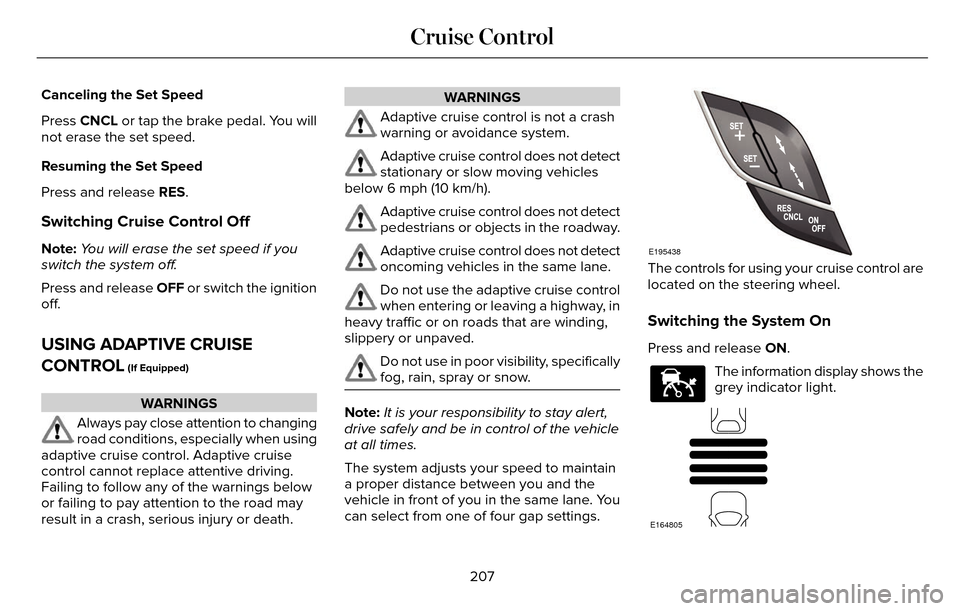
E195438
The controls for using your cruise control are
located on the steering wheel.
Switching the System On
Press and release ON.
E144529
The information display shows the
grey indicator light.
E164805
207
Cruise Control
Page 211 of 544
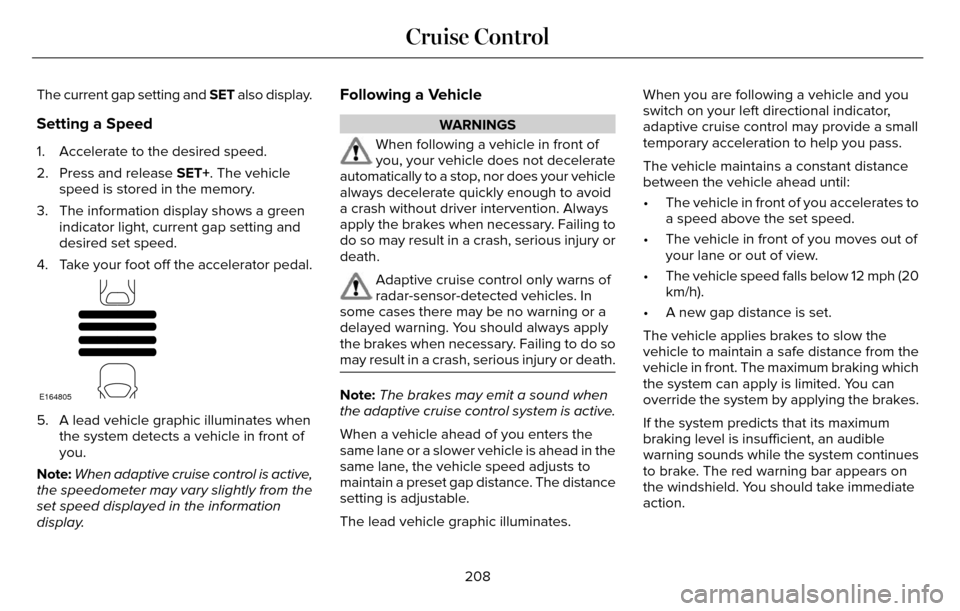
The current gap setting and SET also display.
Setting a Speed
1. Accelerate to the desired speed.
2. Press and release SET+. The vehicle
speed is stored in the memory.
3. The information display shows a green indicator light, current gap setting and
desired set speed.
4. Take your foot off the accelerator pedal.
E164805
5. A lead vehicle graphic illuminates when the system detects a vehicle in front of
you.
Note: When adaptive cruise control is active,
the speedometer may vary slightly from the
set speed displayed in the information
display.
Following a Vehicle
WARNINGS
When following a vehicle in front of
you, your vehicle does not decelerate
automatically to a stop, nor does your vehicle
always decelerate quickly enough to avoid
a crash without driver intervention. Always
apply the brakes when necessary. Failing to
do so may result in a crash, serious injury or
death.
Adaptive cruise control only warns of
radar-sensor-detected vehicles. In
some cases there may be no warning or a
delayed warning. You should always apply
the brakes when necessary. Failing to do so
may result in a crash, serious injury or death.
Note: The brakes may emit a sound when
the adaptive cruise control system is active.
When a vehicle ahead of you enters the
same lane or a slower vehicle is ahead in the
same lane, the vehicle speed adjusts to
maintain a preset gap distance. The distance
setting is adjustable.
The lead vehicle graphic illuminates. When you are following a vehicle and you
switch on your left directional indicator,
adaptive cruise control may provide a small
temporary acceleration to help you pass.
The vehicle maintains a constant distance
between the vehicle ahead until:
• The vehicle in front of you accelerates to
a speed above the set speed.
• The vehicle in front of you moves out of your lane or out of view.
• The vehicle speed falls below 12 mph (20 km/h).
• A new gap distance is set.
The vehicle applies brakes to slow the
vehicle to maintain a safe distance from the
vehicle in front. The maximum braking which
the system can apply is limited. You can
override the system by applying the brakes.
If the system predicts that its maximum
braking level is insufficient, an audible
warning sounds while the system continues
to brake. The red warning bar appears on
the windshield. You should take immediate
action.
208
Cruise Control
Page 213 of 544
Each time you start the vehicle, the system
selects the last chosen gap for the current
driver.
Disengaging the System
Press the brake pedal or press and release
CNCL. The last set speed displays in grey
but does not erase.
Overriding the System
WARNING
Whenever the driver presses the
accelerator pedal and overrides the
system, the system does not automatically
apply the brakes to maintain the set distance
from any vehicle ahead.
Press the accelerator pedal to override the
set speed and gap distance.
E144529
When you override the system,
the green indicator light
illuminates and the lead vehicle
graphic does not show in the information
display. The system resumes operation when you
release the accelerator pedal. The vehicle
speed decreases to the set speed, or a
slower speed if following a slower vehicle.
Changing the Set Speed
• Accelerate or brake to the desired speed,
then press and release SET+.
• Press and hold SET+ or SET- until the desired set speed shows on the
information display. The vehicle speed
gradually changes to the selected speed.
• Press and release SET+ or SET-. The set speed changes in approximately 1 mph
(2 km/h) increments.
The system may apply the brakes to slow
the vehicle to the new set speed. The set
speed displays continuously in the
information display when the system is
active.
Resuming the Set Speed
Note: Only use resume if you are aware of
the set speed and intend to return to it. Press and release RES. The vehicle returns
to the previously set speed. The set speed
displays continuously in the information
display while the system is active.
Low Speed Automatic Cancellation
The system does not function at speeds
below 12 mph (20 km/h). An audible alarm
sounds and the automatic braking releases
if your vehicle drops below this speed.
Hilly Condition Usage
Note:
An audible alarm sounds and the
system shuts down if it is applying brakes
for an extended period of time. This allows
the brakes to cool. The system functions
normally again when the brakes cool.
Select a lower gear during prolonged
downhill driving on steep slopes, such as
mountainous areas, when the system is
active. In such situations, the system needs
additional engine braking to reduce the load
on the vehicle’s regular brake system to
prevent the brakes from overheating.
210
Cruise Control
Page 214 of 544
Switching the System Off
Press and release OFF when the system is
in stand by mode or switch the ignition off.
Note:The set speed memory erases when
you switch off the system.
Detection Issues
WARNING
On rare occasions, detection issues
can occur due to the road
infrastructures, for example bridges, tunnels
and safety barriers. In these cases, the
system may brake late or unexpectedly. At
all times, you are responsible for controlling
your vehicle, supervising the system and
intervening, if required.
The radar sensor has a limited field of vision.
It may not detect vehicles at all or detect a
vehicle later than expected in some
situations. The lead vehicle graphic does not
illuminate if the system does not detect a
vehicle in front of you.
E71621
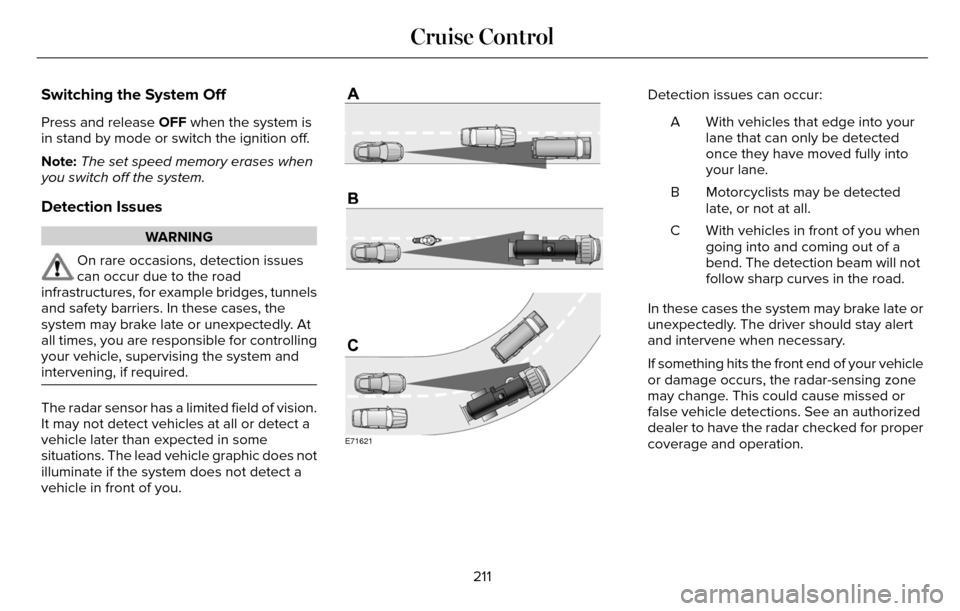
Detection issues can occur:
With vehicles that edge into your
lane that can only be detected
once they have moved fully into
your lane.
A
Motorcyclists may be detected
late, or not at all.
B
With vehicles in front of you when
going into and coming out of a
bend. The detection beam will not
follow sharp curves in the road.
C
In these cases the system may brake late or
unexpectedly. The driver should stay alert
and intervene when necessary.
If something hits the front end of your vehicle
or damage occurs, the radar-sensing zone
may change. This could cause missed or
false vehicle detections. See an authorized
dealer to have the radar checked for proper
coverage and operation.
211
Cruise Control
Page 215 of 544
System Not Available
Conditions that can cause the system to
deactivate or prevent the system from
activating when requested include:
• A blocked sensor.
• High brake temperature.
• A failure in the system or a relatedsystem.
Blocked Sensor
WARNINGS
Do not use the system when towing a
trailer with brake controls. Aftermarket
trailer brakes do not function properly when
you switch the system on because the
brakes are electronically controlled. Failing
to do so may result in loss of vehicle control,
which could result in serious injury. The
system does operate with non-electronic
trailer brake controllers, such as over-run or
surge brakes.
Do not use tire sizes other than those
recommended because this can affect
the normal operation of the system. Failing
to do so may result in a loss of vehicle
control, which could result in serious injury.
E145632
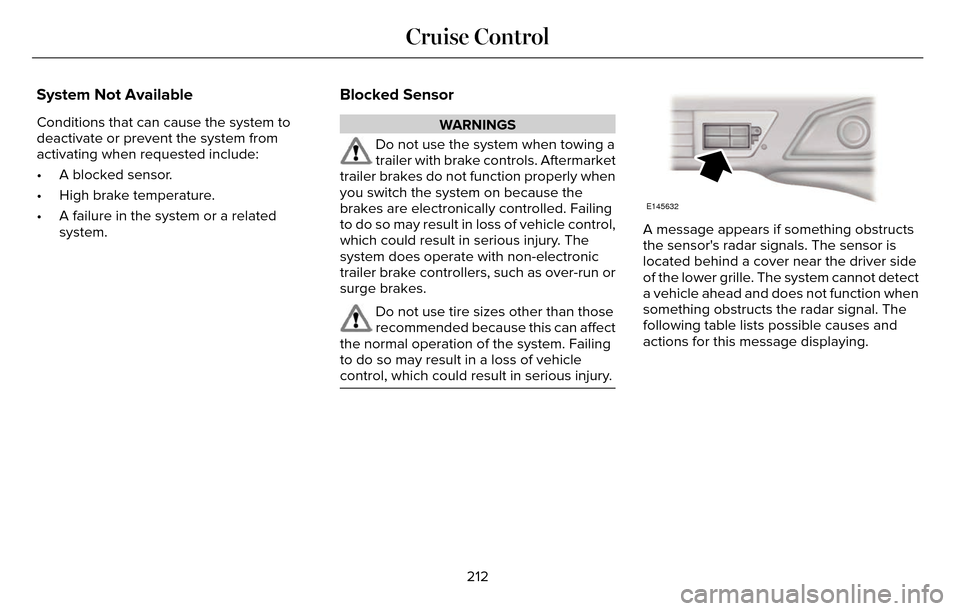
A message appears if something obstructs
the sensor's radar signals. The sensor is
located behind a cover near the driver side
of the lower grille. The system cannot detect
a vehicle ahead and does not function when
something obstructs the radar signal. The
following table lists possible causes and
actions for this message displaying.
212
Cruise Control
Page 216 of 544
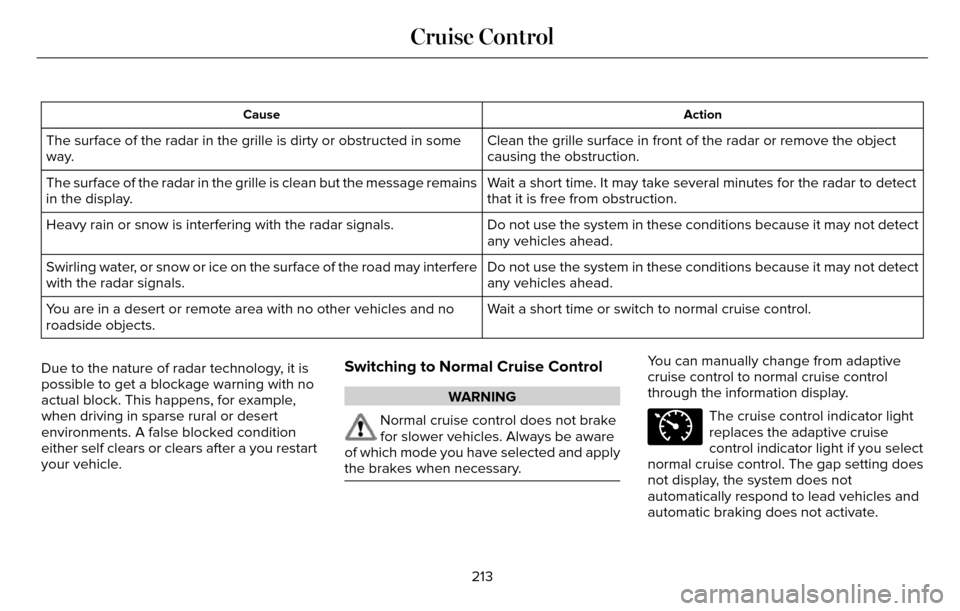
Action
Cause
Clean the grille surface in front of the radar or remove the object
causing the obstruction.
The surface of the radar in the grille is dirty or obstructed in some
way.
Wait a short time. It may take several minutes for the radar to detect
that it is free from obstruction.
The surface of the radar in the grille is clean but the message remains
in the display.
Do not use the system in these conditions because it may not detect
any vehicles ahead.
Heavy rain or snow is interfering with the radar signals.
Do not use the system in these conditions because it may not detect
any vehicles ahead.
Swirling water, or snow or ice on the surface of the road may interfere
with the radar signals.
Wait a short time or switch to normal cruise control.
You are in a desert or remote area with no other vehicles and no
roadside objects.
Due to the nature of radar technology, it is
possible to get a blockage warning with no
actual block. This happens, for example,
when driving in sparse rural or desert
environments. A false blocked condition
either self clears or clears after a you restart
your vehicle.
Switching to Normal Cruise Control
WARNING
Normal cruise control does not brake
for slower vehicles. Always be aware
of which mode you have selected and apply
the brakes when necessary.
You can manually change from adaptive
cruise control to normal cruise control
through the information display.
E71340
The cruise control indicator light
replaces the adaptive cruise
control indicator light if you select
normal cruise control. The gap setting does
not display, the system does not
automatically respond to lead vehicles and
automatic braking does not activate.
213
Cruise Control
Page 229 of 544
Extreme continuous steering may increase
the effort required for you to steer your
vehicle. This increased effort prevents
overheating and permanent damage to the
steering system. You do not lose the ability
to steer your vehicle manually. Typical
steering and driving maneuvers allow the
system to cool and return to normal
operation.
Steering Tips
If the steering wanders or pulls, check for:
• Correct tire pressures.
• Uneven tire wear.
• Loose or worn suspension components.
• Loose or worn steering components.
• Improper vehicle alignment.
Note:A high crown in the road or high
crosswinds may also make the steering
seem to wander or pull. Adaptive Learning
The electronic power steering system
adaptive learning helps correct road
irregularities and improves overall handling
and steering feel. It communicates with the
brake system to help operate advanced
stability control and accident avoidance
systems. Additionally, whenever the battery
is disconnected or a new battery installed,
you must drive your vehicle a short distance
before the system relearns the strategy and
reactivates all systems.
PRE-COLLISION ASSIST
WARNINGS
This system is an extra driving aid. It
does not replace your attention and
judgment, or the need to apply the brakes.
This system does NOT automatically brake
your vehicle. If you fail to press the brake
pedal when necessary, you may collide with
another vehicle.
WARNINGS
The Pre-Collision Assist system with
brake support cannot help prevent all
collisions. Do not rely on this system to
replace your judgment and the need to
maintain correct distance and speed.
Note: The system does not detect, warn or
respond to potential collisions with vehicles
to the rear or sides of your vehicle.
Note: The Pre-Collision Assist system is
active at speeds above approximately
5.0 mph (8 km/h).
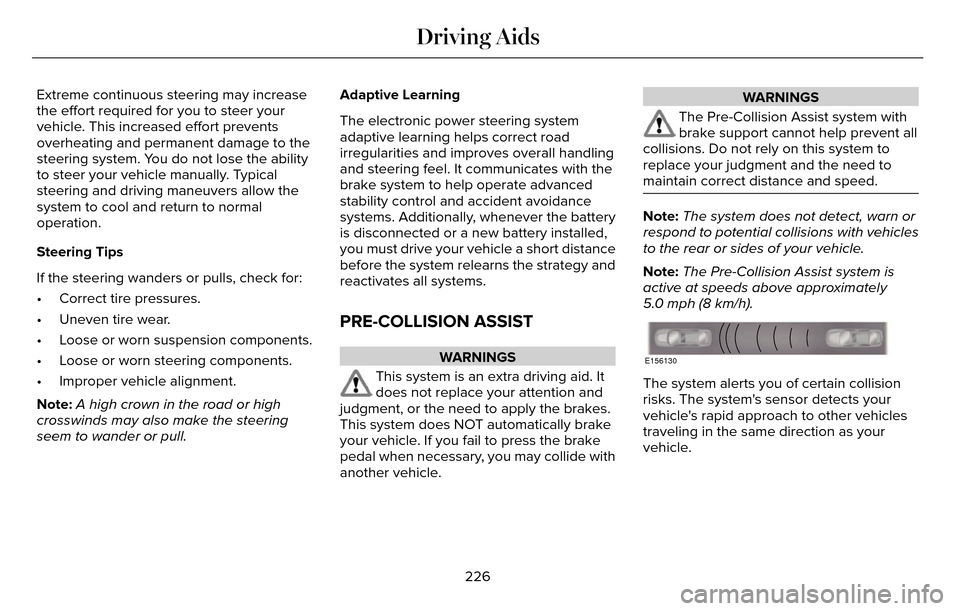
E156130
The system alerts you of certain collision
risks. The system's sensor detects your
vehicle's rapid approach to other vehicles
traveling in the same direction as your
vehicle.
226
Driving Aids