brakes LINCOLN MKZ 2017 Owner's Manual
[x] Cancel search | Manufacturer: LINCOLN, Model Year: 2017, Model line: MKZ, Model: LINCOLN MKZ 2017Pages: 564, PDF Size: 5.54 MB
Page 212 of 564
The system determines the clearance to the
front and rear of your vehicle and
automatically steers your vehicle out of a
parallel parking space (hands-free) while you
control the accelerator, gearshift and brakes.
The system visually and audibly guides you
to enter traffic.
After the system has directed your vehicle
past the adjacent vehicle or object, it guides
you to take control of the steering to
complete the exit from the parking spot.
Note:
If the clearance in front of your vehicle
allows easy departure, the Parallel Park Out
Assist feature might not be available.
Note: You are responsible for controlling
your vehicle and making sure the path is
clear prior to pulling into traffic. Note:
This system is not intended to assist
in exiting perpendicular parking spaces,
damages to your vehicle may occur.
Note: If your vehicle speed exceeds 3 mph
(5 km/h) or the maneuver is interrupted
(driver input), the system switches off and
you need to take full control of your vehicle.
Deactivating the Active Park Assist
Feature
Manually deactivate the system by:
• Pressing the active park assist button
during an active maneuver.
• Grabbing the steering wheel during an
active maneuver. •
Driving above approximately
22 mph
(35 km/h) for 30 seconds during an active
park search.
• Driving above approximately
6 mph
(10 km/h) during automatic steering.
• Switching off the traction control system.
Certain vehicle conditions can also
deactivate the system, such as:
• Traction control has activated.
• There is an anti-lock brake system
activation or failure.
If a problem occurs with the system, a
warning message displays accompanied by
a tone. Occasional system messages may
occur in normal operation. For recurring or
frequent system faults, contact an authorized
dealer to have your vehicle serviced.
Troubleshooting the System The system does not look for a space
The traction control system may be off.
The transmission is in reverse (R). Your vehicle must be moving forward to be able to detect a parking space.
209
MKZ (CC9) Canada/United States of America, enUSA, First Printing Parking Aids
Page 218 of 564
PRINCIPLE OF OPERATION
Cruise control lets you maintain a set speed
without keeping your foot on the accelerator
pedal. You can use cruise control when your
vehicle speed is greater than 20 mph
(30 km/h).
USING CRUISE CONTROL WARNINGS
Do not use cruise control on winding
roads, in heavy traffic or when the road
surface is slippery. This could result in loss
of vehicle control, serious injury or death. When you are going downhill, your
vehicle speed may increase above the
set speed. The system will not apply the
brakes but a warning displays. Note:
Cruise control will disengage if the
vehicle speed decreases more than 10 mph
(16 km/h)
below the set speed while driving
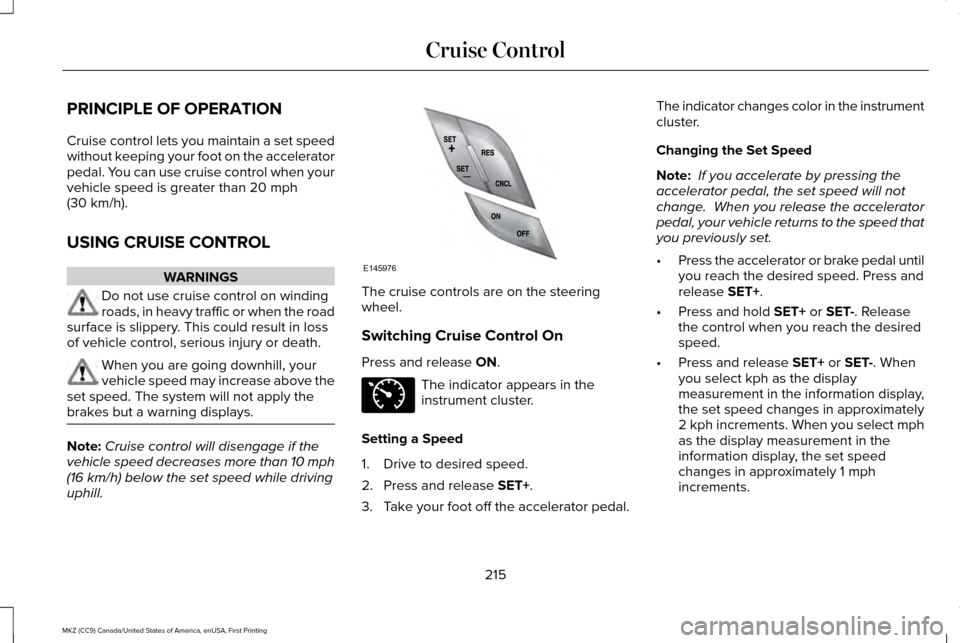
uphill. The cruise controls are on the steering
wheel.
Switching Cruise Control On
Press and release
ON.
The indicator appears in the
instrument cluster.
Setting a Speed
1. Drive to desired speed.
2. Press and release
SET+.
3. Take your foot off the accelerator pedal. The indicator changes color in the instrument
cluster.
Changing the Set Speed
Note:
If you accelerate by pressing the
accelerator pedal, the set speed will not
change. When you release the accelerator
pedal, your vehicle returns to the speed that
you previously set.
• Press the accelerator or brake pedal until
you reach the desired speed. Press and
release
SET+.
• Press and hold
SET+ or SET-. Release
the control when you reach the desired
speed.
• Press and release
SET+ or SET-. When
you select kph as the display
measurement in the information display,
the set speed changes in approximately
2 kph increments. When you select mph
as the display measurement in the
information display, the set speed
changes in approximately 1 mph
increments.
215
MKZ (CC9) Canada/United States of America, enUSA, First Printing Cruise ControlE145976 E71340
Page 219 of 564
Canceling the Set Speed
Press CNCL or tap the brake pedal. You will
not erase the set speed.
Resuming the Set Speed
Press and release RES.
Switching Cruise Control Off
Note: You will erase the set speed if you
switch the system off.
Press and release OFF or switch the ignition
off.
USING ADAPTIVE CRUISE
CONTROL
(If Equipped) WARNINGS
Always pay close attention to changing
road conditions when using adaptive
cruise control. The system does not replace
attentive driving. Failing to pay attention to
the road may result in a crash, serious injury
or death. WARNINGS
Adaptive cruise control does not detect
stationary or slow moving vehicles
below
6 mph (10 km/h). Do not use adaptive cruise control on
winding roads, in heavy traffic or when
the road surface is slippery. This could result
in loss of vehicle control, serious injury or
death. Do not use adaptive cruise control
when towing a trailer that has trailer
brakes. The auto-brake component of the
adaptive cruise control system does not
operate the trailer brakes. Using adaptive
cruise control when towing a trailer that has
trailer brakes may result in the loss of vehicle
control, which could result in serious injury. Adaptive cruise control is not a crash
warning or avoidance system.
Adaptive cruise control does not detect
pedestrians or objects in the road.
Adaptive cruise control does not detect
oncoming vehicles in the same lane. WARNINGS
Do not use the system in poor visibility,
for example fog, heavy rain, spray or
snow. Do not use the adaptive cruise control
when entering or leaving a highway,
on roads with intersections or roundabouts
or non-vehicular traffic or roads that are
winding, slippery, unpaved, or steep slopes. Do not use tire sizes other than those
recommended because this can affect
the normal operation of the system. Failure
to do so may result in a loss of vehicle
control, which could result in serious injury. Note:
It is your responsibility to stay alert,
drive safely and be in control of the vehicle
at all times.
The system adjusts your vehicle speed to
maintain the set gap between you and the
vehicle in front of you in the same lane. You
can select four gap settings.
216
MKZ (CC9) Canada/United States of America, enUSA, First Printing Cruise Control
Page 221 of 564
Following a Vehicle
WARNINGS
When following a vehicle, your vehicle
does not always decelerate quickly
enough to avoid a crash without driver
intervention. Always apply the brakes when
necessary. Failing to do so may result in a
crash, serious injury or death. Adaptive cruise control only warns of
vehicles detected by the radar sensor.
In some cases there may be no warning or
a delayed warning. You should always apply
the brakes when necessary. Failure to do so
may result in a crash, serious injury or death. Note:
The brakes may emit noise when
applied by the system.
When a vehicle ahead of you enters the
same lane or a slower vehicle is ahead in the
same lane, the vehicle speed adjusts to
maintain a preset gap distance. A vehicle
graphic illuminates in the instrument cluster. When you are following a vehicle and you
switch on your left directional indicator,
adaptive cruise control may provide a small
temporary acceleration to help you pass.
Your vehicle maintains a consistent gap from
the vehicle ahead until:
•
The vehicle in front of you accelerates to
a speed above the set speed.
• The vehicle in front of you moves out of
the lane you are in.
• You set a new gap distance.
The vehicle applies brakes to slow the
vehicle to maintain a safe distance from the
vehicle in front. The maximum braking which
the system can apply is limited. You can
override the system by applying the brakes.
If the system predicts that its maximum
braking level is insufficient, an audible
warning sounds while the system continues
to brake. The red warning bar appears on
the windshield. You should take immediate
action. Following a Vehicle to a Complete Stop
If your vehicle follows a vehicle to a complete
stop and remains stationary for less than
three seconds, your vehicle automatically
accelerates from a stationary position to
follow the vehicle ahead when you release
the brake pedal.
If your vehicle follows a vehicle to a complete
stop and remains stationary for more than
three seconds, you must press and release
the RES+ button or the accelerator pedal to
accelerate from a stationary position and
follow the vehicle ahead.
Setting the Gap Distance
You can decrease or increase the distance
between your vehicle and the vehicle in front
by pressing the gap control.
Note: It is your responsibility to select a gap
appropriate to the driving conditions.
218
MKZ (CC9) Canada/United States of America, enUSA, First Printing Cruise Control
Page 223 of 564

Overriding the System
WARNING
Whenever the driver presses the
accelerator pedal and overrides the
system, the system does not automatically
apply the brakes to maintain the set distance
from any vehicle ahead. Press the accelerator pedal to override the
set speed and gap distance.
When you override the system, the
green indicator light illuminates
and the lead vehicle graphic does
not show in the information display.
The system resumes operation when you
release the accelerator pedal. The vehicle
speed decreases to the set speed, or a
slower speed if following a slower vehicle. Changing the Set Speed
•
Press and release RES+ or SET-. When
you select km/h as the display
measurement in the information display
the set speed changes in approximately
2 km/h increments. When you select mph
as the display measurement in the
information display the set speed
changes in approximately 1 mph
increments.
• Press the accelerator or brake pedal until
you reach the desired speed. Press and
release
SET-.
• Press and hold
RES+ or SET-. Release
the control when you reach the desired
speed. The set speed changes in
approximately 5 mph/10 km/h increments.
• Press the RES+ or SET- button to change
the set speed in increments of
approximately 1 mph or 2 km/h.
• Hold the RES+ or SET- button to change
the set speed in increments of
approximately 5 mph or 10 km/h. The system may apply the brakes to slow
the vehicle to the new set speed. The set
speed displays continuously in the
information display when the system is
active.
Canceling the Set Speed
Press and release
CNCL or tap the brake
pedal. The set speed does not erase.
Resuming the Set Speed
Press and release RES+. Your vehicle speed
returns to the previously set speed and gap
setting. The set speed displays continuously
in the information display when the system
is active.
Note: Only use resume if you are aware of
the set speed and intend to return to it.
Automatic Cancellation
Automatic cancellation occurs if:
• The tires lose traction.
• You apply the parking brake.
220
MKZ (CC9) Canada/United States of America, enUSA, First Printing Cruise ControlE144529
Page 224 of 564
Note:
If the engine speed drops too low, the
information display indicates low engine
speed. Shift to a lower gear (manual
transmission only) to avoid automatic
cancellation.
Park Brake Application
Automatic parking brake application and
cancellation occurs if:
• You unbuckle the seatbelt and open the
door while stopped.
• Holding the vehicle at a stop
continuously for more than two minutes.
Hilly Condition Usage
Note: An audible alarm sounds and the
system shuts down if it is applying brakes
for an extended period of time. This allows
the brakes to cool. The system functions
normally again when the brakes cool. Select a lower gear during prolonged
downhill driving on steep slopes, such as
mountainous areas, when the system is
active. In such situations, the system needs
additional engine braking to reduce the load
on the vehicle
’s regular brake system to
prevent the brakes from overheating.
Switching Adaptive Cruise Control Off
Press and release OFF when the system is
in stand by mode or switch the ignition off.
Note: You erase the set speed when you
switch the system off.
Detection Issues WARNING
On rare occasions, detection issues
can occur due to the road
infrastructures, for example bridges, tunnels
and safety barriers. In these cases, the
system may brake late or unexpectedly. At
all times, you are responsible for controlling
your vehicle, supervising the system and
intervening, if required. The radar sensor has a limited field of vision.
It may not detect vehicles at all or detect a
vehicle later than expected in some
situations. The lead vehicle graphic does not
illuminate if the system does not detect a
vehicle in front of you.
221
MKZ (CC9) Canada/United States of America, enUSA, First Printing Cruise Control
Page 227 of 564
Due to the nature of radar technology, it is
possible to get a blockage warning with no
actual block. This happens, for example,
when driving in sparse rural or desert
environments. A false blocked condition
either self clears or clears after a you restart
your vehicle.
Switching to Normal Cruise Control
WARNING
Normal cruise control does not brake
for slower vehicles. Always be aware
of which mode you have selected and apply
the brakes when necessary. You can manually change from adaptive
cruise control to normal cruise control
through the information display.
The cruise control indicator light
replaces the adaptive cruise
control indicator light if you select
normal cruise control. The gap setting does
not display, the system does not
automatically respond to lead vehicles and
automatic braking does not activate.
224
MKZ (CC9) Canada/United States of America, enUSA, First Printing Cruise ControlE71340
Page 242 of 564
WARNINGS
pedestrians with complex backgrounds,
running pedestrians, partly obscured
pedestrians, or pedestrians that the system
cannot distinguish from a group. Failure to
take care may result in the loss of control of
your vehicle, serious personal injury or death. This system is an extra driving aid. It
does not replace your attention and
judgment, or the need to apply the brakes.
This system does NOT automatically brake
your vehicle. If you fail to press the brake
pedal when necessary, you may collide with
another vehicle. The system cannot help prevent all
crashes. Do not rely on this system to
replace driver judgment and the need to
maintain a safe distance and speed. Using the Pre-Collision Assist System
The Pre-Collision Assist system is active at
speeds above approximately 3 mph (5 km/h)
and pedestrian detection is active at speeds
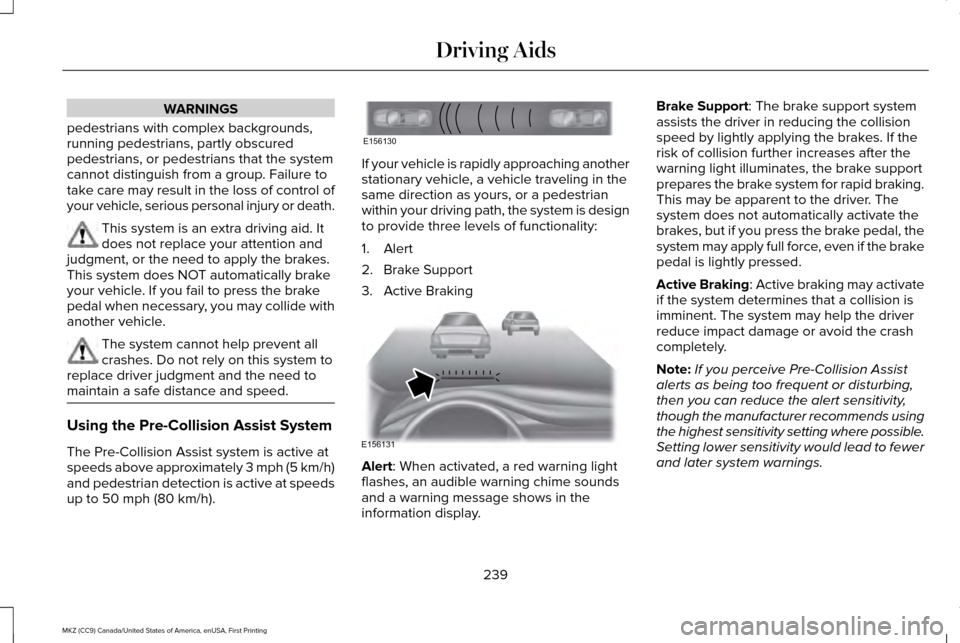
up to 50 mph (80 km/h). If your vehicle is rapidly approaching another
stationary vehicle, a vehicle traveling in the
same direction as yours, or a pedestrian
within your driving path, the system is design
to provide three levels of functionality:
1. Alert
2. Brake Support
3. Active Braking
Alert
: When activated, a red warning light
flashes, an audible warning chime sounds
and a warning message shows in the
information display. Brake Support
: The brake support system
assists the driver in reducing the collision
speed by lightly applying the brakes. If the
risk of collision further increases after the
warning light illuminates, the brake support
prepares the brake system for rapid braking.
This may be apparent to the driver. The
system does not automatically activate the
brakes, but if you press the brake pedal, the
system may apply full force, even if the brake
pedal is lightly pressed.
Active Braking
: Active braking may activate
if the system determines that a collision is
imminent. The system may help the driver
reduce impact damage or avoid the crash
completely.
Note: If you perceive Pre-Collision Assist
alerts as being too frequent or disturbing,
then you can reduce the alert sensitivity,
though the manufacturer recommends using
the highest sensitivity setting where possible.
Setting lower sensitivity would lead to fewer
and later system warnings.
239
MKZ (CC9) Canada/United States of America, enUSA, First Printing Driving AidsE156130 E156131
Page 249 of 564
GAWR (Gross Axle Weight Rating)
GAWR is the maximum allowable weight
that a single axle (front or rear) can carry.
These numbers are on the Safety
Compliance Certification label. The label
is located on the door hinge pillar,
door-latch post, or the door edge that
meets the door-latch post, next to the
driver seating position.
The total load on each axle must never
exceed its Gross Axle Weight Rating.
GVWR (Gross Vehicle Weight Rating)
GVWR is the maximum allowable weight
of the fully loaded vehicle. This includes
all options, equipment, passengers and
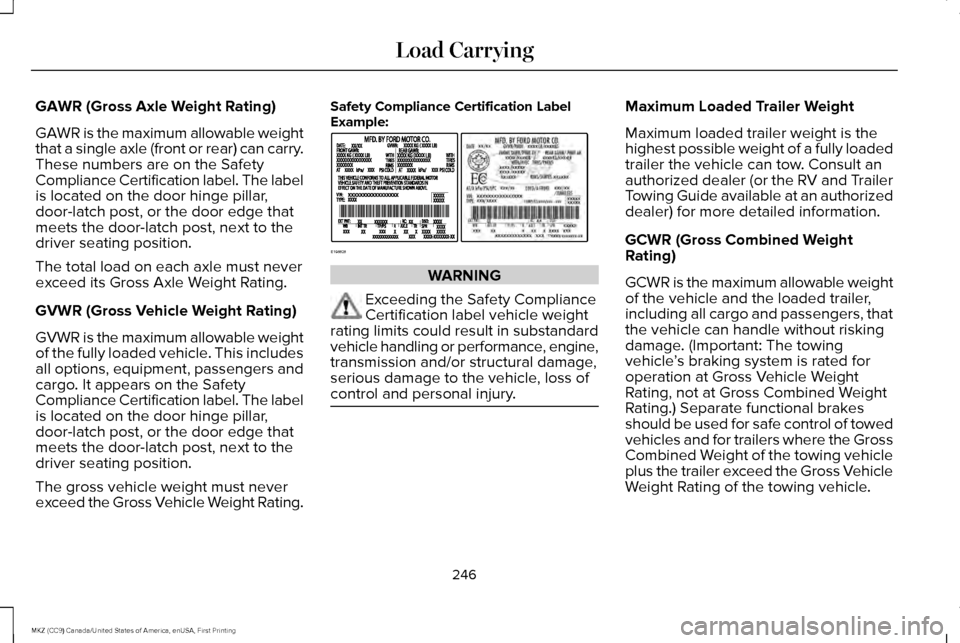
cargo. It appears on the Safety
Compliance Certification label. The label
is located on the door hinge pillar,
door-latch post, or the door edge that
meets the door-latch post, next to the
driver seating position.
The gross vehicle weight must never
exceed the Gross Vehicle Weight Rating.
Safety Compliance Certification Label
Example:
WARNING
Exceeding the Safety Compliance
Certification label vehicle weight
rating limits could result in substandard
vehicle handling or performance, engine,
transmission and/or structural damage,
serious damage to the vehicle, loss of
control and personal injury. Maximum Loaded Trailer Weight
Maximum loaded trailer weight is the
highest possible weight of a fully loaded
trailer the vehicle can tow. Consult an
authorized dealer (or the RV and Trailer
Towing Guide available at an authorized
dealer) for more detailed information.
GCWR (Gross Combined Weight
Rating)
GCWR is the maximum allowable weight
of the vehicle and the loaded trailer,
including all cargo and passengers, that
the vehicle can handle without risking
damage. (Important: The towing
vehicle
’s braking system is rated for
operation at Gross Vehicle Weight
Rating, not at Gross Combined Weight
Rating.) Separate functional brakes
should be used for safe control of towed
vehicles and for trailers where the Gross
Combined Weight of the towing vehicle
plus the trailer exceed the Gross Vehicle
Weight Rating of the towing vehicle.
246
MKZ (CC9) Canada/United States of America, enUSA, First Printing Load CarryingE198828
Page 252 of 564
TOWING A TRAILER
WARNINGS
Do not exceed the GVWR or the
GAWR specified on the certification
label. Towing trailers beyond the
maximum recommended gross
trailer weight exceeds the limit of your
vehicle and could result in engine
damage, transmission damage,
structural damage, loss of vehicle
control, vehicle rollover and personal
injury. Note:
There may be electrical items
such as fuses or relays that can affect
trailer towing operation. See Fuses
(page 275). The load capacity of your vehicle is
designated by weight not volume. You
may not necessarily be able to use all
available space when loading your
vehicle or trailer.
Towing a trailer places extra load on the
engine, transmission, axle, brakes, tires,
and suspension. Inspect these
components before, during and after
towing.
Load Placement
To help minimize how trailer movement
affects the vehicle when driving:
•
Load the heaviest items closest to
the trailer floor.
• Load the heaviest items in the center
of the left and right side trailer tires. •
Load the heaviest items above the
trailer axles or just slightly forward
toward the trailer tongue. Do not
allow the final trailer tongue weight
to go above or below 10-15% of the
loaded trailer weight.
• Select a ball mount with the correct
rise or drop. When both the loaded
vehicle and trailer are connected, the
trailer frame should be level, or
slightly angled down toward the
vehicle, when viewed from the side.
When driving with a trailer or payload, a
slight takeoff vibration or shudder may
be present due to the increased payload
weight. Additional information regarding
proper trailer loading and setting your
vehicle up for towing is located in the
Load Carrying chapter.
See Load Limit
(page 244).
You can also find information in the
RV
& Trailer Towing Guide available at your
authorized dealer, or online.
249
MKZ (CC9) Canada/United States of America, enUSA, First Printing Towing