phone LINCOLN MKZ 2017 Repair Manual
[x] Cancel search | Manufacturer: LINCOLN, Model Year: 2017, Model line: MKZ, Model: LINCOLN MKZ 2017Pages: 564, PDF Size: 5.54 MB
Page 487 of 564
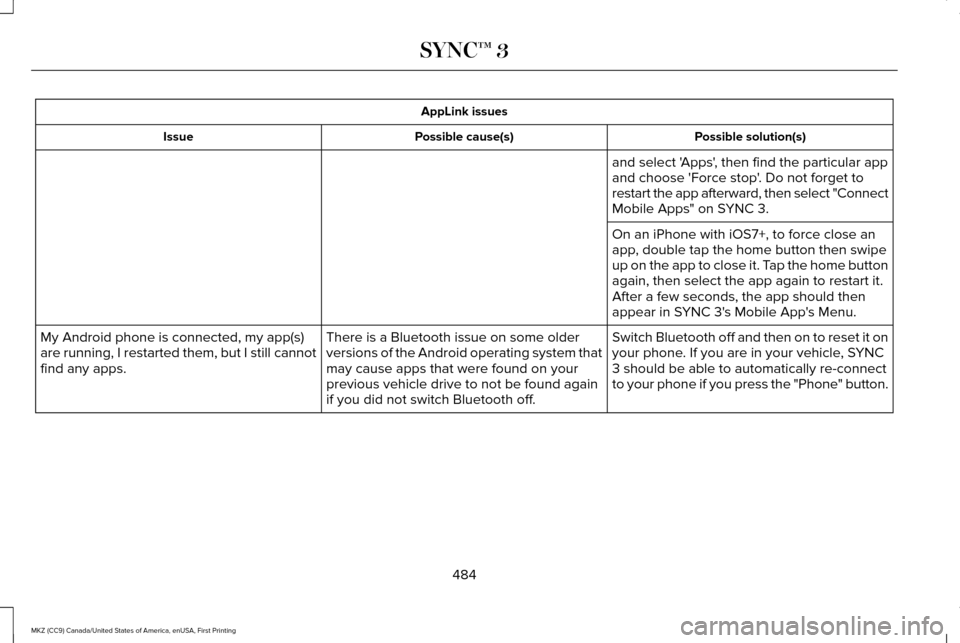
AppLink issues
Possible solution(s)
Possible cause(s)
Issue
and select 'Apps', then find the particular app
and choose 'Force stop'. Do not forget to
restart the app afterward, then select "Connect
Mobile Apps" on SYNC 3.
On an iPhone with iOS7+, to force close an
app, double tap the home button then swipe
up on the app to close it. Tap the home button
again, then select the app again to restart it.
After a few seconds, the app should then
appear in SYNC 3's Mobile App's Menu.
Switch Bluetooth off and then on to reset it on
your phone. If you are in your vehicle, SYNC
3 should be able to automatically re-connect
to your phone if you press the "Phone" button.
There is a Bluetooth issue on some older
versions of the Android operating system that
may cause apps that were found on your
previous vehicle drive to not be found again
if you did not switch Bluetooth off.
My Android phone is connected, my app(s)
are running, I restarted them, but I still cannot
find any apps.
484
MKZ (CC9) Canada/United States of America, enUSA, First Printing SYNC™ 3
Page 488 of 564
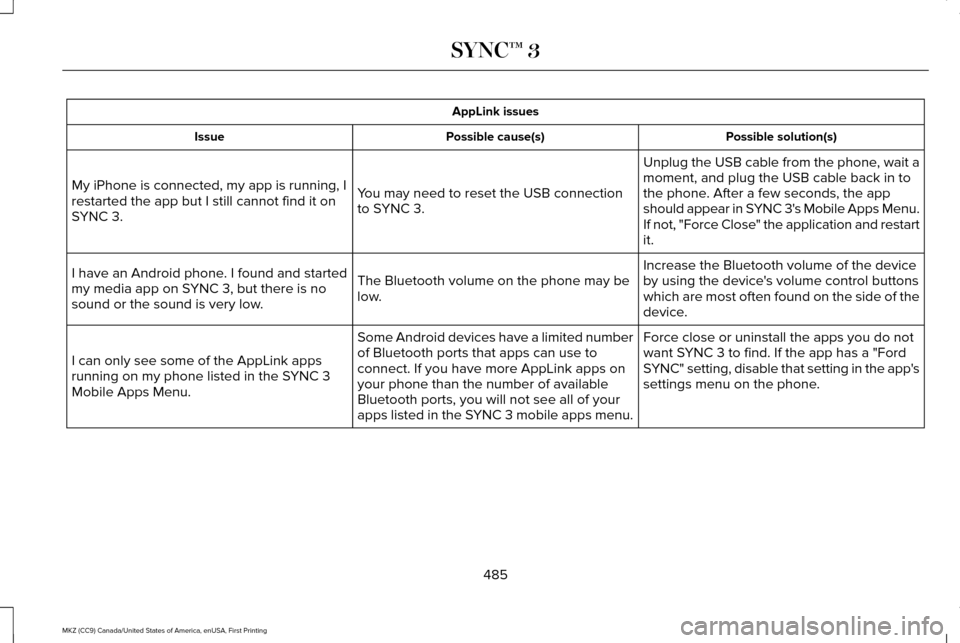
AppLink issues
Possible solution(s)
Possible cause(s)
Issue
Unplug the USB cable from the phone, wait a
moment, and plug the USB cable back in to
the phone. After a few seconds, the app
should appear in SYNC 3's Mobile Apps Menu.
If not, "Force Close" the application and restart
it.
You may need to reset the USB connection
to SYNC 3.
My iPhone is connected, my app is running, I
restarted the app but I still cannot find it on
SYNC 3.
Increase the Bluetooth volume of the device
by using the device's volume control buttons
which are most often found on the side of the
device.
The Bluetooth volume on the phone may be
low.
I have an Android phone. I found and started
my media app on SYNC 3, but there is no
sound or the sound is very low.
Force close or uninstall the apps you do not
want SYNC 3 to find. If the app has a "Ford
SYNC" setting, disable that setting in the app's
settings menu on the phone.
Some Android devices have a limited number
of Bluetooth ports that apps can use to
connect. If you have more AppLink apps on
your phone than the number of available
Bluetooth ports, you will not see all of your
apps listed in the SYNC 3 mobile apps menu.
I can only see some of the AppLink apps
running on my phone listed in the SYNC 3
Mobile Apps Menu.
485
MKZ (CC9) Canada/United States of America, enUSA, First Printing SYNC™ 3
Page 489 of 564
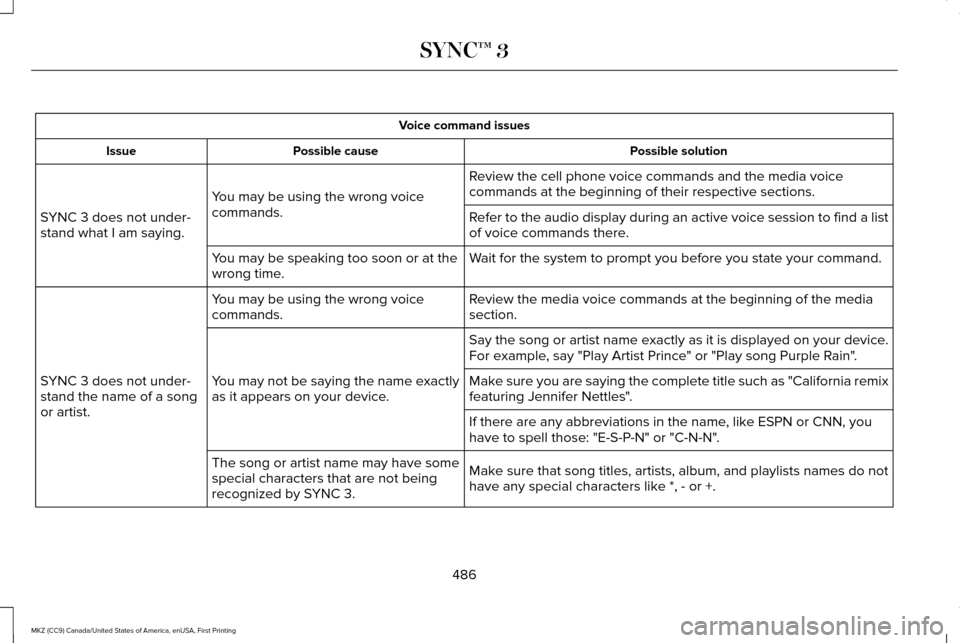
Voice command issues
Possible solution
Possible cause
Issue
Review the cell phone voice commands and the media voice
commands at the beginning of their respective sections.
You may be using the wrong voice
commands.
SYNC 3 does not under-
stand what I am saying. Refer to the audio display during an active voice session to find a list
of voice commands there.
Wait for the system to prompt you before you state your command.
You may be speaking too soon or at the
wrong time.
Review the media voice commands at the beginning of the media
section.
You may be using the wrong voice
commands.
SYNC 3 does not under-
stand the name of a song
or artist. Say the song or artist name exactly as it is displayed on your device.
For example, say "Play Artist Prince" or "Play song Purple Rain".
You may not be saying the name exactly
as it appears on your device. Make sure you are saying the complete title such as "California remix
featuring Jennifer Nettles".
If there are any abbreviations in the name, like ESPN or CNN, you
have to spell those: "E-S-P-N" or "C-N-N".
Make sure that song titles, artists, album, and playlists names do not
have any special characters like *, - or +.
The song or artist name may have some
special characters that are not being
recognized by SYNC 3.
486
MKZ (CC9) Canada/United States of America, enUSA, First Printing SYNC™ 3
Page 490 of 564
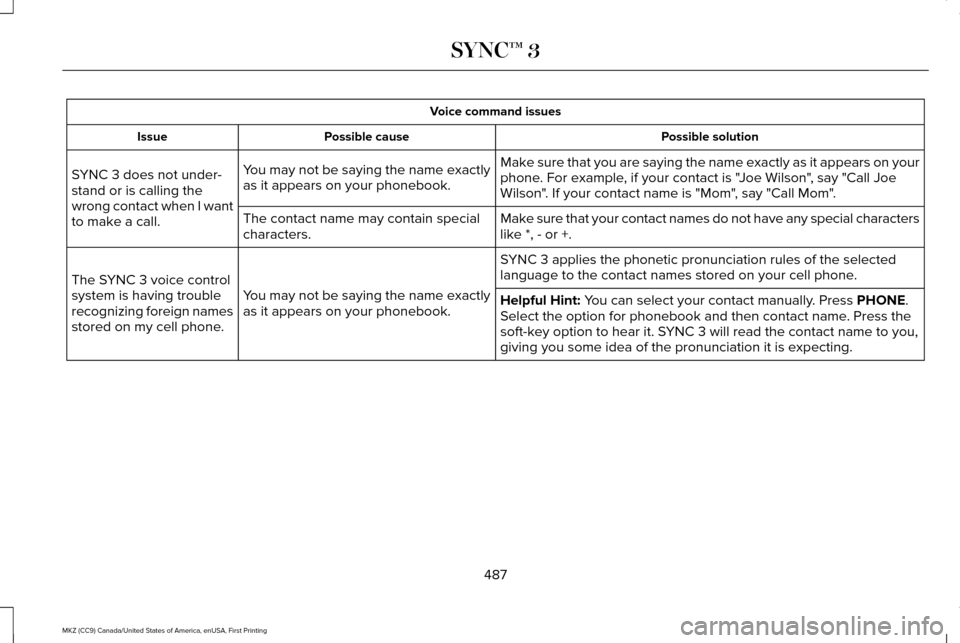
Voice command issues
Possible solution
Possible cause
Issue
Make sure that you are saying the name exactly as it appears on your
phone. For example, if your contact is "Joe Wilson", say "Call Joe
Wilson". If your contact name is "Mom", say "Call Mom".
You may not be saying the name exactly
as it appears on your phonebook.
SYNC 3 does not under-
stand or is calling the
wrong contact when I want
to make a call.
Make sure that your contact names do not have any special characters
like *, - or +.
The contact name may contain special
characters.
SYNC 3 applies the phonetic pronunciation rules of the selected
language to the contact names stored on your cell phone.
You may not be saying the name exactly
as it appears on your phonebook.
The SYNC 3 voice control
system is having trouble
recognizing foreign names
stored on my cell phone.
Helpful Hint: You can select your contact manually. Press PHONE.
Select the option for phonebook and then contact name. Press the
soft-key option to hear it. SYNC 3 will read the contact name to you,
giving you some idea of the pronunciation it is expecting.
487
MKZ (CC9) Canada/United States of America, enUSA, First Printing SYNC™ 3
Page 491 of 564
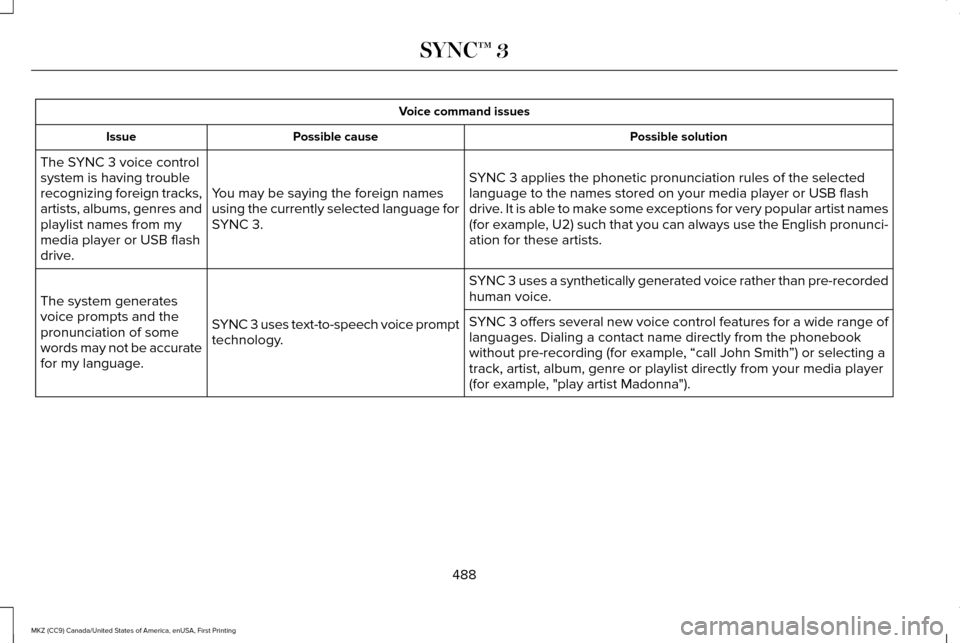
Voice command issues
Possible solution
Possible cause
Issue
SYNC 3 applies the phonetic pronunciation rules of the selected
language to the names stored on your media player or USB flash
drive. It is able to make some exceptions for very popular artist names
(for example, U2) such that you can always use the English pronunci-
ation for these artists.
You may be saying the foreign names
using the currently selected language for
SYNC 3.
The SYNC 3 voice control
system is having trouble
recognizing foreign tracks,
artists, albums, genres and
playlist names from my
media player or USB flash
drive.
SYNC 3 uses a synthetically generated voice rather than pre-recorded
human voice.
SYNC 3 uses text-to-speech voice prompt
technology.
The system generates
voice prompts and the
pronunciation of some
words may not be accurate
for my language. SYNC 3 offers several new voice control features for a wide range of
languages. Dialing a contact name directly from the phonebook
without pre-recording (for example, “call John Smith
”) or selecting a
track, artist, album, genre or playlist directly from your media player
(for example, "play artist Madonna").
488
MKZ (CC9) Canada/United States of America, enUSA, First Printing SYNC™ 3
Page 492 of 564
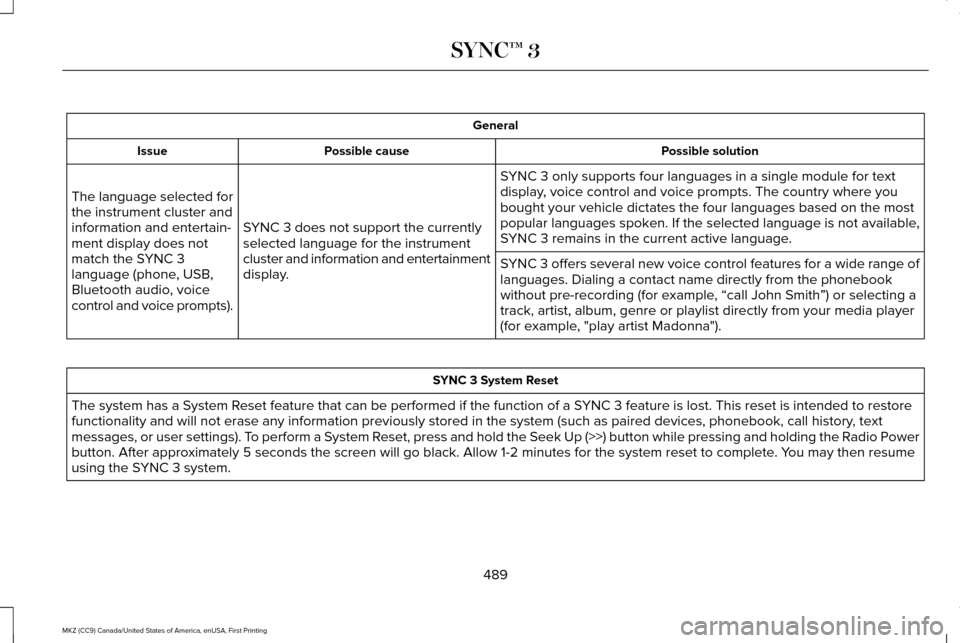
General
Possible solution
Possible cause
Issue
SYNC 3 only supports four languages in a single module for text
display, voice control and voice prompts. The country where you
bought your vehicle dictates the four languages based on the most
popular languages spoken. If the selected language is not available,
SYNC 3 remains in the current active language.
SYNC 3 does not support the currently
selected language for the instrument
cluster and information and entertainment
display.
The language selected for
the instrument cluster and
information and entertain-
ment display does not
match the SYNC 3
language (phone, USB,
Bluetooth audio, voice
control and voice prompts).
SYNC 3 offers several new voice control features for a wide range of
languages. Dialing a contact name directly from the phonebook
without pre-recording (for example, “call John Smith
”) or selecting a
track, artist, album, genre or playlist directly from your media player
(for example, "play artist Madonna"). SYNC 3 System Reset
The system has a System Reset feature that can be performed if the function of a SYNC 3 feature is lost. This reset is intended to restore
functionality and will not erase any information previously stored in th\
e system (such as paired devices, phonebook, call history , text
messages, or user settings). To perform a System Reset, press and hold the Seek Up (>>) button while pressing and holdin\
g the Radio Power
button. After approximately 5 seconds the screen will go black. Allow 1-2 minutes for the s\
ystem reset to complete. You may then resume
using the SYNC 3 system.
489
MKZ (CC9) Canada/United States of America, enUSA, First Printing SYNC™ 3
Page 495 of 564
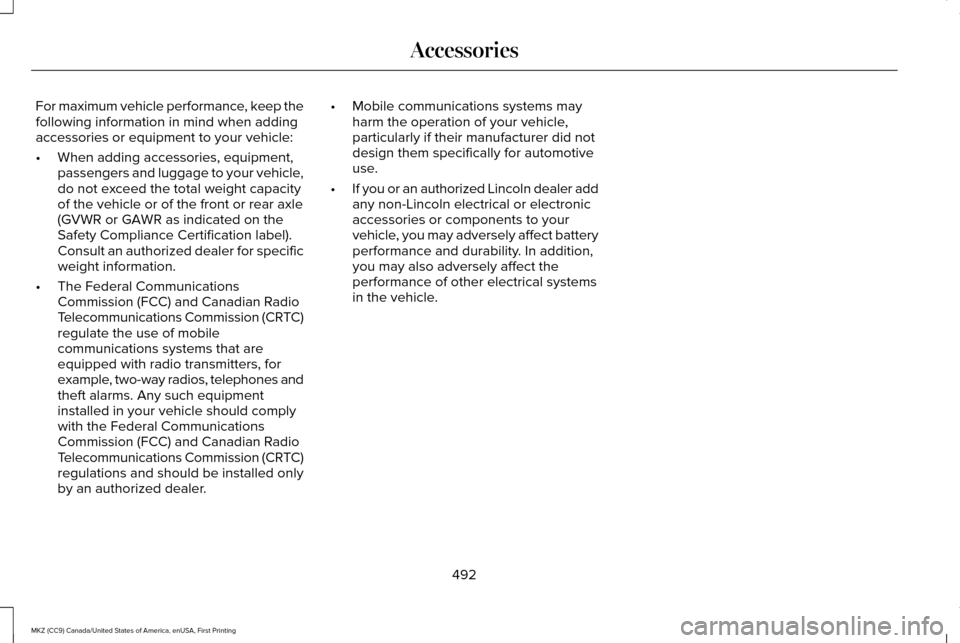
For maximum vehicle performance, keep the
following information in mind when adding
accessories or equipment to your vehicle:
•
When adding accessories, equipment,
passengers and luggage to your vehicle,
do not exceed the total weight capacity
of the vehicle or of the front or rear axle
(GVWR or GAWR as indicated on the
Safety Compliance Certification label).
Consult an authorized dealer for specific
weight information.
• The Federal Communications
Commission (FCC) and Canadian Radio
Telecommunications Commission (CRTC)
regulate the use of mobile
communications systems that are
equipped with radio transmitters, for
example, two-way radios, telephones and
theft alarms. Any such equipment
installed in your vehicle should comply
with the Federal Communications
Commission (FCC) and Canadian Radio
Telecommunications Commission (CRTC)
regulations and should be installed only
by an authorized dealer. •
Mobile communications systems may
harm the operation of your vehicle,
particularly if their manufacturer did not
design them specifically for automotive
use.
• If you or an authorized Lincoln dealer add
any non-Lincoln electrical or electronic
accessories or components to your
vehicle, you may adversely affect battery
performance and durability. In addition,
you may also adversely affect the
performance of other electrical systems
in the vehicle.
492
MKZ (CC9) Canada/United States of America, enUSA, First Printing Accessories
Page 545 of 564
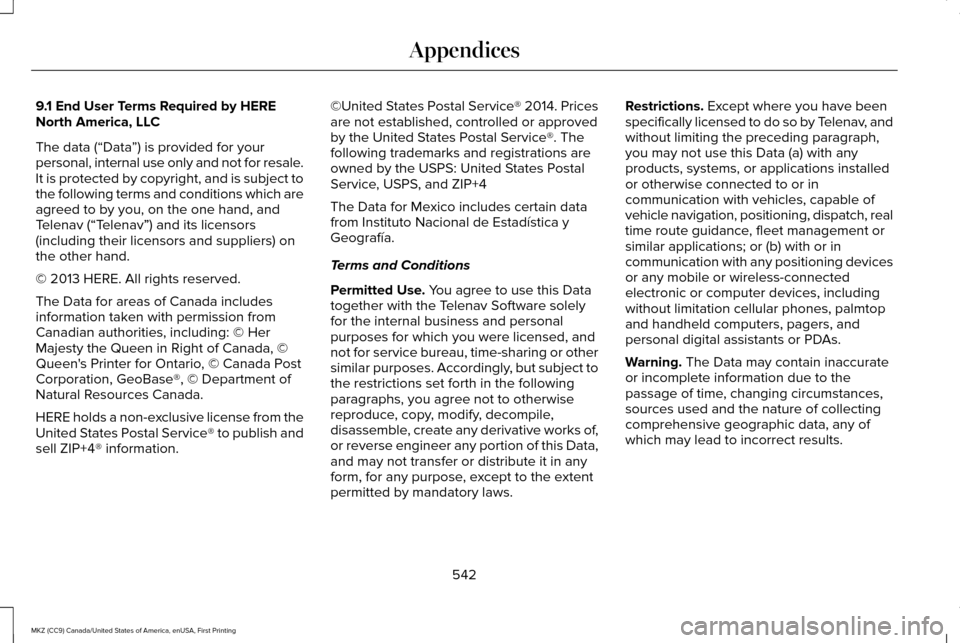
9.1 End User Terms Required by HERE
North America, LLC
The data (“Data
”) is provided for your
personal, internal use only and not for resale.
It is protected by copyright, and is subject to
the following terms and conditions which are
agreed to by you, on the one hand, and
Telenav (“Telenav”) and its licensors
(including their licensors and suppliers) on
the other hand.
© 2013 HERE. All rights reserved.
The Data for areas of Canada includes
information taken with permission from
Canadian authorities, including: © Her
Majesty the Queen in Right of Canada, ©
Queen's Printer for Ontario, © Canada Post
Corporation, GeoBase®, © Department of
Natural Resources Canada.
HERE holds a non-exclusive license from the
United States Postal Service® to publish and
sell ZIP+4® information. ©United States Postal Service® 2014. Prices
are not established, controlled or approved
by the United States Postal Service®. The
following trademarks and registrations are
owned by the USPS: United States Postal
Service, USPS, and ZIP+4
The Data for Mexico includes certain data
from Instituto Nacional de Estadística y
Geografía.
Terms and Conditions
Permitted Use. You agree to use this Data
together with the Telenav Software solely
for the internal business and personal
purposes for which you were licensed, and
not for service bureau, time-sharing or other
similar purposes. Accordingly, but subject to
the restrictions set forth in the following
paragraphs, you agree not to otherwise
reproduce, copy, modify, decompile,
disassemble, create any derivative works of,
or reverse engineer any portion of this Data,
and may not transfer or distribute it in any
form, for any purpose, except to the extent
permitted by mandatory laws. Restrictions.
Except where you have been
specifically licensed to do so by Telenav, and
without limiting the preceding paragraph,
you may not use this Data (a) with any
products, systems, or applications installed
or otherwise connected to or in
communication with vehicles, capable of
vehicle navigation, positioning, dispatch, real
time route guidance, fleet management or
similar applications; or (b) with or in
communication with any positioning devices
or any mobile or wireless-connected
electronic or computer devices, including
without limitation cellular phones, palmtop
and handheld computers, pagers, and
personal digital assistants or PDAs.
Warning.
The Data may contain inaccurate
or incomplete information due to the
passage of time, changing circumstances,
sources used and the nature of collecting
comprehensive geographic data, any of
which may lead to incorrect results.
542
MKZ (CC9) Canada/United States of America, enUSA, First Printing Appendices
Page 560 of 564
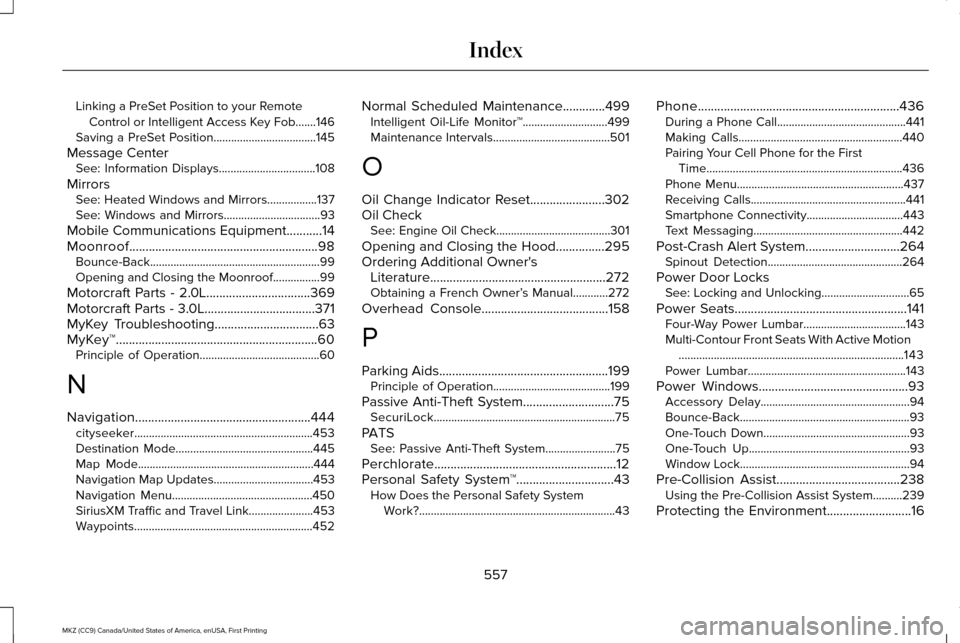
Linking a PreSet Position to your Remote
Control or Intelligent Access Key Fob.......146
Saving a PreSet Position...................................145
Message Center See: Information Displays.................................108
Mirrors See: Heated Windows and Mirrors.................
137
See: Windows and Mirrors.................................93
Mobile Communications Equipment
...........14
Moonroof..........................................................98 Bounce-Back..........................................................99
Opening and Closing the Moonroof................99
Motorcraft Parts - 2.0L................................369
Motorcraft Parts - 3.0L
..................................371
MyKey Troubleshooting................................63
MyKey™..............................................................60 Principle of Operation.........................................60
N
Navigation......................................................444 cityseeker.............................................................453
Destination Mode...............................................445
Map Mode............................................................444
Navigation Map Updates..................................453
Navigation Menu................................................450
SiriusXM Traffic and Travel Link......................
453
Waypoints.............................................................452 Normal Scheduled Maintenance
.............499
Intelligent Oil-Life Monitor™.............................499
Maintenance Intervals........................................501
O
Oil Change Indicator Reset.......................302
Oil Check See: Engine Oil Check.......................................301
Opening and Closing the Hood...............295
Ordering Additional Owner's Literature......................................................272
Obtaining a French Owner’ s Manual............272
Overhead Console.......................................158
P
Parking Aids
....................................................199
Principle of Operation........................................199
Passive Anti-Theft System............................75 SecuriLock..............................................................75
PATS See: Passive Anti-Theft System........................75
Perchlorate........................................................12
Personal Safety System ™
..............................43
How Does the Personal Safety System
Work?...................................................................43 Phone..............................................................436
During a Phone Call............................................441
Making Calls........................................................440
Pairing Your Cell Phone for the First
Time...................................................................436
Phone Menu.........................................................437
Receiving Calls.....................................................441
Smartphone Connectivity.................................443
Text Messaging...................................................442
Post-Crash Alert System.............................264 Spinout Detection..............................................264
Power Door Locks See: Locking and Unlocking..............................65
Power Seats.....................................................141 Four-Way Power Lumbar...................................143
Multi-Contour Front Seats With Active Motion
........................................................................\
.....143
Power Lumbar......................................................143
Power Windows
..............................................93
Accessory Delay...................................................94
Bounce-Back..........................................................93
One-Touch Down..................................................93
One-Touch Up.......................................................93
Window Lock..........................................................94
Pre-Collision Assist......................................238 Using the Pre-Collision Assist System..........239
Protecting the Environment..........................16
557
MKZ (CC9) Canada/United States of America, enUSA, First Printing Index
Page 561 of 564
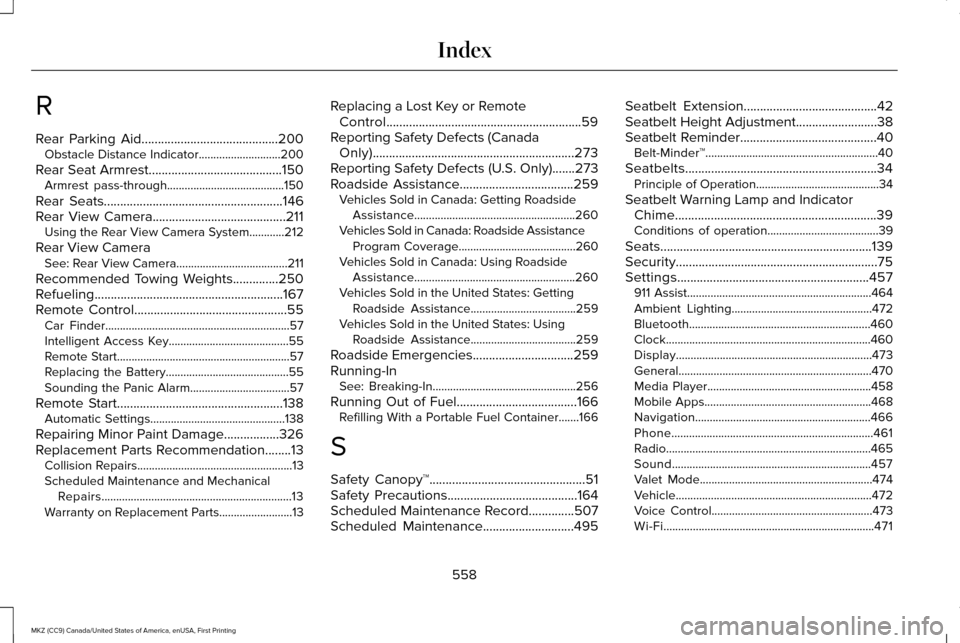
R
Rear Parking Aid..........................................200
Obstacle Distance Indicator............................200
Rear Seat Armrest.........................................150
Armrest pass-through........................................150
Rear Seats.......................................................146
Rear View Camera.........................................211 Using the Rear View Camera System............212
Rear View Camera See: Rear View Camera......................................211
Recommended Towing Weights
..............250
Refueling..........................................................167
Remote Control...............................................55 Car Finder...............................................................57
Intelligent Access Key.........................................55
Remote Start...........................................................57
Replacing the Battery..........................................55
Sounding the Panic Alarm..................................57
Remote Start...................................................138 Automatic Settings..............................................138
Repairing Minor Paint Damage.................326
Replacement Parts Recommendation........13 Collision Repairs.....................................................13
Scheduled Maintenance and Mechanical
Repairs.................................................................13
Warranty on Replacement Parts.........................
13 Replacing a Lost Key or Remote
Control............................................................59
Reporting Safety Defects (Canada Only)..............................................................273
Reporting Safety Defects (U.S. Only).......273
Roadside Assistance
...................................259
Vehicles Sold in Canada: Getting Roadside
Assistance.......................................................260
Vehicles Sold in Canada: Roadside Assistance Program Coverage........................................260
Vehicles Sold in Canada: Using Roadside Assistance.......................................................260
Vehicles Sold in the United States: Getting Roadside Assistance....................................259
Vehicles Sold in the United States: Using Roadside Assistance....................................259
Roadside Emergencies...............................259
Running-In See: Breaking-In.................................................256
Running Out of Fuel
.....................................166
Refilling With a Portable Fuel Container.......166
S
Safety Canopy™................................................51
Safety Precautions
........................................164
Scheduled Maintenance Record..............507
Scheduled Maintenance............................495 Seatbelt Extension
.........................................42
Seatbelt Height Adjustment.........................38
Seatbelt Reminder..........................................40 Belt-Minder™...........................................................40
Seatbelts...........................................................34 Principle of Operation..........................................34
Seatbelt Warning Lamp and Indicator Chime..............................................................39
Conditions of operation......................................39
Seats.................................................................139
Security..............................................................75
Settings...........................................................457 911 Assist...............................................................464
Ambient Lighting................................................472
Bluetooth..............................................................460
Clock......................................................................460
Display...................................................................473
General..................................................................470
Media Player........................................................458
Mobile Apps.........................................................468
Navigation............................................................466
Phone.....................................................................461
Radio......................................................................465
Sound....................................................................457
Valet Mode...........................................................474
Vehicle...................................................................472
Voice Control.......................................................473
Wi-Fi........................................................................\
471
558
MKZ (CC9) Canada/United States of America, enUSA, First Printing Index