steering LINCOLN MKZ 2017 Repair Manual
[x] Cancel search | Manufacturer: LINCOLN, Model Year: 2017, Model line: MKZ, Model: LINCOLN MKZ 2017Pages: 564, PDF Size: 5.54 MB
Page 401 of 564
Information
Option
Information for current audio playing.
Audio
Select source.
View current road and speed limit (if information is available).
Navigation
View current route, next turn, time to your destination (depending on cluster level), di\
stance to destination (depending on
cluster level), and ability to cancel route.
If you do not have an active navigation route programed, the compass is \
shown.
If you are not on a call, a call can be made by selecting: *
Phone
Missed calls
Outgoing calls
Incoming calls
All calls
Quick dial
If you are on a call, the call information is displayed on the informati\
on display.
If you are receiving a call, you can accept it by selecting OK on the ri\
ght-hand steering wheel controls.
* Depending on your vehicle options, all of these choices may not displa\
y.
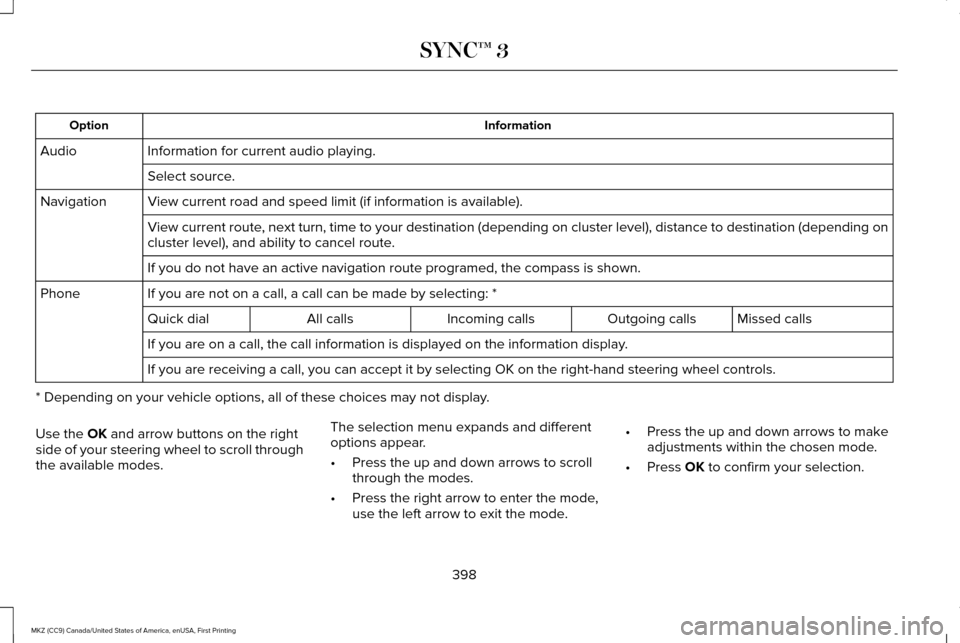
Use the OK and arrow buttons on the right
side of your steering wheel to scroll through
the available modes. The selection menu expands and different
options appear.
•
Press the up and down arrows to scroll
through the modes.
• Press the right arrow to enter the mode,
use the left arrow to exit the mode. •
Press the up and down arrows to make
adjustments within the chosen mode.
• Press
OK to confirm your selection.
398
MKZ (CC9) Canada/United States of America, enUSA, First Printing SYNC™ 3
Page 402 of 564
Note:
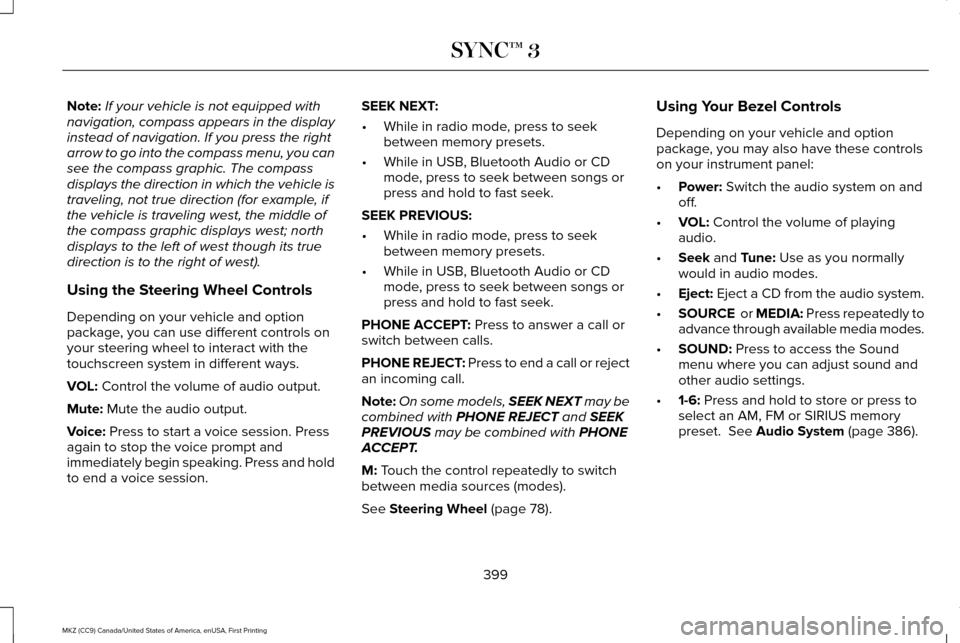
If your vehicle is not equipped with
navigation, compass appears in the display
instead of navigation. If you press the right
arrow to go into the compass menu, you can
see the compass graphic. The compass
displays the direction in which the vehicle is
traveling, not true direction (for example, if
the vehicle is traveling west, the middle of
the compass graphic displays west; north
displays to the left of west though its true
direction is to the right of west).
Using the Steering Wheel Controls
Depending on your vehicle and option
package, you can use different controls on
your steering wheel to interact with the
touchscreen system in different ways.
VOL: Control the volume of audio output.
Mute:
Mute the audio output.
Voice:
Press to start a voice session. Press
again to stop the voice prompt and
immediately begin speaking. Press and hold
to end a voice session. SEEK NEXT:
•
While in radio mode, press to seek
between memory presets.
• While in USB, Bluetooth Audio or CD
mode, press to seek between songs or
press and hold to fast seek.
SEEK PREVIOUS:
• While in radio mode, press to seek
between memory presets.
• While in USB, Bluetooth Audio or CD
mode, press to seek between songs or
press and hold to fast seek.
PHONE ACCEPT:
Press to answer a call or
switch between calls.
PHONE REJECT: Press to end a call or reject
an incoming call.
Note: On some models, SEEK NEXT may be
combined with
PHONE REJECT and SEEK
PREVIOUS may be combined with PHONE
ACCEPT.
M:
Touch the control repeatedly to switch
between media sources (modes).
See
Steering Wheel (page 78). Using Your Bezel Controls
Depending on your vehicle and option
package, you may also have these controls
on your instrument panel:
•
Power:
Switch the audio system on and
off.
• VOL:
Control the volume of playing
audio.
• Seek
and Tune: Use as you normally
would in audio modes.
• Eject:
Eject a CD from the audio system.
• SOURCE
or MEDIA: Press repeatedly to
advance through available media modes.
• SOUND:
Press to access the Sound
menu where you can adjust sound and
other audio settings.
• 1-6:
Press and hold to store or press to
select an AM, FM or SIRIUS memory
preset.
See Audio System (page 386).
399
MKZ (CC9) Canada/United States of America, enUSA, First Printing SYNC™ 3
Page 404 of 564
Website
www.syncmaroute.ca
For important information about airbag
deployment and the fuel pump shut-off
please see the Supplementary Restrains and
Roadside Emergencies sections of your
owner manual.
To switch 911 Assist on and off please view
the settings information. See Settings (page
457).
To make sure that 911 Assist works correctly:
• SYNC must be powered and working
properly at the time of the incident and
throughout feature activation and use.
• The 911 Assist feature must be set on
before the incident.
• You must pair and connect a
Bluetooth-enabled and compatible cell
phone to SYNC.
• A connected Bluetooth-enabled phone
must have the ability to make and
maintain an outgoing call at the time of
the incident. •
A connected Bluetooth-enabled phone
must have adequate network coverage,
battery power and signal strength.
• The vehicle must have battery power and
be located in the U.S., Canada or in a
territory in which 911 is the emergency
number.
In the Event of a Crash
Not all crashes will deploy an airbag or
activate the fuel pump shut-off (the triggers
for 911 Assist). If a connected cell phone
sustains damage or loses its connection to
SYNC during a crash, SYNC will search for
and try to connect to a previously paired cell
phone; SYNC will then attempt to call the
emergency services. Before making the call:
•
SYNC provides a short window of time
(about 10 seconds) to cancel the call. If
you fail to cancel the call, SYNC attempts
to dial 911.
• SYNC says the following, or a similar
message: "SYNC will attempt to call 911,
to cancel the call, press Cancel on your
screen or press and hold the phone
button on your steering wheel."
If you do not cancel the call, and SYNC
makes a successful call, a pre-recorded
message plays for the 911 operator, and then
the occupant(s) in your vehicle is able to talk
with the operator. Be prepared to provide
your name, phone number and location
immediately, because not all 911 systems are
capable of receiving this information
electronically.
401
MKZ (CC9) Canada/United States of America, enUSA, First Printing SYNC™ 3
Page 411 of 564

Home screen display
Tile
Item
Shows the active media source.
Audio
A
If your vehicle does not have navigation, this space contains the compas\
s.
The name of the connected phone appears on the screen. The status of the\
phone features also
appear. This includes signal strength, battery charge, 911 assist setting state (On or Off ), text messaging
and roaming.
Phone
B
This map displays your current location or current route in real time.
*
Navigation
C
When you have navigation active, you also see the next turn and the length of time and distance to
your destination.
If your vehicle does not have navigation, this space contains the audio \
information.
* If equipped.
You can touch any of the feature displays to
access that feature.
Anytime you select the home button, the
system returns you to this screen. USING VOICE RECOGNITION
The SYNC 3 system allows you to use voice
commands, to control features like audio and
climate controls. By using voice commands,
you can keep your hands on the wheel and
your eyes on the road.
You can access each feature controlled by
SYNC 3 through a variety of commands. To activate the SYNC 3 voice
commands push the voice button
on the steering wheel and wait for
the prompt.
___ is a dynamic listing, meaning that it can
be the name of anything, such as artist, the
name of contact or number. The context and
the description of the command tell you what
to say for this dynamic option.
There are some commands that work for
every feature, these commands are:
408
MKZ (CC9) Canada/United States of America, enUSA, First Printing SYNC™ 3E142599
Page 442 of 564

Action and Description
Menu Item
Item
You can place a call by selecting an entry from this list.
You can also sort the calls by selecting the drop down menu at the top of\
the screen. You can choose: Missed
Outgoing
Incoming
All
All of your contacts from your phone display in alphabetical order.
Contacts
B
Selecting this button allows you to choose a
specific letter to view.
A-Z Jump
Displays the name of your phone and takes you to the phone settings options.
Phone Settings
C
From this menu, you can pair subsequent devices, set ring tones and aler\
ts. See Settings (page 457).
Displays all recent text messages.
Text Messages
D
Use this keypad to dial in a phone number.
Phone Keypad
E
Use the backspace button to delete numbers.
Press this button to begin a call.
Call
Touch this button to send all calls directly to your voicemail. New text \
message notifications are not
displayed on the screen and all ringtones and alerts are set to silent.
Do Not Disturb
F
Users with phones having voice services may
see a button to access the feature. For
example, iPhone users see a Siri button. A
press and hold of the voice button on the
steering wheel also accesses this feature. 439
MKZ (CC9) Canada/United States of America, enUSA, First Printing SYNC™ 3
Page 444 of 564
To call a number in your contacts, select:
Action and Description
Menu Item
You can then select the
name of the contact you
want to call. Any numbers
stored for that contact
display along with any
stored contact photos. You
can then select the number
that you want to call. The
system begins the call.
Contacts
To call a number from your recent calls,
select: Action and Description
Menu Item
You can then select an entry
that you want to call. The
system begins the call.
Recent Call
List
To call a number that is not stored in your
phone, select: Action and Description
Menu Item Action and Description
Menu Item
Select the digits of the
number you wish to call.
Phone
Keypad
The system begins the call.
Call
Pressing the backspace button deletes the
last digit you typed.
Receiving Calls
During an incoming call, an audible tone
sounds. Caller information appears in the
display if it is available.
To accept the call, select: Menu Item
Accept
Note: You can also accept the call by
pressing the phone button on the steering
wheel. To reject the call, select: Menu Item
Reject
Note: You can also reject the call by
pressing the phone button on the steering
wheel.
Ignore the call by doing nothing. SYNC 3
logs it as a missed call.
During a Phone Call
During a phone call, the contacts name and
number display on the screen along with the
call duration.
The phone status items are also visible:
• Signal Strength.
• Battery.
• 911 Assist (United States and Canada
Only). See Settings (page 457).
You can select any of the following during
an active phone call:
441
MKZ (CC9) Canada/United States of America, enUSA, First Printing SYNC™ 3
Page 445 of 564
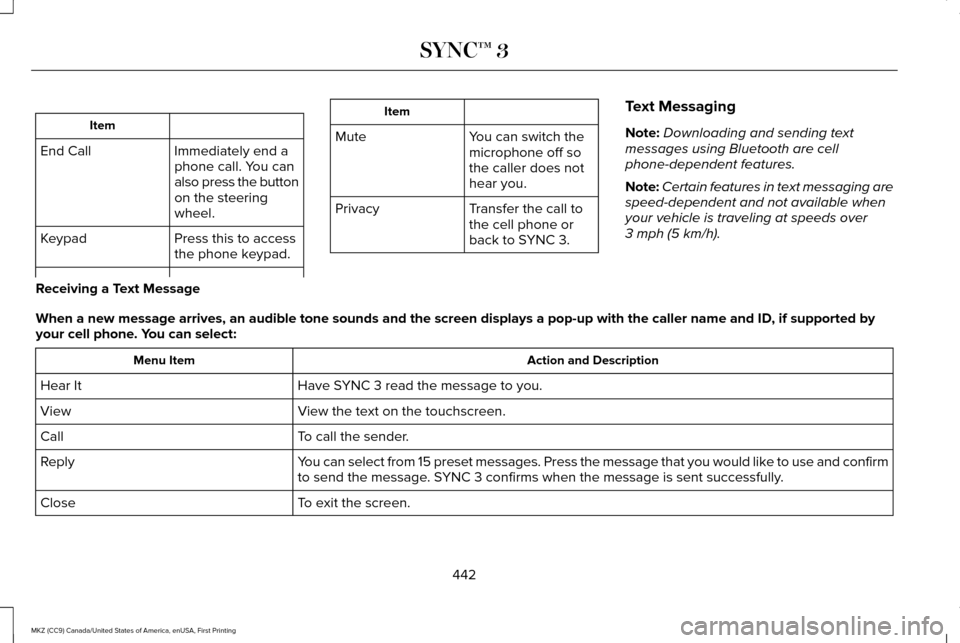
Item
Immediately end a
phone call. You can
also press the button
on the steering
wheel.
End Call
Press this to access
the phone keypad.
Keypad Item
Mute You can switch the
microphone off so
the caller does not
hear you.
Transfer the call to
the cell phone or
back to SYNC 3.
Privacy Text Messaging
Note:
Downloading and sending text
messages using Bluetooth are cell
phone-dependent features.
Note: Certain features in text messaging are
speed-dependent and not available when
your vehicle is traveling at speeds over
3 mph (5 km/h).
Receiving a Text Message
When a new message arrives, an audible tone sounds and the screen displa\
ys a pop-up with the caller name and ID, if supported by
your cell phone. You can select: Action and Description
Menu Item
Have SYNC 3 read the message to you.
Hear It
View the text on the touchscreen.
View
To call the sender.
Call
You can select from 15 preset messages. Press the message that you would \
like to use and confirm
to send the message. SYNC 3 confirms when the message is sent successfully.
Reply
To exit the screen.
Close
442
MKZ (CC9) Canada/United States of America, enUSA, First Printing SYNC™ 3
Page 457 of 564
Website
www.navigation.com/sync
You need to specify the make and model of
your vehicle to determine if there is an
update available.
HERE is the digital map provider for the
navigation application. If you find map data
errors, you may report them directly to HERE
by going to www.here.com/mapcreator.
HERE evaluates all reported map errors and
responds with the result of their investigation
by e-mail.
Map coverage includes the USA (including
Puerto Rico and the US Virgin Islands),
Canada and Mexico. APPS
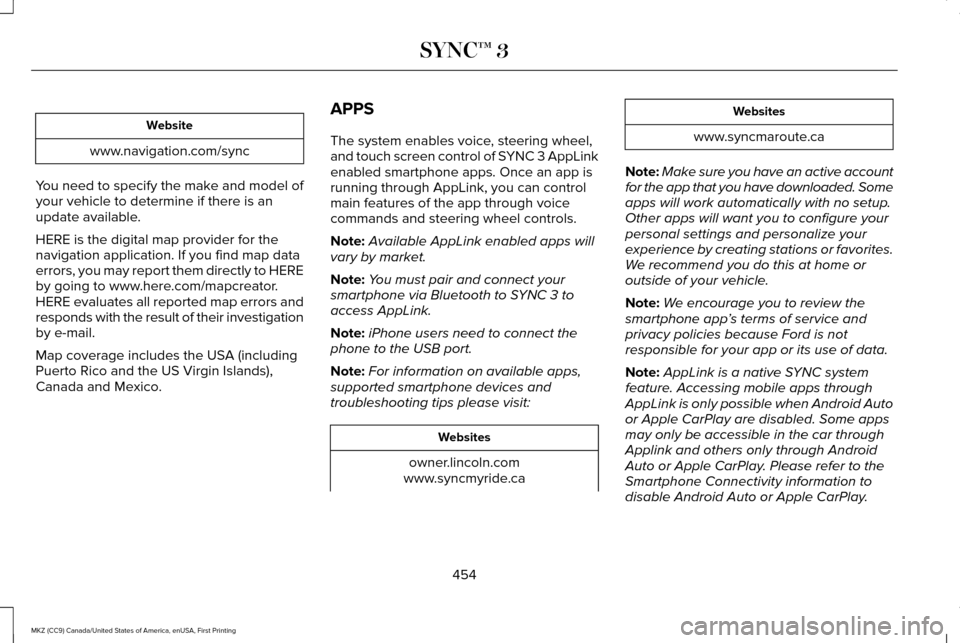
The system enables voice, steering wheel,
and touch screen control of SYNC 3 AppLink
enabled smartphone apps. Once an app is
running through AppLink, you can control
main features of the app through voice
commands and steering wheel controls.
Note:
Available AppLink enabled apps will
vary by market.
Note: You must pair and connect your
smartphone via Bluetooth to SYNC 3 to
access AppLink.
Note: iPhone users need to connect the
phone to the USB port.
Note: For information on available apps,
supported smartphone devices and
troubleshooting tips please visit: Websites
owner.lincoln.com
www.syncmyride.ca Websites
www.syncmaroute.ca
Note: Make sure you have an active account
for the app that you have downloaded. Some
apps will work automatically with no setup.
Other apps will want you to configure your
personal settings and personalize your
experience by creating stations or favorites.
We recommend you do this at home or
outside of your vehicle.
Note: We encourage you to review the
smartphone app ’s terms of service and
privacy policies because Ford is not
responsible for your app or its use of data.
Note: AppLink is a native SYNC system
feature. Accessing mobile apps through
AppLink is only possible when Android Auto
or Apple CarPlay are disabled. Some apps
may only be accessible in the car through
Applink and others only through Android
Auto or Apple CarPlay. Please refer to the
Smartphone Connectivity information to
disable Android Auto or Apple CarPlay.
454
MKZ (CC9) Canada/United States of America, enUSA, First Printing SYNC™ 3
Page 502 of 564
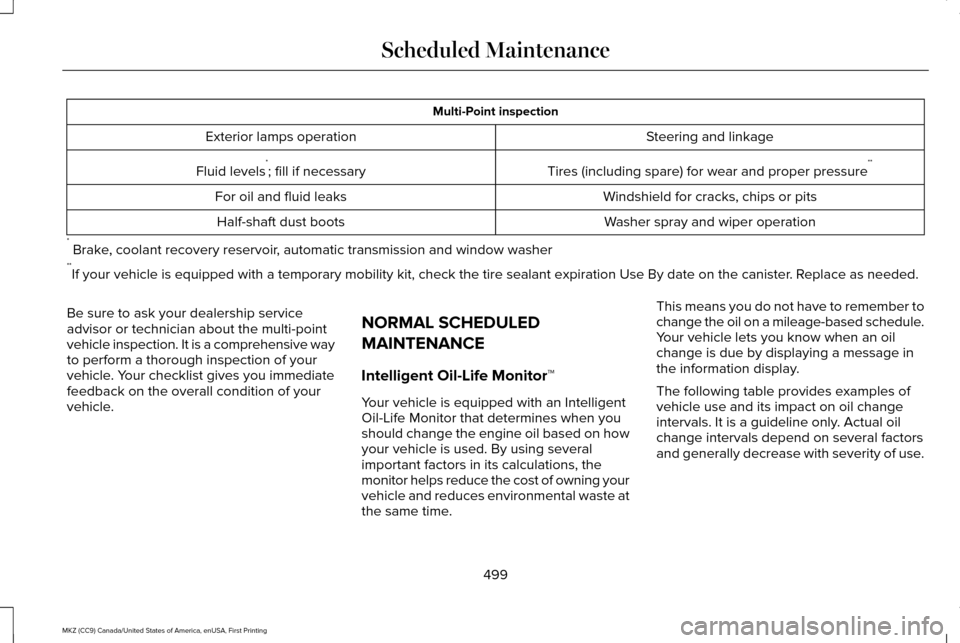
Multi-Point inspection
Steering and linkage
Exterior lamps operation
Tires (including spare) for wear and proper pressure**
Fluid levels *
; fill if necessary
Windshield for cracks, chips or pits
For oil and fluid leaks
Washer spray and wiper operation
Half-shaft dust boots
* Brake, coolant recovery reservoir, automatic transmission and window washer
** If your vehicle is equipped with a temporary mobility kit, check the tir\
e sealant expiration Use By date on the canister. Replace as needed.
Be sure to ask your dealership service
advisor or technician about the multi-point
vehicle inspection. It is a comprehensive way
to perform a thorough inspection of your
vehicle. Your checklist gives you immediate
feedback on the overall condition of your
vehicle. NORMAL SCHEDULED
MAINTENANCE
Intelligent Oil-Life Monitor™
Your vehicle is equipped with an Intelligent
Oil-Life Monitor that determines when you
should change the engine oil based on how
your vehicle is used. By using several
important factors in its calculations, the
monitor helps reduce the cost of owning your
vehicle and reduces environmental waste at
the same time.This means you do not have to remember to
change the oil on a mileage-based schedule.
Your vehicle lets you know when an oil
change is due by displaying a message in
the information display.
The following table provides examples of
vehicle use and its impact on oil change
intervals. It is a guideline only. Actual oil
change intervals depend on several factors
and generally decrease with severity of use.
499
MKZ (CC9) Canada/United States of America, enUSA, First Printing Scheduled Maintenance
Page 504 of 564
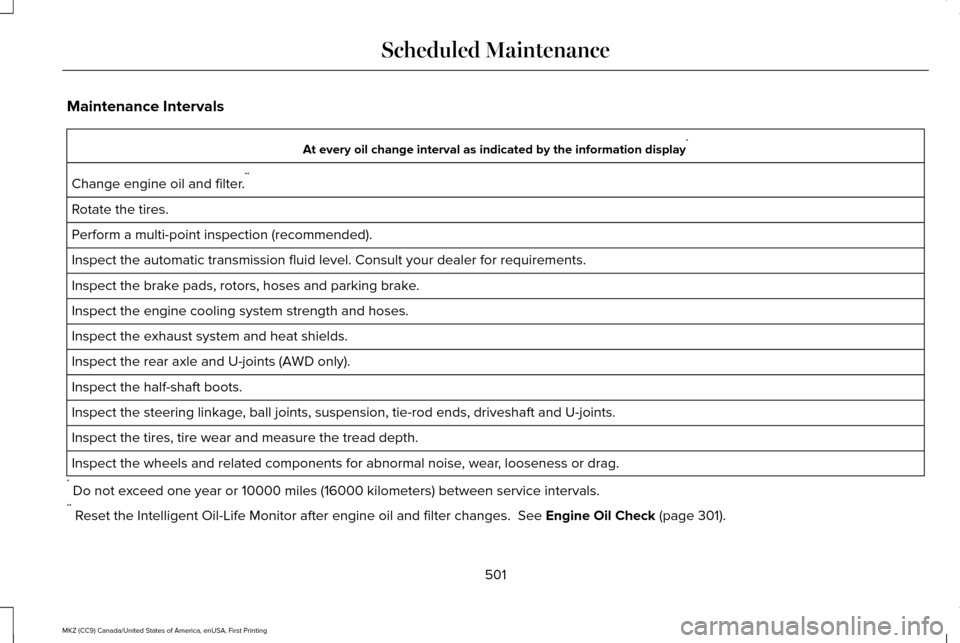
Maintenance Intervals
At every oil change interval as indicated by the information display
*
Change engine oil and filter. **
Rotate the tires.
Perform a multi-point inspection (recommended).
Inspect the automatic transmission fluid level. Consult your dealer for \
requirements.
Inspect the brake pads, rotors, hoses and parking brake.
Inspect the engine cooling system strength and hoses.
Inspect the exhaust system and heat shields.
Inspect the rear axle and U-joints (AWD only).
Inspect the half-shaft boots.
Inspect the steering linkage, ball joints, suspension, tie-rod ends, driveshaft and U-joints.
Inspect the tires, tire wear and measure the tread depth.
Inspect the wheels and related components for abnormal noise, wear, looseness or drag.
* Do not exceed one year or 10000 miles (16000 kilometers) between service interv\
als.
** Reset the Intelligent Oil-Life Monitor after engine oil and filter change\
s. See Engine Oil Check (page 301).
501
MKZ (CC9) Canada/United States of America, enUSA, First Printing Scheduled Maintenance