vent LINCOLN MKZ 2017 Manual Online
[x] Cancel search | Manufacturer: LINCOLN, Model Year: 2017, Model line: MKZ, Model: LINCOLN MKZ 2017Pages: 564, PDF Size: 5.54 MB
Page 362 of 564
•
Use commercial car washing equipment.
• Use snow chains on the end of the
vehicle with the dissimilar spare wheel
and tire assembly.
Use of the above dissimilar spare wheel at
any one wheel location can lead to
impairment of the following:
• Handling, stability and braking
performance.
• Comfort and noise.
• Ground clearance and parking at curbs.
• Winter weather driving capability.
• Wet weather driving capability.
• All-wheel driving capability.
Give additional caution to the following when
driving with the full-size dissimilar spare
wheel and tire assembly:
• Towing a trailer.
• Driving vehicles equipped with a camper
body.
• Driving vehicles with a load on the cargo
rack. Drive cautiously when using a full-size
dissimilar spare wheel and tire assembly and
seek service as soon as possible.
Changing a Road Wheel Procedure (If
Equipped) WARNINGS
When one of the front wheels is off the
ground, the transmission alone will not
prevent the vehicle from moving or slipping
off the jack, even if the transmission is in park
(P). To help prevent your vehicle from
moving when you change a tire, be
sure to place the transmission in park (P), set
the parking brake and block (in both
directions) the wheel that is diagonally
opposite (other side and end of the vehicle)
to the tire being changed. Never get underneath a vehicle that is
supported only by a jack. If your vehicle
slips off the jack, you or someone else could
be seriously injured. WARNINGS
Do not attempt to change a tire on the
side of the vehicle close to moving
traffic. Pull far enough off the road to avoid
the danger of being hit when operating the
jack or changing the wheel. Always use the jack provided as
original equipment with your vehicle.
If using a jack other than the one provided
as original equipment with your vehicle,
make sure the jack capacity is adequate for
the vehicle weight, including any vehicle
cargo or modifications. Note:
Passengers should not remain in your
vehicle when the vehicle is being jacked.
1. Park on a level surface, set the parking brake and activate the hazard flashers.
2. Place the transmission in park (P) and turn the engine off. For vehicles with a
manual transmission, place the
transmission in reverse ®) after the
engine is turned off.
359
MKZ (CC9) Canada/United States of America, enUSA, First Printing Wheels and Tires
Page 399 of 564
Functions
Feature Bar Item
Connect and control SYNC 3 compatible apps running on your iphone
or android device. Also, access built-in additional features such as
SiriusXM Traffic and Travel Link (if equipped).
Apps
If your vehicle is a hybrid, plug-in hybrid, or electric this is also wh\
ere
your settings and power information is located.
You can customize your system with various settings for the touch-
screen display, feature preferences, and how you want to interact
with your vehicle.
Settings
Cleaning the Touchscreen
You can remove fingerprints with a dry,
clean, soft cloth.
If dirt or fingerprints are still on the screen,
apply a small amount of alcohol to the cloth
and try to clean it again.
Note: Do not use detergent or any type of
solvent to clean the touchscreen.
Note: Do not pour or spray alcohol onto the
touchscreen. Using Voice Recognition
Using voice commands allows you to keep
your hands on the wheel and focus on what
is in front of you. The system provides
feedback through audible tones, prompts,
questions and spoken confirmations
depending on the situation and the chosen
level of interaction (voice settings).
The system also asks short questions
(confirmation prompts) when it is not sure of
your request or when there are multiple
possible responses to your request.When using voice commands, words and
icons may appear in the status bar indicating
the status of the voice command session.
See Using Voice Recognition (page 408).
Accessing and Adjusting Modes
Through Your Vehicle Information
Display
(If Equipped)
Depending on your vehicle and selected
options you may be able to control some of
the SYNC 3 features on your information
display. The features are visible in the center
of the display (A).
396
MKZ (CC9) Canada/United States of America, enUSA, First Printing SYNC™ 3
Page 403 of 564
•
DISP: Switch the display on or off. You
can also touch the screen to switch the
display back on.
• Temperature, fan and climate control
buttons:
Control the temperature, fan
speed or settings of the climate control
system.
See Climate Control (page 134).
911 Assist WARNINGS
Unless the 911 Assist setting is set on
before a crash, the system will not dial
for help which could delay response time,
potentially increasing the risk of serious
injury or death after a crash. setting is set on
before a crash, the system will not dial for
help which could delay response time,
potentially increasing the risk of serious
injury or death after a crash. WARNINGS
Do not wait for 911 Assist to make an
emergency call if you can do it yourself.
Dial emergency services immediately to
avoid delayed response time which could
increase the risk of serious injury or death
after a crash. If you do not hear 911 Assist
within five seconds of the crash, the system
or phone may be damaged or non-functional. Always place your phone in a secure
location in your vehicle so it does not
become a projectile or get damaged in a
crash. Failure to do so may cause serious
injury to someone or damage the phone
which could prevent 911 Assist from working
properly. Note:
The SYNC 911 Assist feature must be
set on before the incident.
Note: The SYNC 911 Assist feature only
operates in the U.S., Canada or in a territory
in which 911 is the emergency number.
Note: Before setting this feature on, make
sure that you read the 911 Assist Privacy
Notice later in this section for important
information. Note:
If any user sets 911 Assist to on or off,
that setting applies for all paired phones. If
911 Assist is switched off and the phone is
connected to SYNC, an icon displays on the
status bar.
Note: Every phone operates differently.
While SYNC 911 Assist works with most
cellular phones, some may have trouble
using this feature.
If a crash deploys an airbag (excluding knee
airbags and rear inflatable safety belts [if
equipped]) or activates the fuel pump
shut-off, your SYNC-equipped vehicle may
be able to contact emergency services by
dialing 911 through a paired and connected
Bluetooth-enabled phone. You can learn
more about the 911 Assist feature, by visiting: Website
owner.lincoln.com
www.syncmyride.ca
400
MKZ (CC9) Canada/United States of America, enUSA, First Printing SYNC™ 3
Page 404 of 564
Website
www.syncmaroute.ca
For important information about airbag
deployment and the fuel pump shut-off
please see the Supplementary Restrains and
Roadside Emergencies sections of your
owner manual.
To switch 911 Assist on and off please view
the settings information. See Settings (page
457).
To make sure that 911 Assist works correctly:
• SYNC must be powered and working
properly at the time of the incident and
throughout feature activation and use.
• The 911 Assist feature must be set on
before the incident.
• You must pair and connect a
Bluetooth-enabled and compatible cell
phone to SYNC.
• A connected Bluetooth-enabled phone
must have the ability to make and
maintain an outgoing call at the time of
the incident. •
A connected Bluetooth-enabled phone
must have adequate network coverage,
battery power and signal strength.
• The vehicle must have battery power and
be located in the U.S., Canada or in a
territory in which 911 is the emergency
number.
In the Event of a Crash
Not all crashes will deploy an airbag or
activate the fuel pump shut-off (the triggers
for 911 Assist). If a connected cell phone
sustains damage or loses its connection to
SYNC during a crash, SYNC will search for
and try to connect to a previously paired cell
phone; SYNC will then attempt to call the
emergency services. Before making the call:
•
SYNC provides a short window of time
(about 10 seconds) to cancel the call. If
you fail to cancel the call, SYNC attempts
to dial 911.
• SYNC says the following, or a similar
message: "SYNC will attempt to call 911,
to cancel the call, press Cancel on your
screen or press and hold the phone
button on your steering wheel."
If you do not cancel the call, and SYNC
makes a successful call, a pre-recorded
message plays for the 911 operator, and then
the occupant(s) in your vehicle is able to talk
with the operator. Be prepared to provide
your name, phone number and location
immediately, because not all 911 systems are
capable of receiving this information
electronically.
401
MKZ (CC9) Canada/United States of America, enUSA, First Printing SYNC™ 3
Page 437 of 564

Driver temperature: Touch up or down to adjust the temperature.
A
AUTO:
Touch the button to switch on automatic operation. Select the desired tem\
perature using the temperature control. The
system adjusts fan speed, air distribution, air conditioning operation, \
and selects outside air or recirculated air to heat or cool the
vehicle in order to maintain the desired temperature.
B
Defrost:
A pop up appears on the screen to display the defrost options.
C
MAX Defrost: Touch the button to maximize defrosting. Air flows through the windshield\
vents, the fan automatically adjusts to the
highest speed and the driver and passenger temperatures are set to HI. Y\
ou can use this setting to defog or clear a thin covering
of ice from the windshield. The heated rear window also automatically tu\
rns on when you select MAX Defrost.
Defrost:
Distributes air through the windshield defroster vents and demister vent\
s.
Heated rear window:
Turns the heated rear window on and off. See Heated Windows and Mirrors (page 137).
Power:
Touch the button to switch the system on and off. Switching off the climate control system prevents outside air from enteri\
ng
the vehicle.
D
DUAL:
This button lights up when the passenger controls are active. To switch the off and link the passenger temperature to the
driver temperature, touch the DUAL button.
E
Note:
the passenger side temperature and the DUAL indication automatically turn on when you or your passenger adjust th\
e
passenger temperature.
Passenger temperature:
Touch up or down to adjust the temperature.
F
Fan speed:
Touch up or down to increase or decrease the volume of air that circulate\
s in your vehicle.
G
Note:
You cannot adjust the fan speed when the system is set to AUTO or MAX A/C.
A/C:
A pop-up appears on the screen to display the air conditioning options.\
H
434
MKZ (CC9) Canada/United States of America, enUSA, First Printing SYNC™ 3
Page 438 of 564

MAX A/C: Touch the button to activate and maximize cooling. The driver and passeng\
er temperatures are set to LO, recirculated
air flows through the instrument panel vents, air conditioning automatic\
ally turns on and the fan automatically adjusts to the highest
speed.
A/C:
Touch to switch the air conditioning on or off. Use A/C with recirculated air to improve cooling performance and effic\
iency.
Note:
In certain conditions (for example, Max Defrost), the air conditioning compressor may continue to operate\
even when you
switch the air conditioning A/C button off.
Recirculated air:
Touch to switch the recirculated air on or off. When recirculated air is on, it may reduce the amount of time needed
to cool down the interior (when used with A/C) and help reduce odors f\
rom reaching the interior.
Note:
Recirculatied air may turn off automatically (or the system may preventi\
t from turning on) in all airflow modes except MAX A/C
to reduce risk of fogging. It may also turn on and off automatically in \
Panel or Panel/Floor airflow modes during hot weather in order
to improve cooling efficiency.
Manual airflow distribution controls:
Select these controls individually, together, or with Defrost to direct the air flow to the area
you desire.
I
Panel:
Distributes air through the instrument panel vents.
Floor:
Distributes air through the demister vents, floor vents and rear seat f\
loor vents.
435
MKZ (CC9) Canada/United States of America, enUSA, First Printing SYNC™ 3
Page 501 of 564
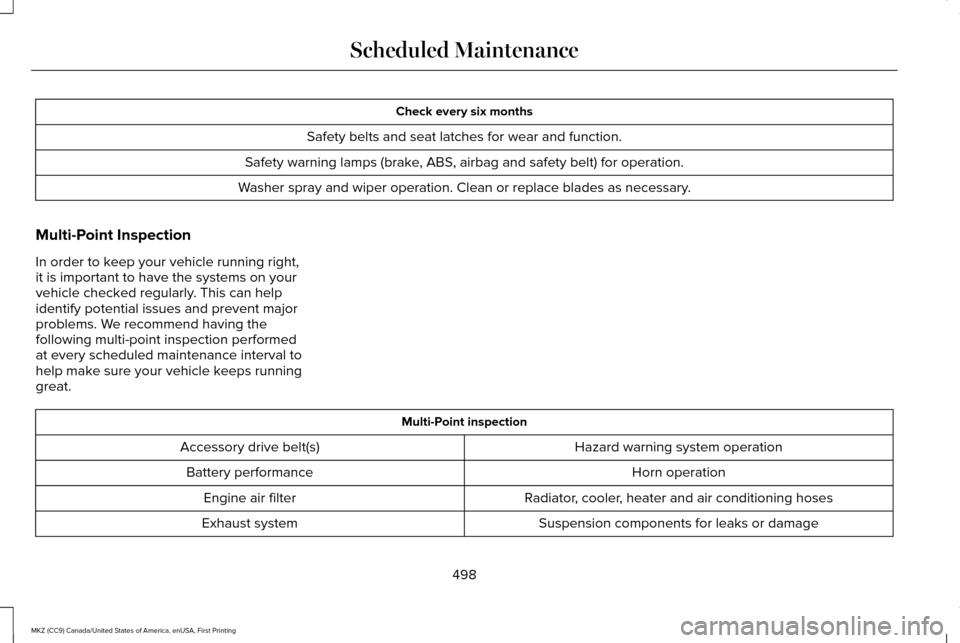
Check every six months
Safety belts and seat latches for wear and function.
Safety warning lamps (brake, ABS, airbag and safety belt) for operation.
Washer spray and wiper operation. Clean or replace blades as necessary.
Multi-Point Inspection
In order to keep your vehicle running right,
it is important to have the systems on your
vehicle checked regularly. This can help
identify potential issues and prevent major
problems. We recommend having the
following multi-point inspection performed
at every scheduled maintenance interval to
help make sure your vehicle keeps running
great. Multi-Point inspection
Hazard warning system operation
Accessory drive belt(s)
Horn operation
Battery performance
Radiator, cooler, heater and air conditioning hoses
Engine air filter
Suspension components for leaks or damage
Exhaust system
498
MKZ (CC9) Canada/United States of America, enUSA, First Printing Scheduled Maintenance
Page 538 of 564
OR WRITTEN INFORMATION OR ADVICE
GIVEN BY FORD MOTOR COMPANY OR ITS
AUTHORIZED REPRESENTATIVE SHALL
CREATE A WARRANTY. SHOULD THE
SOFTWARE, THIRD PARTY SOFTWARE, OR
THIRD-PARTY SERVICES PROVE
DEFECTIVE, YOU ASSUME THE ENTIRE
COST OF ALL NECESSARY SERVICING,
REPAIR OR CORRECTION. SOME
JURISDICTIONS DO NOT ALLOW THE
DISCLAIMER OF IMPLIED WARRANTIES OR
LIMITATIONS ON APPLICABLE STATUTORY
RIGHTS OF A CONSUMER, SO THE ABOVE
DISCLAIMER MAY NOT FULLY APPLY TO
YOU. THE SOLE WARRANTY PROVIDED BY
FORD MOTOR COMPANY SHALL BE FOUND
IN THE WARRANTY INFORMATION
INCLUDING WITH YOUR OWNER GUIDE. TO
THE EXTENT THAT THERE IS ANY
CONFLICT BETWEEN THE TERMS OF THIS
SECTION AND THE WARRANTY BOOKLET,
THE WARRANTY BOOKLET SHALL
CONTROL.
Applicable Law, Venue, Jurisdiction
•
The laws of the State of Michigan govern
this EULA and Your use of the
SOFTWARE. Your use of the SOFTWARE
may also be subject to other local, state,
national, or international laws. Any
litigation arising out of or related to this
EULA shall be brought and maintained
exclusively in a court of the State of
Michigan located in Wayne County or in
the United States District Court for the
Eastern District of Michigan. You hereby
consent to submit to the personal
jurisdiction of a court in the State of
Michigan located in Wayne County and
the United States District Court for the
Eastern District of Michigan for any
dispute arising out of or relating to this
EULA.
Binding Arbitration and Class Action Waiver
(a) Application. This Section applies to any
dispute EXCEPT IT DOES NOT INCLUDE A
DISPUTE RELATING TO COPYRIGHT
INFRINGEMENT, OR TO THE
ENFORCEMENT OR VALIDITY OF YOUR,
FORD MOTOR COMPANY, OR ANY OF FORD MOTOR COMPANY’S LICENSORS’
INTELLECTUAL PROPERTY RIGHTS. Dispute
means any dispute, action, or other
controversy between You and FORD MOTOR
COMPANY, other than the exceptions listed
above, concerning the SOFTWARE (including
its price) or this EULA, whether in contract,
warranty, tort, statute, regulation, ordinance,
or any other legal or equitable basis.
(b) Notice of Dispute.
In the event of a
Dispute, You or FORD MOTOR COMPANY
must give the other a “Notice of Dispute ”,
which is a written statement of the name,
address, and contact information of the party
giving it, the facts giving rise to the dispute,
and the relief requested. You and FORD
MOTOR COMPANY will attempt to resolve
any dispute through informal negotiation
within 60 days from the date the Notice of
Dispute is sent. After 60 days, You or FORD
MOTOR COMPANY may commence
arbitration.
535
MKZ (CC9) Canada/United States of America, enUSA, First Printing Appendices
Page 541 of 564
(b) use your own personal judgment while
driving. If you feel that a route suggested by
the TeleNav Software instructs you to
perform an unsafe or illegal maneuver,
places you in an unsafe situation, or directs
you into an area that you consider to be
unsafe, do not follow such instructions;
(c) do not input destinations, or otherwise
manipulate the TeleNav Software, unless
your vehicle is stationary and parked;
(d) do not use the TeleNav Software for any
illegal, unauthorized, unintended, unsafe,
hazardous, or unlawful purposes, or in any
manner inconsistent with this Agreement;
(e) arrange all GPS and wireless devices and
cables necessary for use of the TeleNav
Software in a secure manner in your vehicle
so that they will not interfere with your
driving and will not prevent the operation of
any safety device (such as an airbag).
You agree to indemnify and hold TeleNav
harmless against all claims resulting from any
dangerous or otherwise inappropriate use
of the TeleNav Software in any moving
vehicle, including as a result of your failure
to comply with the directions above.
2. Account Information
You agree: (a) when registering the TeleNav
Software, to provide TeleNav with true,
accurate, current, and complete information
about yourself, and (b) to inform TeleNav
promptly of any changes to such information,
and to keep it true, accurate, current and
complete.
3. Software License
•
Subject to your compliance with the
terms of this Agreement, TeleNav hereby
grants to you a personal, non-exclusive,
non-transferable license (except as
expressly permitted below in connection
with your permanent transfer of the
TeleNav Software license), without the
right to sublicense, to use the TeleNav
Software (in object code form only) in
order to access and use the TeleNav
Software. This license shall terminate
upon any termination or expiration of this
Agreement. You agree that you will use
the TeleNav Software only for your
personal business or leisure purposes,
and not to provide commercial navigation
services to other parties. 3.1 License Limitations
•
(a) reverse engineer, decompile,
disassemble, translate, modify, alter or
otherwise change the TeleNav Software
or any part thereof; (b) attempt to derive
the source code, audio library or
structure of the TeleNav Software without
the prior express written consent of
TeleNav;
(c) remove from the TeleNav
Software, or alter, any of TeleNav's or its
suppliers' trademarks, trade names,
logos, patent or copyright notices, or
other notices or markings;
(d) distribute,
sublicense or otherwise transfer the
TeleNav Software to others, except as
part of your permanent transfer of the
TeleNav Software; or (e) use the TeleNav
Software in any manner that
i. infringes the intellectual property or
proprietary rights, rights of publicity or
privacy or other rights of any party,
ii. violates any law, statute, ordinance or
regulation, including but not limited to laws
and regulations related to spamming, privacy,
consumer and child protection, obscenity or
defamation, or
538
MKZ (CC9) Canada/United States of America, enUSA, First Printing Appendices
Page 542 of 564
iii. is harmful, threatening, abusive, harassing,
tortuous, defamatory, vulgar, obscene,
libelous, or otherwise objectionable; and (f )
lease, rent out, or otherwise permit
unauthorized access by third parties to the
TeleNav Software without advanced written
permission of TeleNav.
4. Disclaimers
•
To the fullest extent permissible pursuant
to applicable law, in no event will
TeleNav, its licensors and suppliers, or
agents or employees of any of the
foregoing, be liable for any decision
made or action taken by you or anyone
else in reliance on the information
provided by the TeleNav Software.
TeleNav also does not warrant the
accuracy of the map or other data used
for the TeleNav Software. Such data may
not always reflect reality due to, among
other things, road closures, construction,
weather, new roads and other changing
conditions. You are responsible for the
entire risk arising out of your use of the
TeleNav Software. For example but
without limitation, you agree not to rely on the TeleNav Software for critical
navigation in areas where the well-being
or survival of you or others is dependent
on the accuracy of navigation, as the
maps or functionality of the TeleNav
Software are not intended to support
such high risk applications, especially in
more remote geographical areas.
• TELENAV EXPRESSLY DISCLAIMS AND
EXCLUDES ALL WARRANTIES IN
CONNECTION WITH THE TELENAV
SOFTWARE, WHETHER STATUTORY,
EXPRESS OR IMPLIED, INCLUDING ALL
WARRANTIES WHICH MAY ARISE FROM
COURSE OF DEALING, CUSTOM OR
TRADE AND INCLUDING, BUT NOT
LIMITED TO, THE IMPLIED WARRANTIES
OF MERCHANTABILITY, FITNESS FOR
A PARTICULAR PURPOSE AND
NON-INFRINGEMENT OF THIRD PARTY
RIGHTS WITH RESPECT TO THE
TELENAV SOFTWARE.
• Certain jurisdictions do not permit the
disclaimer of certain warranties, so this
limitation may not apply to you. 5. Limitation of Liability
•
TO THE EXTENT PERMITTED UNDER
APPLICABLE LAW, UNDER NO
CIRCUMSTANCES SHALL TELENAV OR
ITS LICENSORS AND SUPPLIERS BE
LIABLE TO YOU OR TO ANY THIRD
PARTY FOR ANY INDIRECT,
INCIDENTAL, CONSEQUENTIAL,
SPECIAL OR EXEMPLARY DAMAGES
(INCLUDING IN EACH CASE, BUT NOT
LIMITED TO, DAMAGES FOR THE
INABILITY TO USE THE EQUIPMENT OR
ACCESS DATA, LOSS OF DATA, LOSS
OF BUSINESS, LOSS OF PROFITS,
BUSINESS INTERRUPTION OR THE LIKE)
ARISING OUT OF THE USE OF OR
INABILITY TO USE THE TELENAV
SOFTWARE, EVEN IF TELENAV HAS
BEEN ADVISED OF THE POSSIBILITY OF
SUCH DAMAGES. NOTWITHSTANDING
ANY DAMAGES THAT YOU MIGHT
INCUR FOR ANY REASON
WHATSOEVER (INCLUDING, WITHOUT
LIMITATION, ALL DAMAGES
REFERENCED HEREIN AND ALL DIRECT
OR GENERAL DAMAGES IN CONTRACT,
TORT (INCLUDING NEGLIGENCE) OR
539
MKZ (CC9) Canada/United States of America, enUSA, First Printing Appendices