USB port LINCOLN MKZ 2017 Owners Manual
[x] Cancel search | Manufacturer: LINCOLN, Model Year: 2017, Model line: MKZ, Model: LINCOLN MKZ 2017Pages: 564, PDF Size: 5.54 MB
Page 161 of 564
CENTER CONSOLE
Stow items in the cup holder carefully as
items may become loose during hard
braking, acceleration or crashes, including
hot drinks which may spill.
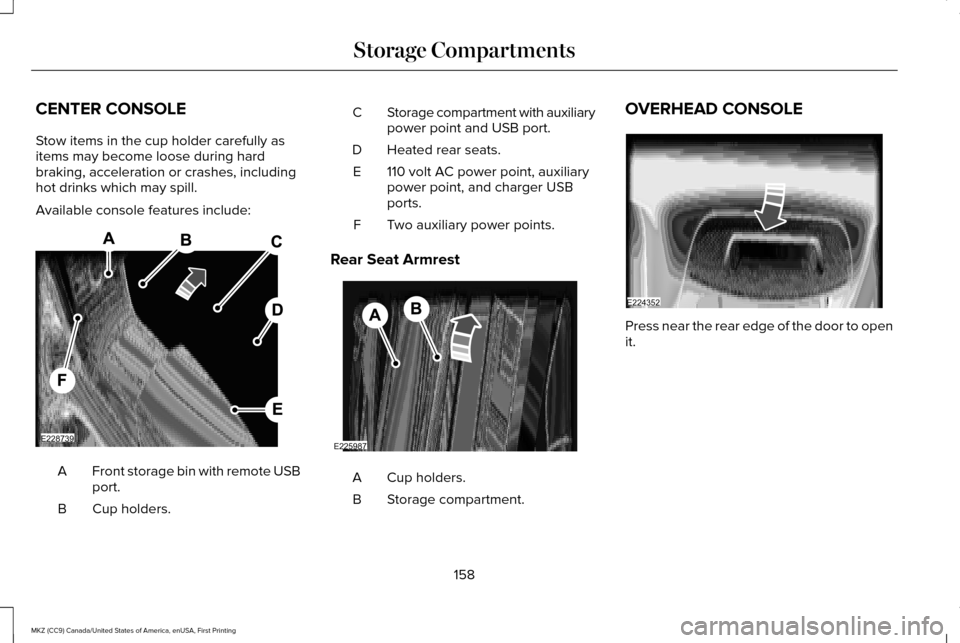
Available console features include:
Front storage bin with remote USB
port.
A
Cup holders.
B Storage compartment with auxiliary
power point and USB port.
C
Heated rear seats.
D
110 volt AC power point, auxiliary
power point, and charger USB
ports.
E
Two auxiliary power points.
F
Rear Seat Armrest Cup holders.
A
Storage compartment.
B OVERHEAD CONSOLE
Press near the rear edge of the door to open
it.
158
MKZ (CC9) Canada/United States of America, enUSA, First Printing Storage CompartmentsE228739 E225987 E224352
Page 407 of 564
Restricted features
Using the keyboard to enter a destination.
Navigation
Demo navigation route.
Adding or editing Navigation Favorites entries or Avoid Areas.
Creating a SYNC Owner Account
Why do I need a SYNC owner account?
• Essential for keeping up with the latest
software and connected features.
• Access to customer support for any
questions you may have.
• Maintain account permissions.
Visit the website to sign up and register. Website
owner.lincoln.com
www.syncmyride.ca Website
www.syncmaroute.ca
Updating Your System
You can choose to download the update
onto a USB drive or use Wi-Fi to deliver
automatic updates.
USB Updates
To use the USB update you need to log into
your owner account and visit the SYNC
software update page. Website
owner.lincoln.com
www.syncmyride.ca Website
www.syncmaroute.ca
The website notifies you if an update is
available. You can then select to download
the update.
You will need an empty USB drive. Please
check the website for minimum
requirements. Once you have inserted the
USB drive into your computer, choose to start
the download. Follow the instructions
provided to download the files to the USB
drive.
The installation of most files occurs in the
background, and does not interrupt your use
of the system. Navigation updates cannot be
installed in the background, because the files
are too large.
404
MKZ (CC9) Canada/United States of America, enUSA, First Printing SYNC™ 3
Page 408 of 564
To install the update in your vehicle, remove
anything that is plugged in the USB ports on
the media hub and plug in the USB drive
containing the update. When the USB drive
is plugged in, the installation should begin
immediately. After a successful installation,
the update is available the next time the
vehicle is started.
Please reference the website for any further
actions.
Updating Over Wi-Fi
To update your System over Wi-Fi your
vehicle must be within the range of a Wi-Fi
access point. Data rates may apply.
To connect your system to Wi-Fi, select: Menu Item
Settings
Wi-Fi You can then select your Wi-
Fi network. You may have
to enter the security code if
the network is secured. The
system confirms when it has
connected to the network.
Available Wi-
Fi Networks
You must also give the system permission
to update automatically. Upon vehicle
delivery, the System asks you if you would
like to use the automatic update feature. If
you agree to automatic updates, you can
press OK to confirm. If this selection does
not appear upon vehicle delivery you can
access it through the General Settings. See
Settings (page 457). You can also perform a
master reset. See SYNC™ 3 Troubleshooting
(page 474). If you would like to switch this feature on
later, select: Menu Item
Settings
General From this menu, you can
enable automatic updates.
If you have not done so
already, the system prompts
you to set up a Wi-Fi
connection when you
enable this feature.
Automatic
System
Updates
When Wi-Fi and automatic updates are
enabled, your system checks for software
updates periodically. If a new version is
available, it downloads at that time. Software
downloads can take place for up to 30
minutes after you have switched your vehicle
off. The updates do not interrupt the normal
use of your SYNC 3 system. If a download
does not complete for any reason, the
405
MKZ (CC9) Canada/United States of America, enUSA, First Printing SYNC™ 3
Page 435 of 564
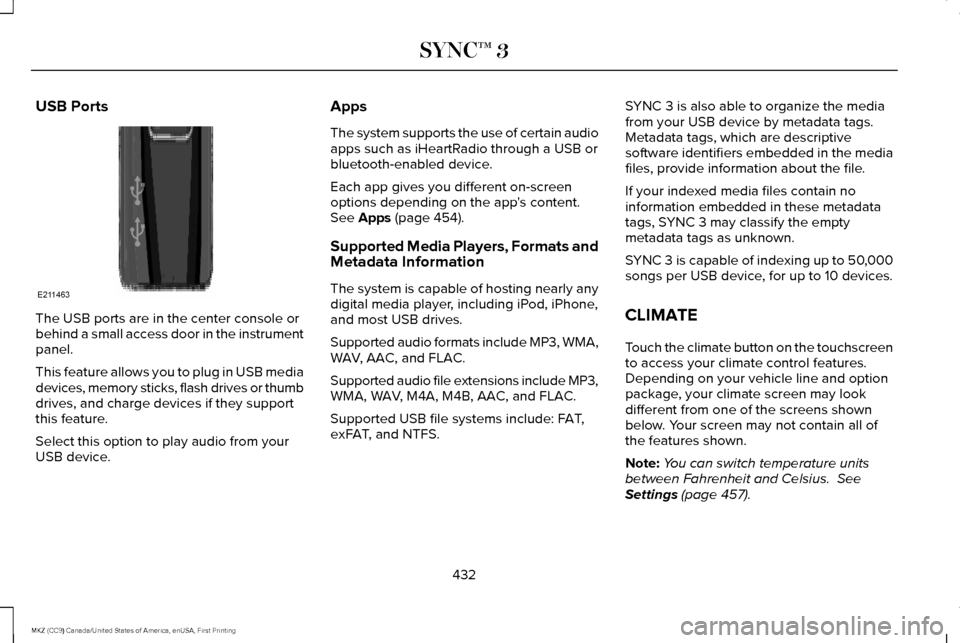
USB Ports
The USB ports are in the center console or
behind a small access door in the instrument
panel.
This feature allows you to plug in USB media
devices, memory sticks, flash drives or thumb
drives, and charge devices if they support
this feature.
Select this option to play audio from your
USB device. Apps
The system supports the use of certain audio
apps such as iHeartRadio through a USB or
bluetooth-enabled device.
Each app gives you different on-screen
options depending on the app's content.
See Apps (page 454).
Supported Media Players, Formats and
Metadata Information
The system is capable of hosting nearly any
digital media player, including iPod, iPhone,
and most USB drives.
Supported audio formats include MP3, WMA,
WAV, AAC, and FLAC.
Supported audio file extensions include MP3,
WMA, WAV, M4A, M4B, AAC, and FLAC.
Supported USB file systems include: FAT,
exFAT, and NTFS. SYNC 3 is also able to organize the media
from your USB device by metadata tags.
Metadata tags, which are descriptive
software identifiers embedded in the media
files, provide information about the file.
If your indexed media files contain no
information embedded in these metadata
tags, SYNC 3 may classify the empty
metadata tags as unknown.
SYNC 3 is capable of indexing up to 50,000
songs per USB device, for up to 10 devices.
CLIMATE
Touch the climate button on the touchscreen
to access your climate control features.
Depending on your vehicle line and option
package, your climate screen may look
different from one of the screens shown
below. Your screen may not contain all of
the features shown.
Note:
You can switch temperature units
between Fahrenheit and Celsius.
See
Settings (page 457).
432
MKZ (CC9) Canada/United States of America, enUSA, First Printing SYNC™ 3E211463
Page 446 of 564
Smartphone Connectivity (If Equipped)
443
MKZ (CC9) Canada/United States of America, enUSA, First Printing SYNC™ 3
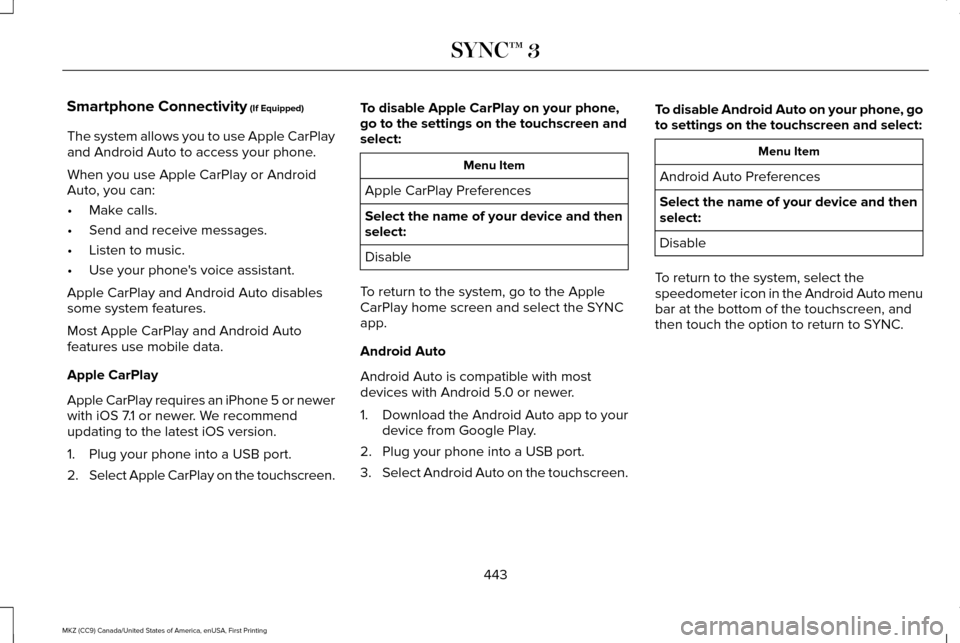
The system allows you to use Apple CarPlay
and Android Auto to access your phone.
When you use Apple CarPlay or Android
Auto, you can:
•
Make calls.
• Send and receive messages.
• Listen to music.
• Use your phone's voice assistant.
Apple CarPlay and Android Auto disables
some system features.
Most Apple CarPlay and Android Auto
features use mobile data.
Apple CarPlay
Apple CarPlay requires an iPhone 5 or newer
with iOS 7.1 or newer. We recommend
updating to the latest iOS version.
1. Plug your phone into a USB port.
2. Select Apple CarPlay on the touchscreen. To disable Apple CarPlay on your phone,
go to the settings on the touchscreen and
select: Menu Item
Apple CarPlay Preferences
Select the name of your device and then
select:
Disable
To return to the system, go to the Apple
CarPlay home screen and select the SYNC
app.
Android Auto
Android Auto is compatible with most
devices with Android 5.0 or newer.
1. Download the Android Auto app to your
device from Google Play.
2. Plug your phone into a USB port.
3. Select Android Auto on the touchscreen. To disable Android Auto on your phone, go
to settings on the touchscreen and select: Menu Item
Android Auto Preferences
Select the name of your device and then
select:
Disable
To return to the system, select the
speedometer icon in the Android Auto menu
bar at the bottom of the touchscreen, and
then touch the option to return to SYNC.
Page 457 of 564
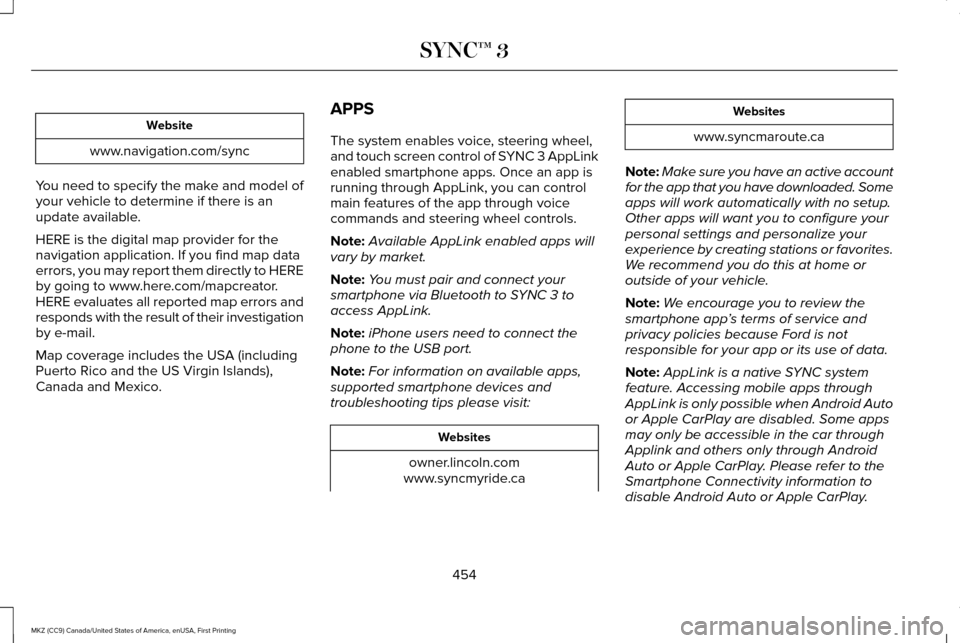
Website
www.navigation.com/sync
You need to specify the make and model of
your vehicle to determine if there is an
update available.
HERE is the digital map provider for the
navigation application. If you find map data
errors, you may report them directly to HERE
by going to www.here.com/mapcreator.
HERE evaluates all reported map errors and
responds with the result of their investigation
by e-mail.
Map coverage includes the USA (including
Puerto Rico and the US Virgin Islands),
Canada and Mexico. APPS
The system enables voice, steering wheel,
and touch screen control of SYNC 3 AppLink
enabled smartphone apps. Once an app is
running through AppLink, you can control
main features of the app through voice
commands and steering wheel controls.
Note:
Available AppLink enabled apps will
vary by market.
Note: You must pair and connect your
smartphone via Bluetooth to SYNC 3 to
access AppLink.
Note: iPhone users need to connect the
phone to the USB port.
Note: For information on available apps,
supported smartphone devices and
troubleshooting tips please visit: Websites
owner.lincoln.com
www.syncmyride.ca Websites
www.syncmaroute.ca
Note: Make sure you have an active account
for the app that you have downloaded. Some
apps will work automatically with no setup.
Other apps will want you to configure your
personal settings and personalize your
experience by creating stations or favorites.
We recommend you do this at home or
outside of your vehicle.
Note: We encourage you to review the
smartphone app ’s terms of service and
privacy policies because Ford is not
responsible for your app or its use of data.
Note: AppLink is a native SYNC system
feature. Accessing mobile apps through
AppLink is only possible when Android Auto
or Apple CarPlay are disabled. Some apps
may only be accessible in the car through
Applink and others only through Android
Auto or Apple CarPlay. Please refer to the
Smartphone Connectivity information to
disable Android Auto or Apple CarPlay.
454
MKZ (CC9) Canada/United States of America, enUSA, First Printing SYNC™ 3
Page 478 of 564
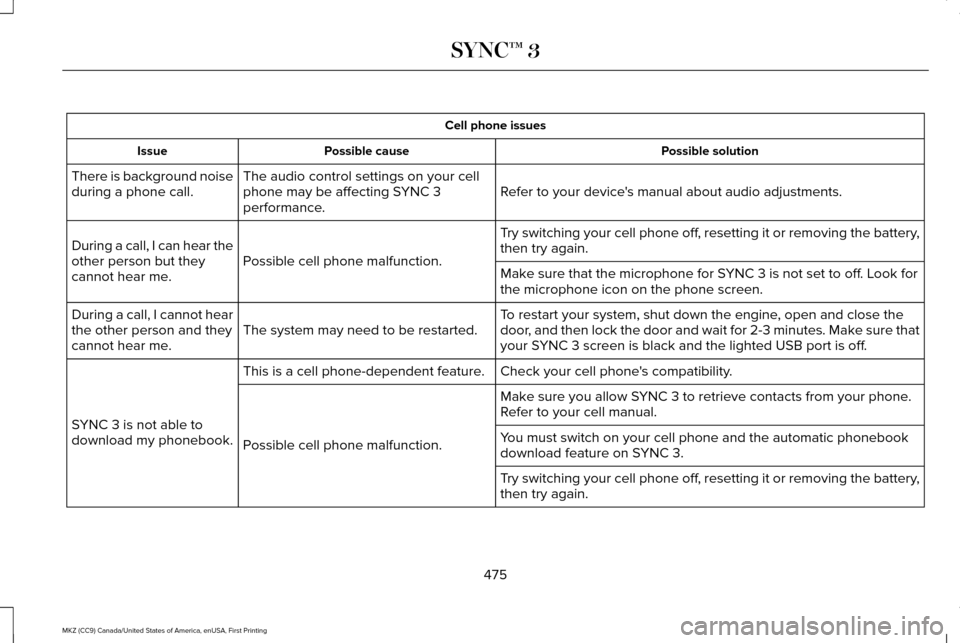
Cell phone issues
Possible solution
Possible cause
Issue
Refer to your device's manual about audio adjustments.
The audio control settings on your cell
phone may be affecting SYNC 3
performance.
There is background noise
during a phone call.
Try switching your cell phone off, resetting it or removing the battery,
then try again.
Possible cell phone malfunction.
During a call, I can hear the
other person but they
cannot hear me.
Make sure that the microphone for SYNC 3 is not set to off. Look for
the microphone icon on the phone screen.
To restart your system, shut down the engine, open and close the
door, and then lock the door and wait for 2-3 minutes. Make sure that
your SYNC 3 screen is black and the lighted USB port is off.
The system may need to be restarted.
During a call, I cannot hear
the other person and they
cannot hear me.
Check your cell phone's compatibility.
This is a cell phone-dependent feature.
SYNC 3 is not able to
download my phonebook. Make sure you allow SYNC 3 to retrieve contacts from your phone.
Refer to your cell manual.
Possible cell phone malfunction. You must switch on your cell phone and the automatic phonebook
download feature on SYNC 3.
Try switching your cell phone off, resetting it or removing the battery,
then try again.
475
MKZ (CC9) Canada/United States of America, enUSA, First Printing SYNC™ 3
Page 481 of 564
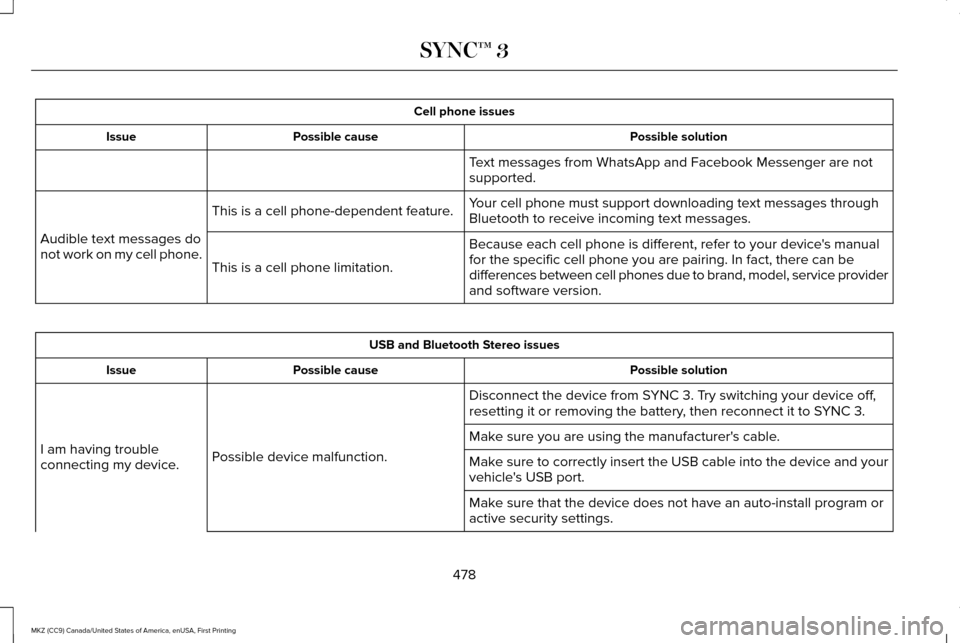
Cell phone issues
Possible solution
Possible cause
Issue
Text messages from WhatsApp and Facebook Messenger are not
supported.
Your cell phone must support downloading text messages through
Bluetooth to receive incoming text messages.
This is a cell phone-dependent feature.
Audible text messages do
not work on my cell phone. Because each cell phone is different, refer to your device's manual
for the specific cell phone you are pairing. In fact, there can be
differences between cell phones due to brand, model, service provider
and software version.
This is a cell phone limitation. USB and Bluetooth Stereo issues
Possible solution
Possible cause
Issue
Disconnect the device from SYNC 3. Try switching your device off,
resetting it or removing the battery, then reconnect it to SYNC 3.
Possible device malfunction.
I am having trouble
connecting my device. Make sure you are using the manufacturer's cable.
Make sure to correctly insert the USB cable into the device and your
vehicle's USB port.
Make sure that the device does not have an auto-install program or
active security settings.
478
MKZ (CC9) Canada/United States of America, enUSA, First Printing SYNC™ 3
Page 482 of 564
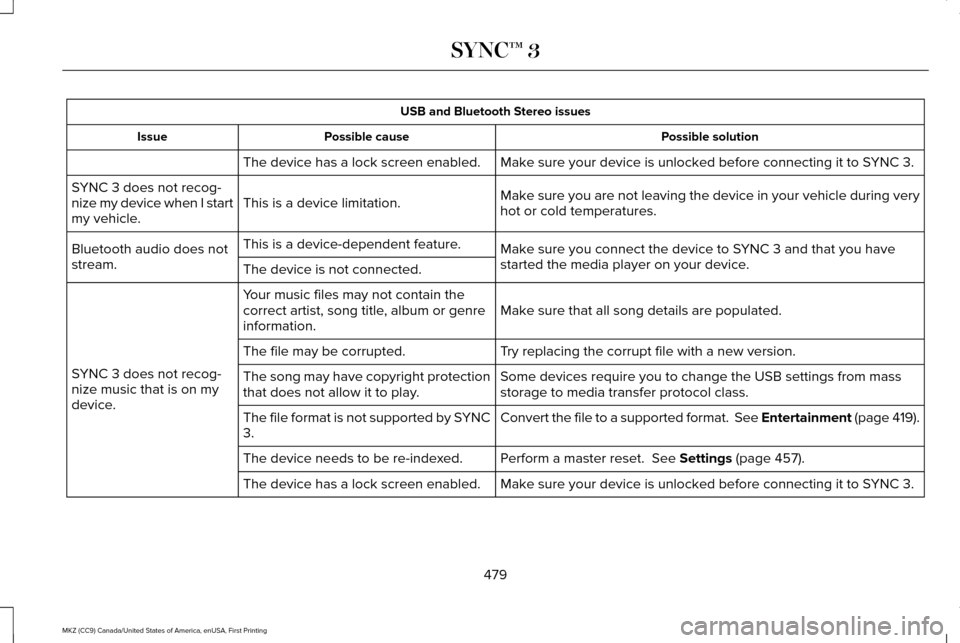
USB and Bluetooth Stereo issues
Possible solution
Possible cause
Issue
Make sure your device is unlocked before connecting it to SYNC 3.
The device has a lock screen enabled.
Make sure you are not leaving the device in your vehicle during very
hot or cold temperatures.
This is a device limitation.
SYNC 3 does not recog-
nize my device when I start
my vehicle.
Make sure you connect the device to SYNC 3 and that you have
started the media player on your device.
This is a device-dependent feature.
Bluetooth audio does not
stream. The device is not connected.
Make sure that all song details are populated.
Your music files may not contain the
correct artist, song title, album or genre
information.
SYNC 3 does not recog-
nize music that is on my
device. Try replacing the corrupt file with a new version.
The file may be corrupted.
Some devices require you to change the USB settings from mass
storage to media transfer protocol class.
The song may have copyright protection
that does not allow it to play.
Convert the file to a supported format. See Entertainment (page 419).
The file format is not supported by SYNC
3.
Perform a master reset.
See Settings (page 457).
The device needs to be re-indexed.
Make sure your device is unlocked before connecting it to SYNC 3.
The device has a lock screen enabled.
479
MKZ (CC9) Canada/United States of America, enUSA, First Printing SYNC™ 3
Page 486 of 564
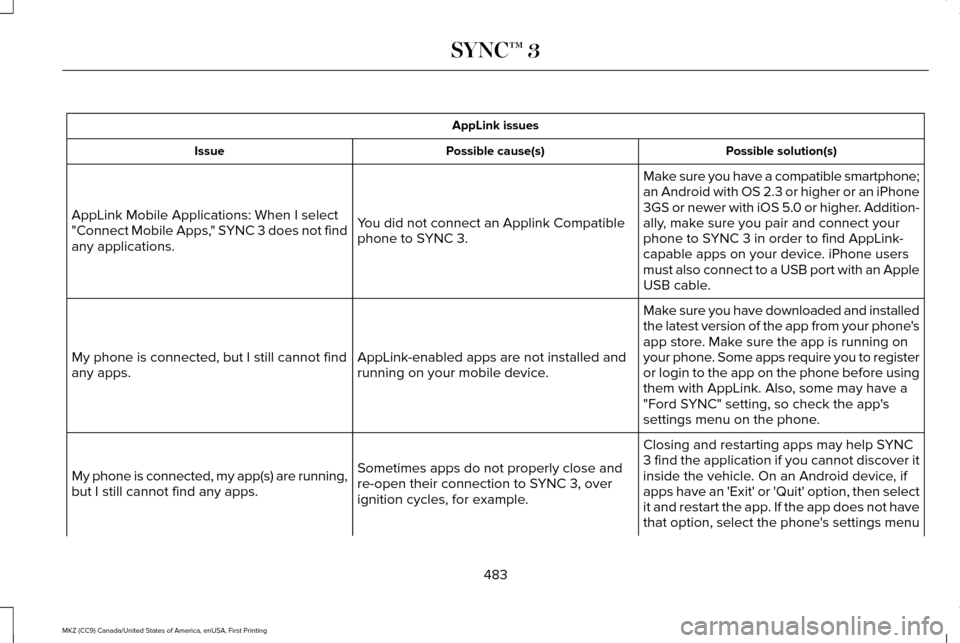
AppLink issues
Possible solution(s)
Possible cause(s)
Issue
Make sure you have a compatible smartphone;
an Android with OS 2.3 or higher or an iPhone
3GS or newer with iOS 5.0 or higher. Addition-
ally, make sure you pair and connect your
phone to SYNC 3 in order to find AppLink-
capable apps on your device. iPhone users
must also connect to a USB port with an Apple
USB cable.
You did not connect an Applink Compatible
phone to SYNC 3.
AppLink Mobile Applications: When I select
"Connect Mobile Apps," SYNC 3 does not find
any applications.
Make sure you have downloaded and installed
the latest version of the app from your phone's
app store. Make sure the app is running on
your phone. Some apps require you to register
or login to the app on the phone before using
them with AppLink. Also, some may have a
"Ford SYNC" setting, so check the app's
settings menu on the phone.
AppLink-enabled apps are not installed and
running on your mobile device.
My phone is connected, but I still cannot find
any apps.
Closing and restarting apps may help SYNC
3 find the application if you cannot discover it
inside the vehicle. On an Android device, if
apps have an 'Exit' or 'Quit' option, then select
it and restart the app. If the app does not have
that option, select the phone's settings menu
Sometimes apps do not properly close and
re-open their connection to SYNC 3, over
ignition cycles, for example.
My phone is connected, my app(s) are running,
but I still cannot find any apps.
483
MKZ (CC9) Canada/United States of America, enUSA, First Printing SYNC™ 3