audio LINCOLN MKZ 2019 Service Manual
[x] Cancel search | Manufacturer: LINCOLN, Model Year: 2019, Model line: MKZ, Model: LINCOLN MKZ 2019Pages: 595, PDF Size: 4.95 MB
Page 485 of 595
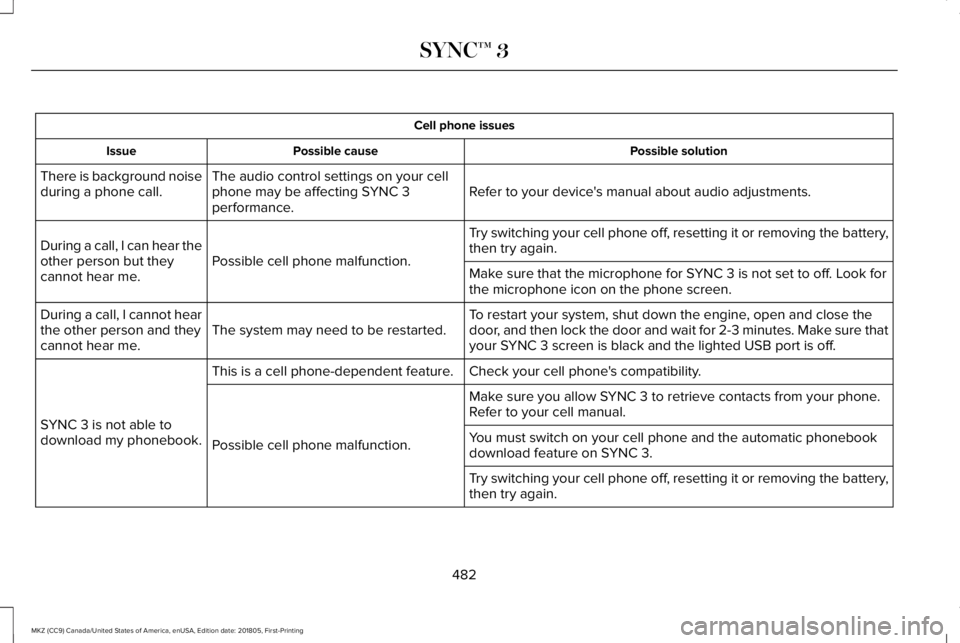
Cell phone issues
Possible solutionPossible causeIssue
Refer to your device's manual about audio adjustments.The audio control settings on your cellphone may be affecting SYNC 3performance.
There is background noiseduring a phone call.
Try switching your cell phone off, resetting it or removing the battery,then try again.Possible cell phone malfunction.During a call, I can hear theother person but theycannot hear me.Make sure that the microphone for SYNC 3 is not set to off. Look forthe microphone icon on the phone screen.
To restart your system, shut down the engine, open and close thedoor, and then lock the door and wait for 2-3 minutes. Make sure thatyour SYNC 3 screen is black and the lighted USB port is off.The system may need to be restarted.During a call, I cannot hearthe other person and theycannot hear me.
Check your cell phone's compatibility.This is a cell phone-dependent feature.
SYNC 3 is not able todownload my phonebook.
Make sure you allow SYNC 3 to retrieve contacts from your phone.Refer to your cell manual.
Possible cell phone malfunction.You must switch on your cell phone and the automatic phonebookdownload feature on SYNC 3.
Try switching your cell phone off, resetting it or removing the battery,then try again.
482
MKZ (CC9) Canada/United States of America, enUSA, Edition date: 201805, First-Printing
SYNC™ 3
Page 489 of 595
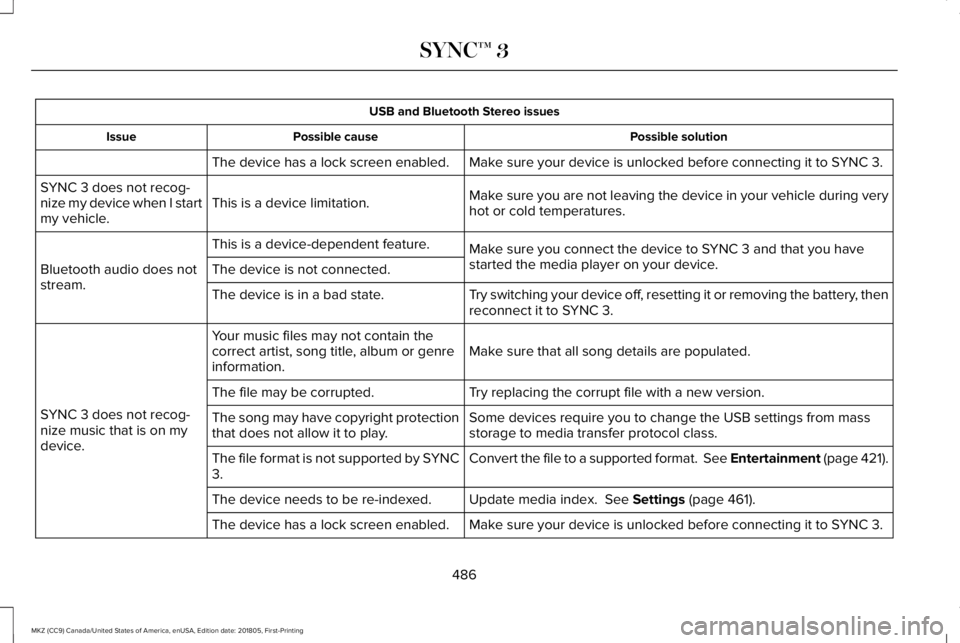
USB and Bluetooth Stereo issues
Possible solutionPossible causeIssue
Make sure your device is unlocked before connecting it to SYNC 3.The device has a lock screen enabled.
Make sure you are not leaving the device in your vehicle during veryhot or cold temperatures.This is a device limitation.SYNC 3 does not recog-nize my device when I startmy vehicle.
Make sure you connect the device to SYNC 3 and that you havestarted the media player on your device.
This is a device-dependent feature.
Bluetooth audio does notstream.The device is not connected.
Try switching your device off, resetting it or removing the battery, thenreconnect it to SYNC 3.The device is in a bad state.
Make sure that all song details are populated.Your music files may not contain thecorrect artist, song title, album or genreinformation.
SYNC 3 does not recog-nize music that is on mydevice.
Try replacing the corrupt file with a new version.The file may be corrupted.
Some devices require you to change the USB settings from massstorage to media transfer protocol class.The song may have copyright protectionthat does not allow it to play.
Convert the file to a supported format. See Entertainment (page 421).The file format is not supported by SYNC3.
Update media index. See Settings (page 461).The device needs to be re-indexed.
Make sure your device is unlocked before connecting it to SYNC 3.The device has a lock screen enabled.
486
MKZ (CC9) Canada/United States of America, enUSA, Edition date: 201805, First-Printing
SYNC™ 3
Page 495 of 595
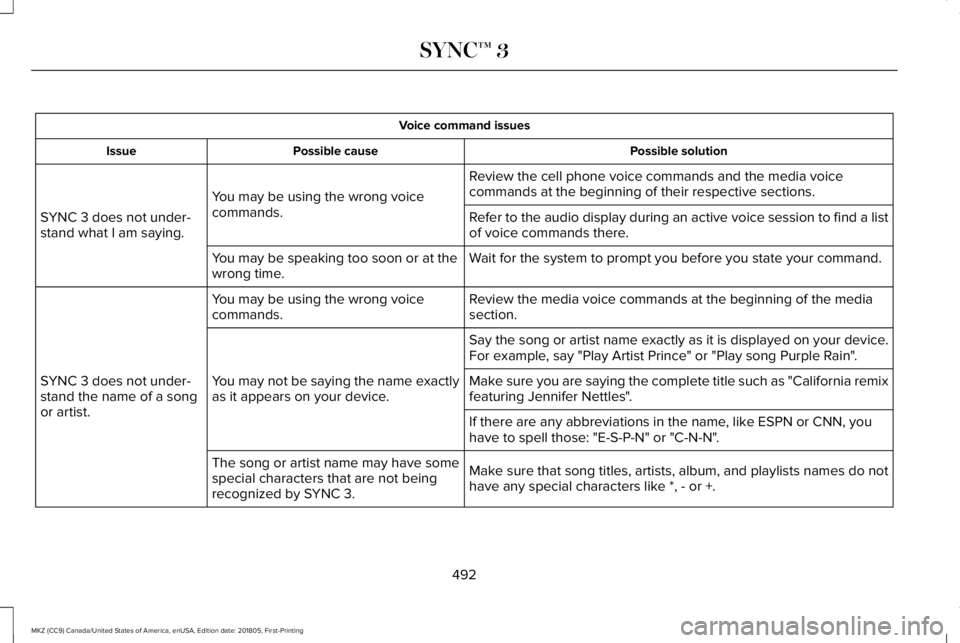
Voice command issues
Possible solutionPossible causeIssue
Review the cell phone voice commands and the media voicecommands at the beginning of their respective sections.You may be using the wrong voicecommands.SYNC 3 does not under-stand what I am saying.Refer to the audio display during an active voice session to find a listof voice commands there.
Wait for the system to prompt you before you state your command.You may be speaking too soon or at thewrong time.
Review the media voice commands at the beginning of the mediasection.You may be using the wrong voicecommands.
SYNC 3 does not under-stand the name of a songor artist.
Say the song or artist name exactly as it is displayed on your device.For example, say "Play Artist Prince" or "Play song Purple Rain".
You may not be saying the name exactlyas it appears on your device.Make sure you are saying the complete title such as "California remixfeaturing Jennifer Nettles".
If there are any abbreviations in the name, like ESPN or CNN, youhave to spell those: "E-S-P-N" or "C-N-N".
Make sure that song titles, artists, album, and playlists names do nothave any special characters like *, - or +.
The song or artist name may have somespecial characters that are not beingrecognized by SYNC 3.
492
MKZ (CC9) Canada/United States of America, enUSA, Edition date: 201805, First-Printing
SYNC™ 3
Page 500 of 595
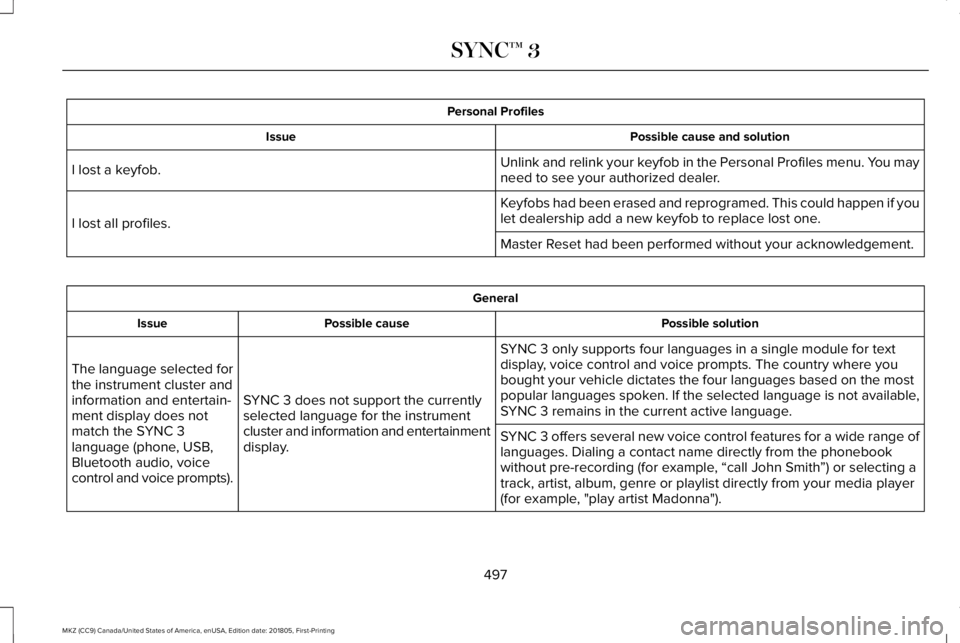
Personal Profiles
Possible cause and solutionIssue
Unlink and relink your keyfob in the Personal Profiles menu. You mayneed to see your authorized dealer.I lost a keyfob.
Keyfobs had been erased and reprogramed. This could happen if youlet dealership add a new keyfob to replace lost one.I lost all profiles.
Master Reset had been performed without your acknowledgement.
General
Possible solutionPossible causeIssue
SYNC 3 only supports four languages in a single module for textdisplay, voice control and voice prompts. The country where youbought your vehicle dictates the four languages based on the mostpopular languages spoken. If the selected language is not available,SYNC 3 remains in the current active language.SYNC 3 does not support the currentlyselected language for the instrumentcluster and information and entertainmentdisplay.
The language selected forthe instrument cluster andinformation and entertain-ment display does notmatch the SYNC 3language (phone, USB,Bluetooth audio, voicecontrol and voice prompts).
SYNC 3 offers several new voice control features for a wide range oflanguages. Dialing a contact name directly from the phonebookwithout pre-recording (for example, “call John Smith”) or selecting atrack, artist, album, genre or playlist directly from your media player(for example, "play artist Madonna").
497
MKZ (CC9) Canada/United States of America, enUSA, Edition date: 201805, First-Printing
SYNC™ 3
Page 547 of 595
•Links to Third Party Sites: TheSOFTWARE may provide you with theability to link to third party sites. The thirdparty sites are not under the control ofFORD MOTOR COMPANY, its affiliatesand/or its designated agent. NeitherFORD MOTOR COMPANY nor itsaffiliates nor its designated agent areresponsible for (I) the contents of anythird party sites, any links contained inthird party sites, or any changes orupdates to third party sites, or (ii)webcasting or any other form oftransmission received from any thirdparty sites. If the SOFTWARE provideslinks to third party sites, those links areprovided to you only as a convenience,and the inclusion of any link does notimply an endorsement of the third partysite by FORD MOTOR COMPANY, itsaffiliates and/or its designated agent.
•Obligation to Drive Responsibly: Yourecognize your obligation to driveresponsibly and keep attention on theroad. You will read and abide with theDEVICES operating instructionsparticularly as they pertain to safety andyou agree to assume any risk associated
with the use of the DEVICES.
UPGRADES AND RECOVERY MEDIA: If theSOFTWARE is provided by FORD MOTORCOMPANY separate from the DEVICES onmedia such as a ROM chip, CD ROM disk(s)or via web download or other means, and islabeled "For Upgrade Purposes Only" or "ForRecovery Purposes Only" you may install one(1) copy of such SOFTWARE onto theDEVICES as a replacement copy for theexisting SOFTWARE, and use it inaccordance with this EULA, including anyadditional EULA terms accompanying theupgrade SOFTWARE.
INTELLECTUAL PROPERTY RIGHTS: Alltitle and intellectual property rights in and tothe SOFTWARE (including but not limited toany images, photographs, animations, video,audio, music, text and "applets" incorporatedinto the SOFTWARE), the accompanyingprinted materials, and any copies of theSOFTWARE, are owned by FORD MOTORCOMPANY, or its affiliates or suppliers. TheSOFTWARE is licensed, not sold. You maynot copy the printed materials accompanyingthe SOFTWARE. All title and intellectualproperty rights in and to the content which
may be accessed through use of theSOFTWARE is the property of the respectivecontent owner and may be protected byapplicable copyright or other intellectualproperty laws and treaties. This EULA grantsyou no rights to use such content outside itsintended use. All rights not specificallygranted under this EULA are reserved byFORD MOTOR COMPANY, its affiliates, andthird party software and service providersand suppliers. Use of any on-line serviceswhich may be accessed through theSOFTWARE may be governed by therespective terms of use relating to suchservices. If this SOFTWARE containsdocumentation that is provided only inelectronic form, you may print one copy ofsuch electronic documentation.
544
MKZ (CC9) Canada/United States of America, enUSA, Edition date: 201805, First-Printing
Appendices
Page 555 of 595
(b) use your own personal judgment whiledriving. If you feel that a route suggested bythe TeleNav Software instructs you toperform an unsafe or illegal maneuver,places you in an unsafe situation, or directsyou into an area that you consider to beunsafe, do not follow such instructions;
(c) do not input destinations, or otherwisemanipulate the TeleNav Software, unlessyour vehicle is stationary and parked;
(d) do not use the TeleNav Software for anyillegal, unauthorized, unintended, unsafe,hazardous, or unlawful purposes, or in anymanner inconsistent with this Agreement;
(e) arrange all GPS and wireless devices andcables necessary for use of the TeleNavSoftware in a secure manner in your vehicleso that they will not interfere with yourdriving and will not prevent the operation ofany safety device (such as an airbag).
You agree to indemnify and hold TeleNavharmless against all claims resulting from anydangerous or otherwise inappropriate useof the TeleNav Software in any movingvehicle, including as a result of your failureto comply with the directions above.
2. Account Information
You agree: (a) when registering the TeleNavSoftware, to provide TeleNav with true,accurate, current, and complete informationabout yourself, and (b) to inform TeleNavpromptly of any changes to such information,and to keep it true, accurate, current andcomplete.
3. Software License
•Subject to your compliance with theterms of this Agreement, TeleNav herebygrants to you a personal, non-exclusive,non-transferable license (except asexpressly permitted below in connectionwith your permanent transfer of theTeleNav Software license), without theright to sublicense, to use the TeleNavSoftware (in object code form only) inorder to access and use the TeleNavSoftware. This license shall terminateupon any termination or expiration of thisAgreement. You agree that you will usethe TeleNav Software only for yourpersonal business or leisure purposes,and not to provide commercial navigationservices to other parties.
3.1 License Limitations
•(a) reverse engineer, decompile,disassemble, translate, modify, alter orotherwise change the TeleNav Softwareor any part thereof; (b) attempt to derivethe source code, audio library orstructure of the TeleNav Software withoutthe prior express written consent ofTeleNav; (c) remove from the TeleNavSoftware, or alter, any of TeleNav's or itssuppliers' trademarks, trade names,logos, patent or copyright notices, orother notices or markings; (d) distribute,sublicense or otherwise transfer theTeleNav Software to others, except aspart of your permanent transfer of theTeleNav Software; or (e) use the TeleNavSoftware in any manner that
I. infringes the intellectual property orproprietary rights, rights of publicity orprivacy or other rights of any party,
ii. violates any law, statute, ordinance orregulation, including but not limited to lawsand regulations related to spamming, privacy,consumer and child protection, obscenity ordefamation, or
552
MKZ (CC9) Canada/United States of America, enUSA, Edition date: 201805, First-Printing
Appendices
Page 584 of 595
A
A/CSee: Climate Control..........................................136
About This Manual............................................7ABSSee: Brakes...........................................................192
ABS driving hintsSee: Hints on Driving With Anti-LockBrakes................................................................193
Accessories...................................................499Exterior Style.......................................................499Interior Style.........................................................499Lifestyle.................................................................499Peace of Mind.....................................................499
AccessoriesSee: Replacement Parts Recommendation.....13
ACCSee: Using Adaptive Cruise Control..............218
Active Park Assist........................................205Using Active Park Assist..................................206
Adaptive Headlamps......................................91System Check........................................................92
Adjusting the Headlamps............................316Horizontal Aim Adjustment...............................317Vertical Aim Adjustment....................................316
Adjusting the Steering Wheel - VehiclesWith: Manual Adjustable SteeringColumn...........................................................80Adjusting the Steering Wheel - VehiclesWith: Power Adjustable SteeringColumn...........................................................80End of Travel Position...........................................81Memory Feature.....................................................81
AFSSee: Adaptive Headlamps...................................91
Airbag Disposal...............................................56Air ConditioningSee: Climate Control..........................................136
Air FilterSee: Changing the Engine Air Filter...............317
AlarmSee: Anti-Theft Alarm...........................................78
All-Wheel Drive..............................................183Ambient Lighting.............................................94Adjusting the Brightness.....................................94Changing the Color..............................................94Switching Ambient Lighting Off........................94Switching Ambient Lighting On........................94
Anti-Theft Alarm..............................................78Arming the Alarm..................................................79Disarming the Alarm.............................................79
Appendices....................................................536
Apps.................................................................458.................................................................................458SiriusXM Traffic and Travel Link.....................459
At a Glance........................................................17Audible Warnings and Indicators..............108Headlamps On Warning Chime.......................108Keyless Warning Alert........................................108Parking Brake On Warning Chime..................109
Audio Control..................................................82Seek, Next or Previous........................................82
Audio System................................................389General Information...........................................389
Audio Unit.......................................................391Adjusting the Volume.........................................391Changing Radio Stations...................................391Ejecting the CD....................................................391Inserting a CD.....................................................392Selecting the Audio Modes.............................392Switching the Audio Unit On and Off............392Using Seek, Fast Forward and Reverse.......392
Auto Hold........................................................194Using Auto Hold..................................................196
Autolamps.........................................................88Windshield Wiper Activated Headlamps........89
Automatic Climate Control..........................136Directing Air to the Footwell Air Vents..........136Directing Air to the Instrument Panel AirVents..................................................................136
581
MKZ (CC9) Canada/United States of America, enUSA, Edition date: 201805, First-Printing
Index
Page 594 of 595
Towing a Trailer.............................................253Load Placement..................................................253
Towing Points................................................268Installing the Recovery Hook..........................268Recovery Hook Location..................................268
Towing the Vehicle on Four Wheels........257Emergency Towing.............................................257Recreational Towing..........................................257
Towing.............................................................253Traction Control.............................................197Principle of Operation........................................197
Transmission Code Designation...............372Transmission...................................................177Transporting the Vehicle............................267Type Approvals..............................................571Radio Frequency Certification Logos for BlindSpot Information System..............................579Radio Frequency Certification Logos for MidRange Radar....................................................574Radio Frequency Certification Logos forPassive Anti-Theft System...........................575Radio Frequency Certification Logos for RadioTransceiver Module.......................................577Radio Frequency Certification Logos for SYNC3.........................................................................580Radio Frequency Certification Logos for TirePressure Monitoring Sensor(s)....................571
Radio Frequency Certification Logos forWireless Charging.........................................580
U
Under Hood Overview - 2.0L....................298Under Hood Overview - 3.0L....................300Universal Garage Door Opener................153HomeLink Wireless Control System...............153
USB Port.........................................................392Using Adaptive Cruise Control..................218Automatic Cancellation....................................222Blocked Sensor...................................................224Canceling the Set Speed.................................222Changing the Set Speed...................................221Detection Issues.................................................223Following a Vehicle...........................................220Following a Vehicle to a CompleteStop...................................................................220Hilly Condition Usage.......................................222Overriding the Set Speed.................................221Park Brake Application.....................................222Resuming the Set Speed.................................222Setting the Adaptive Cruise Speed................219Setting the Adaptive Cruise Speed When YourVehicle is Stationary.....................................220Setting the Gap Distance..................................221Switching Adaptive Cruise Control Off........222
Switching Adaptive Cruise Control On..........219Switching to Normal Cruise Control..............226System Not Available........................................224
Using All-Wheel Drive..................................183Driving In Special Conditions With All-WheelDrive (AWD)......................................................185Operating AWD Vehicles With Spare orMismatched Tires...........................................185
Using Cruise Control....................................217Canceling the Set Speed..................................218Changing the Set Speed...................................217Resuming the Set Speed...................................218Setting the Cruise Speed..................................217Switching Cruise Control Off............................218Switching Cruise Control On............................217
Using MyKey With Remote StartSystems..........................................................65Using Snow Chains.......................................351Using Stability Control.................................199Using Summer Tires....................................350Using Traction Control.................................197Switching the System Off..................................197System Indicator Lights and Messages.........197Using a Switch......................................................197Using the Information Display Controls.........197
Using Voice Recognition..............................411Audio Voice Commands....................................413Climate Voice Commands.................................414
591
MKZ (CC9) Canada/United States of America, enUSA, Edition date: 201805, First-Printing
Index