phone LINCOLN MKZ HYBRID 2013 User Guide
[x] Cancel search | Manufacturer: LINCOLN, Model Year: 2013, Model line: MKZ HYBRID, Model: LINCOLN MKZ HYBRID 2013Pages: 475, PDF Size: 3.89 MB
Page 265 of 475
FORD MOTOR COMPANY
FORD EXPORT OPERATIONS &
GLOBAL INITIATIVES
Customer Relationship Center
1555 Fairlane Drive
Fairlane Business Park #3
Allen Park, Michigan 48101
U.S.A.
Telephone: (800) 841-FORD (3673)
FAX: (313) 390-0804
Email: [email protected]
www.ford.com.pr
If your vehicle must be serviced while
you are traveling or living in the Middle
East, contact the nearest authorized
dealer. If the authorized dealer cannot
help you, contact:
Ford Middle East
Customer Relationship Center
P.O. Box 21470
Dubai, United Arab Emirates
Telephone: +971 4 3326084
Toll-Free Number for the Kingdom of
Saudi Arabia: 800 8971409
Local Telephone Number of Kuwait:
24810575
FAX: +971 4 3327299
Email: [email protected]
www.me.ford.com
If you buy your vehicle in North
America and then relocate to any of
the above locations, register your
vehicle identification number (VIN)
and new address with Ford Motor
Company Export Operations & Global
Growth Initiatives by emailing
[email protected].
If you are in another foreign country,
contact the nearest authorized dealer.
In the event your inquiry is unresolved,
communicate your concern with the
dealership
’s Sales Manager, Service
Manager or Customer Relations
Manager. If you require additional
assistance or clarification, please
contact the respective Customer
Relationship Center as previously
listed.
Customers in the U.S. should call
1-800-392-3673.
ORDERING ADDITIONAL
OWNER'S LITERATURE
To order the publications in this
portfolio, contact Helm, Incorporated
at:
HELM, INCORPORATED
47911 Halyard Drive
Plymouth, Michigan 48170
Attention: Customer Service
Or to order a free publication catalog,
call toll free: 1-800-782-4356
Monday-Friday 8:00 a.m. - 6:00 p.m.
EST
Helm, Incorporated can also be
reached by their website:
www.helminc.com
(Items in this catalog may be
purchased by credit card, check or
money order.)
263
MKZ (CC9) Customer Assistance
Page 266 of 475
Obtaining a French Owner
’s
Manual
French Owner ’s Manual can be
obtained from your authorized dealer
or by contacting Helm, Incorporated
using the contact information listed
previously in this section.
REPORTING SAFETY
DEFECTS (U.S. ONLY) If you believe that your vehicle has a
defect which could cause a crash or
could cause injury or death, you
should immediately inform the
National Highway Traffic Safety
Administration (NHTSA) in addition
to notifying Ford Motor Company.
If NHTSA receives similar complaints,
it may open an investigation, and if it
finds that a safety defect exists in a
group of vehicles, it may order a recall
and remedy campaign. However,
NHTSA cannot become involved in
individual problems between you, your
dealer, or Ford Motor Company.
To contact NHTSA, you may call the
Vehicle Safety Hotline toll-free at
1-888-327-4236 (TTY:
1-800-424-9153); go to
http://www.safercar.gov; or write to:
Administrator
1200 New Jersey Avenue, Southeast
Washington, D.C. 20590
You can also obtain other information
about motor vehicle safety from
http://www.safercar.gov.
REPORTING SAFETY
DEFECTS (CANADA ONLY)
If you believe that your vehicle has a
defect which could cause a crash or
could cause injury or death, you
should immediately inform Transport
Canada.
Transport Canada Contact Information
http://www.tc.gc.ca/eng/roadsafety/menu.htm
Website
1–800–333–0510
Phone
264
MKZ (CC9) Customer AssistanceE142557
Page 341 of 475
For maximum vehicle performance,
keep the following information in mind
when adding accessories or
equipment to your vehicle:
•
When adding accessories,
equipment, passengers and
luggage to your vehicle, do not
exceed the total weight capacity
of the vehicle or of the front or rear
axle (GVWR or GAWR as indicated
on the Safety Compliance
Certification label). Consult an
authorized dealer for specific
weight information.
• The Federal Communications
Commission (FCC) and Canadian
Radio Telecommunications
Commission (CRTC) regulate the
use of mobile communications
systems that are equipped with
radio transmitters, for example,
two-way radios, telephones and
theft alarms. Any such equipment
installed in your vehicle should
comply with the Federal
Communications Commission
(FCC) and Canadian Radio
Telecommunications Commission
(CRTC) regulations and should be
installed only by an authorized
dealer.
• Mobile communications systems
may harm the operation of your
vehicle, particularly if their
manufacturer did not design them
specifically for automotive use. •
To avoid interference with other
vehicle functions, for example
anti-lock brake systems, do not
locate amateur radio antennas in
the area of the driver side hood.
• If you or an authorized Lincoln
dealer add any non-Lincoln
custom electrical or electronic
accessories or components to your
vehicle, you may adversely affect
battery performance and
durability. In addition, you may also
adversely affect the performance
of other electrical systems in the
vehicle.
339
MKZ (CC9) Accessories
Page 345 of 475
GENERAL INFORMATION WARNING
Driving while distracted can
result in loss of vehicle control,
crash and injury. We strongly
recommend that you use extreme
caution when using any device that
may take your focus off the road. Your
primary responsibility is the safe
operation of your vehicle. We
recommend against the use of any
hand-held device while driving and
encourage the use of voice-operated
systems when possible. Make sure you
are aware of all applicable local laws
that may affect the use of electronic
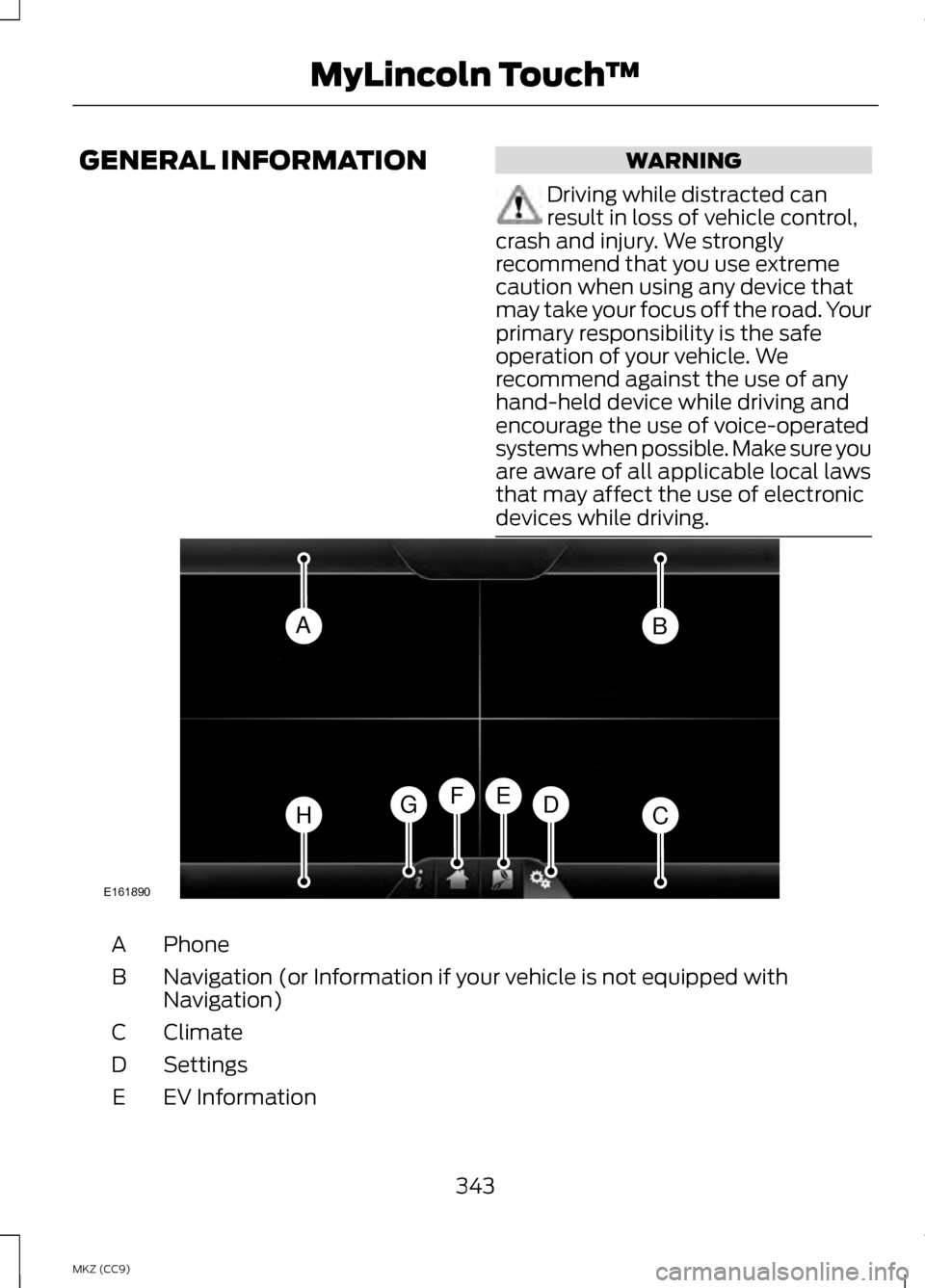
devices while driving. Phone
A
Navigation (or Information if your vehicle is not equipped with
Navigation)
B
Climate
C
Settings
D
EV Information
E
343
MKZ (CC9) MyLincoln Touch
™AB
HCDGEF
E161890
Page 346 of 475
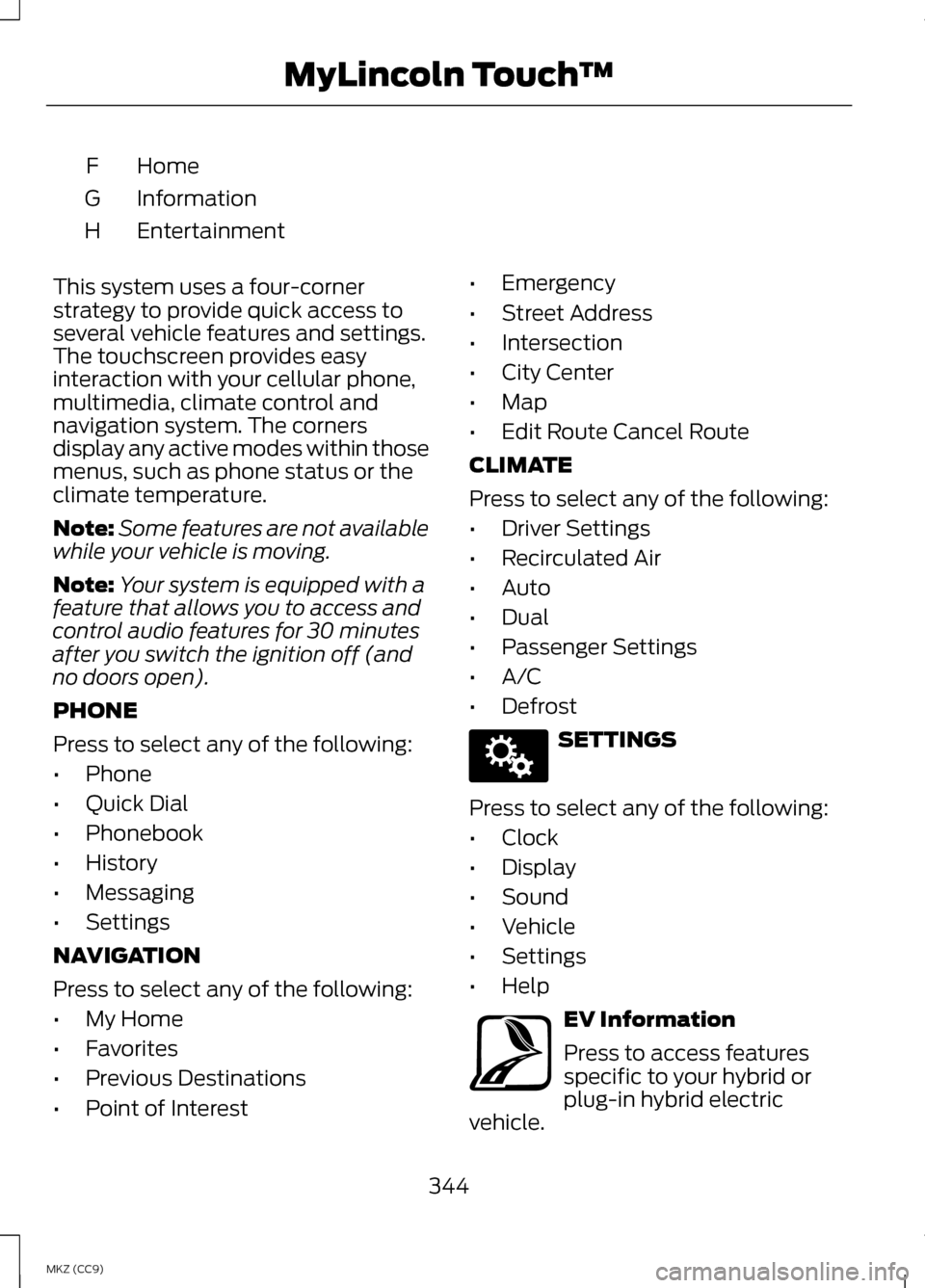
Home
F
Information
G
Entertainment
H
This system uses a four-corner
strategy to provide quick access to
several vehicle features and settings.
The touchscreen provides easy
interaction with your cellular phone,
multimedia, climate control and
navigation system. The corners
display any active modes within those
menus, such as phone status or the
climate temperature.
Note: Some features are not available
while your vehicle is moving.
Note: Your system is equipped with a
feature that allows you to access and
control audio features for 30 minutes
after you switch the ignition off (and
no doors open).
PHONE
Press to select any of the following:
• Phone
• Quick Dial
• Phonebook
• History
• Messaging
• Settings
NAVIGATION
Press to select any of the following:
• My Home
• Favorites
• Previous Destinations
• Point of Interest •
Emergency
• Street Address
• Intersection
• City Center
• Map
• Edit Route Cancel Route
CLIMATE
Press to select any of the following:
• Driver Settings
• Recirculated Air
• Auto
• Dual
• Passenger Settings
• A/C
• Defrost SETTINGS
Press to select any of the following:
• Clock
• Display
• Sound
• Vehicle
• Settings
• Help EV Information
Press to access features
specific to your hybrid or
plug-in hybrid electric
vehicle.
344
MKZ (CC9) MyLincoln Touch
™E142607 E161716
Page 349 of 475
•
Do not leave playing devices in
your vehicle during extreme
conditions as it could cause them
damage. See your device's user
guide for further information.
• For your safety, some SYNC
functions are speed-dependent.
Their use is limited to when your
vehicle is traveling at speeds under
3 mph (5 km/h).
Make sure that you review your
device's manual before using it with
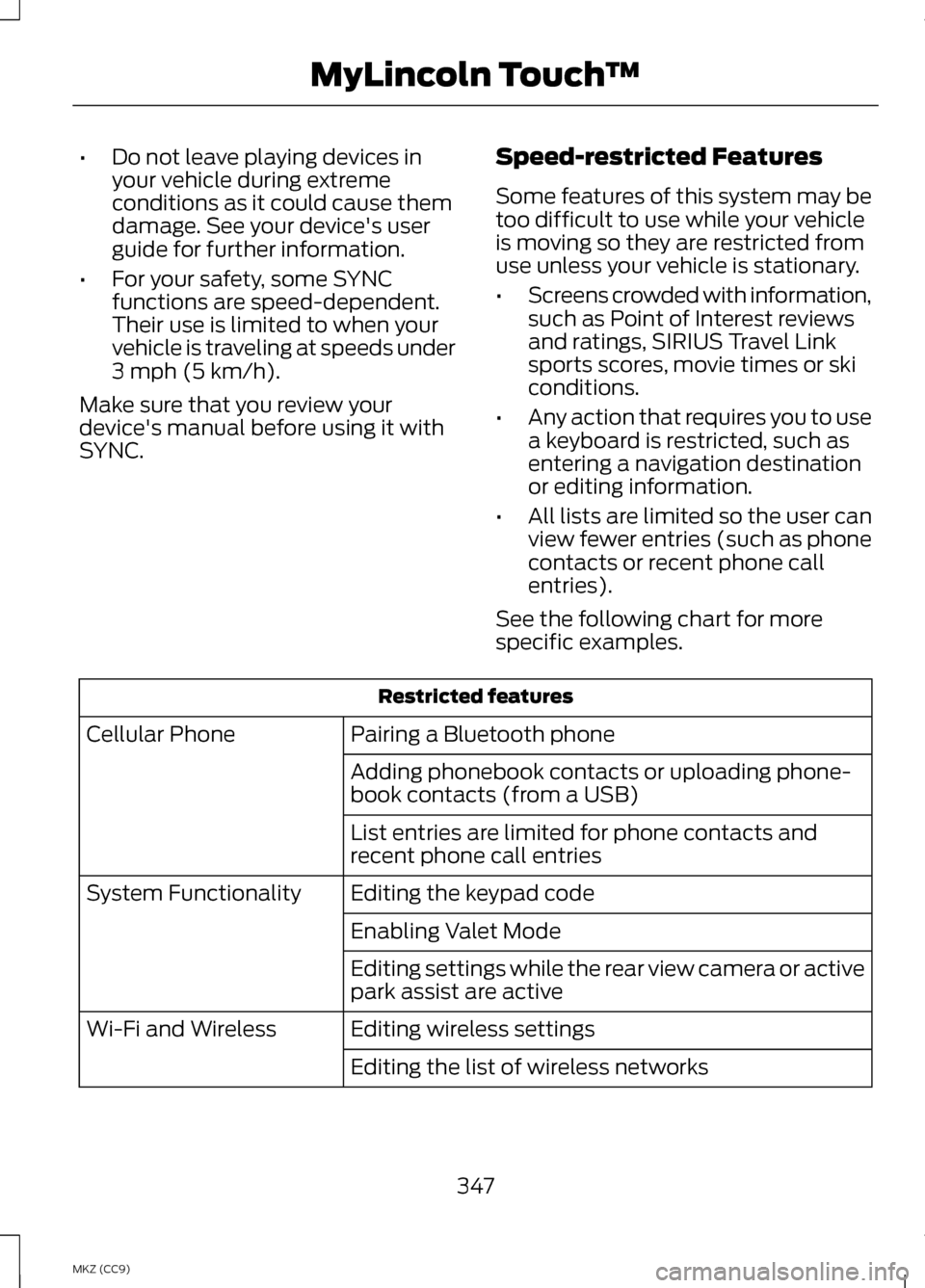
SYNC. Speed-restricted Features
Some features of this system may be
too difficult to use while your vehicle
is moving so they are restricted from
use unless your vehicle is stationary.
•
Screens crowded with information,
such as Point of Interest reviews
and ratings, SIRIUS Travel Link
sports scores, movie times or ski
conditions.
• Any action that requires you to use
a keyboard is restricted, such as
entering a navigation destination
or editing information.
• All lists are limited so the user can
view fewer entries (such as phone
contacts or recent phone call
entries).
See the following chart for more
specific examples. Restricted features
Pairing a Bluetooth phone
Cellular Phone
Adding phonebook contacts or uploading phone-
book contacts (from a USB)
List entries are limited for phone contacts and
recent phone call entries
Editing the keypad code
System Functionality
Enabling Valet Mode
Editing settings while the rear view camera or active
park assist are active
Editing wireless settings
Wi-Fi and Wireless
Editing the list of wireless networks
347
MKZ (CC9) MyLincoln Touch
™
Page 350 of 475
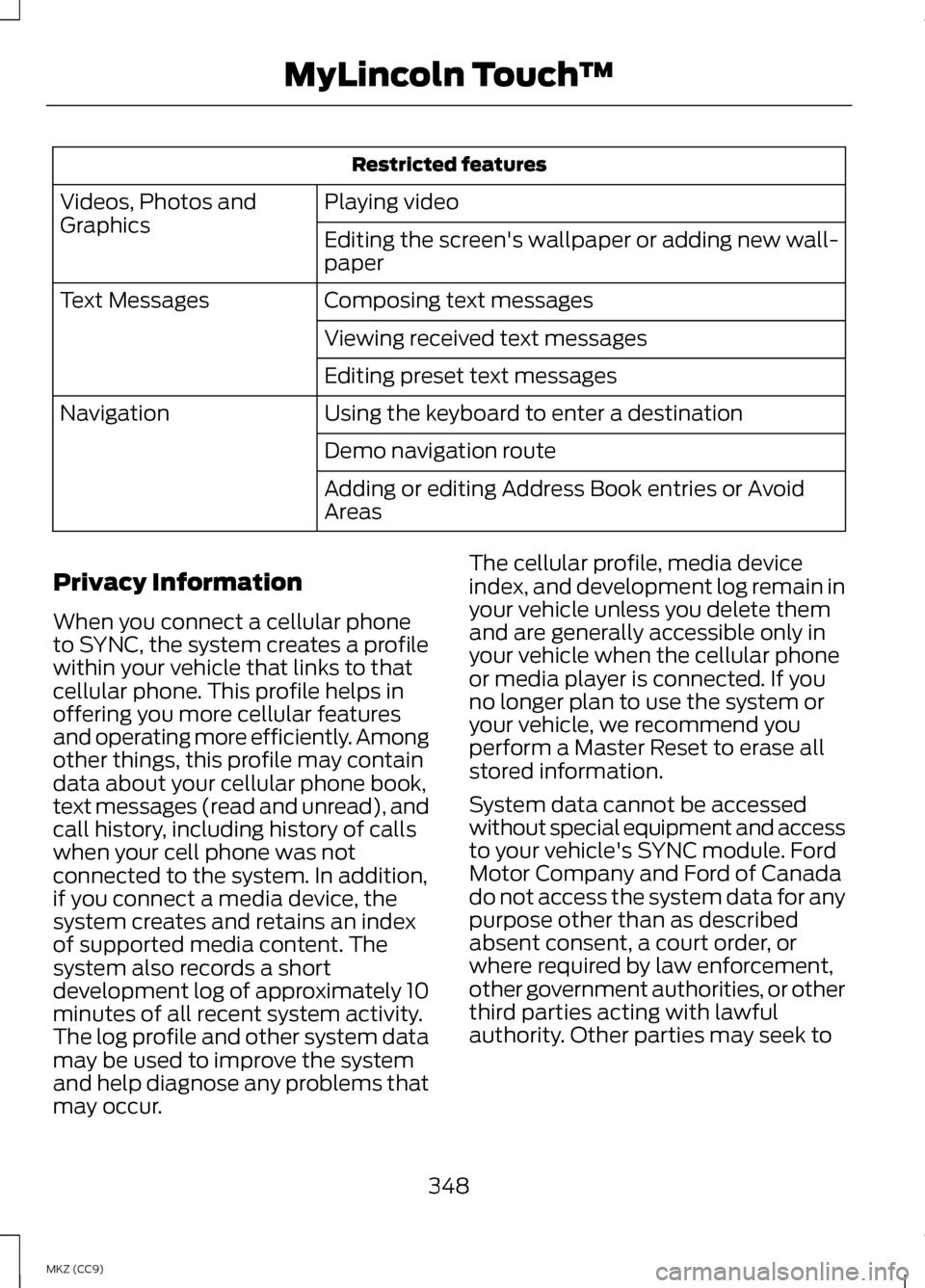
Restricted features
Playing video
Videos, Photos and
Graphics
Editing the screen's wallpaper or adding new wall-
paper
Composing text messages
Text Messages
Viewing received text messages
Editing preset text messages
Using the keyboard to enter a destination
Navigation
Demo navigation route
Adding or editing Address Book entries or Avoid
Areas
Privacy Information
When you connect a cellular phone
to SYNC, the system creates a profile
within your vehicle that links to that
cellular phone. This profile helps in
offering you more cellular features
and operating more efficiently. Among
other things, this profile may contain
data about your cellular phone book,
text messages (read and unread), and
call history, including history of calls
when your cell phone was not
connected to the system. In addition,
if you connect a media device, the
system creates and retains an index
of supported media content. The
system also records a short
development log of approximately 10
minutes of all recent system activity.
The log profile and other system data
may be used to improve the system
and help diagnose any problems that
may occur. The cellular profile, media device
index, and development log remain in
your vehicle unless you delete them
and are generally accessible only in
your vehicle when the cellular phone
or media player is connected. If you
no longer plan to use the system or
your vehicle, we recommend you
perform a Master Reset to erase all
stored information.
System data cannot be accessed
without special equipment and access
to your vehicle's SYNC module. Ford
Motor Company and Ford of Canada
do not access the system data for any
purpose other than as described
absent consent, a court order, or
where required by law enforcement,
other government authorities, or other
third parties acting with lawful
authority. Other parties may seek to
348
MKZ (CC9) MyLincoln Touch
™
Page 351 of 475
access the information independently
of Ford Motor Company and Ford of
Canada. For further privacy
information, see the sections on 911
Assist, Vehicle Health Report, and
Traffic, Directions and Information.
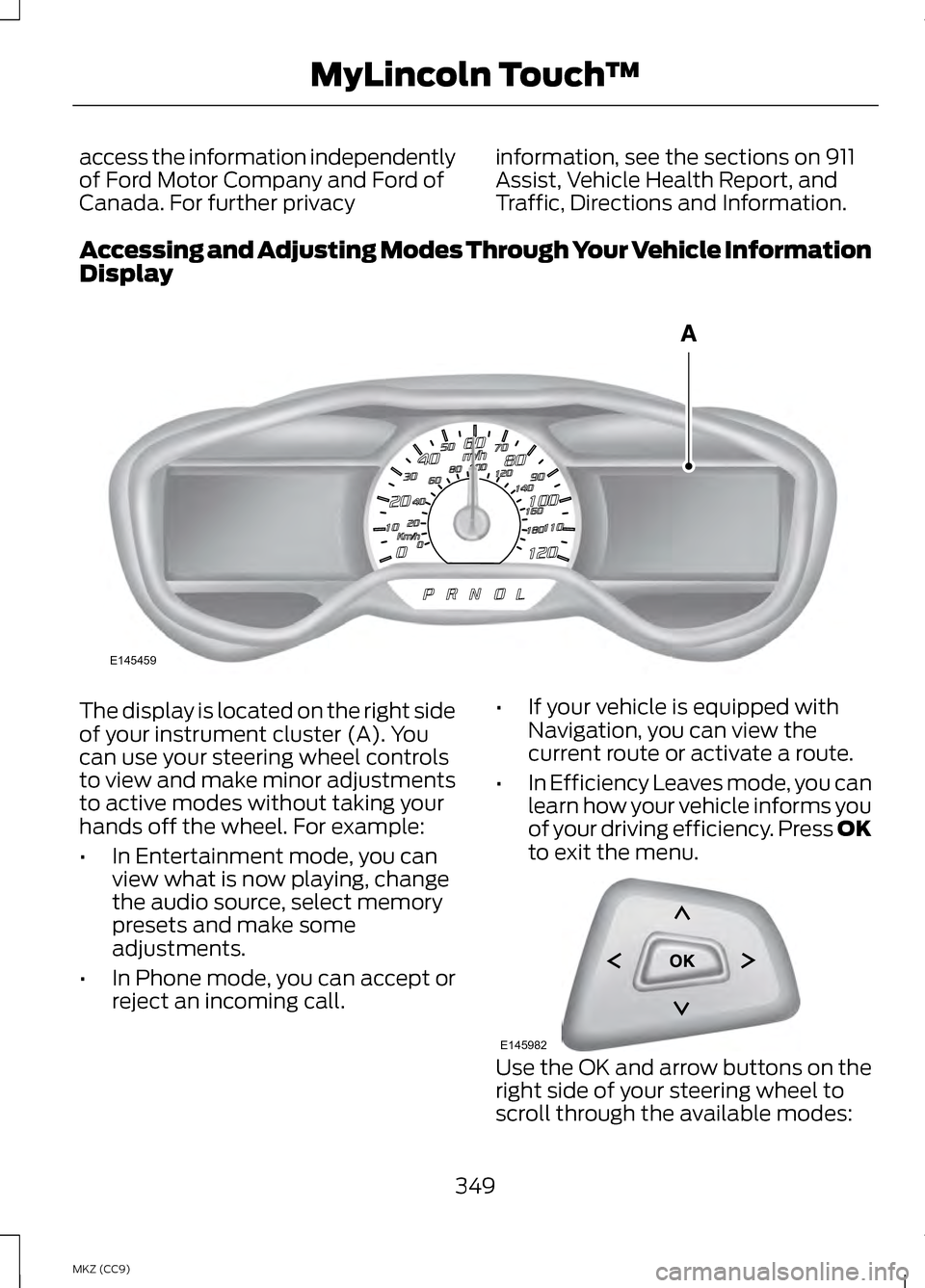
Accessing and Adjusting Modes Through Your Vehicle Information
Display The display is located on the right side
of your instrument cluster (A). You
can use your steering wheel controls
to view and make minor adjustments
to active modes without taking your
hands off the wheel. For example:
•
In Entertainment mode, you can
view what is now playing, change
the audio source, select memory
presets and make some
adjustments.
• In Phone mode, you can accept or
reject an incoming call. •
If your vehicle is equipped with
Navigation, you can view the
current route or activate a route.
• In Efficiency Leaves mode, you can
learn how your vehicle informs you
of your driving efficiency. Press OK
to exit the menu. Use the OK and arrow buttons on the
right side of your steering wheel to
scroll through the available modes:
349
MKZ (CC9) MyLincoln Touch
™E145459 E145982
Page 352 of 475
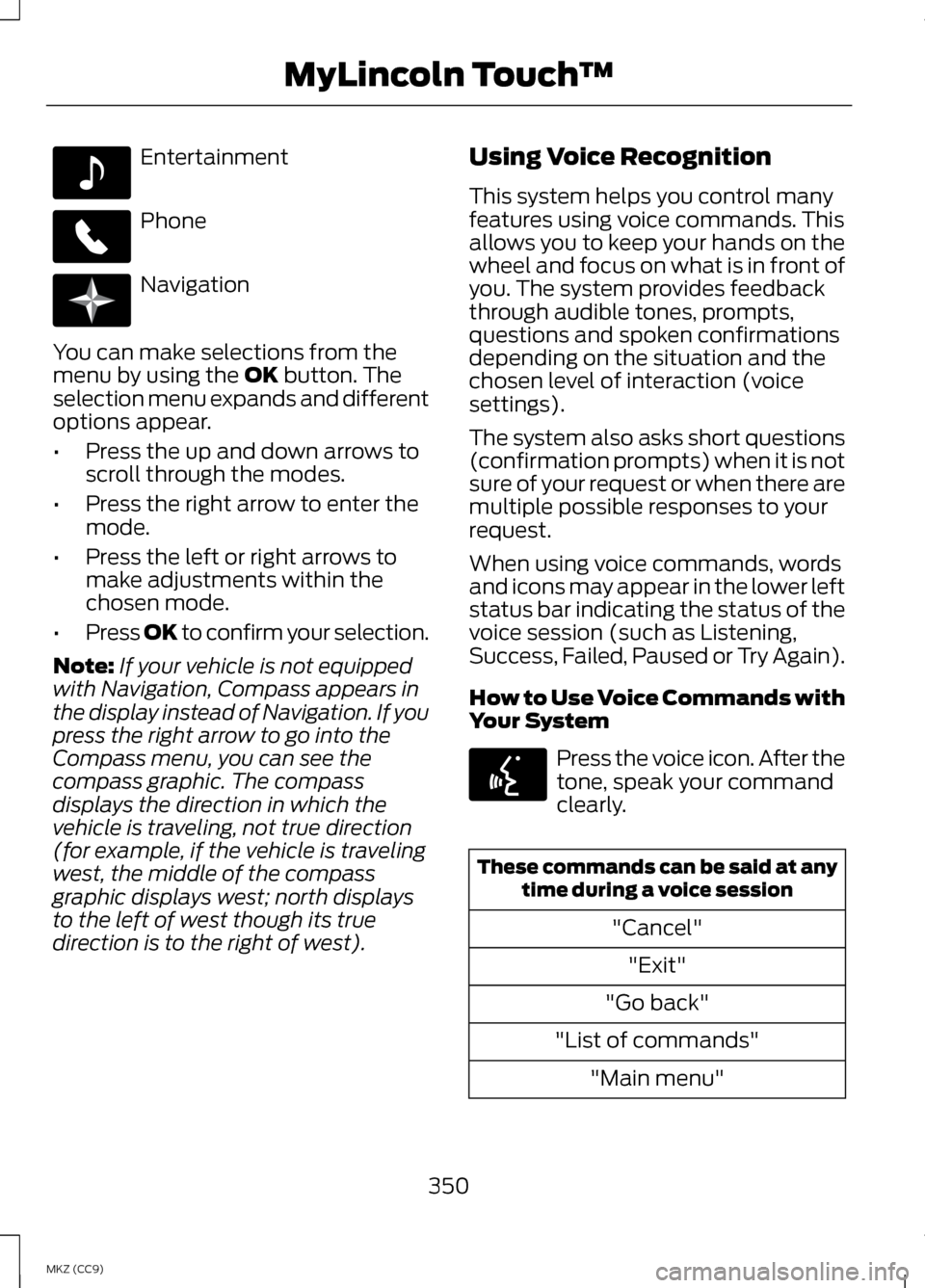
Entertainment
Phone
Navigation
You can make selections from the
menu by using the OK button. The
selection menu expands and different
options appear.
• Press the up and down arrows to
scroll through the modes.
• Press the right arrow to enter the
mode.
• Press the left or right arrows to
make adjustments within the
chosen mode.
• Press OK to confirm your selection.
Note: If your vehicle is not equipped
with Navigation, Compass appears in
the display instead of Navigation. If you
press the right arrow to go into the
Compass menu, you can see the
compass graphic. The compass
displays the direction in which the
vehicle is traveling, not true direction
(for example, if the vehicle is traveling
west, the middle of the compass
graphic displays west; north displays
to the left of west though its true
direction is to the right of west). Using Voice Recognition
This system helps you control many
features using voice commands. This
allows you to keep your hands on the
wheel and focus on what is in front of
you. The system provides feedback
through audible tones, prompts,
questions and spoken confirmations
depending on the situation and the
chosen level of interaction (voice
settings).
The system also asks short questions
(confirmation prompts) when it is not
sure of your request or when there are
multiple possible responses to your
request.
When using voice commands, words
and icons may appear in the lower left
status bar indicating the status of the
voice session (such as Listening,
Success, Failed, Paused or Try Again).
How to Use Voice Commands with
Your System
Press the voice icon. After the
tone, speak your command
clearly.
These commands can be said at any
time during a voice session
"Cancel""Exit"
"Go back"
"List of commands" "Main menu"
350
MKZ (CC9) MyLincoln Touch
™E142611 E142609 E142610 E142599
Page 353 of 475
These commands can be said at any
time during a voice session
"Next page"
"Previous page"
"What can I say?" "Help"
What Can I Say?
To access the available voice
commands for the current session, do
one of the following:
• During a voice session, press the
help icon (?) in the lower left
status bar of the screen.
• Say, "What can I say?" for an
on-screen listing of the possible
voice commands associated with
your current voice session.
• Press the voice icon. After the tone,
say, "Help" for an audible list of
possible voice commands.
Helpful Hints
• Make sure the interior of your
vehicle is as quiet as possible.
Wind noise from open windows
and road vibrations may prevent
the system from correctly
recognizing spoken commands.
• After pressing the voice icon, wait
until after the tone sounds and
Listening appears before saying a
command. Any command spoken
before this does not register with
the system. •
Speak naturally, without long
pauses between words.
• At any time, you can interrupt the
system while it is speaking by
pressing the voice icon.
Accessing a List of Available
Commands
• If you use the touchscreen, press
the Settings icon >
Help > Voice
Command List.
• If you use the steering wheel
control, press the voice icon. After
the tone, speak your command
clearly. Available voice commands
"Audio list of commands"
"Bluetooth audio list of commands" "Browse list of commands""CD list of commands"
"Climate control list of commands" "List of commands"
"Navigation list of commands" *
"Phone list of commands" "Radio list of commands"
"SD card list of commands"
"Sirius satellite list of commands" **
"Travel link list of commands" *
"USB list of commands"
351
MKZ (CC9) MyLincoln Touch
™