Jack LINCOLN MKZ HYBRID 2013 Owners Manual
[x] Cancel search | Manufacturer: LINCOLN, Model Year: 2013, Model line: MKZ HYBRID, Model: LINCOLN MKZ HYBRID 2013Pages: 475, PDF Size: 3.89 MB
Page 11 of 475
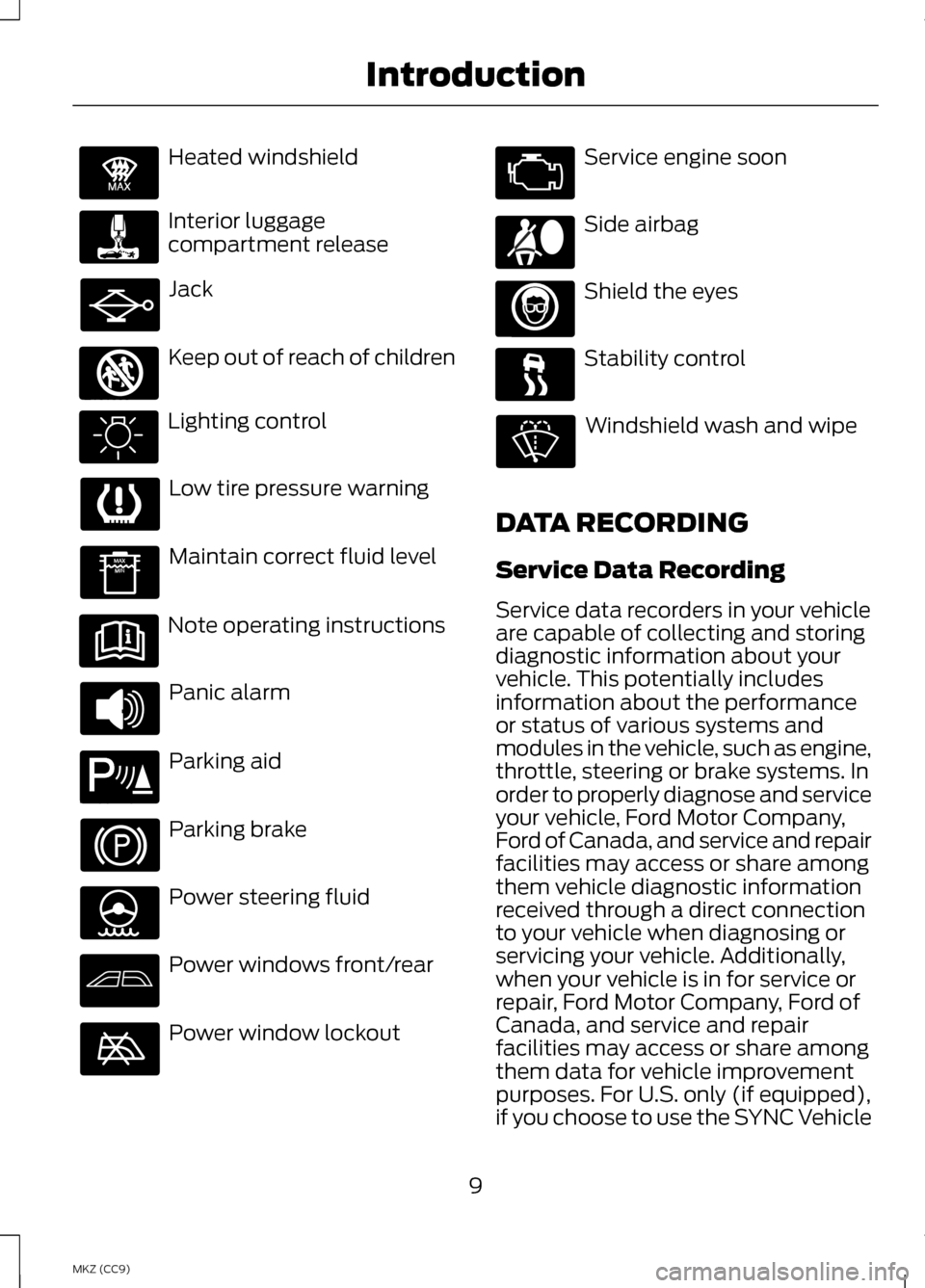
Heated windshield
Interior luggage
compartment release
Jack
Keep out of reach of children
Lighting control
Low tire pressure warning
Maintain correct fluid level
Note operating instructions
Panic alarm
Parking aid
Parking brake
Power steering fluid
Power windows front/rear
Power window lockout Service engine soon
Side airbag
Shield the eyes
Stability control
Windshield wash and wipe
DATA RECORDING
Service Data Recording
Service data recorders in your vehicle
are capable of collecting and storing
diagnostic information about your
vehicle. This potentially includes
information about the performance
or status of various systems and
modules in the vehicle, such as engine,
throttle, steering or brake systems. In
order to properly diagnose and service
your vehicle, Ford Motor Company,
Ford of Canada, and service and repair
facilities may access or share among
them vehicle diagnostic information
received through a direct connection
to your vehicle when diagnosing or
servicing your vehicle. Additionally,
when your vehicle is in for service or
repair, Ford Motor Company, Ford of
Canada, and service and repair
facilities may access or share among
them data for vehicle improvement
purposes. For U.S. only (if equipped),
if you choose to use the SYNC Vehicle
9
MKZ (CC9) IntroductionE91392 E161353 E139213 E167012
Page 384 of 475
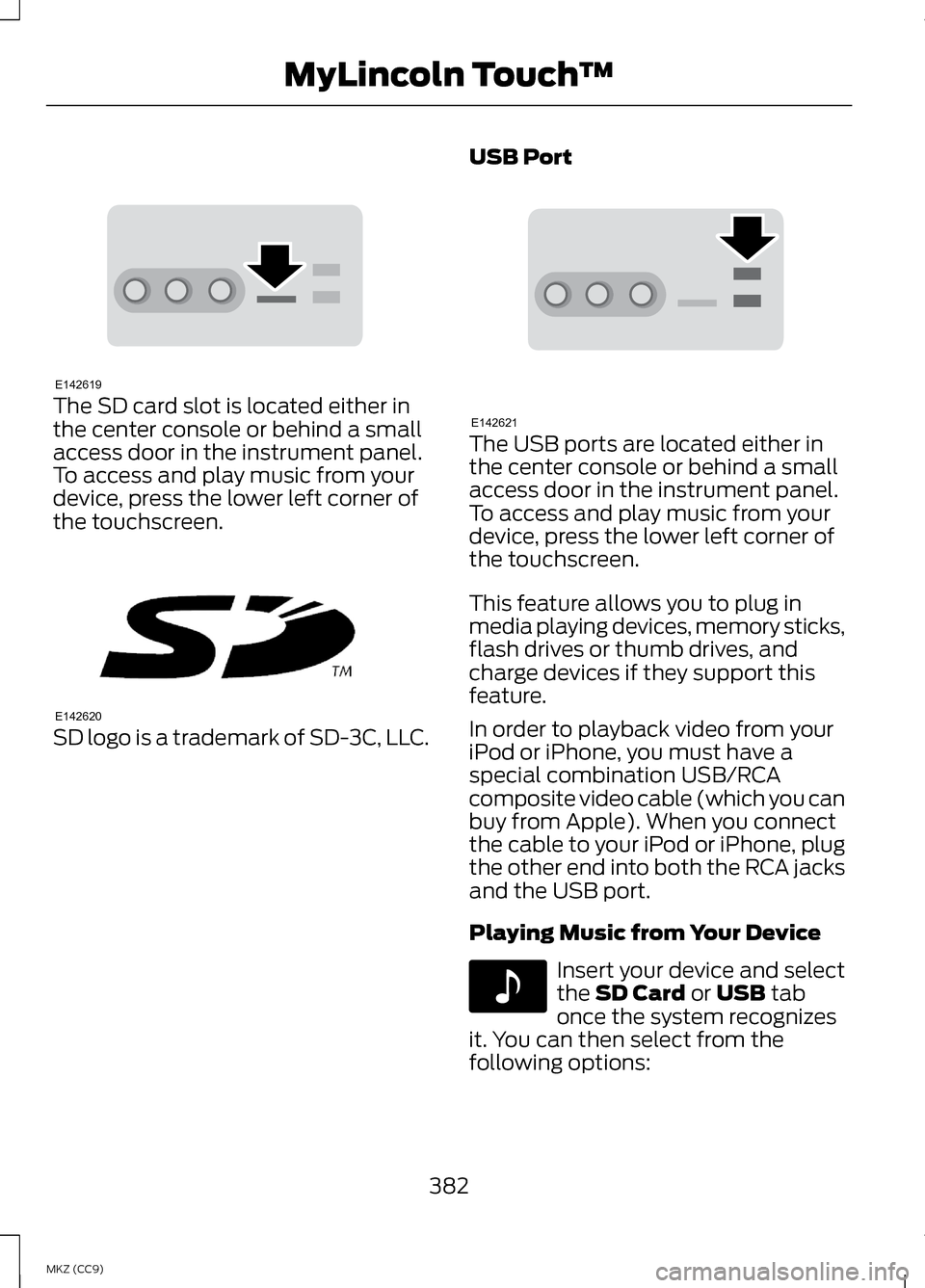
The SD card slot is located either in
the center console or behind a small
access door in the instrument panel.
To access and play music from your
device, press the lower left corner of
the touchscreen.
SD logo is a trademark of SD-3C, LLC. USB Port The USB ports are located either in
the center console or behind a small
access door in the instrument panel.
To access and play music from your
device, press the lower left corner of
the touchscreen.
This feature allows you to plug in
media playing devices, memory sticks,
flash drives or thumb drives, and
charge devices if they support this
feature.
In order to playback video from your
iPod or iPhone, you must have a
special combination USB/RCA
composite video cable (which you can
buy from Apple). When you connect
the cable to your iPod or iPhone, plug
the other end into both the RCA jacks
and the USB port.
Playing Music from Your Device
Insert your device and select
the SD Card or USB tab
once the system recognizes
it. You can then select from the
following options:
382
MKZ (CC9) MyLincoln Touch
™E142619 E142620 E142621 E142611
Page 388 of 475
Supported Media Players,
Formats and Metadata
Information
SYNC is capable of hosting nearly any
digital media player, including iPod,
Zune
™, plays from device players, and
most USB drives. Supported audio
formats include MP3, WMA, WAV and
AAC.
It is also able to organize your indexed
media from your playing device by
metadata tags. Metadata tags, which
are descriptive software identifiers
embedded in the media files, provide
information about the file.
If your indexed media files contain no
information embedded in these
metadata tags, SYNC may classify
the empty metadata tags as
Unknown.
In order to playback video from your
iPod or iPhone, you must have a
special combination USB/RCA
composite video cable (which you can
buy from Apple). When you connect
the cable to your iPod or iPhone, plug
the other end into both the RCA jacks
and the USB port.
Bluetooth Audio
Your system allows you to stream
audio over your vehicle's speakers
from your connected,
Bluetooth-enabled cellular phone. To access, press the lower
left corner on the
touchscreen, then select the
BT Stereo
tab. Bluetooth Audio Voice Commands If you are listening to a
Bluetooth audio device, press
the voice button on the
steering wheel control. When
prompted, say "Next song", "Pause",
"Play" or "Previous song".
If you are not listening to a Bluetooth
audio device, press the voice button
and, after the tone, say "Next song",
"Pause", "Play" or "Previous song".
A/V Inputs WARNINGS
Driving while distracted can
result in loss of vehicle control,
crash and injury. We strongly
recommend that you use extreme
caution when using any device that
may take your focus off the road. Your
primary responsibility is the safe
operation of your vehicle. We
recommend against the use of any
handheld device while driving and
encourage the use of voice-operated
systems when possible. Make sure you
are aware of all applicable local laws
that may affect the use of electronic
devices while driving. For safety reasons, do not
connect or adjust the settings on
your portable music player while your
vehicle is moving.
386
MKZ (CC9) MyLincoln Touch
™E142611 E142599
Page 389 of 475
WARNINGS
Store the portable music player
in a secure location, such as the
center console or the glove box, when
your vehicle is moving. Hard objects
may become projectiles in a crash or
sudden stop, which may increase the
risk of serious injury. The audio
extension cable must be long enough
to allow the portable music player to
be safely stored while your vehicle is
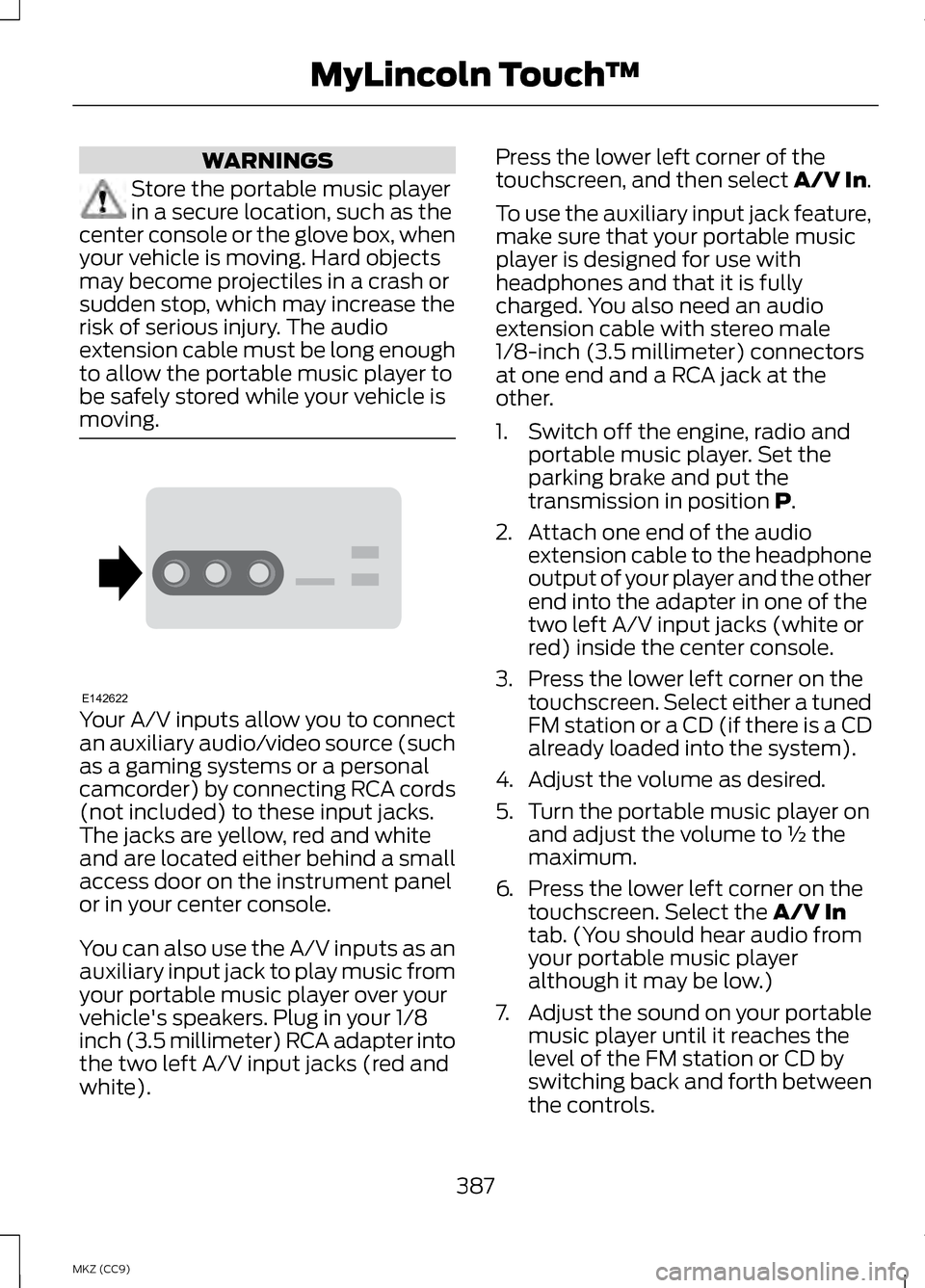
moving. Your A/V inputs allow you to connect
an auxiliary audio/video source (such
as a gaming systems or a personal
camcorder) by connecting RCA cords
(not included) to these input jacks.
The jacks are yellow, red and white
and are located either behind a small
access door on the instrument panel
or in your center console.
You can also use the A/V inputs as an
auxiliary input jack to play music from
your portable music player over your
vehicle's speakers. Plug in your 1/8
inch (3.5 millimeter) RCA adapter into
the two left A/V input jacks (red and
white). Press the lower left corner of the
touchscreen, and then select A/V In.
To use the auxiliary input jack feature,
make sure that your portable music
player is designed for use with
headphones and that it is fully
charged. You also need an audio
extension cable with stereo male
1/8-inch (3.5 millimeter) connectors
at one end and a RCA jack at the
other.
1. Switch off the engine, radio and
portable music player. Set the
parking brake and put the
transmission in position P.
2. Attach one end of the audio extension cable to the headphone
output of your player and the other
end into the adapter in one of the
two left A/V input jacks (white or
red) inside the center console.
3. Press the lower left corner on the touchscreen. Select either a tuned
FM station or a CD (if there is a CD
already loaded into the system).
4. Adjust the volume as desired.
5. Turn the portable music player on and adjust the volume to ½ the
maximum.
6. Press the lower left corner on the
touchscreen. Select the
A/V In
tab. (You should hear audio from
your portable music player
although it may be low.)
7. Adjust the sound on your portable
music player until it reaches the
level of the FM station or CD by
switching back and forth between
the controls.
387
MKZ (CC9) MyLincoln Touch
™E142622
Page 390 of 475
In order to playback video from your
iPod or iPhone, you must have a
special combination USB/RCA
composite video cable (which you can
buy from Apple). When you connect
the cable to your iPod or iPhone, plug
the other end into both the RCA jacks
and the USB port.
Troubleshooting
•
Do not connect the audio input
jack to a line level output. The jack
only works correctly with devices
that have a headphone output
with a volume control.
• Do not set the portable music
player's volume level higher than
is necessary to match the volume
of the CD or FM radio as this
causes distortion and reduces
sound quality. •
If the music sounds distorted at
lower listening levels, turn the
portable music player volume
down. If the problem persists,
replace or recharge the batteries
in the portable media player.
• Control the portable media player
in the same manner when used
with headphones, as the auxiliary
input jack does not provide control
(such as Play or Pause) over the
attached portable media player.
PHONE 388
MKZ (CC9) MyLincoln Touch
™A
B
C
D
E
F
E161968