Radio LINCOLN MKZ HYBRID 2014 User Guide
[x] Cancel search | Manufacturer: LINCOLN, Model Year: 2014, Model line: MKZ HYBRID, Model: LINCOLN MKZ HYBRID 2014Pages: 445, PDF Size: 3.8 MB
Page 192 of 445
The fixed and active guidelines fade in and
out depending on your steering wheel
position. When your steering wheel
position is straight, the active guidelines
are not visible.
Always use caution while reversing.
Objects in the red zone are closest to your
vehicle and objects in the green zone are
farther away. Objects are getting closer to
your vehicle as they move from the green
zone to the yellow or red zones. Use the
side view mirrors and rear view mirror to
get better coverage on both sides and rear
of your vehicle.
Selectable settings for this feature are
ACTIVE + FIXED, FIXED and OFF.
Visual Park Aid Alert
Note:
Visual park alert is only available
when the transmission is in Reverse (R).
Note: The reverse sensing system is not
effective at speeds above 3 mph (5 km/h)
and may not detect certain angular or
moving objects.
The system uses red, yellow and green
highlights that appear on top of the video
image when the reverse sensing system
detects an object. The alert highlights the
closest object detected. You can disable
the reverse sensing alert if you have visual
park aid alert enabled, you will still see the
displayed highlighted areas.
Selectable settings for this feature are ON
and OFF. Manual Zoom WARNING
When manual zoom is on, the full
area behind your vehicle is not
shown. Be aware of your surroundings
when using the manual zoom feature. Note:
Manual zoom is only available when
the transmission is in Reverse (R).
Note: Only the centerline shows when you
enable manual zoom.
This allows you to get a closer view of an
object behind your vehicle. The zoomed
image keeps the bumper in the image to
provide a reference. The zoom is only
active while the transmission is in Reverse
(R). When you shift the transmission out of
Reverse (R), the feature automatically turns
off and you must enable it to use it used
again.
Selectable settings for this feature are ON
and OFF.
Rear Camera Delay
When shifting the transmission out of
Reverse (R) and into any gear other than
Park (P), the camera image remains in the
display until your vehicle speed reaches
5 mph (8 km/h or until you select a radio
button.
Selectable settings for this feature are ON
and OFF. The default setting for the rear
camera delay is OFF.
190
MKZ (CC9) Parking Aids
Page 250 of 445
Protected components
Fuse amp rating
Fuse or relay number
Ignition, Push button stop/start
5A 2
18
Passenger airbag disabled indicator,
Transmission range
5A 2
19
Adaptive headlamps
5A 2
20
Humidity and in-car temperature, Rear
climate seats
5A 2
21
Occupant classification sensor
5A 2
22
Delayed accessory (power inverter logic,
moonroof logic)
10A 1
23
Central lock/unlock
30A 1
24
Driver door (window, mirror)
30A 1
25
Front passenger door (window, mirror)
30A 1
26
Moonroof
30A 1
27
THX amplifier
20A 1
28
Rear driver side door (window)
30A 1
29
Rear passenger side door (window)
30A 1
30
Not used (spare)
15A 1
31
GPS, Voice control, Display, Adaptive
cruise control, Radio frequency receiver
10A 1
32
Radio, Active noise control
20A 1
33
Run/start (fuse #19, 20, 21, 22, 35, 36, 37,
circuit breaker)
30A 1
34
248
MKZ (CC9) Fuses
Page 263 of 445
WARNINGS
Keep batteries out of reach of
children. Batteries contain sulfuric
acid. Avoid contact with skin, eyes or
clothing. Shield your eyes when working
near the battery to protect against possible
splashing of acid solution. In case of acid
contact with skin or eyes, flush
immediately with water for a minimum of
15 minutes and get prompt medical
attention. If acid is swallowed, call a
physician immediately. Your vehicle is equipped with a
Motorcraft® maintenance-free battery
which normally does not require additional
water during its life of service.
Note:
If your battery has a cover/shield,
make sure it is reinstalled after the battery
has been cleaned or replaced.
Note: See an authorized dealer for low
voltage battery access, testing, or
replacement.
When a low voltage battery replacement
is necessary, see an authorized dealer to
replace the low voltage battery with a Ford
recommended replacement low voltage
battery that matches the electrical
requirements of the vehicle
To ensure proper operation of the battery
management system (BMS), do not allow
a technician to connect any electrical
device ground connection directly to the
low voltage battery negative post. A
connection at the low voltage battery
negative post can cause inaccurate
measurements of the battery condition
and potential incorrect system operation. Note:
If a person adds electrical or
electronic accessories or components to
the vehicle, the accessories or
components may adversely affect the low
voltage battery performance and
durability and may also affect the
performance of other electrical systems
in the vehicle.
For longer, trouble-free operation, keep
the top of the battery clean and dry. Also,
make certain the battery cables are always
tightly fastened to the battery terminals.
If you see any corrosion on the battery or
terminals, remove the cables from the
terminals and clean with a wire brush. You
can neutralize the acid with a solution of
baking soda and water.
When a battery replacement is required,
the battery should only be replaced with
a Ford recommended replacement battery
that matches the electrical requirements
of the vehicle.
Because your vehicle ’s engine is
electronically-controlled by a computer,
some engine control settings are
maintained by power from the low voltage
battery. Some engine computer settings,
like the idle trim and fuel trim strategy,
optimize the driveability and performance
of the engine. Some other computer
settings, like the clock and radio station
presets, are also maintained in memory
by power from the low voltage battery.
When a technician disconnects and
connects the low voltage battery, these
settings are erased. Complete the
following procedure in order to restore the
settings:
1. With the vehicle at a complete stop, set the parking brake.
261
MKZ (CC9) Maintenance
Page 264 of 445
2. Shift the transmission into P.
3. Turn off all accessories.
4. Step on the brake pedal and start the
vehicle.
5. Run the engine until it reaches normal
operating temperature. While the
engine is warming up, complete the
following: Reset the clock. See Audio
System (page 309). Reset the power
windows bounce-back feature. See
Windows and Mirrors (page 83). Reset
the radio station presets.
See Audio
System (page 309).
6. Allow the engine to idle for at least one
minute. If the engine turns off, step on
the accelerator to start the engine.
7. While the engine is running, step on the brake pedal and shift the
transmission to N.
8. Allow the engine to run for at least one
minute by pressing on the accelerator
pedal.
9. Drive the vehicle at least 10 miles (16 kilometers) to completely relearn the
idle and fuel trim strategy.
Note: If you do not allow the engine to
relearn the idle and fuel trim strategy, the
idle quality of your vehicle may be
adversely affected until the engine
computer eventually relearns the idle trim
and fuel trim strategy.
Note: Always dispose of automotive
batteries in a responsible manner. Follow
your local authorized standards for
disposal. Call your local authorized
recycling center to find out more about
recycling automotive batteries. Note:
It is recommended that the negative
battery cable terminal be disconnected
from the battery if you plan to store your
vehicle for an extended period of time.
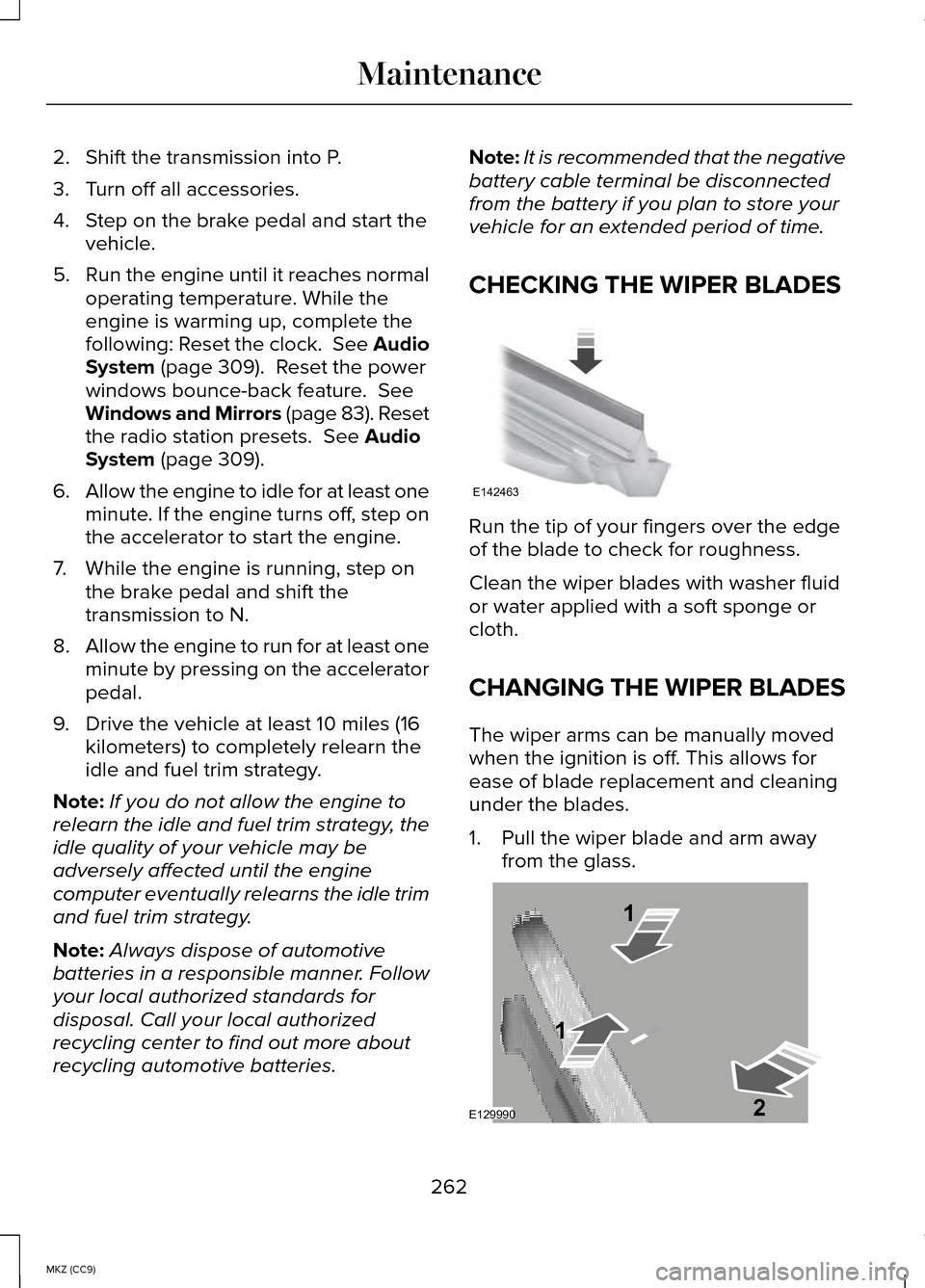
CHECKING THE WIPER BLADES Run the tip of your fingers over the edge
of the blade to check for roughness.
Clean the wiper blades with washer fluid
or water applied with a soft sponge or
cloth.
CHANGING THE WIPER BLADES
The wiper arms can be manually moved
when the ignition is off. This allows for
ease of blade replacement and cleaning
under the blades.
1. Pull the wiper blade and arm away
from the glass. 262
MKZ (CC9) MaintenanceE142463 E129990
1
1 2
Page 280 of 445
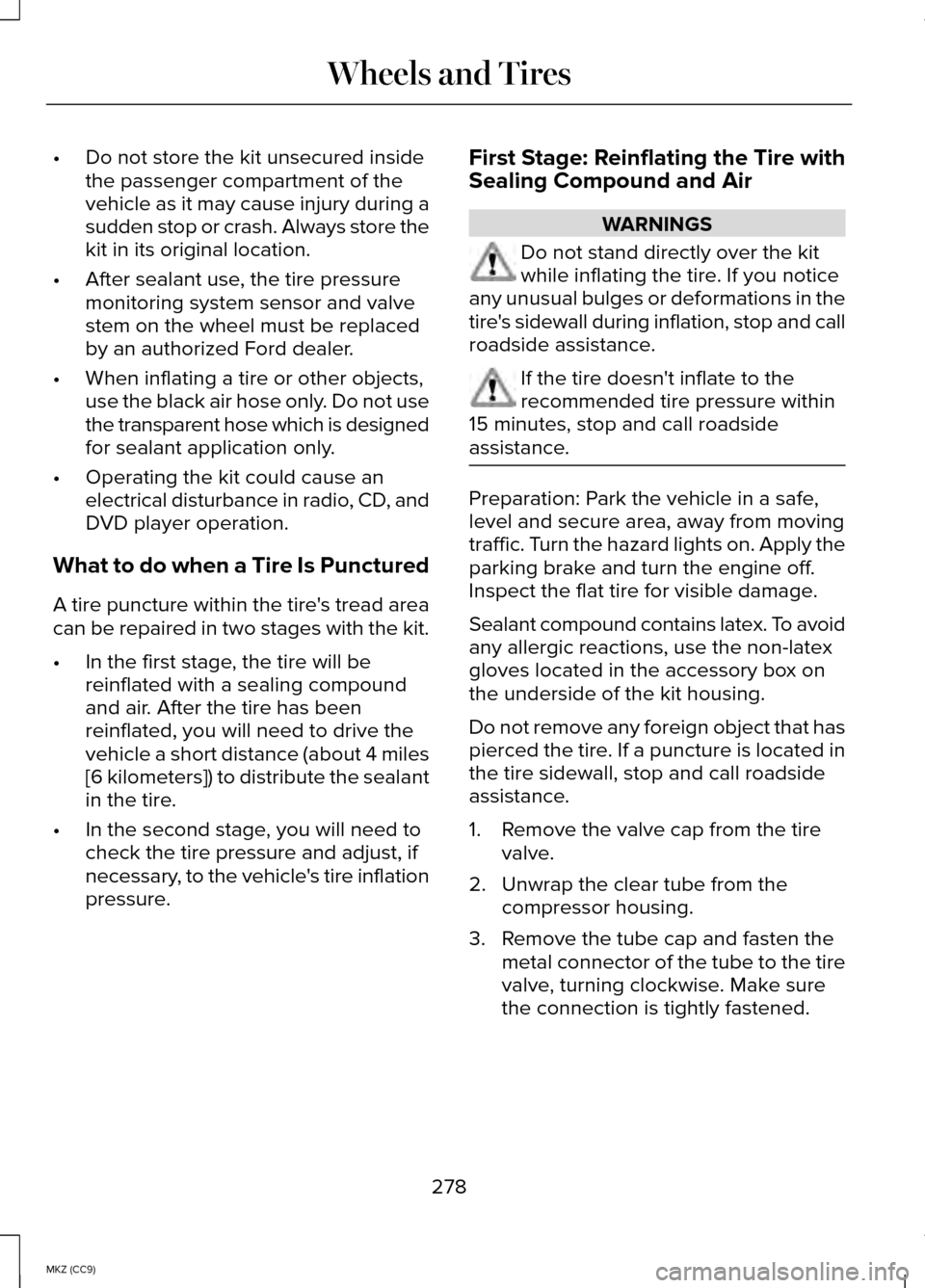
•
Do not store the kit unsecured inside
the passenger compartment of the
vehicle as it may cause injury during a
sudden stop or crash. Always store the
kit in its original location.
• After sealant use, the tire pressure
monitoring system sensor and valve
stem on the wheel must be replaced
by an authorized Ford dealer.
• When inflating a tire or other objects,
use the black air hose only. Do not use
the transparent hose which is designed
for sealant application only.
• Operating the kit could cause an
electrical disturbance in radio, CD, and
DVD player operation.
What to do when a Tire Is Punctured
A tire puncture within the tire's tread area
can be repaired in two stages with the kit.
• In the first stage, the tire will be
reinflated with a sealing compound
and air. After the tire has been
reinflated, you will need to drive the
vehicle a short distance (about 4 miles
[6 kilometers]) to distribute the sealant
in the tire.
• In the second stage, you will need to
check the tire pressure and adjust, if
necessary, to the vehicle's tire inflation
pressure. First Stage: Reinflating the Tire with
Sealing Compound and Air WARNINGS
Do not stand directly over the kit
while inflating the tire. If you notice
any unusual bulges or deformations in the
tire's sidewall during inflation, stop and call
roadside assistance. If the tire doesn't inflate to the
recommended tire pressure within
15 minutes, stop and call roadside
assistance. Preparation: Park the vehicle in a safe,
level and secure area, away from moving
traffic. Turn the hazard lights on. Apply the
parking brake and turn the engine off.
Inspect the flat tire for visible damage.
Sealant compound contains latex. To avoid
any allergic reactions, use the non-latex
gloves located in the accessory box on
the underside of the kit housing.
Do not remove any foreign object that has
pierced the tire. If a puncture is located in
the tire sidewall, stop and call roadside
assistance.
1. Remove the valve cap from the tire
valve.
2. Unwrap the clear tube from the compressor housing.
3. Remove the tube cap and fasten the metal connector of the tube to the tire
valve, turning clockwise. Make sure
the connection is tightly fastened.
278
MKZ (CC9) Wheels and Tires
Page 311 of 445
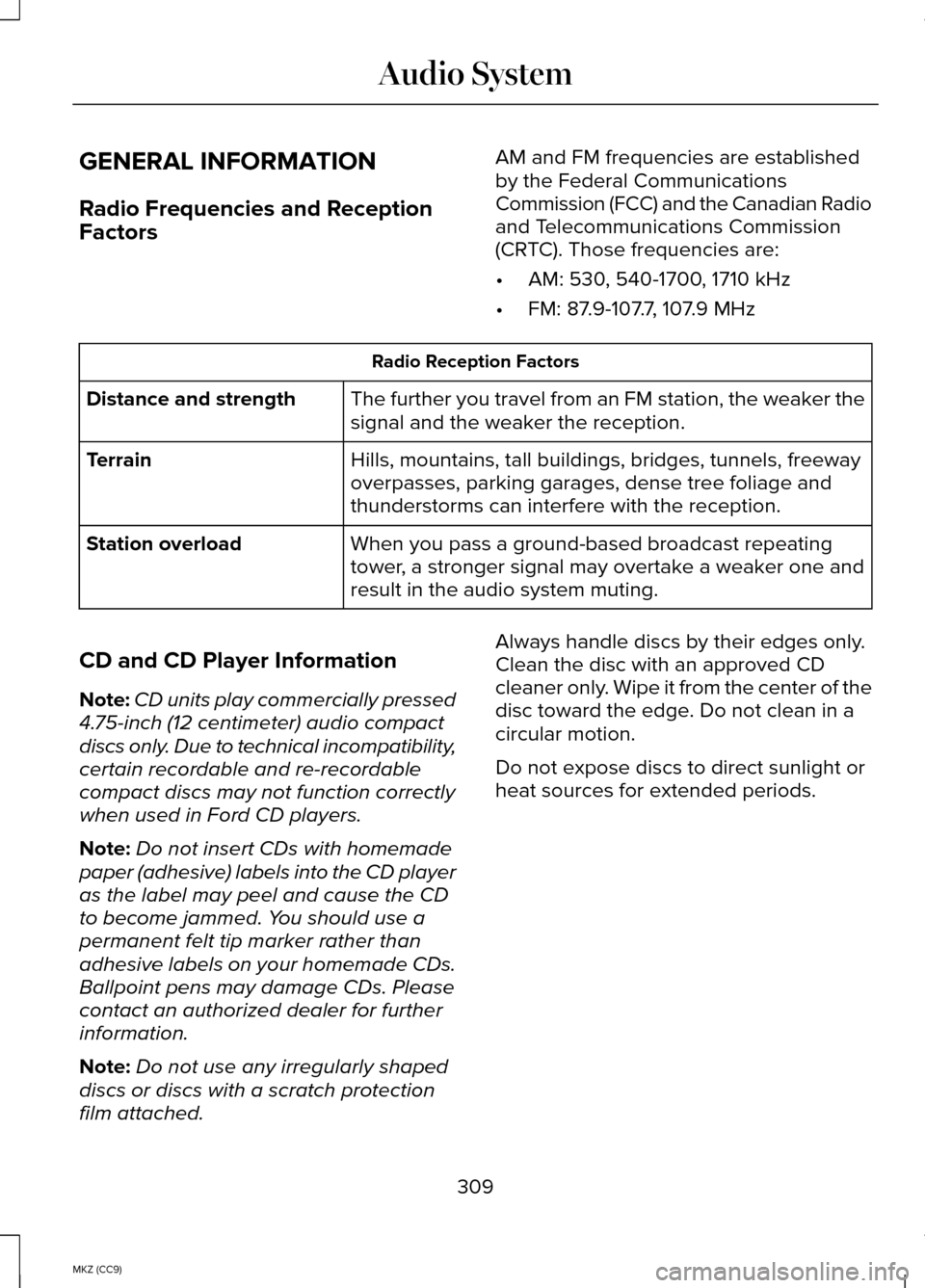
GENERAL INFORMATION
Radio Frequencies and Reception
Factors
AM and FM frequencies are established
by the Federal Communications
Commission (FCC) and the Canadian Radio
and Telecommunications Commission
(CRTC). Those frequencies are:
•
AM: 530, 540-1700, 1710 kHz
• FM: 87.9-107.7, 107.9 MHz Radio Reception Factors
The further you travel from an FM station, the weaker the
signal and the weaker the reception.
Distance and strength
Hills, mountains, tall buildings, bridges, tunnels, freeway
overpasses, parking garages, dense tree foliage and
thunderstorms can interfere with the reception.
Terrain
When you pass a ground-based broadcast repeating
tower, a stronger signal may overtake a weaker one and
result in the audio system muting.
Station overload
CD and CD Player Information
Note: CD units play commercially pressed
4.75-inch (12 centimeter) audio compact
discs only. Due to technical incompatibility,
certain recordable and re-recordable
compact discs may not function correctly
when used in Ford CD players.
Note: Do not insert CDs with homemade
paper (adhesive) labels into the CD player
as the label may peel and cause the CD
to become jammed. You should use a
permanent felt tip marker rather than
adhesive labels on your homemade CDs.
Ballpoint pens may damage CDs. Please
contact an authorized dealer for further
information.
Note: Do not use any irregularly shaped
discs or discs with a scratch protection
film attached. Always handle discs by their edges only.
Clean the disc with an approved CD
cleaner only. Wipe it from the center of the
disc toward the edge. Do not clean in a
circular motion.
Do not expose discs to direct sunlight or
heat sources for extended periods.
309
MKZ (CC9) Audio System
Page 312 of 445
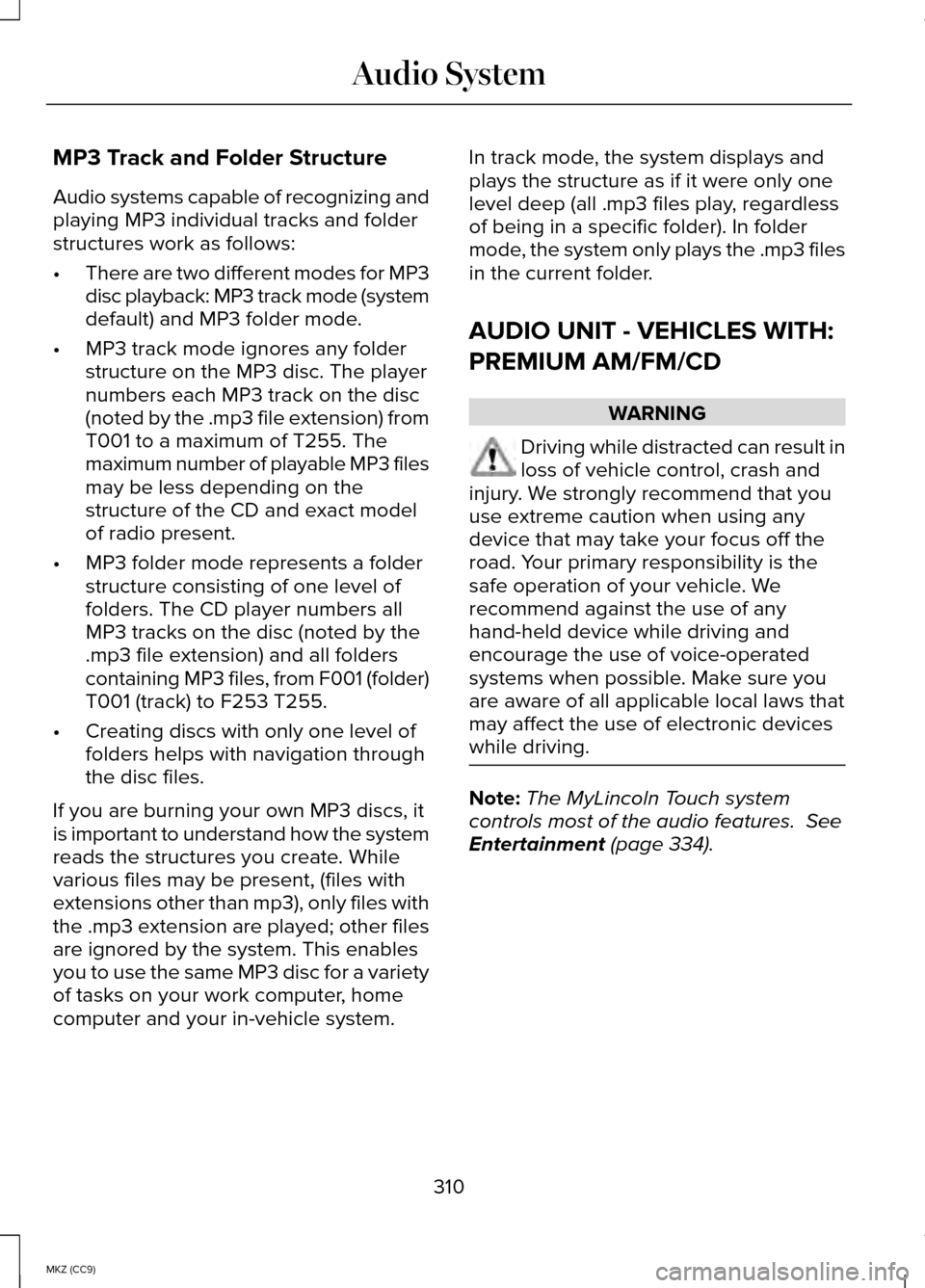
MP3 Track and Folder Structure
Audio systems capable of recognizing and
playing MP3 individual tracks and folder
structures work as follows:
•
There are two different modes for MP3
disc playback: MP3 track mode (system
default) and MP3 folder mode.
• MP3 track mode ignores any folder
structure on the MP3 disc. The player
numbers each MP3 track on the disc
(noted by the .mp3 file extension) from
T001 to a maximum of T255. The
maximum number of playable MP3 files
may be less depending on the
structure of the CD and exact model
of radio present.
• MP3 folder mode represents a folder
structure consisting of one level of
folders. The CD player numbers all
MP3 tracks on the disc (noted by the
.mp3 file extension) and all folders
containing MP3 files, from F001 (folder)
T001 (track) to F253 T255.
• Creating discs with only one level of
folders helps with navigation through
the disc files.
If you are burning your own MP3 discs, it
is important to understand how the system
reads the structures you create. While
various files may be present, (files with
extensions other than mp3), only files with
the .mp3 extension are played; other files
are ignored by the system. This enables
you to use the same MP3 disc for a variety
of tasks on your work computer, home
computer and your in-vehicle system. In track mode, the system displays and
plays the structure as if it were only one
level deep (all .mp3 files play, regardless
of being in a specific folder). In folder
mode, the system only plays the .mp3 files
in the current folder.
AUDIO UNIT - VEHICLES WITH:
PREMIUM AM/FM/CD
WARNING
Driving while distracted can result in
loss of vehicle control, crash and
injury. We strongly recommend that you
use extreme caution when using any
device that may take your focus off the
road. Your primary responsibility is the
safe operation of your vehicle. We
recommend against the use of any
hand-held device while driving and
encourage the use of voice-operated
systems when possible. Make sure you
are aware of all applicable local laws that
may affect the use of electronic devices
while driving. Note:
The MyLincoln Touch system
controls most of the audio features. See
Entertainment (page 334).
310
MKZ (CC9) Audio System
Page 313 of 445

CD slot: Insert a CD.
A
Eject:
Eject a CD.
B
TUNE +/-: In radio mode, select a frequency band and press one of the TUNE
buttons. The system stops at the first station it finds in that directio\
n. In SIRIUS
mode, select the previous or next channel. If a specific category is selecte\
d,
(Jazz, Rock, News, etc.), use the TUNE buttons find to the previous or next
channel in the selected category.
C
Volume: Swipe your finger across bar to adjust the volume level on your system.
D
Power:
Switch the audio system on and off by pressing the button.
E
Seek/Fast Forward/Reverse:
Press to go to the previous or next track or
available radio station. Press and hold to either reverse or fast forwar\
d through
the current track or to quickly reverse or advance through the radio ban\
d in
individual increments.
F
MEDIA HUB
The media hub is located in the center
console and has the following features: 311
MKZ (CC9) Audio SystemE146318
Page 323 of 445
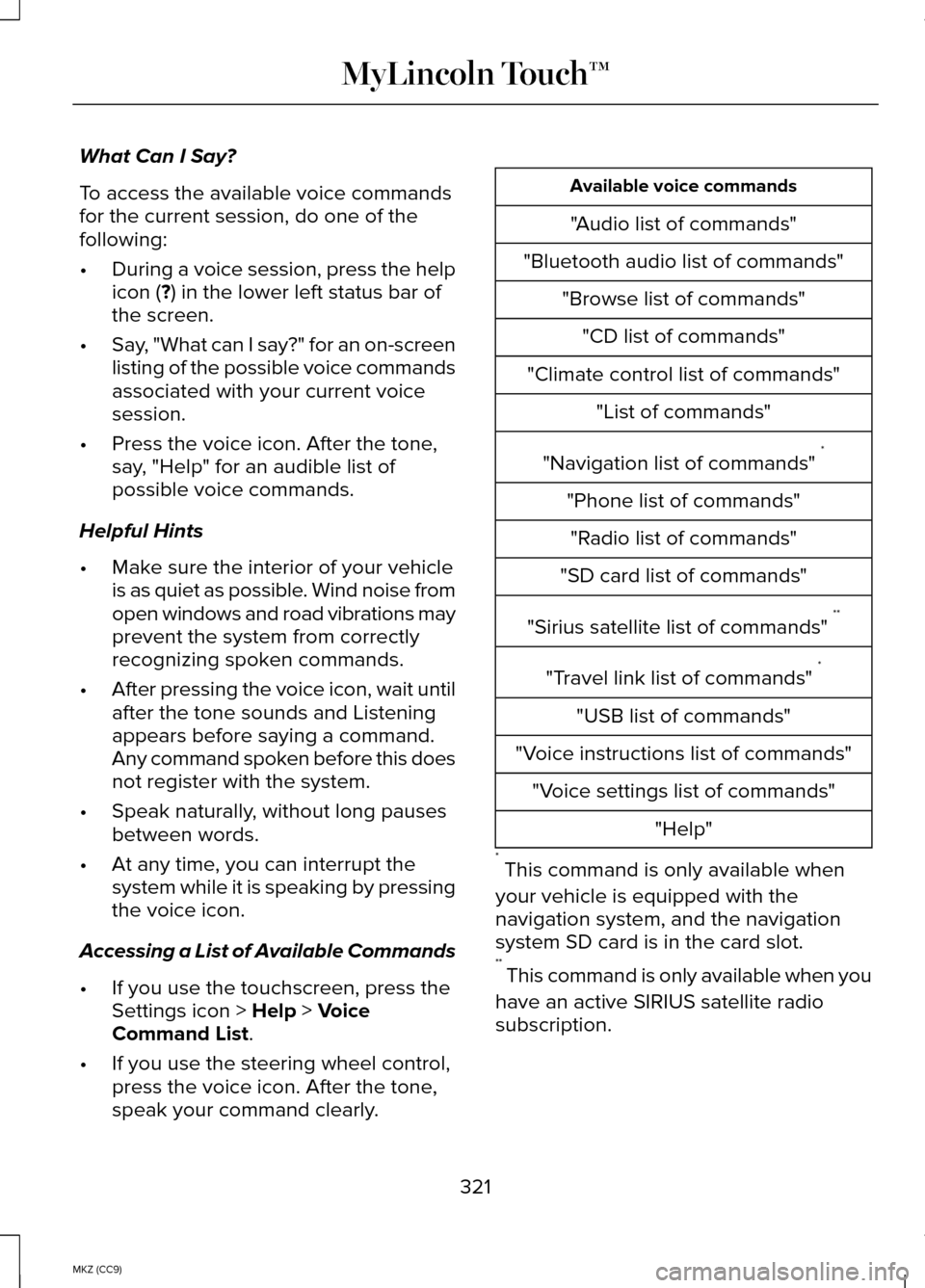
What Can I Say?
To access the available voice commands
for the current session, do one of the
following:
•
During a voice session, press the help
icon (?) in the lower left status bar of
the screen.
• Say, "What can I say?" for an on-screen
listing of the possible voice commands
associated with your current voice
session.
• Press the voice icon. After the tone,
say, "Help" for an audible list of
possible voice commands.
Helpful Hints
• Make sure the interior of your vehicle
is as quiet as possible. Wind noise from
open windows and road vibrations may
prevent the system from correctly
recognizing spoken commands.
• After pressing the voice icon, wait until
after the tone sounds and Listening
appears before saying a command.
Any command spoken before this does
not register with the system.
• Speak naturally, without long pauses
between words.
• At any time, you can interrupt the
system while it is speaking by pressing
the voice icon.
Accessing a List of Available Commands
• If you use the touchscreen, press the
Settings icon >
Help > Voice
Command List.
• If you use the steering wheel control,
press the voice icon. After the tone,
speak your command clearly. Available voice commands
"Audio list of commands"
"Bluetooth audio list of commands" "Browse list of commands""CD list of commands"
"Climate control list of commands" "List of commands"
"Navigation list of commands" *
"Phone list of commands" "Radio list of commands"
"SD card list of commands"
"Sirius satellite list of commands" **
"Travel link list of commands" *
"USB list of commands"
"Voice instructions list of commands" "Voice settings list of commands" "Help"
* This command is only available when
your vehicle is equipped with the
navigation system, and the navigation
system SD card is in the card slot.
** This command is only available when you
have an active SIRIUS satellite radio
subscription.
321
MKZ (CC9) MyLincoln Touch™
Page 331 of 445
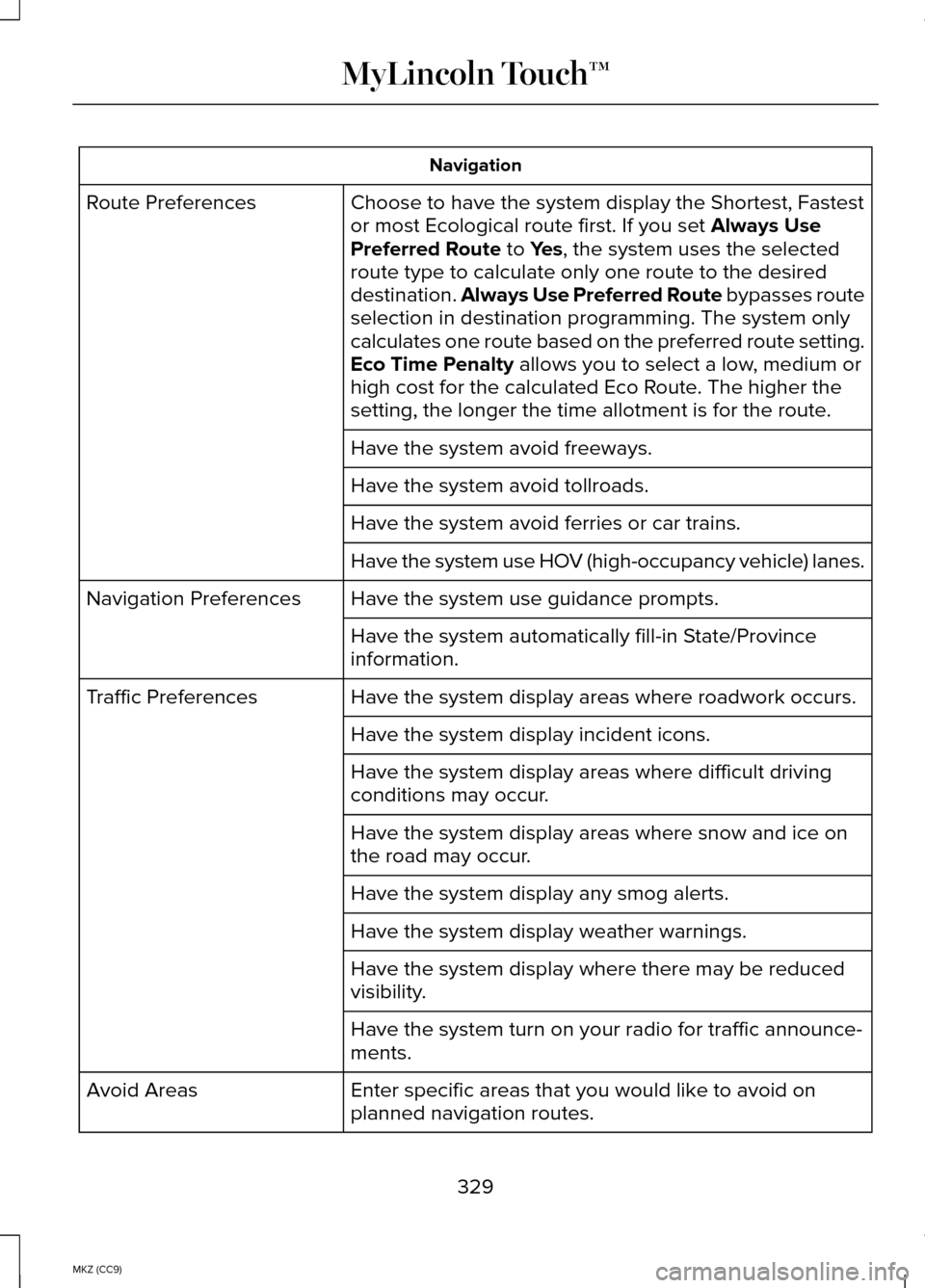
Navigation
Choose to have the system display the Shortest, Fastest
or most Ecological route first. If you set Always Use
Preferred Route to Yes, the system uses the selected
route type to calculate only one route to the desired
destination. Always Use Preferred Route bypasses route
selection in destination programming. The system only
calculates one route based on the preferred route setting.
Eco Time Penalty
allows you to select a low, medium or
high cost for the calculated Eco Route. The higher the
setting, the longer the time allotment is for the route.
Route Preferences
Have the system avoid freeways.
Have the system avoid tollroads.
Have the system avoid ferries or car trains.
Have the system use HOV (high-occupancy vehicle) lanes.
Have the system use guidance prompts.
Navigation Preferences
Have the system automatically fill-in State/Province
information.
Have the system display areas where roadwork occurs.
Traffic Preferences
Have the system display incident icons.
Have the system display areas where difficult driving
conditions may occur.
Have the system display areas where snow and ice on
the road may occur.
Have the system display any smog alerts.
Have the system display weather warnings.
Have the system display where there may be reduced
visibility.
Have the system turn on your radio for traffic announce-
ments.
Enter specific areas that you would like to avoid on
planned navigation routes.
Avoid Areas
329
MKZ (CC9) MyLincoln Touch™