navigation LINCOLN MKZ HYBRID 2017 Owner's Manual
[x] Cancel search | Manufacturer: LINCOLN, Model Year: 2017, Model line: MKZ HYBRID, Model: LINCOLN MKZ HYBRID 2017Pages: 546, PDF Size: 5.12 MB
Page 431 of 546

Button
Avoid
The system calculates a new route and displays a new turn list.
You can find the SiriusXM Traffic and Travel Link information by pressing this button. This information require\
s
an active subscription to SiriusXM Traffic and Travel Link.
Traffic List
When a route is not active, a list of nearby traffic incidents displays (if any are present).
When a route is active, you can choose to display a list of traffic nearby or on the route.
Press this button to adjust your preferences. See Settings (page 442).
Navigation Settings
Provides your current location city, longitude and latitude and the nearest road.
Where Am I?
The following are only available on the menu during an active navigation\
route:
The system asks for confirmation and then returns you to the map mode sc\
reen.
Cancel Route
Selecting this option switches off the audio navigation guidance. Press the button again to un-mute guidance.
Mute Guidance
Press this to see a map of the full route.
View Route
An alternate route displays in comparison with the current route.
Detour
Only available if you have an active waypoint on your route. See Waypoints later in this section for information
on how to set waypoints.
Edit Waypoints
428
MKZ Hybrid (CC9) Hybrid Electric Vehicle (HEV), Canada/United States of America, enUSA, First Printing SYNC™ 3
Page 432 of 546
Button
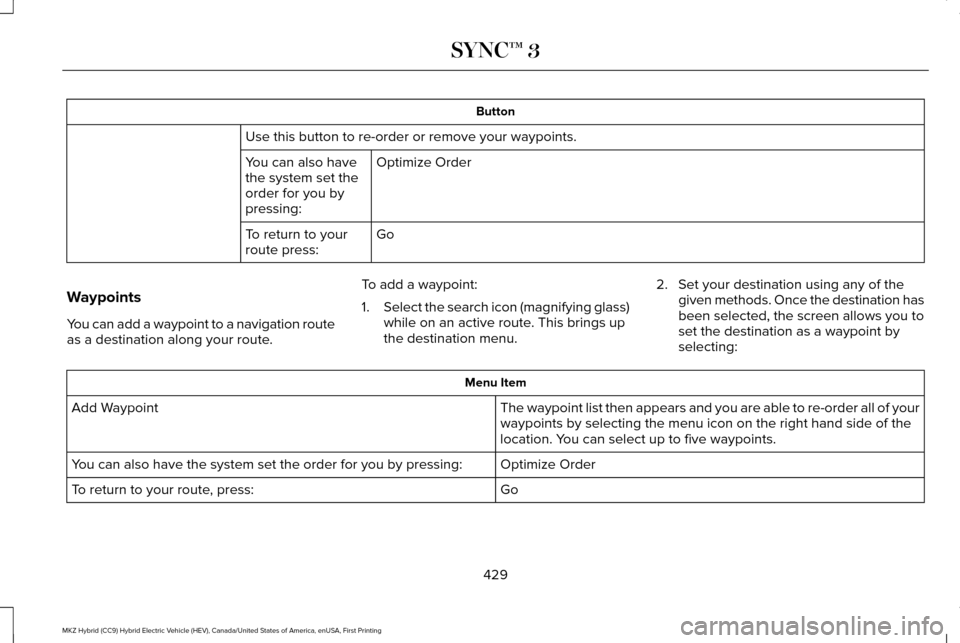
Use this button to re-order or remove your waypoints. Optimize Order
You can also have
the system set the
order for you by
pressing:
Go
To return to your
route press:
Waypoints
You can add a waypoint to a navigation route
as a destination along your route. To add a waypoint:
1.
Select the search icon (magnifying glass)
while on an active route. This brings up
the destination menu. 2. Set your destination using any of the
given methods. Once the destination has
been selected, the screen allows you to
set the destination as a waypoint by
selecting: Menu Item
The waypoint list then appears and you are able to re-order all of your
waypoints by selecting the menu icon on the right hand side of the
location. You can select up to five waypoints.
Add Waypoint
Optimize Order
You can also have the system set the order for you by pressing:
Go
To return to your route, press:
429
MKZ Hybrid (CC9) Hybrid Electric Vehicle (HEV), Canada/United States of America, enUSA, First Printing SYNC™ 3
Page 433 of 546
cityseeker (If Equipped)
Note: cityseeker point of interest (POI)
information is limited to approximately 1110
cities (1049 in the United States, 36 in
Canada and 15 in Mexico). cityseeker, when available, is a service that
provides more information about certain
points of interest such as restaurants, hotels
and attractions.
When you have selected a point of interest,
the location and information appear, such as
address, phone number and a star rating.
Press
More Information to see a photo, a
review, a list of services and facilities, the
average room or meal price and the web
address. This screen displays the point of
interest icons. For restaurants, cityseeker can provide
information such as star rating, average cost,
review, handicap access, hours of operation,
and website address.
For hotels, cityseeker can provide
information such as star rating, price
category, review, check-in and checkout
times, hotel service icons and website
address. Hotel service icons include:
•
Restaurant
• Business center
• Handicap facilities
• Laundry
• Refrigerator
• 24 hour room service
• Fitness center
• Internet access
• Pool
• Wi-Fi
Attractions include nearby landmarks,
amusement parks, historic buildings and
more. cityseeker can provide information
such as star rating, reviews, hour of operation
and admission price. SiriusXM Traffic and Travel Link
SiriusXM Traffic and Travel Link is available
on vehicles equipped with navigation and
only in select markets. You must activate and
subscribe to receive SiriusXM Traffic and
Travel Link information. It helps you locate
the best gas prices, find movie listings, get
current traffic alerts, view the weather map,
get accurate ski conditions and see current
sports scores.
See Apps (page 438).
The system calculates a reasonable efficient
route based on available speed limits, traffic,
and road conditions. You may know a local
short cut that is more efficient at a given time
than the route provided by SYNC 3, but you
should expect a slight difference in minutes
or miles with the SYNC 3 route.
Navigation Map Updates
Annual navigation map updates are available
for purchase through your dealership, by
calling 1-866-462-8837 in the United States
and Canada or 01-800-557-5539 in Mexico.
You can also visit:
430
MKZ Hybrid (CC9) Hybrid Electric Vehicle (HEV), Canada/United States of America, enUSA, First Printing SYNC™ 3E225487
Page 434 of 546
Website
www.navigation.com/sync
You need to specify the make and model of
your vehicle to determine if there is an
update available. HERE is the digital map provider for the
navigation application. If you find map data
errors, you may report them directly to HERE
by going to www.here.com/mapcreator.
HERE evaluates all reported map errors and
responds with the result of their investigation
by e-mail.
Map coverage includes the USA (including
Puerto Rico and the US Virgin Islands),
Canada and Mexico.
ELECTRIC VEHICLE INFORMATION
The power flow information for your Hybrid
vehicle is available through the Apps section
of the touch screen.
431
MKZ Hybrid (CC9) Hybrid Electric Vehicle (HEV), Canada/United States of America, enUSA, First Printing SYNC™ 3
Page 443 of 546
When you launch an app using SYNC 3, the
system may ask you to grant certain
permissions, for example Vehicle information,
Driving characteristics, GPS and Speed,
and/or Push notifications. You can enable all
groups or none of them during the initial app
permissions prompts. The settings menu
offers individual group permission control.
Note:
You are only prompted to grant
permissions the first time you use an app
with SYNC 3.
Note: If you disable group permissions, apps
will still be enabled to work with SYNC 3
unless you deactivate All Apps in the settings
menu. SiriusXM Traffic and Travel Link (If
Equipped) WARNING
Driving while distracted can result in
loss of vehicle control, crash and injury.
We strongly recommend that you use
extreme caution when using any device that
may take your focus off the road. Your
primary responsibility is the safe operation
of your vehicle. We recommend against the
use of any hand-held device while driving
and encourage the use of voice-operated
systems when possible. Make sure you are
aware of all applicable local laws that may
affect the use of electronic devices while
driving. Note:
SiriusXM Traffic and Travel Link may
not be available in all markets. Note:
In order to use SiriusXM Traffic and
Travel Link, your vehicle must have
navigation.
Note: A paid subscription is required to
access and use these features. Go to
www.siriusxm.com/travellink for more
information.
Note: Visit www.siriusxm.com/traffic and click
on Coverage map and details for a complete
listing of all traffic areas covered by SiriusXM
Traffic and Travel Link.
Note: Neither Sirius nor Ford is responsible
for any errors or inaccuracies in the SiriusXM
Traffic and Travel Link services or its use in
vehicles.
When you subscribe to SiriusXM Traffic and
Travel Link, it can help you locate the best
gas prices, find movie listings, get current
traffic alerts, view the current weather map,
get accurate ski conditions and see scores
to current sports games.
440
MKZ Hybrid (CC9) Hybrid Electric Vehicle (HEV), Canada/United States of America, enUSA, First Printing SYNC™ 3
Page 444 of 546
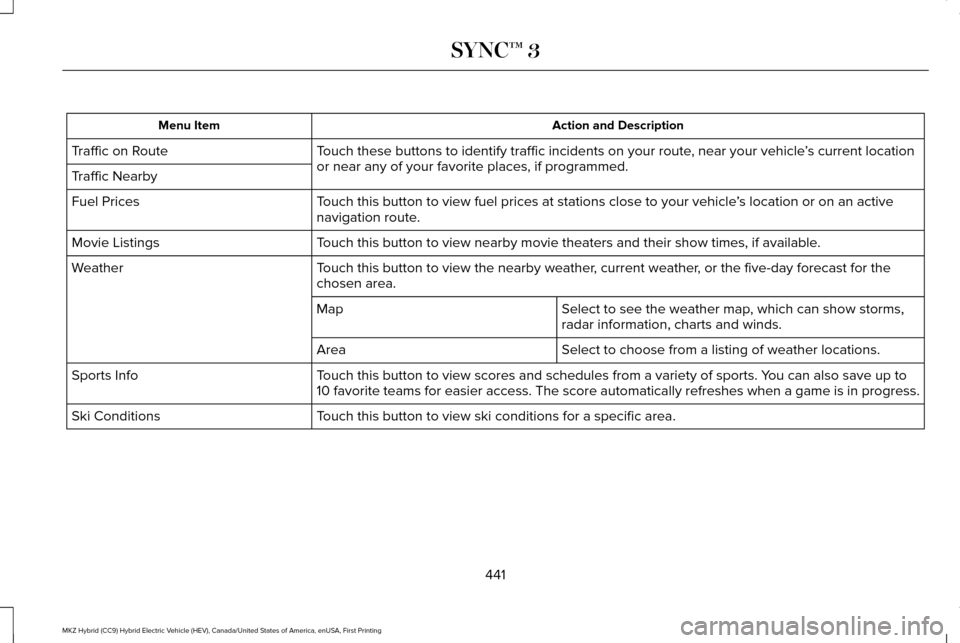
Action and Description
Menu Item
Touch these buttons to identify traffic incidents on your route, near your vehicle ’s current location
or near any of your favorite places, if programmed.
Traffic on Route
Traffic Nearby
Touch this button to view fuel prices at stations close to your vehicle ’s location or on an active
navigation route.
Fuel Prices
Touch this button to view nearby movie theaters and their show times, if \
available.
Movie Listings
Touch this button to view the nearby weather, current weather, or the five-day forecast for the
chosen area.
Weather
Select to see the weather map, which can show storms,
radar information, charts and winds.
Map
Select to choose from a listing of weather locations.
Area
Touch this button to view scores and schedules from a variety of sports. \
You can also save up to
10 favorite teams for easier access. The score automatically refreshes w\
hen a game is in progress.
Sports Info
Touch this button to view ski conditions for a specific area.
Ski Conditions
441
MKZ Hybrid (CC9) Hybrid Electric Vehicle (HEV), Canada/United States of America, enUSA, First Printing SYNC™ 3
Page 447 of 546
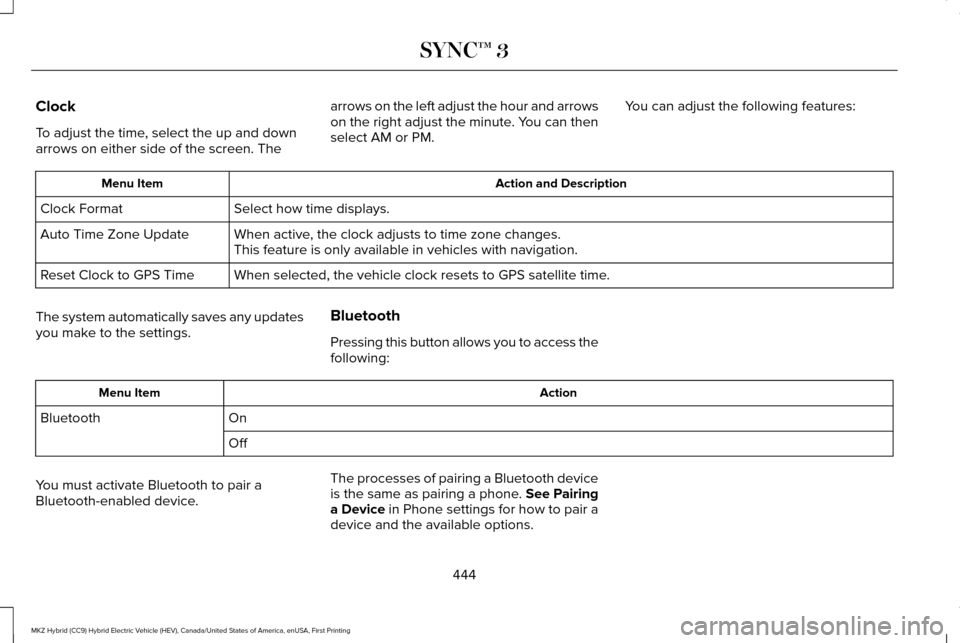
Clock
To adjust the time, select the up and down
arrows on either side of the screen. The
arrows on the left adjust the hour and arrows
on the right adjust the minute. You can then
select AM or PM.
You can adjust the following features: Action and Description
Menu Item
Select how time displays.
Clock Format
When active, the clock adjusts to time zone changes.
Auto Time Zone Update
This feature is only available in vehicles with navigation.
When selected, the vehicle clock resets to GPS satellite time.
Reset Clock to GPS Time
The system automatically saves any updates
you make to the settings. Bluetooth
Pressing this button allows you to access the
following: Action
Menu Item
On
Bluetooth
Off
You must activate Bluetooth to pair a
Bluetooth-enabled device. The processes of pairing a Bluetooth device
is the same as pairing a phone. See Pairing
a Device in Phone settings for how to pair a
device and the available options.
444
MKZ Hybrid (CC9) Hybrid Electric Vehicle (HEV), Canada/United States of America, enUSA, First Printing SYNC™ 3
Page 453 of 546
Navigation
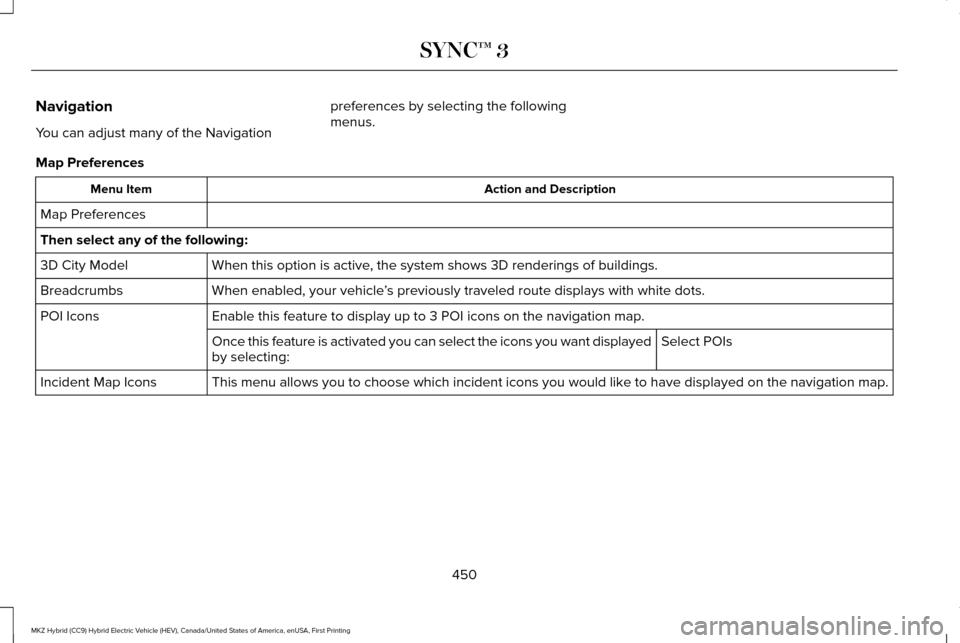
You can adjust many of the Navigation
preferences by selecting the following
menus.
Map Preferences Action and Description
Menu Item
Map Preferences
Then select any of the following: When this option is active, the system shows 3D renderings of buildings.
3D City Model
When enabled, your vehicle ’s previously traveled route displays with white dots.
Breadcrumbs
Enable this feature to display up to 3 POI icons on the navigation map.
POI Icons
Select POIs
Once this feature is activated you can select the icons you want display\
ed
by selecting:
This menu allows you to choose which incident icons you would like to have displayed on the navigation map.
Incident Map Icons
450
MKZ Hybrid (CC9) Hybrid Electric Vehicle (HEV), Canada/United States of America, enUSA, First Printing SYNC™ 3
Page 455 of 546
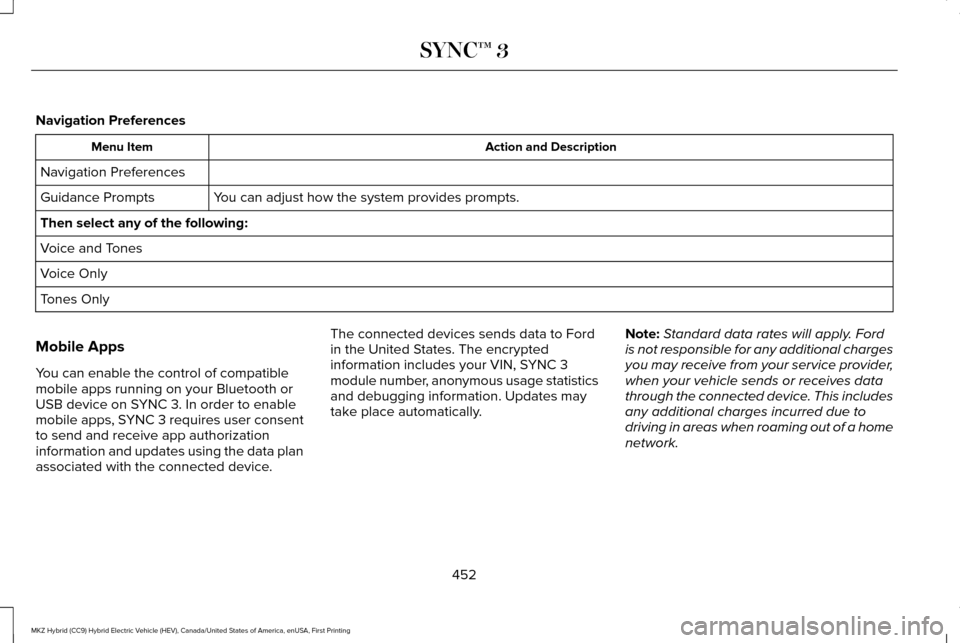
Navigation Preferences
Action and Description
Menu Item
Navigation Preferences You can adjust how the system provides prompts.
Guidance Prompts
Then select any of the following:
Voice and Tones
Voice Only
Tones Only
Mobile Apps
You can enable the control of compatible
mobile apps running on your Bluetooth or
USB device on SYNC 3. In order to enable
mobile apps, SYNC 3 requires user consent
to send and receive app authorization
information and updates using the data plan
associated with the connected device. The connected devices sends data to Ford
in the United States. The encrypted
information includes your VIN, SYNC 3
module number, anonymous usage statistics
and debugging information. Updates may
take place automatically.
Note:
Standard data rates will apply. Ford
is not responsible for any additional charges
you may receive from your service provider,
when your vehicle sends or receives data
through the connected device. This includes
any additional charges incurred due to
driving in areas when roaming out of a home
network.
452
MKZ Hybrid (CC9) Hybrid Electric Vehicle (HEV), Canada/United States of America, enUSA, First Printing SYNC™ 3
Page 457 of 546

Action and Description
Menu Item
Request Update
Grant or deny permissions to all apps at once.
All Apps
Grant or deny an individual app particular permissions. App permissions \
are organized into groups. By pressing
the info book icon, you can see which signals are included in each group\
.
There may also be SYNC 3
enabled apps listed under
these options.
Note: Ford and Lincoln are not responsible
or liable for any damages or loss of privacy
relating to usage of an app, or dissemination
of any vehicle data that you approve Ford
and Lincoln to provide to an app. General
Access and adjust the system settings, voice
features, as well as phone, navigation and
wireless settings. Menu Item
Select to have the touchscreen display in English, Spanish or French.
Language
Select to display units in kilometers or miles.
Distance
Select to display units in Celsius or Fahrenheit.
Temperature
Select to have the system beep to confirm choices made through the touch\
-
screen.
Touch Screen Beep
When you activate this option, the system automatically updates when you\
have
an available Internet connection through a Wi-Fi network or mobile conne\
ction.
Automatic System Updates
454
MKZ Hybrid (CC9) Hybrid Electric Vehicle (HEV), Canada/United States of America, enUSA, First Printing SYNC™ 3