wheel LINCOLN MKZ HYBRID 2017 Manual Online
[x] Cancel search | Manufacturer: LINCOLN, Model Year: 2017, Model line: MKZ HYBRID, Model: LINCOLN MKZ HYBRID 2017Pages: 546, PDF Size: 5.12 MB
Page 379 of 546
Note:
If your vehicle is not equipped with
navigation, compass appears in the display
instead of navigation. If you press the right
arrow to go into the compass menu, you can
see the compass graphic. The compass
displays the direction in which the vehicle is
traveling, not true direction (for example, if
the vehicle is traveling west, the middle of
the compass graphic displays west; north
displays to the left of west though its true
direction is to the right of west).
Using the Steering Wheel Controls
Depending on your vehicle and option
package, you can use different controls on
your steering wheel to interact with the
touchscreen system in different ways.
VOL: Control the volume of audio output.
Mute:
Mute the audio output.
Voice:
Press to start a voice session. Press
again to stop the voice prompt and
immediately begin speaking. Press and hold
to end a voice session. SEEK NEXT:
•
While in radio mode, press to seek
between memory presets.
• While in USB, Bluetooth Audio or CD
mode, press to seek between songs or
press and hold to fast seek.
SEEK PREVIOUS:
• While in radio mode, press to seek
between memory presets.
• While in USB, Bluetooth Audio or CD
mode, press to seek between songs or
press and hold to fast seek.
PHONE ACCEPT:
Press to answer a call or
switch between calls.
PHONE REJECT: Press to end a call or reject
an incoming call.
Note: On some models, SEEK NEXT may be
combined with
PHONE REJECT and SEEK
PREVIOUS may be combined with PHONE
ACCEPT.
M:
Touch the control repeatedly to switch
between media sources (modes).
See
Steering Wheel (page 77). Using Your Bezel Controls
Depending on your vehicle and option
package, you may also have these controls
on your instrument panel:
•
Power:
Switch the audio system on and
off.
• VOL:
Control the volume of playing
audio.
• Seek
and Tune: Use as you normally
would in audio modes.
• Eject:
Eject a CD from the audio system.
• SOURCE
or MEDIA: Press repeatedly to
advance through available media modes.
• SOUND:
Press to access the Sound
menu where you can adjust sound and
other audio settings.
• 1-6:
Press and hold to store or press and
release to select an AM, FM or SIRIUS
memory preset.
See Audio System
(page 363).
376
MKZ Hybrid (CC9) Hybrid Electric Vehicle (HEV), Canada/United States of America, enUSA, First Printing SYNC™ 3
Page 381 of 546
Website
www.syncmaroute.ca
For important information about airbag
deployment and the fuel pump shut-off
please see the Supplementary Restrains and
Roadside Emergencies sections of your
owner manual.
To switch 911 Assist on and off please view
the settings information. See Settings (page
442).
To make sure that 911 Assist works correctly:
• SYNC must be powered and working
properly at the time of the incident and
throughout feature activation and use.
• The 911 Assist feature must be set on
before the incident.
• You must pair and connect a
Bluetooth-enabled and compatible cell
phone to SYNC.
• A connected Bluetooth-enabled phone
must have the ability to make and
maintain an outgoing call at the time of
the incident. •
A connected Bluetooth-enabled phone
must have adequate network coverage,
battery power and signal strength.
• The vehicle must have battery power and
be located in the U.S., Canada or in a
territory in which 911 is the emergency
number.
In the Event of a Crash
Not all crashes will deploy an airbag or
activate the fuel pump shut-off (the triggers
for 911 Assist). If a connected cell phone
sustains damage or loses its connection to
SYNC during a crash, SYNC will search for
and try to connect to a previously paired cell
phone; SYNC will then attempt to call the
emergency services. Before making the call:
•
SYNC provides a short window of time
(about 10 seconds) to cancel the call. If
you fail to cancel the call, SYNC attempts
to dial 911.
• SYNC says the following, or a similar
message: "SYNC will attempt to call 911,
to cancel the call, press Cancel on your
screen or press and hold the phone
button on your steering wheel."
If you do not cancel the call, and SYNC
makes a successful call, a pre-recorded
message plays for the 911 operator, and then
the occupant(s) in your vehicle is able to talk
with the operator. Be prepared to provide
your name, phone number and location
immediately, because not all 911 systems are
capable of receiving this information
electronically.
378
MKZ Hybrid (CC9) Hybrid Electric Vehicle (HEV), Canada/United States of America, enUSA, First Printing SYNC™ 3
Page 388 of 546

Home screen display
Tile
Item
Shows the active media source.
Audio
A
If your vehicle does not have navigation, this space contains the compas\
s.
The name of the connected phone appears on the screen. The status of the\
phone features also
appear. This includes signal strength, battery charge, 911 assist setting state (On or Off ), text messaging
and roaming.
Phone
B
This map displays your current location or current route in real time.
*
Navigation
C
When you have navigation active, you also see the next turn and the length of time and distance to
your destination.
If your vehicle does not have navigation, this space contains the audio \
information.
* If equipped.
You can touch any of the feature displays to
access that feature.
Anytime you select the home button, the
system returns you to this screen. USING VOICE RECOGNITION
The SYNC 3 system allows you to use voice
commands, to control features like audio and
climate controls. By using voice commands,
you can keep your hands on the wheel and
your eyes on the road.
You can access each feature controlled by
SYNC 3 through a variety of commands. To activate the SYNC 3 voice
commands push the voice button
on the steering wheel and wait for
the prompt.
___ is a dynamic listing, meaning that it can
be the name of anything, such as artist, the
name of contact or number. The context and
the description of the command tell you what
to say for this dynamic option.
There are some commands that work for
every feature, these commands are:
385
MKZ Hybrid (CC9) Hybrid Electric Vehicle (HEV), Canada/United States of America, enUSA, First Printing SYNC™ 3E142599
Page 419 of 546

Action and Description
Menu Item
Item
You can place a call by selecting an entry from this list.
You can also sort the calls by selecting the drop down menu at the top of\
the screen. You can choose: Missed
Outgoing
Incoming
All
All of your contacts from your phone display in alphabetical order.
Contacts
B
Selecting this button allows you to choose a
specific letter to view.
A-Z Jump
Displays the name of your phone and takes you to the phone settings options.
Phone Settings
C
From this menu, you can pair subsequent devices, set ring tones and aler\
ts. See Settings (page 442).
Displays all recent text messages.
Text Messages
D
Use this keypad to dial in a phone number.
Phone Keypad
E
Use the backspace button to delete numbers.
Press this button to begin a call.
Call
Touch this button to send all calls directly to your voicemail. New text \
message notifications are not
displayed on the screen and all ringtones and alerts are set to silent.
Do Not Disturb
F
Users with phones having voice services may
see a button to access the feature. For
example, iPhone users see a Siri button. A
press and hold of the voice button on the
steering wheel also accesses this feature. 416
MKZ Hybrid (CC9) Hybrid Electric Vehicle (HEV), Canada/United States of America, enUSA, First Printing SYNC™ 3
Page 421 of 546
To call a number in your contacts, select:
Action and Description
Menu Item
You can then select the
name of the contact you
want to call. Any numbers
stored for that contact
display along with any
stored contact photos. You
can then select the number
that you want to call. The
system begins the call.
Contacts
To call a number from your recent calls,
select: Action and Description
Menu Item
You can then select an entry
that you want to call. The
system begins the call.
Recent Call
List
To call a number that is not stored in your
phone, select: Action and Description
Menu Item Action and Description
Menu Item
Select the digits of the
number you wish to call.
Phone
Keypad
The system begins the call.
Call
Pressing the backspace button deletes the
last digit you typed.
Receiving Calls
During an incoming call, an audible tone
sounds. Caller information appears in the
display if it is available.
To accept the call, select: Menu Item
Accept
Note: You can also accept the call by
pressing the phone button on the steering
wheel. To reject the call, select: Menu Item
Reject
Note: You can also reject the call by
pressing the phone button on the steering
wheel.
Ignore the call by doing nothing. SYNC 3
logs it as a missed call.
During a Phone Call
During a phone call, the contacts name and
number display on the screen along with the
call duration.
The phone status items are also visible:
• Signal Strength.
• Battery.
• 911 Assist (United States and Canada
Only). See Settings (page 442).
You can select any of the following during
an active phone call:
418
MKZ Hybrid (CC9) Hybrid Electric Vehicle (HEV), Canada/United States of America, enUSA, First Printing SYNC™ 3
Page 422 of 546
Item
Immediately end a
phone call. You can
also press the button
on the steering
wheel.
End Call
Press this to access
the phone keypad.
Keypad Item
Mute You can switch the
microphone off so
the caller does not
hear you.
Transfer the call to
the cell phone or
back to SYNC 3.
Privacy Text Messaging
Note:
Downloading and sending text
messages using Bluetooth are cell
phone-dependent features.
Note: Certain features in text messaging are
speed-dependent and not available when
your vehicle is traveling at speeds over
3 mph (5 km/h).
Receiving a Text Message
When a new message arrives, an audible tone sounds and the screen displa\
ys a pop-up with the caller name and ID, if supported by
your cell phone. You can select: Action and Description
Menu Item
Have SYNC 3 read the message to you.
Hear It
View the text on the touchscreen.
View
To call the sender.
Call
You can select from 15 preset messages. Press the message that you would \
like to use and confirm
to send the message. SYNC 3 confirms when the message is sent successfully.
Reply
To exit the screen.
Close
419
MKZ Hybrid (CC9) Hybrid Electric Vehicle (HEV), Canada/United States of America, enUSA, First Printing SYNC™ 3
Page 437 of 546
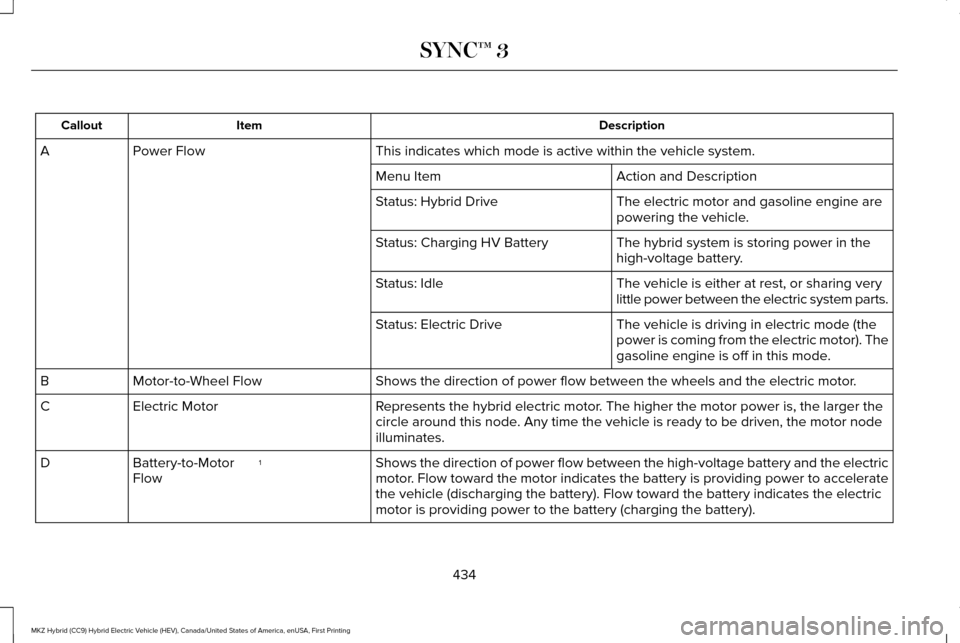
Description
Item
Callout
This indicates which mode is active within the vehicle system.
Power Flow
A
Action and Description
Menu Item
The electric motor and gasoline engine are
powering the vehicle.
Status: Hybrid Drive
The hybrid system is storing power in the
high-voltage battery.
Status: Charging HV Battery
The vehicle is either at rest, or sharing very
little power between the electric system parts.
Status: Idle
The vehicle is driving in electric mode (the
power is coming from the electric motor). The
gasoline engine is off in this mode.
Status: Electric Drive
Shows the direction of power flow between the wheels and the electric mo\
tor.
Motor-to-Wheel Flow
B
Represents the hybrid electric motor. The higher the motor power is, the larger the
circle around this node. Any time the vehicle is ready to be driven, the motor node
illuminates.
Electric Motor
C
Shows the direction of power flow between the high-voltage battery and t\
he electric
motor. Flow toward the motor indicates the battery is providing power to acce\
lerate
the vehicle (discharging the battery). Flow toward the battery indicat\
es the electric
motor is providing power to the battery (charging the battery).
1
Battery-to-Motor
Flow
D
434
MKZ Hybrid (CC9) Hybrid Electric Vehicle (HEV), Canada/United States of America, enUSA, First Printing SYNC™ 3
Page 439 of 546

Description
Item
Callout
Shows the direction of power flow between the engine and the electric mo\
tor. The
direction indicates if the engine is providing power to the high-voltage\
electrical
system, or if the high-voltage electrical system is providing power to c\
ontrol or start
the engine.
Motor-to-Engine Flow
K
Represents the gasoline engine. It illuminates only when the gasoline engine is on.
The higher the engine power is, the larger the circle around this node.
Engine
L
Shows the direction of the power flow between the engine and the wheels.\
Engine-to-Wheels Flow
M
Represents the power going to the wheels. The higher the wheel power is, \
the larger
the circle around this node. When the engine is off, drive power displays in blue.
When the engine is on, drive power displays in grey.
Drive
N
1 The battery-to-motor flow includes battery
power the vehicle is using for acceleration.
It does not include energy the vehicle is
using for accessories (such as air
conditioning, headlights and radio). This
screen displays accessories and climate
usage separately. 2
Accessories indicates electrical power
demands from your vehicle ’s accessory
systems. Accessories use power but do not
contribute to making the vehicle move. The
power flow displays power usage from the
climate control system and other accessories
separately. 3
The climate control system may determine
A/C is necessary even when you turn it off.
In this case, you may see some climate
power when the A/C is off.
436
MKZ Hybrid (CC9) Hybrid Electric Vehicle (HEV), Canada/United States of America, enUSA, First Printing SYNC™ 3
Page 441 of 546
Privacy Notice for GPS Mapping with
MyLincoln Mobile
MyLincoln Mobile allows for GPS mapping
when a vehicle is registered to a MyLincoln
Mobile account. To remove the vehicle from
the account, thereby removing GPS mapping
ability, a Master Reset can be performed in
the vehicle. See Settings (page 442).
Before transferring ownership of a vehicle,
owners may choose to execute a Master
Reset or Factory Reset (completed via the
MyLincoln Mobile website). Either method
removes the vehicle from all MyLincoln
Mobile accounts.
It is recommended that new owners conduct
a Master Reset upon taking possession of
the vehicle to remove it from any existing
MyLincoln Mobile accounts. The new owner
can activate a MyLincoln Mobile account by
completing registration process on the
website. Website
owner.lincoln.com
www.syncmyride.ca Website
www.syncmaroute.ca
APPS
The system enables voice, steering wheel,
and touch screen control of SYNC 3 AppLink
enabled smartphone apps. Once an app is
running through AppLink, you can control
main features of the app through voice
commands and steering wheel controls.
Note: Available AppLink enabled apps will
vary by market.
Note: You must pair and connect your
smartphone via Bluetooth to SYNC 3 to
access AppLink.
Note: iPhone users need to connect the
phone to the USB port.
Note: For information on available apps,
supported smartphone devices and
troubleshooting tips please visit: Websites
owner.lincoln.com
www.syncmyride.ca
www.syncmaroute.ca
Note: Make sure you have an active account
for the app that you have downloaded. Some
apps will work automatically with no setup.
Other apps will want you to configure your
personal settings and personalize your
experience by creating stations or favorites.
We recommend you do this at home or
outside of your vehicle.
Note: We encourage you to review the
smartphone app ’s terms of service and
privacy policies because Ford is not
responsible for your app or its use of data.
438
MKZ Hybrid (CC9) Hybrid Electric Vehicle (HEV), Canada/United States of America, enUSA, First Printing SYNC™ 3
Page 478 of 546
For a complete listing of the accessories that
are available for your vehicle, please contact
your authorized dealer or visit our online
store at:
Web Address (United States)
www.Accessories.Lincoln.com Web Address (Canada)
www.LincolnCanada.com
Lincoln Motor Company will repair or replace
any properly authorized dealer-installed
Lincoln Original Accessory found to be
defective in factory-supplied materials or
workmanship during the warranty period, as
well as any component damaged by the
defective accessories.
Lincoln Motor Company will warrant your
Lincoln accessory through the warranty that
provides the greatest benefit:
• 24 months, unlimited mileage.
• The remainder of your new vehicle
limited warranty. Contact an authorized dealer for details and
a copy of the warranty.
Exterior Style
•
Bumper protectors.
• Side-window deflectors.
• Wheels.
Interior Style
• All-weather floor mats.
• Premium carpeted floor mats.
Lifestyle
• Ash cup (smoker's packages).
• Cargo area protector.
• Cargo net.
• Cargo organizer.
• Roof racks and carriers*.
• Tablet cradle*.
Peace of Mind
• Car cover*.
• Remote start. •
Roadside assistance kit*.
• Vehicle security system.
• Wheel locks.
*Lincoln Licensed Accessory. The accessory
manufacturer designs, develops and
therefore warrants Lincoln Licensed
Accessories, and does not design or test
these accessories to Lincoln Motor Company
engineering requirements. Contact an
authorized Lincoln dealer for the
manufacturer's limited warranty details and
request a copy of the Lincoln Licensed
Accessories product limited warranty from
the accessory manufacturer.
475
MKZ Hybrid (CC9) Hybrid Electric Vehicle (HEV), Canada/United States of America, enUSA, First Printing Accessories