ad blue LINCOLN MKZ HYBRID 2020 Owners Manual
[x] Cancel search | Manufacturer: LINCOLN, Model Year: 2020, Model line: MKZ HYBRID, Model: LINCOLN MKZ HYBRID 2020Pages: 544, PDF Size: 5.26 MB
Page 58 of 544
WHAT IS 911 ASSIST
911 Assist is a SYNC system feature that can
call for help if you are in an accident. If a
crash deploys an airbag, excluding knee
airbags and rear inflatable seatbelts [if
equipped], or activates the fuel pump
shut-off, your SYNC-equipped vehicle may
be able to contact emergency services by
dialing 911 through a paired and connected
Bluetooth enabled phone. You can learn
more about the 911 Assist feature, by visiting:
Website
www.owner.lincoln.com
www.syncmyride.ca
www.syncmaroute.ca
Not all crashes will deploy an airbag or
activate the fuel pump shut-off, the triggers
for 911 Assist. If a connected cell phone
sustains damage or loses its connection to
SYNC during a crash, SYNC will search for
and try to connect to a previously paired cell
phone. SYNC will then attempt to call the
emergency services. Before making the call:
•
SYNC provides a short window of time,
about 10 seconds, to cancel the call. If
you fail to cancel the call, SYNC attempts
to dial 911.
• SYNC says the following, or a similar
message: SYNC will attempt to call 911,
to cancel the call, press Cancel on your
screen or press and hold the phone
button on your steering wheel.
If you do not cancel the call, and SYNC
makes a successful call, a pre-recorded
message plays for the 911 operator, and then
the occupant(s) in your vehicle is able to talk
with the operator. Be prepared to
immediately provide your name, phone
number and location, because not all 911
systems are capable of receiving this
information electronically.
During an emergency call, the system
transmits vehicle data to the emergency
service. See Data Recording (page 10). EMERGENCY CALL
REQUIREMENTS WARNING: Do not wait for 911 Assist
to make an emergency call if you can do
it yourself. Dial emergency services
immediately to avoid delayed response
time which could increase the risk of
serious injury or death after a crash. If you
do not hear 911 Assist within five seconds
of the crash, the system or phone may be
damaged or non-functional. WARNING: Always place your phone
in a secure location in your vehicle so it
does not become a projectile or get
damaged in a crash. Failure to do so may
cause serious injury to someone or
damage the phone which could prevent
911 Assist from working properly. WARNING: Unless the 911 Assist
setting is set on before a crash, the system
will not dial for help which could delay
response time, potentially increasing the
risk of serious injury or death after a crash.
55
MKZ (CC9) Hybrid Electric Vehicle (HEV), Canada/United States of America, enUSA, Edition date: 201905, Second-Printing 911 Assist
Page 59 of 544
•
SYNC must be powered and working
properly at the time of the incident and
throughout feature activation and use.
• The 911 Assist feature must be set on
before the incident.
• You must pair and connect a Bluetooth
enabled and compatible cell phone to
SYNC.
• A connected Bluetooth enabled phone
must have the ability to make and
maintain an outgoing call at the time of
the incident.
• A connected Bluetooth enabled phone
must have adequate network coverage,
battery power and signal strength.
• The vehicle must have battery power and
be located in the U.S., Canada or in a
territory in which 911 is the emergency
number.
Note: If any user sets 911 Assist to on or off,
that setting applies for all paired phones. If
911 Assist is switched off and the phone is
connected to SYNC, an icon displays on the
status bar. Note:
Every phone operates differently.
While SYNC 911 Assist works with most
cellular phones, some may have trouble
using this feature.
EMERGENCY CALL LIMITATIONS
The SYNC 911 Assist feature only operates
in the U.S., Canada or in a territory in which
911 is the emergency number.
• Your cellular phone or 911 Assist
hardware sustains damage in a crash.
• The vehicle's battery or the SYNC system
has no power.
• The phone(s) thrown from your vehicle
are the ones paired and connected to
the system.
56
MKZ (CC9) Hybrid Electric Vehicle (HEV), Canada/United States of America, enUSA, Edition date: 201905, Second-Printing 911 Assist
Page 116 of 544
Engage
Engage provides separate gauges for engine
power and high voltage battery power in
kilowatts (kW). The engine power gauge fill
is white and the high voltage battery power
gauge fill is blue. You can also see an
instantaneous fuel economy gauge. When
your vehicle is operating on battery power
only, you will see EV displayed and the
gauges will appear in blue.
Note:
Hold OK to reset average fuel
economy.
Empower
Empower provides a power demand gauge
in kilowatts (kW) which includes an engine
on or off threshold.
• When your vehicle is operating with
battery power only (below the threshold),
you will see EV displayed and the gauge
fill is blue.
• When your vehicle is operating with both
the engine and the high voltage battery
providing power the gauge fill is white. •
When power demand surpasses the
amber indicator, this level of demand and
associated fuel economy displays in
amber.
• When the engine is on, reducing power
demand to less than the threshold will
allow the engine to turn off.
You can also see an instantaneous fuel
economy gauge.
Note: Hold OK to reset average fuel
economy.
MyView
You can choose what to display in this view.
Selecting
Change MyView in the options
menu allows you to scroll through two
columns of content choices.
• Press the up or down arrow to view
content.
• Press
OK to save your selected content
• You must select content in both columns
before you can save your new MyView. Unique content available in MyView:
•
Accessory Power— Indicates electrical
power demands from your vehicle ’s
accessory systems. Accessories use
power but do not contribute to propelling
your vehicle. The gauge separately
displays power demand in kilowatts (kW)
for climate and other accessories.
Climate includes the power being used
by high voltage climate control
components such as the electric A/C
compressor. Other includes all power
being used by the low voltage
accessories (cabin fans, headlights and
heated seats).
• Coolant Temp – Indicates engine coolant
temperature. At normal operating
temperature, the level indicator will be
white and will be in the normal range
(between H and C). If the engine coolant
temperature exceeds the normal range,
the level indicator will change to red to
indicate that the engine is overheating.
Stop your vehicle as soon as safely
possible, turn your vehicle off and let the
engine cool.
113
MKZ (CC9) Hybrid Electric Vehicle (HEV), Canada/United States of America, enUSA, Edition date: 201905, Second-Printing Information Displays
Page 117 of 544
•
Tach rpm x 1000 — When the gasoline
engine is running, the tachometer gauge
displays the engine speed in revolutions
per minute (RPM). When your vehicle is
operating on battery power only with the
engine off, EV displays and the
tachometer is greyed out.
Note: The trip data, and average fuel
economy cannot be reset in MyView. Trip 1 & 2
Provides trip odometer, trip average fuel
economy and trip timer.
Distance traveled on battery power only with
the engine off is shown in blue next to total
trip distance.
Information In this mode, you can view
different vehicle system
information and perform a system
check. Information
Displays a number of different system tutorials. Use the up or down arro\
ws to scroll
through the tutorials. Then press OK to view.
Tutorial
Warnings
MyKeys (Number of MyKeys programmed)
MyKey
MyKey Miles (km) (Distance traveled using a programmed MyKey)
Admin Keys (Number of admin keys)
Settings In this mode, you can configure
different driver setting choices.
Note:
Some items are optional and may not
appear.
Note: Some MyKey items will only appear if
a MyKey is set.
114
MKZ (CC9) Hybrid Electric Vehicle (HEV), Canada/United States of America, enUSA, Edition date: 201905, Second-Printing Information DisplaysE144642 E100023
Page 123 of 544
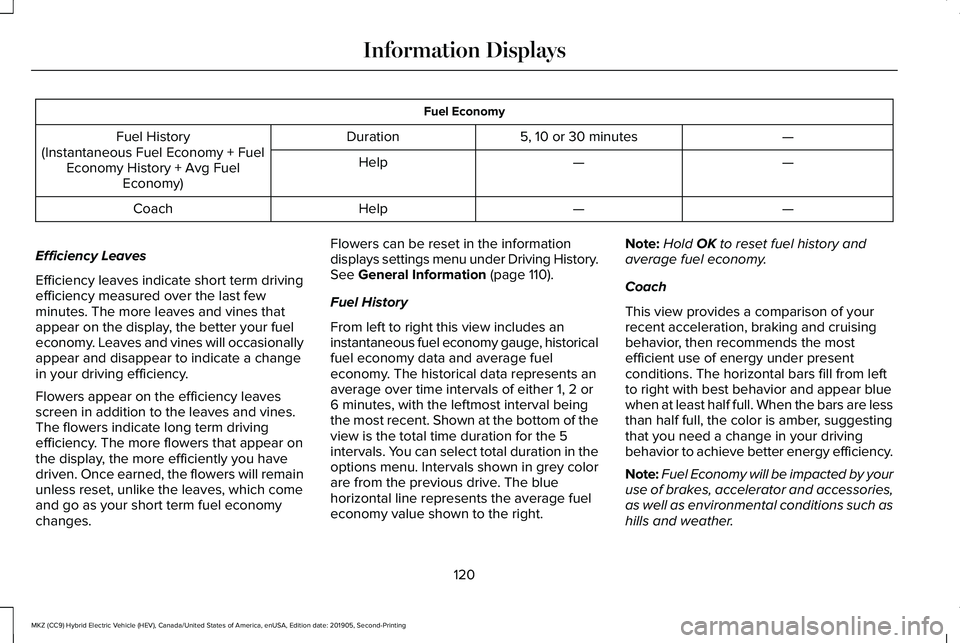
Fuel Economy
—
5, 10 or 30 minutes
Duration
Fuel History
(Instantaneous Fuel Economy + Fuel Economy History + Avg Fuel Economy) —
—
Help
—
—
Help
Coach
Efficiency Leaves
Efficiency leaves indicate short term driving
efficiency measured over the last few
minutes. The more leaves and vines that
appear on the display, the better your fuel
economy. Leaves and vines will occasionally
appear and disappear to indicate a change
in your driving efficiency.
Flowers appear on the efficiency leaves
screen in addition to the leaves and vines.
The flowers indicate long term driving
efficiency. The more flowers that appear on
the display, the more efficiently you have
driven. Once earned, the flowers will remain
unless reset, unlike the leaves, which come
and go as your short term fuel economy
changes. Flowers can be reset in the information
displays settings menu under Driving History.
See General Information (page 110).
Fuel History
From left to right this view includes an
instantaneous fuel economy gauge, historical
fuel economy data and average fuel
economy. The historical data represents an
average over time intervals of either 1, 2 or
6 minutes, with the leftmost interval being
the most recent. Shown at the bottom of the
view is the total time duration for the 5
intervals. You can select total duration in the
options menu. Intervals shown in grey color
are from the previous drive. The blue
horizontal line represents the average fuel
economy value shown to the right. Note:
Hold
OK to reset fuel history and
average fuel economy.
Coach
This view provides a comparison of your
recent acceleration, braking and cruising
behavior, then recommends the most
efficient use of energy under present
conditions. The horizontal bars fill from left
to right with best behavior and appear blue
when at least half full. When the bars are less
than half full, the color is amber, suggesting
that you need a change in your driving
behavior to achieve better energy efficiency.
Note: Fuel Economy will be impacted by your
use of brakes, accelerator and accessories,
as well as environmental conditions such as
hills and weather.
120
MKZ (CC9) Hybrid Electric Vehicle (HEV), Canada/United States of America, enUSA, Edition date: 201905, Second-Printing Information Displays
Page 124 of 544
Note:
Fuel economy is not always a measure
of appropriate driving behavior. For example,
when driving uphill and maintaining an
appropriate speed, your instant fuel
economy may not be good (losing leaves)
but the Coach may show a blue bar for
Acceleration and Cruising.
Common Displays
Both Average fuel economy and an
instantaneous fuel economy gauge are
included in Engage, Empower and MyView
(if selected) on the left information display.
They are also included in Fuel History on the
right information display.
Average Fuel Economy
Average Fuel Economy is continuously
averaged since the last reset. You can reset
your average fuel economy by pressing and
holding the OK button on the corresponding
steering wheel controls. Note:
Average fuel economy cannot be reset
in MyView.
Instantaneous Fuel Economy
If your instantaneous fuel economy is greater
than the maximum value displayed, a + sign
will be shown next to the maximum scale
number. When your vehicle is operating on
battery power only, EV will display and the
gauge fill will show in blue.
INFORMATION MESSAGES
Depending on your vehicle options and
instrument cluster type, not all messages
display or are available.
Note: Certain messages may be abbreviated
or shortened depending upon which cluster
type you have. Press the OK button to acknowledge and
remove some messages from the information
display. Other messages will be removed
automatically after a short time.
Certain messages need to be confirmed
before you can access the menus.
121
MKZ (CC9) Hybrid Electric Vehicle (HEV), Canada/United States of America, enUSA, Edition date: 201905, Second-Printing Information DisplaysE145981
Page 164 of 544
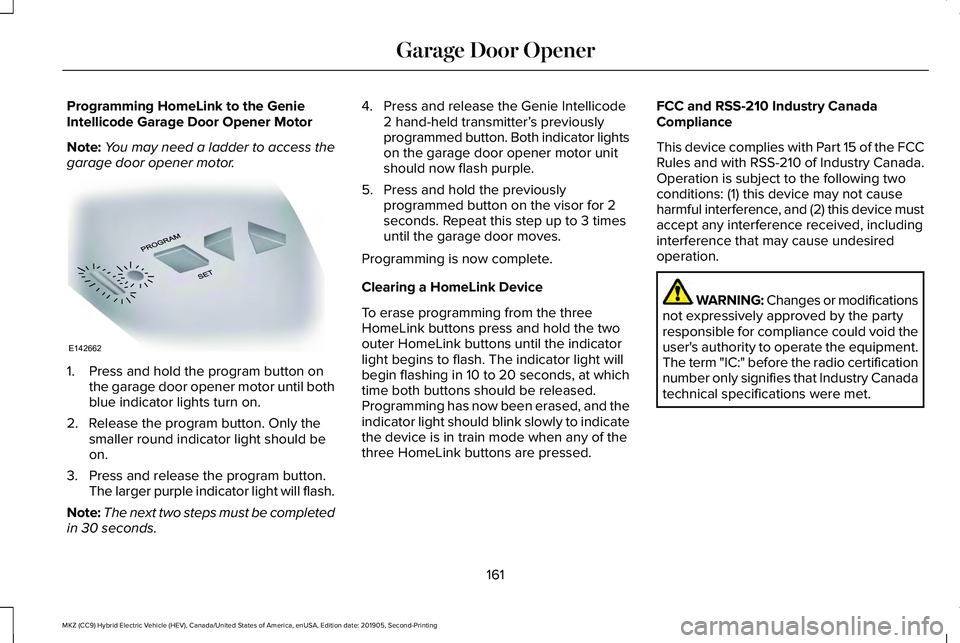
Programming HomeLink to the Genie
Intellicode Garage Door Opener Motor
Note:
You may need a ladder to access the
garage door opener motor. 1. Press and hold the program button on
the garage door opener motor until both
blue indicator lights turn on.
2. Release the program button. Only the smaller round indicator light should be
on.
3. Press and release the program button. The larger purple indicator light will flash.
Note: The next two steps must be completed
in 30 seconds. 4. Press and release the Genie Intellicode
2 hand-held transmitter’ s previously
programmed button. Both indicator lights
on the garage door opener motor unit
should now flash purple.
5. Press and hold the previously programmed button on the visor for 2
seconds. Repeat this step up to 3 times
until the garage door moves.
Programming is now complete.
Clearing a HomeLink Device
To erase programming from the three
HomeLink buttons press and hold the two
outer HomeLink buttons until the indicator
light begins to flash. The indicator light will
begin flashing in 10 to 20 seconds, at which
time both buttons should be released.
Programming has now been erased, and the
indicator light should blink slowly to indicate
the device is in train mode when any of the
three HomeLink buttons are pressed. FCC and RSS-210 Industry Canada
Compliance
This device complies with Part 15 of the FCC
Rules and with RSS-210 of Industry Canada.
Operation is subject to the following two
conditions: (1) this device may not cause
harmful interference, and (2) this device must
accept any interference received, including
interference that may cause undesired
operation.
WARNING: Changes or modifications
not expressively approved by the party
responsible for compliance could void the
user's authority to operate the equipment.
The term "IC:" before the radio certification
number only signifies that Industry Canada
technical specifications were met.
161
MKZ (CC9) Hybrid Electric Vehicle (HEV), Canada/United States of America, enUSA, Edition date: 201905, Second-Printing Garage Door OpenerE142662
Page 322 of 544
Specification
Name
Motorcraft® Spot and Stain Remover, ZC-14 (U.S.) ESR-M14P5-A
Motorcraft® Ultra-Clear Spray Glass Cleaner, ZC-23 (U.S.)
Motorcraft® Wheel and Tire Cleaner, ZC-37-A (U.S. & Canada)
CLEANING THE EXTERIOR
Wash your vehicle regularly with cool or
lukewarm water and a neutral pH shampoo,
we recommend Motorcraft Detail Wash.
• Never use strong household detergents
or soap, for example dish washing or
laundry liquid. These products can
discolor and spot painted surfaces.
• Never wash your vehicle when it is hot
to the touch, or during strong or direct
sunlight.
• Dry your vehicle with a chamois or soft
terry cloth towel to eliminate water
spotting. •
Immediately remove fuel spillages, bird
droppings, insect deposits and road tar.
These may cause damage to your
vehicle ’s paintwork or trim over time. We
recommend Motorcraft Bug and Tar
Remover.
• Remove any exterior accessories, for
example antennas, before entering a car
wash.
• When filling with AdBlue®, remove any
residue on painted surfaces immediately.
Note: Suntan lotions and insect repellents
can damage painted surfaces. If these
substances come in contact with your
vehicle, wash the affected area as soon as
possible. Cleaning the Headlamps
Note:
Do not scrape the headlamp lenses
or use abrasives, alcoholic solvents or
chemical solvents to clean them.
Note: Do not wipe the headlamps when they
are dry.
319
MKZ (CC9) Hybrid Electric Vehicle (HEV), Canada/United States of America, enUSA, Edition date: 201905, Second-Printing Vehicle Care
Page 394 of 544
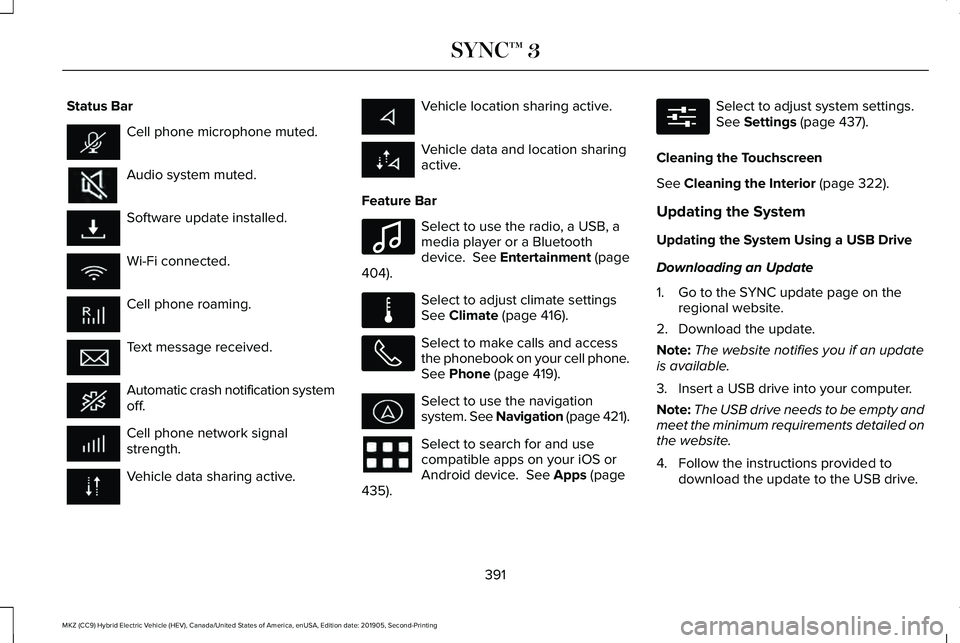
Status Bar
Cell phone microphone muted.
Audio system muted.
Software update installed.
Wi-Fi connected.
Cell phone roaming.
Text message received.
Automatic crash notification system
off.
Cell phone network signal
strength.
Vehicle data sharing active. Vehicle location sharing active.
Vehicle data and location sharing
active.
Feature Bar Select to use the radio, a USB, a
media player or a Bluetooth
device. See Entertainment (page
404). Select to adjust climate settings
See
Climate (page 416).
Select to make calls and access
the phonebook on your cell phone.
See
Phone (page 419).
Select to use the navigation
system. See Navigation (page 421).
Select to search for and use
compatible apps on your iOS or
Android device.
See Apps (page
435). Select to adjust system settings.
See
Settings (page 437).
Cleaning the Touchscreen
See
Cleaning the Interior (page 322).
Updating the System
Updating the System Using a USB Drive
Downloading an Update
1. Go to the SYNC update page on the regional website.
2. Download the update.
Note: The website notifies you if an update
is available.
3. Insert a USB drive into your computer.
Note: The USB drive needs to be empty and
meet the minimum requirements detailed on
the website.
4. Follow the instructions provided to download the update to the USB drive.
391
MKZ (CC9) Hybrid Electric Vehicle (HEV), Canada/United States of America, enUSA, Edition date: 201905, Second-Printing SYNC™ 3 E100027 E283811 E280315
Page 397 of 544
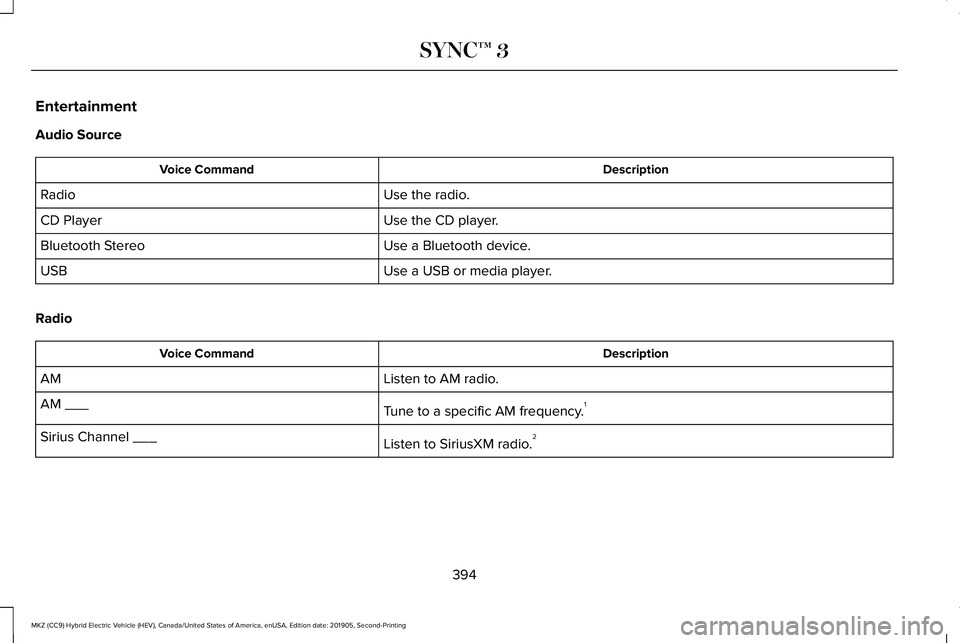
Entertainment
Audio Source
Description
Voice Command
Use the radio.
Radio
Use the CD player.
CD Player
Use a Bluetooth device.
Bluetooth Stereo
Use a USB or media player.
USB
Radio Description
Voice Command
Listen to AM radio.
AM
Tune to a specific AM frequency.1
AM ___
Listen to SiriusXM radio.2
Sirius Channel ___
394
MKZ (CC9) Hybrid Electric Vehicle (HEV), Canada/United States of America, enUSA, Edition date: 201905, Second-Printing SYNC™ 3