service LINCOLN NAUTILUS 2020 Manual PDF
[x] Cancel search | Manufacturer: LINCOLN, Model Year: 2020, Model line: NAUTILUS, Model: LINCOLN NAUTILUS 2020Pages: 596, PDF Size: 5.88 MB
Page 417 of 596

Possible Cause and Resolution
Symptom
•If your vehicle has metallic tinting on the windows and the windshield, \
open the
windows that are facing the hotspot.
• If your vehicle is in a garage and you have the garage door closed, open\
the garage
door.
I cannot see a network in the list of available
networks that I expect to see. –
Hidden network.
•Make the network visible and try again.
I cannot see the Wi-Fi Hotspot name when I
search for Wi-Fi networks on my cell phone
or other device. –
System limitation.
•Make sure Wi-Fi hotspot visibility is on.
• The system does not provide a Wi-Fi hotspot at this time.
– Weak network signal
•Move your vehicle closer to the Wi-Fi hotspot or to a place where the ne\
twork signal
is not obstructed.
– Wi-Fi hotspot in high demand or has a slow Internet connection.
•Use an more reliable Wi-Fi hotspot.
Software downloads take too long.
–No software update available.
– Wi-Fi network requires a subscription or acceptance of terms and conditi\
ons.
•Test the connection using another device. If the network requires a subscription or
acceptance of terms and conditions, contact the network service provider\
.
The system seems to connect to a Wi-Fi
network and the signal strength is excellent
but the software does not update.
414
Nautilus (CD9) Canada/United States of America, enUSA, Edition date: 201907, First-Printing Network Connectivity
Page 419 of 596
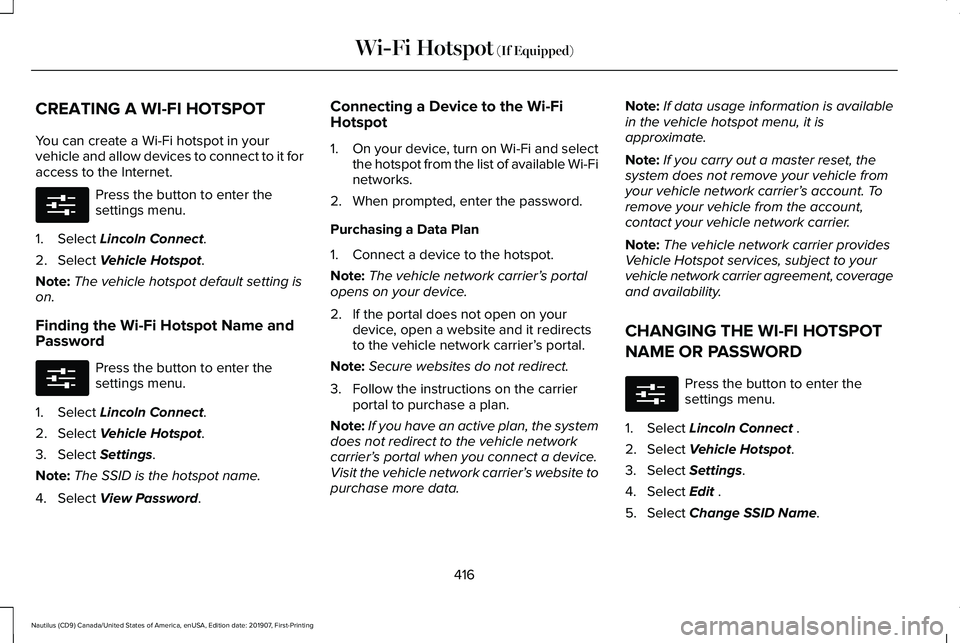
CREATING A WI-FI HOTSPOT
You can create a Wi-Fi hotspot in your
vehicle and allow devices to connect to it for
access to the Internet.
Press the button to enter the
settings menu.
1. Select Lincoln Connect.
2. Select
Vehicle Hotspot.
Note: The vehicle hotspot default setting is
on.
Finding the Wi-Fi Hotspot Name and
Password Press the button to enter the
settings menu.
1. Select
Lincoln Connect.
2. Select
Vehicle Hotspot.
3. Select
Settings.
Note: The SSID is the hotspot name.
4. Select
View Password. Connecting a Device to the Wi-Fi
Hotspot
1.
On your device, turn on Wi-Fi and select
the hotspot from the list of available Wi-Fi
networks.
2. When prompted, enter the password.
Purchasing a Data Plan
1. Connect a device to the hotspot.
Note: The vehicle network carrier’ s portal
opens on your device.
2. If the portal does not open on your device, open a website and it redirects
to the vehicle network carrier’ s portal.
Note: Secure websites do not redirect.
3. Follow the instructions on the carrier portal to purchase a plan.
Note: If you have an active plan, the system
does not redirect to the vehicle network
carrier’ s portal when you connect a device.
Visit the vehicle network carrier’ s website to
purchase more data. Note:
If data usage information is available
in the vehicle hotspot menu, it is
approximate.
Note: If you carry out a master reset, the
system does not remove your vehicle from
your vehicle network carrier’ s account. To
remove your vehicle from the account,
contact your vehicle network carrier.
Note: The vehicle network carrier provides
Vehicle Hotspot services, subject to your
vehicle network carrier agreement, coverage
and availability.
CHANGING THE WI-FI HOTSPOT
NAME OR PASSWORD Press the button to enter the
settings menu.
1. Select
Lincoln Connect .
2. Select
Vehicle Hotspot.
3. Select
Settings.
4. Select
Edit .
5. Select
Change SSID Name.
416
Nautilus (CD9) Canada/United States of America, enUSA, Edition date: 201907, First-Printing Wi-Fi Hotspot
(If Equipped)E280315 E280315 E280315
Page 426 of 596
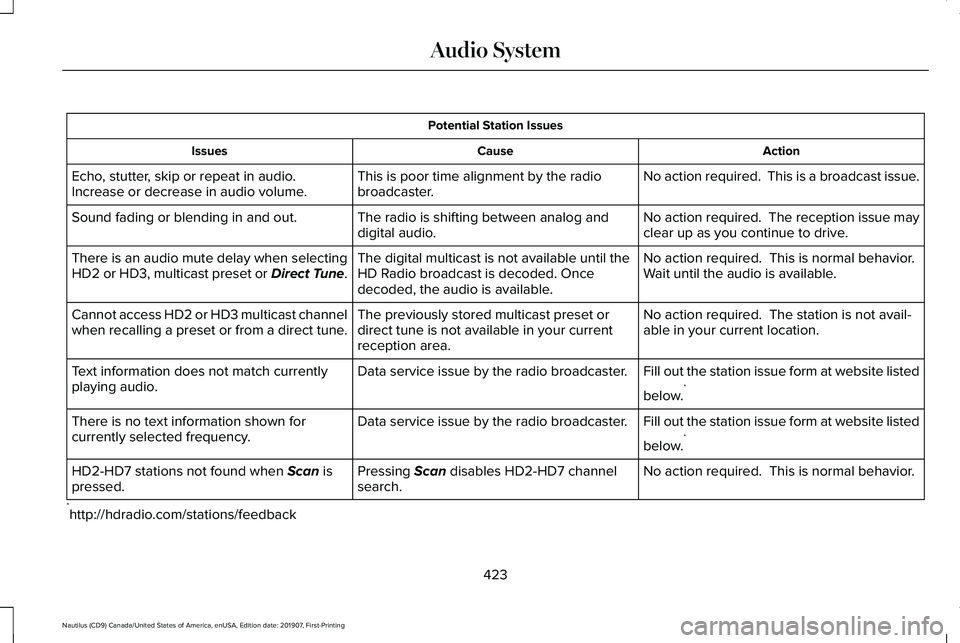
Potential Station Issues
Action
Cause
Issues
No action required. This is a broadcast issue.
This is poor time alignment by the radio
broadcaster.
Echo, stutter, skip or repeat in audio.
Increase or decrease in audio volume.
No action required. The reception issue may
clear up as you continue to drive.
The radio is shifting between analog and
digital audio.
Sound fading or blending in and out.
No action required. This is normal behavior.
Wait until the audio is available.
The digital multicast is not available until the
HD Radio broadcast is decoded. Once
decoded, the audio is available.
There is an audio mute delay when selecting
HD2 or HD3, multicast preset or Direct Tune.
No action required. The station is not avail-
able in your current location.
The previously stored multicast preset or
direct tune is not available in your current
reception area.
Cannot access HD2 or HD3 multicast channel
when recalling a preset or from a direct tune.
Fill out the station issue form at website listed
below.*
Data service issue by the radio broadcaster.
Text information does not match currently
playing audio.
Fill out the station issue form at website listed
below.*
Data service issue by the radio broadcaster.
There is no text information shown for
currently selected frequency.
No action required. This is normal behavior.
Pressing Scan disables HD2-HD7 channel
search.
HD2-HD7 stations not found when Scan is
pressed.
* http://hdradio.com/stations/feedback
423
Nautilus (CD9) Canada/United States of America, enUSA, Edition date: 201907, First-Printing Audio System
Page 428 of 596
SiriusXM Satellite Radio Service
Note:
SiriusXM reserves the unrestricted
right to change, rearrange, add or delete
programming including canceling, moving
or adding particular channels, and its prices,
at any time, with or without notice to you.
Ford Motor Company shall not be
responsible for any such programming
changes. SiriusXM satellite radio is a
subscription-based satellite radio service that
broadcasts a variety of music, sports, news,
weather, traffic and entertainment
programming. Your factory-installed SiriusXM
satellite radio system includes hardware and
a limited subscription term, which begins on
the date of sale or lease of your vehicle. See
an authorized dealer for availability.
For more information on extended
subscription terms (a service fee is required),
the online media player and a complete list
of SiriusXM satellite radio channels, and
other features, please visit www.siriusxm.com
in the United States, www.siriusxm.ca in
Canada, or call SiriusXM at 1-888-539-7474.
Satellite Radio Electronic Serial
Number (ESN)
You need your ESN to activate, modify or
track your satellite radio account.
Locating Your ESN
With satellite radio as the source, use the
touchscreen to select the following:
1.
Select Settings. See Settings (page 471).
2. Select SiriusXM.
3. Select
SiriusXM information.
425
Nautilus (CD9) Canada/United States of America, enUSA, Edition date: 201907, First-Printing Audio SystemE208625
Page 429 of 596
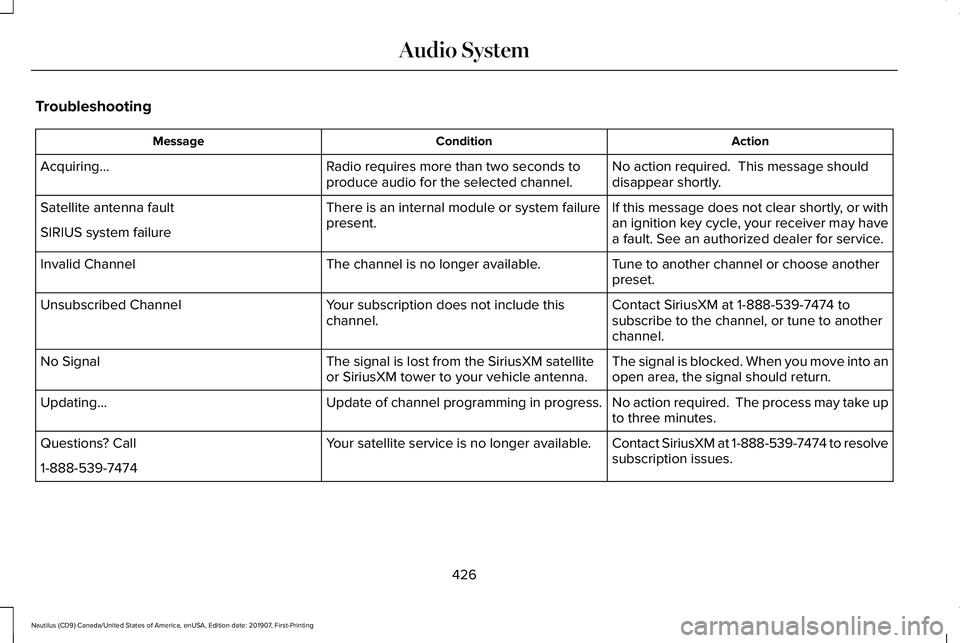
Troubleshooting
Action
Condition
Message
No action required. This message should
disappear shortly.
Radio requires more than two seconds to
produce audio for the selected channel.
Acquiring…
If this message does not clear shortly, or with
an ignition key cycle, your receiver may have
a fault. See an authorized dealer for service.
There is an internal module or system failure
present.
Satellite antenna fault
SIRIUS system failure
Tune to another channel or choose another
preset.
The channel is no longer available.
Invalid Channel
Contact SiriusXM at 1-888-539-7474 to
subscribe to the channel, or tune to another
channel.
Your subscription does not include this
channel.
Unsubscribed Channel
The signal is blocked. When you move into an
open area, the signal should return.
The signal is lost from the SiriusXM satellite
or SiriusXM tower to your vehicle antenna.
No Signal
No action required. The process may take up
to three minutes.
Update of channel programming in progress.
Updating…
Contact SiriusXM at 1-888-539-7474 to resolve
subscription issues.
Your satellite service is no longer available.
Questions? Call
1-888-539-7474
426
Nautilus (CD9) Canada/United States of America, enUSA, Edition date: 201907, First-Printing Audio System
Page 448 of 596
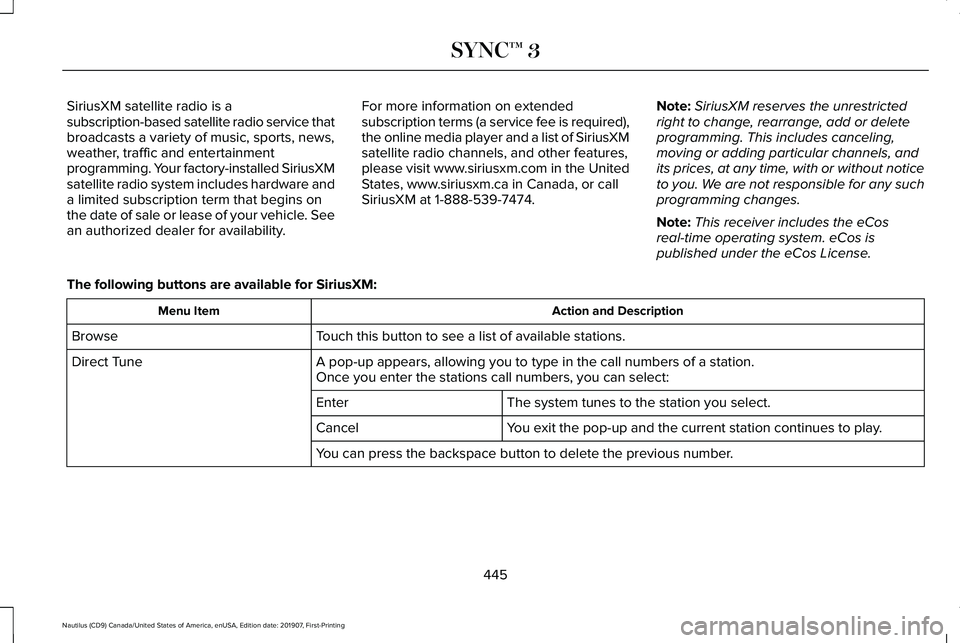
SiriusXM satellite radio is a
subscription-based satellite radio service that
broadcasts a variety of music, sports, news,
weather, traffic and entertainment
programming. Your factory-installed SiriusXM
satellite radio system includes hardware and
a limited subscription term that begins on
the date of sale or lease of your vehicle. See
an authorized dealer for availability.
For more information on extended
subscription terms (a service fee is required),
the online media player and a list of SiriusXM
satellite radio channels, and other features,
please visit www.siriusxm.com in the United
States, www.siriusxm.ca in Canada, or call
SiriusXM at 1-888-539-7474.
Note:
SiriusXM reserves the unrestricted
right to change, rearrange, add or delete
programming. This includes canceling,
moving or adding particular channels, and
its prices, at any time, with or without notice
to you. We are not responsible for any such
programming changes.
Note: This receiver includes the eCos
real-time operating system. eCos is
published under the eCos License.
The following buttons are available for SiriusXM: Action and Description
Menu Item
Touch this button to see a list of available stations.
Browse
A pop-up appears, allowing you to type in the call numbers of a station.\
Direct Tune
Once you enter the stations call numbers, you can select:
The system tunes to the station you select.
Enter
You exit the pop-up and the current station continues to play.
Cancel
You can press the backspace button to delete the previous number.
445
Nautilus (CD9) Canada/United States of America, enUSA, Edition date: 201907, First-Printing SYNC™ 3
Page 450 of 596
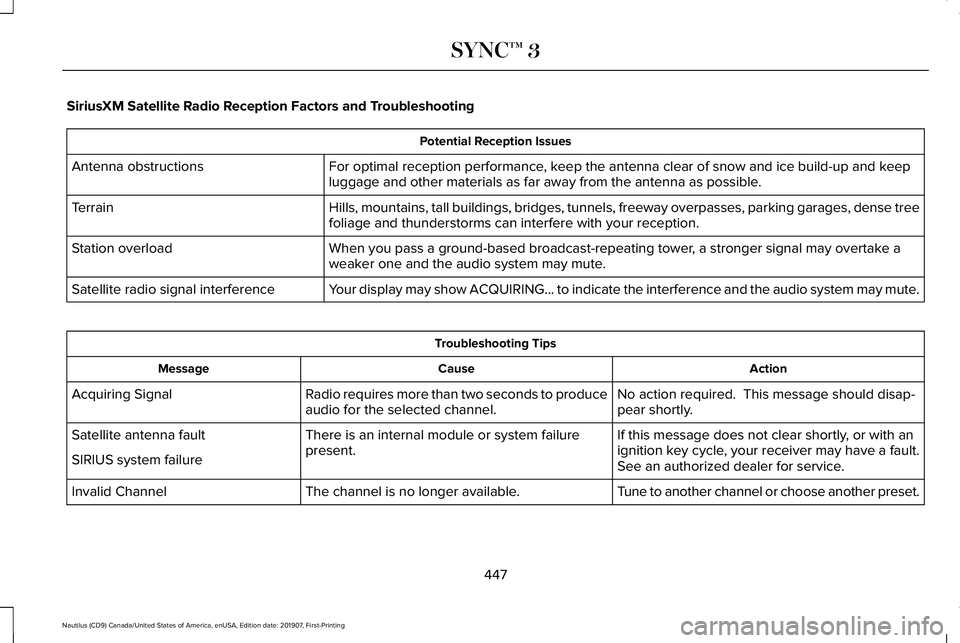
SiriusXM Satellite Radio Reception Factors and Troubleshooting
Potential Reception Issues
For optimal reception performance, keep the antenna clear of snow and ice build-up and keep
luggage and other materials as far away from the antenna as possible.
Antenna obstructions
Hills, mountains, tall buildings, bridges, tunnels, freeway overpasses, \
parking garages, dense tree
foliage and thunderstorms can interfere with your reception.
Terrain
When you pass a ground-based broadcast-repeating tower, a stronger signal may overtake a
weaker one and the audio system may mute.
Station overload
Your display may show ACQUIRING... to indicate the interference and the a\
udio system may mute.
Satellite radio signal interference Troubleshooting Tips
Action
Cause
Message
No action required. This message should disap-
pear shortly.
Radio requires more than two seconds to produce
audio for the selected channel.
Acquiring Signal
If this message does not clear shortly, or with an
ignition key cycle, your receiver may have a fault.
See an authorized dealer for service.
There is an internal module or system failure
present.
Satellite antenna fault
SIRIUS system failure
Tune to another channel or choose another preset.
The channel is no longer available.
Invalid Channel
447
Nautilus (CD9) Canada/United States of America, enUSA, Edition date: 201907, First-Printing SYNC™ 3
Page 451 of 596
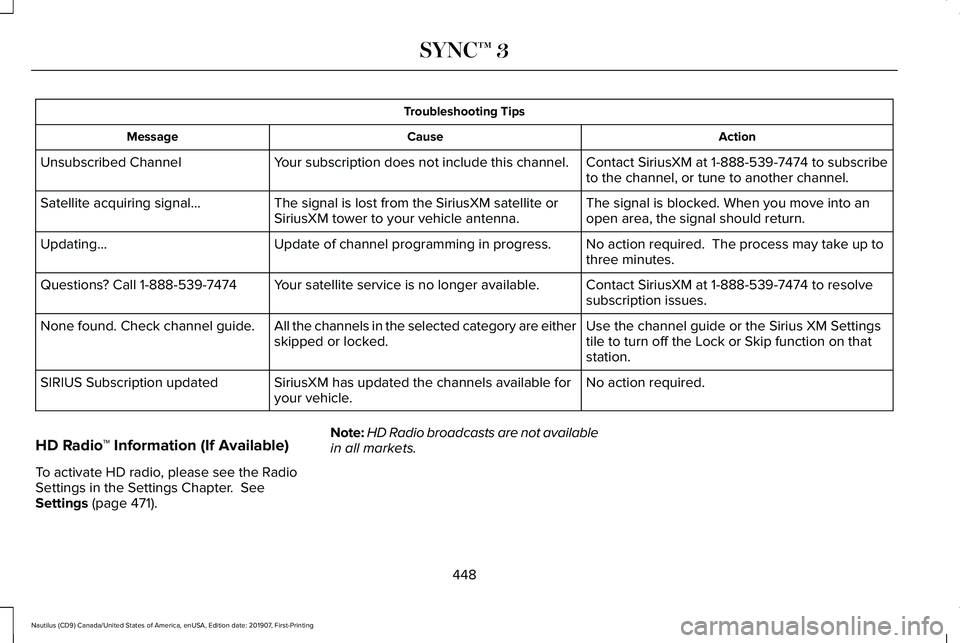
Troubleshooting Tips
Action
Cause
Message
Contact SiriusXM at 1-888-539-7474 to subscribe
to the channel, or tune to another channel.
Your subscription does not include this channel.
Unsubscribed Channel
The signal is blocked. When you move into an
open area, the signal should return.
The signal is lost from the SiriusXM satellite or
SiriusXM tower to your vehicle antenna.
Satellite acquiring signal…
No action required. The process may take up to
three minutes.
Update of channel programming in progress.
Updating…
Contact SiriusXM at 1-888-539-7474 to resolve
subscription issues.
Your satellite service is no longer available.
Questions? Call 1-888-539-7474
Use the channel guide or the Sirius XM Settings
tile to turn off the Lock or Skip function on that
station.
All the channels in the selected category are either
skipped or locked.
None found. Check channel guide.
No action required.
SiriusXM has updated the channels available for
your vehicle.
SIRIUS Subscription updated
HD Radio ™ Information (If Available)
To activate HD radio, please see the Radio
Settings in the Settings Chapter. See
Settings (page 471). Note:
HD Radio broadcasts are not available
in all markets.
448
Nautilus (CD9) Canada/United States of America, enUSA, Edition date: 201907, First-Printing SYNC™ 3
Page 454 of 596
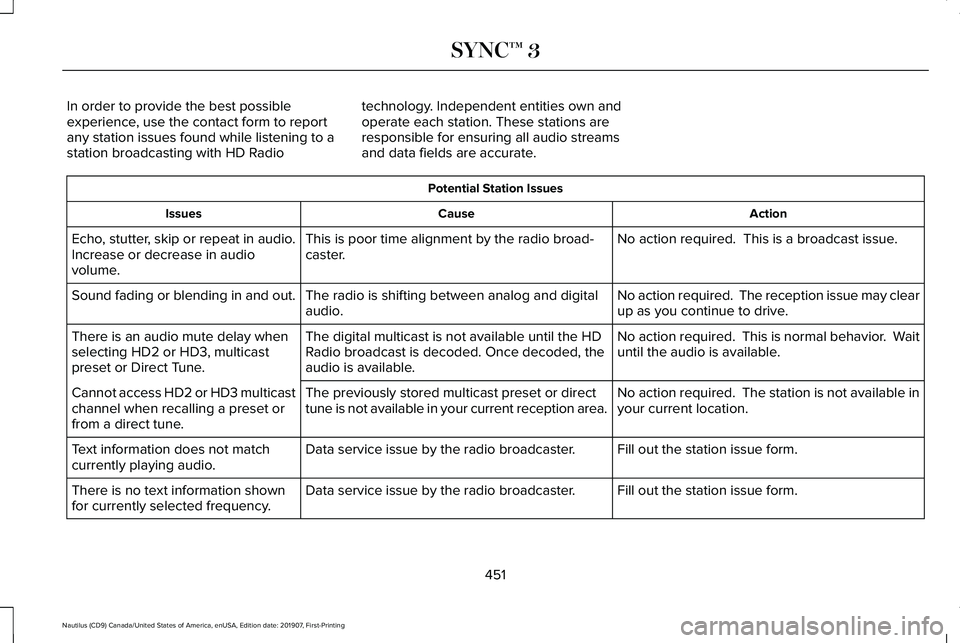
In order to provide the best possible
experience, use the contact form to report
any station issues found while listening to a
station broadcasting with HD Radio
technology. Independent entities own and
operate each station. These stations are
responsible for ensuring all audio streams
and data fields are accurate. Potential Station Issues
Action
Cause
Issues
No action required. This is a broadcast issue.
This is poor time alignment by the radio broad-
caster.
Echo, stutter, skip or repeat in audio.
Increase or decrease in audio
volume.
No action required. The reception issue may clear
up as you continue to drive.
The radio is shifting between analog and digital
audio.
Sound fading or blending in and out.
No action required. This is normal behavior. Wait
until the audio is available.
The digital multicast is not available until the HD
Radio broadcast is decoded. Once decoded, the
audio is available.
There is an audio mute delay when
selecting HD2 or HD3, multicast
preset or Direct Tune.
No action required. The station is not available in
your current location.
The previously stored multicast preset or direct
tune is not available in your current reception area.
Cannot access HD2 or HD3 multicast
channel when recalling a preset or
from a direct tune.
Fill out the station issue form.
Data service issue by the radio broadcaster.
Text information does not match
currently playing audio.
Fill out the station issue form.
Data service issue by the radio broadcaster.
There is no text information shown
for currently selected frequency.
451
Nautilus (CD9) Canada/United States of America, enUSA, Edition date: 201907, First-Printing SYNC™ 3
Page 469 of 596
Adjusting the Guidance Prompt Volume
Turn the volume control when a guidance
prompt plays to adjust the volume.
Note:
If you have inadvertently adjusted the
volume to zero, press the turn indicator
button to play the last voice prompt and then
adjust the volume to the desired level.
Muting Guidance Prompts Select the mute option on the
screen to mute guidance prompts.
Note: The system mutes the next and all
future guidance prompts.
Adding Waypoints
You can add a waypoint to a navigation route
as a destination along your route. You can
add up to five waypoints.
1. Select the search option on the map.
2. Set a destination.
3. Select Add Waypoint.
4. Select
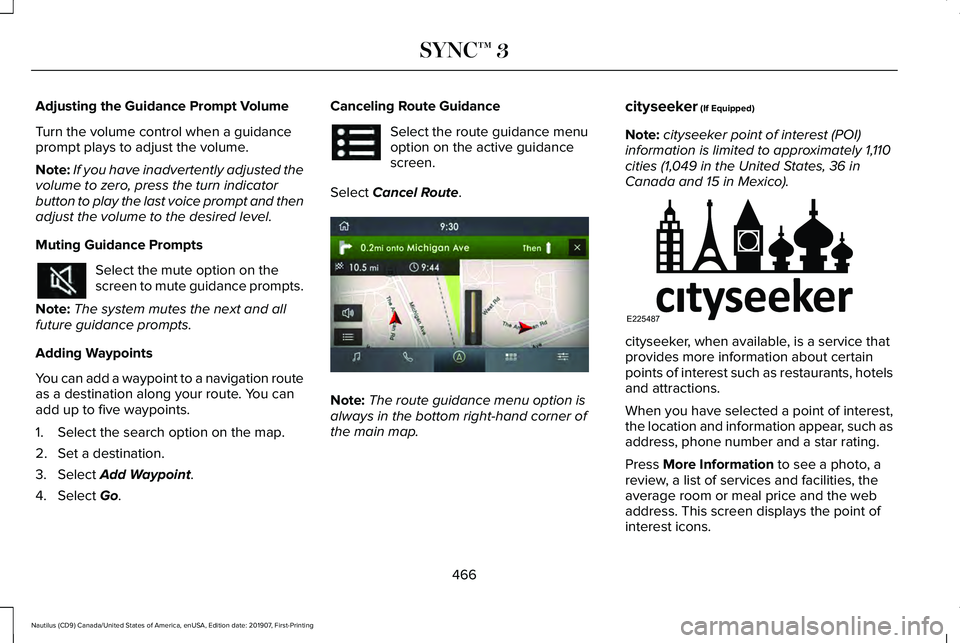
Go. Canceling Route Guidance Select the route guidance menu
option on the active guidance
screen.
Select
Cancel Route. Note:
The route guidance menu option is
always in the bottom right-hand corner of
the main map. cityseeker
(If Equipped)
Note: cityseeker point of interest (POI)
information is limited to approximately 1,110
cities (1,049 in the United States, 36 in
Canada and 15 in Mexico). cityseeker, when available, is a service that
provides more information about certain
points of interest such as restaurants, hotels
and attractions.
When you have selected a point of interest,
the location and information appear, such as
address, phone number and a star rating.
Press
More Information to see a photo, a
review, a list of services and facilities, the
average room or meal price and the web
address. This screen displays the point of
interest icons.
466
Nautilus (CD9) Canada/United States of America, enUSA, Edition date: 201907, First-Printing SYNC™ 3 E297860 E225487