audio LINCOLN NAUTILUS 2021 Owners Manual
[x] Cancel search | Manufacturer: LINCOLN, Model Year: 2021, Model line: NAUTILUS, Model: LINCOLN NAUTILUS 2021Pages: 579, PDF Size: 6.9 MB
Page 16 of 579
Using the Tire Sealant and Inflator Kit
......................................................................379
Tire Pressure Monitoring System
What Is the Tire Pressure Monitoring System .......................................................
385
Tire Pressure Monitoring System Overview ......................................................................
385
Tire Pressure Monitoring System Precautions ..............................................
386
Tire Pressure Monitoring System Limitations .................................................
387
Viewing the Tire Pressures .......................
387
Resetting Tire Pressure Monitoring System ......................................................................
387
Tire Pressure Monitoring System – Troubleshooting ......................................
388
Changing a Road Wheel
Changing a Flat Tire ....................................
391
Wheel Nuts ...................................................
396
Capacities and Specifications
Engine Specifications - 2.0L .....................
398Engine Specifications - 2.7L
.....................
399
Motorcraft Parts - 2.0L ...............................
400
Motorcraft Parts - 2.7L .................................
401
Engine Oil Capacity and Specification - 2.0L .............................................................
402
Engine Oil Capacity and Specification - 2.7L .............................................................
404
Cooling System Capacity and Specification - 2.0L ..........................................................
407
Cooling System Capacity and Specification - 2.7L ...........................................................
408
Fuel Tank Capacity .....................................
409
Air Conditioning System Capacity and Specification - 2.0L ..................................
410
Air Conditioning System Capacity and Specification - 2.7L ..................................
412
Washer Fluid Specification ........................
413
Brake Fluid Specification ...........................
414
Vehicle Identification
Vehicle Identification Number ..................
416
Connected Vehicle
What Is a Connected Vehicle ....................
417Connected Vehicle Requirements
...........
417
Connected Vehicle Limitations .................
417
Connecting the Vehicle to a Mobile Network ......................................................
417
Connecting the Vehicle to a Wi-Fi Network .......................................................................
417
Connected Vehicle – Troubleshooting .......................................................................
418
Vehicle Wi-Fi Hotspot
Creating a Vehicle Wi-Fi Hotspot .............
421
Changing the Vehicle Wi-Fi Hotspot Name or Password ...............................................
421
Audio System
Audio System Precautions ........................
423
Switching the Audio Unit On and Off ......
423
Selecting the Audio Source .....................
423
Playing or Pausing the Audio Source .....
423
Adjusting the Volume .................................
423
Switching Shuffle Mode On and Off ......
424
Switching Repeat Mode On and Off ......
424
Setting a Memory Preset ...........................
424
Muting the Audio .........................................
424
12
2021 Nautilus (CD9) Canada/United States of America, enUSA, Edition date: 202011, First-Printing Table of Contents
Page 17 of 579
Adjusting the Sound Settings
..................424
Setting the Clock and Date ......................
425
AM/FM Radio ................................................
425
Switching the Display On and Off ..........
426
Digital Radio .................................................
426
Satellite Radio ..............................................
427
Identifying the Audio Unit .........................
429
Information and Entertainment Display Overview
Information and Entertainment Display Precautions ................................................
431
Information and Entertainment Display Limitations ..................................................
431
Status Bar ......................................................
432
Feature Bar ...................................................
433
Accessing Feature Drawers .....................
433
Information On Demand Screen .............
433
Voice Interaction
What is Voice Interaction ..........................
435
Setting the Wake Word ..............................
435
Beginning a Voice Interaction ..................
435Voice Interaction Examples
......................
435
Phone
Phone Precautions ......................................
437
Connecting Your Phone .............................
437
Phone Menu ..................................................
437
Making and Receiving a Phone Call ......
439
Sending and Receiving a Text Message .......................................................................
441
Switching Text Message Notification On and Off .......................................................
442
Bluetooth®
Connecting a Bluetooth® Device ............
443
Playing Media Using Bluetooth® .............
443
Apps
App Precautions ..........................................
444
App Requirements ......................................
444
Accessing Apps ...........................................
444
Enabling Apps on an iOS Device ............
444
Enabling Apps on an Android Device ......................................................................
444
Switching Apple CarPlay On and Off ......
445Switching Android Auto On and Off
......
445
Personal Profiles
How Do Personal Profiles Work ..............
447
Enabling or Disabling Personal Profiles ......................................................................
447
Creating a Personal Profile .......................
447
Linking or Unlinking a Personal Profile to a Remote Control ....................................
448
Linking or Unlinking a Personal Profile to a Device ....................................................
448
Navigation
Accessing Navigation ................................
449
Navigation Map Updates ..........................
449
Adjusting the Map .......................................
449
Live Traffic .....................................................
449
Setting a Destination ..................................
449
Waypoints .....................................................
450
Route Guidance ............................................
451
Vehicle System Updates
Updating the Vehicle Systems Wirelessly ......................................................................
452
13
2021 Nautilus (CD9) Canada/United States of America, enUSA, Edition date: 202011, First-Printing Table of Contents
Page 32 of 579
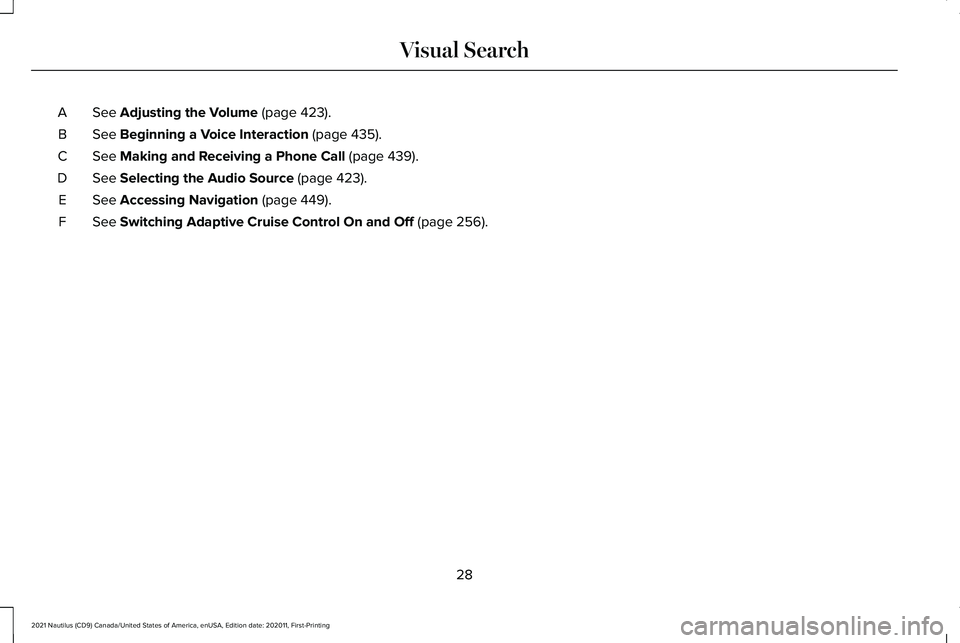
See Adjusting the Volume (page 423).
A
See
Beginning a Voice Interaction (page 435).
B
See
Making and Receiving a Phone Call (page 439).
C
See
Selecting the Audio Source (page 423).
D
See
Accessing Navigation (page 449).
E
See
Switching Adaptive Cruise Control On and Off (page 256).
F
28
2021 Nautilus (CD9) Canada/United States of America, enUSA, Edition date: 202011, First-Printing Visual Search
Page 36 of 579
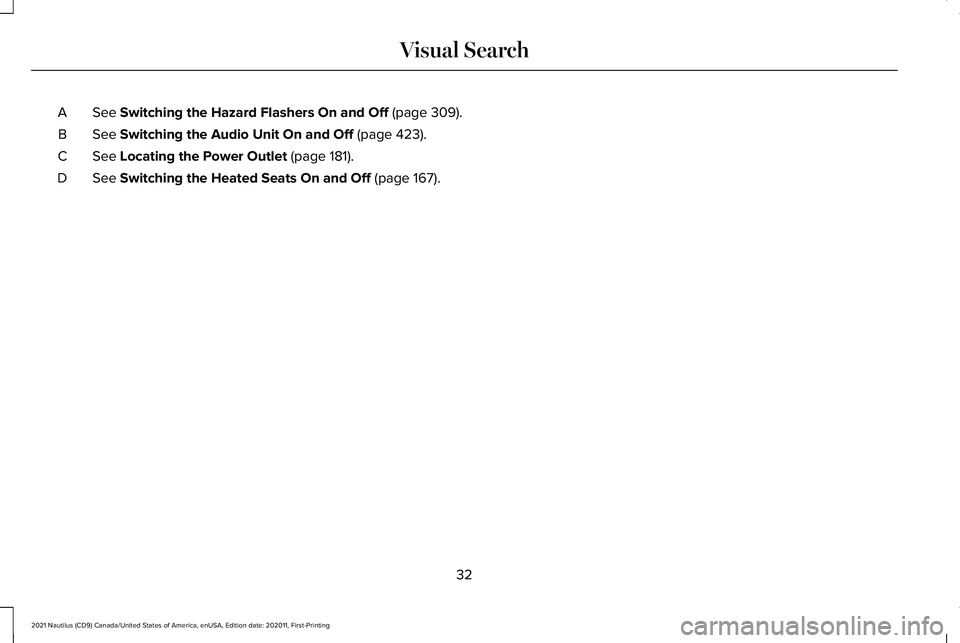
See Switching the Hazard Flashers On and Off (page 309).
A
See
Switching the Audio Unit On and Off (page 423).
B
See
Locating the Power Outlet (page 181).
C
See
Switching the Heated Seats On and Off (page 167).
D
32
2021 Nautilus (CD9) Canada/United States of America, enUSA, Edition date: 202011, First-Printing Visual Search
Page 88 of 579
PRINCIPLE OF OPERATION
MyKey allows you to program keys with
restricted driving modes to promote good
driving habits. All but one of the keys can be
activated with these restricted modes.
Any keys that remain unprogrammed are
referred to as administrator keys or admin
keys. They can be used to:
•
Create a MyKey.
• Program configurable MyKey settings.
• Clear all MyKey features.
When you have created a MyKey, you can
access the following information by using
the information display to determine:
• How many admin keys and MyKeys are
programmed to your vehicle.
• The total distance your vehicle traveled
with a MyKey.
Note: Switch the vehicle on to use the
system.
Note: All MyKeys are programmed to the
same settings. You cannot program them
individually. Note:
For vehicles with push-button start,
when both a MyKey and an admin key are
present, the vehicle will recognize the admin
key when you switch the vehicle on.
Non-Configurable Settings
The following settings cannot be changed
by an admin key user:
• Seatbelt reminder. You cannot disable
this feature. The audio system will mute
when the driver and front-seat passenger
seatbelts are not fastened.
• Early low fuel or charge. The low-fuel or
low charge warning activates earlier,
giving the MyKey user more time to refuel
or recharge.
• Restricted touchscreen operation in some
markets. For example, MyKey may
prevent manual navigation destination
input when the vehicle is in any gear
other than park (P), or when the vehicle
reaches a certain rate of speed.
• Satellite radio adult content restrictions,
if available on your vehicle. Note:
If a phone is connected using Apple
CarPlay or Android Auto when driving with
a MyKey, the driver can receive phone calls
and text messages even if the do not disturb
restriction is on. If the vehicle comes with
satellite radio, the adult content is not
restricted.
Note: The audio system may not mute with
a basic AM/FM radio.
Note: You may be able to turn the lane
departure warning feature off, but the
feature will automatically re-activate with
every new key cycle.
Configurable Settings
With an admin key, you can configure certain
MyKey settings when you first create a
MyKey and before you restart the vehicle.
You can also change the settings afterward
with an admin key.
Note: Available vehicle features will appear
in your information display, providing you
with choices to switch them on or off, or to
select a more specific setting.
84
2021 Nautilus (CD9) Canada/United States of America, enUSA, Edition date: 202011, First-Printing MyKey™
Page 89 of 579
WARNING: Do not set MyKey
maximum speed limit to a limit that will
prevent the driver from maintaining a safe
speed considering posted speed limits and
prevailing road conditions. The driver is
always responsible to drive in accordance
with local laws and prevailing conditions.
Failure to do so could result in accident or
injury.
• A vehicle speed limit can be set.
Warnings will be shown in the display
followed by an audible tone when your
vehicle reaches the set speed. You
cannot override the set speed by fully
depressing the accelerator pedal or by
setting cruise control. •
Various vehicle speed minders can be
set. Once you select a speed, it will be
shown in the display, followed by an
audible tone when the preselected
vehicle speed is exceeded.
• Audio system maximum volume of 45%.
A message will be shown in the display
when you attempt to exceed the limited
volume. Also, the speed-sensitive or
compensated automatic volume control
will be disabled.
• Always on setting. When this is selected,
you will not be able to switch off
AdvanceTrac ™ or traction control, 911
Assist or Emergency Assistance, or the
do not disturb feature, if your vehicle
comes with these features.
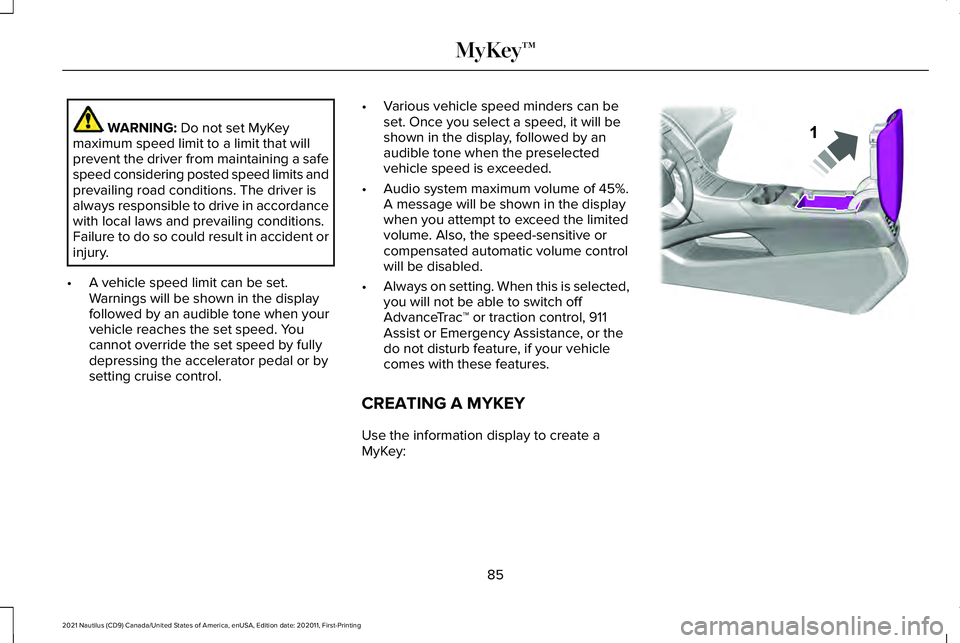
CREATING A MYKEY
Use the information display to create a
MyKey: 85
2021 Nautilus (CD9) Canada/United States of America, enUSA, Edition date: 202011, First-Printing MyKey™E203693
Page 147 of 579
USING THE INSTRUMENT
CLUSTER DISPLAY CONTROLS
WARNING: Driving while distracted
can result in loss of vehicle control, crash
and injury. We strongly recommend that
you use extreme caution when using any
device that may take your focus off the
road. Your primary responsibility is the safe
operation of your vehicle. We recommend
against the use of any hand-held device
while driving and encourage the use of
voice-operated systems when possible.
Make sure you are aware of all applicable
local laws that may affect the use of
electronic devices while driving.
Note: Some options may appear slightly
different or not at all if the items are optional.
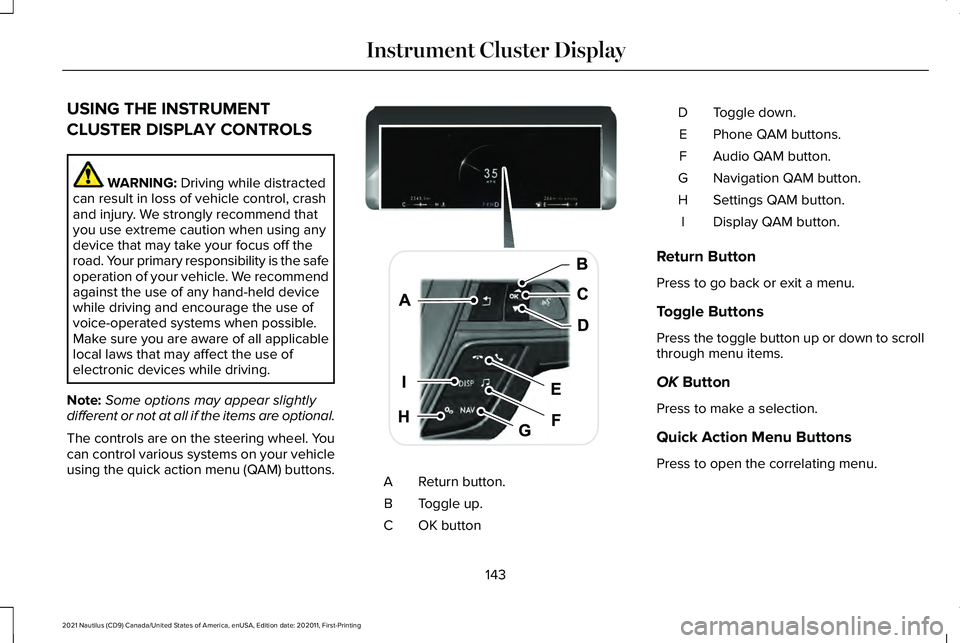
The controls are on the steering wheel. You
can control various systems on your vehicle
using the quick action menu (QAM) buttons. Return button.
A
Toggle up.
B
OK button
C Toggle down.
D
Phone QAM buttons.
E
Audio QAM button.
F
Navigation QAM button.
G
Settings QAM button.
H
Display QAM button.
I
Return Button
Press to go back or exit a menu.
Toggle Buttons
Press the toggle button up or down to scroll
through menu items.
OK
Button
Press to make a selection.
Quick Action Menu Buttons
Press to open the correlating menu.
143
2021 Nautilus (CD9) Canada/United States of America, enUSA, Edition date: 202011, First-Printing Instrument Cluster DisplayE247519
Page 182 of 579
LOCATING THE USB PORTS
Data Transfer USB Ports
The USB Ports could be in the following
locations:
•
On the lower instrument panel.
• Inside the media bin.
• Inside the center console.
Note: These USB ports can also charge
devices.
Note: Not all USB ports in your vehicle have
data transfer capabilities.
Note: We recommend using only USB-IF
certified cables and adapters. Non-certified
cables and adapters may not work.
Charge Only USB Ports The USB ports could be in the following
locations: •
On the lower instrument panel.
• On the upper instrument panel.
• Inside the media bin.
• Inside the center console.
• On the rear of the center console.
• In the cargo area.
PLAYING MEDIA USING THE USB
PORT WARNING: Driving while distracted
can result in loss of vehicle control, crash
and injury. We strongly recommend that
you use extreme caution when using any
device that may take your focus off the
road. Your primary responsibility is the safe
operation of your vehicle. We recommend
against the use of any hand-held device
while driving and encourage the use of
voice-operated systems when possible.
Make sure you are aware of all applicable
local laws that may affect the use of
electronic devices while driving. Connect your device to the USB port. Press the audio button on the
feature bar.
Select
Sources. Select the USB option.
Press the button to play a track.
Press the button again to pause
the track.
Press the button to skip to the next
track.
Press and hold the button to fast
forward through the track. Press the button once to return to
the beginning of a track.
Repeatedly press the button to
return to previous tracks.
Press and hold the button to fast rewind.
CHARGING A DEVICE
Connect your device to the USB port.
178
2021 Nautilus (CD9) Canada/United States of America, enUSA, Edition date: 202011, First-Printing USB Ports E100027
Page 240 of 579
If your vehicle remains stationary for a few
seconds, the audible warning turns off. If your
vehicle moves backward the tone sounds
again.
Note:
When the parking aid system sounds
a tone, the audio system could reduce the
set volume.
FRONT PARKING AID (If Equipped)
What is the Front Parking Aid
Front parking sensors detect objects in front
of your vehicle.
Front Parking Aid Limitations
The front parking aid sensors are active
when your vehicle is in any position other
than park (P) and the vehicle speed is less
than 5 mph (8 km/h).
The sensor coverage area is up to
28 in
(70 cm) from the bumper. If your vehicle is in reverse (R), the front
parking aid detects objects when your
vehicle is moving at a low speed or an object
is moving toward your vehicle and provides
an audio warning, for example another
vehicle at a low speed. Once your vehicle
reaches a stop, the audio warning stops after
a few seconds. Visual indication is always
active in reverse (R).
If your vehicle is in any forward gear, the
front parking aid provides audible warnings
and visual indication when your vehicle is
moving at a speed of
5 mph (8 km/h) or
below and the system detects an object
within the detection zone. Once your vehicle
reaches a stop, the visual indication and
audio warning stops after a few seconds.
If your vehicle is in neutral (N), the front and
rear sensors provide visual indication only
when your vehicle is moving below a speed
of 5 mph (8 km/h) and obstacles are detected
inside the detection areas. Once your vehicle
stops, the visual indication and audio warning
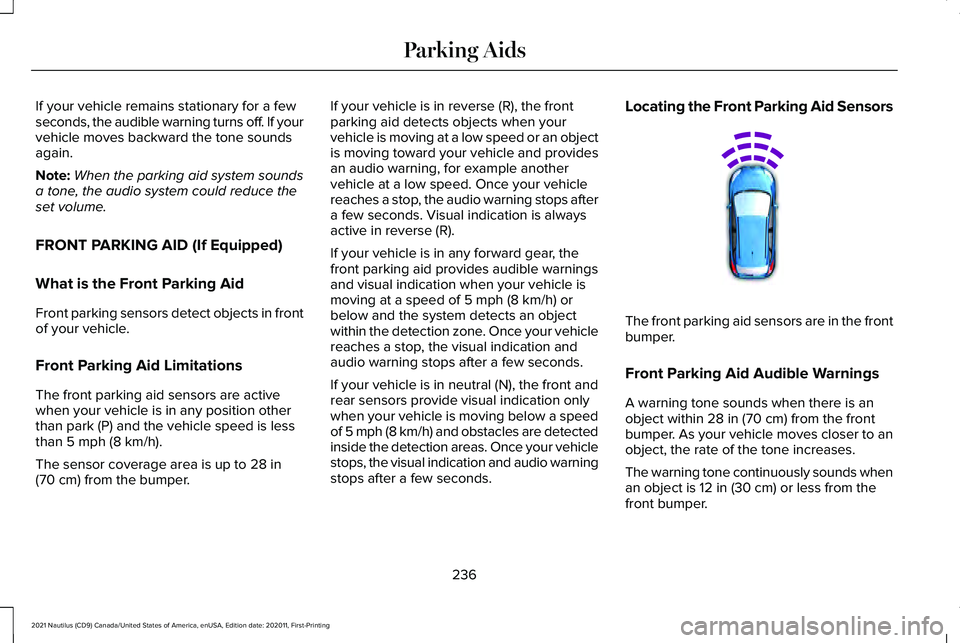
stops after a few seconds. Locating the Front Parking Aid Sensors
The front parking aid sensors are in the front
bumper.
Front Parking Aid Audible Warnings
A warning tone sounds when there is an
object within
28 in (70 cm) from the front
bumper. As your vehicle moves closer to an
object, the rate of the tone increases.
The warning tone continuously sounds when
an object is
12 in (30 cm) or less from the
front bumper.
236
2021 Nautilus (CD9) Canada/United States of America, enUSA, Edition date: 202011, First-Printing Parking AidsE187330
Page 351 of 579
If you disconnect or replace the battery and
your vehicle has an automatic transmission,
it must relearn its adaptive strategy. Because
of this, the transmission may shift firmly when
first driven. This is normal operation while
the transmission fully updates its operation
to optimum shift feel.
Remove and Reinstall the Battery
To disconnect or remove the battery, do the
following:
1. Apply the parking brake and switch the
ignition off.
2. Switch all electrical equipment off, for example lights and radio.
3. Wait a minimum of two minutes before disconnecting the battery.
Note: The engine management system has
a power hold function and remains powered
for a period of time after you switch the
ignition off. This is to allow diagnostic and
adaptive tables to be stored. Disconnecting
the battery without waiting can cause
damage not covered by the vehicle
Warranty. 4. Disconnect the negative battery cable
terminal.
5. Disconnect the positive battery cable terminal.
6. Remove the battery securing clamp.
7. Remove the battery.
8. To install, reverse the removal procedure.
Note: Before reconnecting the battery, make
sure the ignition remains switched off.
Note: Make sure the battery cable terminals
are fully tightened.
Note: After cleaning or replacing the battery,
make sure you reinstall the battery cover or
shield.
If you disconnect or replace the vehicle
battery, you must reset the following
features:
• Window bounce-back. See Windows
(page 130).
• Clock Settings.
• Pre-set radio stations.
• Steering Angle Sensor. Note:
To calibrate the steering angle sensor,
drive the vehicle above
30 mph (50 km/h)
for a minimum of 1.2 mi (2 km). Make sure to
drive straight ahead for a minimum of 30
seconds. Several vehicle functions are
disabled and a warning light could appear
until the sensor is calibrated.
Battery Management System
The battery management system monitors
battery conditions and takes actions to
extend battery life. If excessive battery drain
is detected, the system temporarily disables
some of the following features:
• Heated rear window.
• Heated seats.
• Climate control.
• Heated steering wheel.
• Audio unit.
• Navigation system.
A message may appear in the information
display to alert you that battery protection
actions are active.
347
2021 Nautilus (CD9) Canada/United States of America, enUSA, Edition date: 202011, First-Printing Maintenance