reset LINCOLN NAVIGATOR 2004 User Guide
[x] Cancel search | Manufacturer: LINCOLN, Model Year: 2004, Model line: NAVIGATOR, Model: LINCOLN NAVIGATOR 2004Pages: 368, PDF Size: 8.21 MB
Page 28 of 368
Seek function
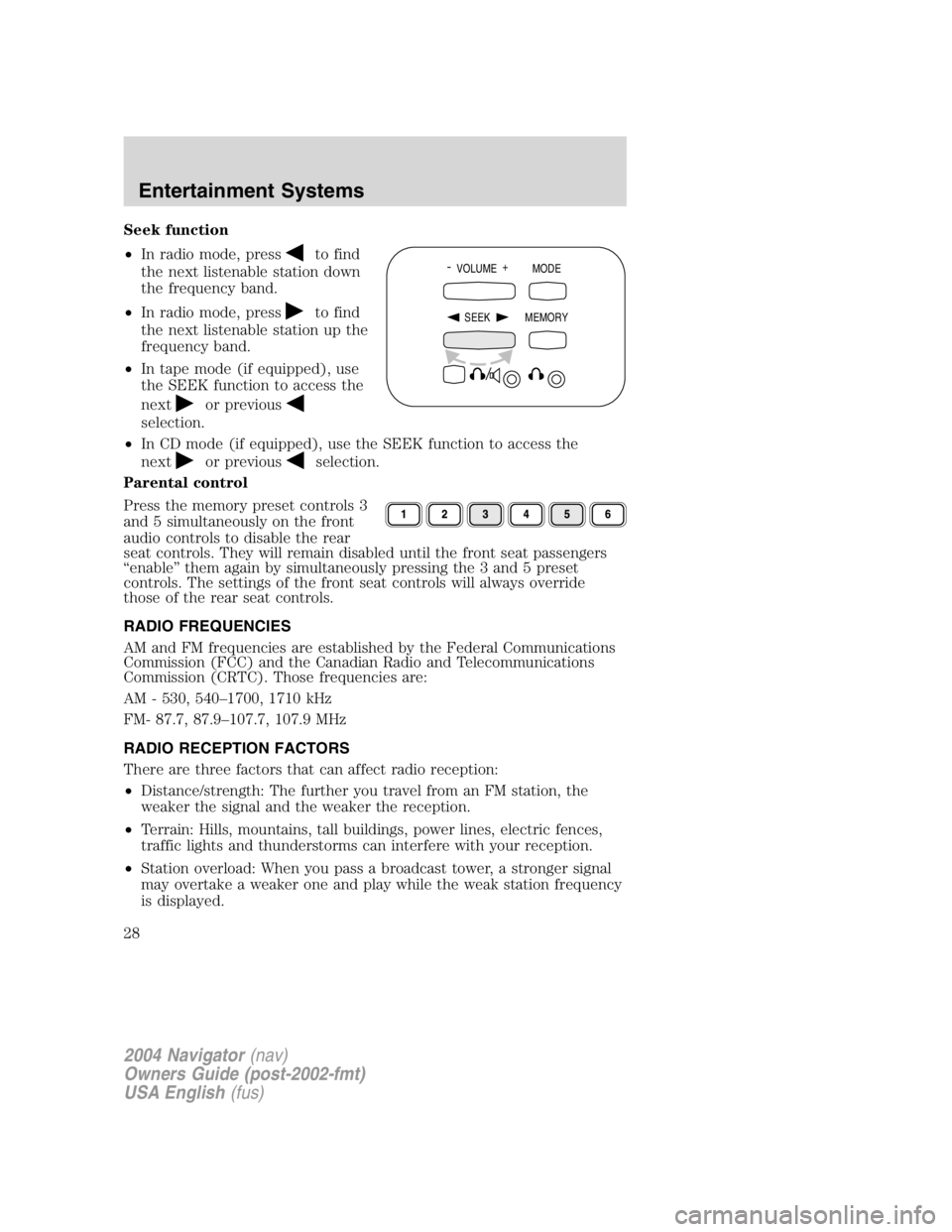
• In radio mode, press to find
the next listenable station down
the frequency band.
• In radio mode, press to find
the next listenable station up the
frequency band.
• In tape mode (if equipped), use
the SEEK function to access the
next or previous
selection.
• In CD mode (if equipped), use the SEEK function to access the
next or previous selection.
Parental control
Press the memory preset controls 3
and 5 simultaneously on the front
audio controls to disable the rear
seat controls. They will remain disabled until the front seat passengers
“ enable ” them again by simultaneously pressing the 3 and 5 preset
controls. The settings of the front seat controls will always override
those of the rear seat controls.
RADIO FREQUENCIES
AM and FM frequencies are established by the Federal Communications
Commission (FCC) and the Canadian Radio and Telecommunications
Commission (CRTC). Those frequencies are:
AM - 530, 540 – 1700, 1710 kHz
FM- 87.7, 87.9 – 107.7, 107.9 MHz
RADIO RECEPTION FACTORS
There are three factors that can affect radio reception:
• Distance/strength: The further you travel from an FM station, the
weaker the signal and the weaker the reception.
• Terrain: Hills, mountains, tall buildings, power lines, electric fences,
traffic lights and thunderstorms can interfere with your reception.
• Station overload: When you pass a broadcast tower, a stronger signal
may overtake a weaker one and play while the weak station frequency
is displayed. -
VOLUME +
MODE
SEEK MEMORY
2004 Navigator (nav)
Owners Guide (post-2002-fmt)
USA English (fus)Entertainment Systems
28
Page 34 of 368
Remote control
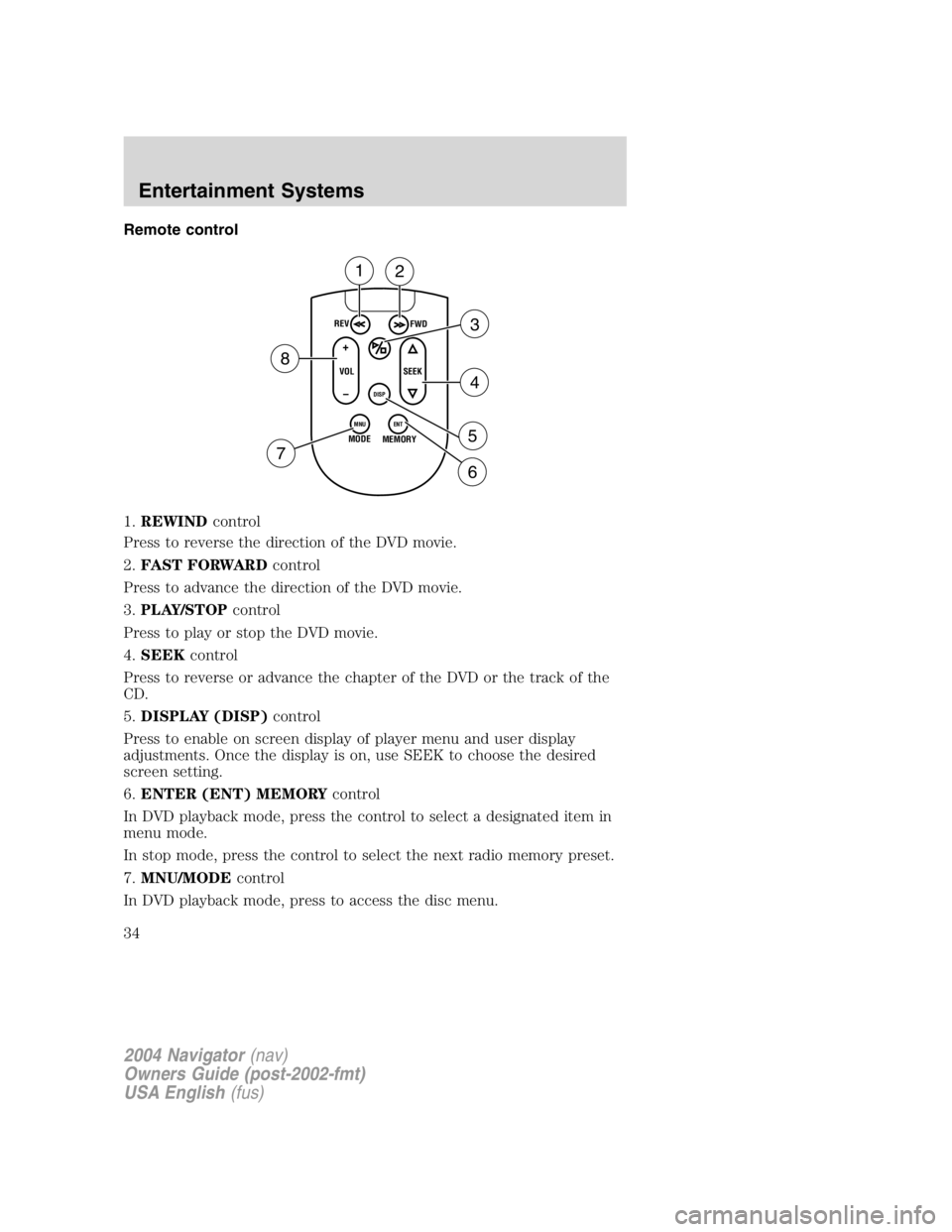
1. REWIND control
Press to reverse the direction of the DVD movie.
2. FAST FORWARD control
Press to advance the direction of the DVD movie.
3. PLAY/STOP control
Press to play or stop the DVD movie.
4. SEEK control
Press to reverse or advance the chapter of the DVD or the track of the
CD.
5. DISPLAY (DISP) control
Press to enable on screen display of player menu and user display
adjustments. Once the display is on, use SEEK to choose the desired
screen setting.
6. ENTER (ENT) MEMORY control
In DVD playback mode, press the control to select a designated item in
menu mode.
In stop mode, press the control to select the next radio memory preset.
7. MNU/MODE control
In DVD playback mode, press to access the disc menu. REV
FWD
SEEKVOL
MODE
MEMORY
+ DISP
MNU
ENT
-
1
2
3
4
5
67 8
2004 Navigator (nav)
Owners Guide (post-2002-fmt)
USA English (fus)Entertainment Systems
34
Page 35 of 368
In stop mode, press to change to a different playing media (e.g. AM, FM,
CD...)
8. VOLUME control
Press to increase (+) or decrease (-) volume level.
Battery replacement
Batteries are supplied with the
remote control unit. Since all
batteries have a limited shelf life,
replace them when the unit fails to
control the DVD player. There is a
LED indicator light on the remote
control that will illuminate when any
control is pressed.
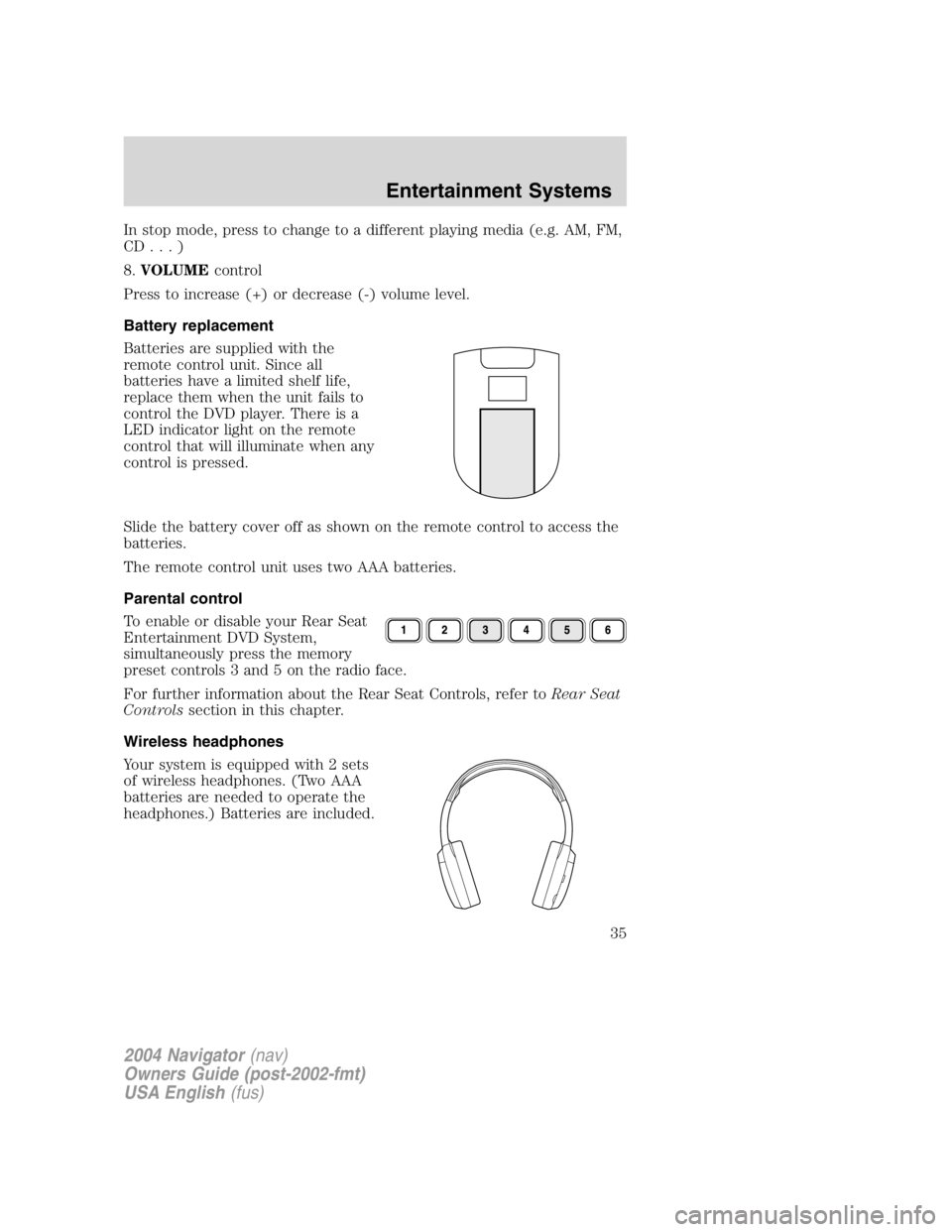
Slide the battery cover off as shown on the remote control to access the
batteries.
The remote control unit uses two AAA batteries.
Parental control
To enable or disable your Rear Seat
Entertainment DVD System,
simultaneously press the memory
preset controls 3 and 5 on the radio face.
For further information about the Rear Seat Controls, refer to Rear Seat
Controls section in this chapter.
Wireless headphones
Your system is equipped with 2 sets
of wireless headphones. (Two AAA
batteries are needed to operate the
headphones.) Batteries are included.
2004 Navigator (nav)
Owners Guide (post-2002-fmt)
USA English (fus) Entertainment Systems
35
Page 38 of 368
Rear Seat Entertainment DVD System protection circuits
High temperature sensor circuit
• Excessively high temperatures may cause damage to the DVD player.
• When the temperature of the DVD player becomes too hot, the high
temperature sensor circuit stops machine operation. DVD/CD HOT will
illuminate in the radio display.
• The DVD player will remain inactive until it cools to a normal
operating temperature. Length of time to cool will vary depending on
conditions.
General operating tips
• When the engine is not running, use the system sparingly. Otherwise,
it will run the battery down.
• When the ignition is turned to OFF, the Rear Seat Entertainment DVD
System is also turned OFF. When the ignition is turned ON, the
system will begin playback from the last selected media source when
the play control is pressed.
• To disable the DVD player, simultaneously press the 3 and 5 memory
presets on the radio face. To enable the DVD player again, press the 3
and 5 presets simultaneously.
• The DVD player is only capable of reading the bottom side of a disc.
When inserting a single sided disc, the label should be up. For a
multi-sided disc, the desired play side should be down when the disc
is inserted into the player.
• The DVD player is only capable of playback of DVDs and CDs. The
player is not compatible with CDR/RW media.
• DVDs are formatted by regions. This DVD system can only play region
1 DVDs (DVDs manufactured for U.S. and Canada).
This unit is designed to play commercially pressed 12 cm (4.75
in) audio compact discs and DVDs only. Due to technical
incompatibility, certain recordable and re-recordable compact
discs may not function correctly when used in Ford DVD/CD
players. Irregular shaped discs, discs with a scratch protection
film attached, and discs with homemade paper (adhesive) labels
should not be inserted into the player. The label may peel and
cause the disc to become jammed. It is recommended that
homemade discs be identified with permanent felt tip marker
rather than adhesive labels. Ball point pens may damage discs.
Please contact your dealer for further information.
2004 Navigator (nav)
Owners Guide (post-2002-fmt)
USA English (fus)Entertainment Systems
38
Page 39 of 368

Inserting a CD/DVD
Inserting a CD/DVD into the DVD player automatically turns the power
ON and playback should begin.
The counter is automatically reset to 0:00:00.
Removing a CD/DVD
1. Press the STOP/EJECT control to stop playback.
2. Press the STOP/EJECT control again to eject the CD/DVD.
If the CD/DVD is not removed within the allotted time, the system will
pull the CD/DVD back into the system for safety purposes. If the
CD/DVD will not eject from the system, press and hold the EJECT
control for approximately 2 seconds. The disc should eject whether the
vehicle ignition is ON or OFF.
Playing a video game/auxiliary device
1. Connect the video line from your video game device to the YELLOW
auxiliary input jack.
2. Connect the left and right audio lines to the WHITE and RED auxiliary
input jacks respectively.
3. Press the MODE control until DVD/CD AUX (no disc in player) or
DVD/CD play (disc in player) illuminates in the radio display. If a disc is
in the system, playback should begin. To enable the aux inputs, press the
STOP control or press the AUX control on the DVD player.
2004 Navigator (nav)
Owners Guide (post-2002-fmt)
USA English (fus) Entertainment Systems
39
Page 52 of 368
To adjust the navigation voice output level, select the NAV MENU button
via the map screen.
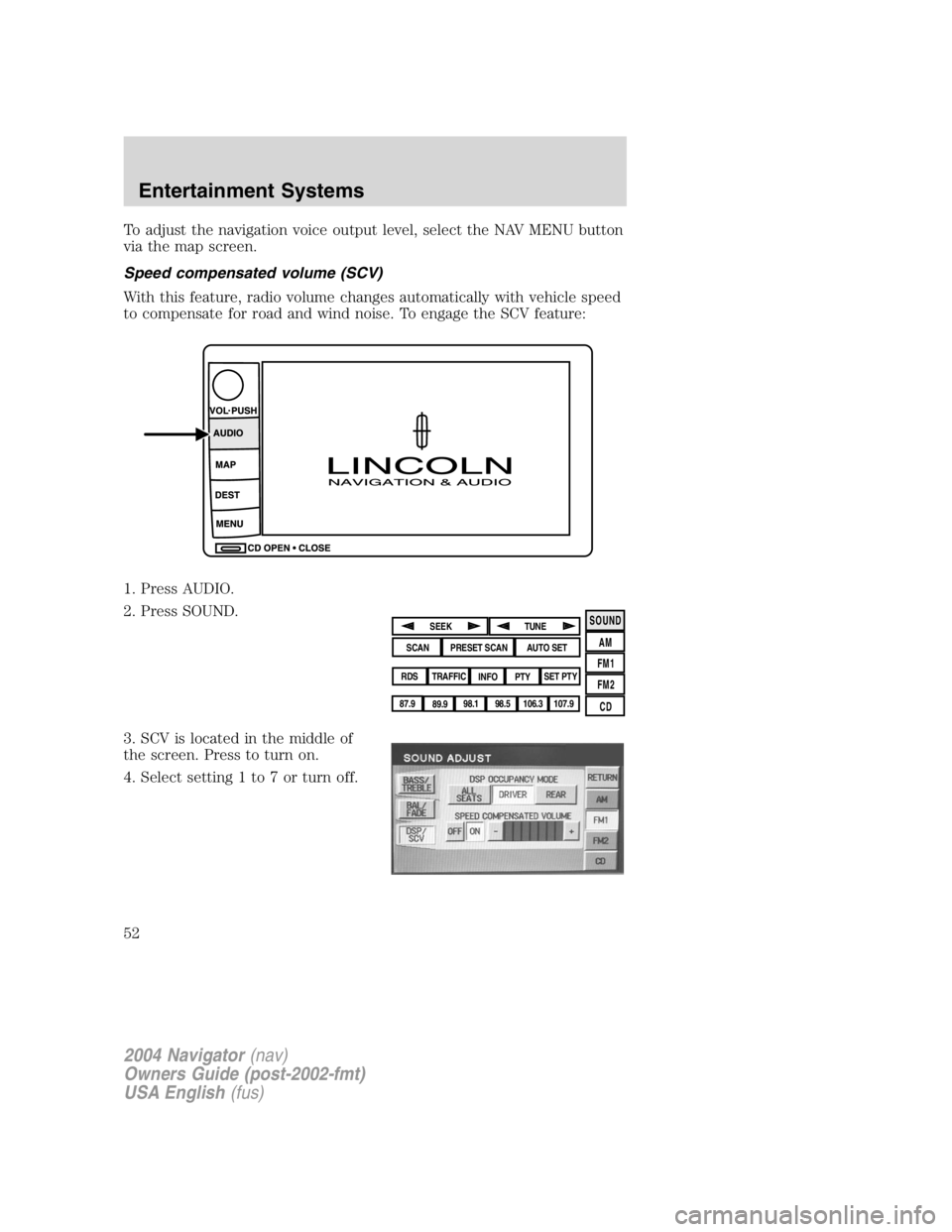
Speed compensated volume (SCV)
With this feature, radio volume changes automatically with vehicle speed
to compensate for road and wind noise. To engage the SCV feature:
1. Press AUDIO.
2. Press SOUND.
3. SCV is located in the middle of
the screen. Press to turn on.
4. Select setting 1 to 7 or turn off. SOUND
AM
FM1
FM2
CDSEEK
TUNE
PRESET SCAN AUTO SET
SCAN
RDS
TRAFFIC
INFO PTY SET PTY
87.9
89.9 98.1
98.5 106.3 107.9
2004 Navigator (nav)
Owners Guide (post-2002-fmt)
USA English (fus)Entertainment Systems
52
Page 53 of 368
The recommended level for the speed compensated volume is from level
1 through level 3. When activated, level 1 is the minimum setting and
level 7 is the maximum setting.
AM/FM select
The AM/FM control works in radio, CD and navigation modes.
AM/FM select in radio mode
Press AM/FM1/FM2 to switch between AM/FM1/FM2 memory preset
stations.
AM/FM select in CD mode
Press to stop CD play and begin radio play.
AM/FM select in navigation mode
The radio will continue to play in the background of the navigation
screens. To access, press AUDIO then AM/FM1/FM2.
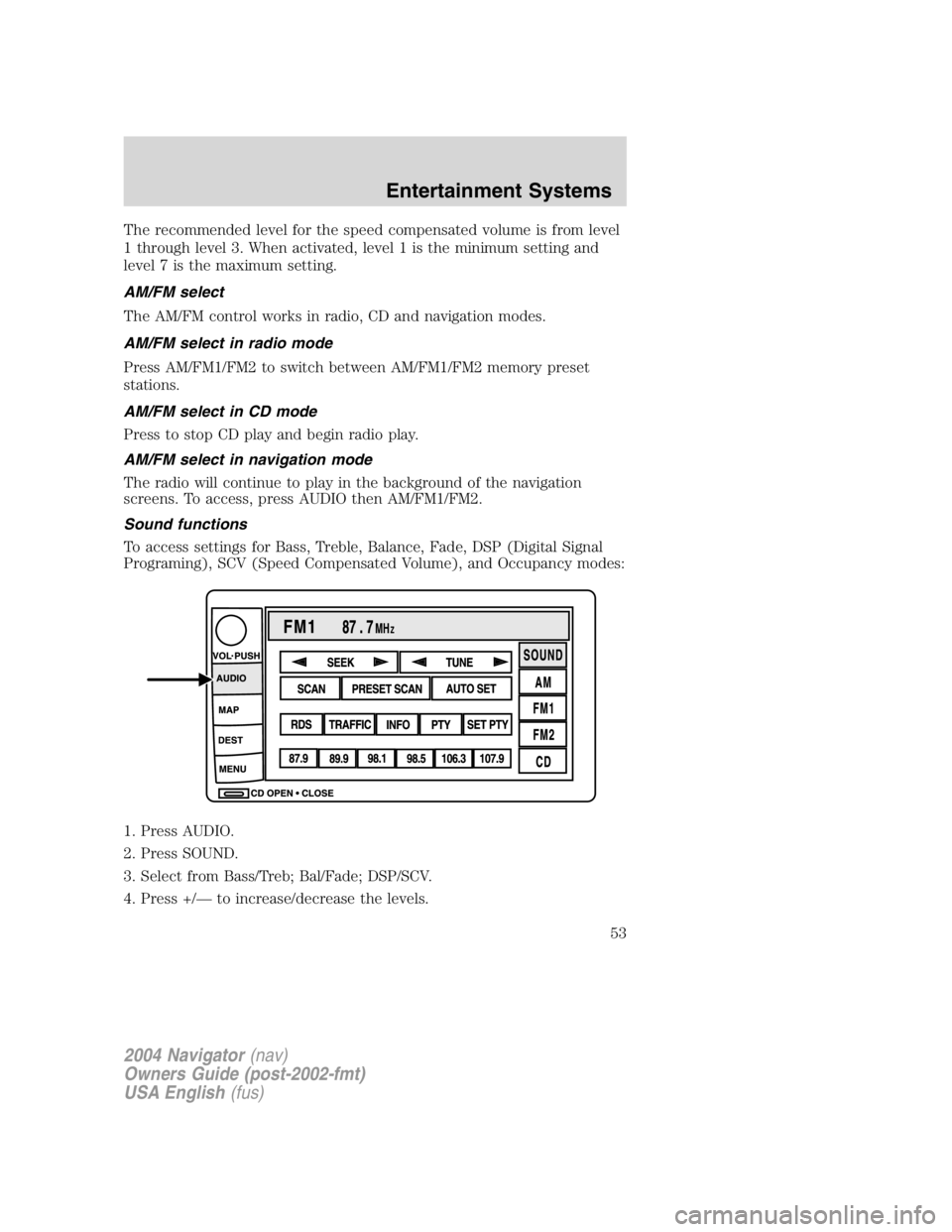
Sound functions
To access settings for Bass, Treble, Balance, Fade, DSP (Digital Signal
Programing), SCV (Speed Compensated Volume), and Occupancy modes:
1. Press AUDIO.
2. Press SOUND.
3. Select from Bass/Treb; Bal/Fade; DSP/SCV.
4. Press +/ — to increase/decrease the levels.
2004 Navigator (nav)
Owners Guide (post-2002-fmt)
USA English (fus) Entertainment Systems
53
Page 55 of 368
Setting memory preset stations
The radio is equipped with six station memory preset controls. These
controls can be used to select up to six preset AM stations and twelve
FM stations (six in FM1 and six in FM2).
1. Select the frequency band with the AM/FM1/FM2 touch controls.
2. Select a station.
3. Press and hold a memory preset until the sound returns. The
frequency will appear in the preset.
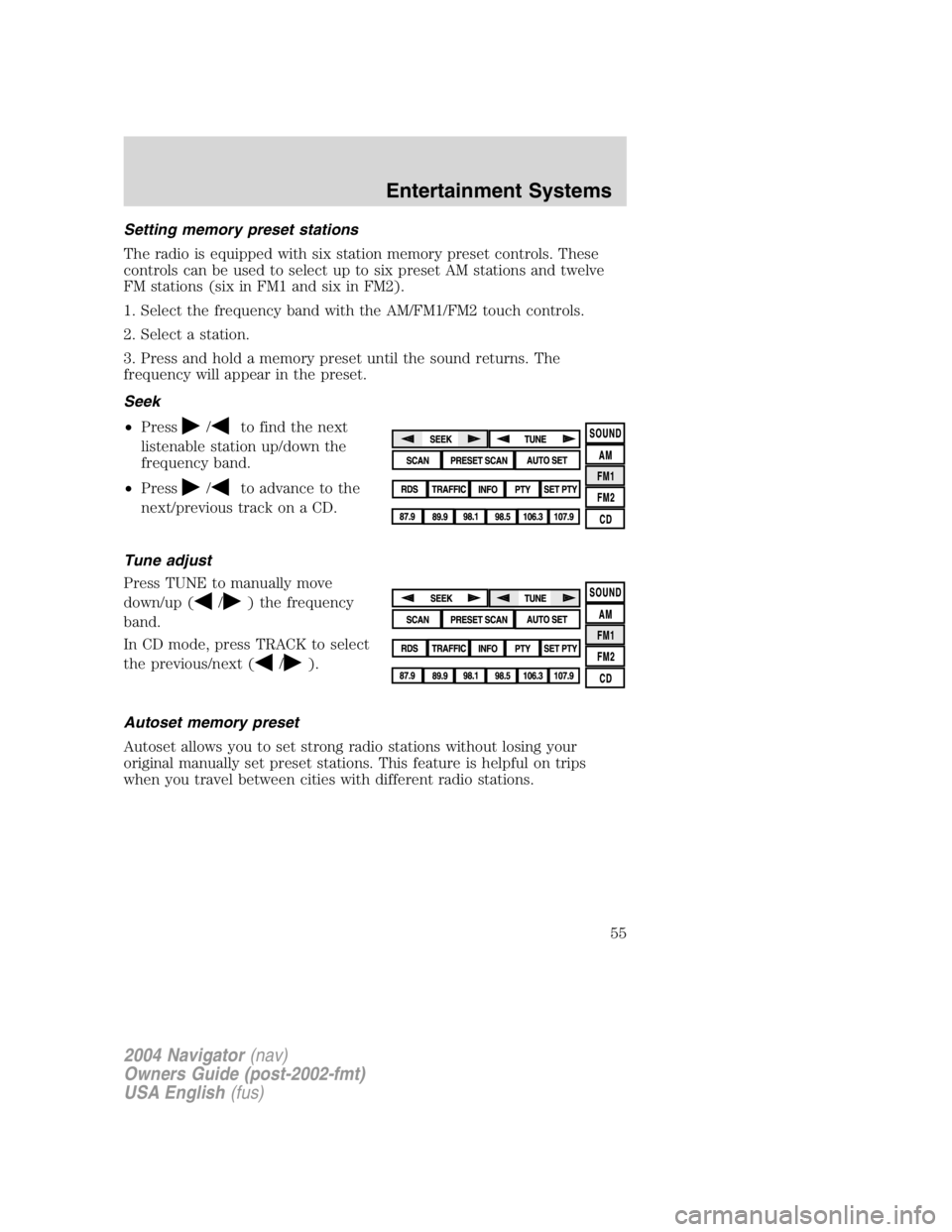
Seek
• Press
/ to find the next
listenable station up/down the
frequency band.
• Press / to advance to the
next/previous track on a CD.
Tune adjust
Press TUNE to manually move
down/up ( / ) the frequency
band.
In CD mode, press TRACK to select
the previous/next ( / ).
Autoset memory preset
Autoset allows you to set strong radio stations without losing your
original manually set preset stations. This feature is helpful on trips
when you travel between cities with different radio stations.
2004 Navigator (nav)
Owners Guide (post-2002-fmt)
USA English (fus) Entertainment Systems
55
Page 56 of 368
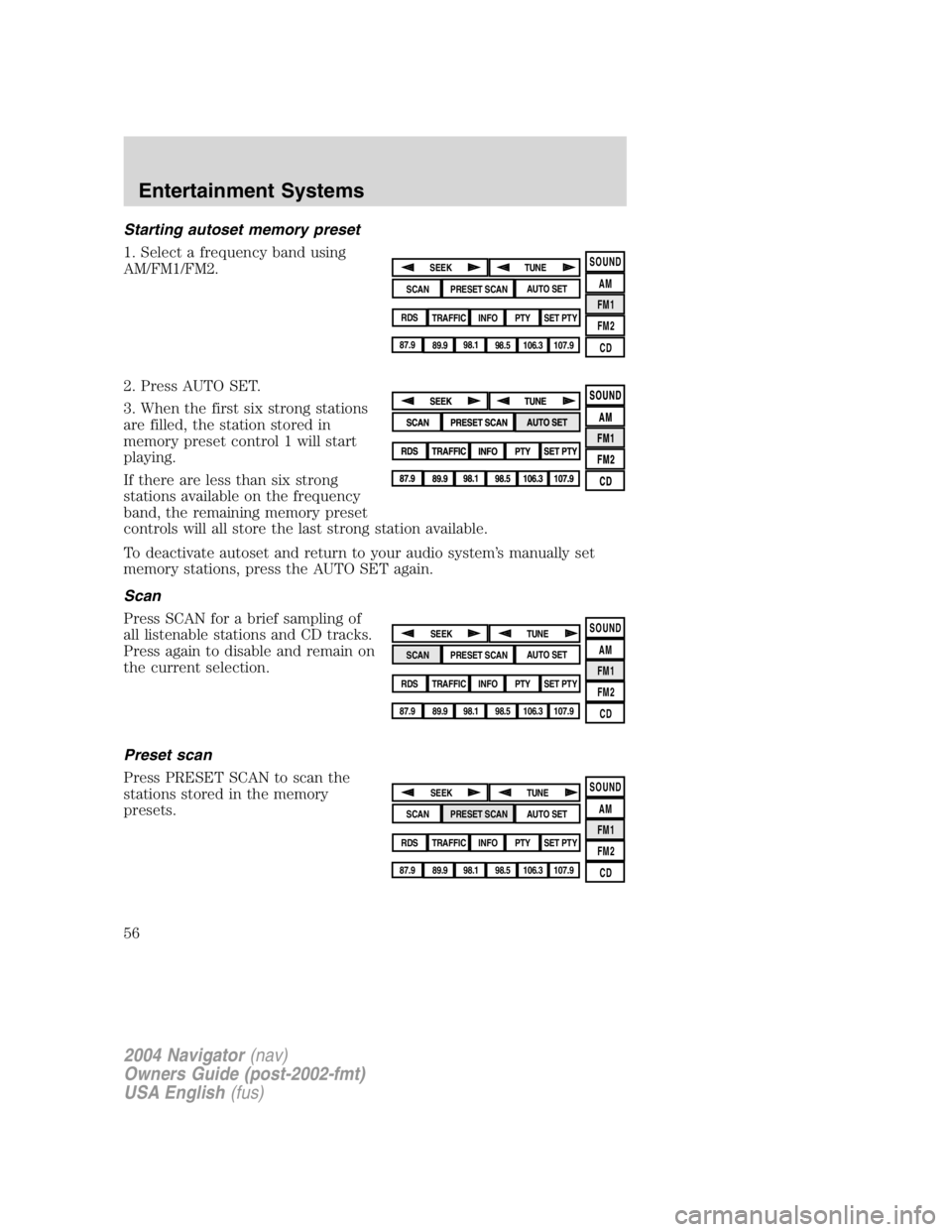
Starting autoset memory preset
1. Select a frequency band using
AM/FM1/FM2.
2. Press AUTO SET.
3. When the first six strong stations
are filled, the station stored in
memory preset control 1 will start
playing.
If there are less than six strong
stations available on the frequency
band, the remaining memory preset
controls will all store the last strong station available.
To deactivate autoset and return to your audio system ’ s manually set
memory stations, press the AUTO SET again.
Scan
Press SCAN for a brief sampling of
all listenable stations and CD tracks.
Press again to disable and remain on
the current selection.
Preset scan
Press PRESET SCAN to scan the
stations stored in the memory
presets. SOUND
AM
FM1
FM2
CDSEEK
TUNE
PRESET SCAN AUTO SET
SCAN
RDS
TRAFFIC
INFO PTY SET PTY
87.9
89.9 98.1
98.5 106.3 107.9
SOUND
AM
FM1
FM2
CDSEEK
TUNE
PRESET SCAN AUTO SET
SCAN
RDS
TRAFFIC
INFO PTY SET PTY
87.9
89.9 98.1
98.5 106.3 107.9
SOUND
AM
FM1
FM2
CDSEEK
TUNE
PRESET SCAN AUTO SET
SCAN
RDS
TRAFFIC
INFO PTY SET PTY
87.9
89.9 98.1
98.5 106.3 107.9
2004 Navigator (nav)
Owners Guide (post-2002-fmt)
USA English (fus)Entertainment Systems
56
Page 57 of 368
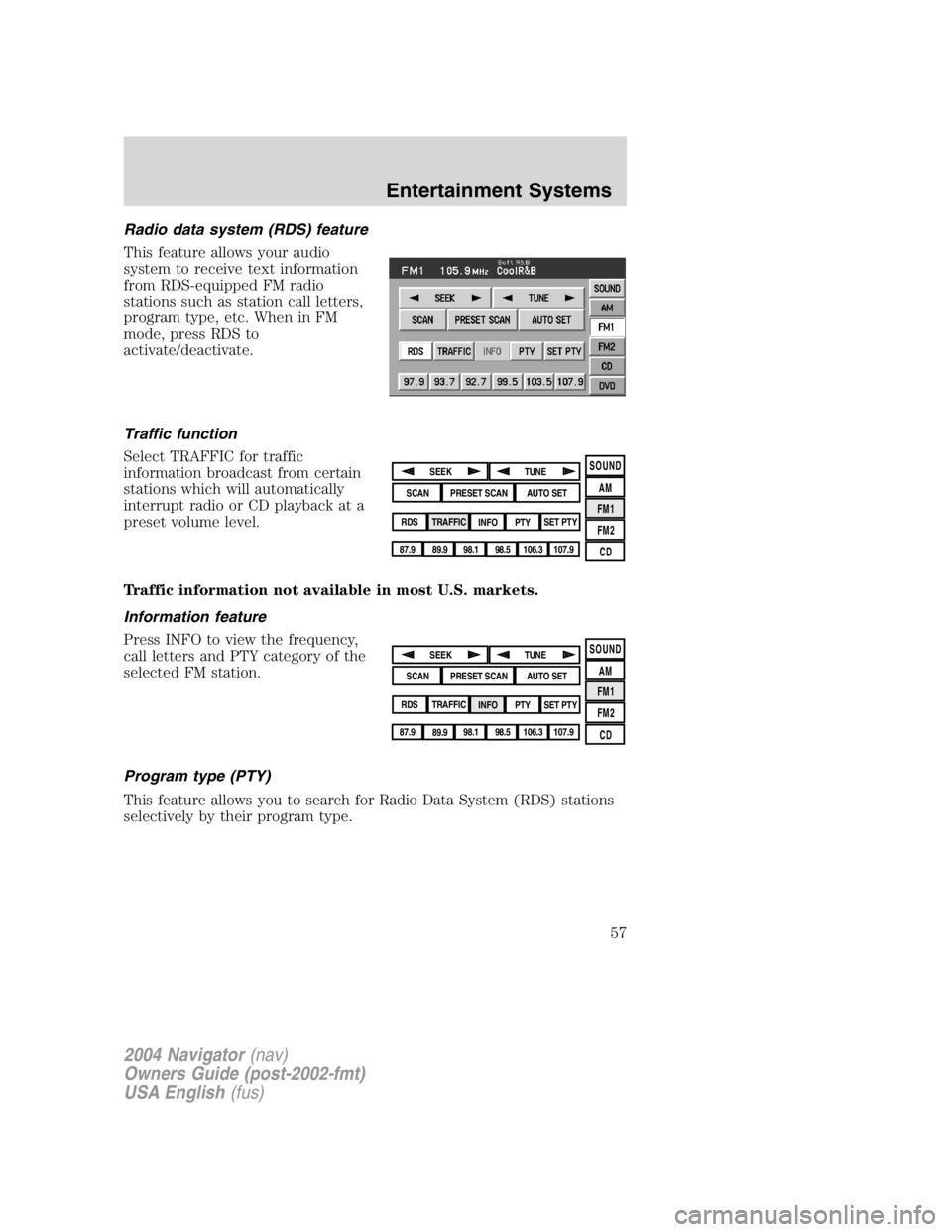
Radio data system (RDS) feature
This feature allows your audio
system to receive text information
from RDS-equipped FM radio
stations such as station call letters,
program type, etc. When in FM
mode, press RDS to
activate/deactivate.
Traffic function
Select TRAFFIC for traffic
information broadcast from certain
stations which will automatically
interrupt radio or CD playback at a
preset volume level.
Traffic information not available in most U.S. markets.
Information feature
Press INFO to view the frequency,
call letters and PTY category of the
selected FM station.
Program type (PTY)
This feature allows you to search for Radio Data System (RDS) stations
selectively by their program type. SOUND
AM
FM1
FM2
CDSEEK
TUNE
PRESET SCAN AUTO SET
SCAN
RDS
TRAFFIC
INFO PTY SET PTY
87.9
89.9 98.1
98.5 106.3 107.9
SOUND
AM
FM1
FM2
CDSEEK
TUNE
PRESET SCAN AUTO SET
SCAN
RDS
TRAFFIC
INFO PTY SET PTY
87.9
89.9 98.1
98.5 106.3 107.9
2004 Navigator (nav)
Owners Guide (post-2002-fmt)
USA English (fus) Entertainment Systems
57