light LINCOLN NAVIGATOR 2009 Owner's Manual
[x] Cancel search | Manufacturer: LINCOLN, Model Year: 2009, Model line: NAVIGATOR, Model: LINCOLN NAVIGATOR 2009Pages: 375, PDF Size: 3.09 MB
Page 53 of 375
Single Play:Single play consists of all occupants in the vehicle listening
to the same playing media over the front and rear speakers. When the
DVD system is on, and the same source is playing through the front and
rear speakers, SINGLE PLAY will appear in the front radio display.
Dual Play (navigation-based radio systems only):Dual play is when
the rear seat passengers choose to listen to a different playing media
than the front seat passengers. With the DVD and rear seat controls
turned ON, the rear seat passengers may choose to listen to the radio,
CD, MP3, SYNC, DVD, or DVD-AUX media sources over headphones
while the front speakers play the chosen selection for the front audio
system, they may listen to another over the headphones. DUAL PLAY
will appear in the radio display.
When both the front seat passengers and the rear seat passengers listen
to the same audio source, SHARED MODE will appear on the radio.
Note:If the front seat passengers are listening to the radio, the rear seat
passengers can also listen to the radio; however, they will be limited to
listening to the same radio channel.
There are two ways to get into dual play mode:
1. After initially turning ignition on, when a disc is inserted, the FES
immediately switches to dual-play mode.
2. Press
the
/headphone/speaker
button on the DVD player or
navigation radio touch screen.
3. Press the 2 and 4 memory presets on the radio at the same time.
Repeating each of these actions will switch back to single play mode, all
speakers playing and headphones off.
The headphone control will now be active and a green light next to the
A or B headphone control buttons will illuminate. The system can output
two different audio sources over the headphones. These are called
Channel A and Channel B. Both Channel A and Channel B can be
listened to on the wired headphones (not included) or on the infrared
(IR) wireless headphones.
Press the Headphone Control button
A to change the audio source for
Channel A.
2009 Navigator(nav)
Owners Guide, 1st Printing
USA(fus)
Entertainment Systems
53
Page 54 of 375
Press MEDIA to change the audio
source for Channel A. This
information will display on the DVD
system screen.
Press the Headphone Control button
B to change the audio source for
Channel B.
Press MEDIA to change the audio source for Channel B. This information
will display on the DVD system screen. Channel B can listen to either
the DVD media or the DVD system auxiliary inputs (DVD-AUX).
Dual Play (non-navigation based radio systems):Dual play is when
the rear seat passengers choose to listen to a different playing media
than the front seat passengers. With the DVD and rear seat controls
turned ON, the rear seat passengers may choose to listen to the radio,
CD, MP3, DVD, or DVD-AUX media sources over headphones while the
front speakers play the chosen selection for the front audio system, they
may listen to another over the headphones. DUAL PLAY will appear in
the radio display.
When both the front seat passengers and the rear seat passengers listen
to the same audio source, SHARED MODE will appear on the radio.
Note:If the front seat passengers are listening to the radio, the rear seat
passengers can also listen to the radio; however, they will be limited to
listening to the same radio channel.
Press the
/headphone/speaker
button on the DVD player or
navigation radio touch screen.
The headphone control will now be active and a green light next to the
A or B headphone control buttons will illuminate. The system can output
two different audio sources over the headphones. These are called
Channel A and Channel B. Both Channel A and Channel B can be
listened to on the wired headphones (not included) or on the infrared
(IR) wireless headphones.
2009 Navigator(nav)
Owners Guide, 1st Printing
USA(fus)
Entertainment Systems
54
Page 58 of 375
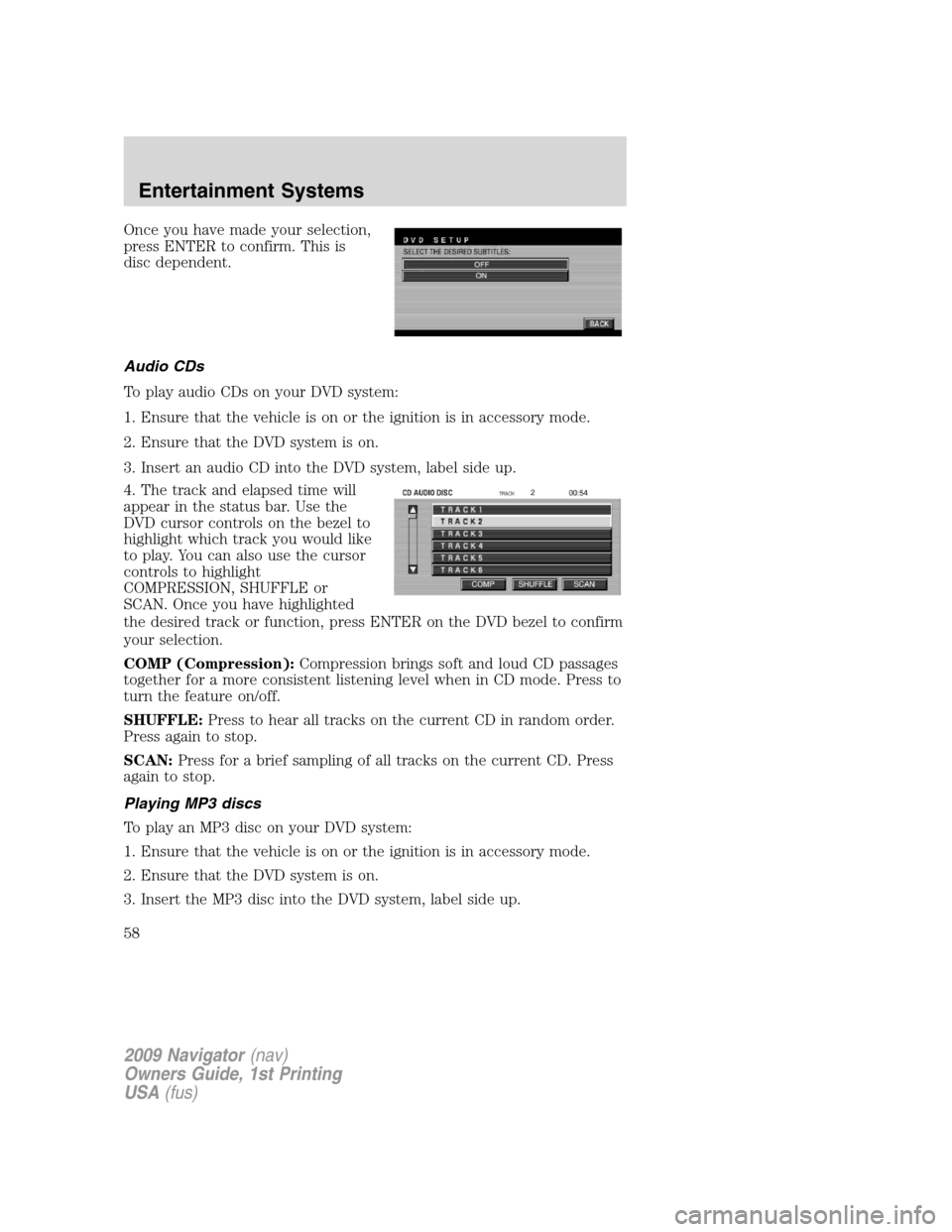
Once you have made your selection,
press ENTER to confirm. This is
disc dependent.
Audio CDs
To play audio CDs on your DVD system:
1. Ensure that the vehicle is on or the ignition is in accessory mode.
2. Ensure that the DVD system is on.
3. Insert an audio CD into the DVD system, label side up.
4. The track and elapsed time will
appear in the status bar. Use the
DVD cursor controls on the bezel to
highlight which track you would like
to play. You can also use the cursor
controls to highlight
COMPRESSION, SHUFFLE or
SCAN. Once you have highlighted
the desired track or function, press ENTER on the DVD bezel to confirm
your selection.
COMP (Compression):Compression brings soft and loud CD passages
together for a more consistent listening level when in CD mode. Press to
turn the feature on/off.
SHUFFLE:Press to hear all tracks on the current CD in random order.
Press again to stop.
SCAN:Press for a brief sampling of all tracks on the current CD. Press
again to stop.
Playing MP3 discs
To play an MP3 disc on your DVD system:
1. Ensure that the vehicle is on or the ignition is in accessory mode.
2. Ensure that the DVD system is on.
3. Insert the MP3 disc into the DVD system, label side up.
2009 Navigator(nav)
Owners Guide, 1st Printing
USA(fus)
Entertainment Systems
58
Page 60 of 375
CD, MP3 and CD player care
•Handle discs by their edges only. Never touch the playing surface.
•Do not expose discs to direct sunlight or heat sources for extended
periods of time.
•Do not insert more than one disc into the slot of the CD player (if
equipped).
•Always store discs out of direct sunlight. Excessive heat may damage
or warp discs.
•Use care when handling and playing CD-R and CD-RW discs, which
are more susceptible to damage from heat, light and stress than are
regular CDs.
•Always insert and remove a disc by holding the disc flat, with the
playing surface facing down, in order to prevent damage to the disc or
the player.
•Never insert any object other than a compact disc (CD) or digital
versatile disc (DVD) into the player, as doing so may damage the
player and may cause injury to you.
•Do not disassemble the player. The laser used in disc playback is
extremely harmful to the eyes.
The FES DVD system is designed to play commercially pressed
12 cm (4.75 in) audio compact discs and digital versatile discs
(DVD), DVD-R and R/W discs only. Due to technical
incompatibility, certain recordable and re-recordable compact
discs may not function correctly when used in Ford CD and DVD
players. Irregular shaped CDs or DVDs, CDs or DVDs with a
scratch protection film attached, and CDs with homemade paper
(adhesive) labels should not be inserted into the FES DVD
system. The label may peel and cause the CD or DVD to become
jammed. It is recommended that homemade CDs or DVDs be
identified with permanent felt tip marker rather than adhesive
labels. Ball point pens may damage CDs or DVDs. Please contact
your authorized dealer for further information.
Playing a DVD
1. Ensure that the vehicle is on or the ignition is in accessory mode.
2. Ensure that the navigation system is on.
3. Insert a DVD label-side up into the system.
2009 Navigator(nav)
Owners Guide, 1st Printing
USA(fus)
Entertainment Systems
60
Page 62 of 375
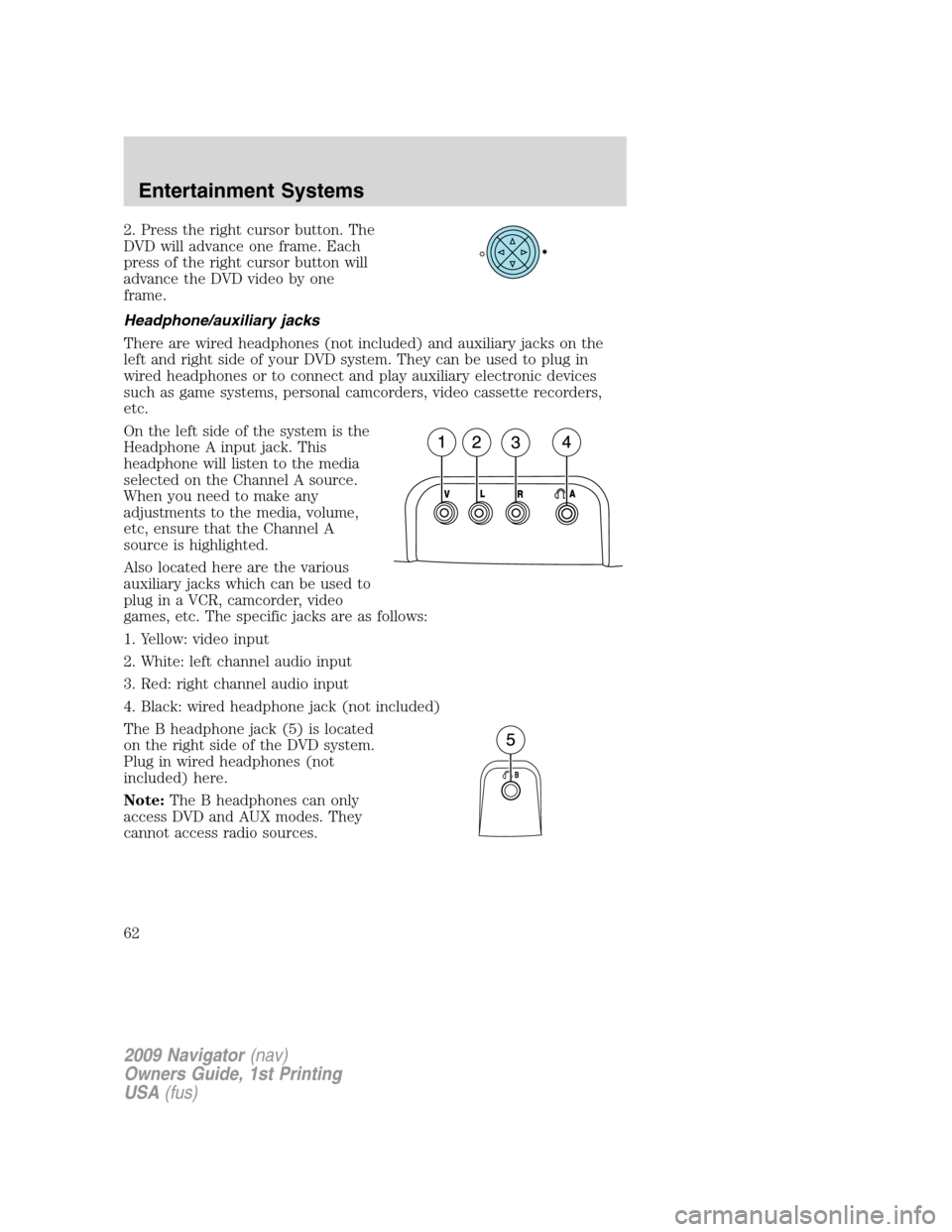
2. Press the right cursor button. The
DVD will advance one frame. Each
press of the right cursor button will
advance the DVD video by one
frame.
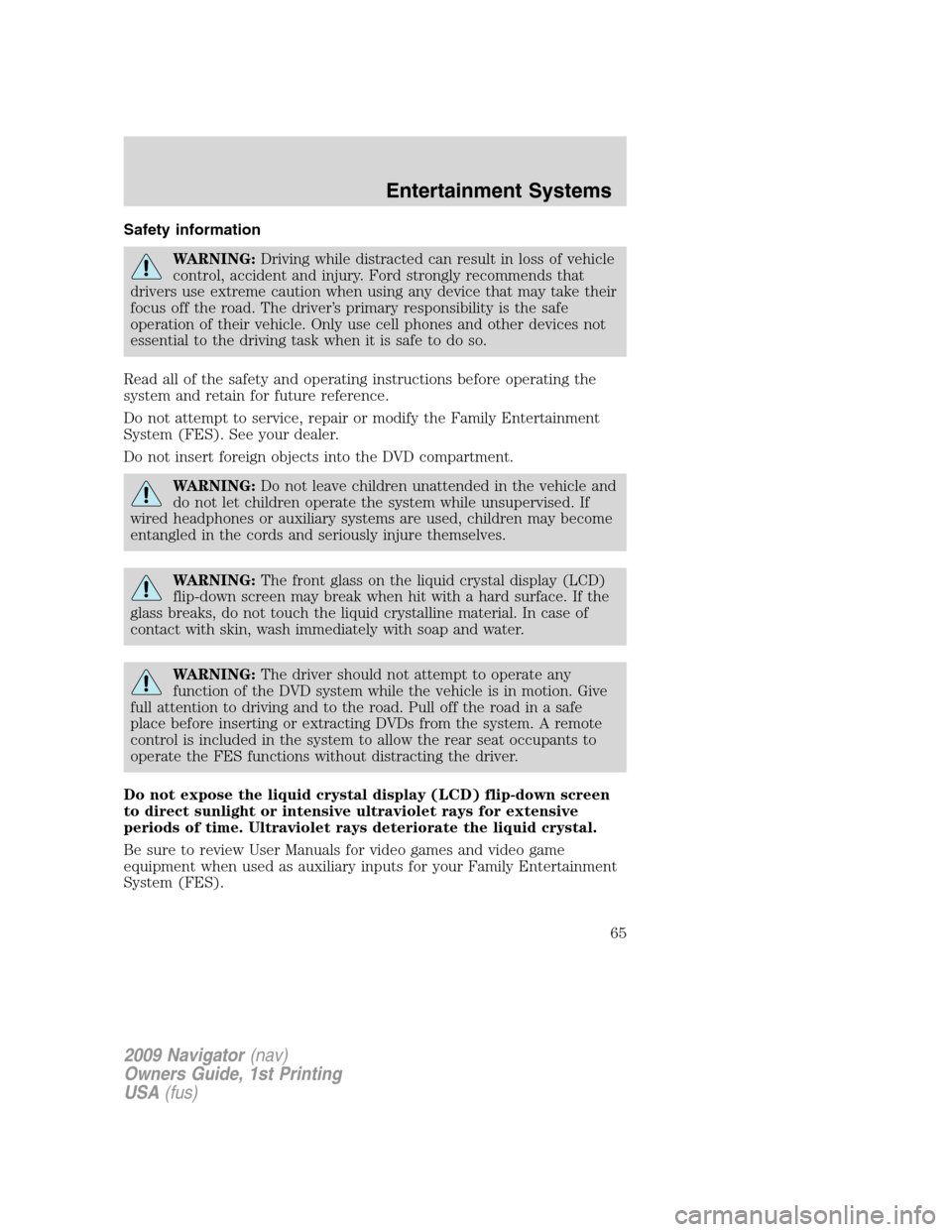
Headphone/auxiliary jacks
There are wired headphones (not included) and auxiliary jacks on the
left and right side of your DVD system. They can be used to plug in
wired headphones or to connect and play auxiliary electronic devices
such as game systems, personal camcorders, video cassette recorders,
etc.
On the left side of the system is the
Headphone A input jack. This
headphone will listen to the media
selected on the Channel A source.
When you need to make any
adjustments to the media, volume,
etc, ensure that the Channel A
source is highlighted.
Also located here are the various
auxiliary jacks which can be used to
plug in a VCR, camcorder, video
games, etc. The specific jacks are as follows:
1. Yellow: video input
2. White: left channel audio input
3. Red: right channel audio input
4. Black: wired headphone jack (not included)
The B headphone jack (5) is located
on the right side of the DVD system.
Plug in wired headphones (not
included) here.
Note:The B headphones can only
access DVD and AUX modes. They
cannot access radio sources.
2009 Navigator(nav)
Owners Guide, 1st Printing
USA(fus)
Entertainment Systems
62
Page 65 of 375
Safety information
WARNING:Driving while distracted can result in loss of vehicle
control, accident and injury. Ford strongly recommends that
drivers use extreme caution when using any device that may take their
focus off the road. The driver’s primary responsibility is the safe
operation of their vehicle. Only use cell phones and other devices not
essential to the driving task when it is safe to do so.
Read all of the safety and operating instructions before operating the
system and retain for future reference.
Do not attempt to service, repair or modify the Family Entertainment
System (FES). See your dealer.
Do not insert foreign objects into the DVD compartment.
WARNING:Do not leave children unattended in the vehicle and
do not let children operate the system while unsupervised. If
wired headphones or auxiliary systems are used, children may become
entangled in the cords and seriously injure themselves.
WARNING:The front glass on the liquid crystal display (LCD)
flip-down screen may break when hit with a hard surface. If the
glass breaks, do not touch the liquid crystalline material. In case of
contact with skin, wash immediately with soap and water.
WARNING:The driver should not attempt to operate any
function of the DVD system while the vehicle is in motion. Give
full attention to driving and to the road. Pull off the road in a safe
place before inserting or extracting DVDs from the system. A remote
control is included in the system to allow the rear seat occupants to
operate the FES functions without distracting the driver.
Do not expose the liquid crystal display (LCD) flip-down screen
to direct sunlight or intensive ultraviolet rays for extensive
periods of time. Ultraviolet rays deteriorate the liquid crystal.
Be sure to review User Manuals for video games and video game
equipment when used as auxiliary inputs for your Family Entertainment
System (FES).
2009 Navigator(nav)
Owners Guide, 1st Printing
USA(fus)
Entertainment Systems
65
Page 66 of 375
Do not operate video games or video equipment if the power cords
and/or cables are broken, split or damaged. Carefully place cords and/or
cables where they will not be stepped on or interfere with the operation
of seats and/or compartments.
Disconnect video games and video equipment power cords and/or cables
when not in use.
Avoid touching auxiliary input jacks with your fingers. Do not blow on
them or allow them to get wet or dirty.
Do not clean any part of the DVD player with benzene, lacquer thinner,
acetone, or any other solvent.
Federal Communication Commission (FCC) Compliance
Changes or modifications not approved by Ford Lincoln-Mercury could
void user’s authority to operate the equipment. This equipment has been
tested and found to comply with the limits for a Class B digital device,
pursuant to Part 15 of the FCC Rules. These limits are designed to
provide reasonable protection against harmful interference in a
residential installation. This equipment generates, uses and can radiate
radio frequency energy and, if not installed and used in accordance with
the instructions, may cause harmful interference and radio
communications.
However, there is no guarantee that interference will not occur in a
particular installation. If this equipment does cause harmful interference
to radio or television reception, which can be determined by turning the
equipment off and on, the user is encouraged to consult the dealer or an
experienced radio/TV technician for help.
Care and service of the DVD player
Environmental extremes
DVD players which are subjected to harsh environmental conditions may
be damaged or perform at less than maximum capability. To avoid these
outcomes, whenever possible avoid exposing your DVD player to:
•extremely hot or cold temperatures.
•direct sunlight.
•high humidity.
•a dusty environment.
•locations where strong magnetic fields are generated.
Temperature extremes
When the vehicle is parked under direct sunlight or in an extremely cold
place for a long period of time, wait until the cabin temperature of the
vehicle is at normal temperature before operating the system.
2009 Navigator(nav)
Owners Guide, 1st Printing
USA(fus)
Entertainment Systems
66
Page 73 of 375
13.OFF:Outside air is shut out and the climate system is turned off.
14.Driver temperature control:Press to increase or decrease the
temperature on the driver side of the cabin. Sets the passenger side
temperature also when DUAL is disengaged.Note:The recommended
vehicle cabin setting is between 72°F (22°C) and 75°F (24°C).
15.AUTO:Press to engage full automatic operation, and select the
desired temperature using the temperature control. The system will
automatically determine fan speed, airflow location, A/C on or off, and
outside or recirculated air, to heat or cool the vehicle to reach the
desired temperature.
16.A/C:Press to activate/deactivate air conditioning. Use with
recirculated air to improve cooling performance and efficiency. Engages
automatically in AUTO,
(defrost), and(floor/defrost).
17.EXT:Press to display the outside temperature. Press again to display
cabin temperature settings.Note:Exterior readings are more accurate
when the vehicle is moving.
18.
Recirculated air:Press to activate/deactivate air recirculation
in the vehicle cabin. Recirculated air may reduce the amount of time to
cool down the interior of the vehicle and may also help reduce undesired
odors from reaching the interior of the vehicle. Recirculated air can be
engaged manually in any airflow selection except
. Recirculated air
may turn off automatically in all airflow selections.
Operating tips
•To reduce fog build up on the windshield during humid weather, place
the air flow selector in the
position.
•To reduce humidity build up inside the vehicle: do not drive with the
system off or with recirculated air
engaged.
•Under normal weather conditions, do not leave the air flow selector in
A/C and recirculated air
or with the system off when the
vehicle is parked. This allows the vehicle to “breathe” using the
outside air inlet vents.
•To improve the A/C cool down, drive with the windows slightly open
for 2-3 minutes after start up or until the vehicle has been “aired out”.
2009 Navigator(nav)
Owners Guide, 1st Printing
USA(fus)
Climate Controls
73
Page 75 of 375
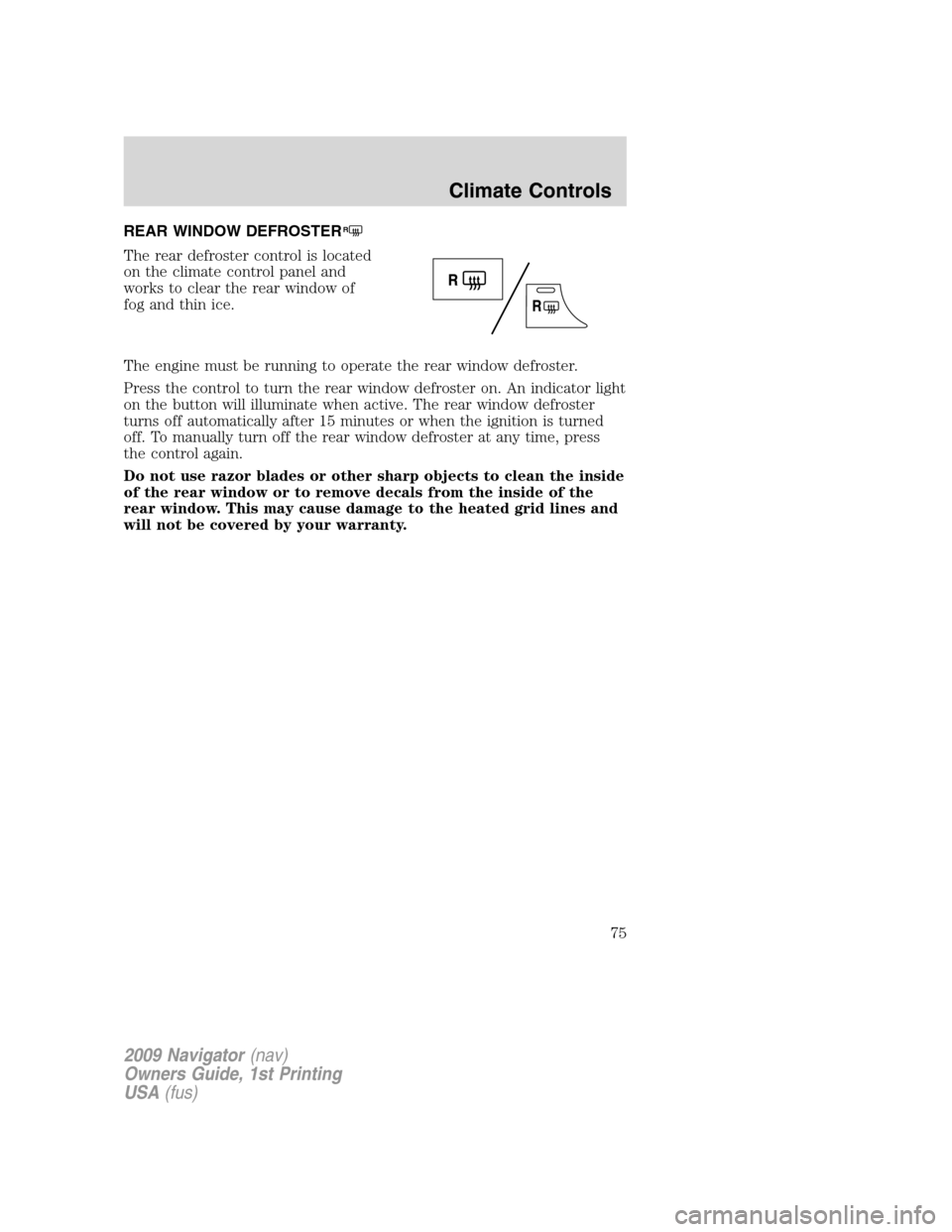
REAR WINDOW DEFROSTERR
The rear defroster control is located
on the climate control panel and
works to clear the rear window of
fog and thin ice.
The engine must be running to operate the rear window defroster.
Press the control to turn the rear window defroster on. An indicator light
on the button will illuminate when active. The rear window defroster
turns off automatically after 15 minutes or when the ignition is turned
off. To manually turn off the rear window defroster at any time, press
the control again.
Do not use razor blades or other sharp objects to clean the inside
of the rear window or to remove decals from the inside of the
rear window. This may cause damage to the heated grid lines and
will not be covered by your warranty.
2009 Navigator(nav)
Owners Guide, 1st Printing
USA(fus)
Climate Controls
75
Page 76 of 375
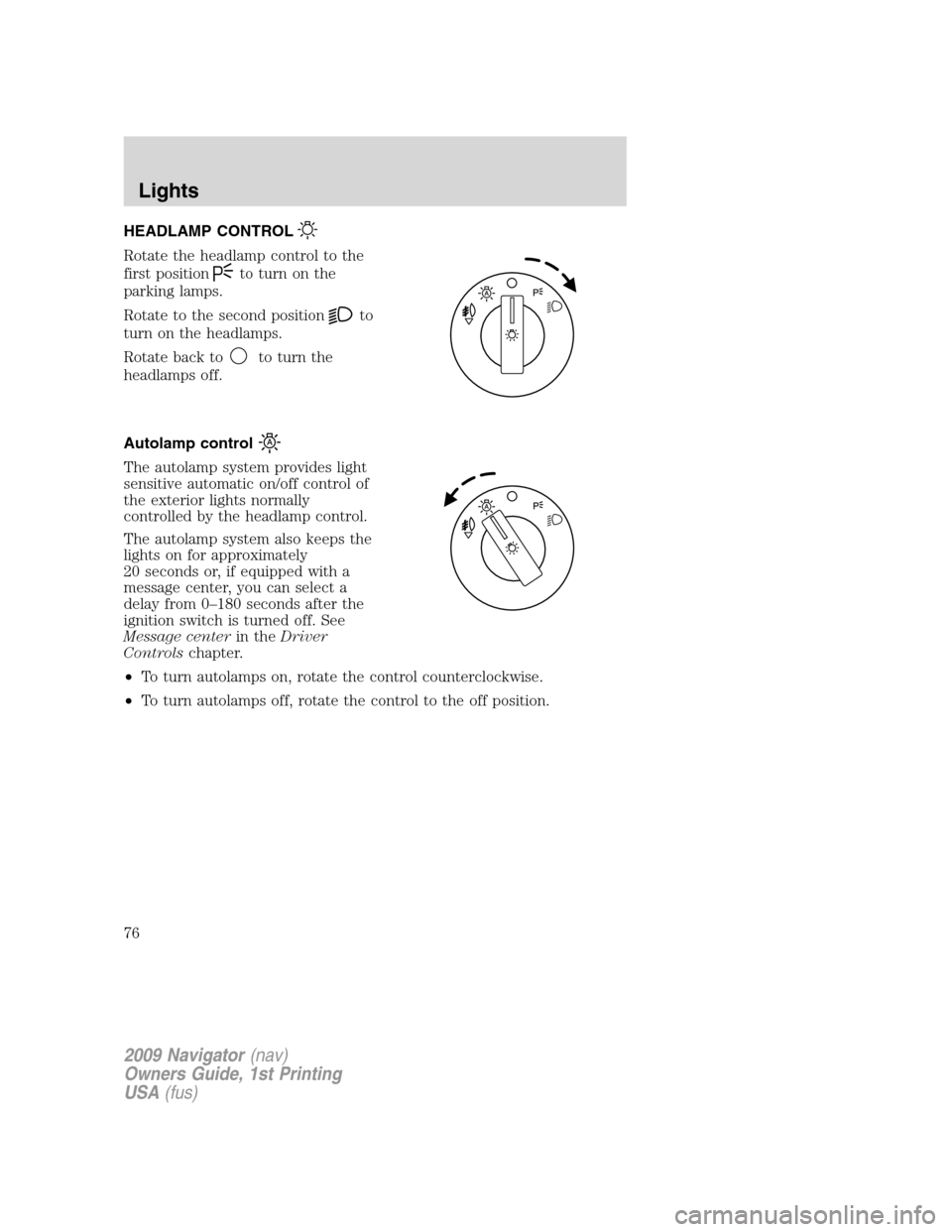
HEADLAMP CONTROL
Rotate the headlamp control to the
first position
to turn on the
parking lamps.
Rotate to the second position
to
turn on the headlamps.
Rotate back to
to turn the
headlamps off.
Autolamp control
The autolamp system provides light
sensitive automatic on/off control of
the exterior lights normally
controlled by the headlamp control.
The autolamp system also keeps the
lights on for approximately
20 seconds or, if equipped with a
message center, you can select a
delay from 0–180 seconds after the
ignition switch is turned off. See
Message centerin theDriver
Controlschapter.
•To turn autolamps on, rotate the control counterclockwise.
•To turn autolamps off, rotate the control to the off position.
2009 Navigator(nav)
Owners Guide, 1st Printing
USA(fus)
Lights
76