remote control LINCOLN NAVIGATOR 2013 Owner's Manual
[x] Cancel search | Manufacturer: LINCOLN, Model Year: 2013, Model line: NAVIGATOR, Model: LINCOLN NAVIGATOR 2013Pages: 481, PDF Size: 5.29 MB
Page 128 of 481
•OSD (On-screen display) control
•12V DC power input
•FM transmitter (may be optional)
Note:Do not touch the inner pins of the jacks on the front panel.
Electrostatic discharge may cause permanent damage to the device.
Your system plays the following types of discs:
•DVD-Video:DVD contains video.
•DVD +/- R:DVD contains video.
•CD-DA:CD contains musical or sound content only.
•CD-Video:CD contains movie only.
•CD-R/RW:A disc that contains audio files (for example, a CD-R with
MP3 files), MPEG, or JPEG files.
Your system does not play the following types of discs:
•Optical disc CD-1
•CD-ROM
•DVD-ROM mini disc-CDG (audio only, not graphics)
Important Notice
It is unlawful in most jurisdictions for a person to drive a motor vehicle
which is equipped with a television viewer or screen that is located in
the motor vehicle at any point forward of the back of the driver’s seat, or
that is visible, directly or indirectly, to the driver while operating the
vehicle. In the interest of safety, the unit should never be installed where
it is visible, directly or indirectly, by the operator of the motor vehicle. If
your vehicle is equipped with a wireless rear seat audio system or any
other wireless IR device, power system off in order to operate the DVD
headrest system. If system is powered on, the two systems may interfere
with each other canceling out or creating undesirable audio through the
wireless headphones.
Safety Precaution
For safety reasons, when changing video discs it is recommended that
the vehicle not be in motion, and that you do not allow children to
unfasten safety belts to change discs or make any adjustments to the
system. System adjustments can be accomplished using the remote
control unit, while safety belts remain fastened. Enjoy your
entertainment system but remember that safety of all passengers remains
the number one priority.
128Audio System
2013 Navigator(nav)
Owners Guide gf, 1st Printing
USA(fus)
Page 129 of 481
Wireless Headphones
This unit includes a built-in dual channel infrared transmitter for use
with a wireless headphone. The volume can then be adjusted with the
controls on each headset. The wireless headphone must be used within a
line of sight from the transmitter as infrared transmission, like visible
light, travels only in a straight line.
Wired Headphones
There is a one-eighth inch headphone jack on the device that can be
used with any standard stereo headphone. Remove and save the
protective plastic cover to access the jacks. Remember to replace the
cover when the jacks are not in use.
A/V Input
An external AV device such as a DVD player, video game device, or other
audio/video device may be connected to the unit by using the “AV
INPUT” port consisting of three RCA jacks (Yellow: Video, Red: Audio-R,
White: Audio-L). To display and listen to the video/audio signal of this
external source, connect the video source RCA cables to the AV inputs
on the monitor. The video source overrides any other video source for
that monitor.
Wireless FM Transmitter
Your device may be equipped with an external FM transmitter, which
allows you to listen to the audio signal by tuning your vehicle’s FM radio
to the selected frequency and turning SOUND AROUND on with the
remote. Whenever the SOUND AROUND is on, broadcast radio reception
may be poor. Performance varies based on geographic location. Turning
SOUND AROUND off allows normal radio reception.
How to use the FM Transmitter
Power up your system and place a disc in monitor “A”. While pointing
your remote at the monitor press the “DVD A” button directly under the
red “POWER” button on your remote control. Next press the “Sound
Around ON/ OFF” button to turn FM transmission on or off as desired.
Three buttons to right is the “Sound Around SELECT” button which
cycles through six possible stations (88.3, 88.7, 89.1, 89.5, 89.9, and
90.3MHz) for broadcasting audio to your radio. Once you’ve selected a
frequency, you must then tune your radio to the corresponding
frequency. Try each station frequency until you achieve a clear audio
signal.
Audio System129
2013 Navigator(nav)
Owners Guide gf, 1st Printing
USA(fus)
Page 131 of 481
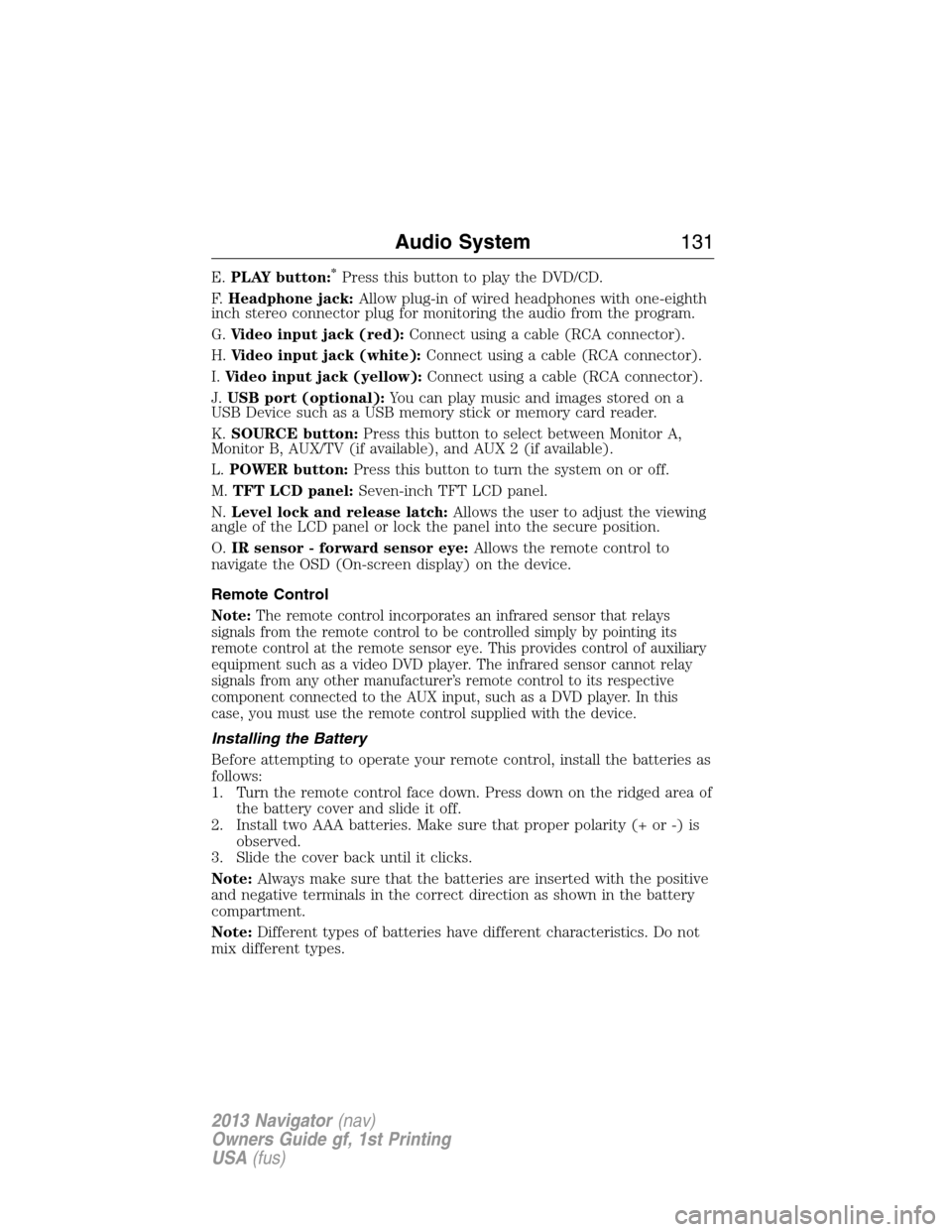
E.PLAY button:*Press this button to play the DVD/CD.
F.Headphone jack:Allow plug-in of wired headphones with one-eighth
inch stereo connector plug for monitoring the audio from the program.
G.Video input jack (red):Connect using a cable (RCA connector).
H.Video input jack (white):Connect using a cable (RCA connector).
I.Video input jack (yellow):Connect using a cable (RCA connector).
J.USB port (optional):You can play music and images stored on a
USB Device such as a USB memory stick or memory card reader.
K.SOURCE button:Press this button to select between Monitor A,
Monitor B, AUX/TV (if available), and AUX 2 (if available).
L.POWER button:Press this button to turn the system on or off.
M.TFT LCD panel:Seven-inch TFT LCD panel.
N.Level lock and release latch:Allows the user to adjust the viewing
angle of the LCD panel or lock the panel into the secure position.
O.IR sensor - forward sensor eye:Allows the remote control to
navigate the OSD (On-screen display) on the device.
Remote Control
Note:The remote control incorporates an infrared sensor that relays
signals from the remote control to be controlled simply by pointing its
remote control at the remote sensor eye. This provides control of auxiliary
equipment such as a video DVD player. The infrared sensor cannot relay
signals from any other manufacturer’s remote control to its respective
component connected to the AUX input, such as a DVD player. In this
case, you must use the remote control supplied with the device.
Installing the Battery
Before attempting to operate your remote control, install the batteries as
follows:
1. Turn the remote control face down. Press down on the ridged area of
the battery cover and slide it off.
2. Install two AAA batteries. Make sure that proper polarity (+ or -) is
observed.
3. Slide the cover back until it clicks.
Note:Always make sure that the batteries are inserted with the positive
and negative terminals in the correct direction as shown in the battery
compartment.
Note:Different types of batteries have different characteristics. Do not
mix different types.
Audio System131
2013 Navigator(nav)
Owners Guide gf, 1st Printing
USA(fus)
Page 132 of 481
Note:Do not mix old and new batteries. Mixing old and new batteries can
shorten battery life and/or cause chemical leaks from the old batteries.
Note:When batteries fail to function, replace them immediately.
Note:Keep the batteries out of the reach of children. Should the
batteries be swallowed, immediately consult a doctor. Also, when
disposing of used batteries, please comply with governmental regulations
or environmental public institution rules that apply in your country/area.
Note:Remove the batteries if the remote control is not used for a month
or longer.
Button Function Descriptions
Note:The remote control only operates this device. It is not a universal
remote control and does not control other equipment.
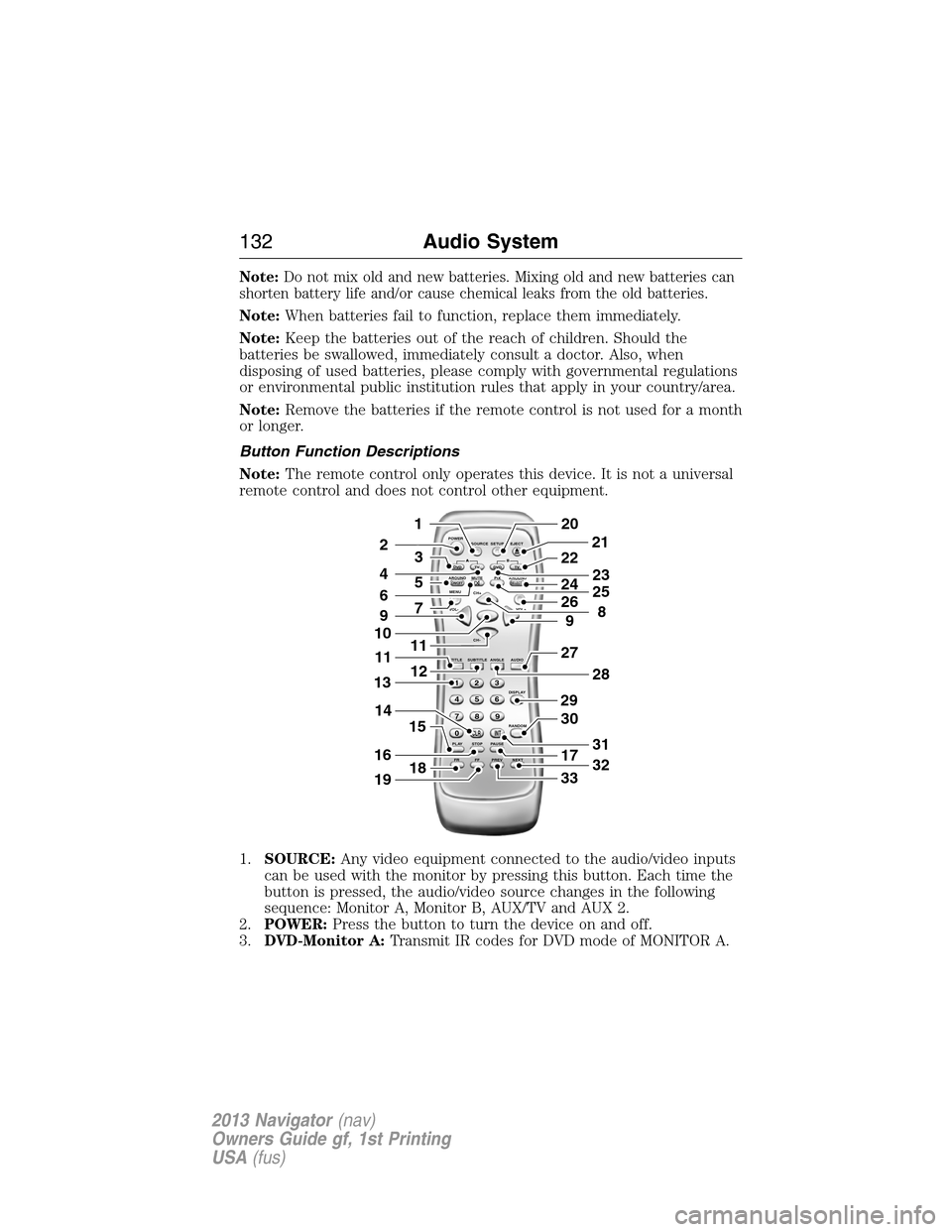
1.SOURCE:Any video equipment connected to the audio/video inputs
can be used with the monitor by pressing this button. Each time the
button is pressed, the audio/video source changes in the following
sequence: Monitor A, Monitor B, AUX/TV and AUX 2.
2.POWER:Press the button to turn the device on and off.
3.DVD-Monitor A:Transmit IR codes for DVD mode of MONITOR A.
POWER
SOURCE
A
SOUND
AROUNDSOUND
AROUND MUTE
MENU REPEAT
CH+
CH-
TITLE SUBTITLE ANGLE AUDIO
DISPLAY
RANDOM
PLAY
123
6 5 4
789
0
CLR INT
FR FF PREV NEXTSTOP PAUSE VOL- VOL+PIX A
D
VD
ON/OFFSELECT
TV DVD TVSETUP EJECTB
5
9
29
27
30
17
33
28
32
31
201
2
7
11
12
4
3
15
21
22
24
2625
8
23
6
9
10
16
13
18
11
14
19
132Audio System
2013 Navigator(nav)
Owners Guide gf, 1st Printing
USA(fus)
Page 135 of 481
Turning the Device On and Off
1.
Pivot the screen downward until a comfortable viewing angle is reached.
2. Press the POWER button on the lower-left corner of the front panel or
the remote control to turn the device on or off. When in use, the
controls are lit.
3. After the device has been turned on and is displaying a picture, adjust
the viewing angle by pivoting the screen to optimize the picture quality.
4. Remember to turn the device off and pivot the LCD panel to the locked
position when not in use.
DVD Basics
To get the most use out of each DVD, make sure you read this section
completely.
Regional Coding
Both the DVD player and disc are coded by region. These regional codes
must match in order for the disc to play. If the codes do not match, the
disc does not play by default. The system is preset to the region code
designated for your area by the DVD Copy Control Association. Other
regions may not be played in this system.
Loading and Playing Discs
When you press the POWER button the system turns on in DVD mode.
Place the disc about halfway into the disc compartment slot, with the
disc’s label facing the rear of the vehicle. player, do NOT insert the disc
at an angle. The disc must be inserted straight into the player.
The disc loads automatically and begin to play. (Some discs may start at
the root menu, where play must be selected to start movie.)
Depending on the disk and playback location on the disc, the icon may
be displayed in the upper-left corner of the screen indicating that still
playback is not possible.
Notes
•To keep a disc clean, do not touch its surface. Handle the disc by its
edge.
•Keep your discs in their cases or disc magazines when not in use.
Also, do not subject disc to heat/high temperature. Avoid leaving
them in a parked vehicle or on a dashboard/rear tray.
•
Do not attach labels, or use discs with sticky ink/residue. Such discs may
stop spinning when used, causing a malfunction, or may ruin the disc.
Audio System135
2013 Navigator(nav)
Owners Guide gf, 1st Printing
USA(fus)
Page 136 of 481
•Do not use any discs with labels or stickers attached. The following
malfunctions may result from using such discs:
•Inability to eject a disc (due to a label or sticker peeling off and
jamming the eject mechanism).
•Inability to read audio data correctly (i.e., playback skipping, or no
playback) due to heat shrinking of a sticker or label causing a disc to
warp.
•Before playing, clean the discs with a commercially available cleaning
cloth. Wipe each disc from the center out. Do not use solvents such as
benzene, thinner, commercially available cleaners, or antistatic spray
intended for analog discs.
•Use only normal, round discs. If you insert irregular, non-round, shaped
discs they may jam in the DVD player or not play properly.
How To Use the DVD On-screen Display (OSD) Menus
You can use the OSD menu screen to adjust all the settings on your
screen.
General Setup
Press the SETUP button on the remote control, use the up/down and
left/right arrow buttons to navigate the Setup Page. Press ENTER to
select and then the left arrow button to return to the submenu.
To cancel using the Setup Display, press the SETUP button on the remote.
OSD Language
The OSD Lang submenu allows the user to select the language for the
on-screen display. Press the right arrow button and then use the
up/down buttons on the remote control to select the desired language.
The user can select English, Simple/Traditional Chinese, French, German,
Italian, Spanish, Portuguese or Korean for the OSD language. Press
ENTER to select and then the left arrow button to return to the
submenu.
Angle Mark
The angle mark is an option for different viewing angles on the DVD.
Press the left/right arrow buttons to turn the angle mark setting on or
off. Press ENTER to select and then the left arrow button to return to
the submenu.
Audio Setup
Press the SETUP button on the remote control, use the up/down and the
left/right buttons to navigate the Setup Page. Press ENTER to select and
then the left arrow button to return to the submenu.
136Audio System
2013 Navigator(nav)
Owners Guide gf, 1st Printing
USA(fus)
Page 137 of 481
Speaker Setup
Press the Setup button on the remote control. Press the right arrow button
once to reach the Audio Setup Page. Press ENTER to navigate to the
submenu. Use the up/down and left/right arrow buttons to navigate the
submenus. Press the ENTER or right arrow button to select an item and
then the left/right arrow buttons to see the selection items. Press ENTER
to select and then the left arrow button to return to the submenu.
The Speaker Setup menu has the following options:
•LT/RT
•Stereo
•V SURR
•OFF
The Dolby Digital Setup menu has the following options:
•Stereo
•L-Mono
•R-Mono
•Mix-Mono
Quality Setup
Press the SETUP button on the remote control, then use the up/down
and left/right arrow buttons to navigate the Setup Page. Press ENTER to
select and then the left arrow button to return to the submenu.
Video Quality Setup
Press the SETUP button on the remote control, then press the right
arrow button to navigate to the Video Setup Page. Press ENTER twice to
enter the submenu. Use the up/down and the left/right arrow buttons to
navigate the submenus. Press the ENTER or right arrow button to select
an item and then the left/right arrow buttons to see the selection items.
Press ENTER to select and then the left arrow button to return to the
submenu.
Video Quality
The following features can be adjusted:
•SHARPNESS:Adjust to soften or sharpen the picture.
(Low/Med./High)
•
BRIGHTNESS:Adjust to brighten or darken the picture. (-20 to +20)
•CONTRAST:Adjust to increase or decrease picture contrast. (-16 to +16)
•HUE:Adjust to increase or decrease the color hue. (-9 to +9)
•SATURATION:Adjust to increase or decrease color intensity. (-9 to +9)
Audio System137
2013 Navigator(nav)
Owners Guide gf, 1st Printing
USA(fus)
Page 138 of 481
How To Use the Device On-screen Display (OSD) Menus
Press the SETUP button on the remote control, then use the up/down and
the left/right arrow buttons to navigate the Setup Page. Press ENTER to
select and then the left arrow button to return to the submenu.
Audio
This allows the user to control the audio stream in the selected language
for playback automatically.
Subtitle
This allows the user to turn the subtitles on and off in the selected
language for playback automatically.
Disc Menu
This allows the user to control the DVD disc menu in the selected language.
Parental
This section of the Setup Menu allows user to control the content of
movie playback from G to ADULT. The parental control function allows
you to limit viewing to your preference. The rating levels are 1 through 8
and are country-dependent.
After navigating to the Parental submenu, use the right arrow button and
the up/down arrow buttons to select:
•KID SAFE (Children)
•G
•PG
•PG 13
•PGR
•R
•NC 17
•ADULT
Note:The lower the value, the more strict the limitation.
Password
Press the SETUP button and navigate to the Password submenu under
the Password Setup Page.
1. Press the right arrow button and then press the ENTER button on
the remote control to enter the submenu.
2. Input the old password or the default password (six digits). The
default password is 136900.
3. Input a new password (six digits) using numeric buttons.
4. Confirm the new password by entering the same new password again.
138Audio System
2013 Navigator(nav)
Owners Guide gf, 1st Printing
USA(fus)
Page 139 of 481
5. Scroll to the OK button and press the ENTER button on the remote
control. The password has been changed.
Default
Press the SETUP button on the remote control, navigate to the Default
submenu under the Preference page using the up/down and right arrow
buttons.
Press the right arrow button, then press ENTER to carry out the reset
(this function does not affect the parental settings).
Playing an Audio CD
When playing an audio CD, the DISPLAY banner appears automatically. It
displays the current track and the amount of time the track has been
playing, the total amount of time on the disc and the current time
running on the disc.
Press the DISPLAY button on the remote control to display the DISPLAY
banner.
•Press DISPLAY one time:“Single Elapsed” appears along with the
current track playing and the time of that track.
•Press DISPLAY two times:“Single Remain” appears along with the
current track playing and the amount of time left.
•Press DISPLAY three times:“Total Elapsed” appears along with the
current track playing and the total time playing on CD.
•Press DISPLAY four times:“Total Remain” appears along with the
current track playing and the amount of time left on CD.
Press the REPEAT button on the remote control to either repeat the
currently playing track or the entire CD.
Playing an MP3 Disc
MP3 is a format for storing digital audio. An audio CD-quality song can
be compressed into the MP3 format with very little loss of quality, while
taking up much less space. CD-R discs that have been encoded in MP3
format can be played in your DVD player.
Selecting Folders and Songs
When an MP3 disc is inserted in the player, the navigation screen
appears automatically. You can change folders and songs by navigating
the file system. The DVD player plays the songs in the order they were
burned to the disc.
1. If a disc is playing, press the DISPLAY button on the remote control,
and then press the up/down arrow buttons to go through the folder
list on the left side of the navigation screen.
Audio System139
2013 Navigator(nav)
Owners Guide gf, 1st Printing
USA(fus)
Page 140 of 481
2. Once the folder you want is highlighted, press the ENTER button on
the remote control.
3. Press the up/down arrow buttons on the remote control to go
through the song list and highlight the song you want. Press the
ENTER button to begin the playback of the highlighted song.
Skipping Songs
Press the NEXT button on the remote control to move to the next song.
Use the PREV button to move to the beginning of the currently playing
song. Press the PREV button twice to move to the previous song.
Selecting a Play Mode
You can choose what order the songs play on a disc temporarily. The
FOLDER play mode is the default. To access the play mode operations,
press the REPEAT button on the remote control. The play mode options
are as follows:
•Single:Play a selected song.
•Repeat One:Repeat the song that is playing.
•Folder:Play the folder in the order the songs were recorded.
•Folder Repeat:Repeat the folder that is playing.
•Random:Play the songs in the random order.
•Shuffle:Play the songs in random order (within the selected folder).
Order of Tracks
The DVD-headrest module plays the files in the order that they were
written to the USB drive. Therefore, the playing order may not be the
same as the order shown on your device or as expected. To access the
file structure/menus, for the USB device, you need the remote control
set to the appropriate systems (A or B).
Upon insertion, the USB device may begin playing files automatically,
returning to the previous position, if it was unplugged during a previous
playback. To return to the menus, press MENU or LEFT ARROW,
depending on the type of file being played. The current directory
appears, listing all file types.
Controls
•MENU:Return to the menu structure.
•UP/DOWN:Moves the select bar up/down within the selected
menu/file list.
•LEFT:Moves menu up one level. Returns to the menu structure for
some functions.
•RIGHT:Selects menu item.
140Audio System
2013 Navigator(nav)
Owners Guide gf, 1st Printing
USA(fus)