ECU LINCOLN NAVIGATOR 2016 User Guide
[x] Cancel search | Manufacturer: LINCOLN, Model Year: 2016, Model line: NAVIGATOR, Model: LINCOLN NAVIGATOR 2016Pages: 419, PDF Size: 3.59 MB
Page 73 of 419
Note:
Entering your vehicle while the liftgate
is closing can cause your vehicle to bounce
and activate obstacle detection. To prevent
this, let the power liftgate close completely
before you enter your vehicle. Before driving
off, check the instrument cluster for a liftgate
or door ajar message or warning indicator.
Failure to do this could result in
unintentionally leaving the liftgate open
while driving.
When Opening
The system stops when it detects an
obstacle and two short tones sound.
Remove the obstacle to operate the liftgate.
KEYLESS ENTRY
SECURICODE™ KEYLESS ENTRY
KEYPAD
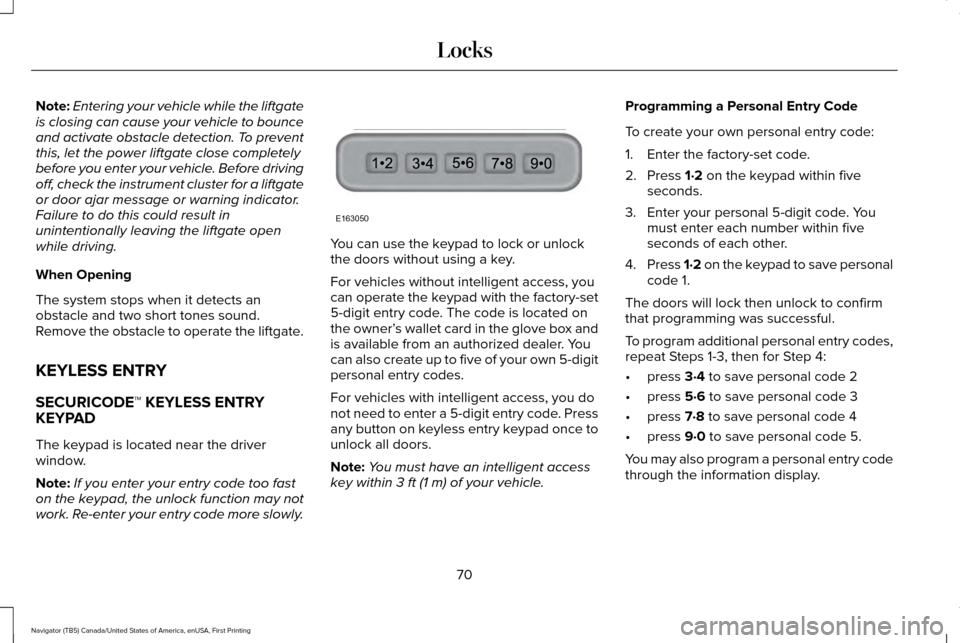
The keypad is located near the driver
window.
Note: If you enter your entry code too fast
on the keypad, the unlock function may not
work. Re-enter your entry code more slowly. You can use the keypad to lock or unlock
the doors without using a key.
For vehicles without intelligent access, you
can operate the keypad with the factory-set
5-digit entry code. The code is located on
the owner’
s wallet card in the glove box and
is available from an authorized dealer. You
can also create up to five of your own 5-digit
personal entry codes.
For vehicles with intelligent access, you do
not need to enter a 5-digit entry code. Press
any button on keyless entry keypad once to
unlock all doors.
Note: You must have an intelligent access
key within 3 ft (1 m) of your vehicle. Programming a Personal Entry Code
To create your own personal entry code:
1. Enter the factory-set code.
2. Press
1·2 on the keypad within five
seconds.
3. Enter your personal 5-digit code. You must enter each number within five
seconds of each other.
4. Press 1·2 on the keypad to save personal
code 1.
The doors will lock then unlock to confirm
that programming was successful.
To program additional personal entry codes,
repeat Steps 1-3, then for Step 4:
• press
3·4 to save personal code 2
• press
5·6 to save personal code 3
• press
7·8 to save personal code 4
• press
9·0 to save personal code 5.
You may also program a personal entry code
through the information display.
70
Navigator (TB5) Canada/United States of America, enUSA, First Printing LocksE163050
Page 74 of 419
Tips:
•
Do not set a code that uses five of the
same number.
• Do not use five numbers in sequential
order.
• The factory-set code will work even if you
have set your own personal code.
Recalling Memory Positions (If Equipped)
The programmed entry codes will recall
driver memory positions as follows:
• Entry code 1 will recall driver 1 memory
positions.
• Entry code 2 will recall driver 2 memory
positions.
Note: Personal entry codes 3, 4 and 5 will
not recall memory positions.
Erasing a Personal Code
1. Enter the factory-set 5-digit code.
2. Press and release 1·2 on the keypad
within five seconds. 3. Press and hold
1·2 for two seconds. You
must do this within five seconds of
completing Step 2.
All personal codes will erase and only the
factory-set 5-digit code will work.
Anti-Scan Feature
The keypad will go into an anti-scan mode
if you enter the wrong code seven times (35
consecutive button presses). This mode
disables the keypad for one minute and the
keypad lamp will flash.
The anti-scan feature will turn off after:
• one minute of keypad inactivity
• pressing the unlock button on the remote
control
• switching the ignition on.
Displaying the Factory Set Code
Note: You will need to have two
programmed passive anti-theft keys for this
procedure.
To display the factory-set code in the
information display: 1. Insert a key into the ignition and switch
the ignition on for a few seconds.
2. Switch the ignition off and remove the key.
3. Insert the second key into the ignition and switch the ignition on.
The factory-set code will display for a few
seconds.
Note: The code may not display until after
any other warning messages first display.
Unlocking and Locking the Doors
Vehicles Without Intelligent Access
To Unlock the Driver Door
Enter the factory-set 5-digit code or your
personal code. You must press each number
within five seconds of each other. The
interior lamps will illuminate.
Note: All doors will unlock if you disable the
two-stage unlocking mode.
See Locking
and Unlocking (page 63).
71
Navigator (TB5) Canada/United States of America, enUSA, First Printing Locks
Page 76 of 419
PASSIVE ANTI-THEFT SYSTEM
Note:
The system is not compatible with
non-Ford aftermarket remote start systems.
Use of these systems may result in vehicle
starting problems and a loss of security
protection.
Note: Metallic objects, electronic devices or
a second coded key on the same key chain
may cause vehicle starting problems if they
are too close to the key when starting the
engine. Prevent these objects from touching
the coded key while starting the engine.
Switch the ignition off, move all objects on
the key chain away from the coded key and
restart the engine if a problem occurs.
Note: Do not leave a duplicate coded key
in the vehicle. Always take your keys and
lock all doors when leaving the vehicle. SecuriLock™
The system is an engine immobilization
system. The intended design is to help
prevent the engine from starting unless a
coded key programmed to your vehicle is
used. Using the wrong key may prevent the
engine from starting. A message may appear
in the information display.
If you are unable to start the engine with a
correctly coded key, a malfunction has
happened and a message may appear in the
information display.
Automatic Arming
The vehicle arms immediately after you
switch the ignition off.
Automatic Disarming
If you switch the ignition on with a coded key
you disarm the vehicle. If you unlock the
doors with the touch handle you disarm the
alarm.Replacement Keys
Note:
Your vehicle comes equipped with two
intelligent access keys.
The intelligent access key functions as a
programmed key that operates the driver
door lock and activates the intelligent access
with push button start system, as well as a
remote control.
If your programmed transmitters are lost or
stolen and you do not have an extra coded
key, you will need to have your vehicle
towed to an authorized dealer. You need to
erase the key codes from your vehicle and
program new coded keys.
Store an extra programmed key away from
the vehicle in a safe place to help prevent
any inconveniences. See your authorized
dealer to purchase additional spare or
replacement keys.
Programming a Spare Intelligent Access
Key
See your authorized dealer to have
additional keys programmed to your vehicle.
73
Navigator (TB5) Canada/United States of America, enUSA, First Printing Security
Page 77 of 419
ANTI-THEFT ALARM
The system will warn you of an unauthorized
entry to your vehicle. It will be triggered if
any door, the luggage compartment or the
hood is opened without using the key,
remote control or keyless entry keypad.
The direction indicators will flash and the
horn will sound if unauthorized entry is
attempted while the alarm is armed.
Take all remote controls to an authorized
dealer if there is any potential alarm problem
with your vehicle.
Arming the Alarm
The alarm is ready to arm when there is not
a key in your vehicle. Electronically lock your
vehicle to arm the alarm.
Disarming the Alarm
Disarm the alarm by any of the following
actions:
•
Unlock the doors or luggage
compartment with the remote control or
keyless entry keypad.
• Switch your vehicle on or start your
vehicle.
• Use a key in the driver door to unlock
your vehicle, then switch your vehicle on
within 12 seconds.
Note: Pressing the panic button on the
remote control will stop the horn and signal
indicators, but will not disarm the system.
74
Navigator (TB5) Canada/United States of America, enUSA, First Printing Security
Page 139 of 419
WARNINGS
Do not use the memory function when
your vehicle is moving.
This feature automatically recalls the position
of the following:
•
Driver seat.
• Power mirrors.
• Power steering column.
• Power adjustable foot pedals.
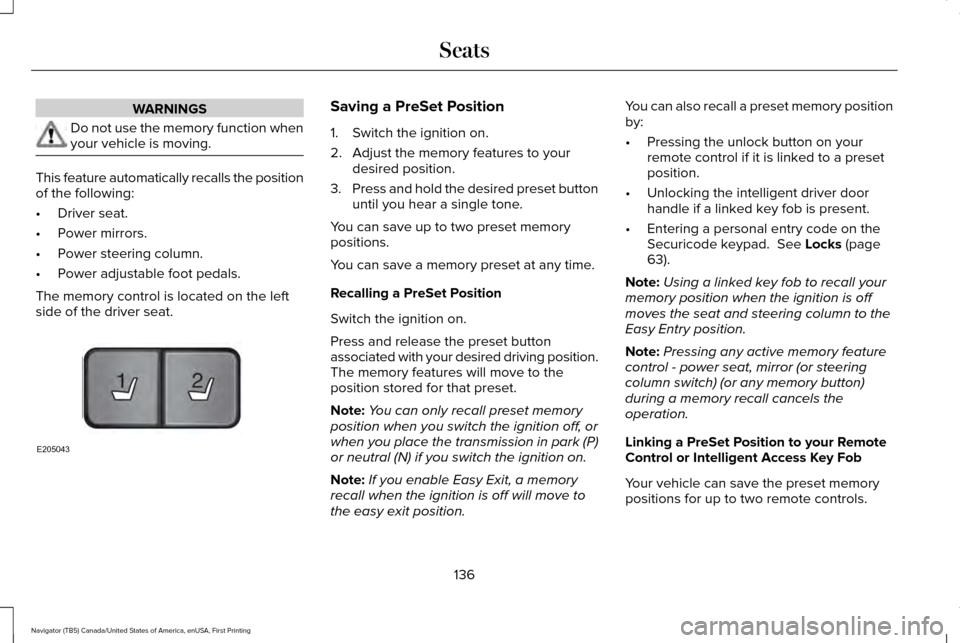
The memory control is located on the left
side of the driver seat. Saving a PreSet Position
1. Switch the ignition on.
2. Adjust the memory features to your
desired position.
3. Press and hold the desired preset button
until you hear a single tone.
You can save up to two preset memory
positions.
You can save a memory preset at any time.
Recalling a PreSet Position
Switch the ignition on.
Press and release the preset button
associated with your desired driving position.
The memory features will move to the
position stored for that preset.
Note: You can only recall preset memory
position when you switch the ignition off, or
when you place the transmission in park (P)
or neutral (N) if you switch the ignition on.
Note: If you enable Easy Exit, a memory
recall when the ignition is off will move to
the easy exit position. You can also recall a preset memory position
by:
•
Pressing the unlock button on your
remote control if it is linked to a preset
position.
• Unlocking the intelligent driver door
handle if a linked key fob is present.
• Entering a personal entry code on the
Securicode keypad. See Locks (page
63).
Note: Using a linked key fob to recall your
memory position when the ignition is off
moves the seat and steering column to the
Easy Entry position.
Note: Pressing any active memory feature
control - power seat, mirror (or steering
column switch) (or any memory button)
during a memory recall cancels the
operation.
Linking a PreSet Position to your Remote
Control or Intelligent Access Key Fob
Your vehicle can save the preset memory
positions for up to two remote controls.
136
Navigator (TB5) Canada/United States of America, enUSA, First Printing Seats21
E205043
Page 151 of 419
HomeLink Wireless Control System
WARNINGS
Make sure that the garage door and
security device are free from
obstruction when you are programming. Do
not program the system with the vehicle in
the garage. Do not use the system with any garage
door opener that does not have the
safety stop and reverse feature as required
by U.S. Federal Safety Standards (this
includes any garage door opener
manufactured before April 1, 1982). A garage
door opener which cannot detect an object,
signaling the door to stop and reverse, does
not meet current federal safety standards.
Using a garage door opener without these
features increases the risk of serious injury
or death. Note:
Make sure you keep the original
remote control transmitter for use in other
vehicles as well as for future system
programming. Note:
We recommend that upon the sale or
lease termination of your vehicle, you erase
the programmed function buttons for security
reasons. See Erasing the Function Button
Codes.
Note: You can program a maximum of three
devices. To change or replace any of the
three devices after it has been initially
programmed, you must first erase the current
settings. See
Erasing the Function Button
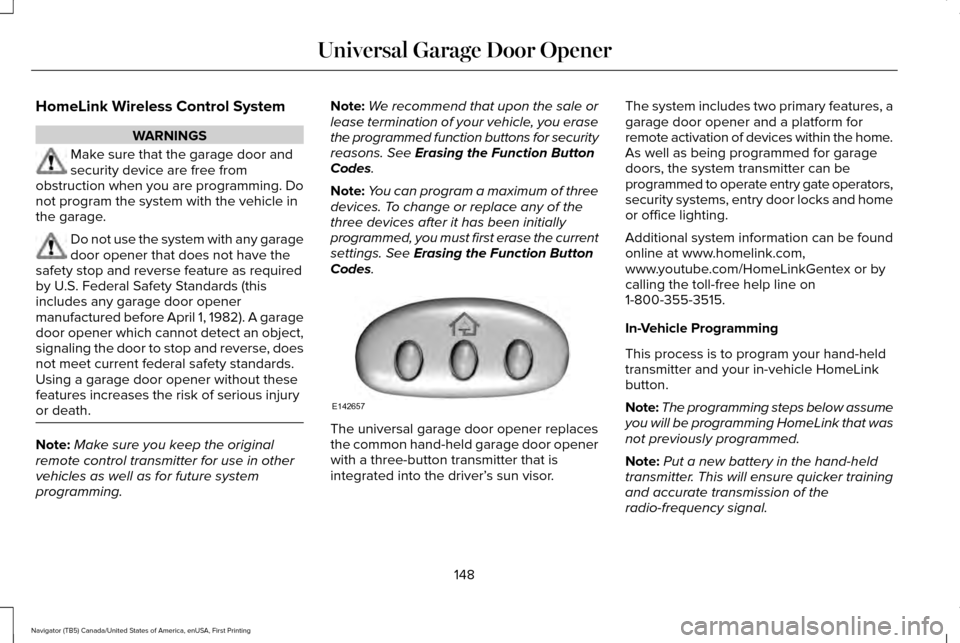
Codes. The universal garage door opener replaces
the common hand-held garage door opener
with a three-button transmitter that is
integrated into the driver’
s sun visor.The system includes two primary features, a
garage door opener and a platform for
remote activation of devices within the home.
As well as being programmed for garage
doors, the system transmitter can be
programmed to operate entry gate operators,
security systems, entry door locks and home
or office lighting.
Additional system information can be found
online at www.homelink.com,
www.youtube.com/HomeLinkGentex or by
calling the toll-free help line on
1-800-355-3515.
In-Vehicle Programming
This process is to program your hand-held
transmitter and your in-vehicle HomeLink
button.
Note:
The programming steps below assume
you will be programming HomeLink that was
not previously programmed.
Note: Put a new battery in the hand-held
transmitter. This will ensure quicker training
and accurate transmission of the
radio-frequency signal.
148
Navigator (TB5) Canada/United States of America, enUSA, First Printing Universal Garage Door OpenerE142657
Page 174 of 419
AUTOMATIC TRANSMISSION
WARNINGS
Always set the parking brake fully and
latch the gearshift in park (P). Turn the
ignition to the off position and remove the
key whenever you leave your vehicle. Do not use the tow/haul feature when
driving in icy or slippery conditions as
the increased engine braking can cause the
rear wheels to slide and your vehicle to
swing around with the possible loss of
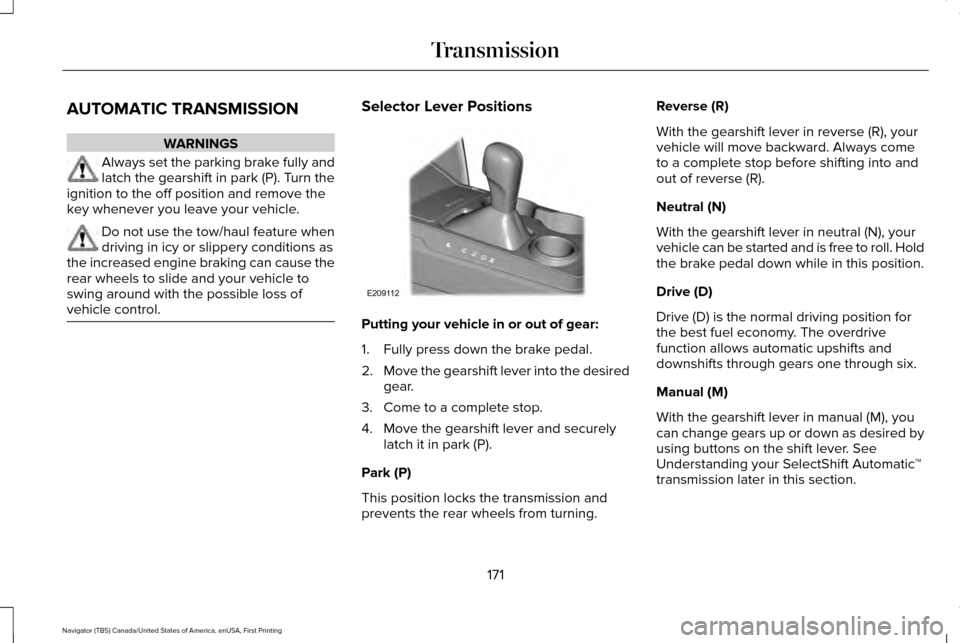
vehicle control. Selector Lever Positions
Putting your vehicle in or out of gear:
1. Fully press down the brake pedal.
2.
Move the gearshift lever into the desired
gear.
3. Come to a complete stop.
4. Move the gearshift lever and securely latch it in park (P).
Park (P)
This position locks the transmission and
prevents the rear wheels from turning. Reverse (R)
With the gearshift lever in reverse (R), your
vehicle will move backward. Always come
to a complete stop before shifting into and
out of reverse (R).
Neutral (N)
With the gearshift lever in neutral (N), your
vehicle can be started and is free to roll. Hold
the brake pedal down while in this position.
Drive (D)
Drive (D) is the normal driving position for
the best fuel economy. The overdrive
function allows automatic upshifts and
downshifts through gears one through six.
Manual (M)
With the gearshift lever in manual (M), you
can change gears up or down as desired by
using buttons on the shift lever. See
Understanding your SelectShift Automatic
™
transmission later in this section.
171
Navigator (TB5) Canada/United States of America, enUSA, First Printing TransmissionE209112
Page 178 of 419
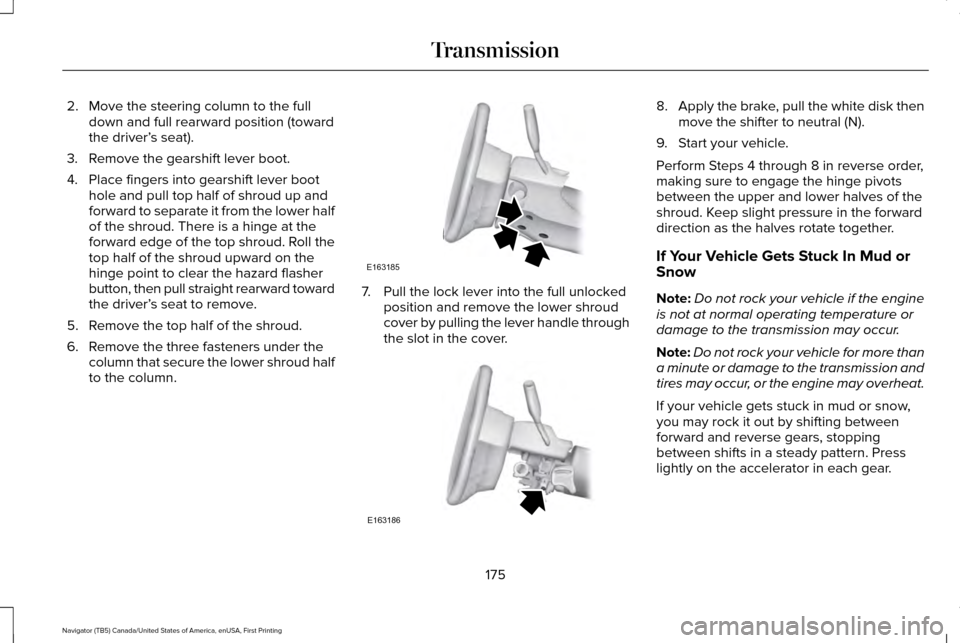
2. Move the steering column to the full
down and full rearward position (toward
the driver’ s seat).
3. Remove the gearshift lever boot.
4. Place fingers into gearshift lever boot hole and pull top half of shroud up and
forward to separate it from the lower half
of the shroud. There is a hinge at the
forward edge of the top shroud. Roll the
top half of the shroud upward on the
hinge point to clear the hazard flasher
button, then pull straight rearward toward
the driver’ s seat to remove.
5. Remove the top half of the shroud.
6. Remove the three fasteners under the column that secure the lower shroud half
to the column. 7. Pull the lock lever into the full unlocked
position and remove the lower shroud
cover by pulling the lever handle through
the slot in the cover. 8.
Apply the brake, pull the white disk then
move the shifter to neutral (N).
9. Start your vehicle.
Perform Steps 4 through 8 in reverse order,
making sure to engage the hinge pivots
between the upper and lower halves of the
shroud. Keep slight pressure in the forward
direction as the halves rotate together.
If Your Vehicle Gets Stuck In Mud or
Snow
Note: Do not rock your vehicle if the engine
is not at normal operating temperature or
damage to the transmission may occur.
Note: Do not rock your vehicle for more than
a minute or damage to the transmission and
tires may occur, or the engine may overheat.
If your vehicle gets stuck in mud or snow,
you may rock it out by shifting between
forward and reverse gears, stopping
between shifts in a steady pattern. Press
lightly on the accelerator in each gear.
175
Navigator (TB5) Canada/United States of America, enUSA, First Printing TransmissionE163185 E163186
Page 216 of 419
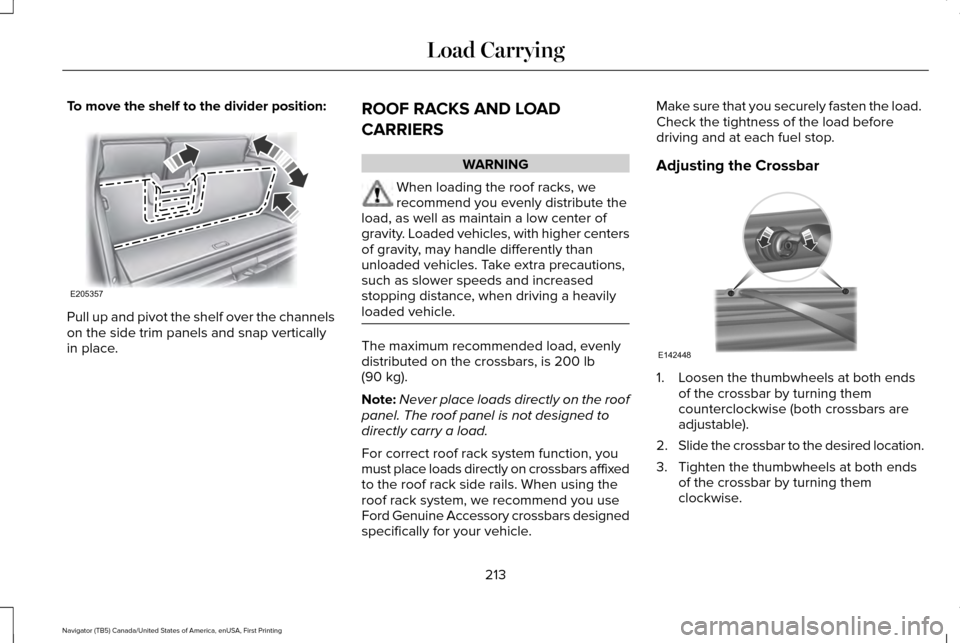
To move the shelf to the divider position:
Pull up and pivot the shelf over the channels
on the side trim panels and snap vertically
in place.
ROOF RACKS AND LOAD
CARRIERS WARNING
When loading the roof racks, we
recommend you evenly distribute the
load, as well as maintain a low center of
gravity. Loaded vehicles, with higher centers
of gravity, may handle differently than
unloaded vehicles. Take extra precautions,
such as slower speeds and increased
stopping distance, when driving a heavily
loaded vehicle. The maximum recommended load, evenly
distributed on the crossbars, is 200 lb
(90 kg).
Note: Never place loads directly on the roof
panel. The roof panel is not designed to
directly carry a load.
For correct roof rack system function, you
must place loads directly on crossbars affixed
to the roof rack side rails. When using the
roof rack system, we recommend you use
Ford Genuine Accessory crossbars designed
specifically for your vehicle. Make sure that you securely fasten the load.
Check the tightness of the load before
driving and at each fuel stop.
Adjusting the Crossbar
1. Loosen the thumbwheels at both ends
of the crossbar by turning them
counterclockwise (both crossbars are
adjustable).
2. Slide the crossbar to the desired location.
3. Tighten the thumbwheels at both ends of the crossbar by turning them
clockwise.
213
Navigator (TB5) Canada/United States of America, enUSA, First Printing Load CarryingE205357 E142448
Page 217 of 419
Make sure to check that the thumbwheels
are tight each time you add or remove load
from the roof rack, and periodically while
traveling. Make sure that the load is secure
before traveling.
LOAD LIMIT
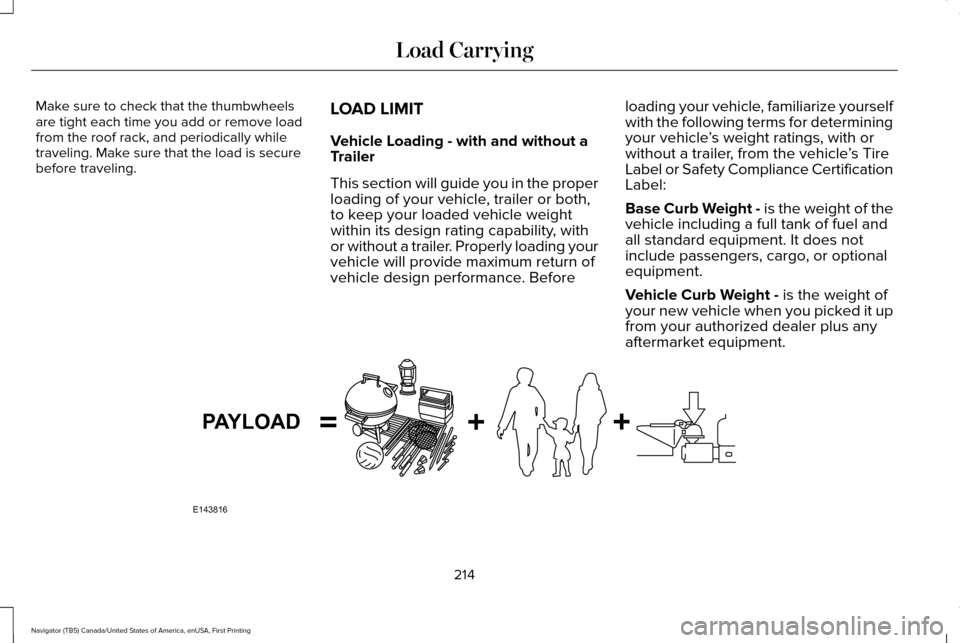
Vehicle Loading - with and without a
Trailer
This section will guide you in the proper
loading of your vehicle, trailer or both,
to keep your loaded vehicle weight
within its design rating capability, with
or without a trailer. Properly loading your
vehicle will provide maximum return of
vehicle design performance. Beforeloading your vehicle, familiarize yourself
with the following terms for determining
your vehicle
’s weight ratings, with or
without a trailer, from the vehicle ’s Tire
Label or Safety Compliance Certification
Label:
Base Curb Weight - is the weight of the
vehicle including a full tank of fuel and
all standard equipment. It does not
include passengers, cargo, or optional
equipment.
Vehicle Curb Weight - is the weight of
your new vehicle when you picked it up
from your authorized dealer plus any
aftermarket equipment. 214
Navigator (TB5) Canada/United States of America, enUSA, First Printing Load CarryingE143816PAYLOAD