climate control LINCOLN NAVIGATOR 2017 Owner's Manual
[x] Cancel search | Manufacturer: LINCOLN, Model Year: 2017, Model line: NAVIGATOR, Model: LINCOLN NAVIGATOR 2017Pages: 532, PDF Size: 3.9 MB
Page 351 of 532
GENERAL INFORMATION
WARNING
Driving while distracted can result in
loss of vehicle control, crash and injury.
We strongly recommend that you use
extreme caution when using any device that
may take your focus off the road. Your
primary responsibility is the safe operation
of your vehicle. We recommend against the
use of any hand-held device while driving
and encourage the use of voice-operated
systems when possible. Make sure you are
aware of all applicable local laws that may
affect the use of electronic devices while
driving. Getting to Know Your System
The SYNC 3 system allows you to interact
with a variety of features using the
touchscreen and voice commands. By
integrating with your Bluetooth-enabled
phone, the touchscreen provides easy
interaction with audio, multimedia, climate
control, navigation, and your phone's SYNC
3 compatible apps.
Using the Touchscreen
To operate the touchscreen, you can simply
touch the item or option that you want to
select. The button changes color when you
select it.
The SYNC 3 layout allows you to quickly
select the feature you wish to use.
348
Navigator (TB5) Canada/United States of America, enUSA, First Printing SYNC™ 3
Page 353 of 532

Action and Description
Menu Item
Item
This bar displays icons and messages pertaining to current system activi\
ties including climate
settings, voice commands and phone functions such as text messages.
Status Bar
A
This button is available on the main screens. Pressing it takes you to the home screen view.
Home
B
This shows the current time. You can set the clock manually or have it controlled by the vehicle's
GPS location. See Settings (page 417).
Clock
C
This displays the current outside temperature.
Outside Temperature
D
You can touch any of the buttons on this bar to select a feature.
Feature Bar
E
The touchscreen allows you quick access to
all of your comfort, navigation,
communication and entertainment options.
Using the status and feature bar you can
quickly select the feature you want to use. Note:
Your system is equipped with a feature
that allows you to access and control audio
features for 10 minutes after you switch the
ignition off (and no doors open). The Status Bar
Additional icons also display in the status bar
depending on market, vehicle options and
current operation. If a feature is not active,
the icon does not display. Certain icons may
move to the left or right depending on what
options are active.
350
Navigator (TB5) Canada/United States of America, enUSA, First Printing SYNC™ 3
Page 356 of 532

Description
Item
Callout
This icon displays when 911 Assist is set to off and your phone is conne\
cted to SYNC.
911 Assist Off
K
The Bluetooth alert icon displays when there is an active Bluetooth aler\
t.
Bluetooth Alert
L
This icon displays to show an active Bluetooth connection.
Bluetooth
M
Messages may also appear in the status bar
to provide you with notifications. You can
select the message to view the associated
feature.
Feature Bar Functions
Feature Bar Item
Allows you to control the media playing in your vehicle. You can
control all audio features including AM, FM and satellite radio, CDs,
and media streaming over a Bluetooth device or through a USB
connection.
Audio
Allows you to adjust the temperature, fan speed and airflow within
the vehicle.
Climate
Allows you to make calls, receive calls, and access the phonebook
of your connected device.
Phone
353
Navigator (TB5) Canada/United States of America, enUSA, First Printing SYNC™ 3
Page 362 of 532
•
DISP: Switch the display on or off. You
can also touch the screen to switch the
display back on.
• Temperature, fan and climate control
buttons:
Control the temperature, fan
speed or settings of the climate control
system. See Climate Control (page 122).
911 Assist WARNINGS
Unless the 911 Assist setting is set on
before a crash, the system will not dial
for help which could delay response time,
potentially increasing the risk of serious
injury or death after a crash. setting is set on
before a crash, the system will not dial for
help which could delay response time,
potentially increasing the risk of serious
injury or death after a crash. WARNINGS
Do not wait for 911 Assist to make an
emergency call if you can do it yourself.
Dial emergency services immediately to
avoid delayed response time which could
increase the risk of serious injury or death
after a crash. If you do not hear 911 Assist
within five seconds of the crash, the system
or phone may be damaged or non-functional. Always place your phone in a secure
location in your vehicle so it does not
become a projectile or get damaged in a
crash. Failure to do so may cause serious
injury to someone or damage the phone
which could prevent 911 Assist from working
properly. Note:
The SYNC 911 Assist feature must be
set on before the incident.
Note: The SYNC 911 Assist feature only
operates in the U.S., Canada or in a territory
in which 911 is the emergency number.
Note: Before setting this feature on, make
sure that you read the 911 Assist Privacy
Notice later in this section for important
information. Note:
If any user sets 911 Assist to on or off,
that setting applies for all paired phones. If
911 Assist is switched off and the phone is
connected to SYNC, an icon displays on the
status bar.
Note: Every phone operates differently.
While SYNC 911 Assist works with most
cellular phones, some may have trouble
using this feature.
If a crash deploys an airbag (excluding knee
airbags and rear inflatable safety belts [if
equipped]) or activates the fuel pump
shut-off, your SYNC-equipped vehicle may
be able to contact emergency services by
dialing 911 through a paired and connected
Bluetooth-enabled phone. You can learn
more about the 911 Assist feature, by visiting: Website
owner.lincoln.com
www.syncmyride.ca
359
Navigator (TB5) Canada/United States of America, enUSA, First Printing SYNC™ 3
Page 370 of 532

Home screen display
Tile
Item
Shows the active media source.
Audio
A
If your vehicle does not have navigation, this space contains the compas\
s.
The name of the connected phone appears on the screen. The status of the\
phone
features also appear. This includes signal strength, battery charge, 911 assist setting
state (On or Off ), text messaging and roaming.
Phone
B
This map displays your current location or current route in real time.
Navigation *
C
When you have navigation active, you also see the next turn and the length of time
and distance to your destination.
If your vehicle does not have navigation, this space contains the audio \
information.
* If equipped.
You can touch any of the feature displays to
access that feature.
Anytime you select the home button, the
system returns you to this screen. USING VOICE RECOGNITION
The SYNC 3 system allows you to use voice
commands, to control features like audio and
climate controls. By using voice commands,
you can keep your hands on the wheel and
your eyes on the road.
You can access each feature controlled by
SYNC 3 through a variety of commands. To activate the SYNC 3 voice
commands push the voice button
on the steering wheel and wait for
the prompt.
___ is a dynamic listing, meaning that it can
be the name of anything, such as artist, the
name of contact or number. The context and
the description of the command tell you what
to say for this dynamic option.
There are some commands that work for
every feature, these commands are:
367
Navigator (TB5) Canada/United States of America, enUSA, First Printing SYNC™ 3E142599
Page 373 of 532
Description
Voice command
Play Song ___
Play Audiobook ___ For USB audio only, you can say the name of an artist, album, or a genre to
browse by that selection. Your system must finish indexing before this option
is available. For example you can say "Browse The Beatles" or "Browse folk".
Browse ___
* This option may not be available in all markets or may require a subscription.
Climate Voice Commands
You can control the temperature of the
vehicle using voice commands. ___ is a dynamic listing, meaning that for
climate voice commands it can be the
desired degrees for the temperature setting.
To adjust the temperature, say: Description
Voice command
Adjust the temperature between 59.0°F (15°C)-86.0°F (30°C).
Climate Set Temperature ___
Climate Help
370
Navigator (TB5) Canada/United States of America, enUSA, First Printing SYNC™ 3
Page 380 of 532
Note:
Depending on the current climate
control settings, the fan speed may
automatically go down while issuing voice
commands or while making and receiving
phone calls via SYNC to reduce the amount
of background noise in the vehicle. The fan
speed will automatically return to normal
operation once the voice session ends. Fan
speed can also be adjusted normally during
a voice session, simply press fan buttons (or
turn fan knob) to increase or decrease fan
speed to desired setting. To disable this automatic fan speed
reduction feature during voice sessions,
press and hold the climate control AC and
Recirculated air buttons simultaneously,
release and then increase fan speed within
2 seconds. To re-enable this feature, repeat
the above sequence.
377
Navigator (TB5) Canada/United States of America, enUSA, First Printing SYNC™ 3
Page 394 of 532
USB Ports
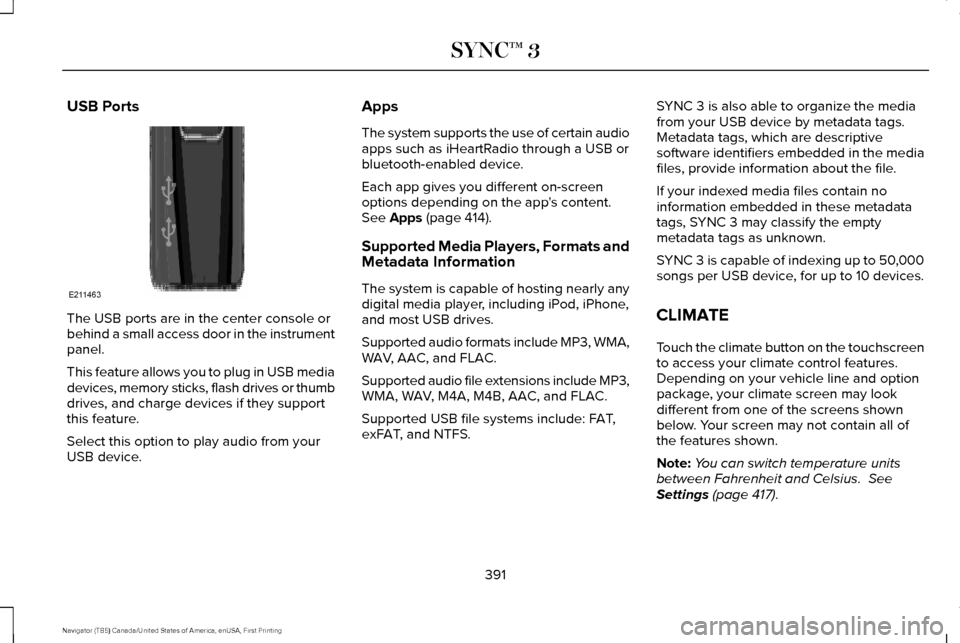
The USB ports are in the center console or
behind a small access door in the instrument
panel.
This feature allows you to plug in USB media
devices, memory sticks, flash drives or thumb
drives, and charge devices if they support
this feature.
Select this option to play audio from your
USB device. Apps
The system supports the use of certain audio
apps such as iHeartRadio through a USB or
bluetooth-enabled device.
Each app gives you different on-screen
options depending on the app's content.
See Apps (page 414).
Supported Media Players, Formats and
Metadata Information
The system is capable of hosting nearly any
digital media player, including iPod, iPhone,
and most USB drives.
Supported audio formats include MP3, WMA,
WAV, AAC, and FLAC.
Supported audio file extensions include MP3,
WMA, WAV, M4A, M4B, AAC, and FLAC.
Supported USB file systems include: FAT,
exFAT, and NTFS. SYNC 3 is also able to organize the media
from your USB device by metadata tags.
Metadata tags, which are descriptive
software identifiers embedded in the media
files, provide information about the file.
If your indexed media files contain no
information embedded in these metadata
tags, SYNC 3 may classify the empty
metadata tags as unknown.
SYNC 3 is capable of indexing up to 50,000
songs per USB device, for up to 10 devices.
CLIMATE
Touch the climate button on the touchscreen
to access your climate control features.
Depending on your vehicle line and option
package, your climate screen may look
different from one of the screens shown
below. Your screen may not contain all of
the features shown.
Note:
You can switch temperature units
between Fahrenheit and Celsius.
See
Settings (page 417).
391
Navigator (TB5) Canada/United States of America, enUSA, First Printing SYNC™ 3E211463
Page 396 of 532
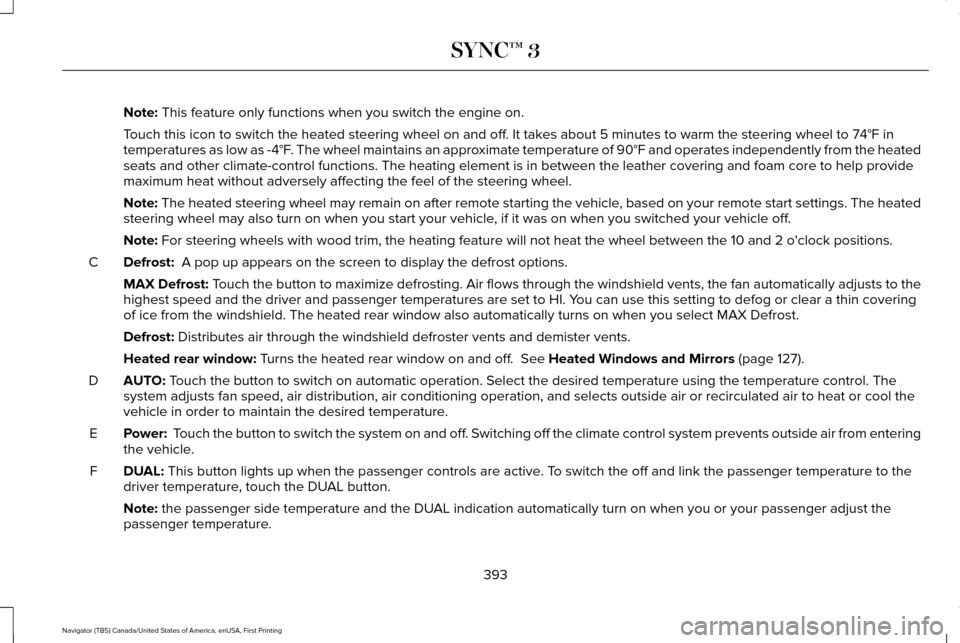
Note: This feature only functions when you switch the engine on.
Touch this icon to switch the heated steering wheel on and off. It takes about 5 minutes to warm the steering wheel to 74°F in
temperatures as low as -4°F. The wheel maintains an approximate temperature of 90°F and operates independently from the heated\
seats and other climate-control functions. The heating element is in bet\
ween the leather covering and foam core to help provide
maximum heat without adversely affecting the feel of the steering wheel.\
Note:
The heated steering wheel may remain on after remote starting the vehic\
le, based on your remote start settings. The heated
steering wheel may also turn on when you start your vehicle, if it was on when you switched your vehicle off.
Note:
For steering wheels with wood trim, the heating feature will not heat t\
he wheel between the 10 and 2 o'clock positions.
Defrost:
A pop up appears on the screen to display the defrost options.
C
MAX Defrost: Touch the button to maximize defrosting. Air flows through the windshield\
vents, the fan automatically adjusts to the
highest speed and the driver and passenger temperatures are set to HI. Y\
ou can use this setting to defog or clear a thin covering
of ice from the windshield. The heated rear window also automatically tu\
rns on when you select MAX Defrost.
Defrost:
Distributes air through the windshield defroster vents and demister vent\
s.
Heated rear window:
Turns the heated rear window on and off. See Heated Windows and Mirrors (page 127).
AUTO:
Touch the button to switch on automatic operation. Select the desired tem\
perature using the temperature control. The
system adjusts fan speed, air distribution, air conditioning operation, \
and selects outside air or recirculated air to heat or cool the
vehicle in order to maintain the desired temperature.
D
Power:
Touch the button to switch the system on and off. Switching off the climate control system prevents outside air from enteri\
ng
the vehicle.
E
DUAL:
This button lights up when the passenger controls are active. To switch the off and link the passenger temperature to the
driver temperature, touch the DUAL button.
F
Note:
the passenger side temperature and the DUAL indication automatically turn on when you or your passenger adjust th\
e
passenger temperature.
393
Navigator (TB5) Canada/United States of America, enUSA, First Printing SYNC™ 3
Page 397 of 532

Passenger temperature: Touch up or down to adjust the temperature.
G
Fan speed:
Touch up or down to increase or decrease the volume of air that circulate\
s in your vehicle.
H
Note:
You cannot adjust the fan speed when the system is set to AUTO or MAX A/C.
Rear:
A pop up appears on the screen to display the rear control options.
I
Touch the power icon to switch the rear climate control functions off and\
on.
Touch
Rear Climate to allow the rear seat passengers to adjust the rear climate settings. \
Touch it again to prevent the rear seat
passengers from adjusting the settings. Rear Control automatically turns off when you use the touchscreen to adju\
st the rear climate
settings.
Touch + or – to adjust the temperature.
To adjust fan speed, touch + or – next to the fan icon.
Touch
Rear again to close the rear controls. Closing the rear climate control func\
tions does not affect their current settings.
Manual airflow distribution controls:
J
Footwell and Defrost:
Distributes air through the windshield defroster vents, demister vents,\
floor vents and rear seat floor vents,
and provides outside air to reduce window fogging.
Panel:
Distributes air through the instrument panel vents.
Floor:
Distributes air through the demister vents, floor vents and rear seat f\
loor vents.
Panel and Floor:
Distributes air through the instrument panel vents, demister vents, flo\
or vents and rear seat floor vents.
A/C:
A pop-up appears on the screen to display the air conditioning options.\
K
MAX A/C:
Touch the button to activate and maximize cooling. The driver and passeng\
er temperatures are set to LO, recirculated
air flows through the instrument panel vents, air conditioning automatic\
ally turns on and the fan automatically adjusts to the highest
speed.
394
Navigator (TB5) Canada/United States of America, enUSA, First Printing SYNC™ 3