usb port LINCOLN NAVIGATOR 2018 User Guide
[x] Cancel search | Manufacturer: LINCOLN, Model Year: 2018, Model line: NAVIGATOR, Model: LINCOLN NAVIGATOR 2018Pages: 649, PDF Size: 4.96 MB
Page 536 of 649
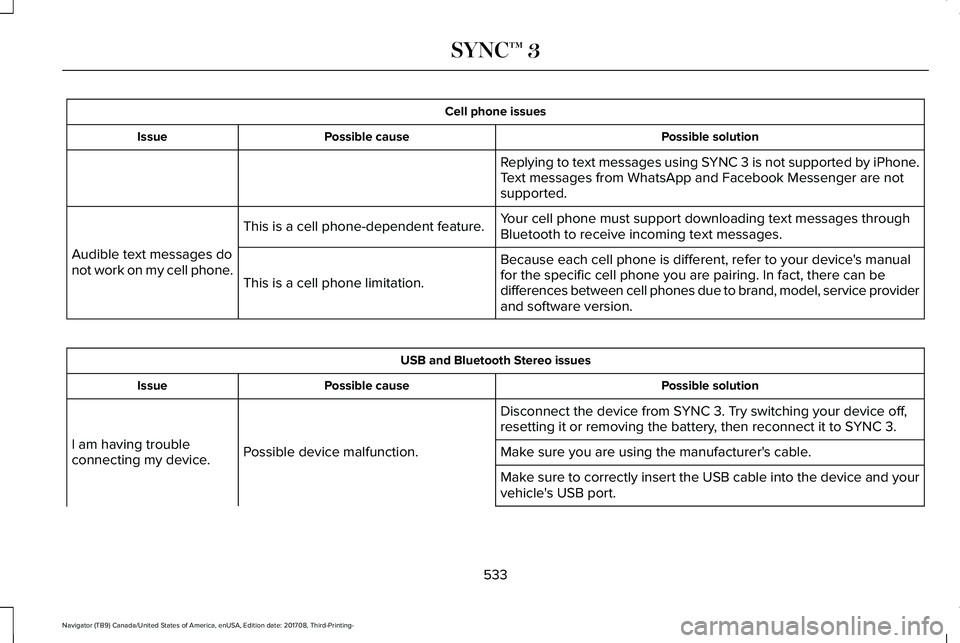
Cell phone issues
Possible solutionPossible causeIssue
Replying to text messages using SYNC 3 is not supported by iPhone.Text messages from WhatsApp and Facebook Messenger are notsupported.
Your cell phone must support downloading text messages throughBluetooth to receive incoming text messages.This is a cell phone-dependent feature.
Audible text messages donot work on my cell phone.Because each cell phone is different, refer to your device's manualfor the specific cell phone you are pairing. In fact, there can bedifferences between cell phones due to brand, model, service providerand software version.
This is a cell phone limitation.
USB and Bluetooth Stereo issues
Possible solutionPossible causeIssue
Disconnect the device from SYNC 3. Try switching your device off,resetting it or removing the battery, then reconnect it to SYNC 3.
Possible device malfunction.I am having troubleconnecting my device.Make sure you are using the manufacturer's cable.
Make sure to correctly insert the USB cable into the device and yourvehicle's USB port.
533
Navigator (TB9) Canada/United States of America, enUSA, Edition date: 201708, Third-Printing-
SYNC™ 3
Page 537 of 649
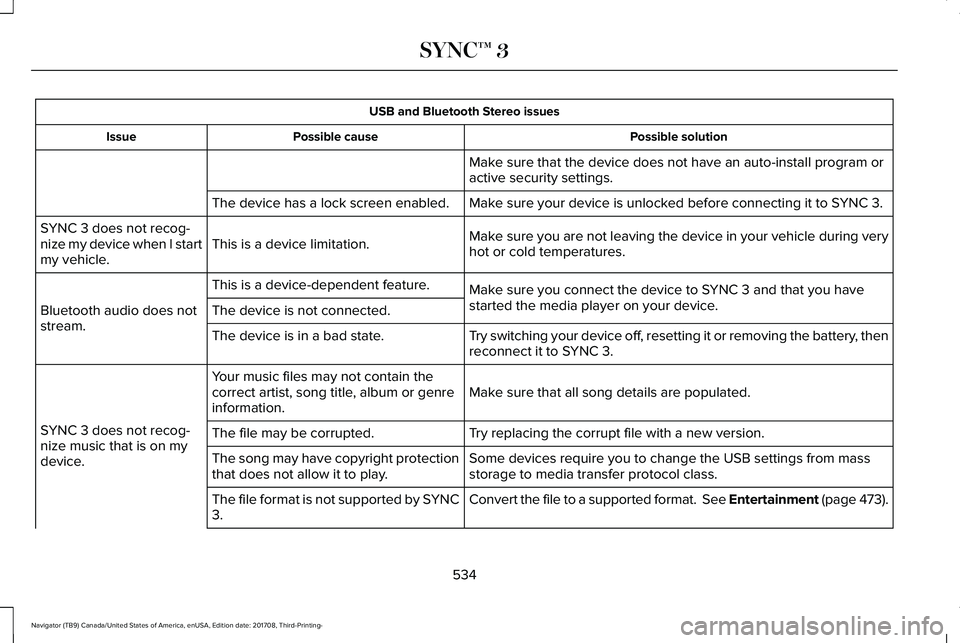
USB and Bluetooth Stereo issues
Possible solutionPossible causeIssue
Make sure that the device does not have an auto-install program oractive security settings.
Make sure your device is unlocked before connecting it to SYNC 3.The device has a lock screen enabled.
Make sure you are not leaving the device in your vehicle during veryhot or cold temperatures.This is a device limitation.SYNC 3 does not recog-nize my device when I startmy vehicle.
Make sure you connect the device to SYNC 3 and that you havestarted the media player on your device.
This is a device-dependent feature.
Bluetooth audio does notstream.The device is not connected.
Try switching your device off, resetting it or removing the battery, thenreconnect it to SYNC 3.The device is in a bad state.
Make sure that all song details are populated.Your music files may not contain thecorrect artist, song title, album or genreinformation.
SYNC 3 does not recog-nize music that is on mydevice.
Try replacing the corrupt file with a new version.The file may be corrupted.
Some devices require you to change the USB settings from massstorage to media transfer protocol class.The song may have copyright protectionthat does not allow it to play.
Convert the file to a supported format. See Entertainment (page 473).The file format is not supported by SYNC3.
534
Navigator (TB9) Canada/United States of America, enUSA, Edition date: 201708, Third-Printing-
SYNC™ 3
Page 541 of 649
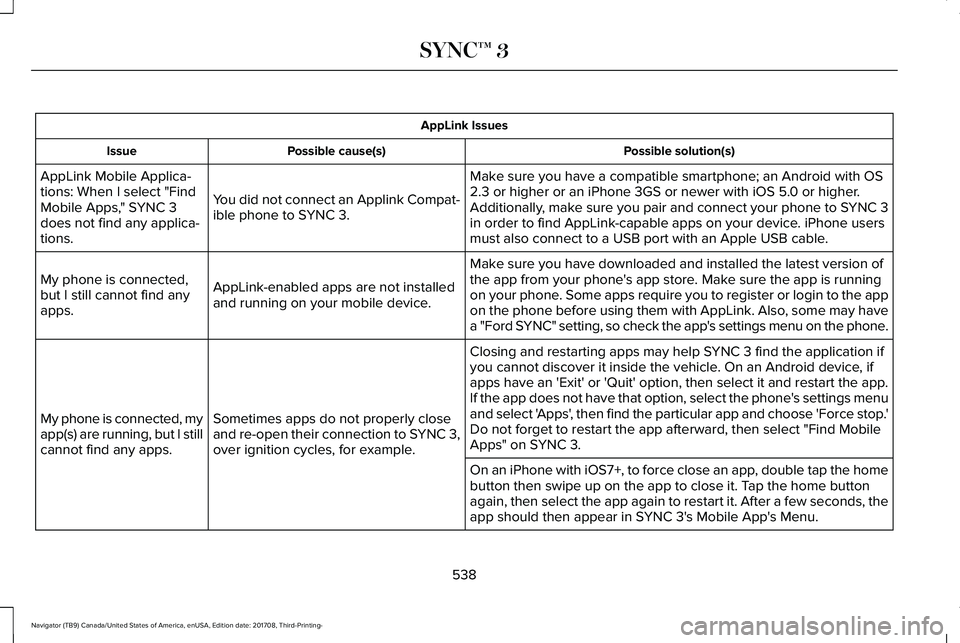
AppLink Issues
Possible solution(s)Possible cause(s)Issue
Make sure you have a compatible smartphone; an Android with OS2.3 or higher or an iPhone 3GS or newer with iOS 5.0 or higher.Additionally, make sure you pair and connect your phone to SYNC 3in order to find AppLink-capable apps on your device. iPhone usersmust also connect to a USB port with an Apple USB cable.
You did not connect an Applink Compat-ible phone to SYNC 3.
AppLink Mobile Applica-tions: When I select "FindMobile Apps," SYNC 3does not find any applica-tions.
Make sure you have downloaded and installed the latest version ofthe app from your phone's app store. Make sure the app is runningon your phone. Some apps require you to register or login to the appon the phone before using them with AppLink. Also, some may havea "Ford SYNC" setting, so check the app's settings menu on the phone.
AppLink-enabled apps are not installedand running on your mobile device.
My phone is connected,but I still cannot find anyapps.
Closing and restarting apps may help SYNC 3 find the application ifyou cannot discover it inside the vehicle. On an Android device, ifapps have an 'Exit' or 'Quit' option, then select it and restart the app.If the app does not have that option, select the phone's settings menuand select 'Apps', then find the particular app and choose 'Force stop.'Do not forget to restart the app afterward, then select "Find MobileApps" on SYNC 3.
Sometimes apps do not properly closeand re-open their connection to SYNC 3,over ignition cycles, for example.
My phone is connected, myapp(s) are running, but I stillcannot find any apps.
On an iPhone with iOS7+, to force close an app, double tap the homebutton then swipe up on the app to close it. Tap the home buttonagain, then select the app again to restart it. After a few seconds, theapp should then appear in SYNC 3's Mobile App's Menu.
538
Navigator (TB9) Canada/United States of America, enUSA, Edition date: 201708, Third-Printing-
SYNC™ 3
Page 542 of 649
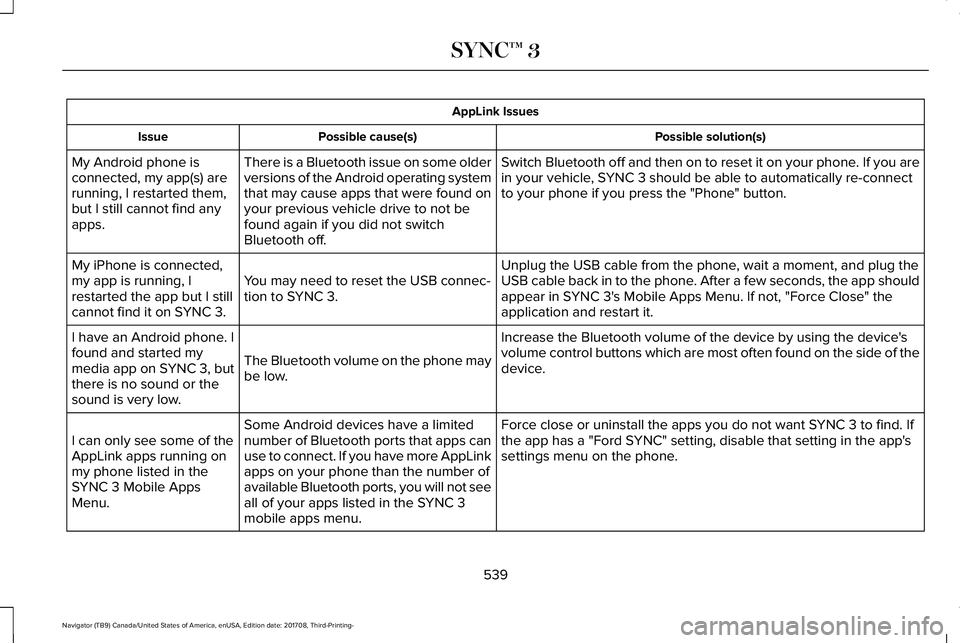
AppLink Issues
Possible solution(s)Possible cause(s)Issue
Switch Bluetooth off and then on to reset it on your phone. If you arein your vehicle, SYNC 3 should be able to automatically re-connectto your phone if you press the "Phone" button.
There is a Bluetooth issue on some olderversions of the Android operating systemthat may cause apps that were found onyour previous vehicle drive to not befound again if you did not switchBluetooth off.
My Android phone isconnected, my app(s) arerunning, I restarted them,but I still cannot find anyapps.
Unplug the USB cable from the phone, wait a moment, and plug theUSB cable back in to the phone. After a few seconds, the app shouldappear in SYNC 3's Mobile Apps Menu. If not, "Force Close" theapplication and restart it.
You may need to reset the USB connec-tion to SYNC 3.
My iPhone is connected,my app is running, Irestarted the app but I stillcannot find it on SYNC 3.
Increase the Bluetooth volume of the device by using the device'svolume control buttons which are most often found on the side of thedevice.The Bluetooth volume on the phone maybe low.
I have an Android phone. Ifound and started mymedia app on SYNC 3, butthere is no sound or thesound is very low.
Force close or uninstall the apps you do not want SYNC 3 to find. Ifthe app has a "Ford SYNC" setting, disable that setting in the app'ssettings menu on the phone.
Some Android devices have a limitednumber of Bluetooth ports that apps canuse to connect. If you have more AppLinkapps on your phone than the number ofavailable Bluetooth ports, you will not seeall of your apps listed in the SYNC 3mobile apps menu.
I can only see some of theAppLink apps running onmy phone listed in theSYNC 3 Mobile AppsMenu.
539
Navigator (TB9) Canada/United States of America, enUSA, Edition date: 201708, Third-Printing-
SYNC™ 3
Page 548 of 649
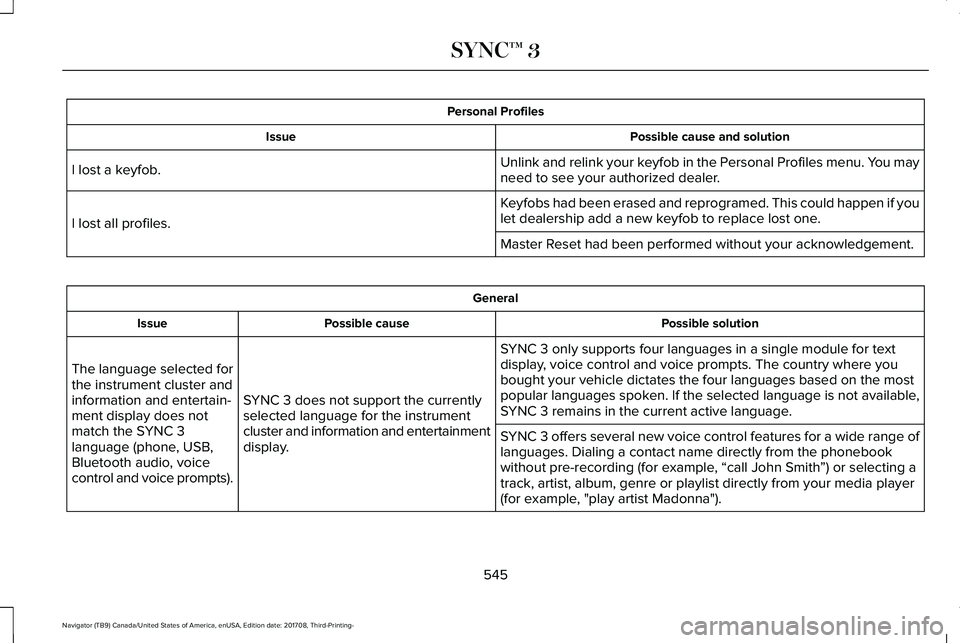
Personal Profiles
Possible cause and solutionIssue
Unlink and relink your keyfob in the Personal Profiles menu. You mayneed to see your authorized dealer.I lost a keyfob.
Keyfobs had been erased and reprogramed. This could happen if youlet dealership add a new keyfob to replace lost one.I lost all profiles.
Master Reset had been performed without your acknowledgement.
General
Possible solutionPossible causeIssue
SYNC 3 only supports four languages in a single module for textdisplay, voice control and voice prompts. The country where youbought your vehicle dictates the four languages based on the mostpopular languages spoken. If the selected language is not available,SYNC 3 remains in the current active language.SYNC 3 does not support the currentlyselected language for the instrumentcluster and information and entertainmentdisplay.
The language selected forthe instrument cluster andinformation and entertain-ment display does notmatch the SYNC 3language (phone, USB,Bluetooth audio, voicecontrol and voice prompts).
SYNC 3 offers several new voice control features for a wide range oflanguages. Dialing a contact name directly from the phonebookwithout pre-recording (for example, “call John Smith”) or selecting atrack, artist, album, genre or playlist directly from your media player(for example, "play artist Madonna").
545
Navigator (TB9) Canada/United States of America, enUSA, Edition date: 201708, Third-Printing-
SYNC™ 3
Page 637 of 649
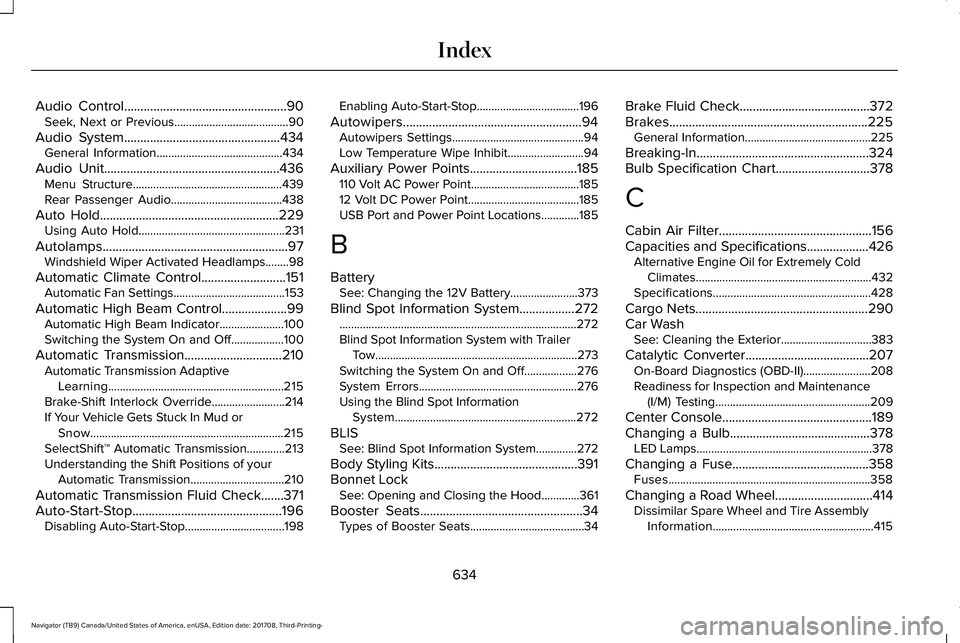
Audio Control..................................................90Seek, Next or Previous.......................................90
Audio System................................................434General Information...........................................434
Audio Unit......................................................436Menu Structure...................................................439Rear Passenger Audio......................................438
Auto Hold.......................................................229Using Auto Hold..................................................231
Autolamps.........................................................97Windshield Wiper Activated Headlamps........98
Automatic Climate Control..........................151Automatic Fan Settings......................................153
Automatic High Beam Control....................99Automatic High Beam Indicator......................100Switching the System On and Off..................100
Automatic Transmission..............................210Automatic Transmission AdaptiveLearning............................................................215Brake-Shift Interlock Override.........................214If Your Vehicle Gets Stuck In Mud orSnow..................................................................215SelectShift™ Automatic Transmission.............213Understanding the Shift Positions of yourAutomatic Transmission................................210
Automatic Transmission Fluid Check.......371Auto-Start-Stop..............................................196Disabling Auto-Start-Stop..................................198
Enabling Auto-Start-Stop...................................196
Autowipers.......................................................94Autowipers Settings.............................................94Low Temperature Wipe Inhibit..........................94
Auxiliary Power Points.................................185110 Volt AC Power Point.....................................18512 Volt DC Power Point......................................185USB Port and Power Point Locations.............185
B
BatterySee: Changing the 12V Battery.......................373
Blind Spot Information System.................272.................................................................................272Blind Spot Information System with TrailerTow.....................................................................273Switching the System On and Off..................276System Errors......................................................276Using the Blind Spot InformationSystem..............................................................272
BLISSee: Blind Spot Information System..............272
Body Styling Kits............................................391Bonnet LockSee: Opening and Closing the Hood.............361
Booster Seats..................................................34Types of Booster Seats.......................................34
Brake Fluid Check........................................372Brakes.............................................................225General Information...........................................225
Breaking-In.....................................................324Bulb Specification Chart.............................378
C
Cabin Air Filter...............................................156Capacities and Specifications...................426Alternative Engine Oil for Extremely ColdClimates............................................................432Specifications......................................................428
Cargo Nets.....................................................290Car WashSee: Cleaning the Exterior...............................383
Catalytic Converter......................................207On-Board Diagnostics (OBD-II).......................208Readiness for Inspection and Maintenance(I/M) Testing.....................................................209
Center Console..............................................189Changing a Bulb...........................................378LED Lamps............................................................378
Changing a Fuse..........................................358Fuses.....................................................................358
Changing a Road Wheel..............................414Dissimilar Spare Wheel and Tire AssemblyInformation.......................................................415
634
Navigator (TB9) Canada/United States of America, enUSA, Edition date: 201708, Third-Printing-
Index
Page 639 of 649
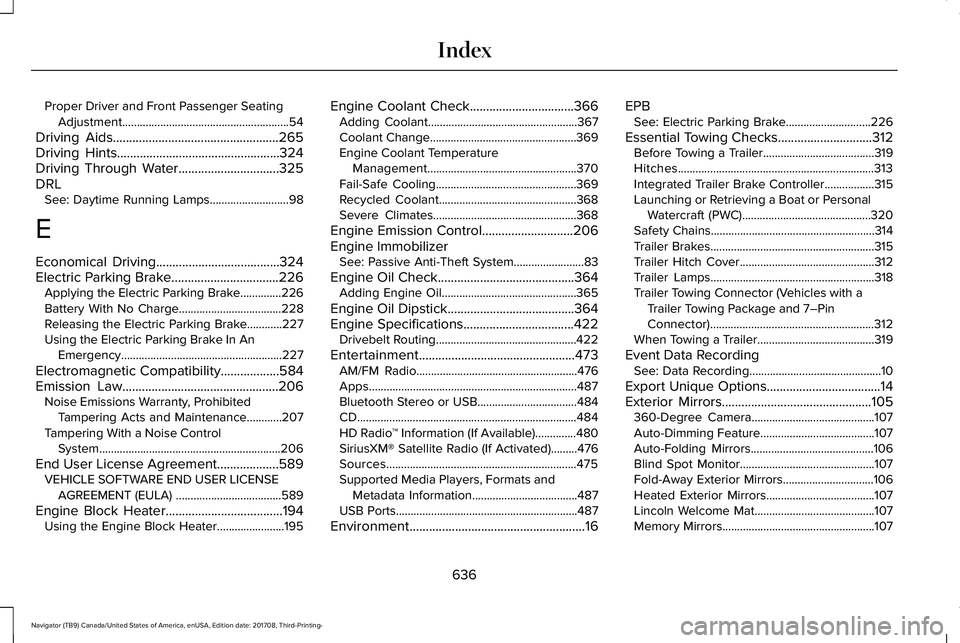
Proper Driver and Front Passenger SeatingAdjustment.........................................................54
Driving Aids...................................................265Driving Hints..................................................324Driving Through Water...............................325DRLSee: Daytime Running Lamps...........................98
E
Economical Driving......................................324Electric Parking Brake.................................226Applying the Electric Parking Brake..............226Battery With No Charge...................................228Releasing the Electric Parking Brake............227Using the Electric Parking Brake In AnEmergency.......................................................227
Electromagnetic Compatibility..................584Emission Law................................................206Noise Emissions Warranty, ProhibitedTampering Acts and Maintenance............207Tampering With a Noise ControlSystem..............................................................206
End User License Agreement...................589VEHICLE SOFTWARE END USER LICENSEAGREEMENT (EULA) ....................................589
Engine Block Heater....................................194Using the Engine Block Heater.......................195
Engine Coolant Check................................366Adding Coolant...................................................367Coolant Change..................................................369Engine Coolant TemperatureManagement...................................................370Fail-Safe Cooling................................................369Recycled Coolant...............................................368Severe Climates.................................................368
Engine Emission Control............................206Engine ImmobilizerSee: Passive Anti-Theft System........................83
Engine Oil Check..........................................364Adding Engine Oil..............................................365
Engine Oil Dipstick.......................................364Engine Specifications..................................422Drivebelt Routing................................................422
Entertainment................................................473AM/FM Radio.......................................................476Apps.......................................................................487Bluetooth Stereo or USB..................................484CD...........................................................................484HD Radio™ Information (If Available)..............480SiriusXM® Satellite Radio (If Activated).........476Sources.................................................................475Supported Media Players, Formats andMetadata Information....................................487USB Ports..............................................................487
Environment......................................................16
EPBSee: Electric Parking Brake.............................226
Essential Towing Checks.............................312Before Towing a Trailer......................................319Hitches...................................................................313Integrated Trailer Brake Controller.................315Launching or Retrieving a Boat or PersonalWatercraft (PWC)............................................320Safety Chains........................................................314Trailer Brakes........................................................315Trailer Hitch Cover..............................................312Trailer Lamps........................................................318Trailer Towing Connector (Vehicles with aTrailer Towing Package and 7–PinConnector)........................................................312When Towing a Trailer........................................319
Event Data RecordingSee: Data Recording.............................................10
Export Unique Options...................................14Exterior Mirrors..............................................105360-Degree Camera..........................................107Auto-Dimming Feature.......................................107Auto-Folding Mirrors..........................................106Blind Spot Monitor..............................................107Fold-Away Exterior Mirrors...............................106Heated Exterior Mirrors.....................................107Lincoln Welcome Mat.........................................107Memory Mirrors....................................................107
636
Navigator (TB9) Canada/United States of America, enUSA, Edition date: 201708, Third-Printing-
Index
Page 647 of 649
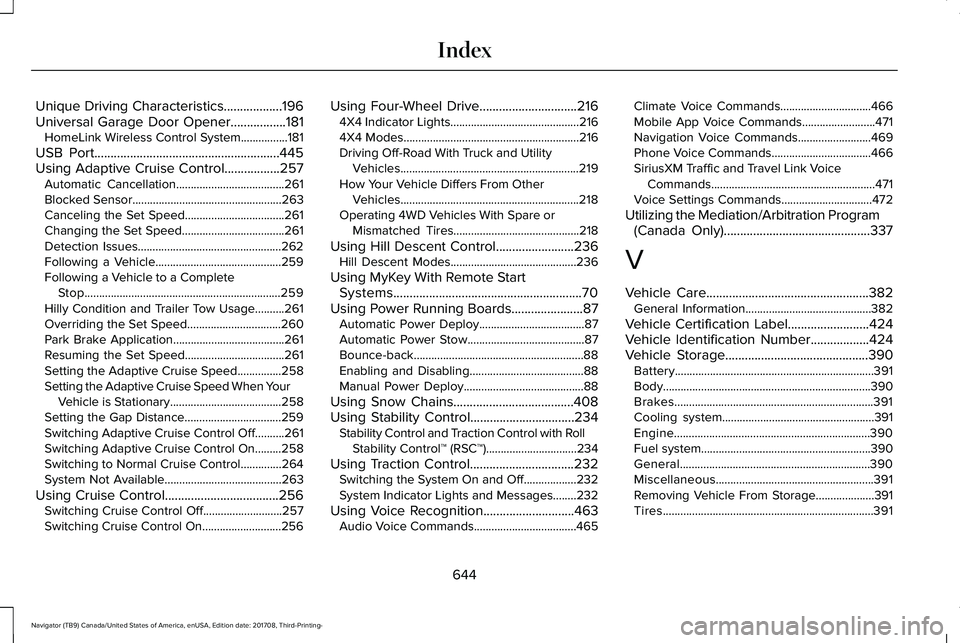
Unique Driving Characteristics..................196Universal Garage Door Opener.................181HomeLink Wireless Control System................181
USB Port.........................................................445Using Adaptive Cruise Control.................257Automatic Cancellation.....................................261Blocked Sensor...................................................263Canceling the Set Speed..................................261Changing the Set Speed...................................261Detection Issues.................................................262Following a Vehicle...........................................259Following a Vehicle to a CompleteStop...................................................................259Hilly Condition and Trailer Tow Usage..........261Overriding the Set Speed................................260Park Brake Application......................................261Resuming the Set Speed..................................261Setting the Adaptive Cruise Speed...............258Setting the Adaptive Cruise Speed When YourVehicle is Stationary......................................258Setting the Gap Distance.................................259Switching Adaptive Cruise Control Off..........261Switching Adaptive Cruise Control On.........258Switching to Normal Cruise Control..............264System Not Available........................................263
Using Cruise Control...................................256Switching Cruise Control Off...........................257Switching Cruise Control On...........................256
Using Four-Wheel Drive..............................2164X4 Indicator Lights............................................2164X4 Modes............................................................216Driving Off-Road With Truck and UtilityVehicles.............................................................219How Your Vehicle Differs From OtherVehicles.............................................................218Operating 4WD Vehicles With Spare orMismatched Tires...........................................218
Using Hill Descent Control........................236Hill Descent Modes...........................................236
Using MyKey With Remote StartSystems..........................................................70Using Power Running Boards......................87Automatic Power Deploy....................................87Automatic Power Stow........................................87Bounce-back..........................................................88Enabling and Disabling.......................................88Manual Power Deploy.........................................88
Using Snow Chains.....................................408Using Stability Control................................234Stability Control and Traction Control with RollStability Control™ (RSC™)...............................234
Using Traction Control................................232Switching the System On and Off..................232System Indicator Lights and Messages........232
Using Voice Recognition............................463Audio Voice Commands...................................465
Climate Voice Commands...............................466Mobile App Voice Commands.........................471Navigation Voice Commands.........................469Phone Voice Commands..................................466SiriusXM Traffic and Travel Link VoiceCommands........................................................471Voice Settings Commands...............................472
Utilizing the Mediation/Arbitration Program(Canada Only).............................................337
V
Vehicle Care..................................................382General Information...........................................382
Vehicle Certification Label.........................424Vehicle Identification Number..................424Vehicle Storage............................................390Battery....................................................................391Body.......................................................................390Brakes....................................................................391Cooling system....................................................391Engine...................................................................390Fuel system..........................................................390General.................................................................390Miscellaneous......................................................391Removing Vehicle From Storage....................391Tires........................................................................391
644
Navigator (TB9) Canada/United States of America, enUSA, Edition date: 201708, Third-Printing-
Index