remote control LINCOLN NAVIGATOR 2020 User Guide
[x] Cancel search | Manufacturer: LINCOLN, Model Year: 2020, Model line: NAVIGATOR, Model: LINCOLN NAVIGATOR 2020Pages: 622, PDF Size: 6.47 MB
Page 76 of 622
Remote Start
WARNING: To avoid exhaust fumes,
do not use remote start if your vehicle is
parked indoors or in areas that are not well
ventilated.
Note: Do not use remote start if your fuel
level is low. The remote start button is on the
transmitter.
This feature allows you to start your vehicle
from outside the vehicle. The transmitter has
an extended operating range.
Vehicles with automatic climate control can
be configured to operate when the vehicle
is remote started.
See Automatic Climate
Control (page 165).
Many states and provinces have restrictions
for the use of remote start. Check your local
and state or provincial laws for specific
requirements regarding remote start
systems. The system does not work if:
•
The ignition is on.
• The anti-theft alarm triggers.
• You switch off the feature in the
information display.
See General
Information (page 133).
• The hood is open.
• The transmission is not in park (P).
• The battery voltage is below the
minimum operating voltage.
Remote Control Feedback
An LED on the remote control provides status
feedback of remote start or stop commands. Status
LED
Remote startsuccessful
Solid green
Remote stopsuccessful
Solid red
Request failed or
status not received
Blinking red
Status incomplete
Blinking green Remote Starting Your Vehicle
Note:
You must press each button within
three seconds of each other. If you do not
follow this sequence, your vehicle does not
start remotely, the direction indicators do
not flash twice and the horn does not sound. To remote start your vehicle:
1. Press the lock button to lock all the
doors.
2. Press the remote start button twice. The
exterior lamps flash twice.
The horn sounds if the system fails to start.
Note: Press the push button ignition switch
on the instrument panel once to exit remote
start.
73
Navigator (TB9) Canada/United States of America, enUSA, Edition date: 201907, Second-Printing Keys and Remote ControlsE138625 E138626
Page 77 of 622
The power windows do not work during
remote start and the radio does not turn on
automatically.
The parking lamps remain on and the vehicle
runs for 5, 10 or 15 minutes, depending on
the setting.
Extending the Engine Running Time
To extend the engine running time duration
of your vehicle during remote start, repeat
steps 1 and 2 while the engine is running. If
the duration is set to 15 minutes, the duration
extends by another 15 minutes. For example,
if your vehicle had been running from the
first remote start for 5 minutes, your vehicle
continues to run now for a total of 30
minutes. You can extend the remote start
up to a maximum of 35 minutes.
Wait at least five seconds before remote
starting after the engine stops running.
Turning Your Vehicle Off After Remote
Starting
Press the button once. The
parking lamps turn off. You may have to be closer to your vehicle
to remotely switch off your vehicle after
remote starting. This is due to the added
noise of your running vehicle.
You can switch this feature on or off in the
information display.
Memory Feature
You can program your intelligent access key
to recall memory positions. See Memory
Function (page 181).
If programmed to a pre-set position, the
remote control recalls memory positions
when you unlock your vehicle. If you have
the easy entry and exit feature enabled and
the ignition is off, the seat moves to the easy
entry position.
The seat moves to the driver memory
position when you switch the ignition on. REPLACING A LOST KEY OR
REMOTE CONTROL
Replacement keys or remote controls can
be purchased from an authorized dealer.
Authorized dealers can program remote
controls for your vehicle.
74
Navigator (TB9) Canada/United States of America, enUSA, Edition date: 201907, Second-Printing Keys and Remote ControlsE138625
Page 78 of 622
WHAT IS PHONE AS A KEY
Phone as a key allows you to use your phone
in place of a remote control.
You can use your phone for the following
functions:
•
Remote locking and unlocking.
• Passive entry and exit.
• Passive start.
• Remote start.
• Memory function recall.
PHONE AS A KEY LIMITATIONS
Limitations can vary based on the make and
model of your phone, phone location and
physical obstructions.
The following items could cause your phone
as a key to stop working:
• The approximate phone as a key range
is 131 ft (40 m).
• Your Bluetooth connection is not
enabled, is disrupted, or out of range. •
Your phone as a key is not active or
enabled on at least one phone.
• Your vehicle battery has depleted.
• Your phone battery has depleted.
• Your phone frequencies have jammed.
• Your phone is too close to metal objects
or other electronic devices.
PROGRAMMING YOUR PHONE
Refer to the Lincoln Way app for instructions
on registering your vehicle and programming
your phone as a key.
USING THE VALET MODE
1. Press Settings on the touchscreen.
2. Press Valet Mode.
Note: Have your backup start passcode
completely setup before using valet mode. Note:
Once the system detects a valid phone
as a key, the temporary passcode displays
in both the touchscreen and mobile app. If
the system does not detect a valid phone as
a key, it prompts you to enter your backup
start passcode. Once validated, the
temporary passcode displays on the
touchscreen.
3. Enter the first five digits of the passcode
on the keyless entry keypad to lock or
unlock your vehicle.
4. Enter the eight-digit passcode on the touchscreen to start and drive your
vehicle.
To disable valet mode, press Exit Valet Mode
on the touchscreen. Once the system detects
an authorized phone as a key, it disables. If
the system does not detect a valid phone as
a key, it prompts you to enter your backup
start passcode. Once validated, valet mode
disables.
75
Navigator (TB9) Canada/United States of America, enUSA, Edition date: 201907, Second-Printing Phone as a Key
Page 82 of 622
Note:
Not every feature applies to every
vehicle in every market. When they are
available for your vehicle, then they appear
in your information display, providing choices
to switch them on or off, or to select a more
specific setting.
• Various vehicle speed limits so the
MyKey driver cannot exceed certain
speeds. The information display shows
warnings followed by an audible tone
when the MyKey driver reaches the set
speed. You cannot override the set
speed by fully depressing the accelerator
pedal. WARNING: Do not set MyKey
maximum speed limit to a limit that will
prevent the driver from maintaining a safe
speed considering posted speed limits and
prevailing road conditions. The driver is
always responsible to drive in accordance
with local laws and prevailing conditions.
Failure to do so could result in accident or
injury. •
Various vehicle speed reminders so
MyKey drivers know when their vehicle
speed approaches the limits. Warnings
appear in your information display and a
tone sounds when the MyKey drivers
exceed the set vehicle speed.
• The audio system's maximum volume
limits to 45% so MyKey drivers can
concentrate on the road. A message
appears in the information display when
MyKey drivers attempt to exceed the
limited volume. MyKey also disables the
automatic volume control.
Note: If your
vehicle includes an AM/FM radio or a
very basic audio system, then the radio
may not limit.
• Always on setting. This setting forces
certain features to remain on and active
for MyKey drivers. For example, E911 or
emergency assistance and the do not
disturb features stay on even if a MyKey
driver uses the feature's control to switch
it off. When selected, you will not be able
to turn off Advance Trac or traction
control (if your vehicle has this feature). CREATING A MYKEY
Use the information display to create a
MyKey:
1. Insert the key you want to program into
the ignition. If your vehicle is equipped
with a push-button start, place the remote
control into the backup slot. See Starting
a Gasoline Engine
(page 204).
2. Switch the ignition on.
3. Access the main menu in the information
display and then scroll through the
menus to change the settings of your
MyKey. From the MyKey menu select the
option Create MyKey.
See Information
Displays (page 133).
4. When prompted, hold the OK button until
you see a message informing you to label
this key as a MyKey. The programmed
restrictions apply when you key off, open
and close the driver door and restart your
vehicle with the programmed key or
transmitter.
MyKey is successfully created. Make sure
you label it so you can distinguish it from the
admin keys.
79
Navigator (TB9) Canada/United States of America, enUSA, Edition date: 201907, Second-Printing MyKey™
Page 86 of 622
LOCKING AND UNLOCKING
You can use the power door lock control or
the remote control to lock and unlock your
vehicle.
Power Door Locks
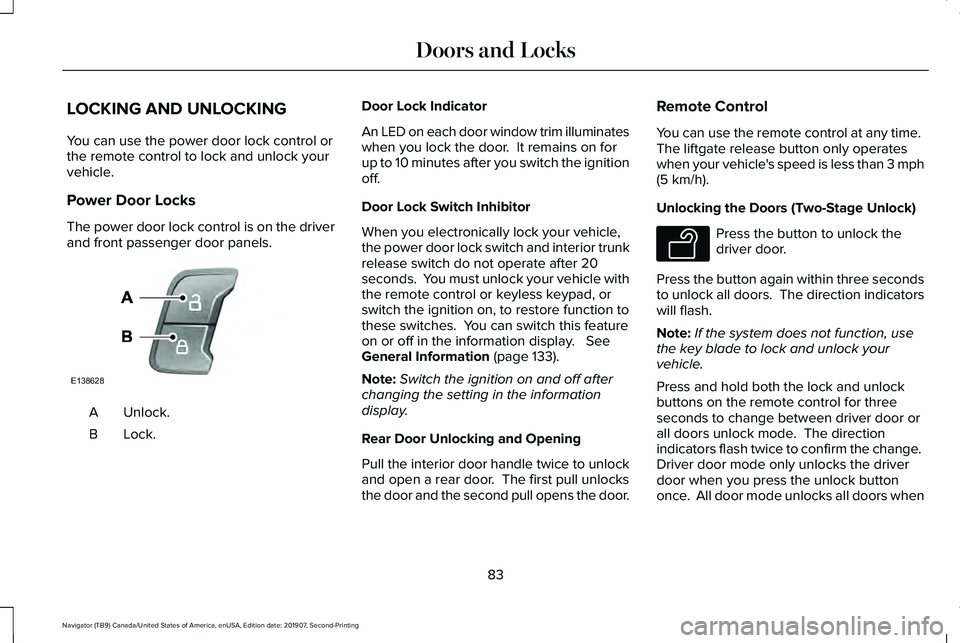
The power door lock control is on the driver
and front passenger door panels.
Unlock.
A
Lock.B Door Lock Indicator
An LED on each door window trim illuminates
when you lock the door. It remains on for
up to 10 minutes after you switch the ignition
off.
Door Lock Switch Inhibitor
When you electronically lock your vehicle,
the power door lock switch and interior trunk
release switch do not operate after 20
seconds. You must unlock your vehicle with
the remote control or keyless keypad, or
switch the ignition on, to restore function to
these switches. You can switch this feature
on or off in the information display. See
General Information (page 133).
Note: Switch the ignition on and off after
changing the setting in the information
display.
Rear Door Unlocking and Opening
Pull the interior door handle twice to unlock
and open a rear door. The first pull unlocks
the door and the second pull opens the door. Remote Control
You can use the remote control at any time.
The liftgate release button only operates
when your vehicle's speed is less than 3 mph
(5 km/h)
.
Unlocking the Doors (Two-Stage Unlock) Press the button to unlock the
driver door.
Press the button again within three seconds
to unlock all doors. The direction indicators
will flash.
Note: If the system does not function, use
the key blade to lock and unlock your
vehicle.
Press and hold both the lock and unlock
buttons on the remote control for three
seconds to change between driver door or
all doors unlock mode. The direction
indicators flash twice to confirm the change.
Driver door mode only unlocks the driver
door when you press the unlock button
once. All door mode unlocks all doors when
83
Navigator (TB9) Canada/United States of America, enUSA, Edition date: 201907, Second-Printing Doors and LocksE138628 E138629
Page 87 of 622
you press the unlock button once. The
unlocking mode applies to the remote
control, keyless entry keypad and intelligent
access. You can also change between the
unlocking modes using the information
display. See General Information (page 133).
Reprogramming the Unlocking Function
Note:
When you press the unlock button,
either all the doors are unlocked or only the
driver door is unlocked. Pressing the unlock
button again unlocks all the doors.
Press and hold the unlock and lock buttons
on the remote control simultaneously for at
least four seconds with the ignition off. The
direction indicators flash twice to confirm the
change.
To return to the original unlocking function,
repeat the process.
Locking the Doors Press the button to lock all doors.
The direction indicators will flash. Press the button again within three seconds
to confirm that all the doors are closed. The
door lock again, the horn sounds and the
direction indicators flash if all the doors and
the liftgate are closed.
Note:
If the system does not function, use
the key blade to lock and unlock your
vehicle.
Mislock
If any door or the liftgate is open, or if
the hood is open on vehicles with an
anti-theft alarm or remote start, the horn
sounds twice and the direction
indicators do not flash. You can switch
this feature on or off in the information
display. See General Information (page
133).
Opening the Liftgate Press twice within three seconds
to open the liftgate.Activating Intelligent Access
General Information
You can unlock and lock the vehicle without
taking the keys out of your pocket or purse
when your intelligent access key is within
3 ft (1 m)
of your vehicle. Intelligent access
uses a sensor on the back of the door handle
for unlocking and a separate sensor on the
face of each door handle for locking.
The system does not function if:
• Your vehicle battery has no charge.
• The key battery has no charge.
• The key frequencies are jammed.
Note: The system may not function if the key
is close to metal objects or electronic
devices, for example keys or a cell phone.
Note: If the system does not function, use
the key blade to lock and unlock your
vehicle.
See Remote Control (page 69).
84
Navigator (TB9) Canada/United States of America, enUSA, Edition date: 201907, Second-Printing Doors and LocksE138623 E267940
Page 89 of 622
Locking and Unlocking the Doors with
the Key Blade
A key cylinder is located under the driver
side door handle. You can use your key
blade to manually lock and unlock the driver
side door. See Remote Control (page 69).
Smart Unlocks for Intelligent Access
Keys
This helps to prevent you from locking your
key inside the passenger compartment or
rear cargo area.
When you electronically lock your vehicle
with any door open, the transmission is in
park (P) and the ignition is off, the system
searches for an intelligent access key inside
your vehicle after you close the last door. If
the system finds a key, all the doors
immediately unlock and the horn sounds
twice, indicating that a key is inside.
You can override the smart unlock feature
and intentionally lock the intelligent access
key inside your vehicle. To do this, lock your vehicle after you have
closed all the doors by:
•
Using the keyless entry keypad.
• Pressing the lock button on another
intelligent access key.
When you open one of the front doors and
lock your vehicle using the power door lock
control, all doors will lock then unlock if:
• The ignition is on.
• The ignition is off and the transmission
is not in park (P).
Autolock
(If Equipped)
Autolock locks all the doors when:
• All doors are closed.
• The ignition is on.
• You shift into any gear putting your
vehicle in motion.
• Your vehicle reaches a speed greater
than
12.4 mph (20 km/h). Autolock repeats when:
•
You open then close any door while the
ignition is on and your vehicle speed is
9 mph (15 km/h)
or lower.
• Your vehicle reaches a speed greater
than
12 mph (20 km/h).
Autounlock
Autounlock unlocks all the doors when:
• The ignition is on, all the doors are
closed, and your vehicle has been
moving at a speed greater than 12.4 mph
(20 km/h)
.
• Your vehicle comes to a stop and you
switch the ignition off, or to the accessory
position.
• You open the driver door within 10
minutes of switching the ignition off or to
accessory.
Note: The doors do not autounlock if you
electronically lock your vehicle after you
switch the ignition off and before you open
the driver door.
86
Navigator (TB9) Canada/United States of America, enUSA, Edition date: 201907, Second-Printing Doors and Locks
Page 90 of 622
Enabling or Disabling Autounlock
You can enable or disable the autounlock
feature in the information display or an
authorized dealer can do it for you. See
General Information (page 133).
Illuminated Entry
The interior lamps and some exterior lamps
illuminate when you unlock the doors with
the remote control.
The lamps turn off if:
• The ignition is on.
• You press the remote control lock button.
• 25 seconds have elapsed.
The lamps do not turn off if:
• You turn them on with the lamp control.
• Any door is open.
Illuminated Exit
The interior lamps and some exterior lamps
illuminate when all doors are closed and you
switch the ignition off. The lamps turn off if all the doors remain
closed and:
•
25 seconds have elapsed.
• You press the push button ignition
switch.
Approach Detection Illumination
When you approach your vehicle and a valid
key is detected, the exterior door handles
and some exterior lamps illuminate.
Battery Saver
If you leave the courtesy lamps, interior
lamps or headlamps on, the battery saver
shuts them off 10 minutes after you switch
the ignition off.
Battery Saver for Intelligent Access Keys
If you leave the ignition switched on, it shuts
off when it detects a certain amount of
battery drain, or after 30 minutes. KEYLESS ENTRY
SECURICODE™ KEYLESS ENTRY
KEYPAD
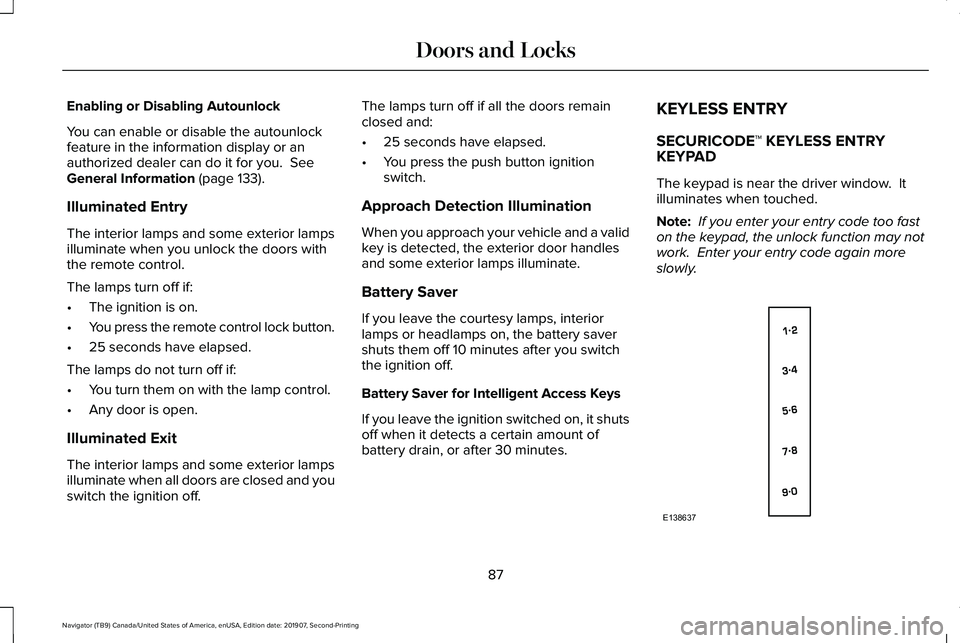
The keypad is near the driver window. It
illuminates when touched.
Note:
If you enter your entry code too fast
on the keypad, the unlock function may not
work. Enter your entry code again more
slowly. 87
Navigator (TB9) Canada/United States of America, enUSA, Edition date: 201907, Second-Printing Doors and LocksE138637
Page 91 of 622
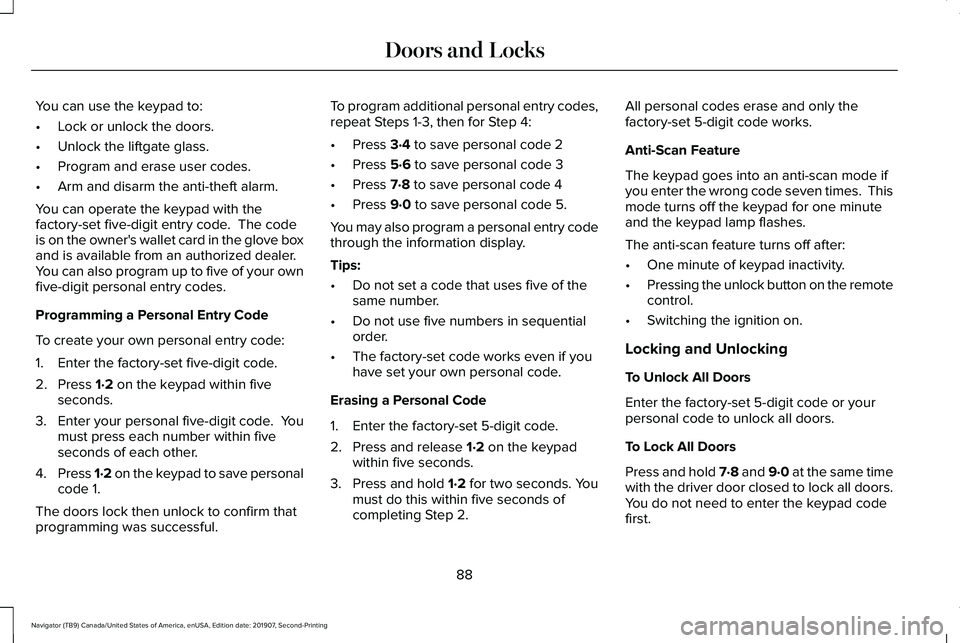
You can use the keypad to:
•
Lock or unlock the doors.
• Unlock the liftgate glass.
• Program and erase user codes.
• Arm and disarm the anti-theft alarm.
You can operate the keypad with the
factory-set five-digit entry code. The code
is on the owner's wallet card in the glove box
and is available from an authorized dealer.
You can also program up to five of your own
five-digit personal entry codes.
Programming a Personal Entry Code
To create your own personal entry code:
1. Enter the factory-set five-digit code.
2. Press 1·2 on the keypad within five
seconds.
3. Enter your personal five-digit code. You
must press each number within five
seconds of each other.
4. Press 1·2 on the keypad to save personal
code 1.
The doors lock then unlock to confirm that
programming was successful. To program additional personal entry codes,
repeat Steps 1-3, then for Step 4:
•
Press
3·4 to save personal code 2
• Press
5·6 to save personal code 3
• Press
7·8 to save personal code 4
• Press
9·0 to save personal code 5.
You may also program a personal entry code
through the information display.
Tips:
• Do not set a code that uses five of the
same number.
• Do not use five numbers in sequential
order.
• The factory-set code works even if you
have set your own personal code.
Erasing a Personal Code
1. Enter the factory-set 5-digit code.
2. Press and release
1·2 on the keypad
within five seconds.
3. Press and hold
1·2 for two seconds. You
must do this within five seconds of
completing Step 2. All personal codes erase and only the
factory-set 5-digit code works.
Anti-Scan Feature
The keypad goes into an anti-scan mode if
you enter the wrong code seven times. This
mode turns off the keypad for one minute
and the keypad lamp flashes.
The anti-scan feature turns off after:
•
One minute of keypad inactivity.
• Pressing the unlock button on the remote
control.
• Switching the ignition on.
Locking and Unlocking
To Unlock All Doors
Enter the factory-set 5-digit code or your
personal code to unlock all doors.
To Lock All Doors
Press and hold 7·8 and 9·0 at the same time
with the driver door closed to lock all doors.
You do not need to enter the keypad code
first.
88
Navigator (TB9) Canada/United States of America, enUSA, Edition date: 201907, Second-Printing Doors and Locks
Page 94 of 622
Note:
Make sure the area behind your
vehicle is free from obstruction and that
there is enough room for you to operate the
liftgate. Objects too close to your vehicle,
for example a wall, garage door or another
vehicle may come into contact with the
moving liftgate. This could damage the
liftgate and its components.
Note: Be careful when opening or closing
the liftgate in a garage or other enclosed
area to avoid damaging the liftgate.
Note: Do not leave the liftgate open when
driving. This could damage the liftgate and
its components.
From the Instrument Panel With the transmission in park (P),
press the button on the instrument
panel.
Remote Control Press the button twice within a few
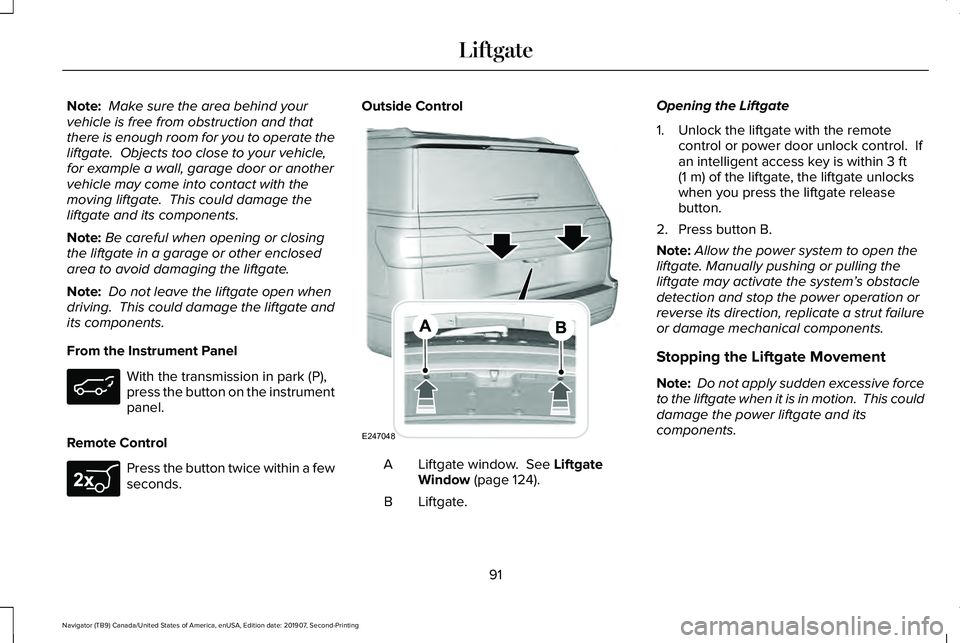
seconds. Outside Control
Liftgate window. See Liftgate
Window (page 124).
A
Liftgate.
B Opening the Liftgate
1. Unlock the liftgate with the remote
control or power door unlock control. If
an intelligent access key is within
3 ft
(1 m) of the liftgate, the liftgate unlocks
when you press the liftgate release
button.
2. Press button B.
Note: Allow the power system to open the
liftgate. Manually pushing or pulling the
liftgate may activate the system’ s obstacle
detection and stop the power operation or
reverse its direction, replicate a strut failure
or damage mechanical components.
Stopping the Liftgate Movement
Note: Do not apply sudden excessive force
to the liftgate when it is in motion. This could
damage the power liftgate and its
components.
91
Navigator (TB9) Canada/United States of America, enUSA, Edition date: 201907, Second-Printing Liftgate E267940 E247048