change time LINCOLN NAVIGATOR 2020 Owner's Guide
[x] Cancel search | Manufacturer: LINCOLN, Model Year: 2020, Model line: NAVIGATOR, Model: LINCOLN NAVIGATOR 2020Pages: 622, PDF Size: 6.47 MB
Page 471 of 622
SiriusXM Satellite Radio Service
Note:
SiriusXM reserves the unrestricted
right to change, rearrange, add or delete
programming including canceling, moving
or adding particular channels, and its prices,
at any time, with or without notice to you.
Ford Motor Company shall not be
responsible for any such programming
changes. SiriusXM satellite radio is a
subscription-based satellite radio service that
broadcasts a variety of music, sports, news,
weather, traffic and entertainment
programming. Your factory-installed SiriusXM
satellite radio system includes hardware and
a limited subscription term, which begins on
the date of sale or lease of your vehicle. See
an authorized dealer for availability.
For more information on extended
subscription terms (a service fee is required),
the online media player and a complete list
of SiriusXM satellite radio channels, and
other features, please visit www.siriusxm.com
in the United States, www.siriusxm.ca in
Canada, or call SiriusXM at 1-888-539-7474.
Satellite Radio Electronic Serial
Number (ESN)
You need your ESN to activate, modify or
track your satellite radio account.
Locating Your ESN
With satellite radio as the source, use the
touchscreen to select the following:
1.
Select Settings. See Settings (page 513).
2. Select
SiriusXM.
3. Select
SiriusXM information.
468
Navigator (TB9) Canada/United States of America, enUSA, Edition date: 201907, Second-Printing Audio SystemE208625
Page 490 of 622
You may be able to add additional preset
pages using the settings option on the
feature bar.
SiriusXM® Satellite Radio (If Activated)
Note:
This feature may not be available in
all markets and requires an active
subscription. SiriusXM satellite radio is a
subscription-based satellite radio service that
broadcasts a variety of music, sports, news,
weather, traffic and entertainment
programming. Your factory-installed SiriusXM
satellite radio system includes hardware and
a limited subscription term that begins on
the date of sale or lease of your vehicle. See
an authorized dealer for availability.
For more information on extended
subscription terms (a service fee is required),
the online media player and a list of SiriusXM
satellite radio channels, and other features,
please visit www.siriusxm.com in the United
States, www.siriusxm.ca in Canada, or call
SiriusXM at 1-888-539-7474.
Note:
SiriusXM reserves the unrestricted
right to change, rearrange, add or delete
programming. This includes canceling,
moving or adding particular channels, and
its prices, at any time, with or without notice
to you. We are not responsible for any such
programming changes.
Note: This receiver includes the eCos
real-time operating system. eCos is
published under the eCos License.
The following buttons are available for SiriusXM: Action and Description
Menu Item
Touch this button to see a list of available stations.
Browse
A pop-up appears, allowing you to type in the call numbers of a station.\
Direct Tune
Once you enter the stations call numbers, you can select:
The system tunes to the station you select.
Enter
You exit the pop-up and the current station continues to play.
Cancel
487
Navigator (TB9) Canada/United States of America, enUSA, Edition date: 201907, Second-Printing SYNC™ 3E234451
Page 497 of 622
Website
http://hdradio.com/stations/feedback
HD Radio Technology manufactured under
license from iBiquity Digital Corporation and
foreign patents. HD Radio and the HD and
HD Radio logos are proprietary trademarks
of DTS. The vehicle manufacturer and DTS
are not responsible for the content sent using
HD Radio technology. Content may be
changed, added or deleted at any time at
the station owner's discretion. CD (If equipped)
Once you select this option, the system
returns you to the main audio screen.
The current audio information appears on
the screen.
The following buttons are also available: Function
Button
You can use the browse button to select a track.
Browse
Select this button and a small number one displays to indicate the track\
is set to repeat.
Repeat
For MP3 CDs, this button allows you to toggle through repeat off, repeat one track (a small number
one displays), and repeat current folder (a small folder displays).
Select the shuffle symbol to have the audio on the disk play in random o\
rder.
Shuffle
494
Navigator (TB9) Canada/United States of America, enUSA, Edition date: 201907, Second-Printing SYNC™ 3
Page 504 of 622
1. Select Add Phone.
Note: A prompt alerts you to search for your
vehicle on your cell phone.
2. Select your vehicle on your cell phone.
Note: A number appears on your cell phone
and on the touchscreen.
3. Confirm that the number on your cell phone matches the number on the
touchscreen.
Note: The touchscreen indicates that you
have successfully paired your cell phone.
4. Download the phonebook from your cell
phone when you are prompted.
Note: If you pair more than one cell phone,
use the phone settings to specify the primary
phone. You can change this setting at any
time.
Using Your Cell Phone
Recent Call List
Display and select an entry from a list of
previous calls. Contacts
Display a smart search form to look up your
contacts. Use the List button to alphabetically
sort your contacts.
Change Phone
Display the list of paired or connected
devices that you can select.
Phone Settings
Change ring tones, alerts or pair another
phone.
Do Not Disturb
Reject incoming calls and switch ring tones
and alerts off.
Phone Keypad
Directly dial a number.
Mute
Mute the microphone.
Text Messaging
Setting Text Message Notification
iOS
1. Go to the settings menu on your cell
phone.
2. Select Bluetooth.
3. Select the information icon to the right of
your vehicle.
4. Switch text message notification on.
Android
1. Go to the settings menu on your cell phone.
2. Select Bluetooth.
3. Select the profiles option.
4. Select the phone profile.
5. Switch text message notification on.
501
Navigator (TB9) Canada/United States of America, enUSA, Edition date: 201907, Second-Printing SYNC™ 3
Page 509 of 622
Changing the Format of the Map
Display the map in one of the following
formats:
•
A two-dimensional map with the direction
you are traveling toward the top of the
screen.
• A two-dimensional map with north toward
the top of the screen.
• A three-dimensional map with the
direction you are traveling toward the
front.
Zoom
Display more or less detail on the map.
Note: You can use pinch gestures to zoom
in and out. Place two fingers on the screen
and move them apart to zoom in. Place two
fingers on the screen and bring them
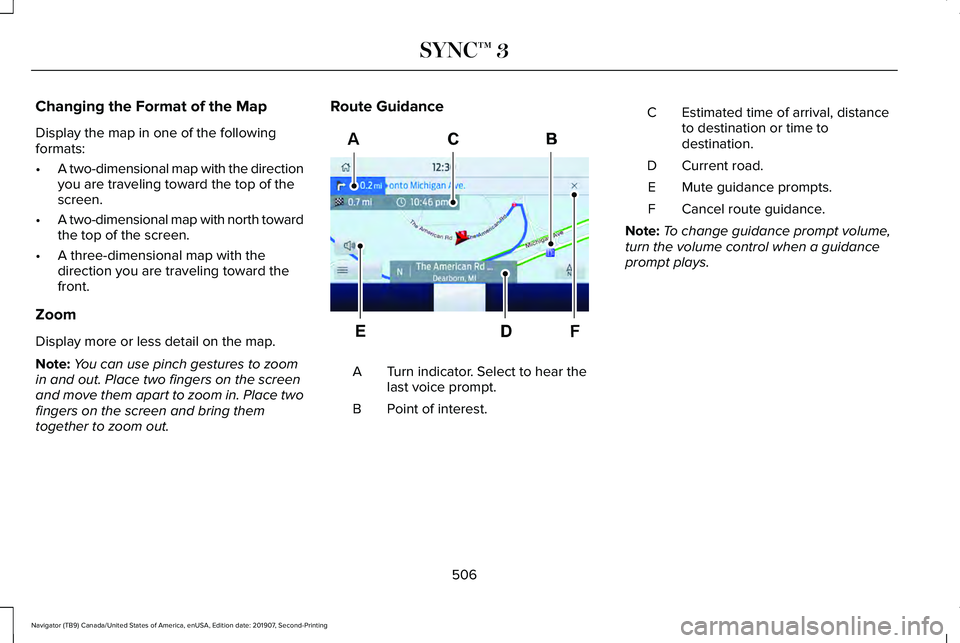
together to zoom out. Route Guidance
Turn indicator. Select to hear the
last voice prompt.
A
Point of interest.
B Estimated time of arrival, distance
to destination or time to
destination.
C
Current road.
D
Mute guidance prompts.
E
Cancel route guidance.
F
Note: To change guidance prompt volume,
turn the volume control when a guidance
prompt plays.
506
Navigator (TB9) Canada/United States of America, enUSA, Edition date: 201907, Second-Printing SYNC™ 3F
AE297560
Page 513 of 622
The navigation system map data may contain
inaccurate or incomplete information due to
the passage of time, changing
circumstances, sources used and the nature
of collecting comprehensive geographic
data, any of which may lead to incorrect
results. Inaccurate speed limit information,
turn restrictions and other road attributes
may affect the determined route and
associated guidance
Annual navigation map updates are available
for purchase through your dealership.
Depending on your purchase agreement,
you might be eligible for free Map update.
You can choose to download the Map data
update onto a USB, order a USB, or use Wi-Fi
to deliver automatic updates. To update your
Map data over Wi-Fi, your vehicle must be
connected to a Wi-Fi access point. Map Data
files are large, so it is highly recommended
to perform the update when free Wi-Fi is
available otherwise high data rates may
apply. For USB updates, free map update
eligibility, and other details, contact dealers
at 1-866-462-8837 in the United States and
Canada or 01-800-557-5539 in Mexico or
visit our local website for more information.
APPS
The system allows you interact with select
mobile apps while keeping your eyes on the
road. Voice commands, your steering wheel
buttons, or a quick tap on your touchscreen
give you advanced control of compatible
mobile apps. You can also stream your
favorite music or podcasts, share your time
of arrival with friends, and keep connected
safely.
When you start an app through the system
for the first time, you could be asked to grant
certain permissions. You can review and
change the permissions that you have
granted at any time when your vehicle is not
moving. We recommend that you check your
data plan before using your apps through
the system. Using them could result in
additional charges. We also recommend that
you check the app provider's terms and
conditions and privacy policy before using
their app. Make sure that you have an active
account for apps that you want to use
through the system. Some apps will work
with no setup. Others require you to
configure some personal settings before you
can use them.
Note:
For more information about available
apps, visit catalog.ford.com.
Using Apps on an iOS Device Select the apps option on the
feature bar.
1. If your device is connected via USB, switch Apple CarPlay off. See Phone
(page 500).
2. Connect your device to a USB port or pair and connect using Bluetooth.
3. If prompted to enable CarPlay, select Disable
.
4. Start the apps on your device that you want to use through SYNC.
Note: If you close the apps on your device,
you will not be able to use them through the
system.
510
Navigator (TB9) Canada/United States of America, enUSA, Edition date: 201907, Second-Printing SYNC™ 3
Page 539 of 622
There are several Lincoln Protect extended
service plans available in various time,
distance and deductible combinations. Each
plan is tailored to fit your own driving needs,
including reimbursement for towing and
rental. When you purchase Lincoln Protect
extended service plan, you receive added
peace-of-mind protection throughout
Canada, the United States and Mexico,
provided by a network of participating
authorized Lincoln Motor Company dealers.
Note:
Repairs performed outside of Canada,
the United States and Mexico are not eligible
for Lincoln Protect extended service plan
coverage.
This information is subject to change. For
more information, visit your local Lincoln of
Canada dealer or www.LincolnCanada.com
to find the Lincoln Protect extended service
plan that is right for you.
536
Navigator (TB9) Canada/United States of America, enUSA, Edition date: 201907, Second-Printing Lincoln Protect
Page 541 of 622
Your vehicle is equipped with the Intelligent
Oil-Life Monitor system, which displays a
message in the information display at the
proper oil change interval. This interval may
be up to one year or 10,000 mi (16,000 km).
When the oil change message appears in
the information display, it is time for an oil
change. Make sure you perform the oil
change within two weeks or 500 mi (800 km)
of the message appearing. Make sure you
reset the Intelligent Oil-Life Monitor after
each oil change. See Oil Change Indicator
Reset
(page 378).
If your information display resets prematurely
or becomes inoperative, you should perform
the oil change interval at six months or
5,000 mi (8,000 km)
from your last oil
change. Never exceed one year or 10,000 mi
(16,000 km)
between oil change intervals.
Your vehicle is very sophisticated and built
with multiple, complex, performance systems.
Every manufacturer develops these systems
using different specifications and
performance features. That is why it is
important to rely upon your dealership to
properly diagnose and repair your vehicle. The Lincoln Motor Company has
recommended maintenance intervals for
various parts and component systems based
upon engineering testing. The Lincoln Motor
Company relies upon this testing to
determine the most appropriate mileage for
replacement of oils and fluids to protect your
vehicle at the lowest overall cost to you and
recommends against maintenance schedules
that deviate from the scheduled maintenance
information.
We strongly recommend the use of only
genuine Lincoln, Motorcraft or Lincoln
authorized re-manufactured replacement
parts engineered for your vehicle.
Additives and Chemicals
This owner's manual and the Lincoln
Workshop Manual list the recommended
additives and chemicals for your vehicle. We
do not recommend using chemicals or
additives not approved by us as part of your
vehicle
’s normal maintenance. Please consult
your warranty information. Oils, Fluids and Flushing
In many cases, fluid discoloration is a normal
operating characteristic and, by itself, does
not necessarily indicate a concern or that the
fluid needs to be changed. However, a
qualified expert, such as the factory-trained
technicians at your dealership, should
inspect discolored fluids that also show signs
of overheating or foreign material
contamination immediately.
Make sure to change your vehicle
’s oils and
fluids at the specified intervals or in
conjunction with a repair. Flushing is a viable
way to change fluid for many vehicle
sub-systems during scheduled maintenance.
It is critical that systems are flushed only with
new fluid that is the same as that required
to fill and operate the system or using a
Lincoln approved flushing chemical.
Owner Checks and Services
Make sure you perform the following basic
maintenance checks and inspections every
month or at six-month intervals.
538
Navigator (TB9) Canada/United States of America, enUSA, Edition date: 201907, Second-Printing Scheduled Maintenance
Page 544 of 622
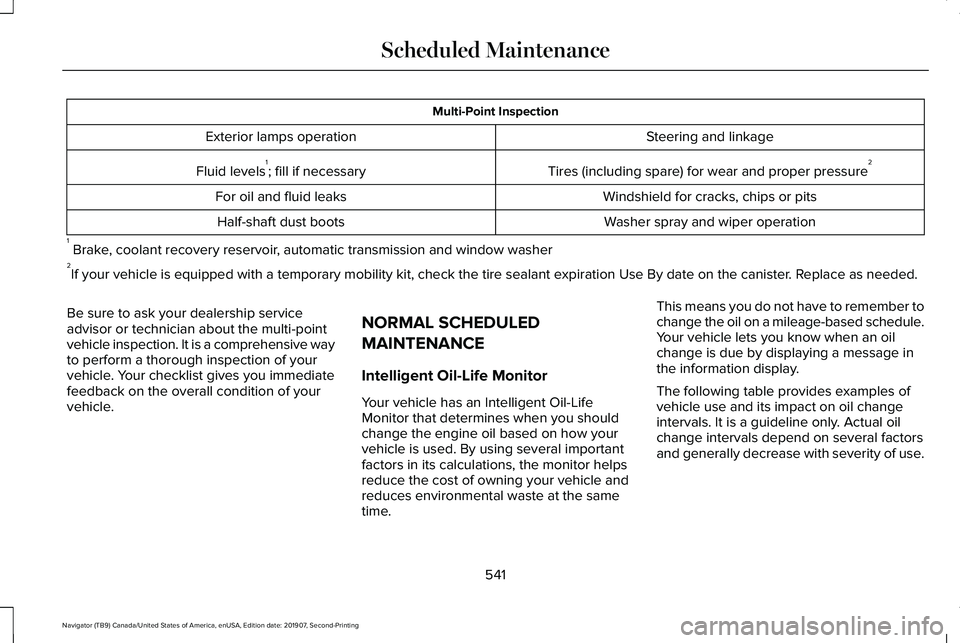
Multi-Point Inspection
Steering and linkage
Exterior lamps operation
Tires (including spare) for wear and proper pressure2
Fluid levels 1
; fill if necessary
Windshield for cracks, chips or pits
For oil and fluid leaks
Washer spray and wiper operation
Half-shaft dust boots
1 Brake, coolant recovery reservoir, automatic transmission and window washer
2 If your vehicle is equipped with a temporary mobility kit, check the tir\
e sealant expiration Use By date on the canister. Replace as needed.
Be sure to ask your dealership service
advisor or technician about the multi-point
vehicle inspection. It is a comprehensive way
to perform a thorough inspection of your
vehicle. Your checklist gives you immediate
feedback on the overall condition of your
vehicle. NORMAL SCHEDULED
MAINTENANCE
Intelligent Oil-Life Monitor
Your vehicle has an Intelligent Oil-Life
Monitor that determines when you should
change the engine oil based on how your
vehicle is used. By using several important
factors in its calculations, the monitor helps
reduce the cost of owning your vehicle and
reduces environmental waste at the same
time.This means you do not have to remember to
change the oil on a mileage-based schedule.
Your vehicle lets you know when an oil
change is due by displaying a message in
the information display.
The following table provides examples of
vehicle use and its impact on oil change
intervals. It is a guideline only. Actual oil
change intervals depend on several factors
and generally decrease with severity of use.
541
Navigator (TB9) Canada/United States of America, enUSA, Edition date: 201907, Second-Printing Scheduled Maintenance
Page 547 of 622
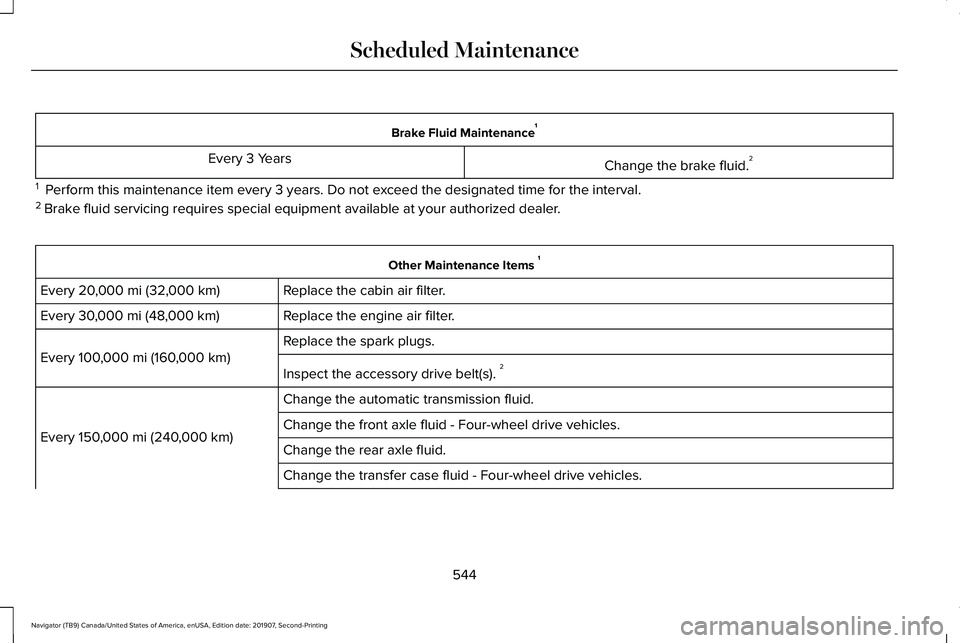
Brake Fluid Maintenance
1
Change the brake fluid. 2
Every 3 Years
1 Perform this maintenance item every 3 years. Do not exceed the designated time for the interval.
2 Brake fluid servicing requires special equipment available at your authorize\
d dealer. Other Maintenance Items
1
Replace the cabin air filter.
Every 20,000 mi (32,000 km)
Replace the engine air filter.
Every
30,000 mi (48,000 km)
Replace the spark plugs.
Every
100,000 mi (160,000 km)
Inspect the accessory drive belt(s). 2
Change the automatic transmission fluid.
Every
150,000 mi (240,000 km) Change the front axle fluid - Four-wheel drive vehicles.
Change the rear axle fluid.
Change the transfer case fluid - Four-wheel drive vehicles.
544
Navigator (TB9) Canada/United States of America, enUSA, Edition date: 201907, Second-Printing Scheduled Maintenance