reset LINCOLN NAVIGATOR 2020 Owner's Guide
[x] Cancel search | Manufacturer: LINCOLN, Model Year: 2020, Model line: NAVIGATOR, Model: LINCOLN NAVIGATOR 2020Pages: 622, PDF Size: 6.47 MB
Page 461 of 622
CREATING A VEHICLE WI-FI
HOTSPOT
You can create a Wi-Fi hotspot in your
vehicle and allow devices to connect to it for
access to the Internet.
Press the button to enter the
settings menu.
1. Select Connectivity Features.
2. Select
Vehicle Hotspot.
Note: The vehicle hotspot default setting is
on.
3. Select
Settings.
4. Make sure that you have Wi-Fi visibility switched on.
Note: The Wi-Fi Visibility default setting is
on.
Finding the Wi-Fi Hotspot Name and
Password Press the button to enter the
settings menu.
1. Select
Connectivity Features. 2. Select
Vehicle Hotspot.
3. Select
Settings.
Note: The SSID is the hotspot name.
4. Scroll to
Hide password.
5. Uncheck the box.
Connecting a Device to the Wi-Fi
Hotspot
1. On your device, turn on Wi-Fi and select
the hotspot from the list of available Wi-Fi
networks.
2. When prompted, enter the password.
Purchasing a Data Plan
1. Connect a device to the hotspot.
Note: The vehicle network carrier’ s portal
opens on your device.
2. If the portal does not open on your device, open a website and it redirects
to the vehicle network carrier’ s portal.
Note: Secure websites do not redirect. Note:
If you have an active plan, the system
does not redirect to the vehicle network
carrier’ s portal when you connect a device.
Visit the vehicle network carrier’ s website to
purchase more data.
Note: If data usage information is available
in the vehicle hotspot menu, it is
approximate.
Note: If you carry out a master reset, the
system does not remove your vehicle from
your vehicle network carrier’ s account. To
remove your vehicle from the account,
contact your vehicle network carrier.
Note: The vehicle network carrier provides
Vehicle Hotspot services, subject to your
vehicle network carrier agreement, coverage
and availability.
CHANGING THE VEHICLE WI-FI
HOTSPOT NAME OR PASSWORD Press the button to enter the
settings menu.
1. Select
Connectivity Features.
458
Navigator (TB9) Canada/United States of America, enUSA, Edition date: 201907, Second-Printing Vehicle Wi-Fi Hotspot
Page 466 of 622
Using Seek
Press and release the button to
select the next or previous stored
radio frequency station.
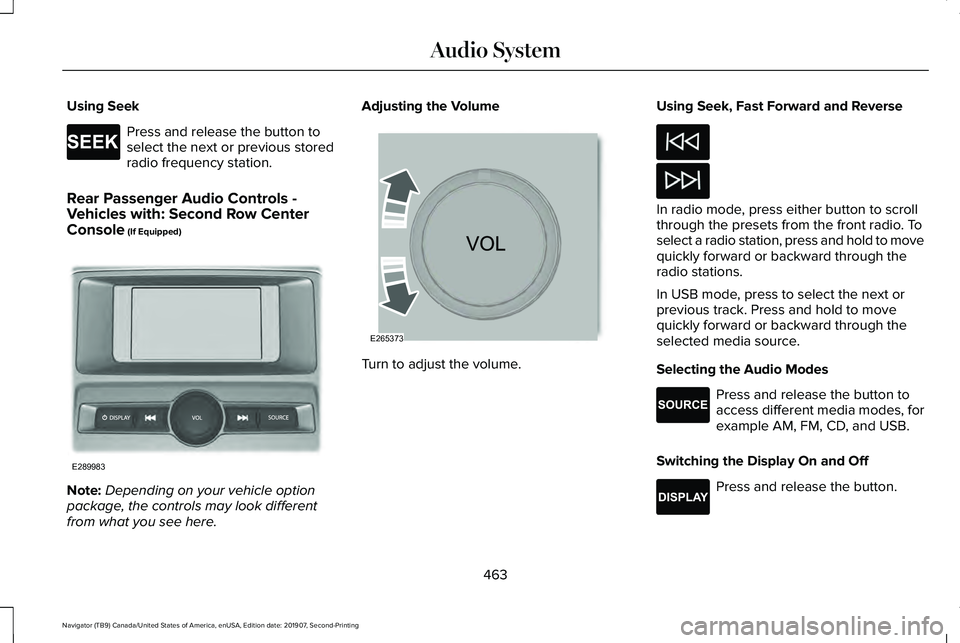
Rear Passenger Audio Controls -
Vehicles with: Second Row Center
Console (If Equipped) Note:
Depending on your vehicle option
package, the controls may look different
from what you see here. Adjusting the Volume
Turn to adjust the volume.Using Seek, Fast Forward and Reverse In radio mode, press either button to scroll
through the presets from the front radio. To
select a radio station, press and hold to move
quickly forward or backward through the
radio stations.
In USB mode, press to select the next or
previous track. Press and hold to move
quickly forward or backward through the
selected media source.
Selecting the Audio Modes
Press and release the button to
access different media modes, for
example AM, FM, CD, and USB.
Switching the Display On and Off Press and release the button.
463
Navigator (TB9) Canada/United States of America, enUSA, Edition date: 201907, Second-Printing Audio SystemE265273 E289983 E265373 E265276 E268786
Page 467 of 622
DIGITAL RADIO
Note:
HD Radio broadcasts are not available
in all markets.
HD Radio technology is the digital evolution
of analog AM/FM radio. Your system has a
special receiver that allows it to receive
digital broadcasts, where available, in
addition to the analog broadcasts, it already
receives. Digital broadcasts provide a better
sound quality than analog broadcasts with
free, crystal-clear audio and no static or
distortion. For more information, and a guide
to available stations and programming,
please visit www.hdradio.com. When HD Radio is on and you tune to a
station broadcasting HD Radio technology,
you may notice the HD Radio logo on your
screen. When this logo is available, you may
also see Title and Artist fields on-screen.
The multicast indicator appears in FM mode,
only, if the current station is broadcasting
multiple digital broadcasts. The highlighted
numbers signify available digital channels
where new or different content is available.
HD1 signifies the main programming status
and is available in analog and digital
broadcasts. Other multicast stations, HD2
through HD7, are only available digitally.
When HD Radio broadcasts are active, you
can access the following functions:
•
Memory presets allow you to save an
active channel as a memory preset.
Touch and hold a memory preset slot
until the sound returns. There is a brief
mute while the radio saves the station.
Sound returns when finished. When
switching to an HD2 or HD3 memory
preset, the sound mutes before the
digital audio plays, because the system
has to reacquire the digital signal.
Note: As with any saved radio station, you
cannot access the saved station if your
vehicle is outside the station’ s reception
area.
464
Navigator (TB9) Canada/United States of America, enUSA, Edition date: 201907, Second-Printing Audio System
Page 469 of 622
Potential station issues
Action
Cause
Issues
No action required. This is a broadcast issue.
This is poor time alignment by the radio
broadcaster.
Echo, stutter, skip or repeat in audio.
Increase or decrease in audio volume.
No action required. The reception issue may
clear up as you continue to drive.
The radio is shifting between analog and
digital audio.
Sound fading or blending in and out.
No action required. This is normal behavior.
Wait until the audio is available.
The digital multicast is not available until the
HD Radio broadcast is decoded. Once
decoded, the audio is available.
There is an audio mute delay when selecting
HD2 or HD3, multicast preset or Direct Tune.
No action required. The station is not avail-
able in your current location.
The previously stored multicast preset or
direct tune is not available in your current
reception area.
Cannot access HD2 or HD3 multicast channel
when recalling a preset or from a direct tune.
Fill out the station issue form at website listed
below. 1
Data service issue by the radio broadcaster.
Text information does not match currently
playing audio.
Fill out the station issue form at website listed
below.1
Data service issue by the radio broadcaster.
There is no text information shown for
currently selected frequency.
1 http://hdradio.com/stations/feedback
466
Navigator (TB9) Canada/United States of America, enUSA, Edition date: 201907, Second-Printing Audio System
Page 472 of 622
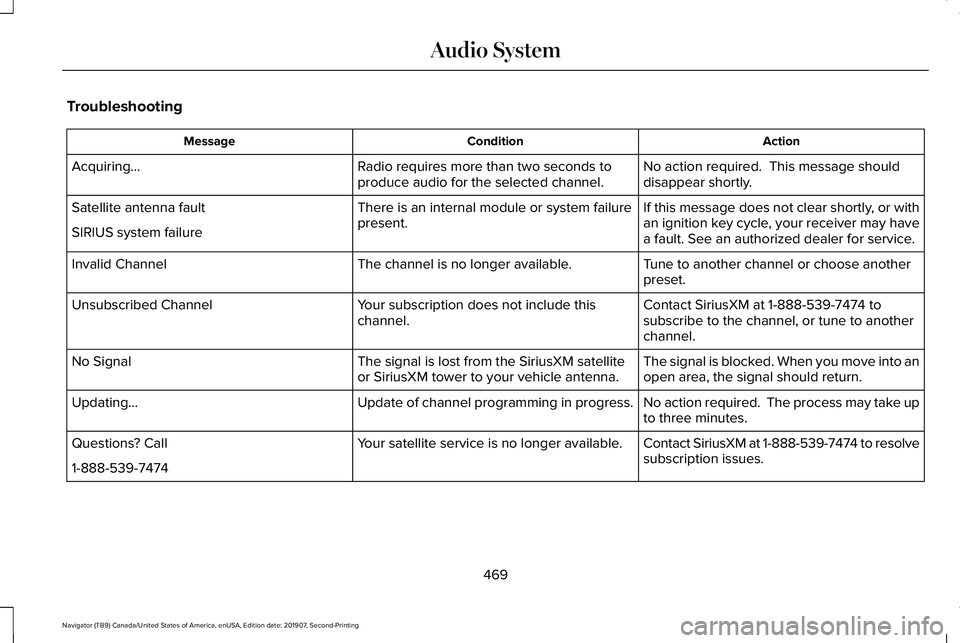
Troubleshooting
Action
Condition
Message
No action required. This message should
disappear shortly.
Radio requires more than two seconds to
produce audio for the selected channel.
Acquiring…
If this message does not clear shortly, or with
an ignition key cycle, your receiver may have
a fault. See an authorized dealer for service.
There is an internal module or system failure
present.
Satellite antenna fault
SIRIUS system failure
Tune to another channel or choose another
preset.
The channel is no longer available.
Invalid Channel
Contact SiriusXM at 1-888-539-7474 to
subscribe to the channel, or tune to another
channel.
Your subscription does not include this
channel.
Unsubscribed Channel
The signal is blocked. When you move into an
open area, the signal should return.
The signal is lost from the SiriusXM satellite
or SiriusXM tower to your vehicle antenna.
No Signal
No action required. The process may take up
to three minutes.
Update of channel programming in progress.
Updating…
Contact SiriusXM at 1-888-539-7474 to resolve
subscription issues.
Your satellite service is no longer available.
Questions? Call
1-888-539-7474
469
Navigator (TB9) Canada/United States of America, enUSA, Edition date: 201907, Second-Printing Audio System
Page 488 of 622
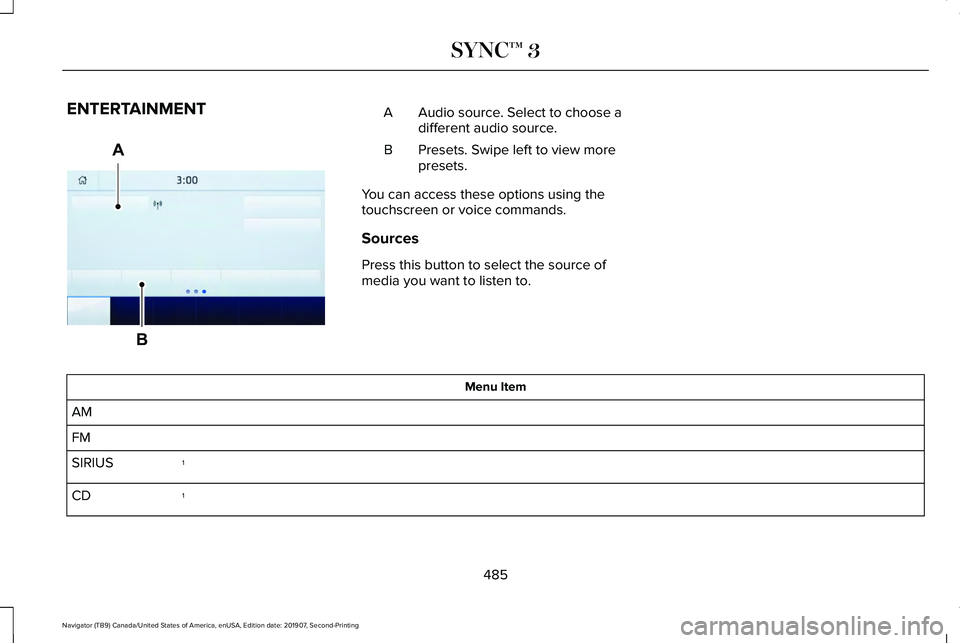
ENTERTAINMENT
Audio source. Select to choose a
different audio source.
A
Presets. Swipe left to view more
presets.
B
You can access these options using the
touchscreen or voice commands.
Sources
Press this button to select the source of
media you want to listen to. Menu Item
AM
FM 1
SIRIUS
1
CD
485
Navigator (TB9) Canada/United States of America, enUSA, Edition date: 201907, Second-Printing SYNC™ 3A
BE293491
Page 489 of 622
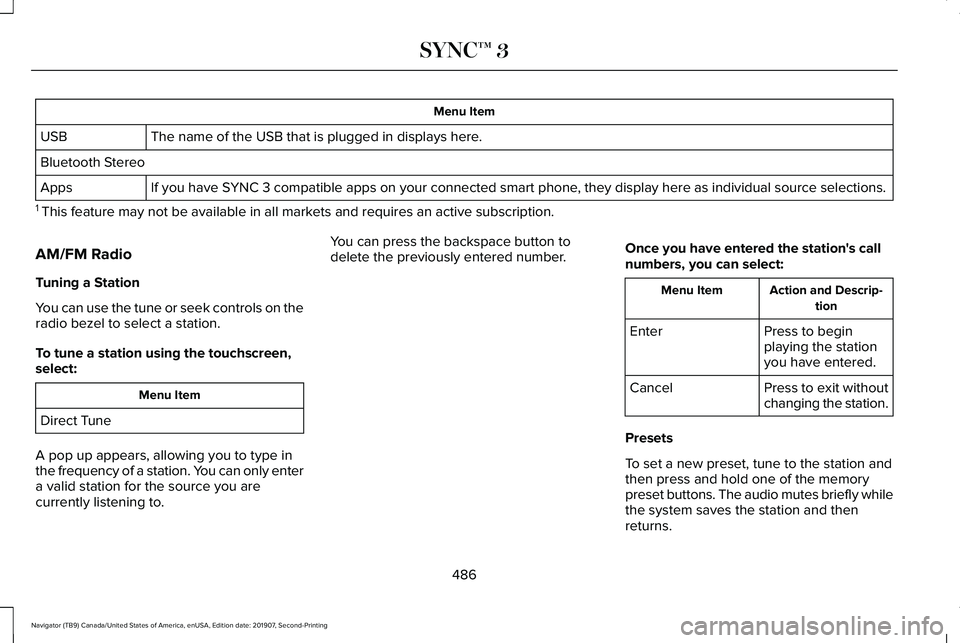
Menu Item
The name of the USB that is plugged in displays here.
USB
Bluetooth Stereo
If you have SYNC 3 compatible apps on your connected smart phone, they display here as individual source selections.
Apps
1 This feature may not be available in all markets and requires an active subscription.
AM/FM Radio
Tuning a Station
You can use the tune or seek controls on the
radio bezel to select a station.
To tune a station using the touchscreen,
select: Menu Item
Direct Tune
A pop up appears, allowing you to type in
the frequency of a station. You can only enter
a valid station for the source you are
currently listening to. You can press the backspace button to
delete the previously entered number.
Once you have entered the station's call
numbers, you can select: Action and Descrip-
tion
Menu Item
Press to begin
playing the station
you have entered.
Enter
Press to exit without
changing the station.
Cancel
Presets
To set a new preset, tune to the station and
then press and hold one of the memory
preset buttons. The audio mutes briefly while
the system saves the station and then
returns.
486
Navigator (TB9) Canada/United States of America, enUSA, Edition date: 201907, Second-Printing SYNC™ 3
Page 490 of 622
You may be able to add additional preset
pages using the settings option on the
feature bar.
SiriusXM® Satellite Radio (If Activated)
Note:
This feature may not be available in
all markets and requires an active
subscription. SiriusXM satellite radio is a
subscription-based satellite radio service that
broadcasts a variety of music, sports, news,
weather, traffic and entertainment
programming. Your factory-installed SiriusXM
satellite radio system includes hardware and
a limited subscription term that begins on
the date of sale or lease of your vehicle. See
an authorized dealer for availability.
For more information on extended
subscription terms (a service fee is required),
the online media player and a list of SiriusXM
satellite radio channels, and other features,
please visit www.siriusxm.com in the United
States, www.siriusxm.ca in Canada, or call
SiriusXM at 1-888-539-7474.
Note:
SiriusXM reserves the unrestricted
right to change, rearrange, add or delete
programming. This includes canceling,
moving or adding particular channels, and
its prices, at any time, with or without notice
to you. We are not responsible for any such
programming changes.
Note: This receiver includes the eCos
real-time operating system. eCos is
published under the eCos License.
The following buttons are available for SiriusXM: Action and Description
Menu Item
Touch this button to see a list of available stations.
Browse
A pop-up appears, allowing you to type in the call numbers of a station.\
Direct Tune
Once you enter the stations call numbers, you can select:
The system tunes to the station you select.
Enter
You exit the pop-up and the current station continues to play.
Cancel
487
Navigator (TB9) Canada/United States of America, enUSA, Edition date: 201907, Second-Printing SYNC™ 3E234451
Page 491 of 622
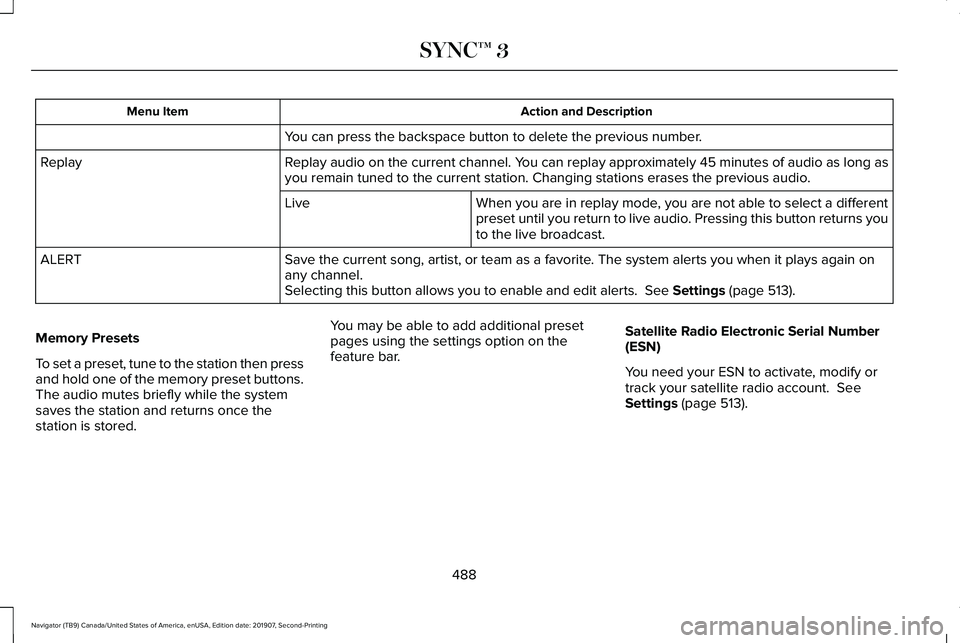
Action and Description
Menu Item
You can press the backspace button to delete the previous number.
Replay audio on the current channel. You can replay approximately 45 minutes of audio as long as
you remain tuned to the current station. Changing stations erases the pr\
evious audio.
Replay
When you are in replay mode, you are not able to select a different
preset until you return to live audio. Pressing this button returns you
to the live broadcast.
Live
Save the current song, artist, or team as a favorite. The system alerts you when it plays again on
any channel.
ALERT
Selecting this button allows you to enable and edit alerts. See Settings (page 513).
Memory Presets
To set a preset, tune to the station then press
and hold one of the memory preset buttons.
The audio mutes briefly while the system
saves the station and returns once the
station is stored. You may be able to add additional preset
pages using the settings option on the
feature bar.
Satellite Radio Electronic Serial Number
(ESN)
You need your ESN to activate, modify or
track your satellite radio account.
See
Settings (page 513).
488
Navigator (TB9) Canada/United States of America, enUSA, Edition date: 201907, Second-Printing SYNC™ 3
Page 492 of 622
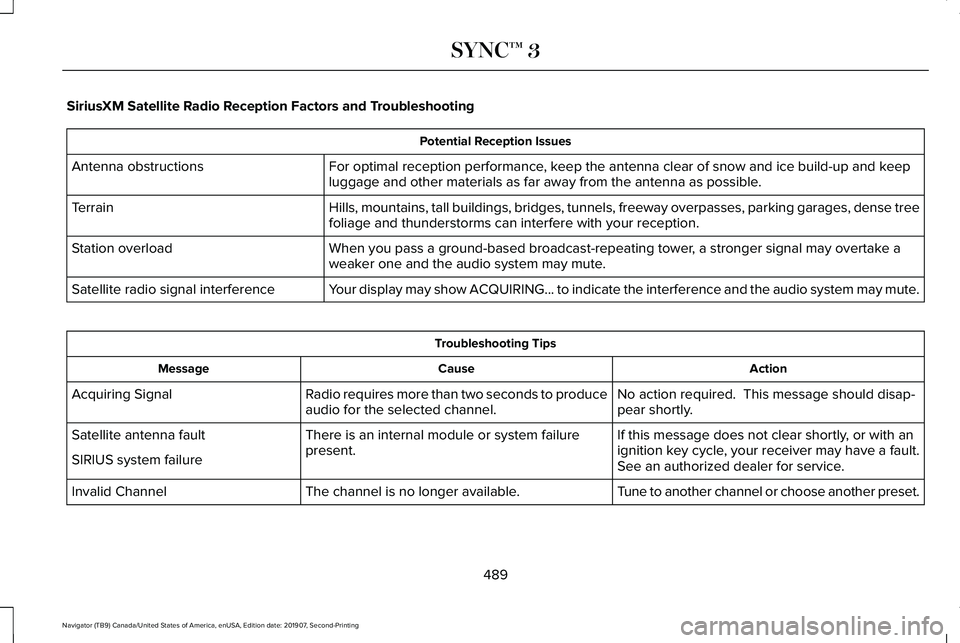
SiriusXM Satellite Radio Reception Factors and Troubleshooting
Potential Reception Issues
For optimal reception performance, keep the antenna clear of snow and ice build-up and keep
luggage and other materials as far away from the antenna as possible.
Antenna obstructions
Hills, mountains, tall buildings, bridges, tunnels, freeway overpasses, \
parking garages, dense tree
foliage and thunderstorms can interfere with your reception.
Terrain
When you pass a ground-based broadcast-repeating tower, a stronger signal may overtake a
weaker one and the audio system may mute.
Station overload
Your display may show ACQUIRING... to indicate the interference and the a\
udio system may mute.
Satellite radio signal interference Troubleshooting Tips
Action
Cause
Message
No action required. This message should disap-
pear shortly.
Radio requires more than two seconds to produce
audio for the selected channel.
Acquiring Signal
If this message does not clear shortly, or with an
ignition key cycle, your receiver may have a fault.
See an authorized dealer for service.
There is an internal module or system failure
present.
Satellite antenna fault
SIRIUS system failure
Tune to another channel or choose another preset.
The channel is no longer available.
Invalid Channel
489
Navigator (TB9) Canada/United States of America, enUSA, Edition date: 201907, Second-Printing SYNC™ 3