warning LINCOLN NAVIGATOR 2020 Service Manual
[x] Cancel search | Manufacturer: LINCOLN, Model Year: 2020, Model line: NAVIGATOR, Model: LINCOLN NAVIGATOR 2020Pages: 622, PDF Size: 6.47 MB
Page 92 of 622
To Unlock the Liftgate Glass
Enter the factory-set 5-digit code or your
personal code, then press 5·6 to unlock the
liftgate glass.
Displaying the Factory-Set Code
Note:
Two programmed intelligent access
keys are required for this procedure.
1. Open the floor console storage compartment lid.
2. With the buttons facing the rear of your vehicle and the key ring facing upward,
place the first intelligent access key into
the backup slot inside the center console.
3. Press the push button ignition switch once and wait for a few seconds.
4. Press the push button ignition switch again and remove the intelligent access
key from the center console.
5. Insert the second programmed key into the backup slot in the center console,
then press the push button ignition
switch. The factory-set code appears in the
information display for a few seconds.
Note:
The code may not display until after
any other warning messages first display.
89
Navigator (TB9) Canada/United States of America, enUSA, Edition date: 201907, Second-Printing Doors and Locks
Page 93 of 622

POWER LIFTGATE
WARNING: It is extremely dangerous
to ride in a cargo area, inside or outside of
a vehicle. In a crash, people riding in these
areas are more likely to be seriously
injured or killed. Do not allow people to
ride in any area of your vehicle that is not
equipped with seats and seatbelts. Make
sure everyone in your vehicle is in a seat
and properly using a seatbelt. Failure to
follow this warning could result in serious
personal injury or death. WARNING: Make sure that you fully
close the liftgate to prevent exhaust fumes
from entering your vehicle. If you are
unable to fully close the liftgate, open the
air vents or the windows to allow fresh air
to enter your vehicle. Failure to follow this
instruction could result in personal injury
or death. WARNING:
Make sure that you fully
close the liftgate to prevent passengers
and cargo from falling out. Failure to follow
this instruction could result in personal
injury or death. WARNING:
Keep keys out of reach
of children. Do not allow children to
operate or play near an open or moving
power liftgate. You should supervise the
operation of the power liftgate at all times.
Note: Make sure that you close the liftgate
before operating or moving your vehicle,
especially in an enclosure, like a garage or
a parking structure. This could damage the
liftgate and its components.
Note: Do not hang anything, for example a
bike rack, from the glass or liftgate. This
could damage the liftgate and its
components.
The liftgate only operates with the
transmission in park (P). Three warning tones sound as the liftgate
begins to power close. If there is a problem
with the open or close request, one of the
following may occur:
•
One tone sounds if the ignition is on and
the transmission is not in park (P).
• Three tones sound if the battery voltage
is below the minimum operating voltage.
• One tone sounds if the vehicle speed is
at or above
3 mph (5 km/h)
If the liftgate starts to close after it has fully
opened, this indicates there may be
excessive weight on the liftgate or a possible
strut failure. A repetitive tone sounds and
the liftgate closes under control. Remove
any excessive weight from the liftgate. If the
liftgate continues to close after opening,
have the system checked as soon as
possible.
Opening and Closing the Liftgate WARNING:
Make sure all persons
are clear of the power liftgate area before
using the power liftgate control.
90
Navigator (TB9) Canada/United States of America, enUSA, Edition date: 201907, Second-Printing Liftgate
Page 95 of 622
You can stop the liftgate movement by doing
any of the following:
•
Pressing the liftgate control button.
• Pressing the liftgate button on the remote
control twice.
• Pressing the liftgate button on the
instrument panel.
Setting the Liftgate Open Height
1. Open the liftgate.
2. Stop the liftgate movement by pressing the control button on the liftgate when it
reaches the desired height.
Note: Once the liftgate has stopped moving,
you can also manually move it to the desired
height.
3. Press and hold the liftgate control button
on the liftgate until a tone sounds,
indicating programming is complete.
Note: You can only use the liftgate control
button to program the height.
Note: You cannot program the height if the
liftgate position is too low. The new open liftgate height is recalled
when the power liftgate is opened. To
change the programmed height, repeat the
above procedure. Once you open the power
liftgate, you can manually move it to a
different height.
Note:
The system recalls the new
programmed height, even if you disconnect
the battery.
When operating the power liftgate after you
have programmed a lower height than fully
open, you can fully open the liftgate by
manually pushing it upward to the maximum
open position.
Obstacle Detection
Note: Entering your vehicle while the liftgate
is closing can cause your vehicle to bounce
and activate obstacle detection. To prevent
this, let the power liftgate close completely
before you enter your vehicle. Before driving
off, check the instrument cluster for a liftgate
or door ajar message or warning indicator.
Failure to do this could result in
unintentionally leaving the liftgate open
when driving. When Closing
The system stops when it detects an
obstacle. Three tones sound and the system
reverses to open. When you remove the
obstacle, you can power close the liftgate.
When Opening
The system stops when it detects an
obstacle and two short tones sound.
Remove the obstacle to operate the liftgate.
Switching the Power Liftgate On or Off
You can switch the power liftgate on or off
through the vehicle settings menu. See
General Information (page 133).
When switched off, the liftgate only unlatches
and will not power open or close.
Using the Hands-Free Liftgate
(If Equipped)
Make sure you have an intelligent access
key within
3 ft (1 m) of the liftgate.
1. Stand behind your vehicle, and face the liftgate.
92
Navigator (TB9) Canada/United States of America, enUSA, Edition date: 201907, Second-Printing Liftgate
Page 101 of 622
USING POWER RUNNING BOARDS
WARNING: In extreme climates,
excessive ice buildup may occur, causing
the running boards not to deploy. Make
sure that the running boards have
deployed, and have finished moving before
attempting to step on them. The running
boards will resume normal function once
the blockage is cleared. WARNING:
Switch off the running
boards before jacking or placing any object
under your vehicle. Never place your hand
between the extended running board and
your vehicle. A moving running board may
cause injury.
Note: Do not use the running boards, front
and rear hinge assemblies, running board
motors, or the running board underbody
mounts to lift your vehicle when jacking.
Always use proper jacking points.
Note: The running boards may operate more
slowly in cool temperatures. Note:
The running board mechanism may
trap debris such as mud, dirt, snow, ice and
salt. This may cause unwanted noise. If this
happens, manually set the running boards
to the deployed position. Then, wash the
system, in particular the front and rear hinge
arms, with a high-pressure car wash wand.
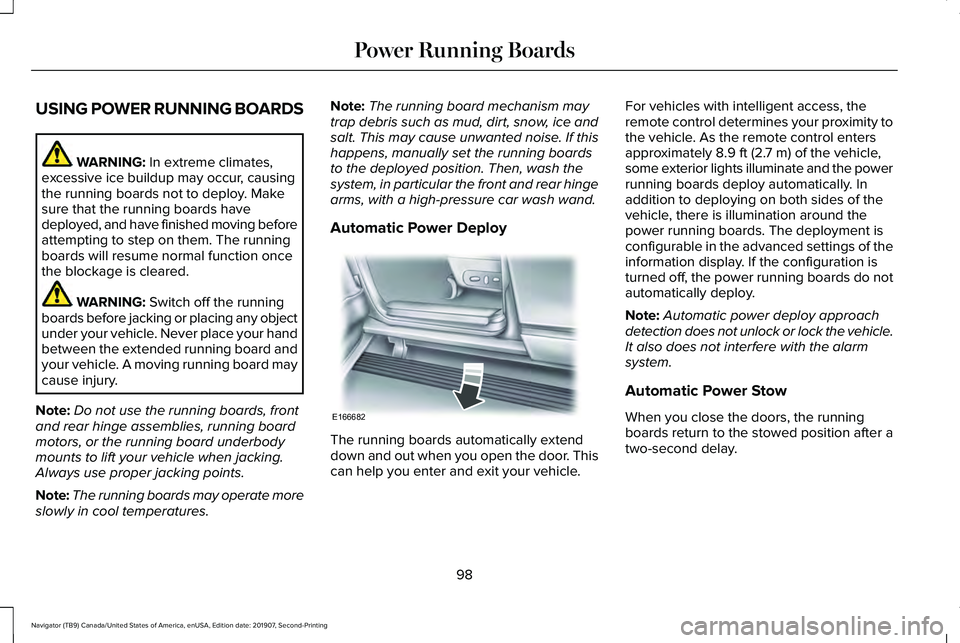
Automatic Power Deploy The running boards automatically extend
down and out when you open the door. This
can help you enter and exit your vehicle.For vehicles with intelligent access, the
remote control determines your proximity to
the vehicle. As the remote control enters
approximately
8.9 ft (2.7 m) of the vehicle,
some exterior lights illuminate and the power
running boards deploy automatically. In
addition to deploying on both sides of the
vehicle, there is illumination around the
power running boards. The deployment is
configurable in the advanced settings of the
information display. If the configuration is
turned off, the power running boards do not
automatically deploy.
Note: Automatic power deploy approach
detection does not unlock or lock the vehicle.
It also does not interfere with the alarm
system.
Automatic Power Stow
When you close the doors, the running
boards return to the stowed position after a
two-second delay.
98
Navigator (TB9) Canada/United States of America, enUSA, Edition date: 201907, Second-Printing Power Running BoardsE166682
Page 103 of 622
ADJUSTING THE STEERING WHEEL
WARNING: Do not adjust the steering
wheel when your vehicle is moving.
Note: Make sure that you are sitting in the
correct position. See Sitting in the Correct
Position (page 172). Use the control on the side of the steering
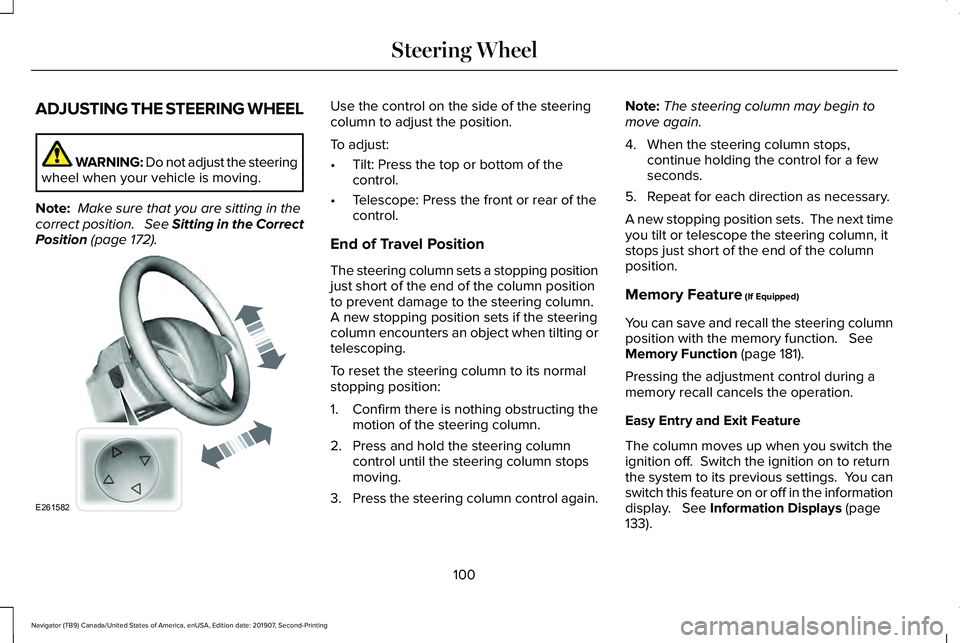
column to adjust the position.
To adjust:
•
Tilt: Press the top or bottom of the
control.
• Telescope: Press the front or rear of the
control.
End of Travel Position
The steering column sets a stopping position
just short of the end of the column position
to prevent damage to the steering column.
A new stopping position sets if the steering
column encounters an object when tilting or
telescoping.
To reset the steering column to its normal
stopping position:
1. Confirm there is nothing obstructing the motion of the steering column.
2. Press and hold the steering column control until the steering column stops
moving.
3. Press the steering column control again. Note:
The steering column may begin to
move again.
4. When the steering column stops, continue holding the control for a few
seconds.
5. Repeat for each direction as necessary.
A new stopping position sets. The next time
you tilt or telescope the steering column, it
stops just short of the end of the column
position.
Memory Feature
(If Equipped)
You can save and recall the steering column
position with the memory function.
See
Memory Function (page 181).
Pressing the adjustment control during a
memory recall cancels the operation.
Easy Entry and Exit Feature
The column moves up when you switch the
ignition off. Switch the ignition on to return
the system to its previous settings. You can
switch this feature on or off in the information
display.
See Information Displays (page
133).
100
Navigator (TB9) Canada/United States of America, enUSA, Edition date: 201907, Second-Printing Steering WheelE261582
Page 107 of 622
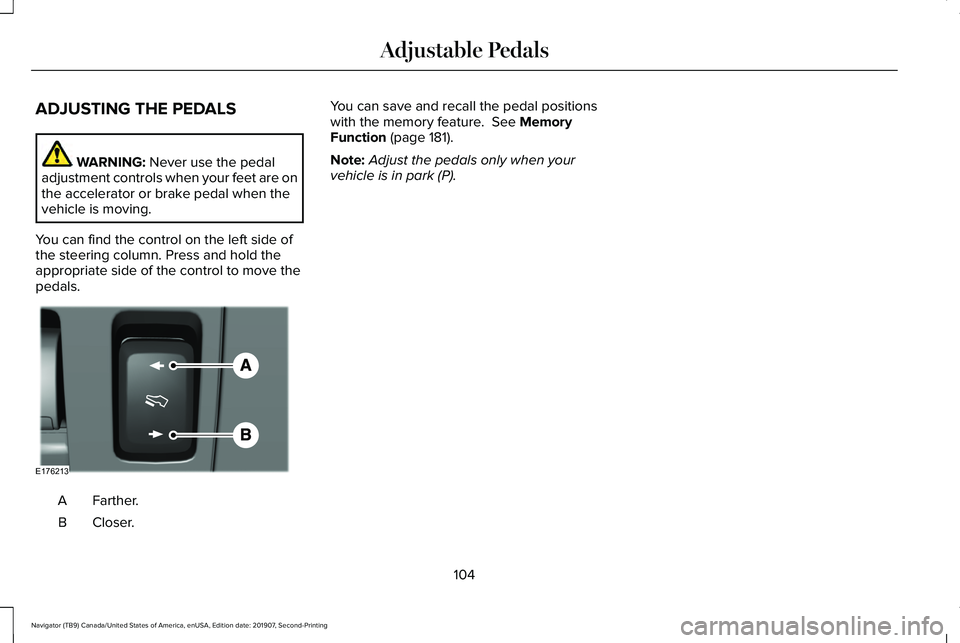
ADJUSTING THE PEDALS
WARNING: Never use the pedal
adjustment controls when your feet are on
the accelerator or brake pedal when the
vehicle is moving.
You can find the control on the left side of
the steering column. Press and hold the
appropriate side of the control to move the
pedals. Farther.
A
Closer.
B You can save and recall the pedal positions
with the memory feature.
See Memory
Function (page 181).
Note: Adjust the pedals only when your
vehicle is in park (P).
104
Navigator (TB9) Canada/United States of America, enUSA, Edition date: 201907, Second-Printing Adjustable PedalsE176213
Page 113 of 622
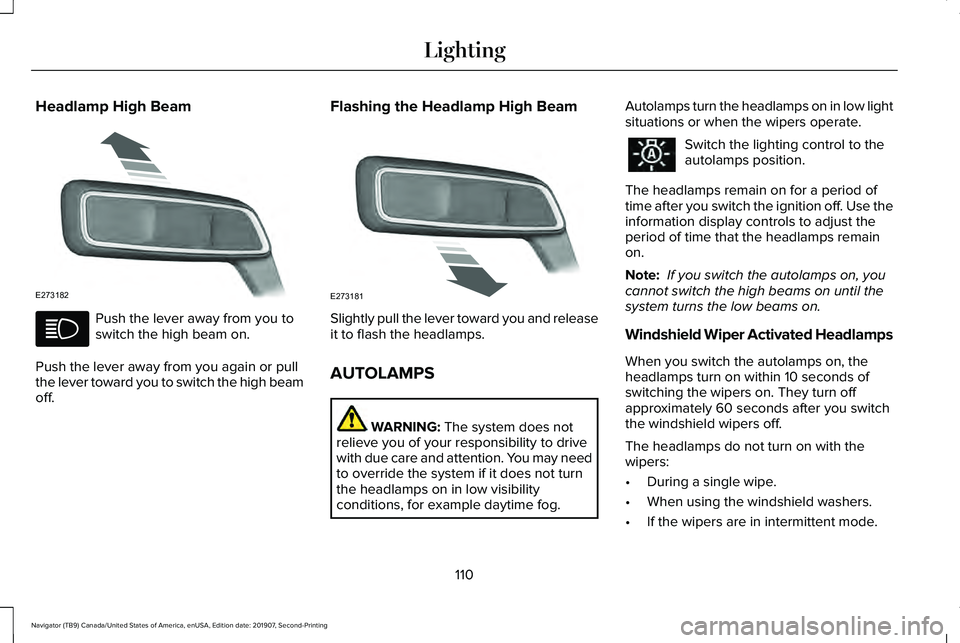
Headlamp High Beam
Push the lever away from you to
switch the high beam on.
Push the lever away from you again or pull
the lever toward you to switch the high beam
off. Flashing the Headlamp High Beam
Slightly pull the lever toward you and release
it to flash the headlamps.
AUTOLAMPS
WARNING: The system does not
relieve you of your responsibility to drive
with due care and attention. You may need
to override the system if it does not turn
the headlamps on in low visibility
conditions, for example daytime fog. Autolamps turn the headlamps on in low light
situations or when the wipers operate. Switch the lighting control to the
autolamps position.
The headlamps remain on for a period of
time after you switch the ignition off. Use the
information display controls to adjust the
period of time that the headlamps remain
on.
Note: If you switch the autolamps on, you
cannot switch the high beams on until the
system turns the low beams on.
Windshield Wiper Activated Headlamps
When you switch the autolamps on, the
headlamps turn on within 10 seconds of
switching the wipers on. They turn off
approximately 60 seconds after you switch
the windshield wipers off.
The headlamps do not turn on with the
wipers:
• During a single wipe.
• When using the windshield washers.
• If the wipers are in intermittent mode.
110
Navigator (TB9) Canada/United States of America, enUSA, Edition date: 201907, Second-Printing LightingE273182 E273181
Page 114 of 622
Note:
If you switch the autolamps and the
autowipers on, the headlamps turn on when
the windshield wipers continuously operate.
INSTRUMENT LIGHTING DIMMER
The instrument lighting dimmer buttons are
on the lighting control. Repeatedly press one of the
buttons to adjust the brightness.
HEADLAMP EXIT DELAY
After you switch the ignition off, you can
switch the headlamps on by pulling the
direction indicator lever toward you. You will
hear a short tone. The headlamps will switch
off automatically after three minutes with any
door open or 30 seconds after the last door
has been closed. You can cancel this feature
by pulling the direction indicator toward you
again or switching the ignition on. DAYTIME RUNNING LAMPS -
VEHICLES WITH: CONFIGURABLE
DAYTIME RUNNING LAMPS WARNING: The daytime running
lamps system does not activate the rear
lamps and may not provide adequate
lighting during low visibility driving
conditions. Make sure you switch the
headlamps on, as appropriate, during all
low visibility conditions. Failure to do so
may result in a crash.
Switch the daytime running lamps on or off
using the information display.
See General
Information (page 133).
The daytime running lamps turn on when:
1. The lamps are on in the information display.
2. You switch the ignition on.
3. The transmission is not in park (P) for vehicles with automatic transmissions or
you release the parking brake for
vehicles with manual transmissions. 4. The lighting control is in the autolamps
position.
5. The headlamps are off.
The other lighting control switch positions
do not turn on the daytime running lamps.
If the daytime running lamps are off in the
information display, the lamps stay off in all
switch positions.
DAYTIME RUNNING LAMPS -
VEHICLES WITH: DAYTIME
RUNNING LAMPS (DRL) WARNING: The daytime running
lamps system does not activate the rear
lamps and may not provide adequate
lighting during low visibility driving
conditions. Make sure you switch the
headlamps on, as appropriate, during all
low visibility conditions. Failure to do so
may result in a crash.
The system turns the lamps on in daylight
conditions.
111
Navigator (TB9) Canada/United States of America, enUSA, Edition date: 201907, Second-Printing LightingE291299 E291298
Page 120 of 622
AUTOMATIC HIGH BEAM
CONTROL INDICATORS
The indicator illuminates to confirm
when the system is ready to assist.
OVERRIDING AUTOMATIC HIGH
BEAM CONTROL WARNING: The system does not
relieve you of your responsibility to drive
with due care and attention. You may need
to override the system if it does not turn
the high beams on or off. WARNING:
You may need to
override the system when approaching
other road users. WARNING:
You may need to
override the system during inclement
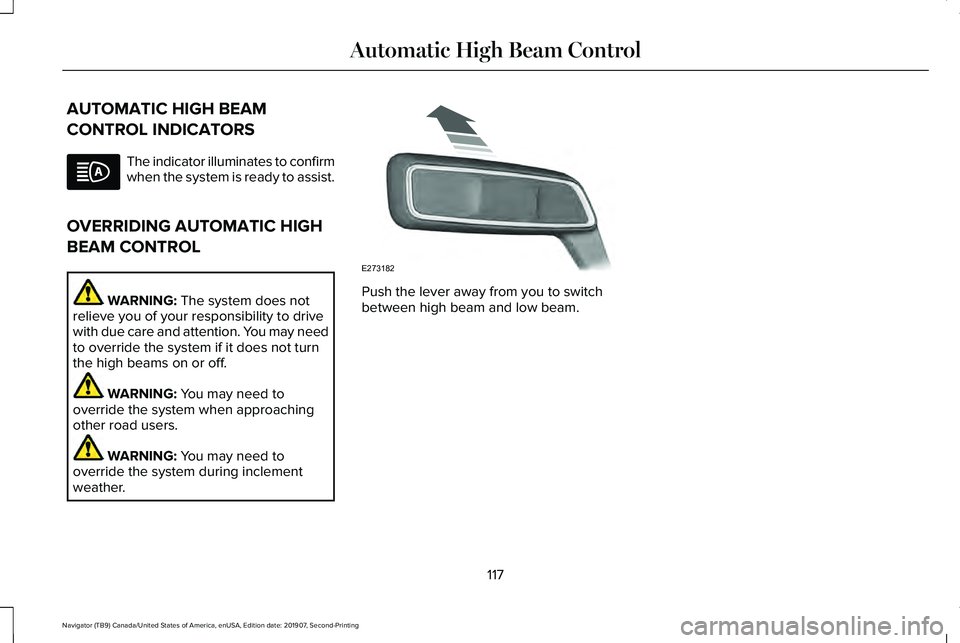
weather. Push the lever away from you to switch
between high beam and low beam.
117
Navigator (TB9) Canada/United States of America, enUSA, Edition date: 201907, Second-Printing Automatic High Beam Control E273182
Page 121 of 622
POWER WINDOWS
WARNING: Do not leave children
unattended in your vehicle and do not let
them play with the power windows. Failure
to follow this instruction could result in
personal injury. WARNING:
When closing the power
windows, verify they are free of obstruction
and make sure that children and pets are
not in the proximity of the window
openings. Note:
You may hear a pulsing noise when
just one of the windows is open. Lower the
opposite window slightly to reduce this
noise.
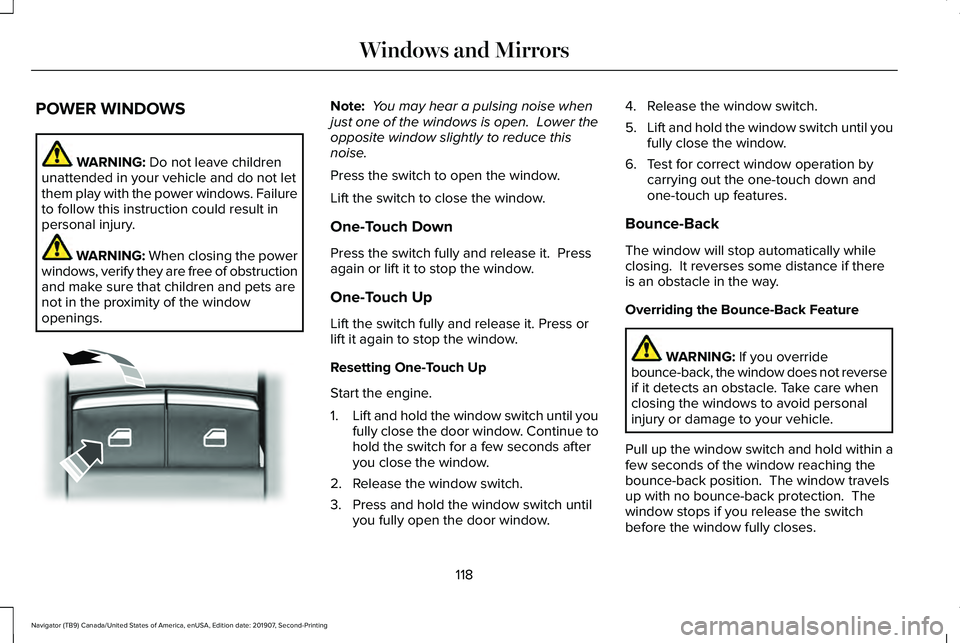
Press the switch to open the window.
Lift the switch to close the window.
One-Touch Down
Press the switch fully and release it. Press
again or lift it to stop the window.
One-Touch Up
Lift the switch fully and release it. Press or
lift it again to stop the window.
Resetting One-Touch Up
Start the engine.
1. Lift and hold the window switch until you
fully close the door window. Continue to
hold the switch for a few seconds after
you close the window.
2. Release the window switch.
3. Press and hold the window switch until you fully open the door window. 4. Release the window switch.
5.
Lift and hold the window switch until you
fully close the window.
6. Test for correct window operation by carrying out the one-touch down and
one-touch up features.
Bounce-Back
The window will stop automatically while
closing. It reverses some distance if there
is an obstacle in the way.
Overriding the Bounce-Back Feature WARNING:
If you override
bounce-back, the window does not reverse
if it detects an obstacle. Take care when
closing the windows to avoid personal
injury or damage to your vehicle.
Pull up the window switch and hold within a
few seconds of the window reaching the
bounce-back position. The window travels
up with no bounce-back protection. The
window stops if you release the switch
before the window fully closes.
118
Navigator (TB9) Canada/United States of America, enUSA, Edition date: 201907, Second-Printing Windows and MirrorsE295317