brake LINCOLN NAVIGATOR 2020 Workshop Manual
[x] Cancel search | Manufacturer: LINCOLN, Model Year: 2020, Model line: NAVIGATOR, Model: LINCOLN NAVIGATOR 2020Pages: 622, PDF Size: 6.47 MB
Page 250 of 622
PRINCIPLE OF OPERATION
WARNING: To help avoid personal
injury, always use caution when in reverse
(R) and when using the sensing system. WARNING:
The system may not
detect objects with surfaces that absorb
reflection. Always drive with due care and
attention. Failure to take care may result
in a crash. WARNING:
Traffic control systems,
inclement weather, air brakes, external
motors and fans may affect the correct
operation of the sensing system.This may
cause reduced performance or false alerts. WARNING:
The system may not
detect small or moving objects, particularly
those close to the ground. Note:
Certain add-on devices installed
around the bumper or fascia may create
false beeps. For example, large trailer
hitches, bike or surfboard racks, license plate
brackets, bumper covers or any other device
that may block the normal detection zone
of the system.
Note: Keep the sensors, located on the
bumper or fascia, free from snow, ice and
large accumulations of dirt. If the sensors
are covered, the system’ s accuracy can be
affected. Do not clean the sensors with sharp
objects.
Note: If your vehicle sustains damage to the
bumper or fascia, leaving it misaligned or
bent, the sensing zone may be altered
causing inaccurate measurement of
obstacles or false alarms. See your
authorized technician.
Note: When a trailer is connected to your
vehicle, the rear parking aid may detect the
trailer and therefore provide warnings.
Disable the rear parking aid when a trailer
is connected to prevent these warnings. Note:
The sensing system cannot be turned
off when a MyKey is present. See Principle
of Operation
(page 78).
We recommend that you take some time to
get to know the system and its limitations by
reading this section.
The sensing system warns the driver of
obstacles within a certain range of your
vehicle. The system automatically turns on
each time you switch the ignition on.
When receiving a detection warning, the
radio volume reduces to a predetermined
level. After the warning goes away, the radio
volume returns to the previous level. You can turn the system on or off
by pressing the parking aid button.
If your vehicle does not have a
parking aid button, the system can be
switched off through the information display
menu or from the pop-up message that
appears once you shift the transmission into
reverse (R).
See General Information (page
133).
247
Navigator (TB9) Canada/United States of America, enUSA, Edition date: 201907, Second-Printing Parking AidsE139213
Page 255 of 622
SIDE SENSING SYSTEM
WARNING: The system may not
detect objects with surfaces that absorb
reflection. Always drive with due care and
attention. Failure to take care may result
in a crash. WARNING:
The system may not
detect small or moving objects, particularly
those close to the ground. WARNING:
To help avoid personal
injury, always use caution when in reverse
(R) and when using the sensing system. WARNING:
The parking aid system
can only assist you to detect objects when
your vehicle is moving at parking speeds.
To help avoid personal injury you must
take care when using the parking aid
system.
Note: Keep the sensors free from snow, ice
and large accumulations of dirt.
Note: Do not cover up the sensors. Note:
Do not clean the sensors with sharp
objects.
Note: If your vehicle sustains damage
leaving the sensors misaligned, this may
cause inaccurate measurements or false
alerts.
Note: If you switch traction control off, the
side sensing system also turns off.
Note: Some accessories, for example large
trailer hitches or bike or surfboard racks can
cause reduced performance or false alerts.
Note: The system does not detect an object
that is moving toward the side of your
vehicle, for example another vehicle moving
at low speed, if it does not pass a front or
rear sensor.
The system uses the front and rear
outermost parking aid sensors to detect
objects that are near to the sides of your
vehicle. The system displays them on a
virtual map in the information display as your
vehicle moves past them.
The sensors are on the front and rear
bumpers. The system may not function if:
•
You switch the ignition on, off and back
on within a few seconds.
• Your vehicle remains stationary for over
two minutes.
• The anti-lock brake system activates.
• The traction control system activates.
To reinitialize the system, you may have to
drive your vehicle approximately
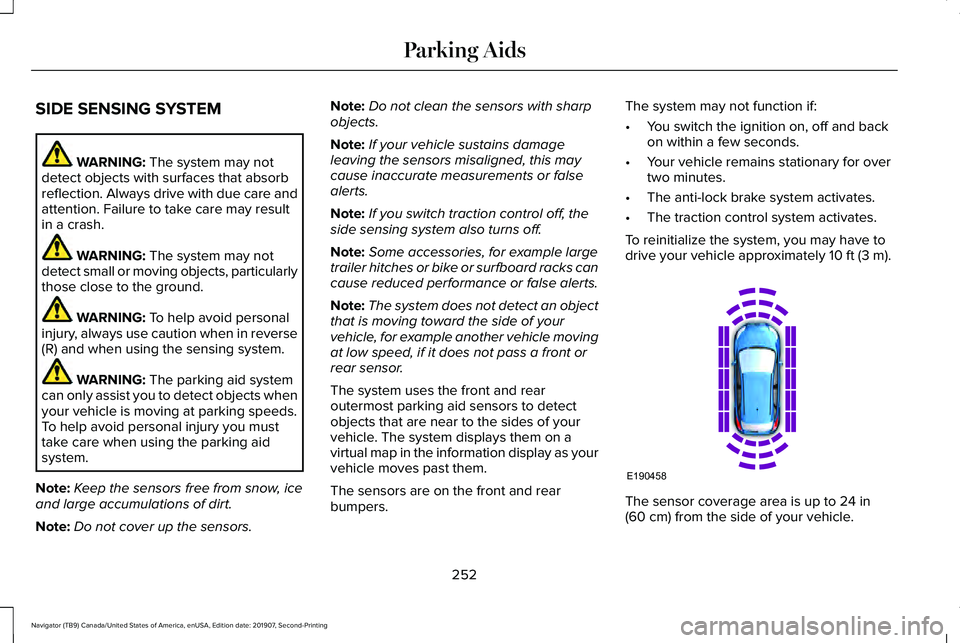
10 ft (3 m). The sensor coverage area is up to
24 in
(60 cm) from the side of your vehicle.
252
Navigator (TB9) Canada/United States of America, enUSA, Edition date: 201907, Second-Printing Parking AidsE190458
Page 257 of 622
WARNING: Active park assist does
not apply the brakes under any
circumstances. WARNING:
You are responsible for
controlling your vehicle at all times. The
system is designed to be an aid and does
not relieve you of your responsibility to
drive with due care and attention. Failure
to follow this instruction could result in the
loss of control of your vehicle, personal
injury or death.
Active park assist is a multi-step process and
may require you to shift the transmission
multiple times. Follow the onscreen
instructions until the parking maneuver is
complete.
If you are uncomfortable with the proximity
to any vehicle or object, you may choose to
override the system by grabbing the steering
wheel, or by taking full control of your vehicle
after pressing the active park assist button.
Keep your hands, hair, clothing and any
loose items clear of the steering wheel when
using active park assist. The sensors are on the front and rear
bumpers.
Note:
Keep the sensors free from snow, ice
and large accumulations of dirt.
Note: Do not cover up the sensors.
Note: Do not clean the sensors with sharp
objects.
Note: The sensors may not detect objects
with surfaces that absorb ultrasonic waves.
The sensors may falsely detect objects due
to ultrasonic interference caused by
motorcycle exhausts, truck air brakes or
horns, for example.
Note: If you change any tires, the system
must recalibrate and may not correctly
operate for a short time.
The system may not correctly operate in any
of the following conditions:
• You use a spare tire or a tire that is
significantly worn more than the other
tires.
• One or more tires are incorrectly inflated.
• You try to park on a tight curve. •
Something passes between the front
bumper and the parking space. For
example, a pedestrian or cyclist.
• The edge of the neighboring parked
vehicle is high off the ground. For
example, a bus, tow truck or flatbed
truck.
• The weather conditions are poor. For
example, during heavy rain, snow, fog,
high humidity and high temperatures.
Do not use the system if:
• You have attached an add-on accessory
close to the sensors on the front or rear
of your vehicle. For example, a bike rack
or trailer.
• You have attached an overhanging
object to the roof. For example, a
surfboard.
• The front bumper, rear bumper or the
side sensors are damaged.
• The correct tire size is not in use on your
vehicle. For example, a mini-spare tire.
254
Navigator (TB9) Canada/United States of America, enUSA, Edition date: 201907, Second-Printing Parking Aids
Page 258 of 622
Using Active Park Assist
Selecting an Active Park Assist Mode
Press the button once to activate
parallel parking. Press the button
a second time to activate
perpendicular parking. If you press the
button again the system switches off.
If your vehicle is parked and after you switch
the ignition on, you can use the information
display to toggle through the modes. Press
the button to switch the system on and open
the system menu in the information display.
Note: If your vehicle is parked, the default
mode is parallel park out assist. However, if
you did not use active park assist to parallel
park your vehicle, use the information
display to select park out assist.
Note: You can repeatedly press the active
park assist button to toggle through the
modes only after moving your vehicle
approximately 33 ft (10 m). To toggle through the modes, use the
buttons on the information display to select
the following:
•
Parallel parking.
• Perpendicular parking.
• Parallel park out assist.
• Switch the system off.
Note: There is no time limit for toggling
through the modes.
Parallel Parking
The system detects available parallel parking
spaces and steers your vehicle into the
space. You control the accelerator, gearshift
and brakes. The system visually and audibly
guides you into a parallel parking space. Press the button once to search
for a parking space.
Note: You can also switch the system on
after you have already driven partially or
completely past a parking space. Press the
active park assist button and the system
informs you if you have recently passed a
suitable parking space. When the vehicle speed is less than 22 mph
(35 km/h)
, the system scans both sides of
your vehicle for an available parking space.
A message and a graphic appear in the
information display to indicate the system is
searching for a parking space. Use the
direction indicator lever to search for a
parking space on the driver or passenger
side of your vehicle.
Note: The system scans both sides of your
vehicle and offers parking spaces one side
at a time if you do not use the direction
indicator.
Note: The system defaults to the passenger
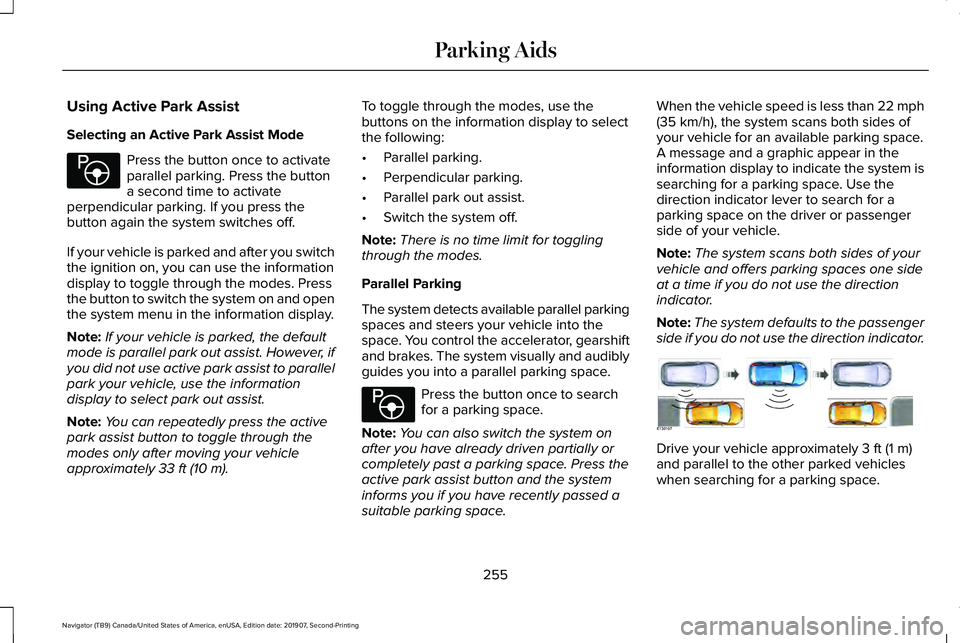
side if you do not use the direction indicator. Drive your vehicle approximately
3 ft (1 m)
and parallel to the other parked vehicles
when searching for a parking space.
255
Navigator (TB9) Canada/United States of America, enUSA, Edition date: 201907, Second-Printing Parking AidsE146186 E146186 E130107
Page 260 of 622
Certain vehicle conditions may also
deactivate the system, for example:
•
The traction control system activates or
fails.
• The anti-lock brake system activates or
fails.
If the system malfunctions, a message
appears and a tone sounds. Have your
vehicle checked as soon as possible.
Perpendicular Parking
The system detects available perpendicular
parking spaces and steers your vehicle into
the space. You control the accelerator,
gearshift and brakes. The system visually
and audibly guides you into a perpendicular
parking space. Press the button twice to search
for a parking space. When the vehicle speed is less than 19 mph
(30 km/h), the system scans both sides of
your vehicle for an available parking space.
A message and a graphic appear in the
information display to indicate the system is
searching for a parking space. Use the
direction indicator lever to search for a
parking space on the driver or passenger
side of your vehicle.
Note: The system scans both sides of your
vehicle and offers parking spaces one side
at a time if you do not use the direction
indicator.
Note: The system defaults to the passenger
side if you do not use the direction indicator. Drive your vehicle approximately
3 ft (1 m)
and perpendicular to the other parked
vehicles when searching for a parking space. Note:
If you drive your vehicle less than 2 ft
(0.5 m)
or greater than 5 ft (1.5 m) away from
other parked vehicles, the system may not
be able to detect an available parking
space.
When the system detects a suitable space,
a message displays and a tone sounds. Stop
your vehicle and follow the onscreen
instructions. If your vehicle is moving very
slowly, you may have to move forward a
short distance before the system is ready to
park.
Note: You must observe that the space the
system selects remains clear of obstructions
at all times during the maneuver.
Note: The system always offers the last
detected parking space. For example, if your
vehicle detects multiple spaces when you
are driving, it offers the last one.
Note: If the vehicle speed is greater than
approximately
19 mph (30 km/h), the system
shows a message to instruct you to reduce
the vehicle speed.
257
Navigator (TB9) Canada/United States of America, enUSA, Edition date: 201907, Second-Printing Parking AidsE146186 E186193
Page 261 of 622
Automatically Steering into a Perpendicular
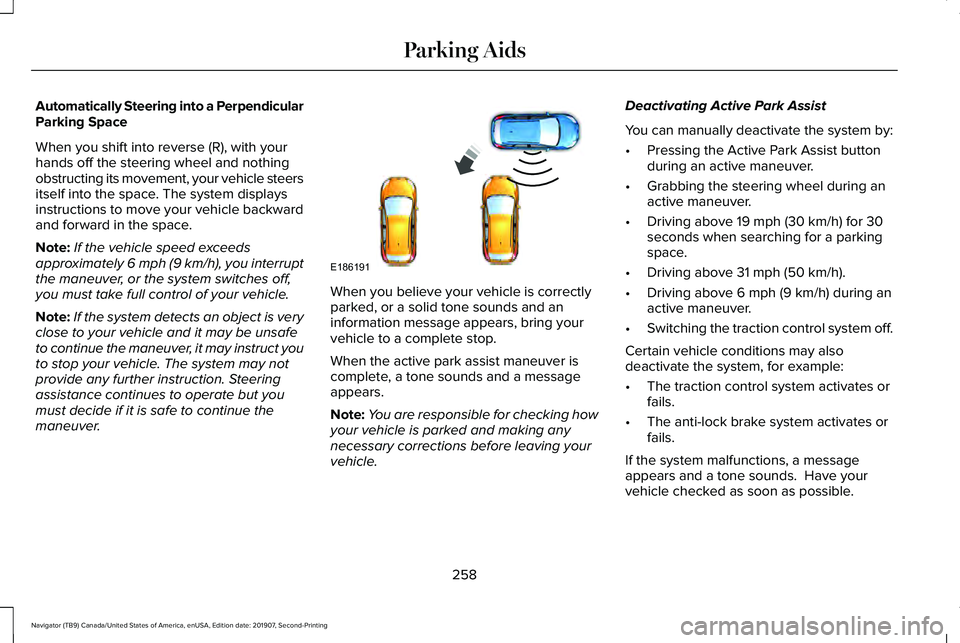
Parking Space
When you shift into reverse (R), with your
hands off the steering wheel and nothing
obstructing its movement, your vehicle steers
itself into the space. The system displays
instructions to move your vehicle backward
and forward in the space.
Note:
If the vehicle speed exceeds
approximately 6 mph (9 km/h), you interrupt
the maneuver, or the system switches off,
you must take full control of your vehicle.
Note: If the system detects an object is very
close to your vehicle and it may be unsafe
to continue the maneuver, it may instruct you
to stop your vehicle. The system may not
provide any further instruction. Steering
assistance continues to operate but you
must decide if it is safe to continue the
maneuver. When you believe your vehicle is correctly
parked, or a solid tone sounds and an
information message appears, bring your
vehicle to a complete stop.
When the active park assist maneuver is
complete, a tone sounds and a message
appears.
Note:
You are responsible for checking how
your vehicle is parked and making any
necessary corrections before leaving your
vehicle. Deactivating Active Park Assist
You can manually deactivate the system by:
•
Pressing the Active Park Assist button
during an active maneuver.
• Grabbing the steering wheel during an
active maneuver.
• Driving above
19 mph (30 km/h) for 30
seconds when searching for a parking
space.
• Driving above
31 mph (50 km/h).
• Driving above
6 mph (9 km/h) during an
active maneuver.
• Switching the traction control system off.
Certain vehicle conditions may also
deactivate the system, for example:
• The traction control system activates or
fails.
• The anti-lock brake system activates or
fails.
If the system malfunctions, a message
appears and a tone sounds. Have your
vehicle checked as soon as possible.
258
Navigator (TB9) Canada/United States of America, enUSA, Edition date: 201907, Second-Printing Parking AidsE186191
Page 262 of 622
Parallel Park Out Assist
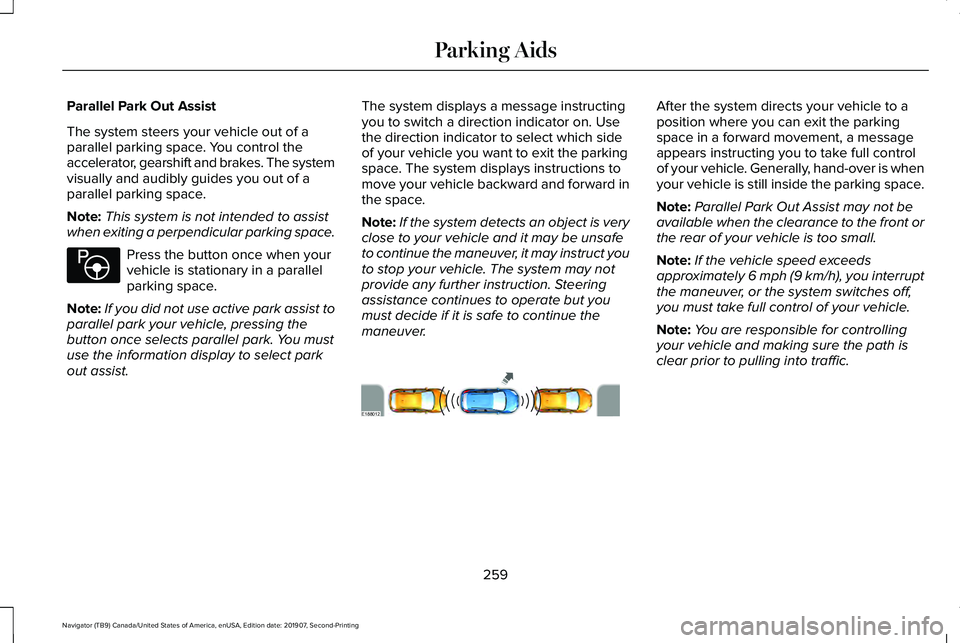
The system steers your vehicle out of a
parallel parking space. You control the
accelerator, gearshift and brakes. The system
visually and audibly guides you out of a
parallel parking space.
Note:
This system is not intended to assist
when exiting a perpendicular parking space. Press the button once when your
vehicle is stationary in a parallel
parking space.
Note: If you did not use active park assist to
parallel park your vehicle, pressing the
button once selects parallel park. You must
use the information display to select park
out assist. The system displays a message instructing
you to switch a direction indicator on. Use
the direction indicator to select which side
of your vehicle you want to exit the parking
space. The system displays instructions to
move your vehicle backward and forward in
the space.
Note:
If the system detects an object is very
close to your vehicle and it may be unsafe
to continue the maneuver, it may instruct you
to stop your vehicle. The system may not
provide any further instruction. Steering
assistance continues to operate but you
must decide if it is safe to continue the
maneuver. After the system directs your vehicle to a
position where you can exit the parking
space in a forward movement, a message
appears instructing you to take full control
of your vehicle. Generally, hand-over is when
your vehicle is still inside the parking space.
Note:
Parallel Park Out Assist may not be
available when the clearance to the front or
the rear of your vehicle is too small.
Note: If the vehicle speed exceeds
approximately 6 mph (9 km/h), you interrupt
the maneuver, or the system switches off,
you must take full control of your vehicle.
Note: You are responsible for controlling
your vehicle and making sure the path is
clear prior to pulling into traffic.
259
Navigator (TB9) Canada/United States of America, enUSA, Edition date: 201907, Second-Printing Parking AidsE146186 E188012
Page 271 of 622
WHAT IS CRUISE CONTROL
Cruise control lets you maintain a set speed
without keeping your foot on the accelerator
pedal. You can use cruise control when your
vehicle speed is greater than 20 mph
(30 km/h).
SWITCHING CRUISE CONTROL ON
AND OFF WARNING:
Do not use cruise control
on winding roads, in heavy traffic or when
the road surface is slippery. This could
result in loss of vehicle control, serious
injury or death.
The cruise controls are on the steering
wheel.
See Cruise Control (page 102).
Switching Cruise Control On Press the button. Switching Cruise Control Off Press the button when the system
is in standby mode.
The system also turns off when you switch
the ignition off.
Note: The set speed erases when you switch
the system off.
SETTING THE CRUISE CONTROL
SPEED WARNING:
When you are going
downhill, your vehicle speed could
increase above the set speed. The system
does not apply the brakes.
Drive to the speed you prefer. Press either button to set the
current speed.Take your foot off the accelerator pedal.
Note:
The indicator changes color in the
information display.
Changing the Set Speed Press and release the button to
increase the set speed in small
increments.
Press and hold the button to accelerate.
Release the button when you reach your
preferred speed. Press and release the button to
decrease the set speed in small
increments.
Press and hold the button to decelerate.
Release the button when you reach your
preferred speed.
Note: If you accelerate by pressing the
accelerator pedal, the set speed does not
change. When you release the accelerator
pedal, your vehicle returns to the speed that
you previously set.
268
Navigator (TB9) Canada/United States of America, enUSA, Edition date: 201907, Second-Printing Cruise ControlE265296 E265297
Page 272 of 622
CANCELING THE SET SPEED
Press the button, or tap the brake
pedal to cancel the set speed.
Note: The system remembers the set speed.
Note: The system cancels if the vehicle
speed drops below 10 mph (16 km/h) under
the set speed when driving uphill.
RESUMING THE SET SPEED Press the button.
CRUISE CONTROL INDICATORS Illuminates when you switch the
system on. USING ADAPTIVE CRUISE
CONTROL
(IF EQUIPPED) WARNING:
Always pay close
attention to changing road conditions when
using adaptive cruise control. The system
does not replace attentive driving. Failing
to pay attention to the road may result in
a crash, serious injury or death. WARNING:
Do not use the adaptive
cruise control when entering or leaving a
highway, on roads with intersections or
roundabouts or non-vehicular traffic or
roads that are winding, slippery, unpaved,
or steep slopes. WARNING:
Do not use the system in
poor visibility, for example fog, heavy rain,
spray or snow. WARNING:
Do not use the system
when towing a trailer that has aftermarket
electronic trailer brake controls. Failure to
follow this instruction could result in the
loss of control of your vehicle, personal
injury or death. WARNING:
Do not use tire sizes
other than those recommended because
this can affect the normal operation of the
system. Failure to do so may result in a loss
of vehicle control, which could result in
serious injury. WARNING:
Adaptive cruise control
may not detect stationary or slow moving
vehicles below
6 mph (10 km/h). WARNING:
Adaptive cruise control
does not detect pedestrians or objects in
the road. WARNING:
Adaptive cruise control
does not detect oncoming vehicles in the
same lane.
269
Navigator (TB9) Canada/United States of America, enUSA, Edition date: 201907, Second-Printing Cruise Control E71340
Page 273 of 622
WARNING: Adaptive cruise control
is not a crash warning or avoidance
system.
The system adjusts your vehicle speed to
maintain the set gap between you and the
vehicle in front of you in the same lane. You
can select four gap settings.
The system uses a radar sensor which
projects a beam directly in front of your
vehicle.
Note: It is your responsibility to stay alert,
drive safely and be in control of the vehicle
at all times. The cruise controls are on the steering
wheel. See Cruise Control (page 102).
Switching Adaptive Cruise Control On Press and release the button.
The indicator, current gap setting
and set speed appear in the
information display.
Setting the Adaptive Cruise Speed
Drive to your preferred speed.
Press and release the button.
Take your foot off the accelerator pedal. The indicator, current gap setting and set
speed appear in the information display.
Note:
When adaptive cruise control is active,
the speedometer may vary slightly from the
set speed displayed in the information
display.
Setting the Adaptive Cruise Speed
When Your Vehicle is Stationary
Follow a vehicle to a complete stop. Press while keeping the brake
pedal fully pressed.
The set speed adjusts to 20 mph (30 km/h).
The indicator, current gap setting and set
speed appear in the information display.
270
Navigator (TB9) Canada/United States of America, enUSA, Edition date: 201907, Second-Printing Cruise ControlE262918 E265296 E144529 E255686 E255686 E265299