center console controls LINCOLN NAVIGATOR 2020 Owners Manual
[x] Cancel search | Manufacturer: LINCOLN, Model Year: 2020, Model line: NAVIGATOR, Model: LINCOLN NAVIGATOR 2020Pages: 622, PDF Size: 6.47 MB
Page 6 of 622

Overriding Automatic High Beam Control
........................................................................\
117
Windows and Mirrors
Power Windows .............................................
118
Global Opening and Closing ......................
119
Exterior Mirrors ..............................................
119
Interior Mirror .................................................
121
Childminder Mirror .......................................
122
Toll Reader .....................................................
122
Sun Visors ......................................................
123
Moonroof ........................................................
123
Liftgate Window ............................................
124
Instrument Cluster
Gauges ...........................................................
126
Warning Lamps and Indicators .................
128
Audible Warnings and Indicators .............
132
Information Displays
General Information .....................................
133
Information Messages ................................
138
Head Up Display ...........................................
161Climate Control
Automatic Climate Control
........................
165
Hints on Controlling the Interior Climate .......................................................................
167
Rear Passenger Climate Controls ............
168
Heated Windshield ......................................
170
Heated Rear Window ..................................
170
Heated Exterior Mirrors ..............................
170
Cabin Air Filter ...............................................
171
Remote Start ...................................................
171
Seats
Sitting in the Correct Position ...................
172
Head Restraints .............................................
173
Power Seats ...................................................
177
Memory Function ..........................................
181
Rear Seats ......................................................
185
Heated Seats ..................................................
191
Ventilated Seats ............................................
191
Garage Door Opener
Universal Garage Door Opener ...............
193Auxiliary Power Points
Auxiliary Power Points
................................
197
Wireless Accessory Charging ...................
198
Storage Compartments
Center Console ............................................
201
Overhead Console ......................................
201
Starting and Stopping the Engine
General Information ...................................
203
Keyless Starting ...........................................
203
Starting a Gasoline Engine .......................
204
Engine Block Heater ..................................
206
Unique Driving Characteristics
Auto-Start-Stop ............................................
208
Fuel and Refueling
Safety Precautions ........................................
211
Fuel Quality ...................................................
212
Fuel Filler Funnel Location ........................
212
Running Out of Fuel ....................................
213
3
Navigator (TB9) Canada/United States of America, enUSA, Edition date: 201907, Second-Printing Table of Contents
Page 98 of 622
Note:
You can program a maximum of four
keys to your vehicle.
You must have two previously programmed
intelligent access keys inside your vehicle
and the new unprogrammed intelligent
access key readily accessible. You can
purchase replacement keys or remote
controls from an authorized dealer.
Make sure that the ignition is switched off
before beginning this procedure. Make sure
that you close all the doors before beginning
and that they remain closed throughout the
procedure. Carry out all steps within 30
seconds of starting the sequence. Stop and
wait for at least one minute before starting
again if you carry out any steps out of
sequence.
Read and understand the entire procedure
before you begin.
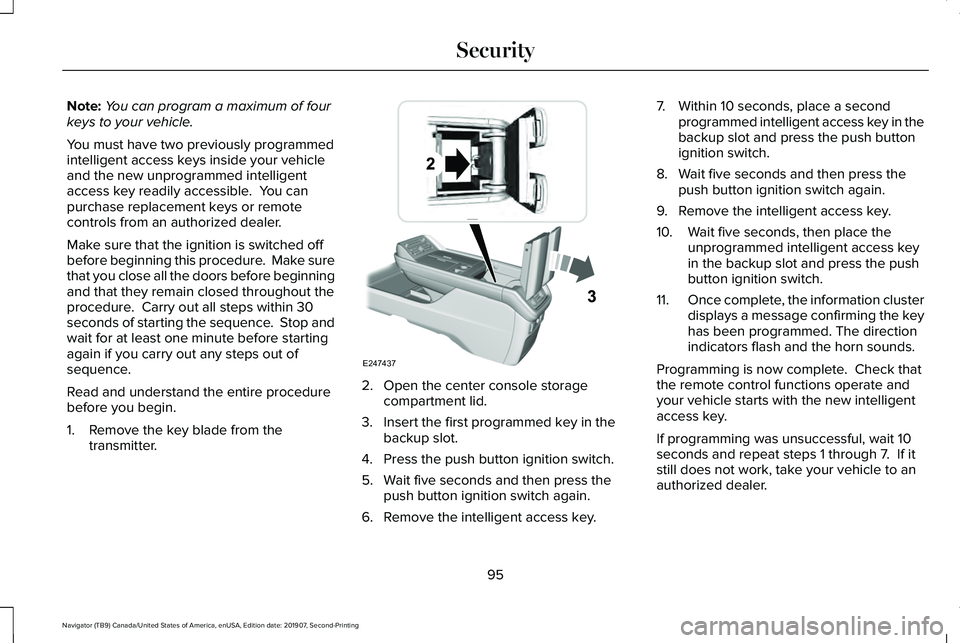
1. Remove the key blade from the transmitter. 2. Open the center console storage
compartment lid.
3. Insert the first programmed key in the backup slot.
4. Press the push button ignition switch.
5. Wait five seconds and then press the push button ignition switch again.
6. Remove the intelligent access key. 7. Within 10 seconds, place a second
programmed intelligent access key in the
backup slot and press the push button
ignition switch.
8. Wait five seconds and then press the push button ignition switch again.
9. Remove the intelligent access key.
10. Wait five seconds, then place the unprogrammed intelligent access key
in the backup slot and press the push
button ignition switch.
11. Once complete, the information cluster
displays a message confirming the key
has been programmed. The direction
indicators flash and the horn sounds.
Programming is now complete. Check that
the remote control functions operate and
your vehicle starts with the new intelligent
access key.
If programming was unsuccessful, wait 10
seconds and repeat steps 1 through 7. If it
still does not work, take your vehicle to an
authorized dealer.
95
Navigator (TB9) Canada/United States of America, enUSA, Edition date: 201907, Second-Printing SecurityE247437
Page 194 of 622
HEATED SEATS (IF EQUIPPED)
WARNING:
Use caution when using
the heated seat if you are unable to feel
pain to your skin because of advanced
age, chronic illness, diabetes, spinal cord
injury, medication, alcohol use, exhaustion
or other physical conditions. The heated
seat could cause burns even at low
temperatures, especially if used for long
periods of time. Failure to follow this
instruction could result in personal injury. WARNING:
Do not poke sharp
objects into the seat cushion or seat
backrest. This could damage the heated
seat element and cause it to overheat.
Failure to follow this instruction could result
in personal injury. WARNING:
Do not place anything on
the seat that blocks the heat, for example
a seat cover or a cushion. This could cause
the seat to overheat. Failure to follow this
instruction could result in personal injury. Front Seats
Do not do the following:
•
Place heavy objects on the seat.
• Operate the heated seat if water or any
other liquid spills on the seat. Allow the
seat to dry thoroughly.
Note: The engine must be running to use
this feature. Press the heated seat symbol to cycle
through the various heat settings and off.
More indicator lights indicate warmer
settings.
Note:
The heated seats switch on during a
remote start if they are enabled. Note:
The heated seats may switch on when
you start your vehicle if they were on when
you previously switched your vehicle off.
Automatic Climate Controlled Seats
(If
Equipped)
When you switch on the auto setting, the
seats switch between the heated seats and
ventilated seats to match your climate control
setting.
Second Row Heated Seats
The heated seat controls are on the rear of
the center console.
VENTILATED SEATS
(IF EQUIPPED)
Do not do the following:
• Spill liquid on the front seats. This may
cause the air vent holes to become
blocked and not work properly.
• Place cargo or objects under the seats.
They may block the air intake causing
the air vents to not work properly.
191
Navigator (TB9) Canada/United States of America, enUSA, Edition date: 201907, Second-Printing SeatsE146322
Page 202 of 622
The system supports one Qi wireless
charging compatible device on the charging
area.
Keep the charging area clean and remove
foreign objects prior to charging a device.
Do not place items with a magnetic strip, for
example passports, parking tickets or credit
cards, near the charging area when charging
a device. Damage may occur to the magnetic
strip.
Do not place metal objects, for example
remote controls, coins and candy wrappers,
on or near the charging area when charging
a device. Metal objects may heat up and
degrade the charging performance.
Note:
The device controls the rate of charge,
or charging power. During charging, the
device and the charger may heat up, this is
normal. If the battery gets hotter than usual,
the charger may stop charging. The charging area is on the center
console or lower instrument panel.
See Center Console (page 201).
You can charge a device if the vehicle is on,
when in accessory mode, or anytime SYNC
is on. To begin charging, place the device on the
center of the charging surface with the
charging side down. The charging stops after
your device reaches a full charge.
Note:
If the system detects a foreign object
or if the device is misaligned on the charging
area, a message appears in the display.
Note: Software and firmware updates may
affect device compatibility, including the use
of unofficial software or firmware. You should
verify charging functionality with your
specific devices when in your vehicle. Description
Behavior
Message
This message appears when wireless chargingbegins.
Message on screen display or pop-up window.
Wireless Charger Active
The system stops charging your device if thesystem detects the phone is misaligned, or a foreign metal object is on the charging surface.
Pop-up window.
Charging Terminated
Phone misaligned or object between phone
and charger detected. Correct the condition to resume charging.
199
Navigator (TB9) Canada/United States of America, enUSA, Edition date: 201907, Second-Printing Auxiliary Power PointsE297549
Page 204 of 622
CENTER CONSOLE
Stow items in the cup holder carefully as
items may become loose during hard
braking, acceleration or crashes, including
hot drinks which may spill.
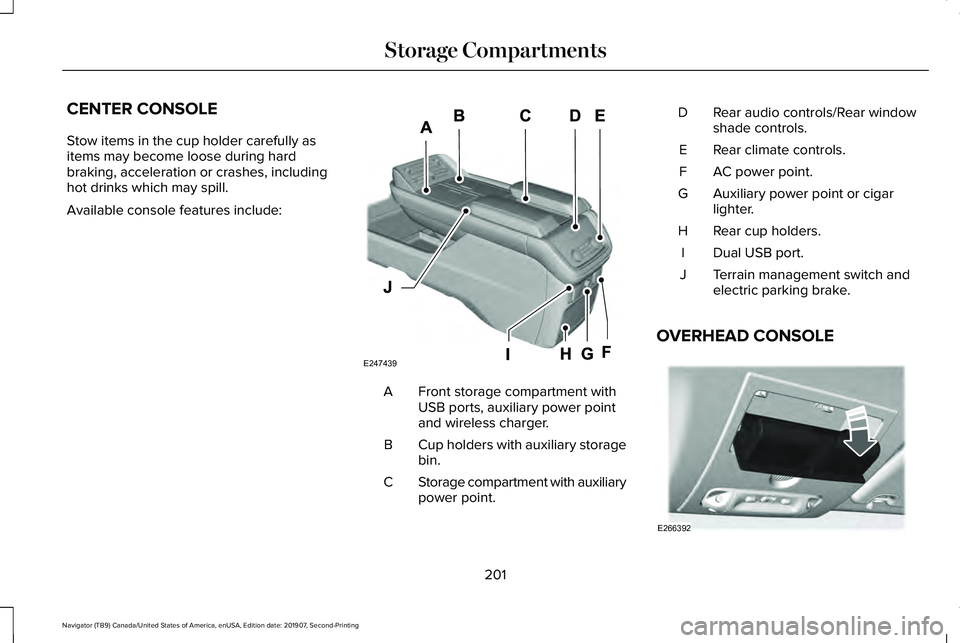
Available console features include:
Front storage compartment with
USB ports, auxiliary power point
and wireless charger.
A
Cup holders with auxiliary storage
bin.
B
Storage compartment with auxiliary
power point.
C Rear audio controls/Rear window
shade controls.
D
Rear climate controls.
E
AC power point.
F
Auxiliary power point or cigar
lighter.
G
Rear cup holders.
H
Dual USB port.
I
Terrain management switch and
electric parking brake.
J
OVERHEAD CONSOLE 201
Navigator (TB9) Canada/United States of America, enUSA, Edition date: 201907, Second-Printing Storage CompartmentsE247439 E266392
Page 302 of 622

Note:
If your vehicle detects excessive heat
at the camera or a potential misalignment
condition, a message may display in the
information display indicating temporary
sensor unavailability. When operational
conditions are correct, the message
deactivates. For example, when the ambient
temperature around the sensor decreases
or the sensor automatically recalibrates
successfully.
DRIVE MODE CONTROL
Lincoln Drive Modes
Lincoln Drive Modes deliver a driving
experience through a suite of sophisticated
electronic vehicle systems. These systems
optimize steering, handling and powertrain
response. You can control performance
settings for multiple systems from this single
location.
Changing the drive mode automatically
changes the functionality of the following
systems: •
Electronically power-assisted steering
system adjusts steering effort and feel
based on the mode you select. See
Steering (page 293).
• Electronic stability control and traction
control maintain your vehicle control in
adverse conditions or high performance
driving. See Stability Control (page
244).
• Electronic throttle control enhances the
powertrain response to your inputs.
• Transmission controls optimize with shift
schedules tuned to each mode.
• Driveline settings optimize for each
mode.
Using the System
The system automatically tailors your vehicle
configuration for each mode you select. To change the drive mode setting, use the
drive mode selector on the center console.
Note:
Mode changes are not available when
the vehicle ignition is off or when the engine
is not running.
Note: Not all settings may be available.
299
Navigator (TB9) Canada/United States of America, enUSA, Edition date: 201907, Second-Printing Driving AidsE246604
Page 465 of 622
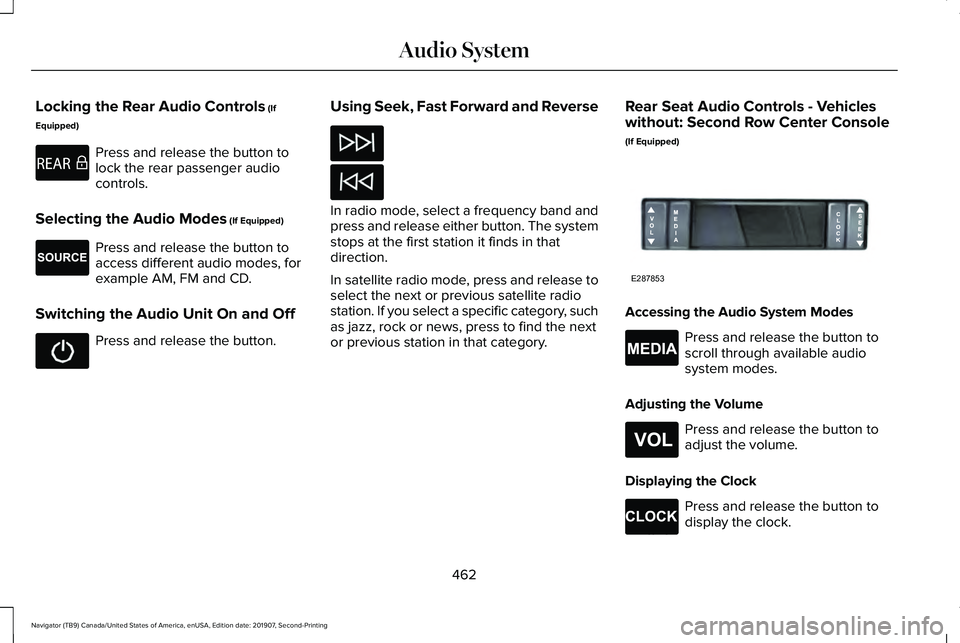
Locking the Rear Audio Controls (If
Equipped) Press and release the button to
lock the rear passenger audio
controls.
Selecting the Audio Modes
(If Equipped) Press and release the button to
access different audio modes, for
example AM, FM and CD.
Switching the Audio Unit On and Off Press and release the button.
Using Seek, Fast Forward and Reverse In radio mode, select a frequency band and
press and release either button. The system
stops at the first station it finds in that
direction.
In satellite radio mode, press and release to
select the next or previous satellite radio
station. If you select a specific category, such
as jazz, rock or news, press to find the next
or previous station in that category.
Rear Seat Audio Controls - Vehicles
without: Second Row Center Console
(If Equipped) Accessing the Audio System Modes
Press and release the button to
scroll through available audio
system modes.
Adjusting the Volume Press and release the button to
adjust the volume.
Displaying the Clock Press and release the button to
display the clock.
462
Navigator (TB9) Canada/United States of America, enUSA, Edition date: 201907, Second-Printing Audio SystemE270448 E265276 E287853 E265035 E265304 E265278
Page 466 of 622
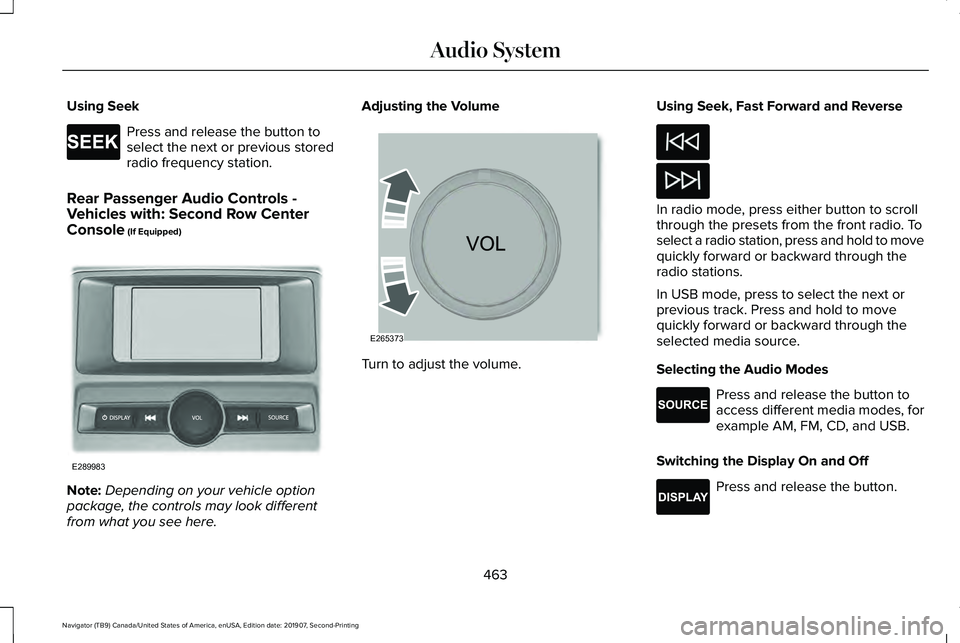
Using Seek
Press and release the button to
select the next or previous stored
radio frequency station.
Rear Passenger Audio Controls -
Vehicles with: Second Row Center
Console (If Equipped) Note:
Depending on your vehicle option
package, the controls may look different
from what you see here. Adjusting the Volume
Turn to adjust the volume.Using Seek, Fast Forward and Reverse In radio mode, press either button to scroll
through the presets from the front radio. To
select a radio station, press and hold to move
quickly forward or backward through the
radio stations.
In USB mode, press to select the next or
previous track. Press and hold to move
quickly forward or backward through the
selected media source.
Selecting the Audio Modes
Press and release the button to
access different media modes, for
example AM, FM, CD, and USB.
Switching the Display On and Off Press and release the button.
463
Navigator (TB9) Canada/United States of America, enUSA, Edition date: 201907, Second-Printing Audio SystemE265273 E289983 E265373 E265276 E268786
Page 500 of 622
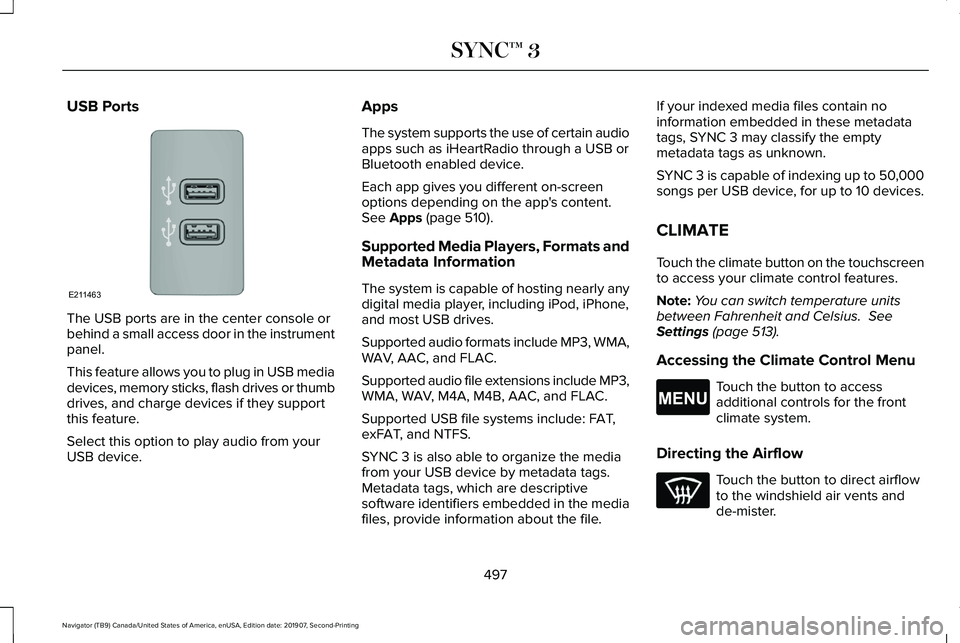
USB Ports
The USB ports are in the center console or
behind a small access door in the instrument
panel.
This feature allows you to plug in USB media
devices, memory sticks, flash drives or thumb
drives, and charge devices if they support
this feature.
Select this option to play audio from your
USB device. Apps
The system supports the use of certain audio
apps such as iHeartRadio through a USB or
Bluetooth enabled device.
Each app gives you different on-screen
options depending on the app's content.
See Apps (page 510).
Supported Media Players, Formats and
Metadata Information
The system is capable of hosting nearly any
digital media player, including iPod, iPhone,
and most USB drives.
Supported audio formats include MP3, WMA,
WAV, AAC, and FLAC.
Supported audio file extensions include MP3,
WMA, WAV, M4A, M4B, AAC, and FLAC.
Supported USB file systems include: FAT,
exFAT, and NTFS.
SYNC 3 is also able to organize the media
from your USB device by metadata tags.
Metadata tags, which are descriptive
software identifiers embedded in the media
files, provide information about the file. If your indexed media files contain no
information embedded in these metadata
tags, SYNC 3 may classify the empty
metadata tags as unknown.
SYNC 3 is capable of indexing up to 50,000
songs per USB device, for up to 10 devices.
CLIMATE
Touch the climate button on the touchscreen
to access your climate control features.
Note:
You can switch temperature units
between Fahrenheit and Celsius.
See
Settings (page 513).
Accessing the Climate Control Menu Touch the button to access
additional controls for the front
climate system.
Directing the Airflow Touch the button to direct airflow
to the windshield air vents and
de-mister.
497
Navigator (TB9) Canada/United States of America, enUSA, Edition date: 201907, Second-Printing SYNC™ 3E211463 E265038
Page 609 of 622
Audio Unit.......................................................461
Adjusting the Volume.........................................461
Changing Radio Stations...................................461
Locking the Rear Audio Controls...................462
Rear Passenger Audio Controls - Vehicles
with: Second Row Center Console...........463
Rear Seat Audio Controls - Vehicles without: Second Row Center Console.....................462
Selecting the Audio Modes.............................462
Switching the Audio Unit On and Off............462
Using Seek, Fast Forward and Reverse.......462
Auto Hold
........................................................241
Using Auto Hold.................................................242
Autolamps........................................................110 Windshield Wiper Activated Headlamps.......110
Automatic Climate Control
.........................165
Accessing Rear Climate Controls...................165
Accessing the Climate Control Menu............165
Setting the Blower Motor Speed....................165
Setting the Temperature...................................165
Switching Auto Mode On and Off...................
165
Switching Defrost On and Off..........................166
Switching Maximum Air Conditioning On and Off.......................................................................167
Switching Recirculated Air On and Off..........167
Switching the Air Conditioning On and Off.......................................................................166
Switching the Heated Seats On and Off.......
167 Switching the Ventilated Seats On and
Off.......................................................................167
Automatic High Beam Control
....................116
Automatic High Beam Control Indicators.......................................................117
Automatic Transmission
.............................222
Automatic Transmission Adaptive
Learning............................................................227
Brake-Shift Interlock Override........................226
If Your Vehicle Gets Stuck In Mud or Snow.................................................................227
SelectShift™ Automatic Transmission............225
Understanding the Shift Positions of your Automatic Transmission...............................222
Automatic Transmission Fluid Check............................................................384
Auto-Start-Stop.............................................208 Disabling Auto-Start-Stop.................................210
Enabling Auto-Start-Stop..................................208
Autowipers......................................................106 Autowipers Settings...........................................106
Auxiliary Power Points
..................................197
110 Volt AC Power Point.....................................197
12 Volt DC Power Point......................................197
USB Port and Power Point Locations.............197 B
Battery
See: Changing the 12V Battery.......................
387
Blind Spot Information System.................284 ........................................................................\
.........284
Blind Spot Information System with Trailer
Tow....................................................................285
Switching the System On and Off..................288
System Errors......................................................288
Using the Blind Spot Information System..............................................................284
BLIS See: Blind Spot Information System..............284
Body Styling Kits...........................................403
Bonnet Lock See: Opening and Closing the Hood............
373
Booster Seats..................................................39 Types of Booster Seats.......................................39
Brake Fluid Check
........................................385
Brake Fluid Service Interval.............................386
Brakes ..............................................................
237
General Information...........................................237
Breaking-In.....................................................338
Bulb Specification Chart
.............................450
606
Navigator (TB9) Canada/United States of America, enUSA, Edition date: 201907, Second-Printing Index