mirror LINCOLN NAVIGATOR 2021 User Guide
[x] Cancel search | Manufacturer: LINCOLN, Model Year: 2021, Model line: NAVIGATOR, Model: LINCOLN NAVIGATOR 2021Pages: 639, PDF Size: 6.09 MB
Page 140 of 639
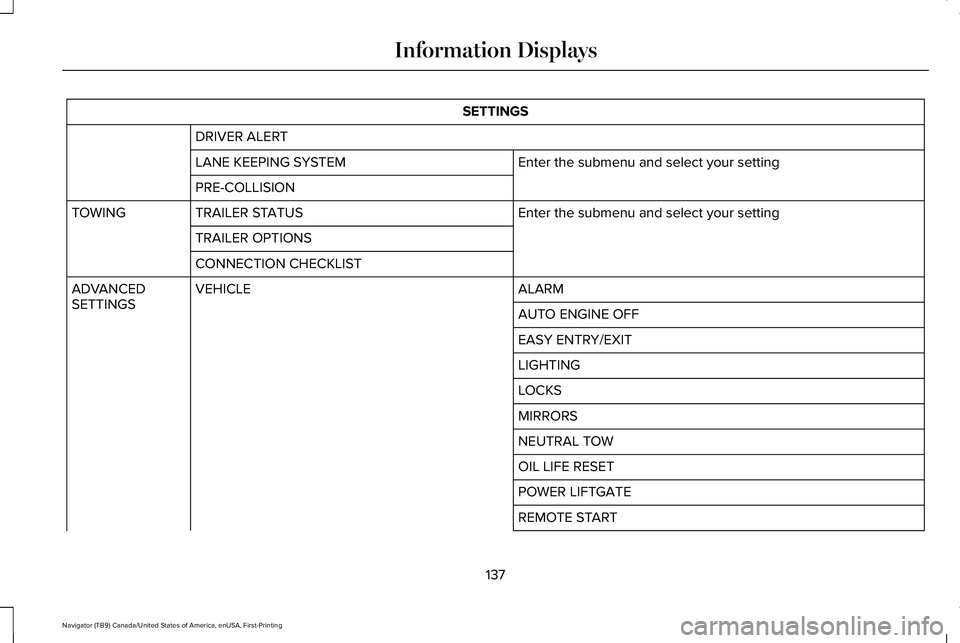
SETTINGS
DRIVER ALERT Enter the submenu and select your setting
LANE KEEPING SYSTEM
PRE-COLLISION
Enter the submenu and select your setting
TRAILER STATUS
TOWING
TRAILER OPTIONS
CONNECTION CHECKLIST ALARM
VEHICLE
ADVANCED
SETTINGS
AUTO ENGINE OFF
EASY ENTRY/EXIT
LIGHTING
LOCKS
MIRRORS
NEUTRAL TOW
OIL LIFE RESET
POWER LIFTGATE
REMOTE START
137
Navigator (TB9) Canada/United States of America, enUSA, First-Printing Information Displays
Page 174 of 639
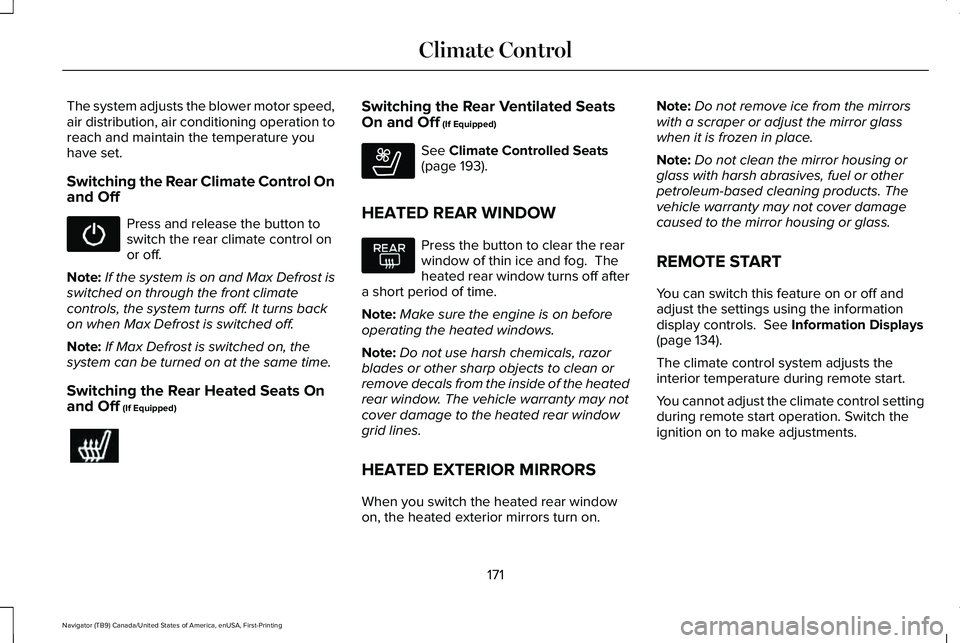
The system adjusts the blower motor speed,
air distribution, air conditioning operation to
reach and maintain the temperature you
have set.
Switching the Rear Climate Control On
and Off
Press and release the button to
switch the rear climate control on
or off.
Note: If the system is on and Max Defrost is
switched on through the front climate
controls, the system turns off. It turns back
on when Max Defrost is switched off.
Note: If Max Defrost is switched on, the
system can be turned on at the same time.
Switching the Rear Heated Seats On
and Off (If Equipped) Switching the Rear Ventilated Seats
On and Off
(If Equipped)
See
Climate Controlled Seats
(page 193).
HEATED REAR WINDOW Press the button to clear the rear
window of thin ice and fog. The
heated rear window turns off after
a short period of time.
Note: Make sure the engine is on before
operating the heated windows.
Note: Do not use harsh chemicals, razor
blades or other sharp objects to clean or
remove decals from the inside of the heated
rear window. The vehicle warranty may not
cover damage to the heated rear window
grid lines.
HEATED EXTERIOR MIRRORS
When you switch the heated rear window
on, the heated exterior mirrors turn on. Note:
Do not remove ice from the mirrors
with a scraper or adjust the mirror glass
when it is frozen in place.
Note: Do not clean the mirror housing or
glass with harsh abrasives, fuel or other
petroleum-based cleaning products. The
vehicle warranty may not cover damage
caused to the mirror housing or glass.
REMOTE START
You can switch this feature on or off and
adjust the settings using the information
display controls.
See Information Displays
(page 134).
The climate control system adjusts the
interior temperature during remote start.
You cannot adjust the climate control setting
during remote start operation. Switch the
ignition on to make adjustments.
171
Navigator (TB9) Canada/United States of America, enUSA, First-Printing Climate Control E268558
Page 175 of 639
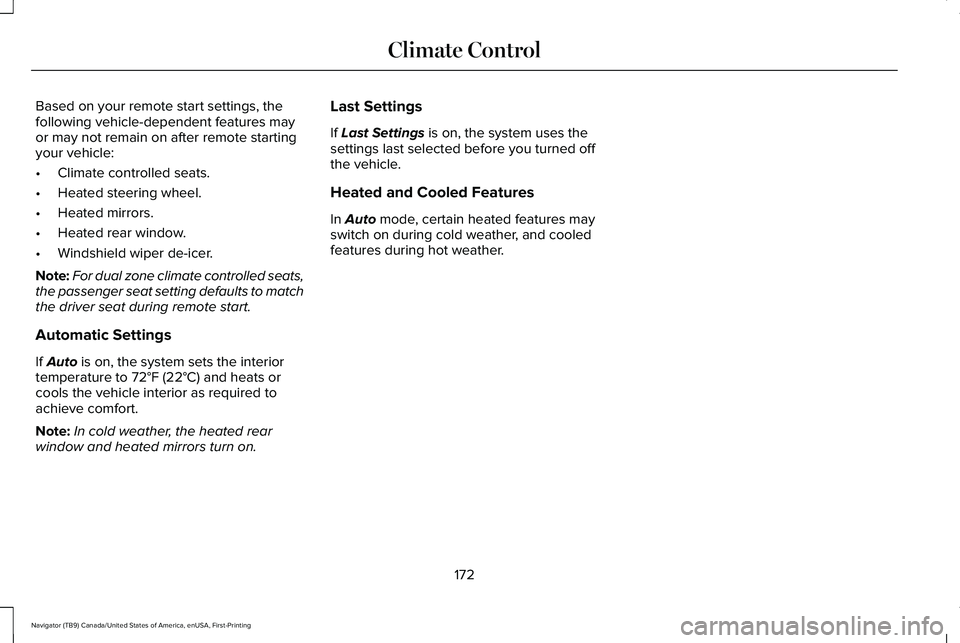
Based on your remote start settings, the
following vehicle-dependent features may
or may not remain on after remote starting
your vehicle:
•
Climate controlled seats.
• Heated steering wheel.
• Heated mirrors.
• Heated rear window.
• Windshield wiper de-icer.
Note: For dual zone climate controlled seats,
the passenger seat setting defaults to match
the driver seat during remote start.
Automatic Settings
If Auto is on, the system sets the interior
temperature to 72°F (22°C) and heats or
cools the vehicle interior as required to
achieve comfort.
Note: In cold weather, the heated rear
window and heated mirrors turn on. Last Settings
If
Last Settings is on, the system uses the
settings last selected before you turned off
the vehicle.
Heated and Cooled Features
In
Auto mode, certain heated features may
switch on during cold weather, and cooled
features during hot weather.
172
Navigator (TB9) Canada/United States of America, enUSA, First-Printing Climate Control
Page 186 of 639
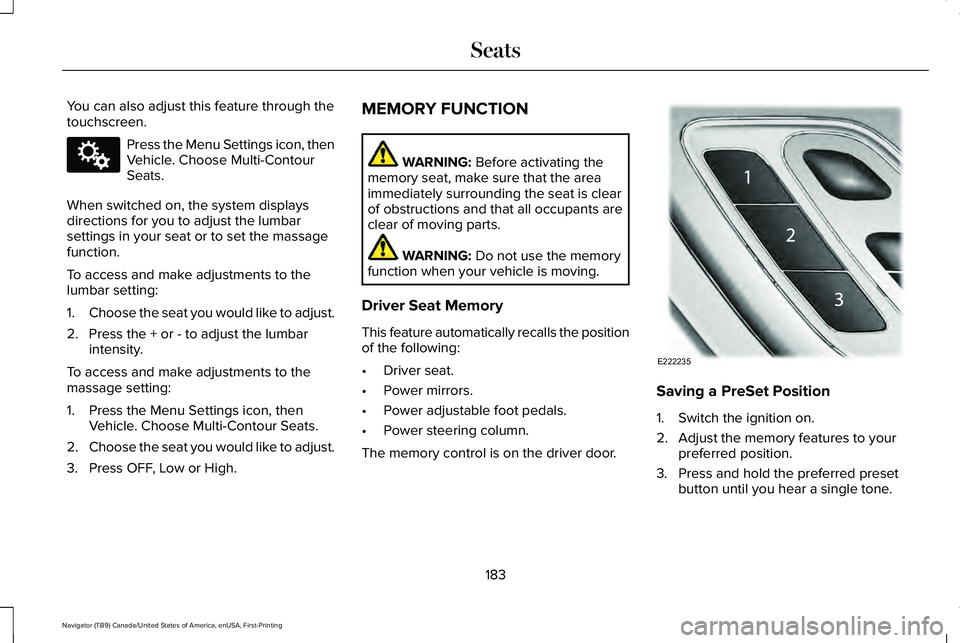
You can also adjust this feature through the
touchscreen.
Press the Menu Settings icon, then
Vehicle. Choose Multi-Contour
Seats.
When switched on, the system displays
directions for you to adjust the lumbar
settings in your seat or to set the massage
function.
To access and make adjustments to the
lumbar setting:
1. Choose the seat you would like to adjust.
2. Press the + or - to adjust the lumbar intensity.
To access and make adjustments to the
massage setting:
1. Press the Menu Settings icon, then Vehicle. Choose Multi-Contour Seats.
2. Choose the seat you would like to adjust.
3. Press OFF, Low or High. MEMORY FUNCTION WARNING: Before activating the
memory seat, make sure that the area
immediately surrounding the seat is clear
of obstructions and that all occupants are
clear of moving parts. WARNING:
Do not use the memory
function when your vehicle is moving.
Driver Seat Memory
This feature automatically recalls the position
of the following:
• Driver seat.
• Power mirrors.
• Power adjustable foot pedals.
• Power steering column.
The memory control is on the driver door. Saving a PreSet Position
1. Switch the ignition on.
2. Adjust the memory features to your
preferred position.
3. Press and hold the preferred preset button until you hear a single tone.
183
Navigator (TB9) Canada/United States of America, enUSA, First-Printing SeatsE142607 E222235
Page 188 of 639
Personal Profiles
This feature allows you to create multiple
personal profiles enabling users to
personalize vehicle
’s settings. You can
create one profile for each preset memory
seat button along with a guest profile. You
can recall a profile using SYNC 3 or the
preset button you selected when you created
your profile. You can also link a remote
control or mobile device to your profile,
which is used to recall it.
Creating a Personal Profile
Use the SYNC display to create a personal
profile.
1. Switch the ignition on and leave the vehicle in park (P).
2. Select the Personal Profiles button under
Settings.
3. Follow the instructions on the display. Linking a Personal Profile to your Remote
Control or Mobile Device
You can save preset memory positions for
up to three remote controls by assigning a
remote control to a personal profile in your
SYNC 3. You can assign three additional
remote controls set up as Phone as a Key.
See Keys and Remote Controls (page 69).
Use the SYNC display to link a remote
control, mobile device or both to a personal
profile.
1. Switch the ignition on and leave the vehicle in park (P).
2. Select the Personal Profiles button under
Settings.
3. Touch the arrow for the profile you wish to link to a remote control or mobile
device.
4. Select the correct button to link a remote
control, mobile device or both.
5. Follow the instructions on the display. Note:
To successfully link a mobile device,
the mobile device must be present in your
vehicle, and must have previously been
setup as a remote control for your vehicle.
Note: If more than one linked remote control
or intelligent access key is in range, the
memory function moves to the settings of
the first key to initiate a memory recall.
Note: The guest profile consists of existing
settings when there is no driver profile
created. After you create a driver profile, the
guest profile serves as an additional driver
profile.
Note: You cannot link a personalized name,
a memory seat button or a keyfob to a guest
profile.
Personal Settings
Personal profiles allow you to personalize
positional settings such as seats and mirrors,
as well as non-positional settings such as
radio, navigation, driver assist and system
settings.
See SYNC™ 3 (page 473). You
cannot change the menu locations and
settings of those personalized features with
personal profiles.
185
Navigator (TB9) Canada/United States of America, enUSA, First-Printing Seats
Page 269 of 639
REAR VIEW CAMERA
WARNING: The rear view camera
system is a reverse aid supplement device
that still requires the driver to use it in
conjunction with the interior and exterior
mirrors for maximum coverage. WARNING:
Objects that are close to
either corner of the bumper or under the
bumper, might not be seen on the screen
due to the limited coverage of the camera
system. WARNING:
Reverse your vehicle
slowly. Failure to follow this instruction
could result in the loss of control of your
vehicle, personal injury or death. WARNING:
Use caution when the
rear cargo door is ajar. If the rear cargo
door is ajar, the camera will be out of
position and the video image may be
incorrect. All guidelines disappear when
the rear cargo door is ajar. Failure to follow
this instruction could result in personal
injury. WARNING:
Use caution when turning
camera features on or off when the
transmission is not in park (P). Make sure
your vehicle is not moving.
The rear view camera system provides a
video image of the area behind your vehicle.
During operation, lines appear in the display
which represent your vehicle ’s path and
proximity to objects behind your vehicle. The camera is located on the luggage
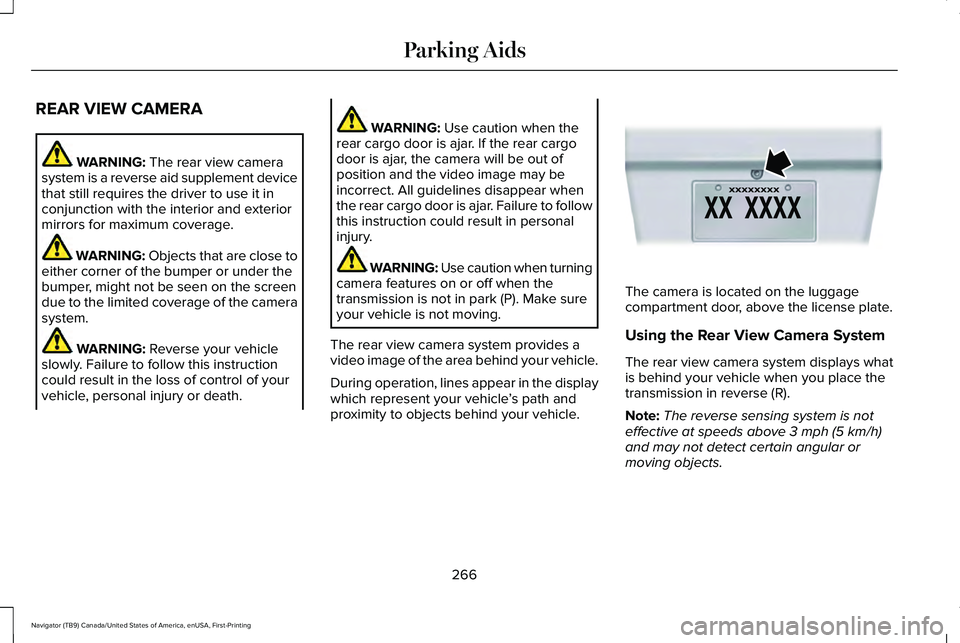
compartment door, above the license plate.
Using the Rear View Camera System
The rear view camera system displays what
is behind your vehicle when you place the
transmission in reverse (R).
Note:
The reverse sensing system is not
effective at speeds above
3 mph (5 km/h)
and may not detect certain angular or
moving objects.
266
Navigator (TB9) Canada/United States of America, enUSA, First-Printing Parking AidsE142435
Page 271 of 639
Fixed guideline: Yellow zone
D
Fixed guideline: Red zone
E
Rear bumper
F
Active guidelines are only shown with fixed
guidelines. To use active guidelines, turn
the steering wheel to point the guidelines
toward an intended path. If you change the
steering wheel position while reversing, your
vehicle might deviate from the original
intended path.
The fixed and active guidelines fade in and
out depending on the steering wheel
position. The active guidelines do not
display when the steering wheel position is
straight.
Always use caution while reversing. Objects
in the red zone are closest to your vehicle
and objects in the green zone are farther
away. Objects are getting closer to your
vehicle as they move from the green zone
to the yellow or red zones. Use the side view
mirrors and rear view mirror to get better
coverage on both sides and rear of the
vehicle. Obstacle Distance Indicator (If Equipped)
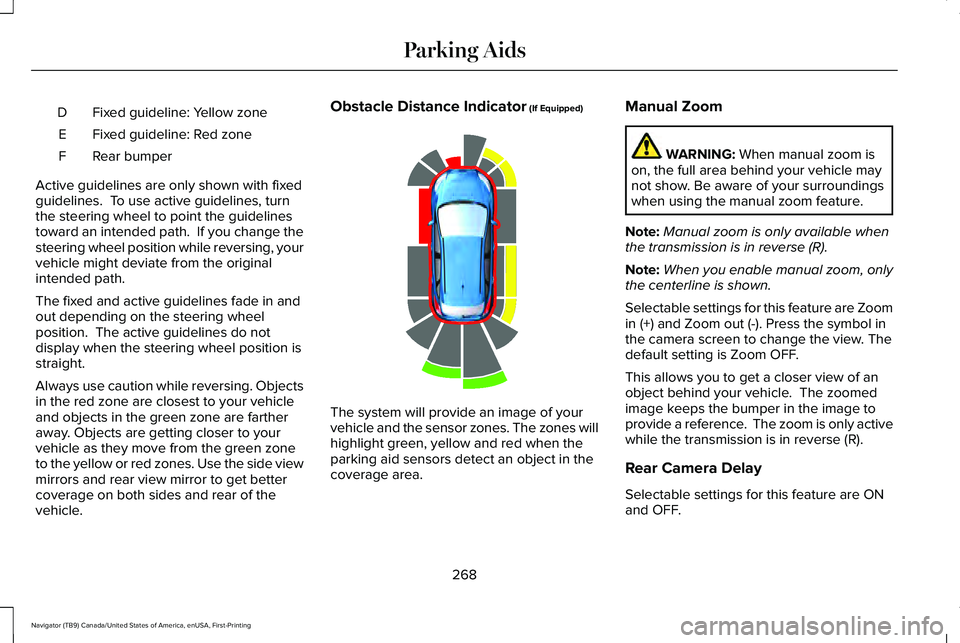
The system will provide an image of your
vehicle and the sensor zones. The zones will
highlight green, yellow and red when the
parking aid sensors detect an object in the
coverage area.Manual Zoom WARNING:
When manual zoom is
on, the full area behind your vehicle may
not show. Be aware of your surroundings
when using the manual zoom feature.
Note: Manual zoom is only available when
the transmission is in reverse (R).
Note: When you enable manual zoom, only
the centerline is shown.
Selectable settings for this feature are Zoom
in (+) and Zoom out (-). Press the symbol in
the camera screen to change the view. The
default setting is Zoom OFF.
This allows you to get a closer view of an
object behind your vehicle. The zoomed
image keeps the bumper in the image to
provide a reference. The zoom is only active
while the transmission is in reverse (R).
Rear Camera Delay
Selectable settings for this feature are ON
and OFF.
268
Navigator (TB9) Canada/United States of America, enUSA, First-Printing Parking AidsE190459
Page 272 of 639
The default setting for the rear camera delay
is OFF.
When shifting the transmission out of reverse
(R) and into any gear other than park (P), the
camera image remains in the display until:
•
Your vehicle speed reaches
approximately 6 mph (10 km/h).
• You shift your vehicle into park (P).
360 DEGREE CAMERA
(IF EQUIPPED) WARNING: The 360 degree camera
system still requires the driver to use it in
conjunction with looking out of the
windows, and checking the interior and
exterior mirrors for maximum coverage. WARNING:
Objects that are close to
either corner of the bumper or under the
bumper, might not be seen on the screen
due to the limited coverage of the camera
system. WARNING:
Use caution when turning
camera features on or off when the
transmission is not in park (P). Make sure
your vehicle is not moving.
Note: The 360 degree camera system turns
off when your vehicle is in motion at low
speed, except when in reverse (R).
The 360 degree camera system consists of
front, side and rear cameras. The system:
• Allows you to see what is directly in front
or behind your vehicle.
• Provides cross traffic view in front and
behind your vehicle.
• Allows you to see a top-down view of the
area outside your vehicle, including the
blind spots.
• Provides visibility around your vehicle in
parking maneuvers such as:
•Centering in a parking space.
• Obstacles near vehicle.
• Parallel parking. Camera Views The front camera enable button is
near the display screen and turns
on the front camera when your
vehicle is not in reverse (R).
When in park (P), neutral (N) or drive (D), only
images from the front cameras are displayed.
Press the camera button to display the front
camera image on the display screen.
When in reverse (R), only images from the
rear cameras are displayed. When you shift
into reverse (R), the rear view camera image
automatically shows on the display screen.
Automatic 360 Degree Camera
Activation
The system activates the 360 degree camera
view when the front parking aid detects an
object. The system displays the
corresponding view when the object
distance indicator detects an object.
See
Front Parking Aid (page 254).
269
Navigator (TB9) Canada/United States of America, enUSA, First-Printing Parking AidsE205884
Page 273 of 639
When the front parking aid system emits an
audible tone, the 360 degree camera views
are active and deactivates a few seconds
after the tone stops. The camera view stays
active for objects detected in the red parking
aid zone regardless of tone. You can turn
the view off by pressing the physical camera
button.
Switching Automatic 360 Degree Camera
Activation On and Off
You can turn the automatic 360 degree
camera activation on and off through the
parking aid button.
The automatic 360 degree camera activation
is only available when you shift into drive (D)
or neutral (N) and if your vehicle speed is
below 6 mph (10 km/h).
The automatic 360 degree camera activation
is not available when you shift into park (P)
or reach speeds over
6 mph (10 km/h).
Note: The rear camera and 360 degree
camera operate normally regardless of
object detection. Advanced Camera Views
(If Equipped) Additional camera views may be
available for vehicles with specific
features. Press the small camera
icon shown on the top left corner of the
display screen to open the camera view
menu.
The following camera views can be accessed
in park (P), neutral (N) or drive (D) when you
press the camera button:
• Front 360 + Normal: Contains the normal
front camera view next to a 360 degree
camera view.
• Front Normal View:
Provides an image
of what is directly in front of your vehicle.
• Front Split View:
Provides an extended
view of what is in front of your vehicle. The following camera views can be accessed
when you shift into reverse (R):
•
Rear 360 + Normal: Contains the normal
rear camera view next to a 360 degree
camera view. Press the zoom (+) button
to quickly access Rear Normal View from
this screen.
• Rear Normal View:
Provides an image
of what is directly behind your vehicle.
• Rear Split View:
Provides an extended
view of what is behind your vehicle.
Keep Out Zone
The Keep Out Zone is represented by the
yellow dotted lines running parallel to your
vehicle. It is designed to give you the
indication on the ground of the fully
extended outside mirror position.
Front Camera WARNING:
The front camera system
still requires the driver to use it in
conjunction with looking out of your
vehicle.
270
Navigator (TB9) Canada/United States of America, enUSA, First-Printing Parking AidsE233726
Page 274 of 639
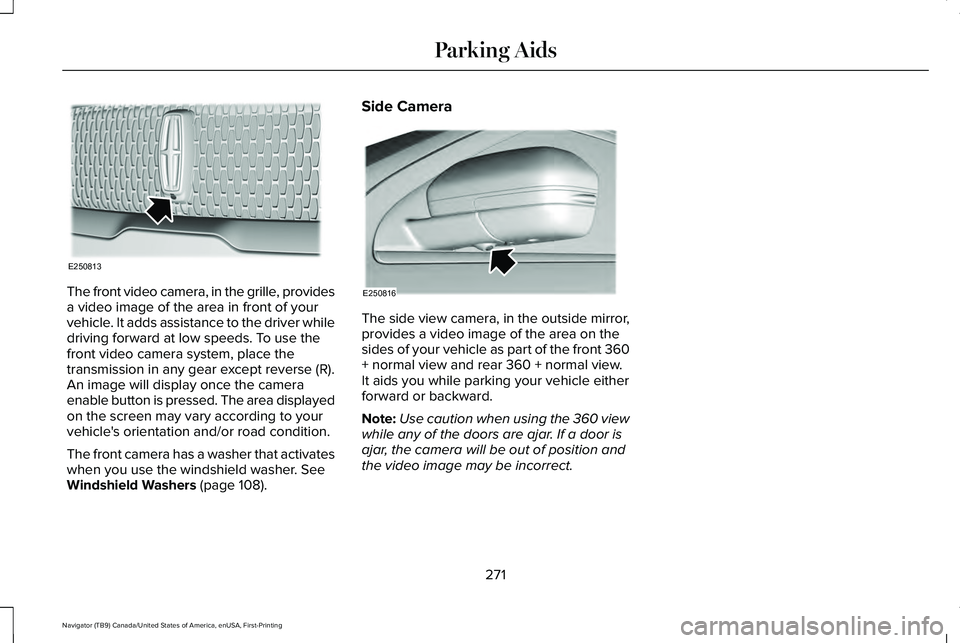
The front video camera, in the grille, provides
a video image of the area in front of your
vehicle. It adds assistance to the driver while
driving forward at low speeds. To use the
front video camera system, place the
transmission in any gear except reverse (R).
An image will display once the camera
enable button is pressed. The area displayed
on the screen may vary according to your
vehicle's orientation and/or road condition.
The front camera has a washer that activates
when you use the windshield washer. See
Windshield Washers (page 108). Side Camera
The side view camera, in the outside mirror,
provides a video image of the area on the
sides of your vehicle as part of the front 360
+ normal view and rear 360 + normal view.
It aids you while parking your vehicle either
forward or backward.
Note:
Use caution when using the 360 view
while any of the doors are ajar. If a door is
ajar, the camera will be out of position and
the video image may be incorrect.
271
Navigator (TB9) Canada/United States of America, enUSA, First-Printing Parking AidsE250813 E250816