brakes LINCOLN NAVIGATOR 2021 Owner's Manual
[x] Cancel search | Manufacturer: LINCOLN, Model Year: 2021, Model line: NAVIGATOR, Model: LINCOLN NAVIGATOR 2021Pages: 639, PDF Size: 6.09 MB
Page 261 of 639
If the system is not available, the side
distance indicator blocks do not display.
ACTIVE PARK ASSIST
WARNING: You must remain in your
vehicle when the system turns on. At all
times, you are responsible for controlling
your vehicle, supervising the system and
intervening, if required. Failure to take care
may result in the loss of control of your
vehicle, serious personal injury or death. WARNING: The sensors may not
detect objects in heavy rain or other
conditions that cause interference. WARNING:
Active park assist does
not apply the brakes under any
circumstances. WARNING:
You are responsible for
controlling your vehicle at all times. The
system is designed to be an aid and does
not relieve you of your responsibility to
drive with due care and attention. Failure
to follow this instruction could result in the
loss of control of your vehicle, personal
injury or death.
Active park assist is a multi-step process and
may require you to shift the transmission
multiple times. Follow the onscreen
instructions until the parking maneuver is
complete.
If you are uncomfortable with the proximity
to any vehicle or object, you may choose to
override the system by grabbing the steering
wheel, or by taking full control of your vehicle
after pressing the active park assist button.
Keep your hands, hair, clothing and any
loose items clear of the steering wheel when
using active park assist.
The sensors are on the front and rear
bumpers. Note:
Keep the sensors free from snow, ice
and large accumulations of dirt.
Note: Do not cover up the sensors.
Note: Do not clean the sensors with sharp
objects.
Note: The sensors may not detect objects
with surfaces that absorb ultrasonic waves.
The sensors may falsely detect objects due
to ultrasonic interference caused by
motorcycle exhausts, truck air brakes or
horns, for example.
Note: If you change any tires, the system
must recalibrate and may not correctly
operate for a short time.
The system may not correctly operate in any
of the following conditions:
• You use a spare tire or a tire that is
significantly worn more than the other
tires.
• One or more tires are incorrectly inflated.
• You try to park on a tight curve.
• Something passes between the front
bumper and the parking space. For
example, a pedestrian or cyclist.
258
Navigator (TB9) Canada/United States of America, enUSA, First-Printing Parking Aids
Page 262 of 639
•
The edge of the neighboring parked
vehicle is high off the ground. For
example, a bus, tow truck or flatbed
truck.
• The weather conditions are poor. For
example, during heavy rain, snow, fog,
high humidity and high temperatures.
Do not use the system if:
• You have attached an add-on accessory
close to the sensors on the front or rear
of your vehicle. For example, a bike rack
or trailer.
• You have attached an overhanging
object to the roof. For example, a
surfboard.
• The front bumper, rear bumper or the
side sensors are damaged.
• The correct tire size is not in use on your
vehicle. For example, a mini-spare tire. Using Active Park Assist
Selecting an Active Park Assist Mode Press the button once to activate
parallel parking. Press the button
a second time to activate
perpendicular parking. If you press the
button again the system switches off.
If your vehicle is parked and after you switch
the ignition on, you can use the information
display to toggle through the modes. Press
the button to switch the system on and open
the system menu in the information display.
Note: If your vehicle is parked, the default
mode is parallel park out assist. However, if
you did not use active park assist to parallel
park your vehicle, use the information
display to select park out assist.
Note: You can repeatedly press the active
park assist button to toggle through the
modes only after moving your vehicle
approximately 33 ft (10 m). To toggle through the modes, use the
buttons on the information display to select
the following:
•
Parallel parking.
• Perpendicular parking.
• Parallel park out assist.
• Switch the system off.
Note: There is no time limit for toggling
through the modes.
Parallel Parking
The system detects available parallel parking
spaces and steers your vehicle into the
space. You control the accelerator, gearshift
and brakes. The system visually and audibly
guides you into a parallel parking space. Press the button once to search
for a parking space.
Note: You can also switch the system on
after you have already driven partially or
completely past a parking space. Press the
active park assist button and the system
informs you if you have recently passed a
suitable parking space.
259
Navigator (TB9) Canada/United States of America, enUSA, First-Printing Parking AidsE146186 E146186
Page 264 of 639
When you believe your vehicle is correctly
parked, or a solid tone sounds and an
information message appears, bring your
vehicle to a complete stop.
When the Active Park Assist maneuver is
complete, a tone sounds and an information
message appears.
Note:
You are responsible for checking how
your vehicle is parked and making any
necessary corrections before leaving your
vehicle.
Deactivating Active Park Assist
You can manually deactivate the system by:
• Pressing the Active Park Assist button
during an active maneuver.
• Grabbing the steering wheel during an
active maneuver.
• Driving above 22 mph (35 km/h) for 30
seconds when searching for a parking
space.
• Driving above
31 mph (50 km/h).
• Driving above
6 mph (9 km/h) during an
active maneuver.
• Switching the traction control system off. Certain vehicle conditions may also
deactivate the system, for example:
•
The traction control system activates or
fails.
• The anti-lock brake system activates or
fails.
If the system malfunctions, a message
appears and a tone sounds. Have your
vehicle checked as soon as possible.
Perpendicular Parking
The system detects available perpendicular
parking spaces and steers your vehicle into
the space. You control the accelerator,
gearshift and brakes. The system visually
and audibly guides you into a perpendicular
parking space. Press the button twice to search
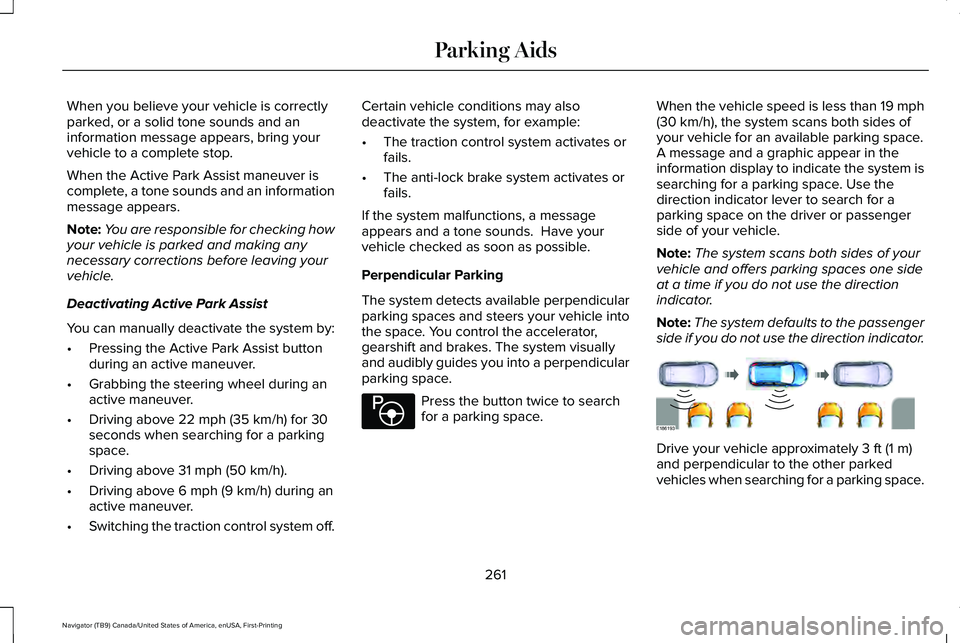
for a parking space.When the vehicle speed is less than
19 mph
(30 km/h), the system scans both sides of
your vehicle for an available parking space.
A message and a graphic appear in the
information display to indicate the system is
searching for a parking space. Use the
direction indicator lever to search for a
parking space on the driver or passenger
side of your vehicle.
Note: The system scans both sides of your
vehicle and offers parking spaces one side
at a time if you do not use the direction
indicator.
Note: The system defaults to the passenger
side if you do not use the direction indicator. Drive your vehicle approximately
3 ft (1 m)
and perpendicular to the other parked
vehicles when searching for a parking space.
261
Navigator (TB9) Canada/United States of America, enUSA, First-Printing Parking AidsE146186 E186193
Page 266 of 639
Deactivating Active Park Assist
You can manually deactivate the system by:
•
Pressing the Active Park Assist button
during an active maneuver.
• Grabbing the steering wheel during an
active maneuver.
• Driving above 19 mph (30 km/h) for 30
seconds when searching for a parking
space.
• Driving above
31 mph (50 km/h).
• Driving above
6 mph (9 km/h) during an
active maneuver.
• Switching the traction control system off.
Certain vehicle conditions may also
deactivate the system, for example:
• The traction control system activates or
fails.
• The anti-lock brake system activates or
fails.
If the system malfunctions, a message
appears and a tone sounds. Have your
vehicle checked as soon as possible. Parallel Park Out Assist
The system steers your vehicle out of a
parallel parking space. You control the
accelerator, gearshift and brakes. The system
visually and audibly guides you out of a
parallel parking space.
Note:
This system is not intended to assist
when exiting a perpendicular parking space. Press the button once when your
vehicle is stationary in a parallel
parking space.
Note: If you did not use active park assist to
parallel park your vehicle, pressing the
button once selects parallel park. You must
use the information display to select park
out assist.
The system displays a message instructing
you to switch a direction indicator on. Use
the direction indicator to select which side
of your vehicle you want to exit the parking
space. The system displays instructions to
move your vehicle backward and forward in
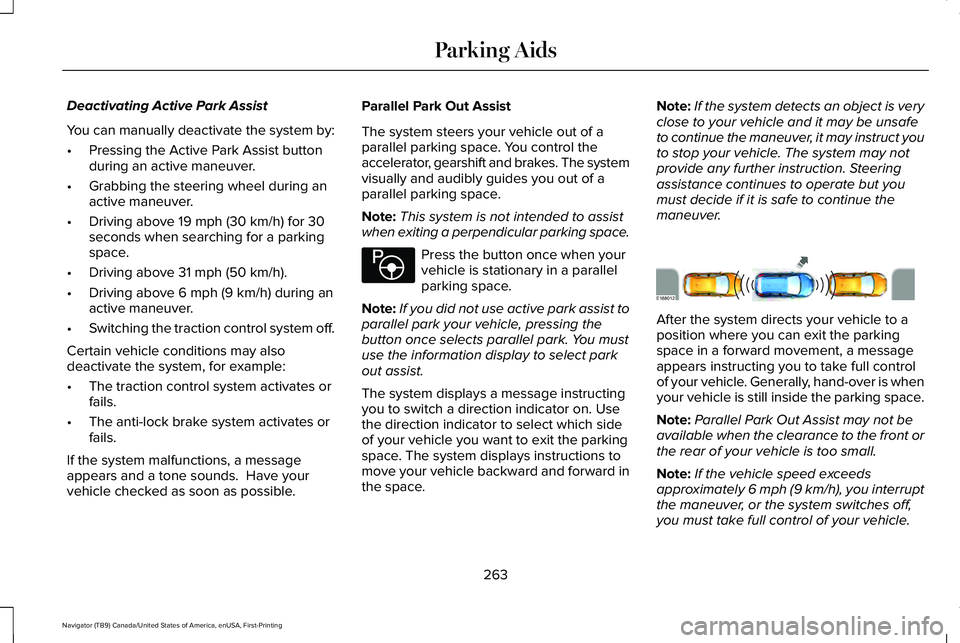
the space. Note:
If the system detects an object is very
close to your vehicle and it may be unsafe
to continue the maneuver, it may instruct you
to stop your vehicle. The system may not
provide any further instruction. Steering
assistance continues to operate but you
must decide if it is safe to continue the
maneuver. After the system directs your vehicle to a
position where you can exit the parking
space in a forward movement, a message
appears instructing you to take full control
of your vehicle. Generally, hand-over is when
your vehicle is still inside the parking space.
Note:
Parallel Park Out Assist may not be
available when the clearance to the front or
the rear of your vehicle is too small.
Note: If the vehicle speed exceeds
approximately
6 mph (9 km/h), you interrupt
the maneuver, or the system switches off,
you must take full control of your vehicle.
263
Navigator (TB9) Canada/United States of America, enUSA, First-Printing Parking AidsE146186 E188012
Page 275 of 639
WHAT IS CRUISE CONTROL
Cruise control lets you maintain a set speed
without keeping your foot on the accelerator
pedal.
Requirements
Use cruise control when the vehicle speed
is greater than 20 mph (30 km/h).
SWITCHING CRUISE CONTROL ON
AND OFF WARNING:
Do not use cruise control
on winding roads, in heavy traffic or when
the road surface is slippery. This could
result in loss of vehicle control, serious
injury or death.
The cruise controls are on the steering
wheel.
See Cruise Control (page 103). Switching Cruise Control On Press the button.
Switching Cruise Control Off Press the button when the system
is in standby mode.
The system also turns off when you switch
the ignition off.
Note: The set speed erases when you switch
the system off.
SETTING THE CRUISE CONTROL
SPEED WARNING:
When you are going
downhill, your vehicle speed could
increase above the set speed. The system
does not apply the brakes.
Drive to the speed you prefer. Press either button to set the
current speed.
Take your foot off the accelerator pedal.
Note: The indicator changes color in the
information display.
Changing the Set Speed Press and release the button to
increase the set speed in small
increments.
Press and hold the button to accelerate.
Release the button when you reach your
preferred speed. Press and release the button to
decrease the set speed in small
increments.
Press and hold the button to decelerate.
Release the button when you reach your
preferred speed.
272
Navigator (TB9) Canada/United States of America, enUSA, First-Printing Cruise ControlE265296 E265297
Page 278 of 639
Following a Vehicle
WARNING: When following a vehicle,
your vehicle does not always decelerate
quickly enough to avoid a crash without
driver intervention. Always apply the
brakes when necessary. Failing to do so
may result in a crash, serious injury or
death. WARNING: Adaptive cruise control
only warns of vehicles detected by the
radar sensor. In some cases there may be
no warning or a delayed warning. You
should always apply the brakes when
necessary. Failure to do so may result in a
crash, serious injury or death.
When a vehicle ahead of you enters the
same lane or a slower vehicle is ahead in the
same lane, the vehicle speed adjusts to
maintain a preset gap distance. A vehicle
graphic illuminates in the instrument cluster.
Note: The brakes may emit noise when
applied by the system. Note:
When you are following a vehicle and
you switch on a direction indicator, adaptive
cruise control may provide a small temporary
acceleration to help you pass.
Your vehicle maintains a consistent gap from
the vehicle ahead until:
• The vehicle in front of you accelerates to
a speed above the set speed.
• The vehicle in front of you moves out of
the lane you are in.
• You set a new gap distance.
The system applies the brakes to slow your
vehicle to maintain a safe gap distance from
the vehicle in front. The system only applies
limited braking. You can override the system
by applying the brakes.
If the system determines that its maximum
braking level is not sufficient, an audible
warning sounds, a message appears in the
information display and an indicator flashes
when the system continues to brake. Take
immediate action. Following a Vehicle to a Complete Stop
If your vehicle follows a vehicle to a complete
stop and remains stationary for less than
three seconds, your vehicle accelerates from
a stationary position to follow the vehicle
ahead. If your vehicle follows a vehicle to
a complete stop and remains
stationary for more than three
seconds, press to follow the vehicle ahead.
Or press the accelerator pedal.
Setting the Gap Distance
You can decrease or increase the distance
between your vehicle and the vehicle in front
by pressing the gap control. Press and release to decrease the
gap distance.
Press and release to increase the
gap distance.
275
Navigator (TB9) Canada/United States of America, enUSA, First-Printing Cruise ControlE265299 E263697 E263696
Page 279 of 639
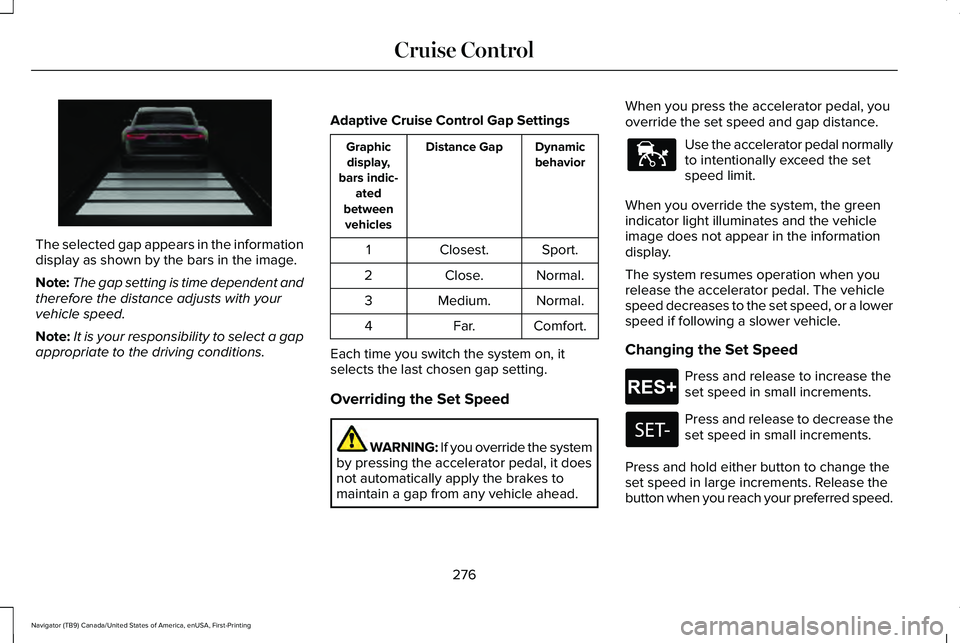
The selected gap appears in the information
display as shown by the bars in the image.
Note:
The gap setting is time dependent and
therefore the distance adjusts with your
vehicle speed.
Note: It is your responsibility to select a gap
appropriate to the driving conditions. Adaptive Cruise Control Gap Settings Dynamic
behavior
Distance Gap
Graphic
display,
bars indic- ated
between vehicles
Sport.
Closest.
1
Normal.
Close.
2
Normal.
Medium.
3
Comfort.
Far.
4
Each time you switch the system on, it
selects the last chosen gap setting.
Overriding the Set Speed WARNING: If you override the system
by pressing the accelerator pedal, it does
not automatically apply the brakes to
maintain a gap from any vehicle ahead. When you press the accelerator pedal, you
override the set speed and gap distance. Use the accelerator pedal normally
to intentionally exceed the set
speed limit.
When you override the system, the green
indicator light illuminates and the vehicle
image does not appear in the information
display.
The system resumes operation when you
release the accelerator pedal. The vehicle
speed decreases to the set speed, or a lower
speed if following a slower vehicle.
Changing the Set Speed Press and release to increase the
set speed in small increments.
Press and release to decrease the
set speed in small increments.
Press and hold either button to change the
set speed in large increments. Release the
button when you reach your preferred speed.
276
Navigator (TB9) Canada/United States of America, enUSA, First-Printing Cruise ControlE255686 E144529 E265299
Page 280 of 639
The system may apply the brakes to slow
the vehicle to the new set speed. The set
speed displays continuously in the
information display when the system is
active.
Canceling the Set Speed
Press and release the button or tap
the brake pedal.
The set speed does not erase.
Resuming the Set Speed Press and release the button.
Your vehicle speed returns to the previously
set speed and gap setting. The set speed
displays continuously in the information
display when the system is active.
Note: Only use resume if you are aware of
the set speed and intend to return to it.
Automatic Cancellation
Automatic cancellation can also occur when: •
The tires lose traction.
• You apply the parking brake.
Park Brake Application
Automatic parking brake application and
cancellation occurs if:
• You unbuckle the seatbelt and open the
door after you stop the vehicle.
• You hold the vehicle at a stop
continuously for more than three minutes.
Hilly Condition Usage
You should select a lower gear when the
system is active in situations such as
prolonged downhill driving on steep grades,
for example in mountainous areas. The
system needs additional engine braking in
these situations to reduce the load on the
vehicle ’s regular brake system to prevent it
from overheating.
Note: An audible alarm sounds and the
system shuts down if it applies brakes for an
extended period of time. This allows the
brakes to cool. The system functions
normally again after the brakes cool. Switching Adaptive Cruise Control Off Press and release the button when
the system is in standby mode, or
switch the ignition off.
Note: You erase the set speed and gap
setting when you switch the system off.
Detection Issues WARNING: On rare occasions,
detection issues can occur due to the road
infrastructures, for example bridges,
tunnels and safety barriers. In these cases,
the system may brake late or
unexpectedly. At all times, you are
responsible for controlling your vehicle,
supervising the system and intervening, if
required. WARNING:
If the system
malfunctions, have your vehicle checked
as soon as possible.
277
Navigator (TB9) Canada/United States of America, enUSA, First-Printing Cruise Control E265299 E265297
Page 283 of 639
Action
Cause
Do not use the system in these conditions because it may not detect
any vehicles ahead.
Water, snow or ice on the surface of the road may interfere with the
radar signals.
Wait a short time or switch to normal cruise control.
You are in a desert or remote area with no other vehicles and no
roadside objects.
Due to the nature of radar technology, it is possible to get a blockage warning with no actual block. A false\
blocked condition either self
clears, or clears after you restart your vehicle.
Switching to Normal Cruise Control WARNING: Normal cruise control will
not brake when your vehicle is
approaching slower vehicles. Always be
aware of which mode you have selected
and apply the brakes when necessary. The cruise control indicator light
replaces the adaptive cruise
control indicator light if you select
normal cruise control. The gap setting does
not display, and the system does not respond
to lead vehicles. Automatic braking remains
active to maintain set speed. You can change from adaptive cruise control
to normal cruise control through the
information display.
See General
Information (page 134).
280
Navigator (TB9) Canada/United States of America, enUSA, First-Printing Cruise ControlE71340
Page 301 of 639
PRE-COLLISION ASSIST
WARNING: You are responsible for
controlling your vehicle at all times. The
system is designed to be an aid and does
not relieve you of your responsibility to
drive with due care and attention. Failure
to follow this instruction could result in the
loss of control of your vehicle, personal
injury or death. WARNING:
The system does not
detect vehicles that are driving in a
different direction, cyclists or animals.
Apply the brakes when necessary. Failure
to follow this instruction could result in the
loss of control of your vehicle, personal
injury or death. WARNING:
The system does not
operate during hard acceleration or
steering. Failure to take care may lead to
a crash or personal injury. WARNING:
The system may fail or
operate with reduced function during cold
and severe weather conditions. Snow, ice,
rain, spray and fog can adversely affect the
system. Keep the front camera and radar
free of snow and ice. Failure to take care
may result in the loss of control of your
vehicle, serious personal injury or death. WARNING:
Some situations and
objects prevent hazard detection. For
example low or direct sunlight, inclement
weather, unconventional vehicle types, and
pedestrians. Apply the brakes when
necessary. Failure to follow this instruction
could result in the loss of control of your
vehicle, personal injury or death. WARNING:
The system cannot help
prevent all crashes. Do not rely on this
system to replace driver judgment and the
need to maintain a safe distance and
speed. Using the Pre-Collision Assist System
The Pre-Collision Assist system is active at
speeds above approximately 3 mph (5 km/h)
and pedestrian detection is active at speeds
up to
50 mph (80 km/h).
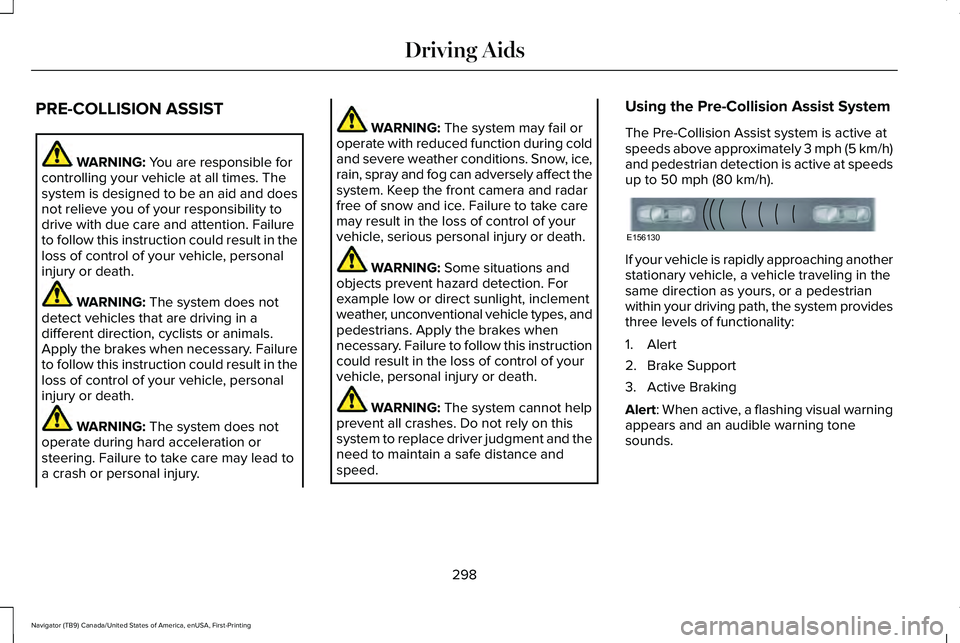
If your vehicle is rapidly approaching another
stationary vehicle, a vehicle traveling in the
same direction as yours, or a pedestrian
within your driving path, the system provides
three levels of functionality:
1. Alert
2. Brake Support
3. Active Braking
Alert
: When active, a flashing visual warning
appears and an audible warning tone
sounds.
298
Navigator (TB9) Canada/United States of America, enUSA, First-Printing Driving AidsE156130